How to Appear Offline on Epic Games (2026): Every Working Method

Epic Games still has no true "Appear Offline" or "Invisible" toggle in 2026. The only ways to genuinely disappear from your friends list are to play in Offline Mode (no online multiplayer), sign out of the launcher, or close the Epic Games Launcher after your game has launched so its presence service goes dark while you keep playing. If you just want fewer interruptions without fully hiding, set your status to Away or enable Do Not Disturb.
In a hurry? Jump to: Why there's no invisible mode · Play in Offline Mode · Close launcher while gaming · Sign out · Away & Do Not Disturb · Hide in Fortnite · Compare methods · FAQ
Sometimes you want to grind a few solo matches, finish a campaign, or just take a break without a stream of party invites and "u online?" messages. The bad news: Epic has never shipped a one-click invisible status the way Steam, Xbox, or PlayStation have, and as of June 2026 that hasn't changed. The good news: there are several reliable workarounds, and this guide walks through each one, what it actually hides, and the trade-offs so you can pick the right one.
Why Epic Games Has No "Appear Offline" Button
According to Epic's own support documentation, the Epic Games Launcher only lets friends see you as Online, Away, or with a Do Not Disturb tag — and all three still show you as connected. There is no "Offline," "Invisible," or "Appear Offline" option built into the launcher or into Fortnite. The community has requested it for years — it's an open feature request on third-party launchers like Heroic and a recurring thread on Epic's own forums — but Epic has not added it.
That means appearing offline on Epic is really about removing your presence rather than flipping a setting. The methods below do exactly that, ranked roughly from "keep playing online" to "fully hidden but offline."
Method 1: Play in Offline Mode Browsing
Offline Mode lets you launch games you already own without signing in to Epic's servers. Because the launcher never connects, your friends see no presence at all. The catch is obvious: with no connection, you can't play online multiplayer titles like Fortnite or Rocket League — only single-player or offline-capable games will run.
Step-by-step
- Open the Epic Games Launcher and sign in to your account.
- Click your profile icon in the top-right corner and choose Settings.
- Under the Preferences section, tick the box for "Enable Offline Mode Browsing."
- Fully close the launcher (right-click the tray icon and Exit — don't just minimize it).
- The next time you open it — or if you disconnect from the internet first — choose "Continue in Offline Mode" (sometimes shown as "Skip Sign-In" or "Sign In Later").

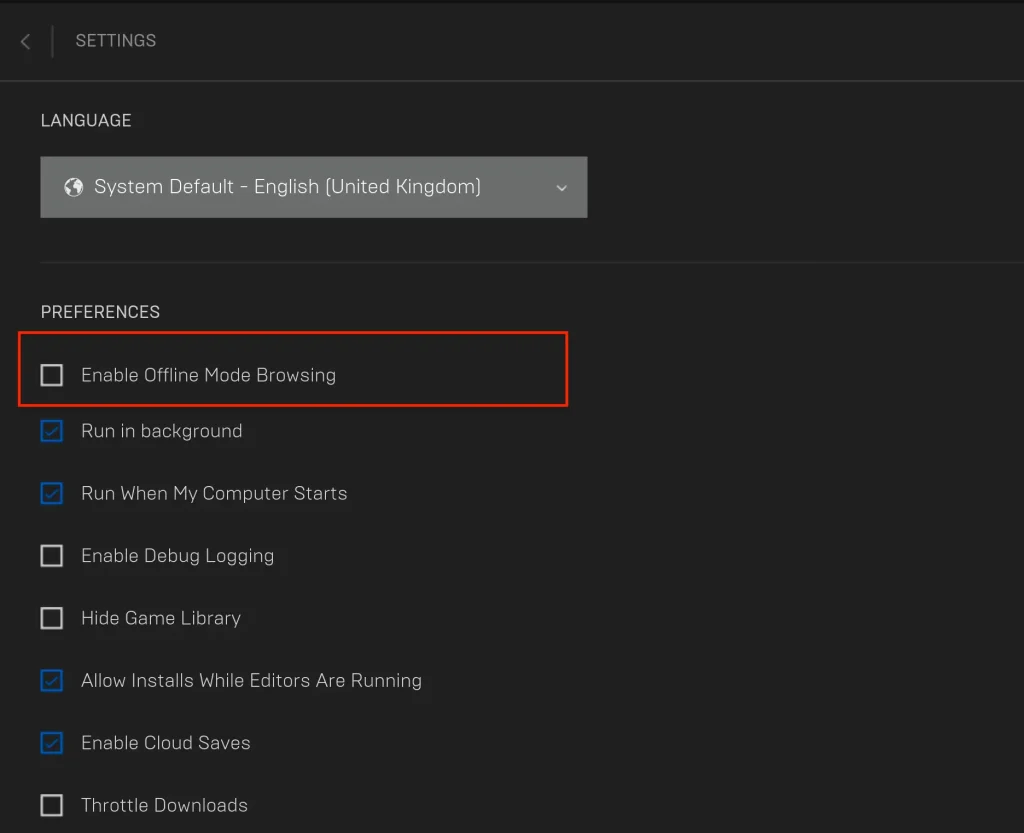
Offline Mode saves your sign-in credentials locally so the games you own can verify ownership without a live connection. You'll need to use the same account you enabled it with. This is the closest thing to a true "appear offline" experience — you are genuinely invisible — but you trade away every online feature, including cloud saves syncing in real time and online multiplayer. For background on running software without a connection, see our note on handling no internet connection states in apps.
Method 2: Close the Launcher After Your Game Loads (Stay Online)
This is the best-kept trick for players who want to keep playing online while disappearing from the social panel. The Epic Games Launcher is what broadcasts your presence — not the game itself. So if you shut the launcher down once your game is running, friends stop seeing you while the game keeps working.
- Launch your game normally from the Epic Games Launcher.
- Wait until the game's main menu has fully loaded.
- Alt-Tab back to your desktop (or use the system tray).
- Right-click the Epic Games Launcher icon in the system tray and choose Exit (or Sign Out).
With the launcher closed, its presence service goes dark and your friends list shows you as offline, even though you're still in a live match. Two caveats: results vary by title — some games re-launch or depend on the launcher running in the background, and if a game requires the launcher to be open, this won't work for it. And because you're still on Epic's game servers, anyone inside that same game's friends or party system may still see you in-game.
Also Read: How to Appear Offline on Steam (the easy way Epic doesn't offer)
Method 3: Sign Out of Your Account
The simplest blunt instrument: sign out. Once you're signed out, you have no presence and nobody can see your status or invite you — but you also can't play anything that needs your account or online features.
- In the launcher, click your profile name/icon in the top-right corner and choose Sign Out.
- Or right-click the Epic Games icon in your system tray and select Sign Out.
- To sign out everywhere, go to the Epic Games Store website, click the account/silhouette icon in the top-right, and choose Sign Out.
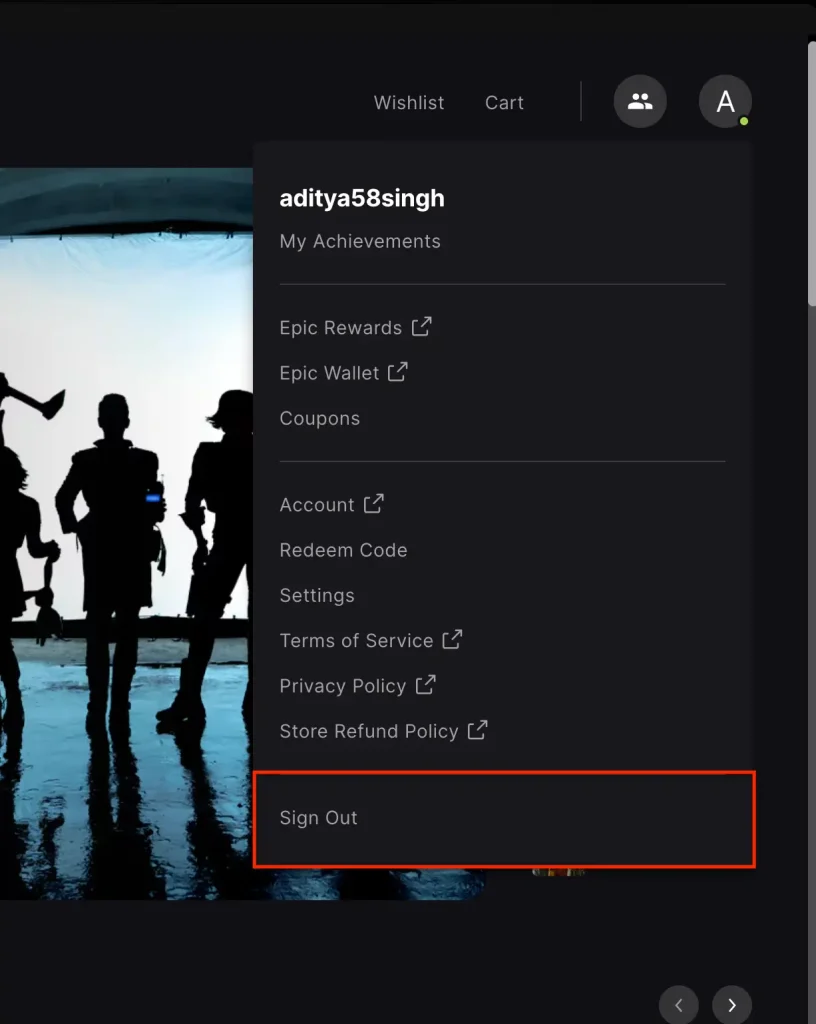
What signing out changes
- You can't play online or join multiplayer matches.
- Friends can't see your status, message you, or invite you.
- You can still launch single-player games that don't require a sign-in (if Offline Mode Browsing was enabled first).
- Progress and achievements save locally and sync once you sign back in.
Method 4: Set "Away" or Turn On Do Not Disturb (Fewer Interruptions)
If your goal is peace and quiet rather than total invisibility, you don't need to go offline at all. Epic gives you two softer options. Neither hides that you're online — friends still see a green/amber presence — but both cut down the noise.
Set your status to Away
- Click your avatar in the top-right corner of the launcher.
- Click the Online label under your name.
- Select Away from the dropdown.
Per Epic's support docs, "Away" normally appears automatically after a few minutes of launcher inactivity, and setting it manually signals to friends that you'd rather not be disturbed — but it does not hide you.
Enable Do Not Disturb
- Open the social panel (the friends icon, top-right).
- Click the settings cog in that panel.
- Toggle on Do Not Disturb.
Do Not Disturb suppresses incoming game invites and notification pop-ups while you play, though friends still see you as online with a DND tag.
How to Appear Offline in Fortnite Specifically
Fortnite inherits Epic's limitation: there is no "appear offline" inside the game either. Epic's Fortnite support page confirms you can only be Online or Away. The most private setup that still lets you queue into matches combines an Away status with a locked-down party:
- Open the menu (the three lines, top-left) and click your profile picture.
- Set Online Status to Away.
- Set Party Privacy to Private (Invite Only) so nobody can drop into your squad uninvited.
To be truly invisible in Fortnite you'd have to use the launcher-close trick from Method 2, since the game has no native hidden mode. If you mainly play on console, note that Xbox (Profile > "Appear Offline") and PlayStation (Online Status > offline/Away) have their own platform-level privacy toggles that work alongside Epic. Once you've got privacy sorted, our guide to using Discord bots to enhance your gaming sessions is a good next read for managing who can reach you.
Epic Games "Appear Offline" Methods Compared
| Method | Truly hidden? | Can play online? | Best for |
|---|---|---|---|
| Offline Mode Browsing | Yes | No | Single-player / campaign sessions |
| Close launcher after game loads | Mostly (launcher presence only) | Yes | Playing online while hidden |
| Sign out | Yes | No | Taking a full break |
| Away status | No | Yes | Signaling "don't disturb me" |
| Do Not Disturb | No | Yes | Blocking invite spam |
| Fortnite: Away + Private party | No (but locked party) | Yes | Solo queuing without invites |
How We Checked These Methods
We reviewed Epic Games' official support articles on launcher online status, the "Away" status, Offline Mode Browsing, and Fortnite presence, then cross-referenced them against the current launcher interface and the most-cited community workarounds in 2026. We confirmed which steps still match the live menus (Profile > Settings > Preferences for Offline Mode; avatar > status dropdown for Away; social-panel cog for Do Not Disturb) and flagged where behavior varies — notably the close-the-launcher trick, which depends on whether a given game needs the launcher running. We did not invent any hidden setting; where Epic offers no feature, we say so plainly.
For more gaming guides, see our walkthrough on winning solo matches in PUBG Mobile and our roundup of the most anticipated games of 2026.
Bottom Line
If you want to keep playing online while hiding, launch your game and then close the Epic Games Launcher — it's the only method that hides your presence without cutting you off. If you're playing a single-player game and want guaranteed invisibility, use Offline Mode Browsing or simply sign out. And if you just want to be left alone while staying online, set yourself to Away and switch on Do Not Disturb. Until Epic finally adds a real invisible toggle, these are the only ways to control who sees you on the platform.
Frequently Asked Questions
Can you appear offline on Epic Games?
Not with a dedicated toggle. As of 2026, Epic Games offers no "Appear Offline" or "Invisible" status in the launcher or in Fortnite. You can only show as Online or Away. To genuinely hide, you must use Offline Mode Browsing, sign out, or close the launcher after your game has loaded.
How do I play online while appearing offline on Epic Games?
Launch your game from the Epic Games Launcher, wait for the main menu to load, then right-click the launcher icon in your system tray and choose Exit or Sign Out. The launcher broadcasts your presence, so closing it makes you appear offline while the game keeps running. This depends on the game not requiring the launcher to stay open.
What does the "Away" status mean on Epic Games?
"Away" indicates you haven't been active in the launcher for a few minutes, and it appears automatically or can be set manually from your avatar's status dropdown. It does not hide you. Friends still see you online, but the Away tag signals you'd prefer not to be disturbed.
Does enabling Offline Mode Browsing hide me from friends?
Yes. When you run the launcher in Offline Mode, it never connects to Epic's servers, so you have no visible presence. The trade-off is that you can't play online multiplayer games or use online features until you reconnect and sign in again.
Can you appear offline in Fortnite?
Fortnite has no native appear-offline mode. The closest you can get inside the game is setting your Online Status to Away and your Party Privacy to Private (Invite Only). For true invisibility, launch Fortnite and then close the Epic Games Launcher.
Will my game progress save if I sign out or go offline?
Yes. Progress and achievements save locally while you're signed out or in Offline Mode, and they sync back to your Epic account the next time you sign in with an active connection. You won't lose your saves by hiding your status.
What's the difference between Do Not Disturb and appearing offline?
Do Not Disturb suppresses incoming game invites and notification pop-ups but keeps you visibly online with a DND tag. Appearing offline (via Offline Mode, signing out, or closing the launcher) removes your presence entirely so friends can't see you at all.
Can I appear offline on Epic Games when playing on Xbox or PlayStation?
Yes, through the console's own privacy settings. Xbox has an "Appear Offline" option under your profile, and PlayStation lets you set your Online Status to offline or Away. These work alongside Epic's account, though Epic-side friends may still see launcher presence on PC.