Android Phone Keeps Restarting? 9 Fixes That Work in 2026
If your Android phone keeps restarting by itself, do the 60-second hardware pass first (case, Power button, USB-C port, SIM), then force restart, then use Safe Mode. Google says phones often misbehave when free storage drops under about 10%. Most random reboots are software. A factory reset is last, not first.
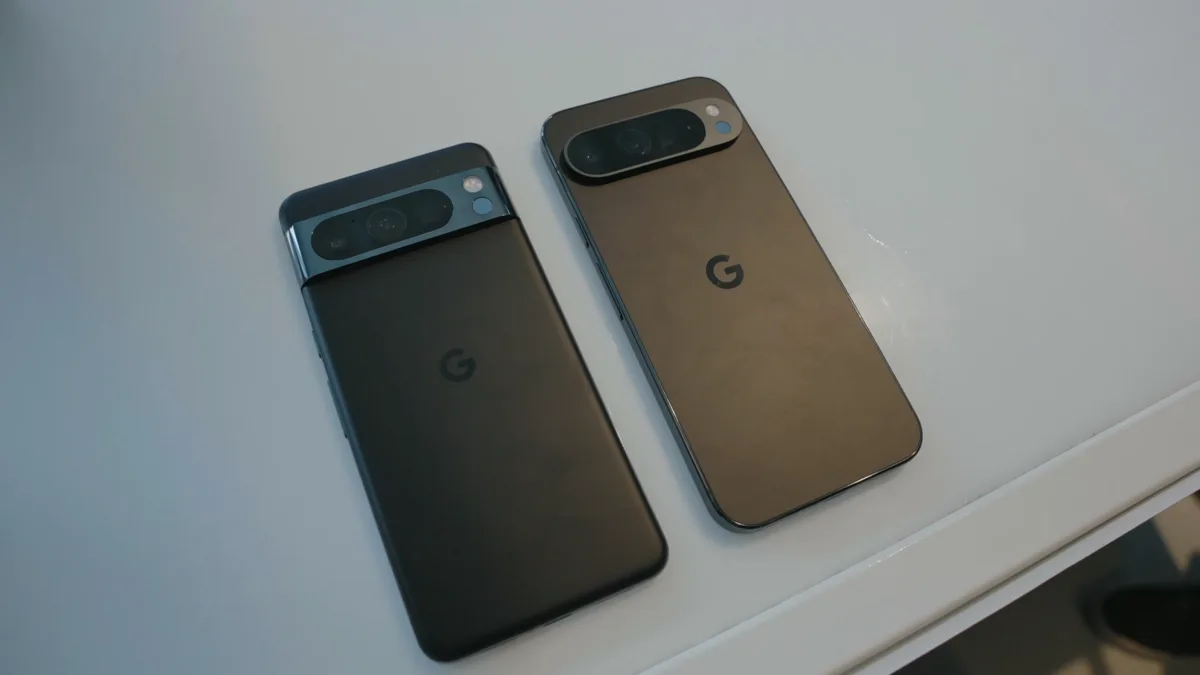
Pixel owners: if the phone froze on the G logo or reboots right after you enter the PIN, and this started after a March, April, or May 2026 update, this may be Google’s boot-loop bug, not a bad battery. Check that you are on the July 2026 Pixel update. If the phone cannot boot, use Pixel Customer Support and say “reboot loop issue after recent software update,” or try Google’s Pixel Update & Software Repair tool.
We first published this guide in March 2026 after walking the steps on a Samsung Galaxy S24 and a Pixel 8. This August 2026 refresh adds the Pixel boot-loop path, follows Google’s official restart and crash steps and Samsung’s reboot guide, and drops a few dead internal links from the first version.
In a hurry? Jump to: hardware pass · diagnose · Pixel boot loop · the 9 fixes · restart loop · Samsung · cheat sheet
Do this 60-second hardware pass first
Google's AI overview for this search starts with the case and the charging port, not a factory reset. Do these four checks before you change settings. They take a minute and they catch the restarts a wipe will not fix.
- Pull the case off. A tight or warped case can hold the Power key down. That looks exactly like a restart loop.
- Click the Power and Volume buttons. If Power feels mushy or stays in, the phone thinks you are pressing it. Tap the area around the key against a soft surface to clear grit.
- Clean the USB-C port. Lint can bridge the pins and make the phone reboot on charge. Power off, then use a dry brush or canned air. Skip metal pins. iFixit's port-cleaning guide is the method we follow.
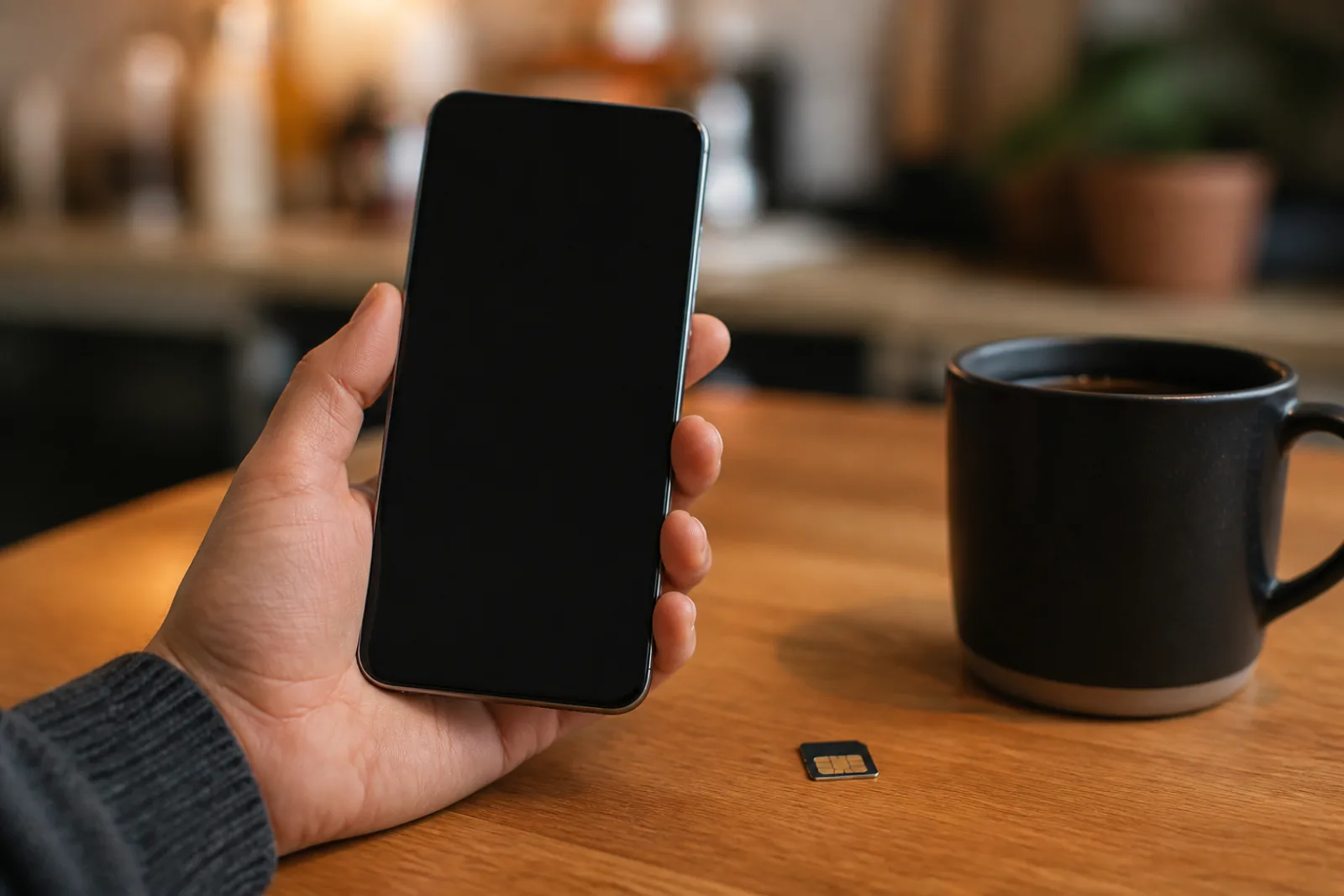
- Reseat the SIM (and the SD card if you have one). A loose tray can drop the radio and trigger a reboot. Wipe the contacts, push the tray in fully, then test without the SD card.
If the loop started the day you dropped the phone, skip ahead to repair checks. A factory reset will not reconnect a loose board.
Why does my Android phone keep restarting?
Match the symptom before you wipe the phone. The same reboot can have five different causes:
| When it restarts | Likely cause | Start here |
|---|---|---|
| After a system update, stuck on the logo | Bad or unfinished OTA (Pixel 2026 boot loop is the current example) | Fix 2 |
| While charging, or only on one cable | Bad charger, dirty USB-C port, or a sagging battery | Fix 3 |
| During games, maps, or a hot day | Thermal protection shutting the phone down | Fix 3, then overheating fixes |
| After you installed an app or launcher | A crashing third-party app | Fix 5 (Safe Mode) |
| Overnight, on a schedule | Samsung Auto Restart, or a battery that dies in your pocket | Fix 7 |
| Even in Safe Mode, with almost no apps | System software or hardware | Fixes 6, 8, then 9 |
Common triggers, in the order we see them:
- Software bugs and unfinished updates. A bad app, a failed OTA, or a crash in Android System WebView / Play Services can reboot the phone with no warning.
- Low storage. Google’s Android Help page says trouble often starts when less than 10% of storage is free. The system cannot write temp files, then it freezes or reboots.
- Heat. Gaming, GPS, or charging in a thick case can trip thermal protection. The phone restarts to protect the battery and processor. See our Android overheating guide.
- A stuck power button or tight case. The phone thinks you pressed Power.
- Hardware. A worn battery, dirty charge port, loose SIM, or damage from a drop. Hardware is the minority of cases, but it is the one a reset will not fix.
Pixel phone stuck restarting after a 2026 update?
Do this block first if you have a Pixel 6 through Pixel 10 (including Pro, Fold, and Pixel 10a) and the loop began after a spring 2026 Feature Drop.
Google documented a startup / boot-loop bug after the March, April, and May 2026 updates. Phones froze on the G logo or accepted the PIN, then rebooted. Community reports pointed at a crash in the Media Provider storage service. The July 2026 Pixel update (build CP2A.260705.006 on many models) lists a fix for devices that fail to load Android or get stuck in a boot loop, as covered by Notebookcheck and Google’s Pixel changelog.
- If the Pixel still reaches Settings, open Settings > System > System update and install everything waiting. Confirm the July 2026 (or newer) patch.
- If it cannot stay on the home screen, contact Pixel Customer Support and use Google’s routing phrase: reboot loop issue after recent software update.
- On a computer, try pixelrepair.withgoogle.com. Google’s Pixel Help pages say this tool can push a newer build without a factory reset on Pixel 4a and later. You need a USB-C cable and a desktop browser.
This path is Pixel-specific. Samsung, OnePlus, and Xiaomi owners should skip to Fix 1.
9 fixes for an Android phone that keeps restarting
Work down the list. Stop when the reboots stop. Fixes 1–8 do not erase your photos.
Fix 1: Force restart (and check the Power button)
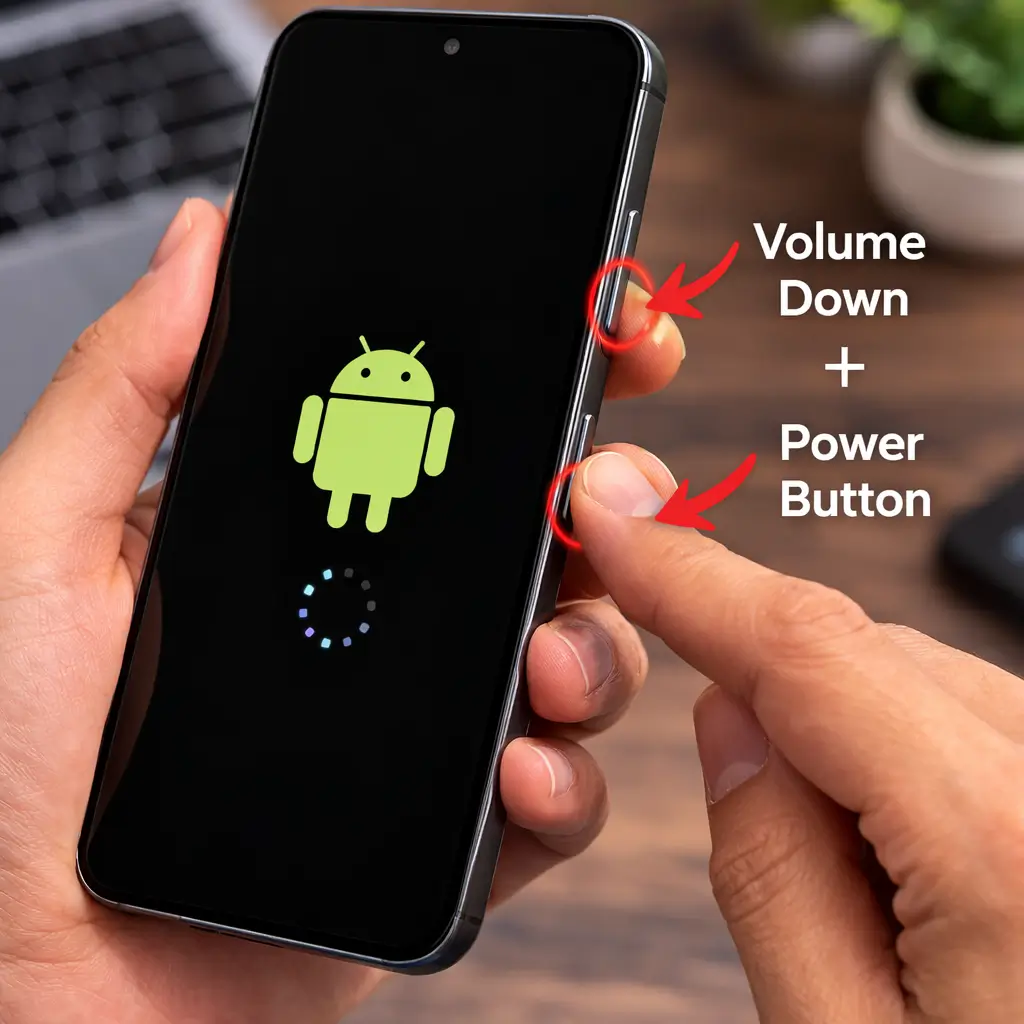
A force restart clears stuck processes without deleting data. It is the right first move when the phone is looping or ignoring the normal power menu.
- Hold Power + Volume Down for 10–20 seconds until the screen goes black and the brand logo returns.
- On many older phones, hold Power alone for about 30 seconds.
- On Google Pixel, Power + Volume Down is also the usual combo.
If you skipped the hardware pass, do it now: case off, click Power, clean USB-C, reseat the SIM. Then try the force restart again.
Fix 2: Take the Pixel / post-update path if it applies
If Fix 1 only buys you a minute of uptime after a recent OS update, go back to the Pixel boot-loop section. For other brands, open Settings > System > System update (Samsung: Settings > Software update) and install the patch. A half-applied update is a common reason a phone keeps restarting after you left it on charge overnight.
Fix 3: Cool the phone down and swap the charger
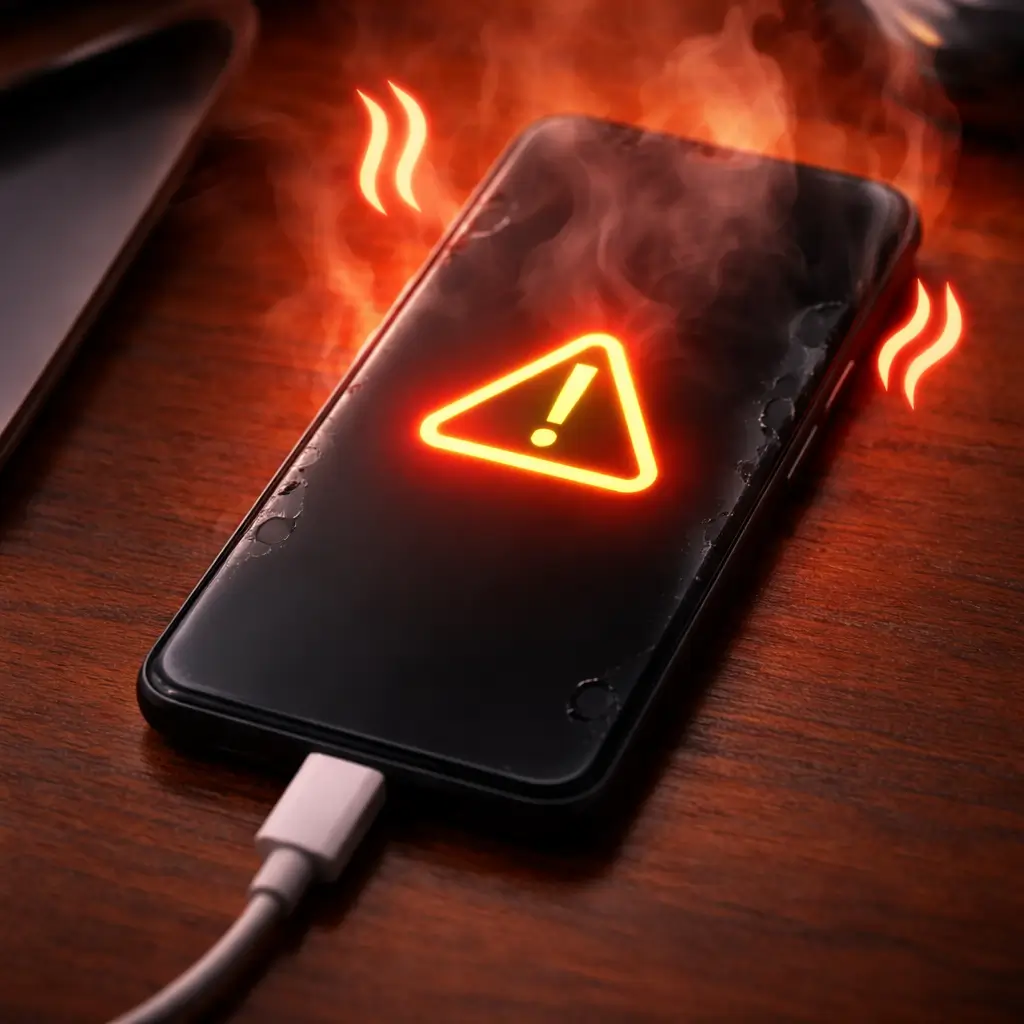
Android will reboot when the battery or processor hits a safety limit. If restarts happen in the car, in bed under a pillow, or only while plugged in, treat heat and power as the cause until proven otherwise.
- Unplug the charger. Take the case off.
- Leave the phone in the shade for 15–30 minutes. Do not put it in a fridge. Condensation can wreck the board.
- Charge with the original brick and cable, or another certified USB-PD charger. A damaged cable can short and force a reboot.
- Clean lint out of the USB-C port with a dry brush or canned air. Skip metal pins. iFixit’s port-cleaning guide is the method we follow.
If the phone only dies on charge, try a different cable before you assume the battery is dead. Pixel owners who also see fast drain should read our Pixel 10 Pro battery guide.
Fix 4: Free storage until you are above 10%
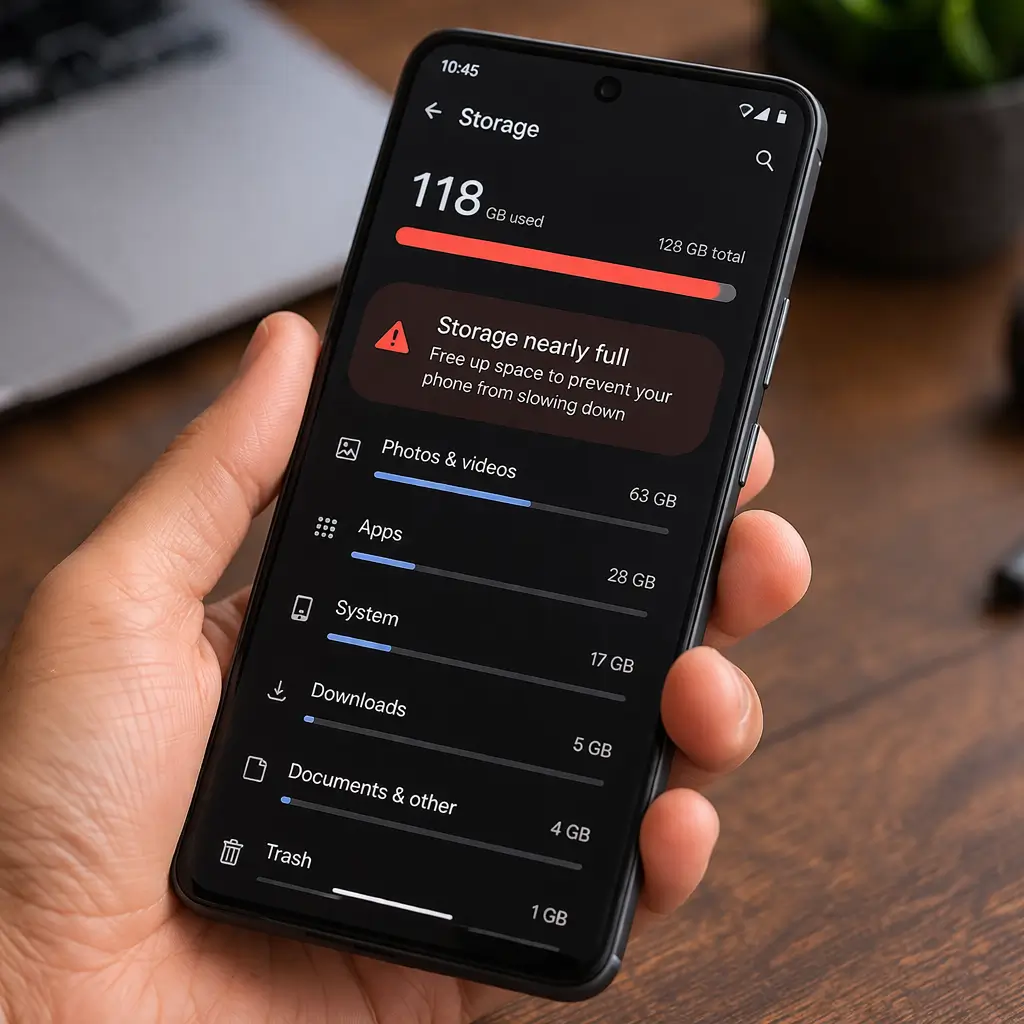
Google’s own troubleshooting says phones start failing when free storage drops under 10%. We treat under 20% as a warning.
- Open Settings > Storage (Samsung: Settings > Battery and device care > Storage).
- Delete backed-up photos and unused apps. Clear cache per app: Settings > Apps > [app] > Storage > Clear cache.
- Use the built-in “Free up space” tool if your phone has one.
In our original test, a Galaxy S24 that rebooted about every 30 minutes stopped after we cleared about 5 GB of cache and old downloads. Photos stay. Cache does not matter.
Fix 5: Boot into Safe Mode to catch a bad app
Safe Mode turns off every downloaded app. If the restarts stop, an app is the cause. This is the step Google tells you to run before a factory reset.
- Hold Power until the power menu appears.
- Touch and hold Power off until you see Reboot to Safe Mode, then confirm.
- If that gesture is missing, hold Power + Volume Down at the logo, or look up “[your brand] Safe Mode.”
Stable in Safe Mode? Uninstall the newest apps first. The usual offenders are not random games. They are apps that sit on top of Android:
- Third-party launchers that replace the home screen
- Battery savers, RAM boosters, and “phone cleaner” apps
- Screen dimmers, blue-light filters, and other overlay / draw-over-apps tools
- Recently updated keyboards and input methods
- Accessibility auto-clickers and gesture tools
- Sideloaded APKs and anything installed outside the Play Store
Custom launchers are a frequent trigger. If you still want one after the phone is stable, pick from our tested Android launchers instead of a random Play Store clone.
Still restarting in Safe Mode? Skip app hunts. The problem is system software or hardware.
Leave Safe Mode with a normal restart.
Fix 6: Update Android, Play Services, and your apps
Follow Google’s order here: system update, then app updates.
- Settings > System > System update (Samsung: Software update). Install what is there.
- Open Play Store > profile > Manage apps & device > Update all.
- In Play Store, also update Android System WebView and Google Play Services if they appear. Both have caused widespread reboot waves in past years.
Samsung users should take One UI updates when they land. They often include the stability patch that generic Android notes skip.
Fix 7: Turn off scheduled restarts and scan for malware
Samsung hides a setting that reboots the phone on a timer. It looks like a random restart if you never opened that menu.
- On Samsung: Settings > Battery and device care > three-dot menu > Auto restart > off.
- While you are there, run Optimize now.
- Turn on Google Play Protect (Play Store > profile > Play Protect). Google says Play Protect scans Play apps continuously.
- In Safe Mode, delete anything you installed from a random APK site.
Fix 8: Wipe the cache partition (only if your phone still has it)
A wipe of the cache partition deletes temporary system files, not photos or accounts. Samsung and Google have recommended it for years after messy updates. Many phones on Android 14 and newer no longer show the option. If you cannot find it, skip to Fix 9. Do not format anything labeled “data” by mistake.
- Power the phone off.
- Hold Power + Volume Up for recovery (Samsung often needs Power + Volume Up + Side key). Pixel recovery is usually Power + Volume Down, then Recovery.
- Use volume keys to highlight Wipe cache partition. Confirm with Power.
- Choose Reboot system now.
Fix 9: Factory reset (last software step)
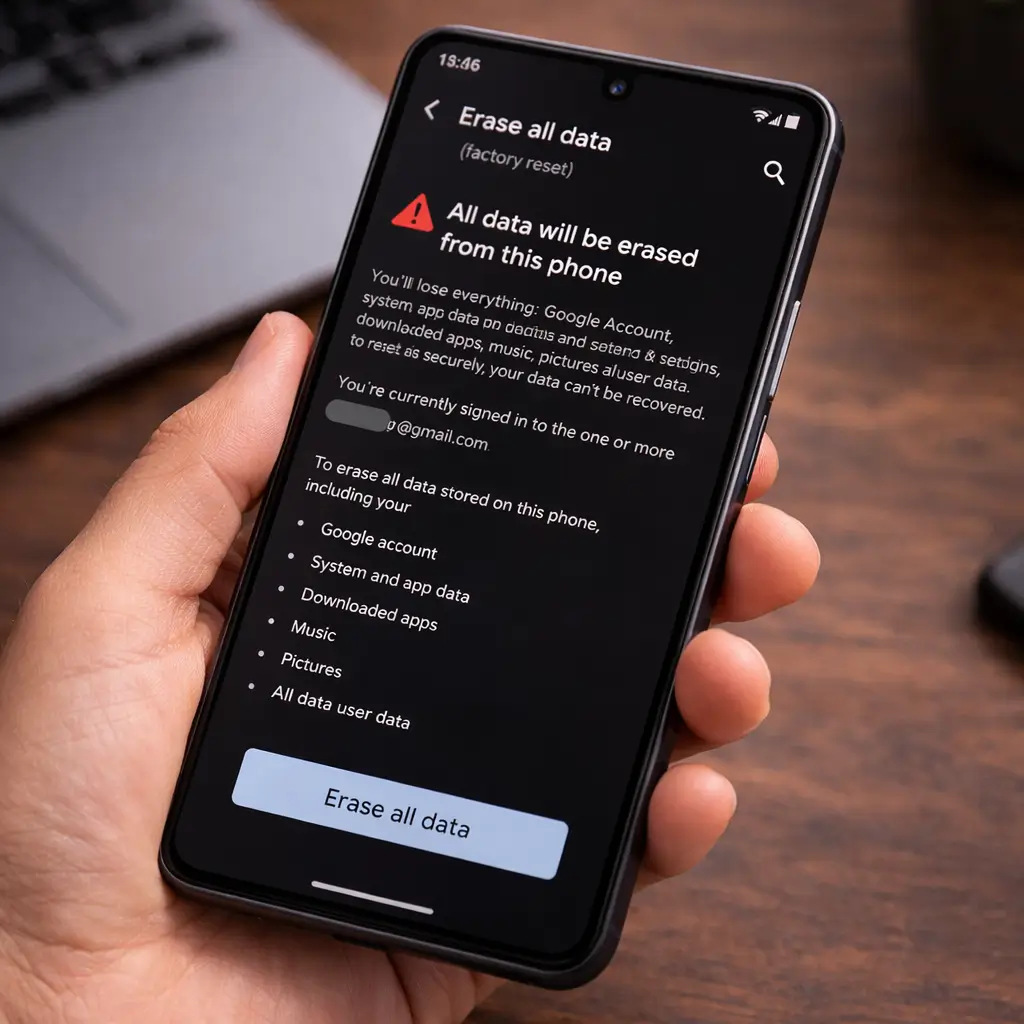
A factory reset erases apps, photos, and accounts on the phone. Back up to Google Drive or a computer first. Google’s help page is explicit: if a downloaded app caused the loop, restoring that same app can bring the loop back.
From Settings: Settings > System > Reset options > Erase all data (Samsung: General management > Reset).
From recovery, if the phone will not stay on: Power off, enter recovery, choose Wipe data / factory reset, then reboot.
If the phone still restarts on a clean setup with Wi-Fi off and no extra apps, stop. That is hardware. More resets will not help.
Android phone stuck in a restart loop?
A restart loop (boot loop) is different from a random reboot. The phone never stays on the home screen. It dies on the logo, or it accepts the PIN and immediately restarts. Random restarts happen after you have already been using the phone.
For a loop: do the hardware pass, force restart (Fix 1), then the Pixel path if the timing matches, then wipe cache from recovery, then a factory reset from recovery. Safe Mode only helps if the phone can stay on long enough to open the power menu.
Why is my phone randomly shutting off and restarting?
If the screen goes black and the logo comes back, treat it as a restart. If it stays off until you hold Power, that is a shutdown. Shutdowns that happen at 30–40% are usually the battery. Shutdowns that happen on a schedule on a Galaxy are often Auto restart (Fix 7). Shutdowns only while charging are the cable, the port, or heat (Fix 3).
Why does my phone restart when I open the camera?
The camera spikes current. A worn battery that still looks fine for email can fail that spike and reboot the phone. A damaged camera module after a drop can do the same. Try Safe Mode first (the camera app still works there). If it still reboots with no extra apps, get the battery checked before you factory reset.
Hardware checks before you pay for repair
- Battery. Warning signs: dying at 30–40%, a bulging back, heat at idle, a percentage that jumps. Check Settings > Battery. After two or three years of daily charge cycles, replacement is normal, not a failure of the guide.
- USB-C port. Lint is enough to make charging look haunted.
- SIM / SD. Reseat the tray. Try without the SD card.
- Stuck keys and drop damage. If restarts started the day you dropped the phone, assume a board or battery hit.
Typical 2026 US repair ballpark: battery $50–$100, board work $150–$300+. On a phone older than three or four years, a new device can be cheaper. If you are already shopping, our Galaxy S26 Ultra vs Pixel 10 Pro XL comparison is the current flagship fork.
Power the phone off and get it to a shop the same day if the battery is swollen, you smell burning, it is dangerously hot at idle, or you see liquid around the cell. A swollen pack is a fire risk. Do not charge it overnight on the bed.
Samsung, Pixel, and OnePlus notes
Samsung Galaxy
- Disable Auto restart under Battery and device care.
- Run Device care > Optimize now.
- Recovery: Power + Volume Up + Side key on most recent Galaxies.
Google Pixel
- Use the 2026 boot-loop path if the timing matches.
- Recovery / Fastboot: hold Power + Volume Down.
- Repair tool: pixelrepair.withgoogle.com.
OnePlus
- Force restart: Power + Volume Down. Recovery: Power + Volume Up on most models.
- If a reboot started after an OxygenOS update, install the next full OTA before you reset.
The 9 fixes at a glance
| No. | Fix | What it rules out | Time | Data loss? |
|---|---|---|---|---|
| 1 | Force restart + case / button check | A stuck key or a one-off crash | 1 min | No |
| 2 | Pixel / post-update recovery | A bad OTA, including the 2026 Pixel bug | 10–40 min | Usually no |
| 3 | Cool down + charger + port | Heat and bad power | 30 min | No |
| 4 | Free storage above 10% | A full disk | 5–15 min | No |
| 5 | Safe Mode | A downloaded app | 10 min | No |
| 6 | System and app updates | Known vendor bugs | 5–20 min | No |
| 7 | Auto restart off + Play Protect | Scheduled reboots and junk APKs | 5 min | No |
| 8 | Wipe cache partition | Corrupt temp files | 5 min | No |
| 9 | Factory reset | All remaining software | 15+ min | Yes |
Bottom line
Most Android phones that keep restarting are not dying. Force restart, check heat and storage, then use Safe Mode. Pixel owners who started looping after a spring 2026 update should take Google’s repair path before they wipe the phone. Reset only after those steps. If a clean phone still reboots, the battery or board needs a person, not another settings menu.
Frequently Asked Questions
Why does my Android phone keep restarting?
Most of the time a crashing app, a failed update, low storage, heat, or a stuck Power button is the cause. Google says phones often misbehave when free storage drops under about 10%. If the phone still restarts in Safe Mode with almost no apps, the problem is system software or hardware, not a Play Store download.
How do I stop my Android phone from restarting by itself?
Force restart first, pull the case off, then boot into Safe Mode. If it is stable there, uninstall recent apps. If it is not, update Android, free storage above 10%, and only then factory reset. Pixel owners looping after a spring 2026 update should use Google's repair path before they wipe the phone.
Why does my Pixel keep restarting after an update?
Google investigated a boot-loop bug after the March, April, and May 2026 Pixel updates. Phones froze on the G logo or rebooted after PIN entry. The July 2026 Pixel update lists a fix. If the phone cannot boot, contact Pixel Customer Support with the phrase reboot loop issue after recent software update, or try pixelrepair.withgoogle.com.
Can a bad SIM card make my phone restart?
Yes. A loose or damaged SIM can drop the network radio and trigger a reboot on some phones. Remove the tray, clean the contacts, reseat it, and test. If restarts started the day you changed carriers, also check the APN.
Will a factory reset fix a phone that keeps restarting?
It fixes leftover software almost every time. It will not fix a dying battery, a shorted USB-C port, or a board damaged in a drop. If a clean phone with Wi-Fi off and no extra apps still reboots, stop resetting and get the hardware checked.
How do I know if the battery is the problem?
Look for a phone that dies at 30 to 40%, a bulging back, heat at idle, or a percentage that jumps. Check Settings > Battery. After two or three years of daily charging, replacement is normal. A swollen pack is a fire risk: power off and do not charge it.
Is it safe to keep using a phone that keeps restarting?
Software-caused restarts are annoying, not dangerous. Stop using the phone the same day if it is swollen, smells like burning, is dangerously hot at idle, or shows liquid near the battery. Those are hardware emergencies, not settings problems.
How much does it cost to repair an Android phone that keeps restarting?
The software steps in this guide are free. A battery replacement typically runs $50 to $100 in the US. Board work is often $150 to $300 or more. On a phone older than three or four years, a new device can be cheaper than a major repair.
Why is my Android phone stuck in a restart loop?
A restart loop means the phone never stays on the home screen. It dies on the logo or reboots right after the PIN. Force restart, take the Pixel 2026 update path if the timing matches, wipe cache from recovery, then factory reset from recovery. Safe Mode only helps if the phone can stay on long enough to open the power menu.
Why is my phone randomly shutting off and restarting?
If the logo comes back, it is a restart. If it stays off, it is a shutdown. Shutdowns at 30 to 40 percent are usually the battery. Scheduled Galaxy shutdowns are often the Auto restart toggle. Shutdowns only on charge are the cable, a dirty USB-C port, or heat.
Why does my Android phone restart when I open the camera?
The camera draws a current spike. A worn battery can fail that spike and reboot the phone. A damaged camera module after a drop can do the same. Test in Safe Mode. If it still reboots with no extra apps, get the battery checked before you factory reset.