Switch 2 Update 23.0.0 Adds VRR in TV Mode, but the Dock Needs Its Own Update
Nintendo pushed system update 23.0.0 to Switch 2 on 10 September 2026, and the headline change is variable refresh rate output in TV mode. Until now VRR on Switch 2 only worked on the console's own screen in handheld mode, so docked players were stuck at a fixed refresh rate no matter how the game ran.
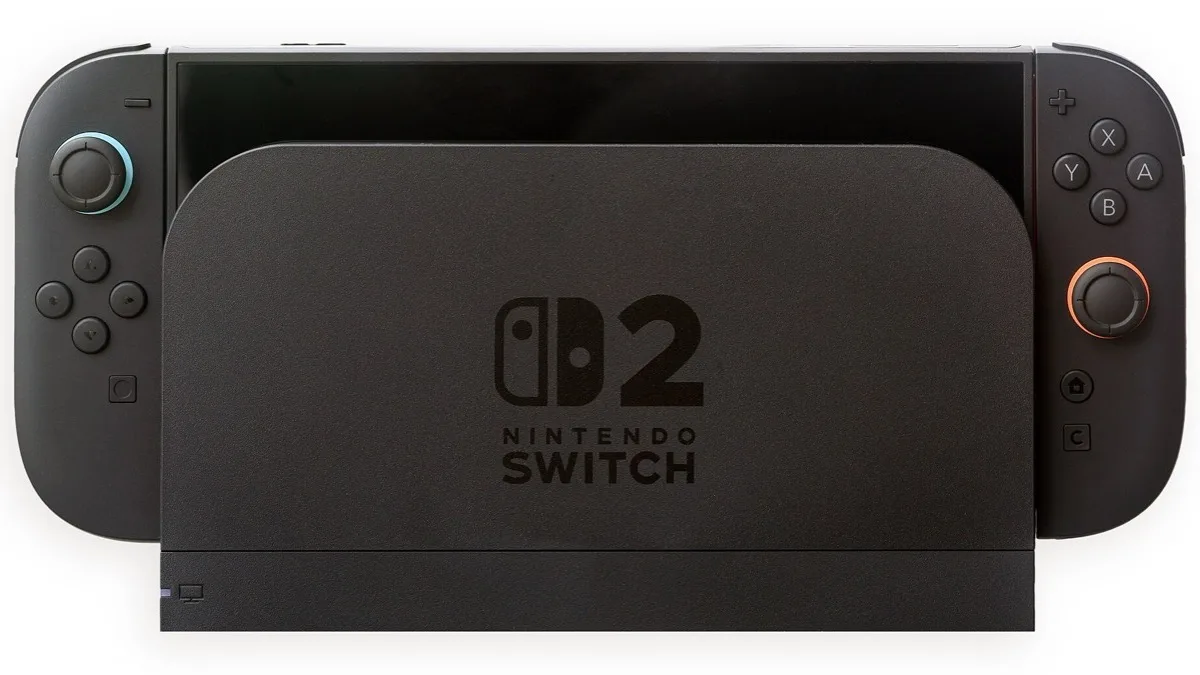
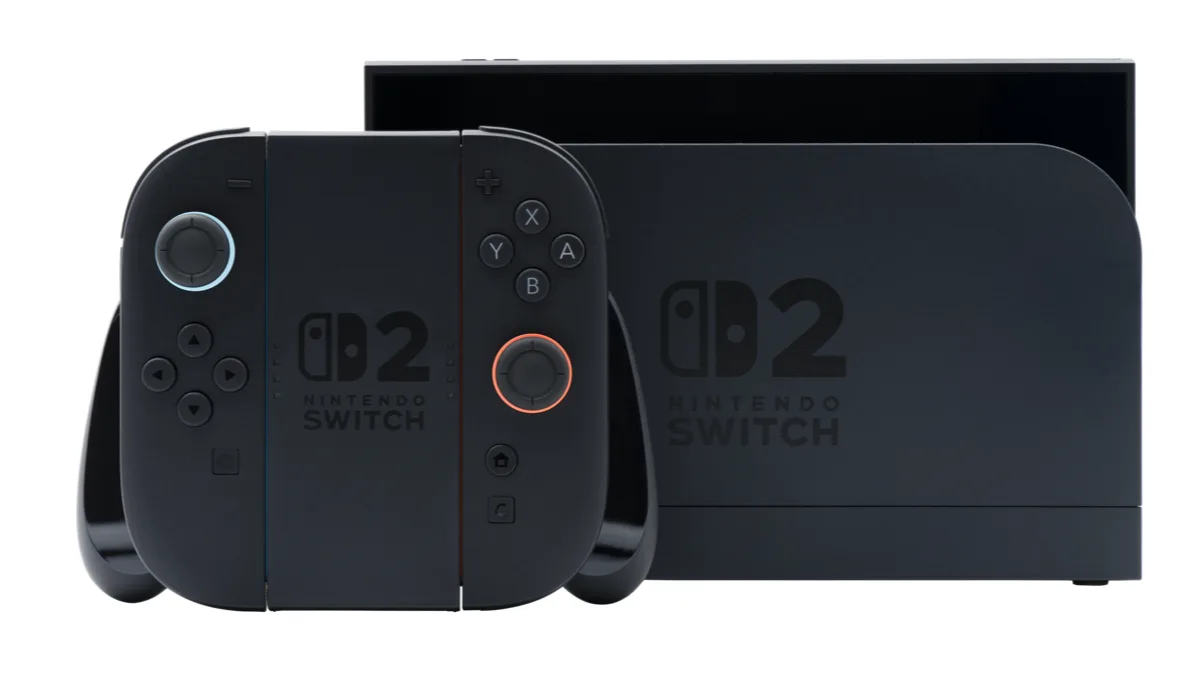
There is a catch, and it is the part most people will trip over. The Switch 2 dock needs a firmware update of its own before docked VRR will do anything, and the console has to be sitting in the dock for that to happen. The game also has to support VRR, and so does your TV.
What Switch 2 update 23.0.0 changes when docked
With VRR active, the TV matches its refresh rate to whatever frame rate the game is currently producing, which smooths out the judder you get when a game dips below its target. A new "VRR Settings" entry now sits under Settings, Display. Nintendo has also renamed "Dock Output Information" to "Video Output Information", and that screen now breaks down in detail which video signals your connected TV can actually accept, which is the first place to look if VRR does not appear to be working.
One smaller audio change is easy to miss and genuinely useful if you move the console between rooms: the Settings, Audio, TV Sound values are now stored per connected TV rather than globally.
Switch 2 to Switch 2 transfers finally work
The second big addition is a complete data transfer between two Switch 2 consoles. Nintendo describes it as moving all your data, including save data and screenshots, from an existing Switch 2 to a new one. The option lives under System, and it closes a gap that had been awkward since launch: transferring from an original Switch to a Switch 2 was supported, but going from one Switch 2 to another was not.
That matters more than it did a month ago, given how many new Switch 2 hardware bundles are now in circulation. If you picked up a second console, this is the tool that moves everything across in one pass instead of redownloading a library.
GameChat, Mii Maker and Handheld Boost
GameChat picks up three changes. The list of chats you can join now shows chats you have previously taken part in, you can start a new chat without picking any friends first, and pressing the C button during a chat brings up a menu with a new button for changing the screen size.
The rest of the Switch 2 list is a mix of small quality-of-life items:
- A Settings option on the Virtual Game Card list screen, showing which console a card is registered to.
- "Play with Online Licence", a temporary way to launch a game when the other console holding the virtual game card is offline. Only the account that bought the software can use it.
- Mii Maker now plays background music while you edit, with a BGM Settings button in the top left to switch tracks or turn it off. Three of the tracks are older Nintendo tunes.
- Miis can be turned into a QR code and shared with other people.
- Text-to-speech now supports Brazilian Portuguese, both under Accessibility and in GameChat's voice-to-text conversion.
- A toggle under System, Switch Software Operation Mode that puts Handheld Mode Boost in the Quick Settings menu you get by holding HOME.
- Handheld Mode Boost no longer blocks other controllers while Joy-Con 2 units are attached to the console.
- Play time on My Page, Profile now adds up across multiple consoles for the same game, listed in chronological order from the update onwards.
Nintendo closes the notes with its usual line about fixing several issues and improving stability.
What the original Switch gets
Version 23.0.0 went out to the first Switch too, and it is a much shorter list. The Virtual Game Card screen gains the same Settings option for checking registration status, and the same "Play with Online Licence" fallback appears when the other console is offline. Nothing about VRR, GameChat or Mii QR codes applies to the older hardware.
To install either version, open System Settings, select System, then System Update. If you have been hit by other Switch 2 oddities lately, we also covered the accidental console ban wave behind error 2124-4508. On the software side, this week has been busy: Mario Kart World's free update added 10 classic SNES tracks, Nintendo revealed Metroid Ravenous and its 20.2GB Switch 2 file size, and the companion app picked up its own changes in Nintendo Switch App 3.5.0. UK buyers should also note the Switch 2 price increase to £419.99.
Frequently Asked Questions
Does Switch 2 support VRR when docked?
Yes, as of system update 23.0.0 released on 10 September 2026. VRR output now works in TV mode, but three things have to line up: the Switch 2 dock needs its own firmware update, the TV has to support variable refresh rate, and the game has to support it too. Before this update, VRR on Switch 2 only worked on the console's built-in screen in handheld mode.
How do I update the Switch 2 dock for VRR?
Dock the console and install system update 23.0.0 with the Switch 2 sitting in the dock, since the dock firmware is applied through the docked console. After that, a VRR Settings entry appears under Settings, Display. If VRR still does not engage, open Settings, Display, Video Output Information to see which signals your TV actually accepts.
Can I transfer data from one Switch 2 to another Switch 2?
Yes. Update 23.0.0 adds a complete data transfer between two Switch 2 consoles, covering all your data including save data and screenshots. The option sits under System in System Settings. Transferring from an original Switch to a Switch 2 was already supported; this is the first time Switch 2 to Switch 2 has been possible.
What does 23.0.0 change on the original Nintendo Switch?
The first Switch gets a much smaller update. A Settings option is added to the Virtual Game Card list screen so you can check which console a card is registered to, and a Play with Online Licence button appears when the other console is offline and the card cannot be transferred. Only the account that purchased the game can use that online licence.
How do I install Switch 2 system update 23.0.0?
Open System Settings from the HOME menu, select System, then System Update, and follow the prompts. Do it with the console in the dock if you want the dock firmware update that docked VRR depends on. You can confirm which version you are on under System Settings, System.