Android Auto Not Working? Fixes for Wired and Wireless

When Android Auto stops working, the cause is usually one of four things: a worn or overly long USB cable, a phone that's locked or set to charge-only USB mode, an outdated Android Auto app, or a stale pairing between your phone and car. Unlock your phone, plug in with a short data cable (Google says under 3 feet), and on a Samsung Galaxy pick Transferring files / Android Auto from the USB notification. If you connect wirelessly, keep Bluetooth, Wi-Fi, and Location on, then forget and re-pair the car if it still won't start.
Also in this topic: Android Guides hub.
Jump to: requirements · match your symptom · wired fixes · Samsung Galaxy · Pixel and other phones · wireless fixes · keeps disconnecting · reset the connection · Gemini and voice · car-side checks · FAQ
How we put this together: The requirements, settings paths, and fixes below come from Google's Android Auto and Android help pages, Samsung's US support pages, and Ford's and Sony's Android Auto troubleshooting pages, all linked in place and rechecked on October 19, 2026. We haven't tried every fix on every phone and car, so a menu on your phone or dashboard may be worded a little differently.
Does Your Phone Still Meet Android Auto's Requirements?
Android Auto now needs a phone running Android 11 or later with an active data plan, and wireless Android Auto also needs 5 GHz Wi-Fi. That's the current minimum on Google's Get started with Android Auto page. It matters because some older support pages still list lower numbers: Samsung's US page on connecting a Galaxy phone to a car and Ford's SYNC troubleshooting page both still say Android 8.0 for a USB connection as of October 19, 2026. If you're troubleshooting an older phone, go by Google's figure.
Android Auto is Google's phone-projection system. It runs on your Android phone and puts navigation, calls, messages, and music on a compatible car screen. It's built into the phone, so you don't need to download it to use it on a car display, though the Play Store still delivers updates for it.
| Requirement | Wired (USB) | Wireless |
|---|---|---|
| Android version | Android 11 or later | Android 11 or later |
| Data plan | Active mobile data plan | Active mobile data plan |
| Phone hardware | Any phone that meets the version requirement | Must support 5 GHz Wi-Fi |
| Car | Compatible car or aftermarket stereo | Car or stereo that supports wireless Android Auto |
| Cable | High-quality USB cable, under 3 feet (1 meter) | Not needed; the first connection pairs over Bluetooth |
| Not supported | Phones running Android (Go edition) | |
That last row catches people with budget phones: Google says Android Auto isn't available on devices that run Android (Go edition). To confirm your car or stereo supports Android Auto at all, check Google's compatibility list. A USB port in the car doesn't guarantee support.
Quick Diagnosis: Match Your Symptom to the Fix
The quickest route is to start from what you're seeing. Most "Android Auto not working" cases fall into one of these patterns.
| What you're seeing | Most likely cause | Fix |
|---|---|---|
| Phone charges but Android Auto never starts (Samsung) | USB mode is set to charging only, or the phone is locked | Samsung fixes |
| Android Auto only starts after you unlock the phone (Pixel) | Advanced Protection's USB Protection is on | Pixel fixes |
| It worked for months, then stopped on a wired connection | Worn or damaged USB cable | Replace the cable |
| It connects, then drops or freezes mid-drive | Outdated Android Auto, battery restrictions, or a bad cable | Disconnect fixes |
| Wireless won't connect, but a cable works | Bluetooth/Wi-Fi setup or a stale pairing | Wireless fixes |
| Works in one car but not a second car | Old saved car settings | Forget all cars |
| No phone works in this car | The car's USB port, settings, or firmware | Car-side checks |
Wired Android Auto Not Connecting: Start With the Cable
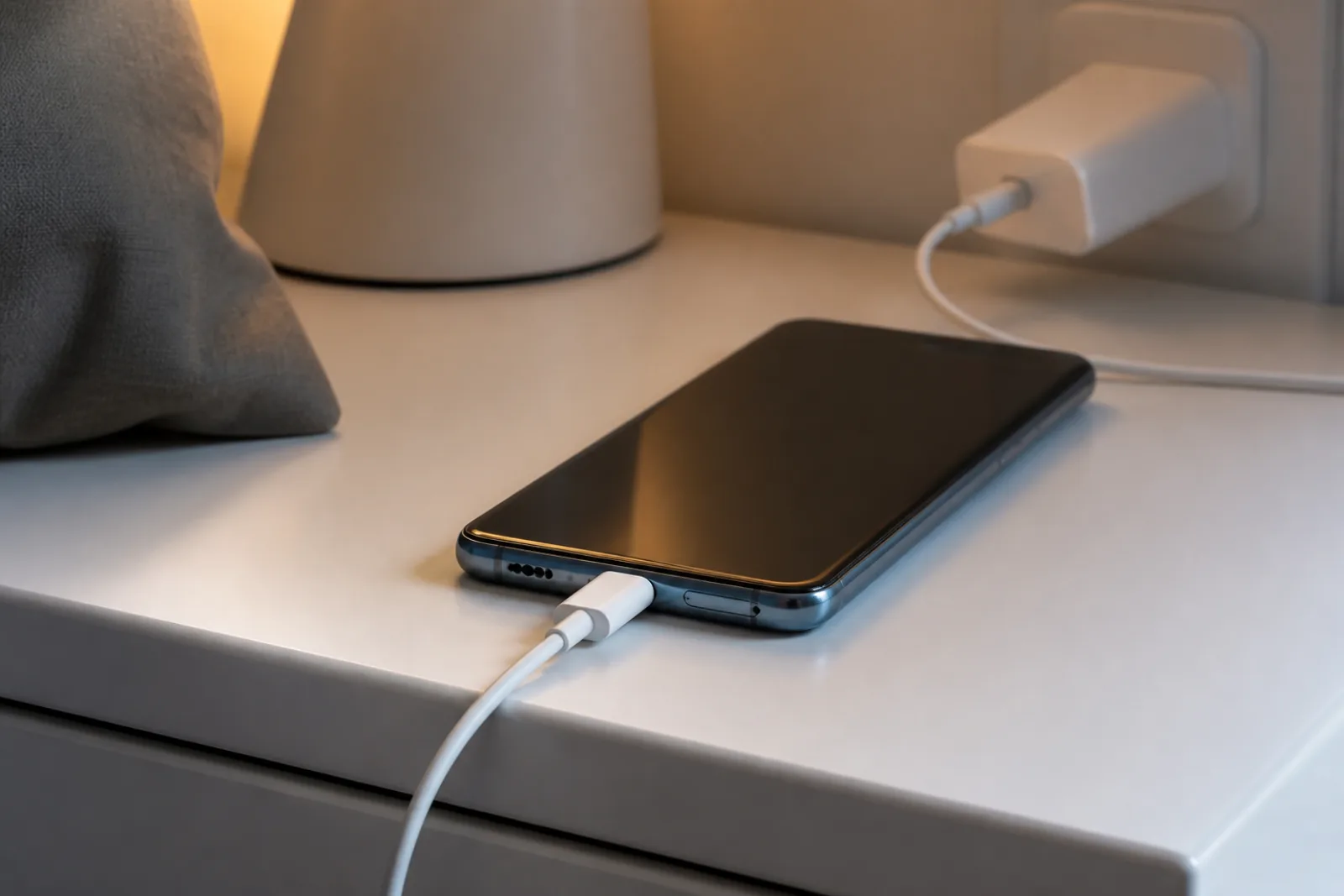
If wired Android Auto worked before and suddenly doesn't, replace the USB cable first. Google's Android Auto troubleshooting page says a new cable will likely fix it in that situation. Cables wear out inside long before they look damaged, and a cable that still charges can fail at carrying data.
Google's cable advice is more specific than most guides:
- Keep it under 3 feet (1 meter). Some popular guides say six feet, but Google's own page says under 3 feet.
- Skip USB hubs and extension cables.
- Try the cable that came with your phone. Google notes phone makers often test their own cables with their phones.
- Buying a new one? Google suggests checking that a third-party cable has been certified by the USB Implementers Forum within the past two years. You can search by brand or model number in the USB-IF product list.
Samsung's support page adds two practical tips: try a different USB port if your car has more than one, and note that some cars need a USB-A to USB-C cable rather than USB-C to USB-C.
Samsung Galaxy: Switch the USB Mode and Unlock First
On a Samsung Galaxy, the most common reason Android Auto suddenly stops working is a change Samsung made itself. Starting with One UI 8.0, the default USB connection mode on Galaxy phones is Charging phone only, according to Samsung's USB connection mode support page. In that mode, the phone charges from the car but Android Auto may not start. Several top-ranking guides still tell you to pick "File transfer" without mentioning this new default.
To switch it after you plug in:
- Swipe down from the top of the screen to open the Quick panel.
- Tap the USB for charging phone notification.
- Tap it again to see the other USB options.
- Select Transferring files / Android Auto.
Unlock the phone, too. Samsung's page on Android Auto requiring unlocking says that starting with Android 15 (One UI 7), Android Auto on Galaxy phones won't start until the phone is unlocked. If you plug in with the phone in your pocket and nothing happens, unlock it with your PIN, pattern, password, or fingerprint, then reconnect the cable.
Check Auto Blocker's Maximum restrictions
If you turned on Samsung's Auto Blocker at its strictest level, it can block wired Android Auto completely. A Samsung update in November 2024 made Auto Blocker's Maximum restrictions block all USB connections except charging, as 9to5Google reported. 9to5Google noted at the time that Auto Blocker isn't on by default and Maximum restrictions has to be turned on manually, so this mainly affects people who chose the strictest setting. Following 9to5Google's steps, go to Settings > Security and privacy > Auto Blocker and turn off Maximum restrictions. You can leave Auto Blocker itself on.
Pixel and Other Phones: Locked Phones and USB Mode
On a Pixel, wired Android Auto that only starts after you unlock the phone usually points to Advanced Protection. When Advanced Protection's Device protection is on, its USB Protection blocks new USB data connections while the screen is locked, according to Google's USB Protection help page. That covers Pixel 6 and later. Charging still works, which is why the phone looks connected while the car screen stays blank.
The workaround is simple: unlock the phone before or right after you plug in. Google says a USB connection that starts while the phone is unlocked, including Android Auto, stays active after the screen locks again, until you unplug. You can also connect wirelessly, since USB Protection only covers the USB port. Android Authority found code in Android Auto 17.2 that adds a notice explaining this conflict ("You can still connect wirelessly") to the "Start Android Auto while locked" setting, per its July 2026 teardown, so newer versions may tell you directly.
Set the default USB mode. If your phone keeps defaulting to charge-only over USB, Android's developer options include a Default USB configuration setting. XDA's Patrick O'Rourke wrote that changing his phone's default USB configuration fixed his wired Android Auto disconnects, as he mentions in XDA's Android Auto 17.4 coverage. To use it, turn on developer options by tapping Build number seven times in Settings > About phone. Then go to Settings > System > Developer options > Default USB configuration and choose File transfer (it may be labeled File transfer / Android Auto). Leave other developer settings alone.
Wireless Android Auto Not Working
For wireless Android Auto, confirm three things first: your car supports wireless Android Auto (many cars only do wired), your phone supports 5 GHz Wi-Fi, and Bluetooth, Wi-Fi, and Location are all turned on. Google's setup page says to keep all three on while you set it up, with the car in Park.
The first wireless connection always starts with a Bluetooth pairing. Open your phone's Bluetooth settings, then press and hold the voice command button on your steering wheel to bring up the car's pairing menu (it varies by carmaker). Once paired, Google says Android Auto should start within a few seconds. You may need to tap the Android Auto icon on the car's screen.
If it still won't connect wirelessly:
- Disconnect from the car's Wi-Fi hotspot. Ford's Android Auto troubleshooting page says not to use wireless Android Auto while your phone is connected to the vehicle's Wi-Fi hotspot.
- Clear out old pairings. Sony's car stereo support page notes that the connection can fail if multiple devices are paired with the stereo. Delete phones you no longer use from the car, remove the car from your phone's Bluetooth list, and pair again.
- Test with a cable. Ford suggests a USB connection if wireless won't launch. If wired works, the problem is the wireless link, not Android Auto itself.
Long drives with navigation and music streaming can also make a phone run warm, especially in a sunny dash mount. If yours gets hot on the road, our guide to fixing an Android phone that's overheating covers what to do in the car.
Android Auto Keeps Disconnecting or Freezing
If Android Auto connects and then drops or freezes, update the Android Auto app first. After months of reports, Google said in August 2026 that Android Auto 17.4 or later fixes the freezing and disconnection issues, in a Google Community Specialist post quoted by XDA Developers. Google has since rolled out a fix for the missing cellular signal icon, which 9to5Google linked, at least in part, to Android Auto 17.8 on October 16, 2026.
As of October 19, 2026, version 18.0 is rolling out, with builds posted to APKMirror on October 17. Google releases Android Auto in stages, so the Play Store may show you an older build for a few days. To check what you have, open the Android Auto Play Store listing and tap Update if it appears, or go to Settings > Apps > Android Auto and scroll to the version number at the bottom.
Let Android Auto run in the background. Battery optimization can cut Android Auto off mid-drive. Android Police's Conor Cawley wrote that switching Android Auto to unrestricted battery use cut his wireless dropouts substantially in his Pixel write-up. Go to Settings > Apps > See all apps > Android Auto > App battery usage, make sure Allow background usage is on, then tap it and choose Unrestricted. Google's Pixel battery page warns that taking an app off optimization lets it use more battery, so expect a little more drain.
If disconnects continue on the latest version, go back to the cable. Google's fix doesn't help with a worn cable, a loose port, or a head unit that needs a firmware update.
Reset the Connection: Forget Cars, Clear the Cache, Restart
When nothing above works, reset Android Auto's saved connections so the phone and car pair from scratch. First, find Android Auto's settings on your phone:
- Pixel: Settings > Connected devices > Connection preferences > Android Auto
- Samsung Galaxy: Settings > Connected devices > Android Auto
- Other phones: search Settings for "Android Auto"
Then work through these steps, testing after each one:
- Forget all cars. Unplug the phone, open Android Auto settings, tap Previously connected cars, open the menu at the top right, and tap Forget all cars. Google recommends this when a phone won't connect to a second car.
- Clear the app cache. Go to Settings > Apps > Android Auto > Storage (or Storage & cache) and tap Clear cache. Clear storage only as a last resort, since it wipes your Android Auto settings.
- Restart both ends. Restart the phone, then restart the car's infotainment system. Ford, for example, suggests a key cycle: switching the car off and back on.
- Reconnect with the phone unlocked and the car in Park.
Hey Google or Gemini Not Responding in the Car
Gemini is replacing Google Assistant in Android Auto, and you can start it three ways: say "Hey Google," tap the microphone on the car screen, or press and hold the voice button on your steering wheel, according to Google's voice help page. When the rollout started in November 2025, TechCrunch reported that Gemini comes to Android Auto for people who have switched from Google Assistant to Gemini on their phone, with a tooltip on the car screen once it's ready. If your voice commands stopped working after that switch, wait for the tone before you speak, and test the steering wheel button, which skips the hotword entirely.
While you're there, Google Maps has also added features to Android Auto lately. See what's new in our post on Immersive Navigation and the Android Auto speedometer.
When the Problem Is the Car, Not the Phone
If a second Android phone won't connect either, the car is the likely problem. Check these on the car's side:
- Is Android Auto turned on in the infotainment settings? Google lists this first among its car checks.
- Aftermarket stereo? Google says to check the maker's website (for example, Pioneer or Kenwood) for a firmware update.
- Is the USB port working? Ford suggests setting the audio source to USB and playing music from a USB source. If there's no sound, the USB hardware may have failed and needs a dealer visit.
- Software updates for the car. Samsung's support page notes your car's entertainment system may need updates from the dealer or manufacturer.
Keeping the phone updated helps too. Pixel owners can check what landed in the October 2026 Pixel update, and Galaxy owners can follow the Samsung October 2026 security update rollout.
FAQ
Do I need to download the Android Auto app?
No, not on a phone that meets Google's requirements. Google says Android Auto is built into phones, so you don't download it to use it on a car display. The Play Store listing still exists and delivers updates, which is how you get bug fixes like the 17.4 disconnect fix.
Why does Android Auto only work when my phone is unlocked?
Because of a security feature. Samsung requires Galaxy phones on Android 15 (One UI 7) or later to be unlocked before Android Auto starts. On Pixel 6 and later, Advanced Protection's USB Protection blocks new USB data connections while the phone is locked. Unlock first, then plug in.
Can I use wireless Android Auto in a car that only supports wired?
Not natively. Wireless Android Auto needs a car or stereo that supports it. Third-party wireless Android Auto adapters exist that plug into the car's USB port and connect to your phone wirelessly, but check the adapter maker's compatibility list for your car first.
Does Android Auto work without a data plan?
Google lists an active data plan as a requirement for both wired and wireless Android Auto. Apps such as navigation with live traffic, streaming music, and voice commands rely on a connection.
Why did Android Auto stop working after a phone update?
Usually because the update changed a default. On Samsung, One UI 8.0 set the default USB mode to Charging phone only, and One UI 7 started requiring an unlocked phone. On a Pixel, Advanced Protection blocks USB data while the phone is locked. Switch the USB mode to Transferring files / Android Auto, unlock the phone, and update Android Auto from the Play Store.
Frequently Asked Questions
Do I need to download the Android Auto app?
No, not on a phone that meets Google's requirements. Google says Android Auto is built into phones, so you don't download it to use it on a car display. The Play Store listing still exists and delivers updates, which is how you get bug fixes like the 17.4 disconnect fix.
Why does Android Auto only work when my phone is unlocked?
Because of a security feature. Samsung requires Galaxy phones on Android 15 (One UI 7) or later to be unlocked before Android Auto starts. On Pixel 6 and later, Advanced Protection's USB Protection blocks new USB data connections while the phone is locked. Unlock first, then plug in.
Can I use wireless Android Auto in a car that only supports wired?
Not natively. Wireless Android Auto needs a car or stereo that supports it. Third-party wireless Android Auto adapters exist that plug into the car's USB port and connect to your phone wirelessly, but check the adapter maker's compatibility list for your car first.
Does Android Auto work without a data plan?
Google lists an active data plan as a requirement for both wired and wireless Android Auto. Apps such as navigation with live traffic, streaming music, and voice commands rely on a connection.
Why did Android Auto stop working after a phone update?
Usually because the update changed a default. On Samsung, One UI 8.0 set the default USB mode to Charging phone only, and One UI 7 started requiring an unlocked phone. On a Pixel, Advanced Protection blocks USB data while the phone is locked. Switch the USB mode to Transferring files / Android Auto, unlock the phone, and update Android Auto from the Play Store.