How to Cast Android to TV (Chromecast, Pixel, Samsung)

To cast an Android phone to a TV, put the phone and the Cast device on the same Wi-Fi network, then either tap the Cast button inside an app like YouTube or Netflix, or mirror the whole screen from the Google Home app, Pixel Cast settings, or Samsung Smart View. Google documents cast-from-app for Chromecast, Google TV Streamer (4K), and TVs with Google Cast; screen mirroring from Google Home needs Android 8.0 or later.
Also in this topic: Android Guides hub.
In a hurry? Jump to: cast vs mirror · cast from an app · mirror with Google Home · Pixel Cast · Samsung Smart View · fixes when Cast fails · FAQ
Cast from an App vs Mirror the Whole Screen
These two paths look similar on the TV and get mixed up in search results. Pick the one that matches what you want:
| Goal | What appears on the TV | Best path |
|---|---|---|
| Watch YouTube, Netflix, Disney+, Prime Video, or similar | Only the video (your phone stays a remote) | Cast button inside the app |
| Show photos, a map, a game, or any other app UI | Everything on your phone screen | Google Home screen cast, Pixel Cast, or Samsung Smart View |
| Galaxy phone → Samsung TV without Chromecast | Mirrored Galaxy screen | Smart View (same Wi-Fi required) |
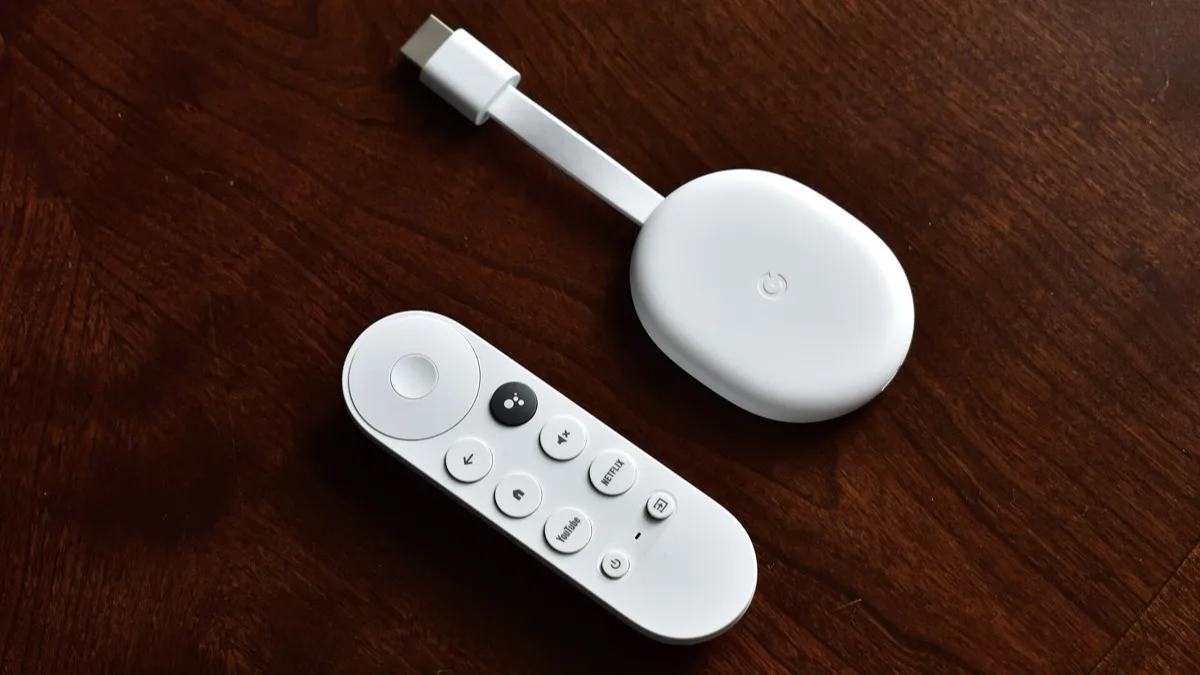
Samsung’s US support page draws the same line: Smart View mirrors the phone; “casting” in apps sends the stream to the TV while you keep using the phone for other things. Google’s Cast help pages cover Chromecast, Google TV Streamer (4K), Nest displays, TVs with Google Cast built in, and Pixel Tablet as Cast targets for supported apps.
What You Need Before You Start
- Same Wi-Fi: Phone (or tablet) and the Chromecast / Google TV / Cast TV must share one network. Guest Wi-Fi and “AP isolation” / client isolation break discovery.
- Supported Android for screen mirror via Google Home: Android 8.0 or later, per Google’s screen-cast help page.
- Supported Android for in-app Cast: Android 6.0 or later for Cast-enabled apps, per Google’s Cast media help.
- Google Home app for the Home-app mirror flow (and for managing the Cast device).
- Microphone permission for Google Play Services when Google’s screen-cast steps ask for it.
If the phone keeps hopping between bands or SSIDs, Google’s Cast troubleshooting notes that Adaptive connectivity can move the phone off the Cast device’s network — turn Adaptive connectivity off temporarily under Network & internet until the cast starts.
How to Cast from YouTube, Netflix, and Other Apps
This is the path most people want for movies and shows. The video plays on the TV; the phone becomes the remote. Google’s Play Movies / Cast help and Chromecast Cast-media help use the same outline:
- Confirm the phone and Cast device are on the same Wi-Fi.
- Open a Google Cast-enabled app (YouTube, Netflix, Disney+, Prime Video, Google TV / Play Movies, and many others).
- Tap the Cast button (the rectangle with the Wi-Fi corner icon). Placement differs by app — look in the player chrome or the top bar.
- Choose your Chromecast, Google TV Streamer, Nest display, or Cast-built-in TV from the list.
- When the Cast button turns solid, you are connected. Play, pause, and scrub from the app or from the Android cast notification.
- To stop, tap the Cast button again → Disconnect.
Useful Google tips that save support tickets:
- HD rentals can play in HD on Cast even when the phone itself is not an HD playback device.
- Playback can continue on the TV if the phone battery dies; reconnect another signed-in device to regain controls.
- On YouTube, stay signed into the same Google Account you expect on the TV session.
- Turning the phone screen off during a long cast saves battery; the stream keeps going.
Mirror Your Whole Screen with the Google Home App
Use this when you need the TV to show whatever is on the phone — a photo album, a browser tab, a slide deck, or a game that has no Cast button. Google’s “Cast your Android screen from the Google Home app” page lists these steps:
- Turn on microphone permission for Google Play Services if prompted.
- Put the phone and Google streaming device on the same Wi-Fi.
- Open the Google Home app.
- Tap Favorites or Devices.
- Tap and hold the tile for the Chromecast / TV / Nest display you want.
- Tap Cast my screen → Cast screen (or choose Cast one app if you only want a single app mirrored).
- Confirm Start now on the Android screen-capture prompt. Avoid typing passwords while the screen is mirrored.
To stop: tap and hold the same device tile in Google Home → Stop mirroring. You can also end from the ongoing cast notification.
Google notes that a long mirror session uses more power than in-app Cast. Battery saver / low-power mode helps the phone last through a presentation. If the phone runs hot while mirroring a game, pause the cast and cool it down — the same heat patterns covered in our Android phone overheating checklist apply.
Pixel: Cast from Settings or Quick Settings
Google’s Pixel help page “Project your Pixel phone’s screen” documents a Cast path that does not require opening Google Home first:
- Open Settings.
- Tap Connected devices → Connection preferences → Google Cast.
- Choose to cast a single app or the entire screen.
- Tap the Cast device in the list.
Faster everyday path on Pixel:
- Swipe down twice to open Quick Settings.
- Tap Cast. If the tile is missing, tap Edit (pencil) and add Cast.
- Pick the device, then choose screen or single-app casting as offered.
To stop: swipe down → on the Cast notification, tap Disconnect.
On Pixel 8 and later, Google also documents a wired mirror path: HDMI or DisplayPort on the display side, USB-C into the Pixel, then accept the Mirror display prompt. That is useful in meeting rooms without Wi-Fi Cast, not a replacement for Chromecast at home.
Samsung Galaxy: Smart View to a Samsung TV
Galaxy phones talking to a Samsung Smart TV usually skip Chromecast and use Smart View. Samsung’s US screen-mirroring guide is explicit: both devices must be on the same Wi-Fi; Smart View lives in Quick settings (it is not a separate Play Store app); availability varies by model and carrier software.
- Turn the TV on and confirm it is on the same Wi-Fi as the phone.
- On the Galaxy, swipe down from the top right to open Quick settings.
- Tap Smart View. Add the tile from the edit panel if it is missing.
- Select your TV under Available devices, then tap Start now.
- On the TV, allow the connection or enter a PIN if prompted.
To disconnect: tap the Smart View icon on the phone → Disconnect.
Samsung also documents Smart View through the SmartThings app: open the TV device → More options (⋮) → Mirror screen (Smart View) → Start now.
If the mirrored image looks letterboxed, Samsung’s tip is Smart View icon → ⋮ → Settings → Phone aspect ratio (16:9 usually fits modern TVs). Disconnect VPN if Smart View throws a VPN-related error. Extend Screen timeout if the phone blanks mid-demo.
Casting Games and Recorded Clips
In-app Cast is rare inside mobile games. Full-screen mirror (Home app, Pixel Cast, or Smart View) is what you use to put gameplay on the TV. Expect extra heat and possible frame drops — lower in-game graphics one step and keep the phone cool. If input feels late, separate Wi-Fi lag from FPS issues with our mobile gaming lag fix before blaming Cast.
Want a file instead of a live TV feed? Record on the phone first with the built-in recorder, then play the clip on the TV: steps are in how to screen record on Android. Long 1080p sessions fill storage quickly — clear old Movies/DCIM clips with how to free up storage on Android when warnings appear.
Playing with a DualSense on the phone while the TV shows the mirror? Pair the controller before you start casting so you are not juggling Bluetooth mid-match — see how to connect a PS5 controller to Android.
Chromecast or Cast Button Missing: Fixes That Actually Work
Work down this list before you factory-reset anything:
| Symptom | Likely cause | Fix |
|---|---|---|
| Cast device never appears | Different Wi-Fi / guest network / AP isolation | Join the same SSID as the TV/Chromecast. Forget the other band or guest network. Disable VPN temporarily. |
| Phone finds Cast, then drops | Adaptive connectivity switching networks | Settings → Network & internet → turn off Adaptive connectivity while casting (Google’s Cast troubleshooting). |
| No Cast button in an app | App does not support Cast, or needs an update | Update the app. Use screen mirror instead if you only need the picture on the TV. |
| Smart View missing on Galaxy | Tile hidden or model/carrier build without Smart View | Edit Quick settings and add Smart View. Samsung notes Smart View is not on every device. |
| TV shows black / “allow” never appears | TV permission or Device Connect Manager | Restart phone and TV; accept Allow on the TV. On Samsung TVs, External Device Manager → Device Connect Manager can adjust access notifications. |
| Mirror is laggy or stuttery | Weak Wi-Fi or phone thermal throttle | Move closer to the router, pause other streams, lower game settings, let the phone cool. |
Still stuck after same-network checks? Power-cycle the Cast dongle or TV streamer, reopen Google Home, and confirm the device shows as online there before retrying Cast screen.
Privacy While Your Screen Is on the TV
Full-screen mirror shows notifications, incoming message previews, password fields, and banking apps unless you hide them. Before a living-room demos:
- Prefer Cast one app (Google Home) or Pixel’s single-app Cast when you only need one surface on the TV.
- Enable Do Not Disturb so banners do not flash across the big screen.
- Never type passwords, 2FA codes, or card numbers while mirroring.
- Stop mirroring as soon as you are done — leave it running and the next notification is public.
For US living rooms with a Chromecast, Google TV Streamer, or Cast-built-in TV, start with the in-app Cast button for video and reserve Google Home / Pixel Cast / Smart View for true screen mirroring. Same Wi-Fi first, Adaptive connectivity off if discovery flaps, then Disconnect from the cast notification when you are finished.
Frequently Asked Questions
How do I cast my Android phone to a TV?
Put the phone and Cast device on the same Wi-Fi. For movies and shows, open a Cast-enabled app, tap the Cast button, and pick your Chromecast or Cast TV. To mirror the whole screen, use Google Home → device tile → Cast my screen, Pixel Settings → Connected devices → Google Cast, or Samsung Smart View on Galaxy phones.
Do my phone and Chromecast need the same Wi-Fi?
Yes. Google’s Cast help requires the phone and Chromecast, Google TV Streamer, or Cast-built-in TV to be on the same Wi-Fi network. Guest networks and AP isolation commonly block device discovery.
What is the difference between casting and screen mirroring?
Casting from an app sends that video or audio stream to the TV while your phone acts like a remote. Screen mirroring copies everything on the phone display to the TV. Samsung’s US support page and Google’s Home screen-cast docs describe the same split.
How do I mirror a Samsung Galaxy to a Samsung TV?
Open Quick settings, tap Smart View, select the TV, tap Start now, and allow the connection on the TV if asked. Both devices must share Wi-Fi. Smart View is a Quick settings tile, not a separate Play Store app.
Why can’t my phone find the Chromecast?
Usually the phone is on a different SSID, guest Wi-Fi, or Adaptive connectivity moved it to another band. Join the Cast device’s network, turn Adaptive connectivity off temporarily, disable VPN, and confirm the device is online in the Google Home app.
Can I cast Android without Chromecast?
Yes if the TV has Google Cast built in, or if you use a Google TV Streamer / Nest display. Galaxy phones can also mirror to many Samsung TVs with Smart View. For TVs with no Cast or Smart View support, you need a Cast dongle or another supported streaming device.