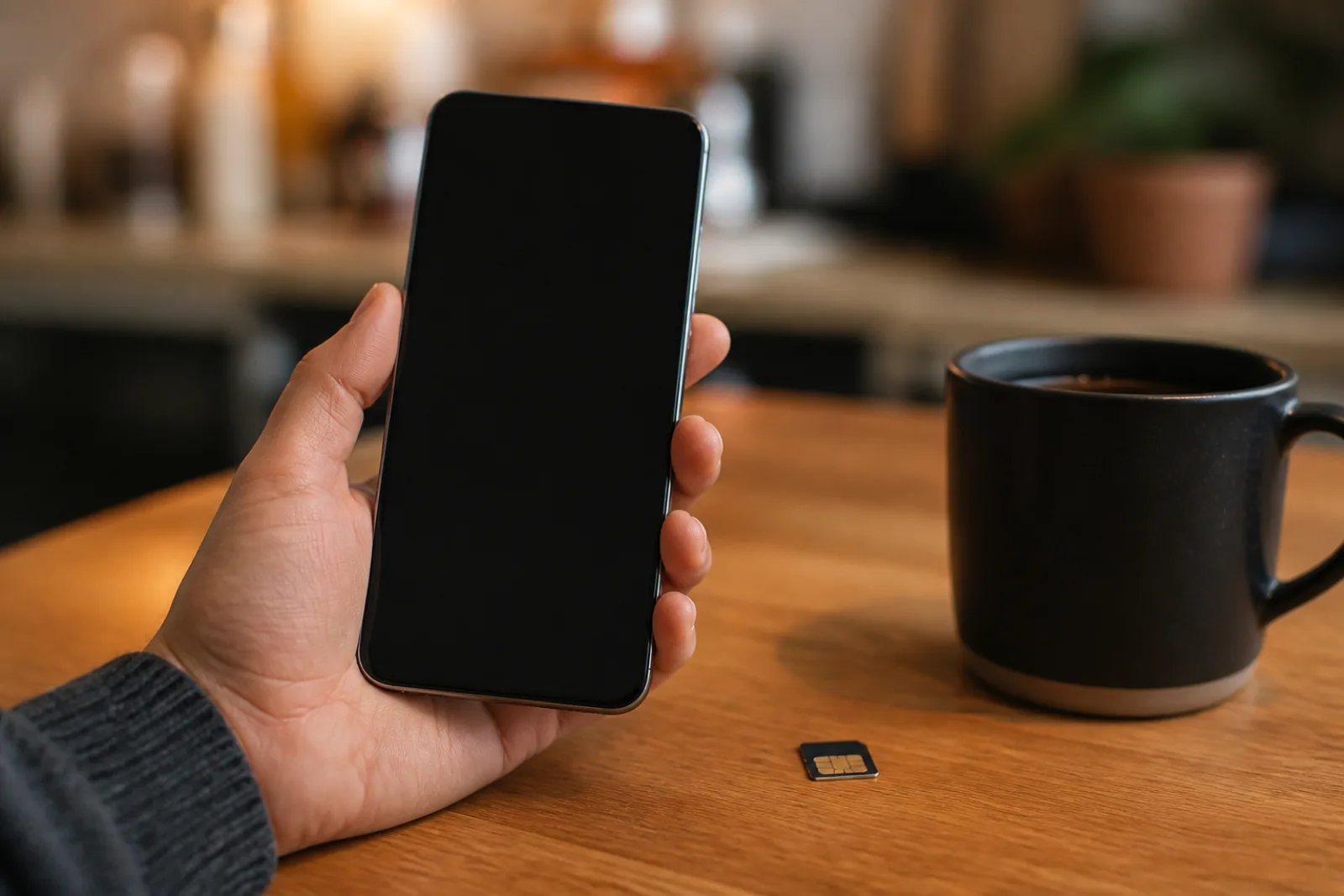
How to Connect a PS5 Controller to Android (and Fix Lag)

To connect a PS5 DualSense to Android, hold Create + PS until the light bar blinks, then pair “Wireless Controller” in Settings > Connected devices. Sony lists Android 12 or newer for Bluetooth and USB. If shots feel late after it pairs, the pad is still talking to your PS5, you are on 2.4 GHz Wi-Fi, Bluetooth is sleeping, or an extra accessibility service is intercepting input. A USB-C cable is the lag fix most pairing guides skip.
In a hurry? Jump to: pair in 2 minutes · 4 pairing slots · USB-C lag fix · input delay vs ping · still late after USB-C · accessibility and 120 Hz · will not connect · games that work · Remote Play
How to connect a PS5 controller to Android (Bluetooth)
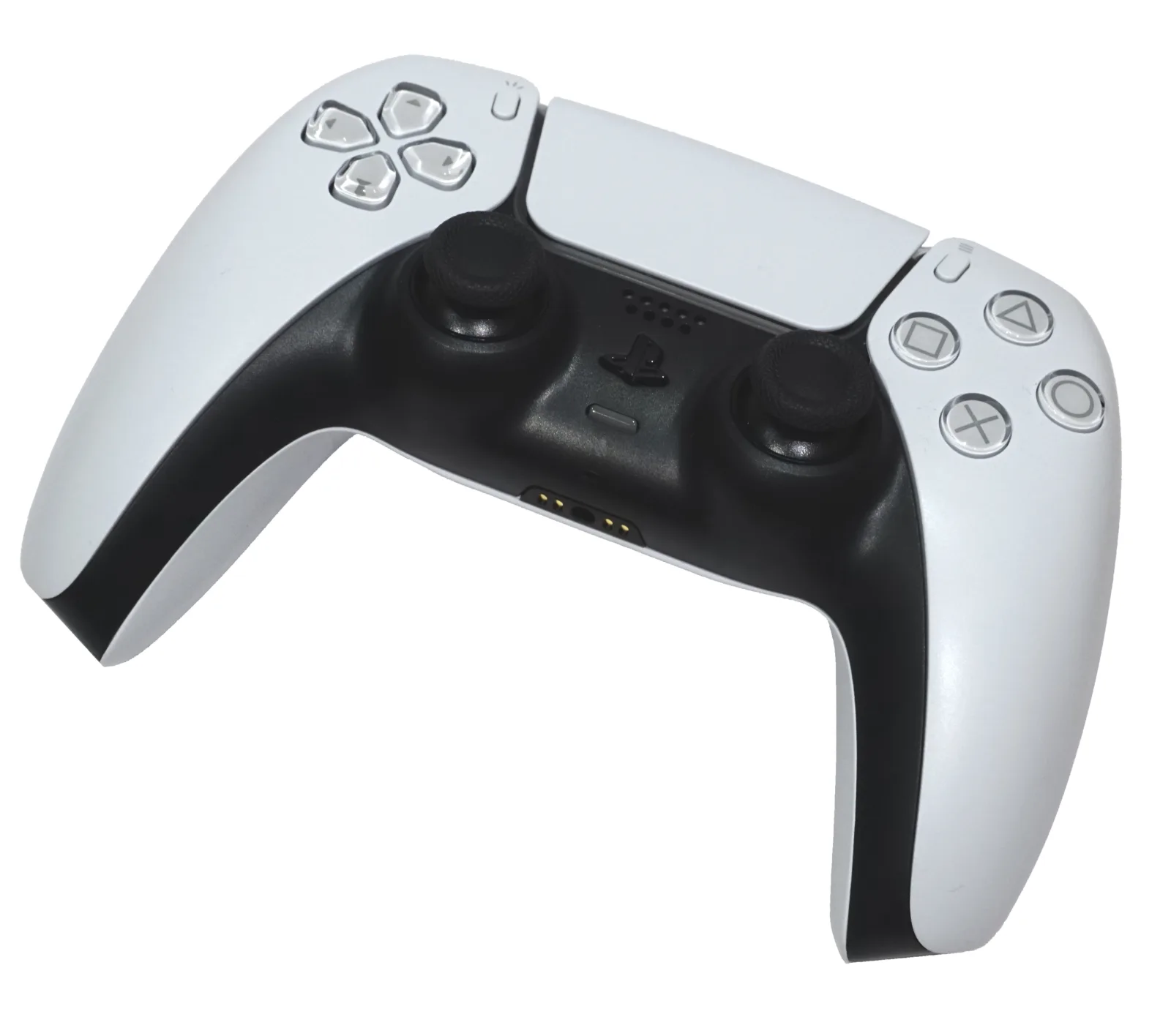
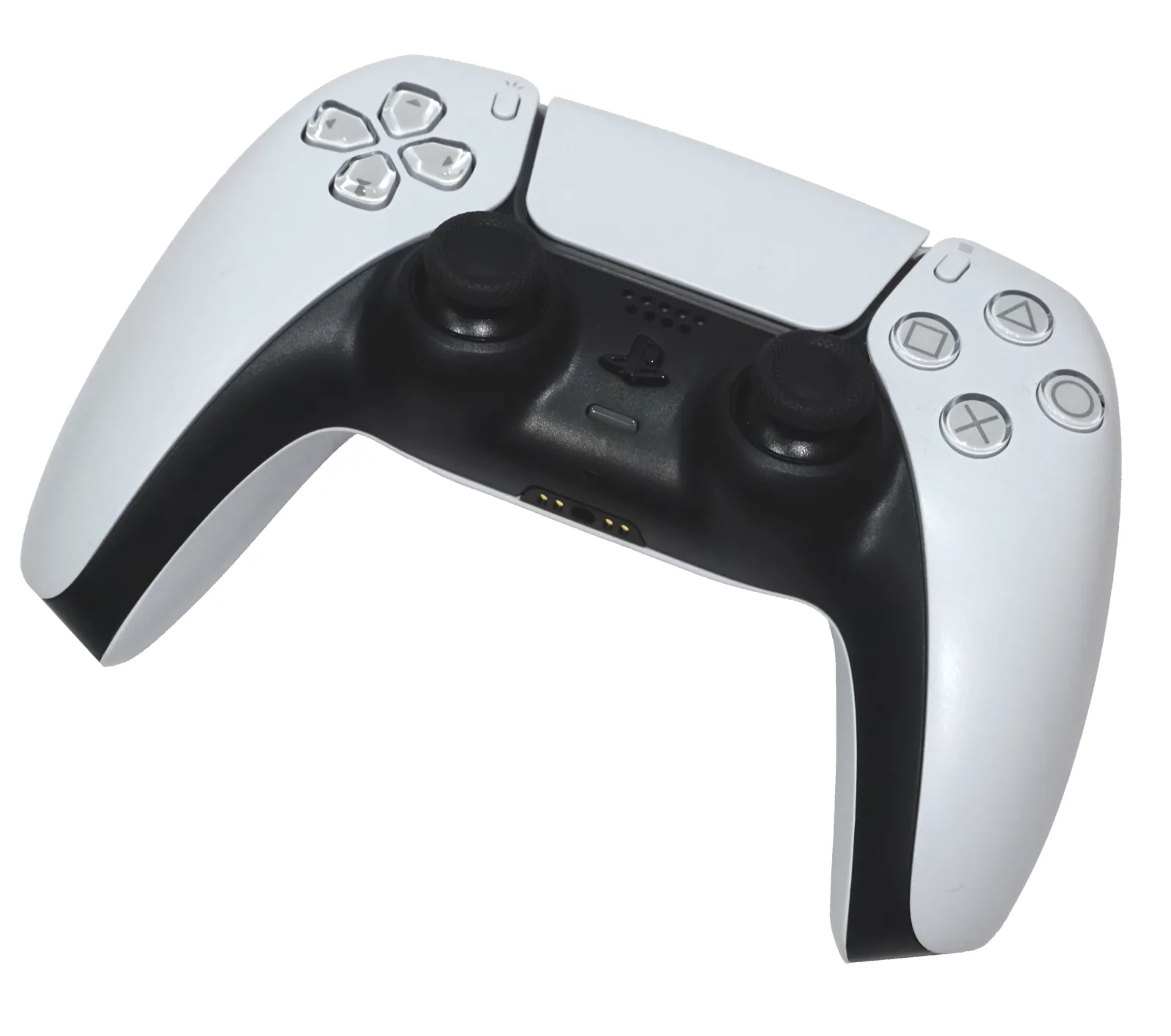
This is Sony’s own sequence, not a forum trick. The DualSense has a Create button, not Share. Share is the DualShock 4. Using the wrong pair of buttons is why a lot of “it never shows up” nights start.
- Turn the pad fully off. Hold the PS button until the light bar and player lights go dark. Unplug any USB cable.
- Hold Create + PS until the light bar blinks. Sony says hold at least 3 seconds. You should see two flashes.
- On the phone, open Settings > Connected devices > Pair new device. Samsung: Settings > Connections > Bluetooth.
- Tap Wireless Controller. Wait for the player indicator to stay lit. That is the pair.
You need Android 12 or later for official DualSense support. Sony publishes that table for Windows 10/11, macOS Big Sur 11.3, iOS 14.5, and Android 12. Older phones may still see the pad. Do not count on it, and do not expect Remote Play extras.
Pixel path: Settings > Connected devices > Pair new device. Samsung path: Settings > Connections > Bluetooth > Pair new device. Both end at the same list.
The 4 pairing slots (why it jumps back to your PS5)
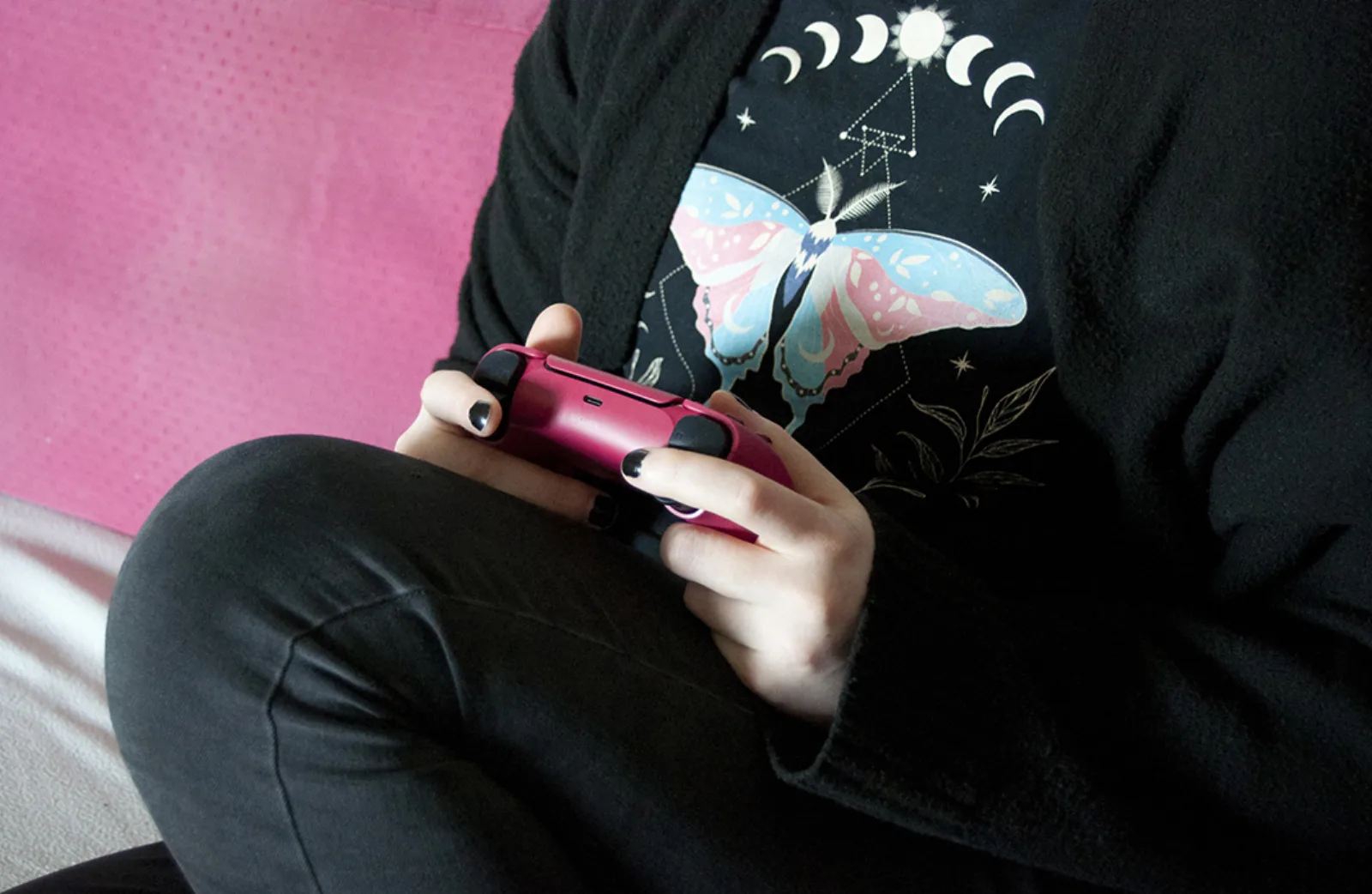
A DualSense can remember four devices. Sony assigns each one a slot. Slot 1 is PS + Triangle. Slot 2 is PS + Circle. Slot 3 is PS + Cross. Slot 4 is PS + Square. Hold the action button with PS for about 5 seconds to park a new device on that slot.
This is the lag-and-drop secret hiding in Sony’s help page:
- If the pad is currently on a PS5, your phone cannot steal the link. Sony is blunt: switching from a Mac or phone does not work while the console still owns it. Use the pad’s own slot buttons, or USB the pad back to the PS5 later.
- A short press of the PS button, with the pad off, reconnects to whatever it used last. That is often the console, not the phone.
- If all four slots are full, Sony replaces the one you have not used for the longest time.
Practical setup we use: Slot 1 for the PS5. Slot 2 for the phone. Then switching is PS + Circle, not a full re-pair every night.
USB-C is the real lag fix
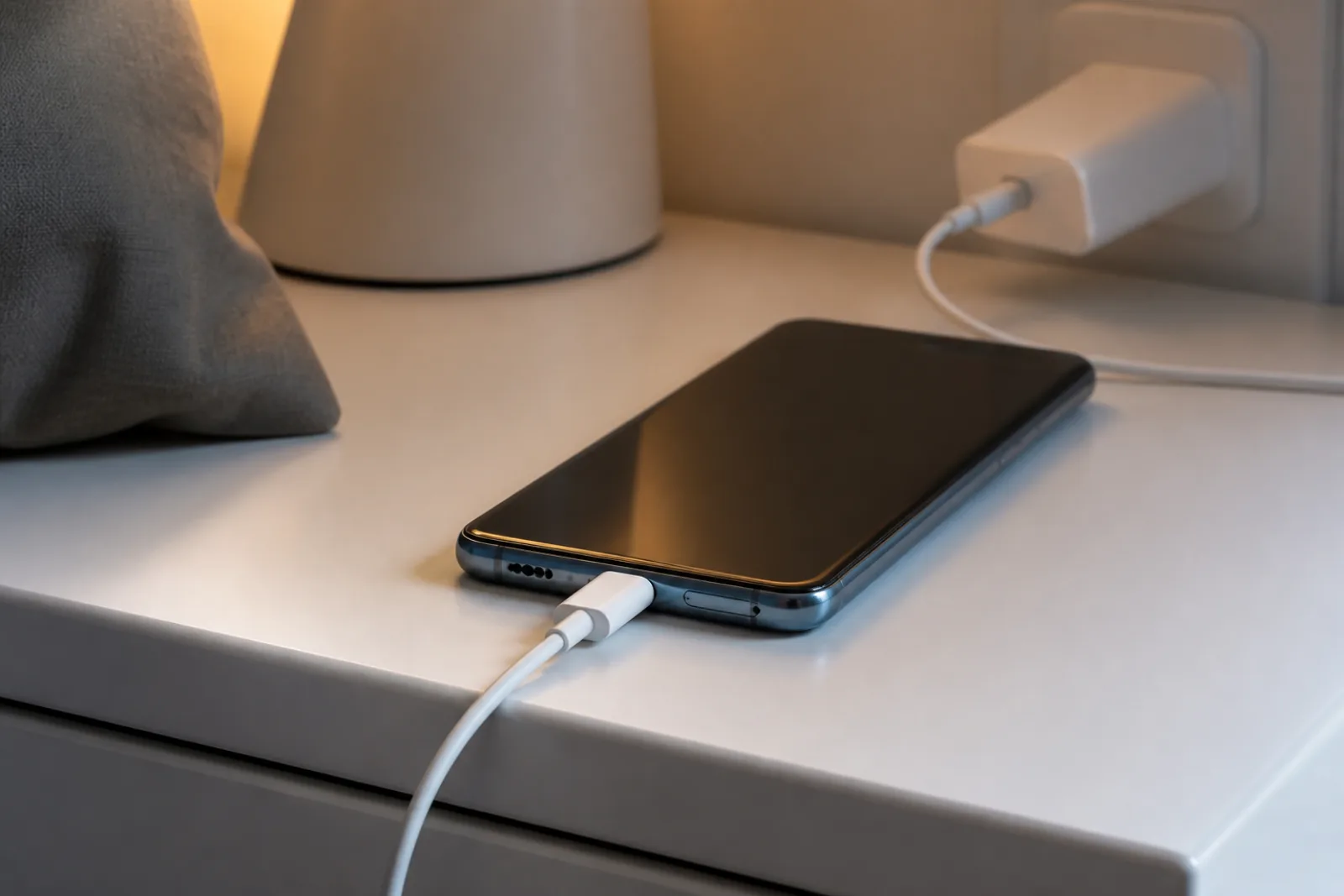
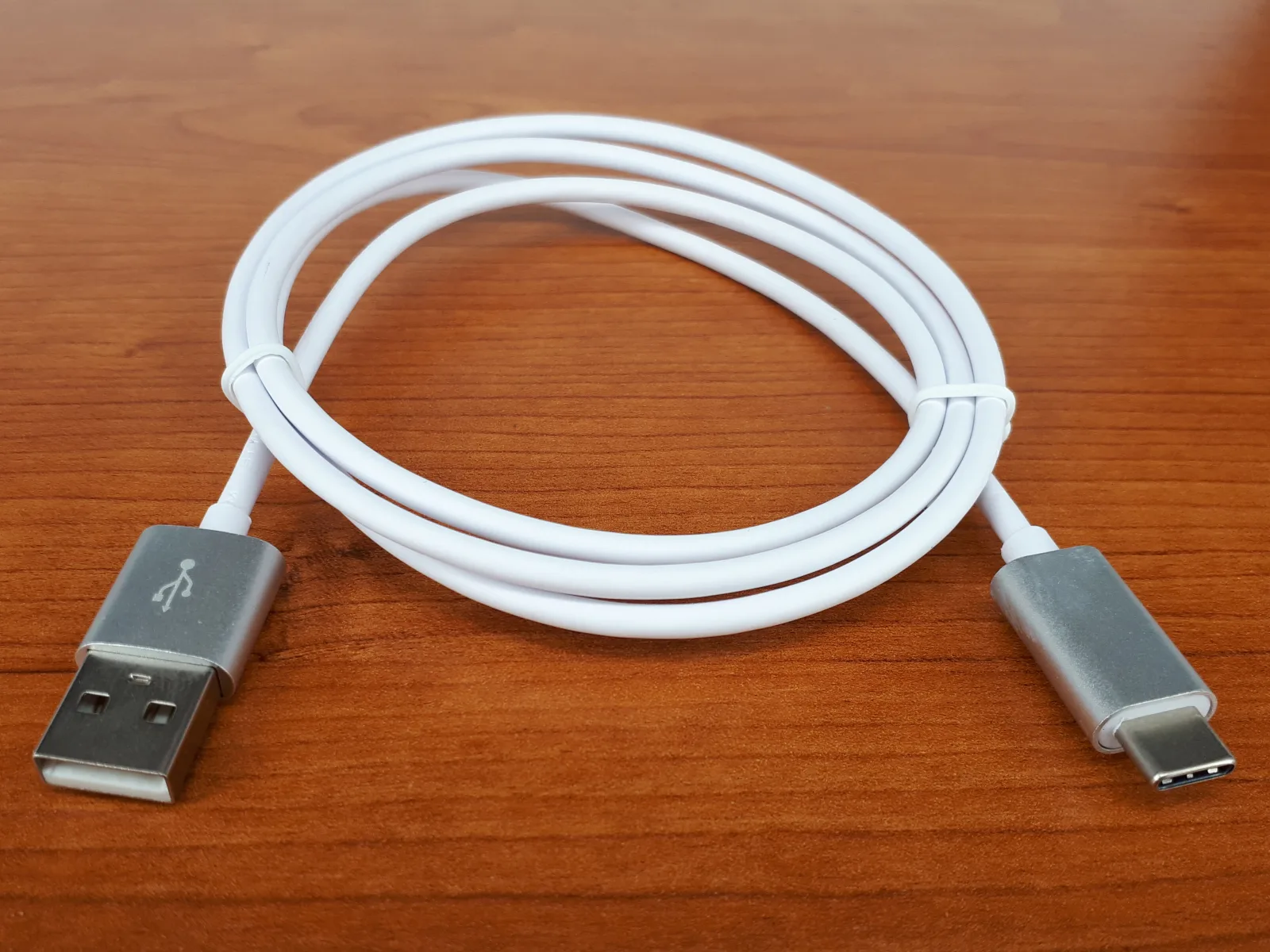
Bluetooth HID is fine for menus and farming sims. It is not what you want in a flick shot. Plug the DualSense into the phone with a USB-C to USB-C cable. Sony supports USB on the same Android 12 list as Bluetooth.
Three wired rules:
- The cable must carry data. Charge-only leads power the pad and do nothing else. If the phone never sees a gamepad, swap the cable first.
- The phone must act as a USB host. Most 2024–2026 flagships do. Some budget phones are charge-only on that port. If USB file transfer works to a stick, host mode is there.
- You may need a USB-C OTG adapter only if your cable is USB-A on one end. DualSense is USB-C, so a straight C-to-C cable is the clean path.
Wired removes the Bluetooth hop. It also charges the pad from the phone, so a long session drains the phone faster. For a couch, that trade is worth it. For a bus, pair Bluetooth and sit close.
Input delay vs ping (people mix these up)
Two different delays get blamed on “lag.”
| What it is | What it feels like | What actually fixes it | |
|---|---|---|---|
| Input delay | Time from thumb to the game seeing the press | Aim drifts; jumps feel sticky even at 20 ms ping | USB-C, slot switch off the PS5, Unrestricted Bluetooth, leave 2.4 GHz Wi-Fi |
| Network lag | Time from your phone to the game server | You peek a corner and die around it | Wi-Fi 5 GHz or 6 GHz, closer router, not a VPN, not a dying mobile tower |
If COD Mobile shows 28 ms ping and your DualSense still feels mushy, that is input delay. Changing servers will not help. If ping is 180 ms, the pad is not the villain.
Fixes that cut DualSense input delay on Android
- Use USB-C when you can. This is the biggest cut.
- Sit within a couple of metres on Bluetooth. HID does not like walls and pockets.
- Put the phone on 5 GHz or 6 GHz Wi-Fi. Bluetooth shares 2.4 GHz with old Wi-Fi, microwaves, and USB 3 hubs. Google’s own Bluetooth help starts with crowded 2.4 GHz as a stutter cause.
- Set the Bluetooth system app to Unrestricted. Settings > Apps > Show system apps > Bluetooth > Battery > Unrestricted. Samsung also: Battery > Background usage limits, and take Bluetooth off the sleeping list. We walk that path in Bluetooth not connecting on Android.
- Turn on Game Mode / Game Booster for that one game. It stops the phone throttling the radio when the screen would otherwise dim.
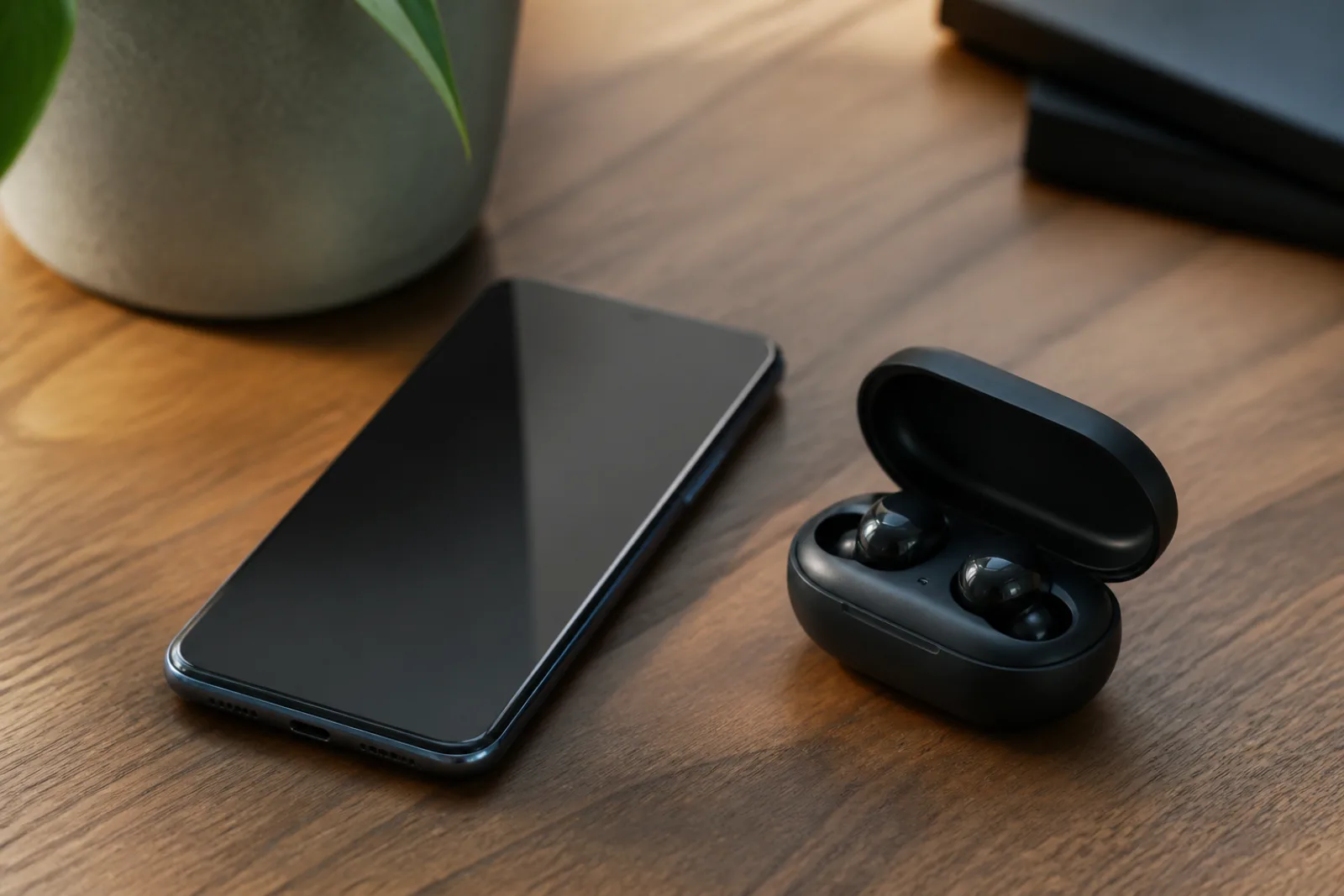
- Close a second Bluetooth sink. Earbuds plus a DualSense on one radio is how audio and sticks both hitch.
- Charge the pad. A dying DualSense starts skipping reports before the light looks sad.
One 2026 note for people running PC games on the phone: official Winlator 11.2 (Beta), published 19 August 2026, lists “Fixed gamepad input lag” in the changelog. If your DualSense feels late inside Winlator on 11.1, that beta is the first place to look. The stable build is still 11.1. Setup is in our Winlator PC games on Android guide.
Still late after USB-C: 60-second checklist
Work top to bottom. Stop when the stick feels on time.
- Confirm the cable is data, not charge-only. The phone must show a gamepad in Settings > Connected devices. If it only charges, swap the lead.
- Kill the PS5 link. Hold PS until dark. Slot 2 (PS + Circle) for the phone. A live console session will keep stealing the pad.
- One Bluetooth sink. Disconnect earbuds, a watch, and a second pad.
- Unrestricted Bluetooth as above. Then Game Mode for that one title.
- Force a high refresh rate (next section). A 60 Hz panel with a 120 Hz game lock still feels sticky.
- Turn extra accessibility tools off (next section). Magnification and overlay “game assistants” add a filter on every press.
- Update DualSense firmware on a PC with PlayStation Accessories, then re-pair.
- Read the ping. If COD Mobile shows 150 ms+, the pad is done. That is the server.
If USB-C is clean and ping is low and it is still late, the game is buffering input. That is common in emulators and in Winlator 11.1. Try the 11.2 beta or a native Android port.
Accessibility lag and 120 Hz
Android can put an extra filter on every tap and stick report. XDA documented this years ago: some accessibility services subscribe to high-frequency events, and the system pays for it with delay. You feel it as DualSense lag even on USB-C.
- Settings > Accessibility. Turn off tools you do not need for this session: Magnification, Switch Access, Live Transcribe overlays, and any “auto clicker,” “game booster,” or one-tap installer that asked for accessibility permission. TalkBack and real Switch Access stay on if you need them. This is a gaming checklist, not medical advice.
- Installed services hide here. Phone cleaners and APK helpers often leave a service enabled. If you do not recognize a name, open it and disable it.
- 120 Hz / 90 Hz. Pixel: Settings > Display > Smooth Display. Samsung: Settings > Display > Motion smoothness > Adaptive or Standard at the high rate. Then lock that rate inside Game Booster if the skin lets you. A phone that drops to 60 Hz to save battery will make a DualSense feel late in a 120 fps shooter.
Remote Play is a third delay stack (encode + Wi-Fi). If only Remote Play feels late, stay on the same 5 GHz / 6 GHz router as the PS5 and drop mobile data. That is not a DualSense Bluetooth bug.
What the DualSense will not do on Android
Sony publishes the missing features. They are not bugs.
- Adaptive triggers are not compatible with Android phones. L2 and R2 still click. They will not get that PS5 resistance.
- Haptic feedback is not compatible with mobile. Sony also says haptics on PC need USB, and they are out on Mac and phones.
- The built-in mic and speaker are not for mobile.
- The headset jack on the pad is not for mobile. Sony limits that to a wired PC or Mac.
The exception is PS Remote Play on Android 12+, where Sony documents DualSense use for streaming the console. That is the console doing the haptics work, not the Play Store game.
PS5 controller will not connect: 9 checks
- It is still owned by the PS5. Hold PS until it dies. Then Create + PS. Pair from the phone. Or park the phone on Slot 2 with PS + Circle.
- You held Share, not Create. DualSense = Create. DualShock 4 = Share.
- A USB cable is still plugged in. Sony tells you to unplug it before a Bluetooth pair.
- Android is 11 or older. Official support starts at 12.
- Bluetooth is sleeping. Unrestricted, as above.
- The list is crowded. Forget dead speakers and an old TV. Then pair again.
- Reset the pad. Sony’s hardware help: pinhole on the back, paperclip, about 5 seconds, then pair from scratch. You will rebuild slots.
- The game has no controller support. The pad can be connected and still do nothing in a touch-only title. See the games section.
- An accessibility overlay is on. Disable extra services, then re-test USB-C. See the accessibility section.
Firmware updates for the DualSense happen on a PC with PlayStation Accessories, not on the phone. If a new DualSense build is out and Android pairing got weird the same week, update it on a Windows PC, then re-pair.
Which Android games actually see the DualSense
Android treats a paired DualSense as a standard gamepad. The game still has to listen. We tested that split in 22 Android games with gamepad support.
- Tier 1 (menus and play): Dead Cells, Grid Autosport, Stardew Valley.
- Tier 2 (play, tap menus): Call of Duty: Mobile, Fortnite, Genshin Impact (off by default; turn it on in-game), Minecraft.
- Do not force a pad: PUBG Mobile and BGMI. No official support. Mapping apps are an anti-cheat target.
Xbox pads need Android 9+. DualSense needs Android 12+ for the official path. If you own both, the Xbox pad is the better pick on an old phone.
PS Remote Play vs local Android games
Two jobs, one pad.
| PS Remote Play | A game on the phone | |
|---|---|---|
| What you play | Your PS5, streamed | The Android app |
| DualSense extras | Sony documents pad use on Android 12+ | Generic buttons; no adaptive triggers |
| Lag you feel | Wi-Fi to the console, plus encode | Bluetooth or USB into the game |
| Best link | Same-room 5 GHz / 6 GHz | USB-C for shooters |
Remote Play lag is not DualSense lag. If Remote Play feels late, move to 5 GHz, stay on the same router as the PS5, and drop mobile data. Sony’s Remote Play app is the supported client.
DualSense Edge
Same Create + PS pair. Same four slots. Same Android 12 floor. The extra paddles only help in games that already see a standard pad, and Android games almost never map those paddles. Buy Edge for the PS5. Do not buy it to fix phone lag.
Want something to play once it's paired? Start with our list of Android games with gamepad support, or if you mostly play shooters, the mobile gaming lag fix guide separates controller delay from network ping. Low frame rates are a different problem again, covered in the FPS boost guide for phones.
Bottom line
Pair with Create + PS, park the phone on Slot 2, and use USB-C when a shooter feels late. Sony will not give you adaptive triggers on the phone. Unrestricted Bluetooth, 5 GHz Wi-Fi, 120 Hz, and a clean accessibility list stop the fake “my ping is fine” delay.
Do this next: turn the DualSense off, Create + PS, pair Wireless Controller, then plug USB-C and launch one Tier 1 game from our gamepad support list. If the stick still feels late only in an online shooter, that is ping, and the pad is done.
Related reading
Frequently Asked Questions
Does a PS5 controller work with Android?
Yes. Sony lists Android 12 or newer for both Bluetooth and USB connections. Adaptive triggers and haptic feedback do not work on Android phones, according to the PlayStation support page.
How do I connect a PS5 DualSense controller to Android?
Turn the pad off, then hold Create and the PS button until the light bar blinks. On the phone open Settings, Connected devices, Pair new device, and tap Wireless Controller. Sony lists Android 12 or newer for official Bluetooth and USB support. A USB-C cable also works on that same Android 12 list.
Why is my PS5 controller laggy on Android?
Usually the pad is still linked to a PS5, Bluetooth is on a crowded 2.4 GHz band, Android is putting Bluetooth to sleep, or an extra accessibility service is filtering input. Plug in USB-C, set Bluetooth to Unrestricted, force 90/120 Hz, and turn off Magnification and overlay game tools. High ping is a separate problem.
Do DualSense adaptive triggers work on Android?
No. Sony states that adaptive triggers are not compatible with Android phones, and haptic feedback is not compatible with mobile either. L2 and R2 still register as ordinary triggers. PS Remote Play on Android 12 or newer is the documented path if you want DualSense behaviour while streaming a PS5.
Can a DualSense stay paired to both my PS5 and my phone?
Yes, on two of the four slots. Sony lets one DualSense remember four devices. Park the PS5 on Slot 1 with PS plus Triangle and the phone on Slot 2 with PS plus Circle. If the pad is actively on the console, the phone cannot steal the connection. Switch from the controller buttons.
Is USB-C better than Bluetooth for a DualSense on Android?
Yes for input delay. A data-capable USB-C cable makes the phone see a wired gamepad and removes the Bluetooth hop. Use it for shooters on the couch. Bluetooth is the portable option. Charge-only cables will power the pad and never show a controller.
What Android version do I need for a PS5 controller?
Sony's compatibility table starts at Android 12 for DualSense Bluetooth and USB. Xbox Wireless Controllers work from Android 9. On Android 11 or older, pairing can be patchy and PS Remote Play extras are not in the supported list.
Why does my DualSense keep reconnecting to the PS5?
A short press of the PS button reconnects to the last device, which is often the console. Hold PS until the pad is off, then use Create plus PS to pair the phone, or switch with the slot combo you assigned. Sony also says a phone cannot take over while the pad is still on a PS5.
Does PUBG Mobile support a PS5 controller?
No. PUBG Mobile and BGMI do not officially support gamepads. Apps that fake touch input are a common anti-cheat target. Call of Duty: Mobile and Fortnite are the safer official pad shooters on Android.
Why is my DualSense still laggy after USB-C?
The cable may be charge-only, the PS5 may still own a slot, an accessibility service may be intercepting input, or the panel may be locked at 60 Hz. Work the still-late checklist: data cable, Slot 2, one Bluetooth sink, Unrestricted Bluetooth, high refresh, extra accessibility off, then read ping in-game.
Can Android accessibility settings cause DualSense lag?
Yes. Accessibility services can add an input filter. Magnification, Switch Access, and third-party auto-clickers or game boosters are the usual extras. Turn off what you do not need for that session in Settings, Accessibility, then re-test. Keep TalkBack or Switch Access on if you rely on them.