Android Notifications Not Working? How to Get Them Back

When Android notifications stop working, check four things in this order: make sure Do Not Disturb or another Mode isn't on, make sure the app (and the specific notification category) is allowed to notify you, take the app off battery restrictions, and confirm Android hasn't paused it for being unused. If notifications do arrive but only late, often in a burst when you unlock the phone, the cause is usually Android's Doze battery mode and how the app sends its alerts, not a broken phone.
Also in this topic: Android Guides hub.
Jump to: missing, silent, or late? · Do Not Disturb and Modes · app permission and categories · battery restrictions · late notifications and Doze · Notification cooldown · paused unused apps · Data Saver · lock screen · last steps · FAQ
How we put this together: The menu paths and explanations below come from Google's Android and Pixel help pages, Google's Android and Firebase developer documentation, Samsung's US support site, and WhatsApp's help center, all linked in place and checked on October 20, 2026. We didn't reproduce each failure on every phone, so the wording of some menus on yours may differ slightly, especially on older Android versions.
Are Your Notifications Missing, Silent, or Late?
Start by naming the symptom, because each one points to a different setting. A notification that never appears is usually blocked by a permission, a Mode, or a sleeping app. One that appears without a sound is usually set to Silent or muted by a Mode or Notification cooldown. One that shows up minutes or hours late is almost always battery management.
| What you see | Most likely cause | Where to look first |
|---|---|---|
| No notifications from any app | Do Not Disturb, Bedtime, or another Mode is on | Quick Settings, then Settings > Modes (Pixel) |
| Nothing from one app | App notifications or a category turned off, or the app is asleep | The app's Notifications page in Settings, then battery limits |
| Notifications show up, but no sound or pop-up | The category is Silent, or Notification cooldown kicked in | Long-press the notification, then Settings > Notifications |
| Alerts arrive late or when you unlock the phone | Doze, Adaptive Battery, or battery optimization | The app's battery usage setting |
| An app you rarely open went quiet | Android paused it as unused | App info > Pause app activity if unused |
| Fine on Wi-Fi, quiet on mobile data | Data Saver or blocked background data | Settings > Network & internet > Data Saver (Pixel) |
Turn Off Do Not Disturb and Other Modes
Check Modes first, since one forgotten schedule can silence every app at once. On Pixel phones and recent Android versions, Google now groups Do Not Disturb with Bedtime, Driving, and custom modes under Settings > Modes, according to Google's Do Not Disturb help page. Swipe down to Quick Settings to see whether a mode is on, then open each mode in Settings to see if it turns itself on automatically, for example on a bedtime schedule or "Turn on while charging."
On a Samsung Galaxy, swipe down from the top right to open the Quick settings panel and turn off Do not disturb if it's highlighted. Samsung's US support page for apps that don't send notifications puts this at the top of its checklist, along with turning off Power saving from the same panel.
If you want a mode on but still need one app to get through, edit that mode's notification filters and add the app or the person as an exception, rather than turning the mode off for good.
Check the App's Notification Permission and Categories
Next, make sure the app is actually allowed to notify you. On a Pixel or other phone running stock Android, open Settings > Notifications > App notifications, pick the app (switch the dropdown to "All apps" if you don't see it), and turn its notifications on. Google's Android notifications help page also notes that many apps split notifications into categories, so the main switch can be on while the one category you care about, such as "Messages" or "Deliveries," is off.
On a Samsung Galaxy, go to Settings > Apps, choose the app, tap Notifications, and turn on Allow notifications. Turn on Allow sound and vibration too if the alerts arrive silently.
Why a new app may never have notified you
On Android 13 and later, notifications are a permission each app has to ask for. Google's developer documentation on the notification permission says notifications from a newly installed app are off by default until you tap Allow. It adds a detail most fix guides miss: if an app built for Android 12L or earlier asks and you tap "Don't allow" even once, it won't ask again until you reinstall it or the developer updates it. So if you dismissed that pop-up months ago, the fix is to turn notifications on in Settings yourself. Waiting for the app to ask again won't work.
Check the app's own settings
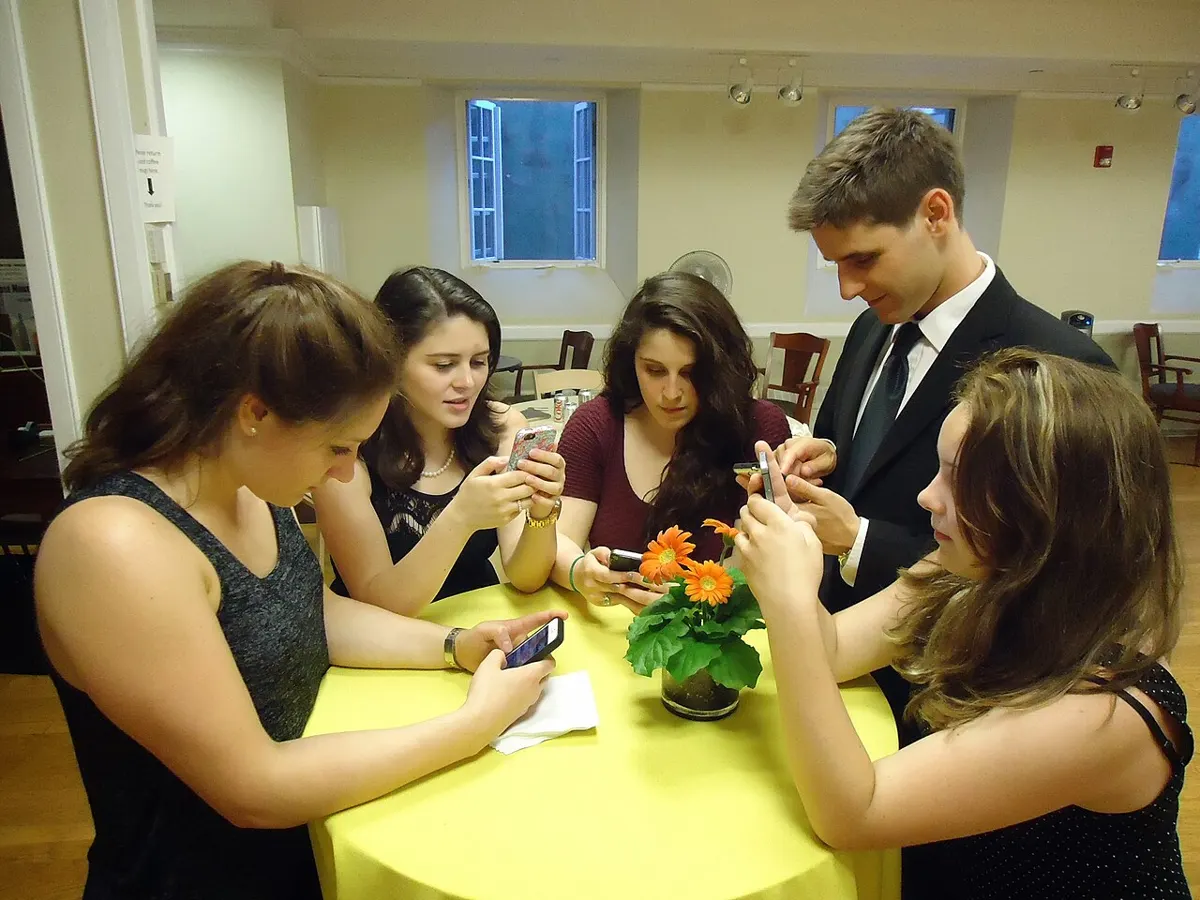
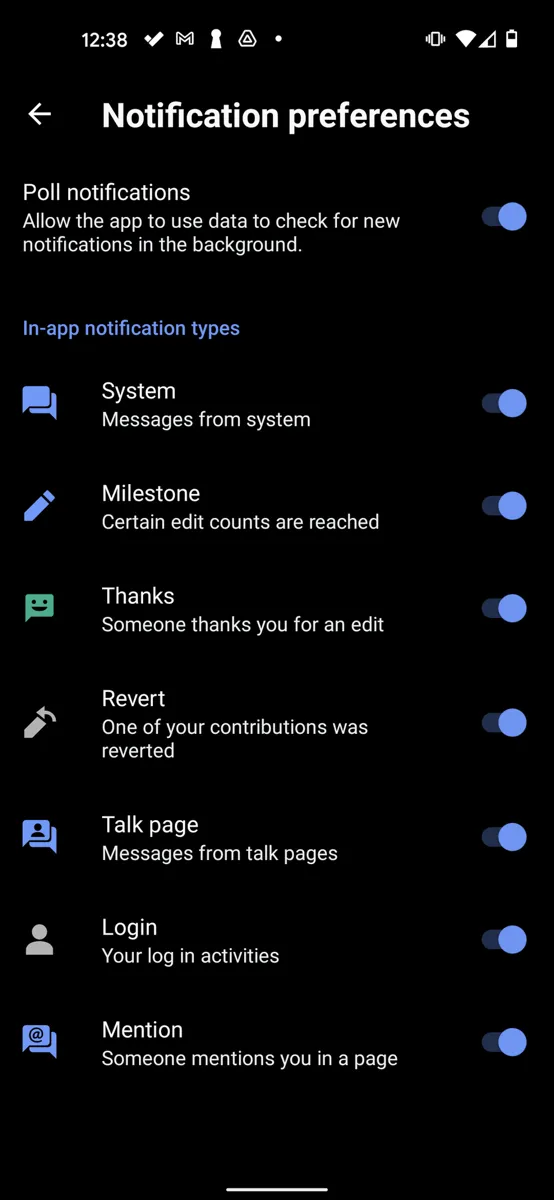
Many apps have a second set of switches inside the app, like the preferences screen in the photo above. WhatsApp's notification help page spells out the order that matters: your phone's settings override WhatsApp's settings. Fix the phone side first, then check the app's own menu.
Alerting or Silent
If notifications show up in the shade but make no sound, the category is probably set to Silent. Swipe down, drag the notification slightly left or right, tap the Settings icon, and choose Alerting. Google's help page says Silent notifications don't make a sound or vibrate but still appear when you swipe down.
Stop Battery Settings From Blocking Notifications
Battery limits are the most common reason a single app goes quiet, and the fix is per app, not phone-wide. Google's own Pixel battery help page says Adaptive Battery "may reduce performance and delay notifications" for apps you use less often.
On a Google Pixel
- Open Settings > Apps > See all apps and tap the app.
- Tap App battery usage, make sure Allow background usage is on, and choose Unrestricted instead of Optimized.
- Turn off Battery Saver from Quick Settings if it's on.
Adaptive Battery has moved in recent Pixel software. Older guides send you to Settings > Battery > Adaptive Battery, but Google's current page lists it under Settings > Battery > Battery Saver > Adaptive Battery.
On a Samsung Galaxy
- Open Settings > Device care > Battery (on some models, Battery and device care > Battery).
- Tap Background usage limits, then Sleeping apps. Touch and hold the app and tap Remove.
- If it isn't there, go back and check Deep sleeping apps the same way.
Samsung's support page says sleeping apps may not send notifications while closed, which is exactly the symptom people report.
Our take: set two or three apps that truly matter, like your messaging app, a security camera, or a work chat, to Unrestricted and leave the rest alone. Don't turn off Adaptive Battery for the whole phone. Google warns that turning off optimization lets an app run more while you're not using it and can use more battery than needed, so doing it for every app just trades a notification problem for a battery one. If your phone is also running hot, our guide to an Android phone that keeps overheating covers background drain.
Why Notifications Arrive Late or Only When You Unlock
Late notifications usually come from Doze, Android's idle battery mode, combined with how the app's server sends its alerts. Google's Doze documentation says that when a phone sits unplugged and still, Android suspends network access for apps and lets them catch up only during short "maintenance windows" that come less often the longer the phone stays idle. Moving the phone, turning on the screen, or plugging it in ends Doze, which is why a pile of alerts often lands the moment you pick the phone up.
The app's developer decides how much Doze affects you. Most apps deliver notifications through Firebase Cloud Messaging, and Firebase's message priority guide says normal-priority messages can wait until the phone leaves Doze, while high-priority messages can wake a sleeping phone right away. Firebase tells developers to use high priority for things like chat messages, account problems, and food delivery updates. When one app's alerts are always late and others on the same phone arrive on time, the app's sending choice is a likely cause. Setting it to Unrestricted helps apps that check for updates themselves, but it can't change what the app's server sends, so it's worth reporting the delay to the developer too.
Pixel owners have complained about this for years. Android Authority reported in October 2025 that Pixel 10 owners were still seeing delayed Google Home and messaging alerts, that Google hadn't issued an official fix, and that the ADB command some people use to turn Doze off has to be run again after every restart. We don't recommend that workaround for most people, since it takes a computer, has to be repeated, and costs standby battery. Per-app Unrestricted settings are the safer first step.
Is Notification Cooldown Muting Your Alerts?
Notification cooldown lowers the sound and hides pop-ups when you get a lot of notifications in a short time, so it can look like alerts stopped making noise. Google's help page says it's in Settings > Notifications, under "General," as Notification cooldown, and that calls, alarms, priority conversations, and emergency alerts are exempt. Google's Pixel advanced notifications page says it's available on Android 14 and later, and Android Central reports that it reached Pixels in the March 2025 update.
Turn it off if you rely on several back-to-back alerts from one app, like a delivery app or a doorbell camera. Some Pixel owners on Reddit reported after the Android 16 update in June 2025 that repeat alerts arriving within about a minute were still muted with cooldown turned off. If that matches what you see, install any pending system update, and if it's a messaging app, mark the conversation as priority, since Google exempts priority conversations from cooldown.
Did Android Pause the App for Not Being Used?
Android puts apps you haven't used in a few months into hibernation, and a hibernating app can't get push notifications at all. Google's app hibernation documentation says that on Android 12 and later, a hibernated app's permissions are reset and it can't receive push notifications, "including high-priority messages." Swiping a notification away doesn't count as using the app, so an alert-only app you never open, like a utility outage app or a rarely used bank app, is a likely candidate.
Opening the app wakes it up, but Google's documentation says Android doesn't give back its permissions automatically. After you open it, check that notifications are still allowed. To stop it from happening again, open Settings > Apps, choose the app, and turn off Pause app activity if unused (on Android 12 the switch is called Remove permissions and free up space).
Check Data Saver and Background Data
If notifications work on Wi-Fi but go quiet on cellular, Data Saver is the likely cause. Google's Data Saver help page says it lets most apps use background data only over Wi-Fi. Turn it off in Settings > Network & internet > Data Saver, or keep it on and add the apps you need under Unrestricted data. Also check the app's own background data switch: WhatsApp's help page points to Settings > Apps > WhatsApp > Mobile data usage > Background data.
If the phone shows a Wi-Fi connection but nothing loads, that's a connection problem rather than a notification one, and no notification setting will fix it.
Notifications Not Showing on the Lock Screen
If alerts appear when the phone is unlocked but not on the lock screen, the lock screen setting is hiding them. Google's help page puts this in Settings > Notifications > Notifications on lock screen, where you can choose to show silent notifications and sensitive content, or hide all of it. Individual apps can also be set to hide sensitive content or not appear on the lock screen at all, so check the app's notification page if only one app is missing there.
Smartwatch alerts depend on the phone too: if notifications reach the phone but not your watch, the problem is usually the Bluetooth link, and our guide to Android Bluetooth problems covers that.
Still Nothing? Update, Clear Cache, and Restart
If every setting above checks out, update the app from the Play Store, restart the phone, and then clear the app's cache (not its storage) from Settings > Apps > [app] > Storage & cache (just Storage on Samsung). Install any pending system update while you're at it. WhatsApp's help page lists updating the app, restarting, and checking for software updates as its final steps before contacting your phone maker.
Don't jump to a factory reset for notification problems. None of the official guides from Google, Samsung, or WhatsApp that we checked recommend one for this, and it won't help if the issue is Doze or how the app sends its alerts. If only texts from iPhone users are missing, that's an RCS or iMessage problem, which our guide to fixing Android not receiving texts from iPhones covers.
FAQ
Why do I get WhatsApp notifications but not alerts from other apps?
Usually because the apps send alerts differently or have different battery settings. Firebase lets developers mark messages as high priority so they can wake a sleeping phone, while normal-priority messages can wait for Doze to end. Set the quiet app to Unrestricted battery use and check its notification categories.
How do I see Android notifications I missed or swiped away?
Use notification history. On phones that have it, open Settings > Notifications > Notification history. Google says it shows snoozed notifications, recently dismissed ones, and a history of the past 24 hours.
Should I turn off Adaptive Battery to fix late notifications?
Usually not. Setting the few apps that need instant alerts to Unrestricted fixes most delays without the battery cost of turning optimization off for every app. Google says Adaptive Battery may delay notifications for apps you use less often, so the per-app setting is the targeted fix.
Why don't my Android notifications make a sound?
The app's category is probably set to Silent, a Mode such as Do Not Disturb is on, or Notification cooldown lowered the volume after several alerts in a row. Long-press the notification to switch it to Alerting, then check Modes and Settings > Notifications > Notification cooldown.
Does clearing the cache fix notifications?
Sometimes, but it's a last step, not a first one. Clearing an app's cache doesn't change notification permissions, Modes, or battery limits, which cause most problems. Check those first, then update the app, restart the phone, and clear the cache if alerts still don't arrive.
Frequently Asked Questions
Why do I get WhatsApp notifications but not alerts from other apps?
Usually because the apps send alerts differently or have different battery settings. Firebase lets developers mark messages as high priority so they can wake a sleeping phone, while normal-priority messages can wait for Doze to end. Set the quiet app to Unrestricted battery use and check its notification categories.
How do I see Android notifications I missed or swiped away?
Use notification history. On phones that have it, open Settings > Notifications > Notification history. Google says it shows snoozed notifications, recently dismissed ones, and a history of the past 24 hours.
Should I turn off Adaptive Battery to fix late notifications?
Usually not. Setting the few apps that need instant alerts to Unrestricted fixes most delays without the battery cost of turning optimization off for every app. Google says Adaptive Battery may delay notifications for apps you use less often, so the per-app setting is the targeted fix.
Why don't my Android notifications make a sound?
The app's category is probably set to Silent, a Mode such as Do Not Disturb is on, or Notification cooldown lowered the volume after several alerts in a row. Long-press the notification to switch it to Alerting, then check Modes and Settings > Notifications > Notification cooldown.
Does clearing the cache fix notifications?
Sometimes, but it's a last step, not a first one. Clearing an app's cache doesn't change notification permissions, Modes, or battery limits, which cause most problems. Check those first, then update the app, restart the phone, and clear the cache if alerts still don't arrive.