Wi-Fi Connected but No Internet on Android: How to Fix It

When your Android phone says it's connected to Wi-Fi but nothing loads, first find out where the break is: if other devices on the same Wi-Fi are also offline, restart the modem and router; if only your phone is offline, check Private DNS, any VPN, and whether your router or internet provider's app has paused or blocked the phone. Forgetting the network, fixing the date and time, a safe mode test, and a Wi-Fi and Bluetooth reset come after that, in that order.
Also in this topic: Android Guides hub.
Jump to: what the message means · phone, network, or internet? · built-in diagnostics · restart the router · public Wi-Fi sign-in · Private DNS · VPN · paused or blocked phone · forget and rejoin · date and time · safe mode · reset Wi-Fi settings · hotspot · FAQ
How we put this together: The steps and menu paths below come from Google's Pixel and Android help pages, Google's Android developer docs, the Android Open Source Project documentation, Samsung's US support pages, and Xfinity's support site, all linked in place and checked on October 20, 2026. We haven't reproduced every failure on every phone, so menu names on yours may be worded a little differently.
What Does "Connected, No Internet" Mean on Android?
It means your phone has joined the Wi-Fi network, but traffic isn't making it from that network out to the internet. Android checks for a working connection after it joins, and when the check fails it marks the network "No internet" or adds an exclamation point to the Wi-Fi icon. Samsung's status bar icon guide describes its version the same way: connected to Wi-Fi, but the network can't reach the internet.
The cause can be the router or your internet service, a sign-in page you haven't finished, or a setting on the phone itself. Match what you see to the likely cause before you start resetting things.
| What you see | Most likely cause | Try this first |
|---|---|---|
| Every device at home is offline | Modem, router, or an outage at your internet provider | Restart the modem and router |
| Only your phone is offline at home, but it works on other Wi-Fi | The router or provider app paused or blocked your phone, or a bad saved network | Check for a pause or block, then forget and rejoin |
| Your phone is offline on every Wi-Fi network | Private DNS, a VPN, a downloaded app, or the wrong date and time | Check Private DNS and your VPN |
| "Private DNS server cannot be accessed" | A custom DNS hostname that is wrong, down, or blocked | Switch Private DNS to Automatic |
| Cafe, hotel, or airport Wi-Fi with no internet | An unfinished sign-in page | Open the sign-in page |
| Wi-Fi drops when you turn on your hotspot | Your phone can't run both at once | See the hotspot section |
First, Is It Your Phone, the Network, or the Internet?
Google's Pixel Wi-Fi troubleshooting page suggests two quick tests that tell you where to look, and they save you from resetting a phone that was never the problem.
- Try another device on the same Wi-Fi. If a laptop or another phone works, the problem is most likely your phone.
- Try your phone on another Wi-Fi network, such as a friend's network or a public one. If it works there, the problem is most likely your home network.
- If your phone connects but nothing loads anywhere, Google says the problem is most likely your internet connection.
It also helps to turn Wi-Fi off and load a page over mobile data. If mobile data is broken too, the phone or your carrier settings are a stronger suspect. We keep current values for AT&T APN settings on Android and T-Mobile APN settings if you need them.
Before anything else, do the three basics from Google's page: turn Wi-Fi off and on, turn Airplane mode on and off, and restart the phone (hold the Power button, then tap Restart). After each step, open a web page to check.
Use the Built-In Wi-Fi Diagnostics on Pixel 11 and Galaxy Phones
Newer Pixels and Galaxy phones can test the connection for you, which most fix lists don't mention.
Pixel 11: Wi-Fi diagnostics (US only)
Google's page says Wi-Fi diagnostics is available only in the US, for US subscribers, on Pixel 11 phones. It can detect and sometimes fix Wi-Fi problems, check your settings, run a speed test, and give you a report. Go to Settings > Device health & support > Wi-Fi diagnostics, or tap Connectivity health for an overview. If you share the results, Google says the report can include your account info, IMEI, phone model, speed test results, and connectivity setting states.
Samsung Galaxy: Samsung Members phone diagnostics
Samsung's US Wi-Fi troubleshooting page lists this as its last step. Open the Samsung Members app, tap Support, then Get started. The full scan starts automatically, but you can stop it and run only the Wi-Fi test.
If Every Device Is Offline, Restart the Modem and Router
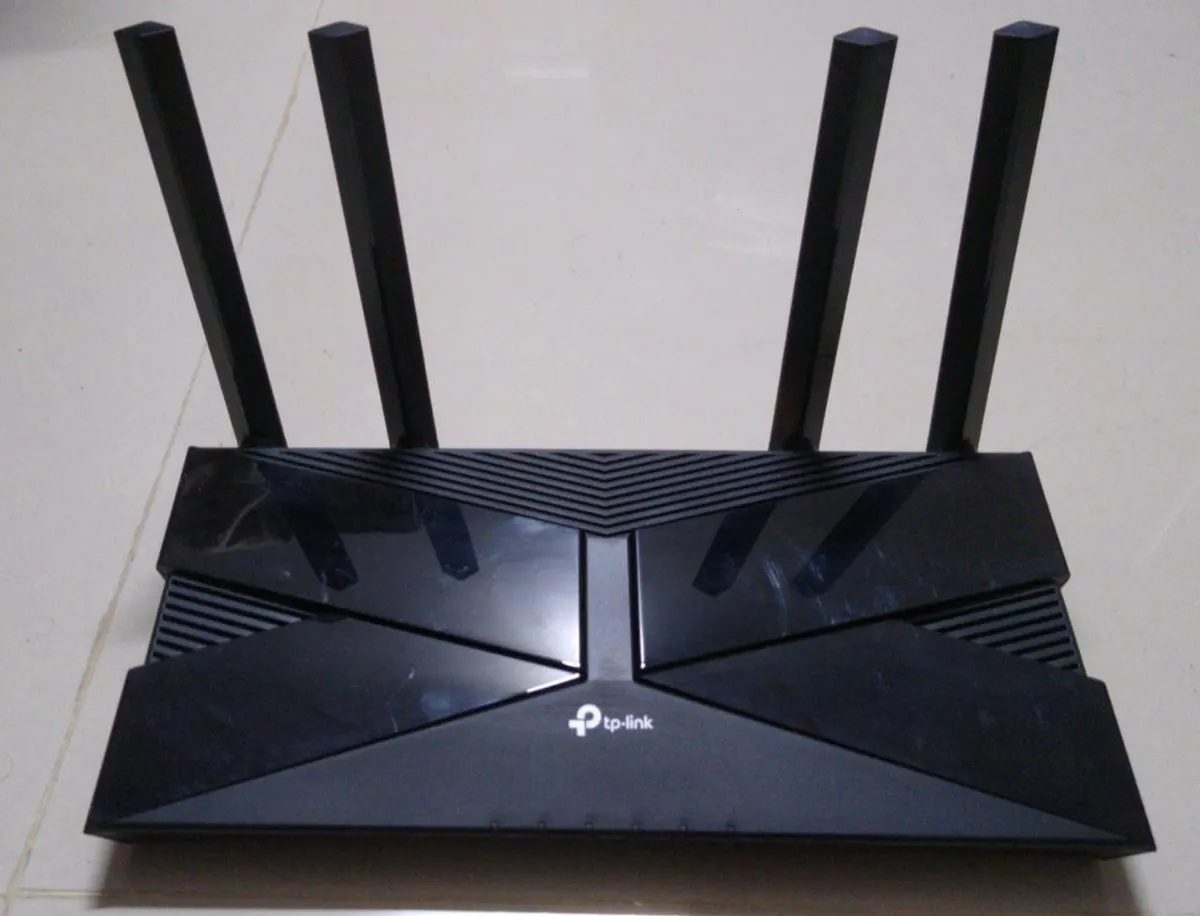
When nothing in the house can get online, the phone is fine and the fix is your network equipment or your provider. Google's Pixel page says to unplug the modem and router for 15 seconds, plug them back in, make sure every cable is secure, and wait a few minutes until the lights look normal. Google's general Android help page says to wait 30 seconds, so give it the longer of the two.
Unplug the power. Don't press the small recessed reset button on the router, because on most routers that's a factory reset that wipes your Wi-Fi name and password. If the lights still look wrong after a few minutes, check your provider's app or site for an outage, then contact the provider.
Samsung also suggests updating the router's firmware, and it notes that if the network doesn't show up on any device, it's time to contact the router maker.
On Public Wi-Fi, Finish the Sign-In Page
Cafe, hotel, and airport networks usually block the internet until you accept their terms on a sign-in page. If the page never appears, Google says to look for a notification asking you to sign in, or open a new page in a new browser window.
If that doesn't work, Google's fix is to start the connection over:
- Open Settings > Network & internet > Internet.
- Touch and hold the network name and tap Forget.
- Turn Wi-Fi off and on, then tap the network again.
- Tap the sign-in notification when it appears and accept the terms.
If you've set a custom Private DNS hostname (next section), switch it to Automatic before you sign in. A custom DNS server is often unreachable until you've signed in, so the sign-in page may never load. Switch it back once you're online.
Check Private DNS (and Why 8.8.8.8 Won't Work There)
Private DNS is an Android setting, added in Android 9, that encrypts your phone's DNS lookups (the step that turns a site name into an address). It has three options: Off, Automatic, and Private DNS provider hostname. When you enter a hostname, Google's Android Developers blog post on the feature says Android sends every DNS lookup to that server and marks the network "No internet access" if it can't reach it. That makes a mistyped, offline, or blocked hostname one of the few phone settings that can break Wi-Fi everywhere.
To check it:
- Pixel and most Android phones: Settings > Network & internet > Private DNS, per Google's advanced network settings page. If you can't find it, search Settings for "Private DNS."
- Samsung Galaxy: Settings > Connections > More connection settings > Private DNS.
If it's set to a hostname, switch to Automatic and tap Save. In Automatic mode, Google's Public DNS documentation says Android uses the network's own DNS server and tries an encrypted connection first, falling back to a normal one if that fails. Google recommends keeping Private DNS on, so pick Automatic rather than Off unless Automatic still fails.
A lot of fix lists, and the AI answer we got when researching this query, tell you to "use 8.8.8.8 and 8.8.4.4." That doesn't work in this field. Private DNS takes a hostname, not an IP address. Google's hostname is dns.google. Typing IP addresses means setting a static IP on each Wi-Fi network by hand, which Google's DNS page says is for advanced users only.
Turn Off Your VPN, Then Check Always-On
A VPN that has disconnected or can't reach its server can make every network look dead. Turn the VPN off in its app and reload a page. If the internet comes back, reconnect to a different server or update the app.
Two Android settings can keep blocking traffic even after you close the app. Go to Settings > Network & internet > VPN and tap the gear next to each VPN.
- Always-on VPN. Google's VPN help page says that if an always-on VPN stops working, you get a notification that stays until you reconnect. Turning always-on off clears it.
- Block connections without VPN. Android's developer documentation says that with this switch on, the system blocks any traffic that doesn't go through the VPN. When the VPN is down, that means nothing gets through.
The same Google DNS page notes that VPNs override your Private DNS setting, so if you use both, test with the VPN off first. If you're picking a new VPN, our list of the best VPN apps for Android compares the main options.
Was Your Phone Paused or Blocked by the Router?
If only one phone has no internet at home while everything else works, check whether someone paused it. Home internet apps can cut off a single device. Xfinity's support page for its app describes pausing internet access for a person's devices, scheduled pauses, and screen time limits on the home network. Parental controls, downtime schedules, and MAC address filters (lists of allowed or blocked devices) in other router apps do the same. A paused phone stays connected to Wi-Fi but gets no internet, which looks exactly like this problem.
Routers usually recognize your phone by its MAC address, a hardware ID for its Wi-Fi radio. Since Android 10, phones use a randomized MAC address by default instead of the real one. According to the Android Open Source Project documentation, that random address is tied to each saved network and stays the same until a factory reset. Forgetting and re-adding the network doesn't change it. So if your phone was paused or blocked, forgetting the network won't fix it. Unpause or unblock the phone in the router or provider app instead.
When you set up parental controls, Google's advanced settings page suggests including both MAC addresses. You'll find the real one under Settings > About phone > Wi-Fi MAC address, and the randomized one by tapping the gear next to your network.
Some campus, office, and hotel networks only let in devices registered by their real MAC address. To use the real one on that network:
- Samsung Galaxy: Settings > Connections > Wi-Fi, tap the gear next to the network, then View more > MAC address type > Phone MAC.
- Pixel and other Android phones: tap the gear next to the network and look for the Privacy option in the network details, then choose the device MAC instead of the randomized one. Android's docs say this setting applies to that one network only.
Leave the randomized address on everywhere else. It exists so networks can't track your phone from place to place.
Forget the Network and Rejoin
If only one saved network fails, delete it and sign in again. That clears a bad saved password, an old proxy, or a static IP someone typed in long ago.
- Pixel: Settings > Network & internet > Internet > Saved networks, tap the network, then Forget. To add it back, tap Add network at the end of the list, or just tap it when it appears.
- Samsung Galaxy: Settings > Connections > Wi-Fi, press and hold the network, then tap Forget network, per Samsung's support page.
Have the Wi-Fi password ready before you forget the network. While you're in the network's details, check that Proxy is set to None and IP settings is set to DHCP unless you know your network needs something else.
Fix the Date and Time
Google's Pixel page says a wrong date and time can cause Wi-Fi connection problems. Secure sites and apps check certificates against the clock, so a phone set to the wrong day can look like it has no internet. Go to Settings > System > Date & time and turn on Set time automatically. On a Galaxy, it's Settings > General management > Date and time.
Test in Safe Mode for a Problem App
Safe mode starts the phone with downloaded apps turned off. If Wi-Fi works there, Google and Samsung both say a downloaded app is the likely cause. Start with apps that filter or manage network traffic, such as ad blockers, firewalls, and "Wi-Fi booster" or optimizer apps.
- Open the power menu (hold Power on a Pixel, or Side and Volume down on newer Galaxy phones).
- Touch and hold Power off until Safe mode appears, then tap it.
- Google notes that Airplane mode turns on automatically in safe mode on a Pixel, so turn it off and test Wi-Fi.
- Restart to leave safe mode. If Wi-Fi worked, uninstall your most recent apps one at a time and test after each.
Reset Wi-Fi and Bluetooth Settings (Last Software Step)
A network reset clears every saved Wi-Fi network and Bluetooth pairing, but it doesn't erase your photos, apps, or files. Do it only after the steps above, and have your Wi-Fi passwords handy.
- Pixel: Settings > System > Reset options > Reset Bluetooth & Wi-Fi, then tap Reset settings. That's the current name on Google's Pixel page. Older guides and some carrier pages still show the earlier combined "Reset Wi-Fi, mobile & Bluetooth" option.
- Samsung Galaxy: Settings > General management > Reset > Reset Wi-Fi and Bluetooth settings > Reset settings.
Afterward, rejoin your Wi-Fi and re-pair your earbuds, watch, and car. If Bluetooth acts up afterward, our Android Bluetooth fixes walk through pairing again. Also install any pending system update. Google's page recommends checking for one once you're back online, and Samsung lists a software update as its second Wi-Fi step. For this month's patches, see our coverage of the October 2026 Pixel update and the Samsung October 2026 security update.
A factory reset is the step after this, not instead of it. Back up first, because it erases everything.
Wi-Fi Turns Off When You Use Your Hotspot
Some phones can't use a hotspot and Wi-Fi at the same time. Google names the Pixel 7a as one of them: turning on the hotspot turns Wi-Fi off. Google also says the hotspot turns itself off after 10 minutes with no devices connected. On phones that can't run both, Wi-Fi then comes back on and tries to reconnect to the last network.
If your phone stays connected to a weak Wi-Fi signal instead of using mobile data, look at Settings > Network & internet > Adaptive connectivity > Auto-switch to mobile network on a Pixel. Google says it switches to mobile data when the Wi-Fi has no internet or the signal is weak. It can use more mobile data, so leave it off if you're on a small plan.
Casting and screen mirroring also need your phone and TV on the same working Wi-Fi network, so fix the connection first if casting your Android to a TV is what failed.
FAQ
Why does my Android say connected but no internet?
Your phone joined the Wi-Fi network, but the network can't reach the internet, or a phone setting is blocking traffic. If every device is offline, restart the modem and router. If only your phone is, check Private DNS, your VPN, and whether the router paused your phone.
Why does Wi-Fi work on my other devices but not my Android phone?
Usually because something specific to that phone is wrong: a custom Private DNS hostname, a stuck VPN, a pause or block in the router app, or a bad saved network. Work through those in order before you reset anything.
Can I use 8.8.8.8 as Private DNS on Android?
No. The Private DNS field takes a hostname, not an IP address. For Google Public DNS, enter dns.google. Typing 8.8.8.8 means setting a static IP for each Wi-Fi network by hand.
Does forgetting a Wi-Fi network change my phone's MAC address?
No. The Android Open Source Project documentation says the randomized MAC address for a network stays the same until a factory reset, even if you forget and re-add the network. If your router blocked the phone, unblock it in the router or provider app.
Will resetting network settings delete my data?
No. Resetting Wi-Fi and Bluetooth settings removes saved Wi-Fi networks and Bluetooth pairings, not your photos, apps, or files. A factory reset is different and erases everything.
Frequently Asked Questions
Why does my Android say connected but no internet?
Your phone joined the Wi-Fi network, but the network can't reach the internet, or a phone setting is blocking traffic. If every device is offline, restart the modem and router. If only your phone is, check Private DNS, your VPN, and whether the router paused your phone.
Why does Wi-Fi work on my other devices but not my Android phone?
Usually because something specific to that phone is wrong: a custom Private DNS hostname, a stuck VPN, a pause or block in the router app, or a bad saved network. Work through those in order before you reset anything.
Can I use 8.8.8.8 as Private DNS on Android?
No. The Private DNS field takes a hostname, not an IP address. For Google Public DNS, enter dns.google. Typing 8.8.8.8 means setting a static IP for each Wi-Fi network by hand.
Does forgetting a Wi-Fi network change my phone's MAC address?
No. The Android Open Source Project documentation says the randomized MAC address for a network stays the same until a factory reset, even if you forget and re-add the network. If your router blocked the phone, unblock it in the router or provider app.
Will resetting network settings delete my data?
No. Resetting Wi-Fi and Bluetooth settings removes saved Wi-Fi networks and Bluetooth pairings, not your photos, apps, or files. A factory reset is different and erases everything.