How to Set Automatic Reply in Outlook App (2026 Guide for Android, iPhone & Desktop)
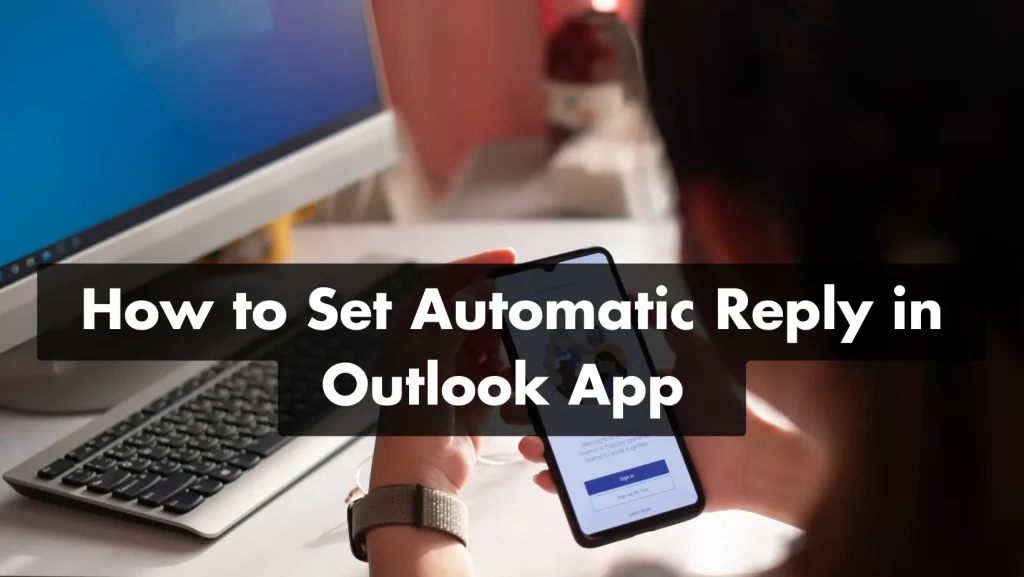
To set an automatic reply in the Outlook app, open Settings > your account > Automatic Replies, toggle it on, type your out-of-office message, and tap the checkmark to save. The same path works on both Android and iPhone, and the feature is available only for Microsoft 365, Exchange, and Outlook.com accounts — not Gmail, Yahoo, or other IMAP/POP accounts.
In a hurry? Jump to: Android & iPhone steps · Supported accounts · Desktop & Web · Message templates · Troubleshooting · FAQ
An out-of-office automatic reply tells anyone who emails you that you are away, when you will be back, and who to contact in the meantime. It is one of the most useful features in Outlook for keeping communication professional while you are on holiday, travelling, in deep-focus work, or simply offline for the day. Below is the exact, current 2026 process for the Outlook mobile app, plus the desktop and web steps and ready-to-use message templates.
Why Automatic Replies Matter
Automatic replies (often called out-of-office or OOO messages) do three things well:
- Maintain professionalism. Senders immediately learn you are unavailable and roughly when you will respond, so nobody is left wondering whether their email was received.
- Save you time. Outlook answers incoming mail for you, so you are not manually replying to every message to say "I'm away."
- Manage expectations. A good auto-reply sets a clear return date and points people to an alternative contact for anything urgent.
Which Accounts Support Automatic Replies?
This is the single most important thing to check first, because it is the most common reason the feature is missing. In the Outlook mobile app, automatic replies are supported for Microsoft 365, Exchange, Exchange (Hybrid), and Outlook.com accounts only.
If you added a Gmail, Yahoo, iCloud, or any other IMAP or POP account to Outlook, the Automatic Replies option will not appear — the server those accounts run on does not support server-side OOO through Outlook. For those, set the vacation responder inside the provider's own settings instead (for example, Gmail's "Vacation responder"). See the troubleshooting section for details.
How to Set an Automatic Reply in the Outlook App (Android & iPhone)
The steps are identical on Android and iOS. The whole process takes under a minute.
Step 1: Open the Outlook app
Launch Outlook on your phone. If it is not installed, download it free from the Google Play Store or the App Store.
Step 2: Open Settings
Tap your profile icon (or the menu icon) in the top-left corner, then tap the gear / Settings icon at the bottom of the panel.
Step 3: Select your account
Under the "Mail Accounts" list in Settings, tap the specific email account you want to set the reply for. If you have several accounts, each one is configured separately.
Step 4: Tap Automatic Replies and turn it on
Tap Automatic Replies, then slide the toggle to On. If you do not see this option, your account is not a supported type (see supported accounts above).
Step 5: Choose who gets the reply
Decide between Reply to everyone who emails you, or Reply only to my organization. If you choose "Reply to everyone," Outlook lets you write a separate message for people outside your organization — useful for keeping internal details private.
Step 6: Set a time period (optional but recommended)
Turn on Reply during a time period and set a start and end date/time. Outlook will automatically switch the auto-reply off at the end time, so you never forget to disable it. If you skip this, the reply stays active until you turn it off manually. On Exchange and Microsoft 365 accounts you can also clear or block your calendar for that window to auto-decline meetings.
Step 7: Write your message and save
Type the message senders will receive, then tap the checkmark in the top-right corner to save. Send yourself a test email from another address to confirm it is working.
Also Read: How to Move the Outlook Toolbar from Side to Bottom
How to Turn Off the Automatic Reply
To stop the auto-reply early, go back to Settings > your account > Automatic Replies and slide the toggle to Off, then tap the checkmark to save. If you set an end date in Step 6, Outlook turns it off for you automatically when that time arrives, so no manual action is needed.
Automatic Reply Settings at a Glance
| Setting | What it does |
| Automatic Replies toggle | Turns the out-of-office reply on or off. |
| Reply to everyone | Sends a reply to every external and internal sender who emails you. |
| Reply only to my organization | Sends the reply only to colleagues on the same Microsoft 365 / Exchange tenant. |
| External message | A separate message for senders outside your organization (optional). |
| Reply during a time period | Auto-enables and disables the reply between a start and end time. |
| Clear / block my calendar | Declines or blocks meetings during the away period (Exchange/M365 only). |
How to Set Automatic Replies on Desktop and Web
If you would rather set it from a computer, the option lives in slightly different places depending on which Outlook you use.
New Outlook for Windows & Outlook on the Web
- Select Settings (the gear icon), then Accounts > Automatic Replies. In the new Outlook for Windows you can also reach View settings from the View tab.
- Turn on Turn on automatic replies.
- Optionally tick Send replies only during a time period and set the start and end times.
- Type your message under Send automatic replies inside your organization, and optionally enable a separate reply for people outside your organization.
- Click Save.
Classic Outlook for Windows
- Go to File > Automatic Replies (Out of Office).
- Select Send automatic replies, set a date range if you want one, and type separate messages for the Inside My Organization and Outside My Organization tabs.
- Click OK.
If your account is a Gmail or other IMAP/POP account in classic Outlook, the Automatic Replies button is greyed out; you would need a client-side Rule (File > Manage Rules & Alerts), which only sends replies while your computer and Outlook stay running — not a reliable option for a real holiday.
Out-of-Office Message Templates You Can Copy
A good auto-reply is short, gives a return date, and points to an alternative contact. Here are three you can adapt.
1. Standard professional:
"Thank you for your email. I'm currently out of the office and will return on [date]. I'll respond to your message as soon as possible after that. For anything urgent, please contact [name] at [email]. — [Your name]"
2. Short and simple:
"I'm away until [date] with limited access to email. I'll get back to you when I return. Thank you for your patience."
3. Internal team version:
"I'm out until [date]. For [project] questions, reach [name]; for anything else, [name] is covering my inbox. I'll catch up when I'm back."
Quick tips: keep it concise, always include a return date if you know it, give one clear alternative contact, and match your company's tone — professional but human.
Troubleshooting: Automatic Replies Not Working
If your auto-reply is not sending or the option is missing, work through these in order:
- Account type not supported. The number-one cause. Automatic Replies only appear for Microsoft 365, Exchange, and Outlook.com accounts. For Gmail, Yahoo, or iCloud (IMAP), set the vacation responder in that provider's settings instead.
- Wrong dates or time zone. Confirm the start time has passed, the end time is in the future, and the time zone matches your account.
- One reply per sender. Outlook sends the OOO message only once per sender per period, so you will not get a reply on every test email from the same address — test from a different address.
- Update the app. Feature placement changes between versions; make sure you are on the latest Outlook build from your app store.
- On-premises Exchange quirk. Microsoft has documented a known issue where OOO set from Outlook mobile on an on-premises Exchange mailbox can revert after you close the settings screen. If that happens, set it from Outlook on the web or desktop instead.
- Full mailbox or external replies blocked. A full mailbox can stop replies sending, and some organizations disable replies to external senders at the admin level — check with your IT team if internal replies work but external ones do not.
How We Verified This Guide
We followed the automatic-reply flow in the current Outlook mobile app on both Android and iPhone to confirm the wording and tap sequence as it appears in 2026. Every step, supported-account limitation, and the on-premises Exchange revert issue was cross-checked against Microsoft's official support documentation, along with the desktop and web paths in both the new and classic Outlook for Windows. Where Microsoft's interface wording differs from older guides, we used the current labels.
Related Reading
- How to Move the Outlook Toolbar from Side to Bottom
- How to Send Email in Android Using Intent
- How to Use Microsoft Authenticator
Bottom Line
Setting an automatic reply in the Outlook app is genuinely quick: Settings > your account > Automatic Replies > toggle on > write your message > save. The two things that catch people out are using an unsupported Gmail/IMAP account (the option simply won't appear) and forgetting to set an end date. Add a time period so Outlook switches the reply off for you, include a return date and a backup contact in your message, and your inbox will look after itself while you are away.
Frequently Asked Questions
How do I set up an automatic reply on the Outlook app?
Open the Outlook app, tap your profile icon and then the Settings gear. Select your email account, tap Automatic Replies, and toggle it on. Type your out-of-office message, optionally set a start and end time, then tap the checkmark in the top-right corner to save.
Why is there no Automatic Replies option in my Outlook app?
Automatic Replies only appear for Microsoft 365, Exchange, and Outlook.com accounts. If your account is a Gmail, Yahoo, iCloud, or other IMAP/POP account, the feature is not supported in Outlook. In that case, set the vacation responder inside that provider's own settings instead.
Can I set different messages for people inside and outside my organization?
Yes. When you choose Reply to everyone on a Microsoft 365 or Exchange account, Outlook lets you write one message for colleagues in your organization and a separate message for external senders. This keeps internal details private while still acknowledging outside contacts.
How do I turn off the automatic reply in Outlook?
Go to Settings, select your account, tap Automatic Replies, and slide the toggle to Off, then save with the checkmark. If you set an end date when enabling it, Outlook turns the reply off automatically at that time, so you don't have to do it manually.
Will the auto-reply keep sending if I don't set a time period?
Yes. If you skip the time period, the automatic reply stays active continuously until you go back and turn it off yourself. Setting a start and end time is recommended so Outlook disables it for you on your return date.
Can I set an automatic reply for just one day?
Yes. Turn on Reply during a time period and choose a start and end date on the same day or across the exact hours you need. The reply runs only within that window and switches off automatically afterward.
Does the Outlook auto-reply send a message to the same person every time they email me?
No. Outlook sends the out-of-office reply only once per sender during the away period, so a contact who emails you several times receives it just once. This is why a test email from your own address may not return a reply on the second try.
Why is my Outlook automatic reply not working even though it's turned on?
Check that the dates and time zone are correct, your mailbox isn't full, and you're testing from a different address. On on-premises Exchange mailboxes, OOO set from the mobile app can revert after closing settings, so set it from Outlook on the web or desktop instead. Some organizations also block replies to external senders at the admin level.