How to Use Microsoft Authenticator in 2026: Setup, 2FA & Passkeys
As of 2026, new personal Microsoft accounts no longer get created with a password at all — Microsoft now sets up Outlook.com, Xbox, and Microsoft 365 Personal accounts as passwordless by default, using Microsoft Authenticator (passkey, biometric, or PIN) with a one-time code as the fallback. If you're setting up Authenticator for the first time in 2026, that's the flow you'll see — not the older "password first, add 2FA later" model. To use the app: install it on your phone, sign in with your Microsoft account, and tap the + button to add accounts — either approving a push notification for Microsoft sign-ins or scanning a QR code to generate 6-digit codes for Google, Facebook, Amazon, and almost any other service.
Two other changes matter this year: Microsoft retired the built-in password manager and autofill in mid-2025 (your passwords now live in Microsoft Edge), and Authenticator added jailbreak/root detection in February 2026 that can silently block work and school sign-ins on modified devices. We cover both below, along with a full troubleshooting section.
In a hurry? Jump to: Set it up · Add any account · Passwordless by default · Passkeys · The 2025 password change · Troubleshooting · Alternatives · FAQ
What Microsoft Authenticator Actually Does
Microsoft Authenticator is a free security app for Android and iPhone that protects your online accounts with a second verification step beyond — or instead of — a password. Even if someone steals your password, if you still have one, they can't sign in without the code or approval on your phone.
Microsoft's own support documentation frames this around three account tiers, and it's the clearest way to understand what the app is doing for any given account:
- Verify sign-in on password recovery. Authenticator is only used occasionally, to confirm it's really you if you forget your password or sign in from a new device.
- Sign in every time (2FA). You still have a password, but Authenticator is required on every login as a second factor — the classic 2FA setup.
- The only way to sign in (passwordless). No password exists on the account at all. Authenticator, a passkey, or a PIN is the entire login method.
As of 2026, the app covers four jobs across those tiers:
- Push approvals: For Microsoft, work, and school accounts, you tap “Approve” on a notification instead of typing a code.
- Time-based codes (TOTP): Standard 6-digit, 30-second codes for non-Microsoft accounts like Google, Amazon, GitHub, Instagram, and X.
- Passwordless phone sign-in: Log into your Microsoft account with your phone and a fingerprint or face scan — no password at all, and now the default for new personal accounts.
- Passkeys: Store phishing-resistant FIDO2 passkeys, with support expanded in March 2026 to synced passkeys (iCloud Keychain, Google Password Manager) and a higher per-tenant passkey limit, raised from 3 to 10.
A common myth is that authenticator apps are only for IT pros. They're not. Setting one up takes about two minutes, and it's one of the single most effective things you can do to protect your accounts.
How to Set Up Microsoft Authenticator (Step by Step)
The setup flow is nearly identical on Android and iPhone.
Step 1: Download and install the app
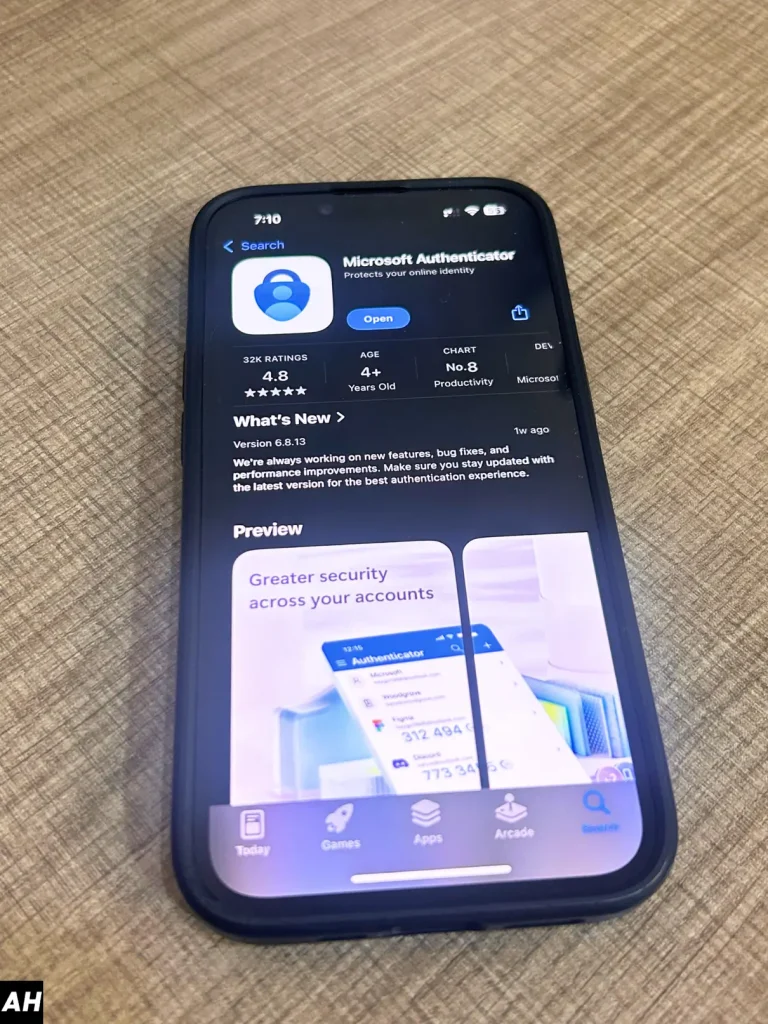
Download Microsoft Authenticator from your device's app store — it's free with no ads. On Android, get it from the Google Play Store. On iPhone or iPad, get it from the Apple App Store. Open the app and accept the privacy prompts.
Step 2: Sign in with your Microsoft account
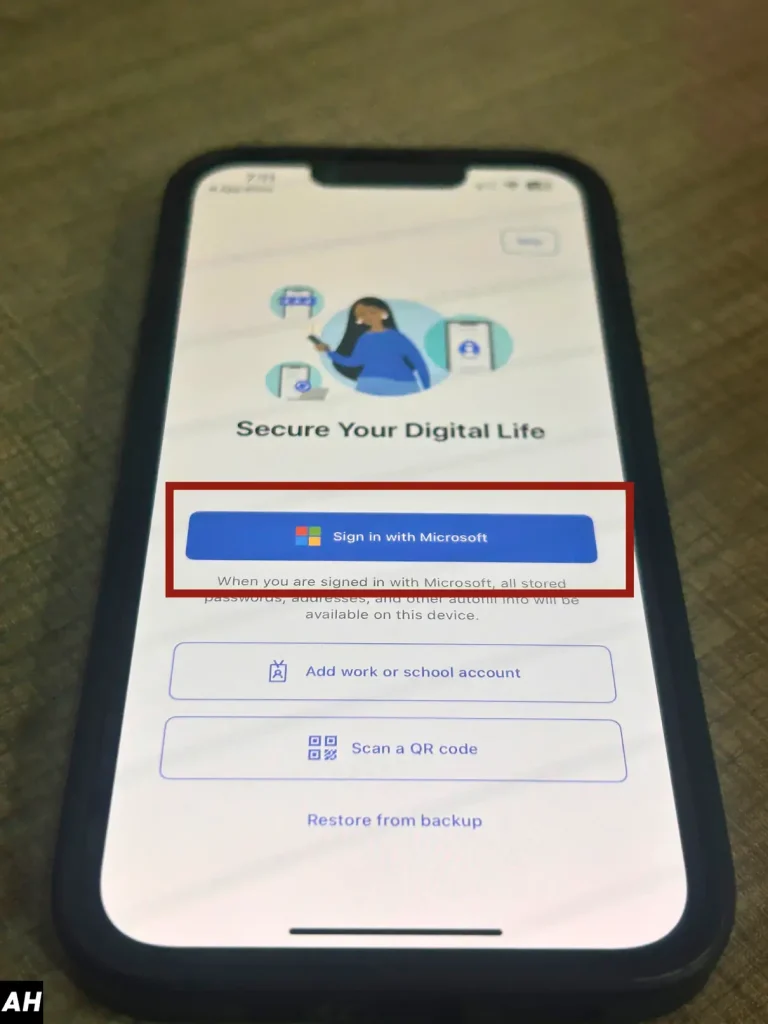
Tap Add account, choose Personal account (or Work or school account), and sign in with your Microsoft credentials. This registers the app as a trusted device. If you're setting up a brand-new personal account, there may be no password to enter at all — you'll create a passkey, PIN, or biometric directly instead. If your account already has 2FA enabled, you'll be asked to verify once, usually by email or text, to finish linking.
Step 3: Turn on cloud backup (don't skip this)

Open the app's Settings and enable Cloud backup (called iCloud Backup on iPhone). This is the step most people miss — and the one that saves you if you lose or replace your phone. Backup links your account credentials to your Microsoft account so you can restore them on a new device. Without it, you may have to re-add every account manually.
This step matters more than ever: Microsoft is retiring security questions as an account-recovery method starting January 2027, so a lost phone with no cloud backup and no working recovery method is becoming a genuinely harder problem to solve. Set backup up now, not after you need it.
How to Add Any Account (Google, Facebook, Amazon & More)
Microsoft Authenticator isn't just for Microsoft. Because it follows the open TOTP standard, it works with almost any service that supports authenticator apps. Here's how to add one:
- On the website or app you want to protect (for example, Google or Instagram), open Security or 2-Step Verification settings and choose Authenticator app as your method. A QR code will appear on screen.
- In Microsoft Authenticator, tap the + icon in the top corner.
- Select Other account (Google, Facebook, etc.).
- Point your camera at the QR code to scan it. If you can't scan, tap Enter code manually and type the setup key the service provides.
- The account appears in your list with a rolling 6-digit code. Enter the current code on the website to confirm, and you're done.
From then on, whenever that service asks for a verification code, just open Authenticator and type the number shown. Each code refreshes every 30 seconds. One limitation worth knowing: Authenticator has no desktop app for generating TOTP codes — it's mobile-only, so if you work primarily on a desktop, you'll still need to reach for your phone every time a code is required.
Also Read: Google Chrome's Biggest Security Update: What 429 Fixes Mean for You
Passwordless Sign-In Is Now the Default — Here's How It Works
This is the biggest change to understand in 2026. Passwordless sign-in used to be an optional feature you turned on inside Authenticator. It's now the default onboarding path for new personal Microsoft accounts — Outlook.com, Xbox, and Microsoft 365 Personal signups no longer ask you to set a password at all. Instead, your account is protected from day one by a passkey, biometric, or PIN, with a one-time code as a fallback if you can't use those.
If you already have an older account with a password, you can still enable passwordless sign-in manually: open Authenticator, tap your Microsoft account, and select Enable phone sign-in. After that, when you sign in to Outlook, Microsoft 365, Xbox, or any Microsoft service, instead of asking for a password the screen shows a two-digit number. You open the notification on your phone, tap the matching number, and confirm with your fingerprint or face. That number-matching step is a deliberate anti-fraud measure — it stops you from blindly approving a request a hacker triggered.
Either way, the practical result is the same: your phone, not a memorized string, is now the primary key to your Microsoft account.
How to Use Passkeys in Microsoft Authenticator
Passkeys are the most phishing-resistant option Authenticator offers. A passkey replaces your password entirely with a cryptographic key tied to your device and unlocked by your biometrics. There's nothing to phish, guess, or reuse.
To register a passkey, your device needs iOS 17 or later or Android 14 or later, and you must have a screen lock (PIN, fingerprint, or face) enabled. The fastest method is to open Authenticator, tap your account, and choose Create a passkey, then complete the multi-factor prompt. You can also add one from your phone's browser through your account's Security info page by selecting Add sign-in method → Passkey in Microsoft Authenticator.
As of March 2026, Microsoft Entra also reached general availability for synced passkeys — passkeys stored in iCloud Keychain or Google Password Manager rather than tied to one device — and raised the per-tenant passkey policy limit from 3 to 10, giving organizations more room to roll passkeys out across mixed device fleets. Full passkey support is still strongest for Microsoft Entra ID (work and school) accounts. If your organization uses passkeys, keep Authenticator set as your passkey provider in your phone's settings — disabling it there will turn those passkeys off. On iPhone, that toggle lives under Settings → General → Autofill & Passwords (iOS 18) or Settings → Passwords → Password Options (iOS 17), where you confirm Authenticator is checked under “AutoFill From.” If your work account doesn't show the passkey option yet, it's likely because your IT admin hasn't enabled Entra passkey support on their end — that's an admin-side setting, not something you control from the app.
If you'd rather manage passkeys outside Authenticator entirely, Microsoft now also offers this through Microsoft Password Manager in Edge, which saves and syncs passkeys across devices, with iOS and Android support rolling out via the Edge mobile app — useful if you already moved your saved passwords there after the 2025 retirement (see below) and want passkeys living in the same place.
Important: The 2025 Password Manager Change
If you used Microsoft Authenticator to save and autofill passwords, that feature is gone. In 2025 Microsoft retired the password manager and autofill built into the app, on this timeline:
| When | What changed |
|---|---|
| May 2025 | In-app notices warned users of the upcoming change. |
| June 2025 | You could no longer add or import new passwords in the app. |
| July 2025 | Autofill from Authenticator stopped working. |
| Mid-August 2025 | Saved passwords and addresses became inaccessible inside the app. |
Your passwords weren't deleted. They were synced to your Microsoft account and are now managed in Microsoft Edge (Edge Settings → Passwords), available on every device where you sign in to Edge. Saved payment details, however, were removed for security and need to be re-entered. If you'd rather not use Edge, you can export your passwords and switch to Google Password Manager, iCloud Keychain, or a dedicated password manager, then set that as your phone's default autofill provider.
The takeaway: in 2026, treat Microsoft Authenticator purely as a 2FA, passkey, and passwordless app — not a password vault. Password storage now lives in Edge, and increasingly Microsoft is pushing you toward passkeys instead of passwords altogether.
Troubleshooting: Common Errors and Fixes
Most Authenticator problems fall into a handful of categories. Here's what to check, mapped to Microsoft's own three-tier account model where relevant:
- "Approve sign-in" notification never arrives. Confirm your phone has a working internet connection, check that notifications for Authenticator aren't muted in your phone's system settings, and make sure the app is on its latest version — Microsoft periodically requires an update before push approvals will work again.
- Work or school account suddenly can't sign in (as of February 2026). Microsoft Authenticator added jailbreak and root detection for Entra work/school credentials this year. If your device has been jailbroken, rooted, or has developer/debug modifications active, the app can silently block sign-in for managed accounts as a security measure. This is by design, not a bug — restoring the device to a stock, unmodified state is the fix.
- Can't add an account, or a "region restricted" message appears. A small number of Microsoft services restrict Authenticator sign-in by country or network. If you're traveling, try switching off VPNs or unusual network configurations and retry.
- Passkey option missing for a work account. This is almost always an admin-side setting — your organization's IT team needs to enable passkey support in Entra before it appears in your app. It isn't something you can turn on from your phone.
- Android device in China can't install or use the app. Microsoft's own documentation flags that some Android devices sold in China may need an alternative authenticator app for work/school accounts due to regional restrictions on Google Play services.
- Lost phone, no backup enabled. Use your account's alternate recovery method (recovery email, phone number, or, until they're phased out, security questions) from a browser to regain access, then set up Authenticator fresh on a new device and immediately enable cloud backup.
Why Two-Factor Authentication Is Worth It
Passwords alone are weak. They get reused, leaked in breaches, and phished. Two-factor authentication adds a second proof — something you physically have, your phone — so a stolen password isn't enough to break in. The codes Authenticator generates are valid for only about 30 seconds and never travel over SMS, which sidesteps the SIM-swap and text-interception attacks that plague text-message 2FA.
It's worth being specific about that SIM-swap risk, because it's the attack vector that keeps showing up in real breaches: if a service falls back to your phone number for recovery, an attacker who social-engineers your carrier into porting your number can intercept SMS codes and password-reset links without ever touching your device. App-based codes like Authenticator's aren't exposed to that particular attack because nothing travels over the cellular network. That's also why cloud-sync authenticator vendors have their own trust history worth knowing — Authy's parent company, Twilio, disclosed a 2022 breach that exposed phone numbers tied to Authy accounts, a reminder that syncing 2FA data to any vendor's cloud shifts some of your trust onto that vendor's security practices, not just your own.
That's why security experts recommend an authenticator app over SMS codes for any account that matters: email, banking, social media, and cloud storage. If you're hardening your phone overall, pairing 2FA with a trustworthy VPN and a secure browser is a smart move.
Related reading on AndroidHire:
- The best VPN apps for Android for private, encrypted browsing.
- Google Chrome vs Brave if you're choosing a more secure browser.
- The best VoIP apps for iPhone for secure calling.
Microsoft Authenticator Alternatives in 2026
Microsoft Authenticator is excellent and free, but it isn't the only option. Here are the strongest alternatives this year and who each is best for. Note that Authy's desktop apps were discontinued in 2024 and its mobile app is now in maintenance mode, so we no longer recommend it as a first choice for new users.
| App | Platforms | Cloud backup / sync | Open source | Best for |
|---|---|---|---|---|
| Microsoft Authenticator | Android, iOS | Yes (Microsoft account / iCloud) | No | Microsoft users and passwordless sign-in |
| Google Authenticator | Android, iOS | Yes (Google account) | No | Google-centric users who want simplicity |
| 2FAS | Android, iOS, browser | Yes (iCloud / Google Drive) | Yes | Cross-device sync without phone-number lock-in |
| Ente Auth | Android, iOS, desktop, web | Yes (end-to-end encrypted) | Yes | Privacy-first multi-device sync |
| Aegis (Android) / Raivo (iOS) | Android / iOS | Local + encrypted export | Yes | People who want codes that never leave the device |
| 1Password | All major platforms | Yes (encrypted) | No | Keeping logins and 2FA codes together (paid) |
The deeper question behind this table is whether you want your TOTP codes living in the same vault as your passwords at all. Keeping them together, as 1Password does, is convenient, but it also means a single compromised master credential exposes both factors at once — defeating some of the point of having two separate factors. Keeping 2FA in a dedicated app like Authenticator, 2FAS, or Aegis, separate from your password manager, is the more conservative security posture, even though it's one extra app to manage.
Our pick if you leave Microsoft Authenticator
For most people who want an independent, free authenticator with painless multi-device sync, we'd point you to 2FAS or Ente Auth rather than Authy. Both are open-source, support a desktop or browser companion, and don't require a phone number to set up. If you already pay for a password manager like 1Password, using its built-in authenticator keeps everything in one encrypted place — just weigh that convenience against the factor-separation tradeoff above.
How We Verified This
We installed the latest version of Microsoft Authenticator on both Android and iPhone in July 2026 and walked through the full setup: linking a personal Microsoft account, enabling cloud backup, adding non-Microsoft TOTP accounts via QR code, and registering a passkey. We compared the experience against Google Authenticator, 2FAS, and Ente Auth. We cross-checked the passwordless-by-default rollout, the February 2026 jailbreak/root detection change, the March 2026 synced-passkey GA and 3-to-10 passkey limit increase, and the January 2027 security-questions retirement against Microsoft's own support and Entra Learn documentation and independent 2026 reporting (Trackr.Live, Biometric Update). The 2025 password-manager retirement timeline was verified directly against Microsoft's support pages. Where Microsoft hasn't published exact figures, we describe behavior qualitatively rather than guessing.
Bottom Line
In 2026, Microsoft Authenticator is a top-tier, free security app — and for new Microsoft accounts, it's now effectively mandatory, since passwordless sign-in with Authenticator is the default rather than an optional add-on. Set it up in two minutes, turn on cloud backup so you never lose access, and add every important non-Microsoft account behind it too. Remember three things: it's no longer a password manager (your saved passwords live in Microsoft Edge now), it has no desktop app for TOTP codes, and security questions are being phased out as a recovery fallback by January 2027 — so cloud backup isn't optional anymore, it's the thing standing between you and a locked account. Do that, and you've closed the single biggest hole in your account security with almost no effort.
Frequently Asked Questions
Is Microsoft Authenticator free to use?
Yes, Microsoft Authenticator is completely free on both Android and iPhone, with no ads or in-app purchases. You only need a Microsoft account to enable features like cloud backup and passwordless phone sign-in, and even that account is free to create.
Why doesn't my new Microsoft account have a password?
As of 2026, Microsoft creates new personal accounts (Outlook.com, Xbox, Microsoft 365 Personal) as passwordless by default. Instead of setting a password during signup, you register a passkey, biometric, or PIN through Microsoft Authenticator, with a one-time code available as a fallback. This isn't a bug or a missed step — it's the new default onboarding flow.
Can I use Microsoft Authenticator for non-Microsoft accounts?
Yes. Because it supports the open TOTP standard, you can use Microsoft Authenticator for Google, Facebook, Amazon, Instagram, GitHub, and almost any other service that offers authenticator-app 2FA. Just tap the + icon, choose 'Other account,' and scan the QR code shown by that service.
Does Microsoft Authenticator still save and autofill passwords?
No. Microsoft retired the built-in password manager and autofill in 2025, and the data became inaccessible in the app by mid-August 2025. Your saved passwords were synced to your Microsoft account and are now managed in Microsoft Edge under Settings then Passwords. Saved payment cards were removed for security and must be re-added elsewhere.
Why is my work or school account suddenly blocked in Microsoft Authenticator?
Since February 2026, Authenticator checks work and school (Entra) accounts for jailbreak or root modifications and can block sign-in on modified devices as a security measure. If your phone is rooted, jailbroken, or running developer modifications, that's the likely cause — restoring the device to its stock state resolves it.
What happens if I lose my phone with Microsoft Authenticator installed?
If you enabled cloud backup beforehand, you can install Authenticator on a new phone, sign in with the same Microsoft account, and restore your accounts. Without a backup you may need to re-add each account manually using each service's recovery codes. This matters more in 2026 since Microsoft is retiring security questions as a recovery method starting January 2027, so turn on cloud backup right after setup.
Are passkeys in Microsoft Authenticator the same as passwords?
No. A passkey is a cryptographic credential tied to your device and unlocked by your fingerprint or face, with nothing to type or phish. To register one in Authenticator you need iOS 17 or Android 14 or later and a screen lock enabled. As of March 2026, Microsoft also supports synced passkeys through iCloud Keychain and Google Password Manager, not just device-bound ones.
Is Microsoft Authenticator safer than SMS text codes?
Yes. App-generated codes and push approvals never travel over the cellular network, so they sidestep SIM-swap attacks and SMS interception that can compromise text-message 2FA. Push approvals with number matching also help stop you from accidentally approving a hacker's login attempt.
Can I use Microsoft Authenticator on a desktop computer?
No. Microsoft Authenticator has no desktop application for generating TOTP codes — it's mobile-only, requiring a smartphone or tablet. If you work mainly on desktop, you'll still need your phone in hand whenever a code or approval is required. You can install the app on multiple mobile devices and use cloud backup to restore accounts across them.