How to Add Your Driver's License to Apple Wallet (2026 Guide)
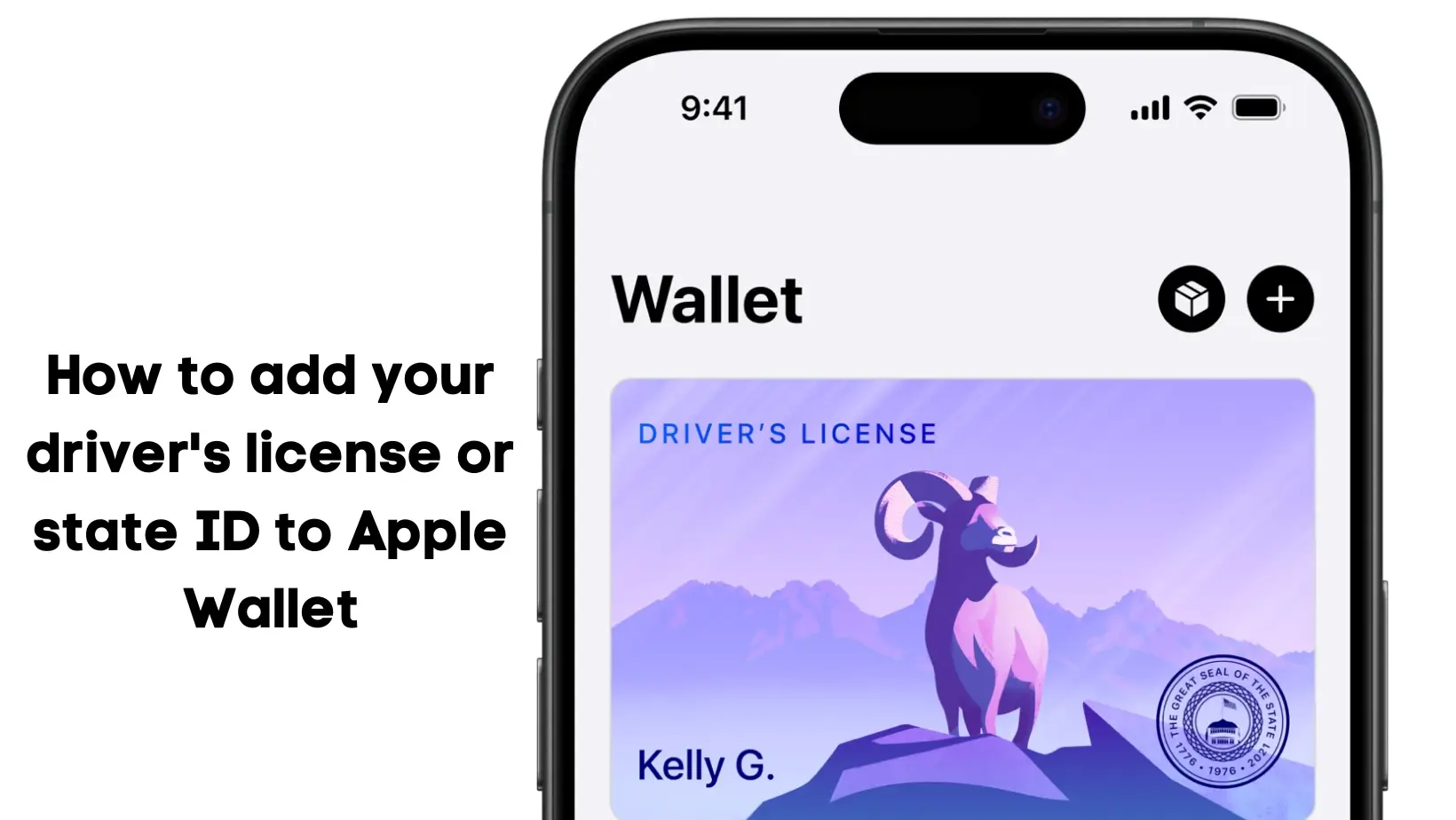
To add your driver's license to Apple Wallet, open the Wallet app, tap the + (Add) button, choose Driver's License or State ID, pick your state, then scan the front and back of your license and complete a selfie and face-movement check. Your state reviews the submission and your digital ID appears in Wallet once approved — usually within minutes.
That feature works only in 14 U.S. states plus Puerto Rico as of June 2026. If your state isn't on the list yet, there's a nationwide alternative: Digital ID built from your U.S. passport, which Apple launched in November 2025 and which any eligible iPhone owner can add. This guide covers both methods, the exact device requirements, where each ID is accepted, and the most common reasons setup fails.
In a hurry? Jump to Supported states · Requirements · Add your license · Passport Digital ID · Where you can use it · Troubleshooting · FAQ
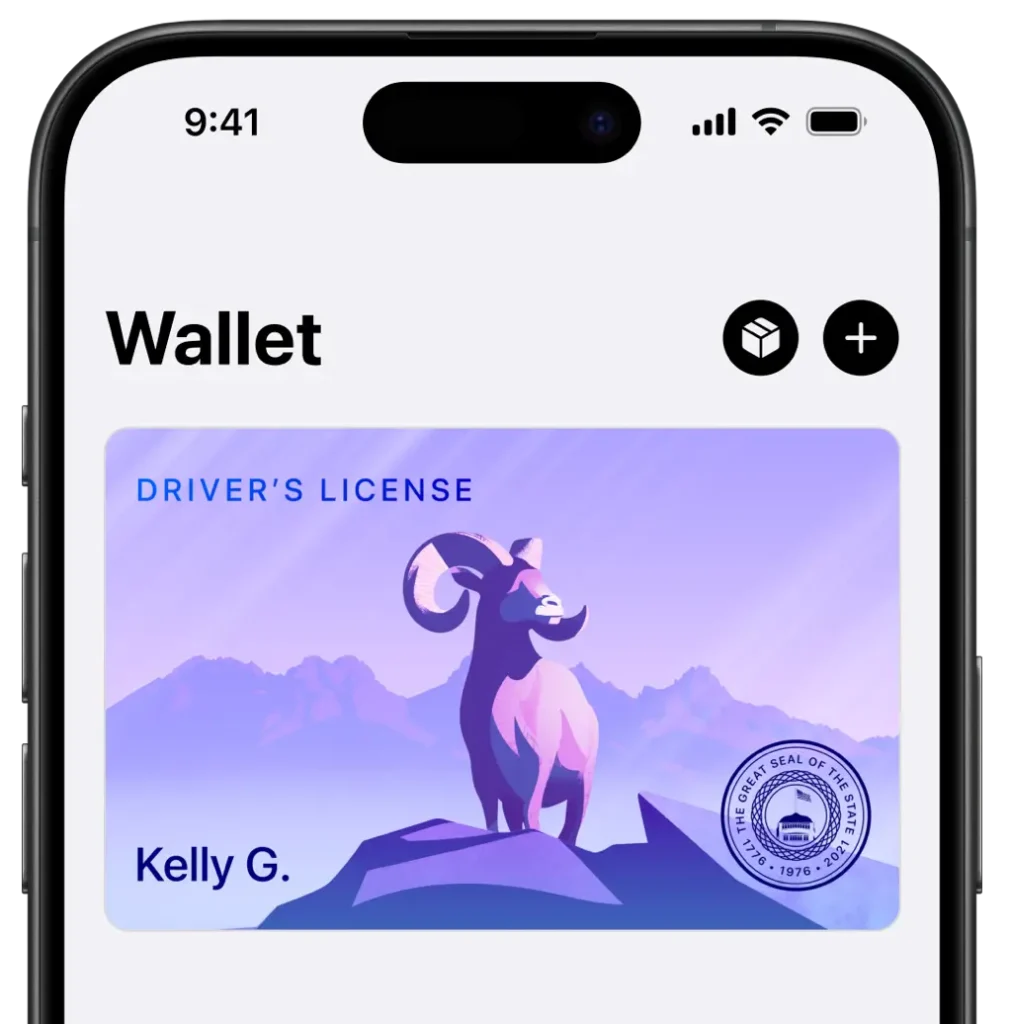
Two ways to carry an ID in Apple Wallet
Apple now offers two separate digital identity products, and it's important to know which one applies to you:
- State driver's license or ID: Your actual state-issued credential, mirrored in Wallet. Only available if your state's motor vehicle agency has partnered with Apple. This is what most people mean by "adding a license to Apple Wallet."
- Digital ID (from your U.S. passport): Introduced in November 2025, this lets any eligible iPhone owner create an ID in Wallet using the information in their U.S. passport — no state partnership required. It works at supported TSA checkpoints but is not a substitute for your physical passport and can't be used for international travel or border crossing.
Which states support driver's licenses in Apple Wallet?
As of June 2026, you can add a state driver's license or ID to Apple Wallet in the following 14 states and one U.S. territory:
- Arizona
- California
- Colorado
- Georgia
- Hawaii
- Illinois
- Iowa
- Maryland
- Montana
- New Mexico
- North Dakota
- Ohio
- West Virginia
- Arkansas
- Puerto Rico
Apple has also confirmed that several more states are working to add the feature, including Connecticut, Kentucky, Mississippi, Oklahoma, Utah, and Virginia — Virginia is expected to be next. Rollouts can change without notice, so always confirm against the live list on Apple's official support page before assuming your state is ready.
| Option | Who it's for | Where it works | Min. device |
|---|---|---|---|
| State license / ID in Wallet | Residents of the 14 supported states + Puerto Rico | TSA checkpoints, select businesses and apps, age verification | iPhone 8 or later, latest iOS |
| Digital ID (U.S. passport) | Anyone with a valid U.S. passport, any state | Select TSA checkpoints (domestic only), some apps | iPhone 11 or later, iOS 26.1+ |
Also Read: Best AI Apps for iPhone in 2026
Requirements: what you need before you start
Before adding any ID, make sure your setup meets Apple's requirements. Missing one of these is the single most common reason the option doesn't appear.
Device and software
- For a state license/ID: an iPhone 8 or later running the latest version of iOS. To add it to a watch as well, you'll need a paired Apple Watch on the latest watchOS.
- For passport-based Digital ID: an iPhone 11 or later with iOS 26.1 or later, or an Apple Watch Series 6 or later on watchOS 26.1 or later.
- Your device region must be set to United States.
Account and security
- Face ID or Touch ID must be set up — your ID is tied to your biometrics.
- You must be signed in with an Apple Account that has two-factor authentication turned on.
- Bluetooth should be on, and you'll need a stable Wi-Fi or cellular connection during setup.
To check your iOS version, go to Settings > General > About and look at "Software Version," then update via Settings > General > Software Update if needed. To confirm Face ID is enabled, open Settings > Face ID & Passcode.
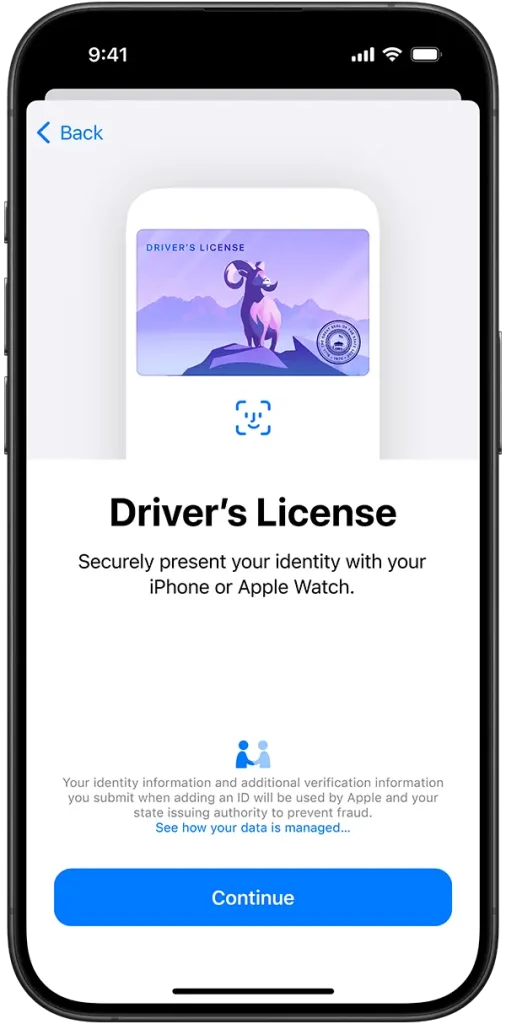
How to add your driver's license or state ID to Apple Wallet
If you live in one of the supported states, the process takes only a few minutes. Have your physical license ready and find a well-lit room.
Step 1: Open Wallet and start setup
- Open the Wallet app on your iPhone.
- Tap the Add button (+) in the top corner.
- Select Driver's License or State ID.
- Choose your state. If it isn't listed, the feature isn't live there yet.
Step 2: Choose your devices and scan
- Decide whether to add the ID to your iPhone only or to both your iPhone and paired Apple Watch.
- Follow the on-screen prompts to scan the front and back of your physical license or ID.
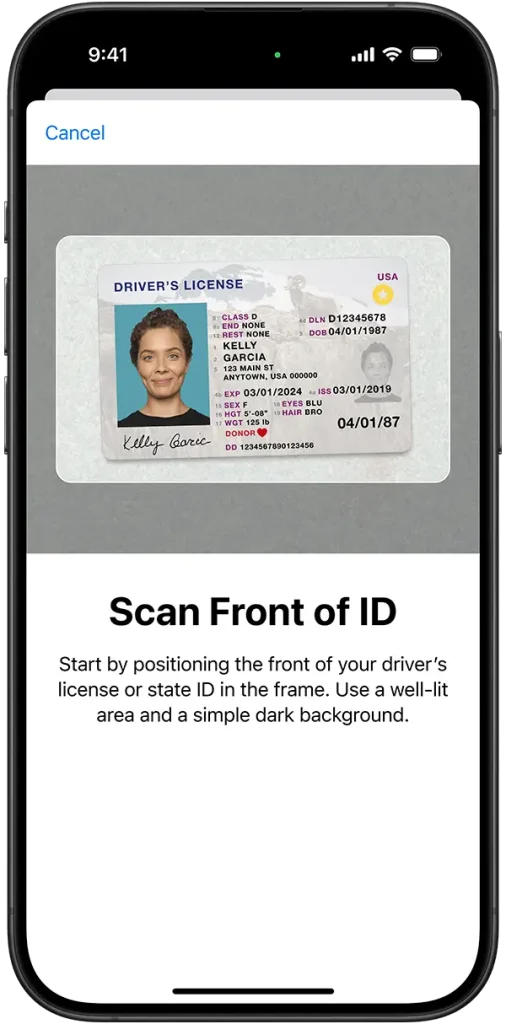
Step 3: Verify your identity
- Complete the prompted series of head and facial movements.
- Take a selfie so your state can confirm you match the ID.
- Authenticate with Face ID or Touch ID to bind the ID to your biometrics.

Step 4: Wait for approval
Your state's motor vehicle agency reviews the submission. This is usually fast — often under five minutes — but can take longer at busy times. Once approved, your digital ID appears in Wallet automatically and you'll get a notification.

No supported state? Add a Digital ID from your U.S. passport
If your state isn't on the list, you aren't stuck. In November 2025 Apple introduced Digital ID, which builds an identity credential in Wallet from your U.S. passport. It's available nationwide to anyone with a valid, unexpired passport and an iPhone 11 or later on iOS 26.1 or later.
- Open the Wallet app and tap the Add (+) button.
- Tap Driver's License or ID Cards, then tap Digital ID.
- Choose whether to add it to your iPhone only or to your iPhone and paired Apple Watch.
- Scan the machine-readable photo page of your passport, then hold your iPhone near the passport so it can read the embedded chip.
- Take a selfie and complete the facial and head-movement checks, then authenticate with Face ID or Touch ID.
One important caveat: Digital ID is not a replacement for your physical passport. You cannot use it for international travel or border crossing — it's strictly for identity and age verification at supported domestic checkpoints and businesses.
Where you can use your digital ID
At TSA checkpoints
Both state IDs and passport-based Digital IDs work at supported TSA checkpoints across more than 250 U.S. airports for domestic travel. Wake your device, double-click the side button (or Home button on Touch ID models), select your ID, then hold the top of your iPhone or your Apple Watch near the identity reader. You review exactly what's being requested and approve with Face ID or Touch ID — you never hand over or unlock your device. Keep a physical ID with you as a backup, since not every lane supports digital IDs.
In apps and at businesses
A growing number of apps and businesses accept Wallet IDs for identity and age verification — in person, in-app, and online. When an app requests verification, your iPhone shows precisely which fields will be shared (for age checks, it can confirm only that you're over a threshold without revealing your birthdate or address).
Privacy and security
Your ID is stored encrypted and protected by Face ID or Touch ID. According to Apple, neither Apple nor your issuing state can see when or where you present your ID, or what data you shared. You always review and authorize the specific information before any of it leaves your device, and the system uses device signatures to guard against cloning and replay attacks.
How we verified this guide
We cross-checked every step and state in this guide against Apple's official Wallet support documentation and Apple Newsroom announcements, and confirmed the participating-state list and TSA airport coverage against current Transportation Security Administration guidance. We compared the state-license flow with the newer passport-based Digital ID flow that Apple launched in late 2025, and we flagged the requirements (iPhone model, iOS version, region, two-factor authentication) that most commonly block setup. We refreshed the state list for June 2026; because rollouts shift, we link directly to Apple's live list so you can confirm before you start.
Troubleshooting common problems
The "Driver's License or State ID" option doesn't appear
This almost always means your state isn't supported, your region isn't set to United States, or your iOS is out of date. Update via Settings > General > Software Update, confirm your region in Settings > General > Language & Region, and recheck Apple's supported-state list.
Identity verification keeps failing
Move to a bright, evenly lit room, hold the camera steady, and follow the head-movement prompts slowly. Make sure your face and ID are fully in frame with no glare. If it still fails, restart your iPhone and try again.
Setup stalls or the Wallet app crashes
Poor connectivity is the usual culprit. Switch between Wi-Fi and cellular, restart your router if needed, then force-close and reopen Wallet. A full device restart clears most temporary glitches.
Approval is taking a long time
State review is normally quick, but it can lag during high-demand periods. If hours pass with no result, remove the pending pass and resubmit, or contact Apple Support if the problem persists.
Related reading
Bottom line
If you live in one of the 14 supported states or Puerto Rico, adding your driver's license to Apple Wallet is the fastest, most convenient route — open Wallet, tap +, scan, verify, and you're done in minutes. If your state hasn't joined yet, the passport-based Digital ID gives nearly everyone a way to breeze through supported TSA checkpoints without digging out a plastic card. Either way, keep your physical ID on hand as a backup, since digital acceptance isn't universal and the passport credential can't be used for international travel.
Frequently Asked Questions
How do I add my driver's license to Apple Wallet?
Open the Wallet app, tap the Add (+) button, select Driver's License or State ID, and choose your state. Then follow the prompts to scan the front and back of your license, take a selfie, complete the face-movement check, and authenticate with Face ID or Touch ID. Your state reviews the submission and your digital ID appears in Wallet once approved, usually within a few minutes.
Which states support driver's licenses in Apple Wallet in 2026?
As of June 2026, you can add a state driver's license or ID to Apple Wallet in 14 states plus Puerto Rico: Arizona, California, Colorado, Georgia, Hawaii, Illinois, Iowa, Maryland, Montana, New Mexico, North Dakota, Ohio, West Virginia, and Arkansas. Apple has confirmed several more are coming, including Connecticut, Kentucky, Mississippi, Oklahoma, Utah, and Virginia. Always check Apple's live list, as rollouts change.
Can I add an ID to Apple Wallet if my state isn't supported?
Yes. In November 2025 Apple launched Digital ID, which lets anyone with a valid U.S. passport create an identity credential in Wallet, regardless of state. You need an iPhone 11 or later on iOS 26.1 or later, and your region set to United States. It works at supported TSA checkpoints for domestic travel but cannot replace your physical passport for international travel.
What iPhone and iOS version do I need?
For a state driver's license, you need an iPhone 8 or later running the latest iOS. For the newer passport-based Digital ID, you need an iPhone 11 or later with iOS 26.1 or later (or an Apple Watch Series 6 or later on watchOS 26.1+). In both cases you must have Face ID or Touch ID set up and two-factor authentication enabled on your Apple Account.
Can I use my Apple Wallet ID at the airport?
Yes. Both state IDs and passport-based Digital IDs are accepted at supported TSA checkpoints across more than 250 U.S. airports for domestic travel. You hold your iPhone or Apple Watch near the identity reader, review what's being requested, and approve with Face ID or Touch ID. Carry a physical ID as a backup, since not every checkpoint lane supports digital IDs.
Is it safe to store my license in Apple Wallet?
Apple stores your ID encrypted and protected by Face ID or Touch ID. According to Apple, neither Apple nor your issuing state can see when, where, or how you use your ID. You review and authorize exactly which information is shared before anything leaves your device, and for age checks the system can confirm only that you meet an age threshold without revealing your full details.
Does adding my license to Apple Wallet replace my physical card?
No. A digital ID in Apple Wallet is a convenient companion, not a legal replacement for your physical license or passport. Many businesses, officers, and travel scenarios still require the physical document, and the passport-based Digital ID specifically cannot be used for international travel or border crossing. Keep your physical ID with you.
Why is the Driver's License option missing from my Wallet app?
The most common reasons are that your state isn't supported yet, your device region isn't set to United States, or your iOS is out of date. Update through Settings > General > Software Update, confirm your region in Settings > General > Language & Region, and check Apple's current supported-state list before retrying.