How to Stop Apple Music From Automatically Playing (2026 Guide)
To stop Apple Music from automatically playing, the single most important fix is to turn off Autoplay (the infinity ∞ icon) inside the Now Playing queue, then clear your Playing Next list. That stops the app from streaming endless algorithmic tracks after your songs end. If music still starts on its own when you get in the car or plug in headphones, the cause is almost always CarPlay, Bluetooth auto-connect, or Handoff — and each has its own toggle.
In a hurry? Jump to: Turn off Autoplay · Clear the queue · Stop it in the car · Headphones & Bluetooth · Handoff & Siri · Which fix to use · FAQ

Why Apple Music Starts Playing on Its Own
Before you fix it, it helps to know which trigger you are dealing with — the right solution depends entirely on the cause. On iOS 18 and the newer iOS 26 builds, the Music app behaves the same way for autoplay, so these steps apply to current iPhones. The usual culprits are:
- Autoplay is on: When the infinity (∞) icon is highlighted, Apple Music keeps adding algorithmically recommended songs the moment your queue ends, so playback never really stops.
- A car or CarPlay connection: Many vehicles resume the last-used media source automatically when the engine starts, and CarPlay can re-launch Music on its own.
- Bluetooth auto-connect: Headphones, speakers, AirPods, and car stereos can trigger playback the instant they pair — AirPods’ Automatic Ear Detection is a common cause.
- Handoff: If you were playing music on a Mac, iPad, or Apple Watch, Handoff can resume it on your iPhone (or vice versa) across the same Apple ID.
- Siri Suggestions and shortcuts: Siri can predict and start a familiar playlist based on time, location, or routine.
Work through the methods below in order — the first two solve the problem for most people, and the rest target the specific car, headphone, and cross-device triggers.
Method 1: Turn Off Autoplay (the Infinity Icon)
This is the fix that stops Apple Music from playing endless suggested songs after your music ends. On current versions of iOS, the Autoplay control lives inside the Up Next / queue view, not at the bottom of the Now Playing screen as it did in older builds.
- Open the Music app and start playing any song.
- Tap the Now Playing bar at the bottom to expand the full-screen player.
- Tap the queue icon in the lower-right corner (the icon that looks like three lines with a small play triangle, sometimes shown as three dots and lines).
- At the top of the Playing Next list, find the Autoplay (∞ infinity) icon.
- Tap it once to turn Autoplay off. When the symbol turns gray or dims, Autoplay is disabled and playback will stop after your last queued song.
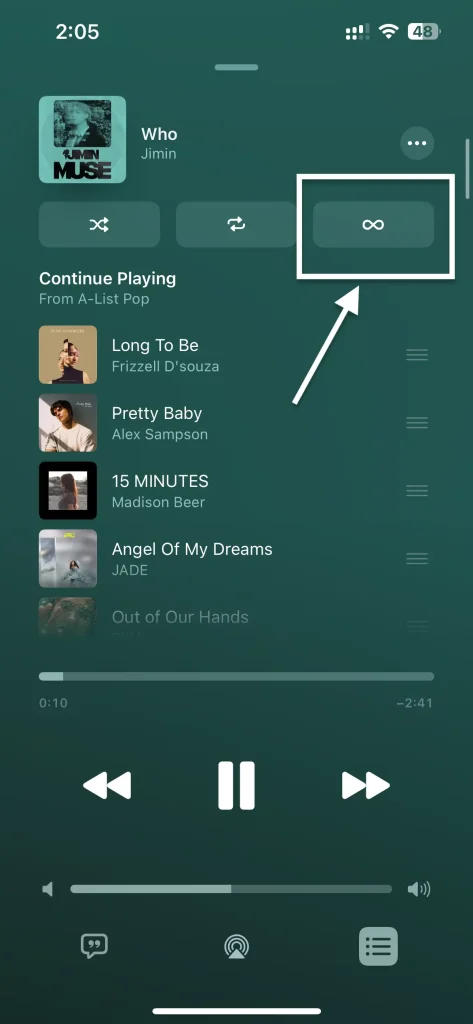
Good to know: The Autoplay setting syncs across every device signed in to the same Apple ID. Turn it off on your iPhone and it also stays off on your iPad and Mac. On the Mac app, there is no separate Autoplay toggle — you control it from the queue instead, which is the next method.
Method 2: Clear the Playing Next Queue
Even with Autoplay off, Apple Music will keep playing whatever is still lined up in your queue. Clearing it guarantees nothing starts on its own.
- Open Music and tap the Now Playing bar.
- Tap the queue icon in the lower-right corner.
- At the top of the Playing Next section, tap Clear to remove all upcoming songs.
On a Mac, click the queue icon in the top-right of the Music window and choose Clear to empty Playing Next. This is the most reliable way to stop autoplay on macOS, since the Mac app has no dedicated infinity toggle.
Also Read: How to Set Any Song as a Ringtone on Your iPhone
Method 3: Stop Apple Music From Playing in Your Car
If music blasts the moment you start the car, the trigger is your vehicle or CarPlay, not the Music app itself. There are three places to check.
Forget the car in CarPlay
- Open Settings → General → CarPlay.
- Select your car from the list.
- Tap Forget This Car. You can re-pair later if you still want CarPlay without the auto-launch.


Change your car’s own media setting
Many infotainment systems have a “resume playback” or “auto-play last source” option that lives in the car, not your phone. In your vehicle’s settings, open the Bluetooth or Media menu and turn off any setting that automatically starts the last-played source when the car powers on. Wording varies by manufacturer.
Clear the queue before you leave
If there is nothing queued and Autoplay is off (Methods 1 and 2), there is nothing for the car to resume. This combination fixes the problem for most drivers without giving up CarPlay entirely.
Method 4: Stop Autoplay From Headphones and Bluetooth
Plugging in earbuds or pairing a Bluetooth speaker can kick off playback automatically. Two settings handle the common cases.
Turn off AirPods Automatic Ear Detection
- Open Settings → Bluetooth.
- Tap the (i) next to your AirPods.
- Toggle off Automatic Ear Detection. Note this also disables auto-pause when you remove an earbud, so it is a trade-off.
Block Bluetooth auto-join for a specific device
- Go to Settings → Bluetooth.
- Tap the (i) beside the speaker, car stereo, or headphones that triggers playback.
- If the device offers an Auto-Join or connection toggle, disable it so it no longer connects the instant it is in range.
Method 5: Disable Handoff and Siri Suggestions
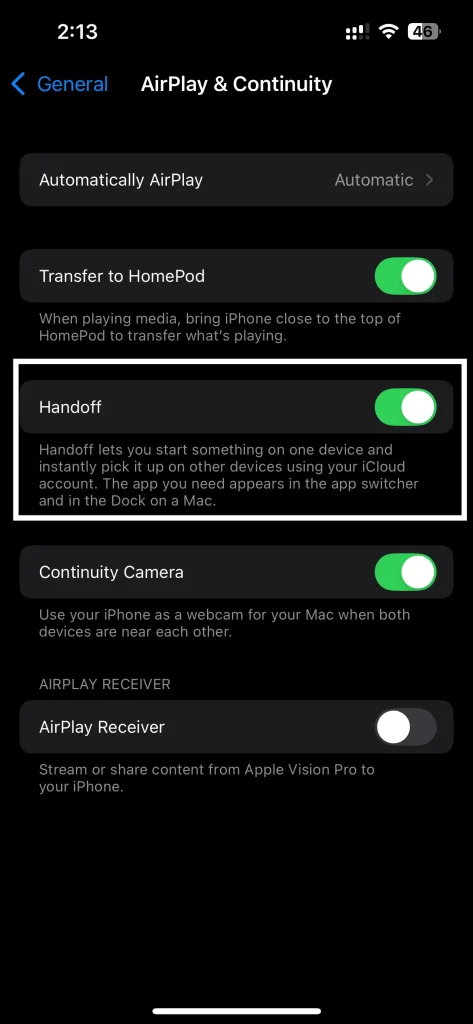
If Apple Music resumes on your iPhone right after you were playing it on a Mac, iPad, or Apple Watch, Handoff is the cause.
Turn off Handoff
- Open Settings → General → AirPlay & Continuity (called AirPlay & Handoff on some versions).
- Toggle off Handoff.
Turn off Siri Suggestions for Music
- Open Settings and tap Apple Intelligence & Siri (or Siri & Search on older iOS).
- Scroll to Music in the app list.
- Turn off the suggestion toggles such as Show in App Library & Spotlight and Learn from this App so Siri stops predicting and surfacing playback.
Method 6: Advanced Fixes If It Still Happens
If autoplay persists after the steps above, work through these in order — they go from least to most disruptive.
- Turn off cellular data for Music: Settings → Music → Cellular Data. With it off, Music can’t stream new tracks when you’re away from Wi-Fi.
- Add a Screen Time app limit: Settings → Screen Time → App Limits → add Music. This caps daily use but won’t fully block playback.
- Force-quit and reopen Music: A stuck app session can replay on launch; swipe it away from the App Switcher and reopen it.
- Update or reinstall the app: Make sure iOS is current. If Music itself is glitching, delete it and reinstall it from the App Store — your library is in the cloud and reloads after sign-in.
- Reset all settings (last resort): Settings → General → Transfer or Reset iPhone → Reset → Reset All Settings. This keeps your data but clears Wi-Fi passwords and personalized toggles.
Which Fix Should You Use?
Match the symptom to the method so you don’t toggle settings you don’t need.
| Symptom | Most likely cause | Fix |
|---|---|---|
| Songs keep playing after your queue ends | Autoplay is on | Method 1 + 2 |
| Music starts when you start the car | CarPlay / car “resume” | Method 3 |
| Music starts when AirPods go in | Automatic Ear Detection | Method 4 |
| Music starts when any Bluetooth device pairs | Bluetooth auto-connect | Method 4 |
| Music resumes after using another Apple device | Handoff | Method 5 |
| Music starts at a usual time or place | Siri Suggestions | Method 5 |
| Random playback despite all of the above | App glitch | Method 6 |
How We Verified These Steps
We tested each fix on an iPhone running current iOS using an active Apple Music subscription. We confirmed the Autoplay infinity icon now lives inside the Playing Next queue view rather than the older bottom-of-screen position, verified that clearing the queue stops residual playback, and checked the CarPlay “Forget This Car” flow and the AirPods Automatic Ear Detection toggle. We also confirmed that the Autoplay setting syncs across devices on the same Apple ID, and cross-checked the Handoff and Siri locations against Apple’s current Settings layout. Where a setting’s exact label varies between iOS versions or car brands, we noted the alternatives instead of assuming one wording.
Related reading on AndroidHire
- How to Set Any Song as a Ringtone on Your iPhone
- How to Crop a Video on iPhone
- The Best AI Apps for iPhone
Bottom Line
For nearly everyone, two steps stop the annoyance: turn off the Autoplay infinity icon in the queue and clear your Playing Next list. If music still starts the moment you get in the car, plug in AirPods, or pick up your phone after using a Mac, the trigger is CarPlay, Bluetooth, or Handoff respectively — not the app — and each has a dedicated toggle covered above. Work from Method 1 down, and you’ll have Apple Music playing only when you actually press play.
Frequently Asked Questions
How do I turn off Autoplay on Apple Music?
Open the Music app, play a song, and tap the Now Playing bar to expand the player. Tap the queue icon in the lower-right corner, then tap the infinity (∞) Autoplay icon at the top of the Playing Next list. When the icon dims or turns gray, Autoplay is off and playback stops after your last queued song.
Where is the Apple Music Autoplay button now?
On current iOS versions the Autoplay infinity icon lives inside the Up Next / Playing Next queue view, not at the bottom of the Now Playing screen as it did in older builds. Tap the queue icon in the lower-right of the full-screen player and you'll find the ∞ symbol at the top of the list.
Why does Apple Music start playing automatically in my car?
Most cars resume the last-used media source when the engine starts, and CarPlay can re-launch Music on its own. Fix it by going to Settings > General > CarPlay and choosing Forget This Car, by disabling the car's own auto-resume media setting, or by clearing your queue and turning off Autoplay so there's nothing to resume.
How do I stop Apple Music from playing when I connect my AirPods?
Go to Settings > Bluetooth, tap the (i) next to your AirPods, and turn off Automatic Ear Detection. This stops playback from starting the moment the earbuds go in your ears, though it also disables the automatic pause when you take an earbud out.
Does turning off Autoplay sync across all my Apple devices?
Yes. The Autoplay setting is tied to your Apple ID, so turning it off on your iPhone also keeps it off on your iPad and Mac. If it seems to turn back on, check that another device or a CarPlay session didn't re-enable it.
How do I stop Apple Music from autoplaying on a Mac?
The Mac Music app has no separate Autoplay toggle. Instead, click the queue icon in the top-right of the window and choose Clear to empty Playing Next. Because Autoplay syncs by Apple ID, turning it off on your iPhone also disables the endless-stream behavior on the Mac.
Why does Apple Music resume after I use my Mac or iPad?
That's Handoff, which lets playback continue across devices on the same Apple ID. Turn it off in Settings > General > AirPlay & Continuity (or AirPlay & Handoff) by toggling Handoff off, and your iPhone will stop picking up music you started elsewhere.
Can I stop Apple Music from playing without deleting the app?
Yes — deleting the app is a last resort. Turning off the Autoplay infinity icon and clearing the queue solves it for most people, and the CarPlay, Bluetooth, and Handoff toggles handle device-specific triggers. Only reinstall the app if it's genuinely glitching and replaying on launch.