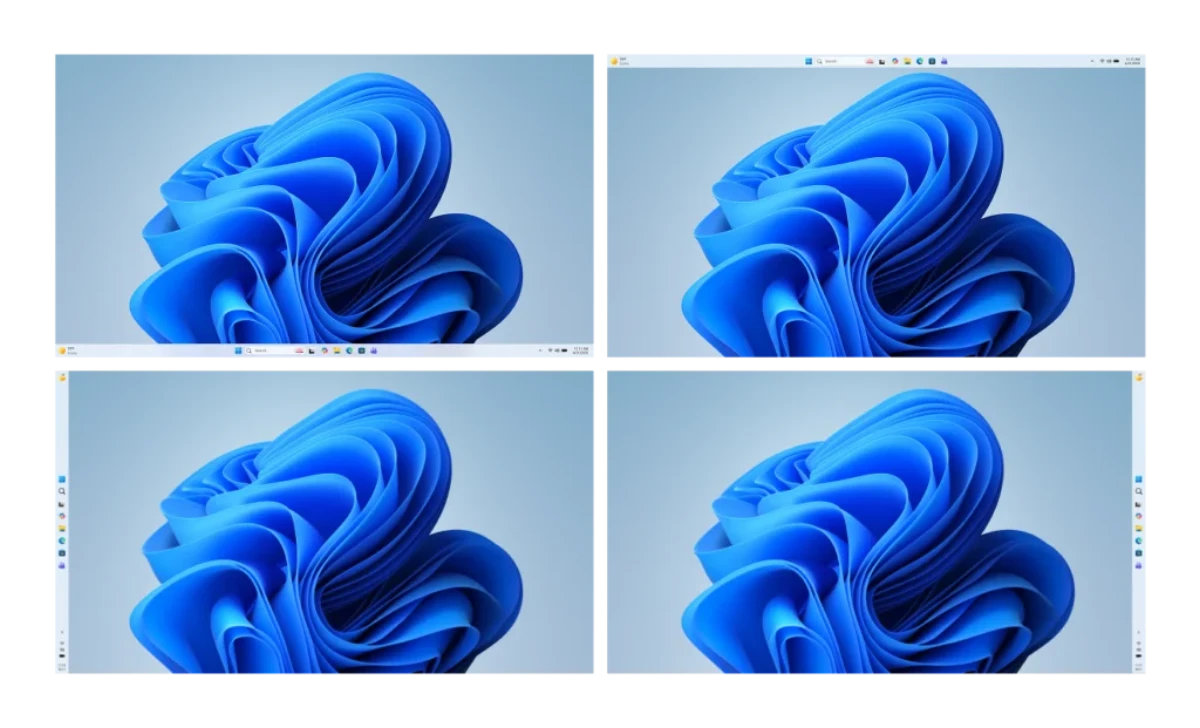
Move the Outlook Toolbar From Side to Bottom: Yes in Classic, No in New Outlook

Only classic Outlook for Windows can move the toolbar from the side to the bottom; new Outlook, Outlook on the web and Outlook for Mac cannot. In classic Outlook, open File > Options > Advanced, clear "Show apps in Outlook", and restart. Microsoft calls that option temporary, and phones already have the bar at the bottom.
The "toolbar" here is the strip of Mail, Calendar and People icons that Microsoft moved from the bottom-left of the window to a vertical bar on the left in 2022. Below: a 10-second way to tell which Outlook you have, the answer for each version, why the bar moved, and the "fixes" Microsoft doesn't document. All of it was checked against Microsoft's own pages on October 3, 2026.
In a hurry? Jump to: which Outlook you have · answer by version · classic Outlook steps · why it moved · new Outlook · web, Mac and phones · ribbon and Quick Access Toolbar · how we verified this · FAQ
Which Outlook do you have? A 10-second check
Microsoft's own rule for Windows is to look at the top-right corner. If there is a Settings (gear) button, you are in new Outlook. If the button is missing, you are in classic Outlook.
- Classic Outlook for Windows: a File tab at the top left of the ribbon and no Settings gear. This is the version with File > Options.
- New Outlook for Windows: a Settings gear at the top right, and the ribbon tabs Home, View and Help.
- Outlook on the web or Outlook.com: it runs in a browser tab. The address contains outlook.office.com or outlook.office365.com (work or school) or starts with outlook.live.com (personal).
- Outlook for Mac: the menu bar next to the Apple logo says Outlook.
- Outlook on a phone or tablet: the iPhone, iPad or Android app.
Can you move the Outlook toolbar to the bottom? The answer for each version
| Your Outlook | Move the bar to the bottom? | What to do |
|---|---|---|
| Classic Outlook for Windows (the Microsoft 365 desktop app, often called Outlook 365) | Yes, for now | File > Options > Advanced > Outlook panes: clear "Show apps in Outlook", then restart. Microsoft says the bar will eventually stay on the left permanently. |
| Classic Outlook 2024, 2021 or 2019 (one-time purchase) | Only if the check box appears | Same path as above. Outlook 2021 users report the box missing, and Microsoft documents no other fix. |
| New Outlook for Windows | No | No setting exists. Switch back to classic with the toggle at the top right, or unpin apps to slim the bar. |
| Outlook on the web and Outlook.com | No | No setting documented; the bar stays on the left. |
| Outlook for Mac | No | The left rail is fixed. Microsoft added reordering (May 2026) and pin/unpin (July 2026), not bottom placement. |
| Outlook for iPhone, iPad and Android | Already at the bottom | The tab bar sits at the bottom of the screen and can be reordered. |
How to move the Outlook toolbar to the bottom in classic Outlook
This is the only supported method, and Microsoft's help page presents it as a stopgap:
- In classic Outlook, select File at the top left.
- Choose Options, then Advanced.
- Under Outlook panes, clear the Show apps in Outlook check box.
- Select OK, then close and restart Outlook.
After the restart, Mail, Calendar, People and the other modules sit in a bar below the folder pane, at the bottom-left of the window. A shortcut from Microsoft's support blog: select the More apps icon on the side bar, then Options, which opens the same Advanced tab. Microsoft's help page adds that a Navigation button then appears in the same Outlook panes section (it is hidden while the box is ticked), so you can choose how many items show on the bottom bar and reorder them with Move Up and Move Down. To undo everything, tick the box again and restart.
Prefer the side bar but want the space back? Microsoft's support blog says that since version 2210 you can make the folder pane narrower than before.
Can't find "Show apps in Outlook"?
- There is no File > Options. You are in new Outlook, on the web or on a Mac, and none of them has this setting. Skip to the new Outlook section or the web, Mac and phones section.
- Your Microsoft 365 build is old. Microsoft added the check box in version 2211, in late 2022. Update with File > Office Account > Update Options > Update Now, then look again.
- You have a one-time-purchase edition. Outlook 2021 users on Microsoft Q&A and Microsoft's Tech Community (2024) report the box missing, and in at least one case the bar moved to the side anyway after an update. We found no Microsoft-documented fix for those builds.
Why did my Outlook toolbar move to the side?
Microsoft's stated reason, in its Outlook support blog on August 10, 2022, was consistency with Teams and Office.com, plus room for more apps such as To Do, Bookings, Word, Excel and PowerPoint. It reached people in two waves:
| When | What changed | Microsoft source |
|---|---|---|
| August 3, 2022 | Current Channel version 2207 lists "New location for Outlook modules and apps" and starts a gradual rollout. | Office release notes; Outlook support blog |
| Late 2022 | Version 2211 adds a temporary "Show apps in Outlook" option to return to the bottom bar. | Outlook support blog, updated November 9, 2022 |
| March 14 and July 11, 2023 | The left bar reaches the Monthly Enterprise (2301) and Semi-Annual Enterprise (2302) channels. | Office release notes |
| August 2024 | New Outlook for Windows becomes generally available, with the left bar built in. | Microsoft Support; Microsoft Learn |
| October 2024 | Automatic switching to new Outlook begins for personal accounts. | Microsoft Support |
| December 31, 2024 | Windows Mail and Calendar support ends; active users are switched to new Outlook. | Microsoft Learn |
| January 2025 | Automatic switching begins for small and medium business plans on the Current Channel. | Microsoft Support |
| February 20, 2026 | The Enterprise opt-out stage moves from April 2026 to March 2027. | Microsoft 365 message center, MC949965 |
So your bar may be on the side for one of two reasons: classic Outlook picked up the app bar in 2022-23, or you were moved to new Outlook from 2024 on (Windows 11 builds newer than 23H2 ship with it preinstalled, per Microsoft Learn). The 10-second check above tells you which.
Where this is heading: Microsoft's migration page (dated February 23, 2026) lists three stages: opt in, opt out and cutover. It still describes new Outlook as currently in the opt-in stage, and the February 20 notice puts the start of Enterprise opt out at March 2027. Cutover, when switching back to classic ends, has no date, only a promise of at least 12 months' notice for IT admins. Existing classic installs, including one-time-purchase licenses, are supported until at least 2029.
Can you move the toolbar to the bottom in new Outlook for Windows?
No. Microsoft support staff said so on Microsoft Q&A in January 2024 and a Microsoft moderator repeated it in August 2024: the bar can't be moved, and the workaround is classic Outlook. Microsoft's "Customize the Navigation Bar" help for new Outlook covers only adding apps with More apps, and a community answer on the first of those threads, dated August 23, 2026, still reports no solution.
Fixes you may see online that Microsoft doesn't document
- A right-click "Move toolbar to bottom" command. Some pages place it in new Outlook builds from 2406 or in Outlook 2024. We found it in none of Microsoft's pages.
- A Group Policy for the bar. Microsoft's new Outlook policy pages cover installing, the toggle and migration, not the bar. Admins asking on Microsoft Q&A in 2023 found no Group Policy for classic Outlook's "Show apps in Outlook" either; the Microsoft moderator who answered offered an undocumented registry workaround, which we don't repeat.
- The
HubBarregistry trick. Older guides still repeat this 2022 community workaround for an experimental flag. It predates the check box Microsoft added in version 2211, Microsoft doesn't document it, and an Outlook MVP wrote on Microsoft Q&A in May 2025 that it doesn't work at all in new Outlook.
What you can do instead
- Switch back to classic Outlook. Select the toggle at the top right, or Go to classic Outlook on the Help tab. "Switch back to classic Outlook" makes classic your default after a feedback prompt; "Use classic Outlook this time" opens it once.
- Slim the bar. Right-click an icon you don't use and choose Unpin; use More apps to add the ones you do. Settings (gear) > General > Appearance has Navigation bar toggles for colorful icons and app names (labels reported on Microsoft Q&A, not in Microsoft's help pages).
- Use shortcuts. Per Microsoft's list, Ctrl+1 opens Mail, Ctrl+2 Calendar, Ctrl+3 Copilot and Ctrl+4 People.
- Ask Microsoft. Moderators point people to Help > Feedback and the feedback portal.
Toggle missing, or Outlook keeps switching you back?
- No toggle? It shows only if classic Outlook is installed and, at work, your admin hasn't hidden it. Open "Outlook (classic)" from the Start menu, not the icon tagged New.
- Still redirected? Microsoft's toggle-out page documents a last-resort registry check: back up the registry, go to
Computer\HKEY_CURRENT_USER\Software\Microsoft\Office\16.0\Outlook\Preferences, setUseNewOutlookto 0, then open classic Outlook from the Start menu. - Automatic switching? In classic Outlook, go to File > Options > General > New Outlook options and clear "Automatically switch me to new Outlook". If it isn't there, Microsoft says you aren't currently eligible for the automatic switch.
Outlook on the web, Mac and phones
- Outlook on the web and Outlook.com: the app bar stays on the left. Microsoft documents no setting to move it, and a Microsoft MVP's post on Microsoft's Tech Community (September 2024) says you can rearrange or remove icons but cannot relocate the bar to the bottom.
- Outlook for Mac: the left rail is fixed. Microsoft's Office for Mac release notes list reordering (version 16.109, May 12, 2026), pin and unpin with drag-and-drop (16.111, July 14, 2026) and opening Mail, Calendar or People in a separate window (16.113, September 16, 2026). None lets you move the rail to the bottom.
- Outlook for iPhone, iPad and Android: the tab bar is already at the bottom of the screen. Microsoft's Outlook blog (October 13, 2022) calls it customizable, with a Reorder option, and its Insider blog (June 30, 2025) describes a reorderable email-actions toolbar at the bottom of an open message.
What if you meant the ribbon or the Quick Access Toolbar?
"Toolbar" can mean other parts of Outlook, and some searchers land here after the ribbon vanished or looked too big. Per Microsoft's help pages:
- Ribbon missing in classic Outlook: it is usually collapsed or in full-screen mode, not deleted. Select the ellipsis (...) at the top right to bring it back for a moment, then open Ribbon Display Options in the lower-right corner of the ribbon and choose Always show Ribbon. You can also right-click any ribbon tab and clear Collapse the ribbon.
- Quick Access Toolbar: it has only two positions, above or below the ribbon, not the bottom of the window. Select Customize Quick Access Toolbar at its right end, then Show Below the Ribbon or Show above the ribbon.
- Ribbon too big in new Outlook: use the dropdown arrow on the right side of the ribbon to switch between the larger classic ribbon and the smaller simplified ribbon.
How we picked and verified this
We did not try each Outlook version on our own devices, so this guide rests on Microsoft's published documentation, read on October 3, 2026:
- Microsoft Support: Customize the Navigation Bar in Outlook; Advanced options in classic Outlook for Windows; What version of Outlook do I have?; Switch to new Outlook for Windows; Toggle out of the new Outlook for Windows; Getting started with the new Outlook for Windows; Install Office updates; the Outlook keyboard-shortcut page; and the Office pages on the ribbon and the Quick Access Toolbar.
- Microsoft Learn: Stages of migration to new Outlook for Windows (dated February 23, 2026) and Control Installing and Using New Outlook (updated September 17, 2026).
- Release notes: Current Channel archive (2207), Monthly Enterprise (2301), Semi-Annual Enterprise (2302) and Office for Mac (latest entry September 29, 2026).
- Microsoft 365 message center: notice MC949965 (updated February 20, 2026), as republished publicly.
- Microsoft blogs and Q&A: the Outlook support blog (August 10, 2022), the Outlook blog (October 13, 2022), the Microsoft 365 Insider blog (June 30, 2025), and answers from Microsoft staff and moderators on Microsoft Q&A.
Our rule was simple: a claim stays only if a Microsoft page, release note, message center notice or Microsoft staff answer supports it. Details that rest only on community answers (the Appearance toggles in new Outlook, the missing check box in Outlook 2021, the Outlook on the web behavior) are labelled as such, and we left out claims we couldn't find in Microsoft's documentation, including the "Move toolbar to bottom" command and the HubBar registry value. Menus shift between updates, so treat the paths above as accurate for the date shown.
Bottom line
If your toolbar is on the side and Outlook has a File tab, clear Show apps in Outlook in File > Options > Advanced and restart. It takes under a minute, but Microsoft says it is a stopgap, so don't build a workflow around it. In new Outlook, Outlook on the web or Outlook for Mac there is no supported way to put the bar at the bottom: use the toggle to return to classic Outlook, or trim the bar and lean on Ctrl+1 and Ctrl+2. With the enterprise opt-out stage not starting until March 2027 and classic Outlook supported until at least 2029, the classic route has time left. Classic Outlook comes with Microsoft 365 plans that include the desktop apps; our cloud storage roundup covers what Microsoft 365 Personal bundles, and more step-by-step fixes are in our how-to guides.
Frequently Asked Questions
Can you move the Outlook toolbar from the side to the bottom?
Only in classic Outlook for Windows. Open File > Options > Advanced, clear "Show apps in Outlook" under Outlook panes, and restart Outlook; Microsoft's help page says this works only for now. New Outlook for Windows, Outlook on the web and Outlook for Mac have no setting to move the bar, while the Outlook apps for iPhone, iPad and Android already put their tab bar at the bottom.
How do I move the toolbar to the bottom in new Outlook?
You can't. New Outlook for Windows keeps its app bar on the left; Microsoft support staff said so on Microsoft Q&A in January 2024 and a Microsoft moderator repeated it in August 2024. Pages claiming a right-click "Move toolbar to bottom" command match no Microsoft documentation we found. Your options are the toggle in the top-right corner to return to classic Outlook, or unpinning apps you don't use.
Why did my Outlook toolbar move to the side?
Microsoft moved Outlook's Mail, Calendar and People buttons to a left-side bar starting with Current Channel version 2207 in August 2022, to match Teams and Office.com. If it happened more recently, you may have been switched to new Outlook, which has the bar on the left by design; automatic switching began in October 2024 for personal accounts and January 2025 for small and medium business plans.
Why is the "Show apps in Outlook" option missing?
Most often you are in new Outlook, which has no File menu or Advanced tab. In classic Outlook, Microsoft added the check box in version 2211, so update with File > Office Account > Update Options > Update Now. Outlook 2021 users on Microsoft Q&A and Microsoft's Tech Community reported it missing in 2024, and we found no Microsoft-documented fix for those builds.
Is there a registry or Group Policy fix for the Outlook toolbar?
Not a documented one. Microsoft's new Outlook policy pages cover installing, the toggle and migration, not the bar's position, and admins on Microsoft Q&A reported finding no Group Policy for "Show apps in Outlook" in 2023. The HubBar registry trick in older guides is a 2022 community workaround that predates the check box added in version 2211; Microsoft doesn't document it, and an Outlook MVP said in May 2025 that it doesn't work in new Outlook.
How do I switch from new Outlook back to classic Outlook?
In new Outlook, select the toggle in the top-right corner. Choose "Switch back to classic Outlook" to make it your default, or "Use classic Outlook this time" to open it once. You may not see the toggle if classic Outlook isn't installed or your admin hid it; start "Outlook (classic)" from the Start menu, not the icon tagged New.
Why did my toolbar disappear in Outlook?
Usually the ribbon is collapsed or in full-screen mode, not deleted. Select the ellipsis (...) at the top right to bring it back temporarily, then open Ribbon Display Options in the lower-right corner of the ribbon and choose Always show Ribbon. Right-clicking a ribbon tab and clearing "Collapse the ribbon" also works, according to Microsoft's help page.
Will Microsoft force everyone onto new Outlook?
Not yet. Microsoft's message center notice MC949965, updated February 20, 2026, moved the start of the Enterprise opt-out stage from April 2026 to March 2027. Cutover, when you can no longer switch back, needs at least 12 months' notice, and Microsoft says classic Outlook installs stay supported until at least 2029. Personal accounts began switching automatically in October 2024 and can toggle back.