How to Turn Off Google Photos Backup on Android

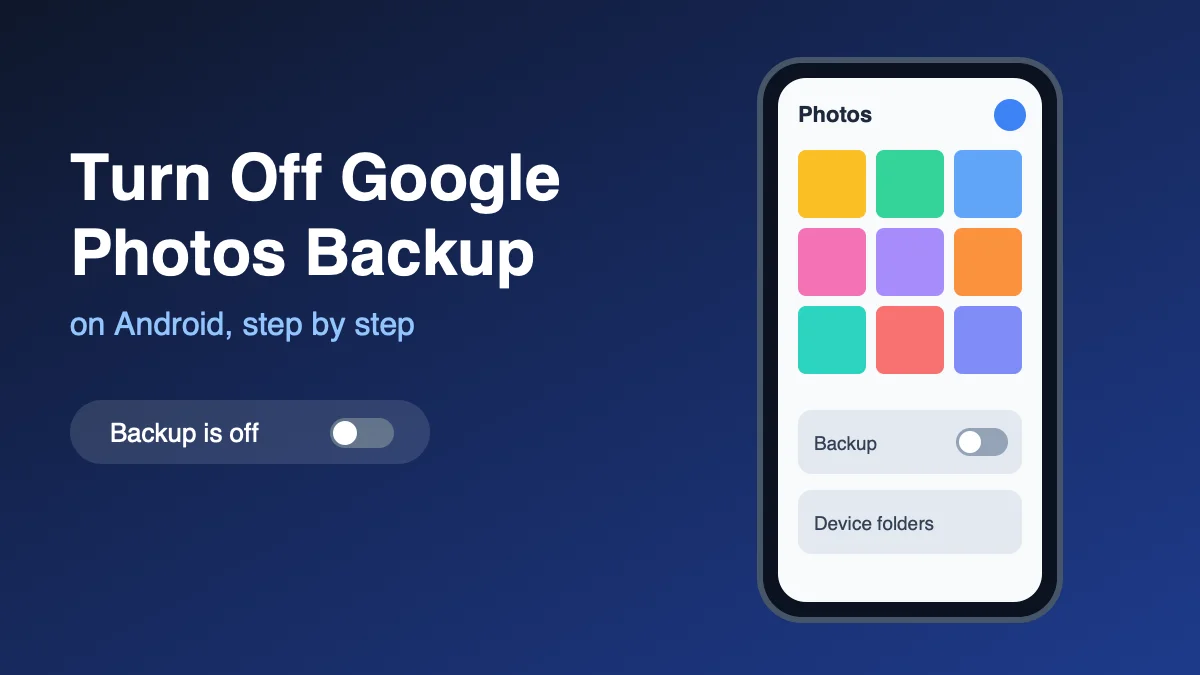
To turn off Google Photos backup on Android, open the Google Photos app, tap your profile picture or initial, then tap Photos settings → Backup, and switch Backup off. That stops new photos and videos from uploading from that phone. Photos already in Google Photos stay in the cloud until you delete them or use Undo backup. Google documents these steps in Photos Help for Android phones and tablets.
Also in this guide: stop only certain folders, cut mobile-data uploads, remove this device’s cloud copies without wiping the phone, and what happens if you still have backup on elsewhere.
Which Fix Do You Actually Need?
People searching this usually want one of four different things. Pick yours first, because the wrong one can cost you photos:
- Stop new uploads from this phone: turn Backup off (steps below).
- Keep Backup on but skip WhatsApp, Screenshots or Downloads: use device folders.
- Stop it eating mobile data: set Mobile data usage instead of killing Backup.
- Get photos out of the cloud but keep them on the phone: use Undo backup or delete from the web with Backup off. Order matters.
What Google Photos Backup Actually Does
With Backup on, Google Photos uploads eligible photos and videos from the folders you chose into the Google Account signed into the app. You can open those items later on any signed-in device. Google’s help pages note a few limits that matter in practice:
- You back up to one Google Account at a time in Photos.
- Storage is shared with Gmail and Drive. When that quota is full, backup stalls until you free space or upgrade.
Turning Backup off is a device setting. It does not factory-reset the phone, and it does not automatically wipe the library already sitting in your account.
How to Turn Off Google Photos Backup on Android
These are Google’s official Android steps:
- Open the Google Photos app and sign in if prompted.
- At the top right, tap your profile picture or initial.
- Tap Photos settings.
- Tap Backup.
- Turn Backup off.
Older app versions call this switch Back up & sync under Settings; the menu name changed to Backup but the switch does the same job. Confirm the status afterward. In Photos, a status of Backup is off means new automatic uploads from that device have stopped. You can still open local photos in the app; they just will not upload on their own.
If you use the same Google Account on a Pixel, a Galaxy, and a tablet, repeat this on every device you want quiet. Leaving Backup on anywhere can upload new shots from that device into the shared library.
Stop Only Some Folders (Camera On, WhatsApp Off)
Many people do not want a full kill switch. They want Camera uploads on and chat or Downloads folders off. Google’s Backup settings include Back up device folders:
- Open Google Photos → profile → Photos settings → Backup.
- Keep Backup on.
- Under Settings, tap Back up device folders.
- Turn off folders you do not want in the cloud (for example WhatsApp Images, Screenshots, or Downloads).
- Optionally turn off Back up all device folders so brand-new folders do not opt in automatically.
Google notes that when Backup is on, the folders you already chose keep syncing—not only the Camera roll—so folder cleanup is the usual fix for “random WhatsApp photos ate my Google storage.”
Stop Backup From Using Mobile Data
If the real problem is a Verizon or AT&T data bill, not privacy, leave Backup on and tighten Mobile data usage:
- Photos → profile → Photos settings → Backup → Mobile data usage.
- Set a daily limit for automatic backup over cellular, or keep uploads on Wi‑Fi only.
- Turn off Back up videos over data if you only want stills while traveling.
- Turn off Backup while roaming before international trips.
Wi‑Fi only is the safest choice if you are on a capped plan. Cellular uploads of video are what usually blow through a data allowance.
Turning Backup Off Does Not Delete Cloud Photos
This is the part that surprises people. Switching Backup off only stops new uploads from that device. Existing backed-up photos and videos remain in Google Photos and still count toward account storage.
To remove cloud copies while keeping files on the phone, use one of the two Google-documented paths below—not the regular Trash button while Backup is still on.
Remove Selected Cloud Copies (Keep Them on the Phone)
Google’s delete help is clear: if Backup is still on, trashing a photo in Photos can remove it from the phone and from other devices that also back up. To delete from Google Photos only:
- Turn Backup off on every device where you want the local file to stay.
- On a computer or mobile browser, sign in at photos.google.com.
- Delete the photos or videos you want out of the cloud.
- On the phone, connect to Wi‑Fi, wait a few minutes, then force-close and reopen Google Photos.
- Leave Backup off if you do not want those items uploaded again.
Google’s delete help says items you move to Trash stay there for 30 days before they are permanently deleted. Items deleted from Google Photos can be restored from Trash within that window, so check Trash before you empty it. Copy anything you cannot lose to a computer first.
Undo Backup for This Device (Wipe This Phone’s Cloud Set)
When you want every photo and video that currently exists on this phone removed from Google Photos in one pass—while staying on the device—use Google’s Undo backup control (Google Help labels it that way; some app builds say Undo backup for this device):
- Open Google Photos.
- Tap profile → Photos settings → Backup.
- Scroll down and tap Undo backup (or Undo backup for this device).
- Check the box that you understand those items will be deleted from Google Photos.
- Tap Delete Google Photos backup.
According to Google Help:
- The files remain on the phone.
- They are removed from albums, shared albums, search, memories, and Locked Folder entries tied to that backup set.
- Device-folder items and Locked Folder items that are part of the set are included.
- Backup turns off automatically on that device afterward.
Do not turn Backup back on casually afterwards. Google warns that a photo deleted by Undo backup can be backed up again when Backup is re-enabled, and the device copy may even be deleted in the process. If you want to stay local-only, leave Backup off.
If the same account still has Backup on another phone or tablet, new or matching items can upload again from that other device. Keep Backup off everywhere you intend to stay local-only.
Samsung Galaxy and Pixel Gotchas
Samsung Gallery sync: Galaxy phones have a separate Gallery cloud sync in addition to Google Photos. If photos keep reappearing in the cloud, or Undo backup is greyed out, check Gallery’s own sync settings as well as Photos → Backup. Reports say Undo backup is unavailable when Samsung Gallery sync is involved; check on your own phone.
Pixel Smart Storage: on some Pixels, Settings → Storage can automatically remove photos and videos from the phone once they are backed up and old enough. Turn that off if you want to keep local copies, and never tap Free up space in Photos unless you are sure the cloud copy is safe, since that button deletes the local files.
For phone storage full messages after you leave Backup on, free local space with Android’s Storage tools rather than a random cleaner APK—see how to free up storage on Android.
Extra Safety Net: Block Photos From Touching Local Files
If you must delete cloud copies and you are nervous about Backup still being on somewhere, you can remove the Photos app’s access to local files first: Settings → Apps → Photos → Permissions → Files and media (or Photos and videos) → Don’t allow. Delete the cloud items on a computer, then restore the permission. It is clumsy, so only use it as a belt-and-braces step. Also check Partner sharing and shared albums in Photos settings, since shared-library uploads can look like backup coming back.
When Backup Will Not Stay Off—or Will Not Finish
- Account storage full: Photos, Drive, and Gmail share one quota. Free space in Drive or Photos, or pause other uploads, before expecting Backup to complete again.
- Battery optimization: Google warns Backup can stall if Photos is heavily optimized. In Settings, search for battery optimization / battery usage, find Photos, and set it to Unrestricted or Don’t optimize while you finish a large first backup—or while you confirm Undo backup finished.
- Wrong account: Under Backup → account, confirm the email matches the library you care about. Photos can show device files even when they are not backed up to the account you are viewing.
- Waiting for Wi‑Fi: Status messages like Waiting for Wi‑Fi mean cellular limits are blocking the queue. Change Mobile data usage or join Wi‑Fi.
Documents and Drive files use a different pipeline and are not affected by anything in this guide.
What to Do After You Turn Backup Off
Decide where “real” copies live before you rely on one phone:
- Keep an export or second copy if you are about to factory reset, sell the phone, or clear storage aggressively.
- If you still want cloud redundancy without Google Photos, compare options in our roundup of cloud storage and backup apps.
- If you only needed space on the phone and still want Google’s library, leave Backup on, wait until status reads Backup complete, then use Photos → profile → Free up space on this device—that tool is for removing local duplicates of items already in the cloud, not for turning Backup off.
Quick Checks Before You Leave
Open Photos and glance at the top status. Backup is off means you succeeded for this device. Backup complete means uploads finished and Backup is still on. Anything that says Backing up, Paused, or Waiting for Wi‑Fi means the queue is still active—change settings, then recheck.
Frequently Asked Questions
How do I turn off Google Photos backup on Android?
Open Google Photos, tap your profile picture or initial, tap Photos settings, tap Backup, and turn Backup off. Google’s Android Photos Help lists those exact steps. Repeat on every device signed into the same account if you want no new uploads from any of them.
Does turning off Google Photos backup delete my photos?
No. Turning Backup off only stops new uploads from that device. Photos and videos already backed up stay in Google Photos and still use account storage until you delete them or use Undo backup.
How do I remove photos from Google Photos but keep them on my phone?
Turn Backup off on devices where you want locals to stay, then delete the items at photos.google.com (or use Undo backup to remove this device’s whole backed-up set). Google warns that deleting inside the app while Backup is still on can remove the files from the phone too.
What does Undo backup for this device do?
Google’s Undo backup control removes photos and videos that are currently on that device from Google Photos while leaving them on the phone. It also clears related album, shared album, search, memories, and Locked Folder entries for that set, then turns Backup off on that device.
Can I stop WhatsApp or Downloads from backing up but keep Camera uploads?
Yes. Keep Backup on, open Photos settings → Backup → Back up device folders, and turn off the folders you do not want. Optionally disable Back up all device folders so new folders do not join automatically.
Will Google Photos still use mobile data after I turn backup off?
Automatic photo and video backup uploads stop when Backup is off on that device. Other Photos features can still use data when you browse or edit. If Backup stays on, use Backup → Mobile data usage to limit or block cellular uploads.
Why do my photos keep uploading after I turned Backup off?
Usually another device on the same Google Account still has Backup on, or Samsung Gallery sync, partner sharing or a shared album is adding items. Turn Backup off on every device, then check Gallery sync and sharing settings.
Can I get back photos I deleted from Google Photos?
Yes, within 30 days. Google keeps deleted items in Trash for 30 days, whether or not they were backed up, before they are permanently deleted.