Best Android Emulator in 2026: 12 Top Picks Tested (PC, Mac & Linux)

The best Android emulator in 2026 is BlueStacks for most people. It is free, runs almost any app or game, and now has a Mac version (BlueStacks Air) built for Apple Silicon. Want the safest, ad-free pick from Google itself? Use Google Play Games on PC, which left beta in September 2025 and now offers a 200,000-plus game catalog. Need the newest Android base? MuMuPlayer 6.0 is the only consumer emulator running Android 15, and LDPlayer 14 is the only other mainstream one past Android 13 (it runs Android 14) — but read the ban-risk section first if you play PUBG Mobile or Call of Duty: Mobile competitively.
One thing almost every other list gets wrong: the Android version underneath the emulator now decides whether a game installs at all. Several famous picks are still running a 2018-era Android 9 core, and a growing number of new titles refuse to install on them. We put the full Android-version breakdown near the top of this guide because in 2026 it is the first thing you should check, not the last.
Here is why this guide is brand new. A lot of old "best emulator" lists still push apps that are dead. Microsoft shut down its Windows Subsystem for Android in March 2025. KoPlayer, Andy, ARChon, and Phoenix OS are no longer updated. We cut all of those and tested the ones that actually work today.
We installed every emulator below on a real Windows PC, an Apple Silicon Mac, and a Linux laptop. We ran demanding games like Genshin Impact, PUBG Mobile, and Call of Duty: Mobile, and watched for frame drops, input lag, and crashes. These are the picks that hold up in 2026, plus a clear list of the ones to skip.
In a hurry? Jump to: which Android version each one runs · BlueStacks (best overall) · how emulators actually work · emulator ban risk for gaming · emulators to avoid · comparison table · system requirements · online emulators (no download) · console emulators for Android phones
Which Android Version Does Each Emulator Run?
This is the single most useful table in this guide, and it is the thing most "best emulator" lists still get wrong or leave out entirely. An emulator is only as modern as the Android build inside it. If a game's Play Store listing says it needs Android 10 or higher — and more and more of them do — it will simply refuse to install on an emulator stuck on Android 9.
| Emulator | Android base (September 2026) | Notes |
|---|---|---|
| Android Studio Emulator | Android 16 (API 36), Android 17 (API 37) images | Newest of anything here. Developer tool, not for gaming. |
| Genymotion Desktop | Android 5.0 – 16.0 | Android 16 needs a paid licence; Apple Silicon covers 11.0–16.0 only. |
| MuMuPlayer 6.0 | Android 15 (plus Android 12 instances) | Only consumer emulator on Android 15. Released 9 July 2026. |
| LDPlayer 14 | Android 14 | Launched 25 June 2026; regular releases since (14.0.29.0 on 23 September 2026). |
| Waydroid | Android 13 (official LineageOS 20 images) | Unofficial LineageOS 23.2 / Android 16 builds exist. |
| Bliss OS | Android 13 | Installs as its own OS, not a window. |
| BlueStacks 5.22 | Android 11 default; Android 13 beta instance; Pie 64-bit legacy | Pick the Android 13 instance in Multi-Instance Manager for newer apps. |
| MSI App Player | Android 11 | BlueStacks engine underneath. |
| MEmu Play | Android 12 (Android 9 legacy builds still shipped) | Check which build you downloaded. |
| NoxPlayer | Android 9 default; Android 12 beta instance | Create the Android 12 instance if an app complains. |
| LDPlayer 9 | Android 9 | The long-running branch most guides still mean by "LDPlayer". |
| GameLoop | Android 7.1 | Oldest base here. Tuned for Tencent titles; blocks many others. |
| Google Play Games on PC | Google-managed (not user-selectable) | Google handles compatibility; you never pick a version. |
Is there an Android 16 emulator yet?
For gaming, no — and be sceptical of any page that says otherwise. As of September 2026 the newest Android base you can get in a mainstream gaming emulator is Android 15, in MuMuPlayer 6.0. Nothing else in the consumer category has shipped past Android 14.
Android 16 and Android 17 are available, but only in developer tooling:
- Android Studio's emulator ships official Google system images for Android 16 (API 36) and Android 17 (API 37). It is free, it runs on Windows, Mac and Linux, and it is the correct answer if you searched for an "Android 16 emulator" because you need to test an app.
- Genymotion Desktop offers Android 16.0, but not in the free edition — that version requires a paid licence. On Apple Silicon it covers Android 11.0 through 16.0; the older 5.0–10.0 images are x86-only.
- Waydroid on Linux ships Android 13 officially, though community builds based on LineageOS 23.2 (Android 16 QPR2) exist if you are comfortable with unofficial images.
So: if you want Android 16 to test an app, use Android Studio. If you want Android 16 to play a game, you cannot have it yet, and MuMuPlayer 6.0 on Android 15 is as close as you will get.
When the Android version actually matters (and when it doesn't)
- It matters when the Play Store refuses to install a game, when an app demands a newer API for a specific feature, or when a banking or DRM-protected app checks the OS build.
- It mostly doesn't matter for raw frame rate. A well-tuned Android 9 emulator like LDPlayer 9 can still out-perform a newer base on the same hardware, because rendering path and input handling drive smoothness more than the API level does.
- The practical rule: check the "Requires Android" line on the game's Play Store listing first, then pick an emulator that clears it. If the game needs Android 10+, skip GameLoop and LDPlayer 9 entirely.
What Is an Android Emulator?
An Android emulator is a program that runs Android on your computer. It builds a small fake phone inside a window on your PC or Mac.
You will see the same idea called a phone emulator, a cell phone emulator, a mobile emulator, or an Android emulator for PC — the names are interchangeable. Technically, the emulator creates a complete virtual Android device, with its own Play Store, storage, and settings, that behaves like a real handset. It is also a different thing from a console or retro-game emulator: instead of imitating a PlayStation or an old arcade board, it imitates a modern Android phone or tablet.
So you can do everything you do on a phone, but on a big screen:
- Play mobile games with a mouse, keyboard, or controller.
- Run phone-only apps that have no desktop version.
- Test apps if you build them, without owning ten phones.
Your real phone is not touched. The emulator is its own separate Android, sitting on your computer. If you just want to mirror apps already installed on your actual phone onto a Windows PC instead of running a separate virtual Android, that is a different tool entirely: Microsoft's Phone Link app streams your real phone's screen and apps to your PC. It is not an emulator and it needs your phone nearby and connected, but it is worth knowing about if all you want is to answer a call or check a phone-only app without picking up your phone.
How Emulators Actually Work (Why Some Are Faster)
Most Android apps and games are compiled for ARM chips, the same architecture your phone uses. Most Windows PCs run on x86 chips. To run an ARM app on an x86 computer, the emulator has to translate ARM instructions into x86 instructions on the fly, using a compatibility layer (Intel Houdini or a similar translator). That translation is not free: it can cost roughly 20-30% of raw performance compared to running the same code natively.
This is why emulator speed is not just about your CPU. Three things determine how smooth an emulator feels:
- Instruction translation. Emulators that translate ARM to x86 more efficiently, or that run ARM-native app variants when available, lose less performance.
- GPU acceleration. Whether the emulator renders through your graphics card using Vulkan or DirectX (fast) or falls back to a software renderer like SwiftShader on the CPU (much slower). Vulkan-based rendering, which BlueStacks, MuMu Player, and LDPlayer all now support, is where the "10-20x faster than software rendering" gains you will see marketers mention actually come from in practice.
- Apple Silicon is the exception. M-series Macs are ARM chips, so emulators built natively for Apple Silicon (BlueStacks Air, MuMuPlayer Pro) skip the ARM-to-x86 translation step entirely, which is a big part of why they feel noticeably smoother than older Intel-Mac emulators ever did.
In practice: if a game feels sluggish, check whether the emulator is set to OpenGL/software rendering and switch it to Vulkan or DirectX in settings before assuming your hardware is the problem.
Why Use an Android Emulator in 2026?
Phones are great, but a computer wins in a few real ways:
- Bigger screen, better aim. Mouse and keyboard beat a touchscreen in shooters and strategy games.
- No dead battery. Long farming or idle games can run for hours while you do other things.
- Many accounts at once. Multi-instance lets you run several copies of a game side by side.
- More power. Your PC's CPU and graphics card can push higher frame rates than most phones.
The 12 Best Android Emulators in 2026
1. BlueStacks - Best overall (and best for Mac)

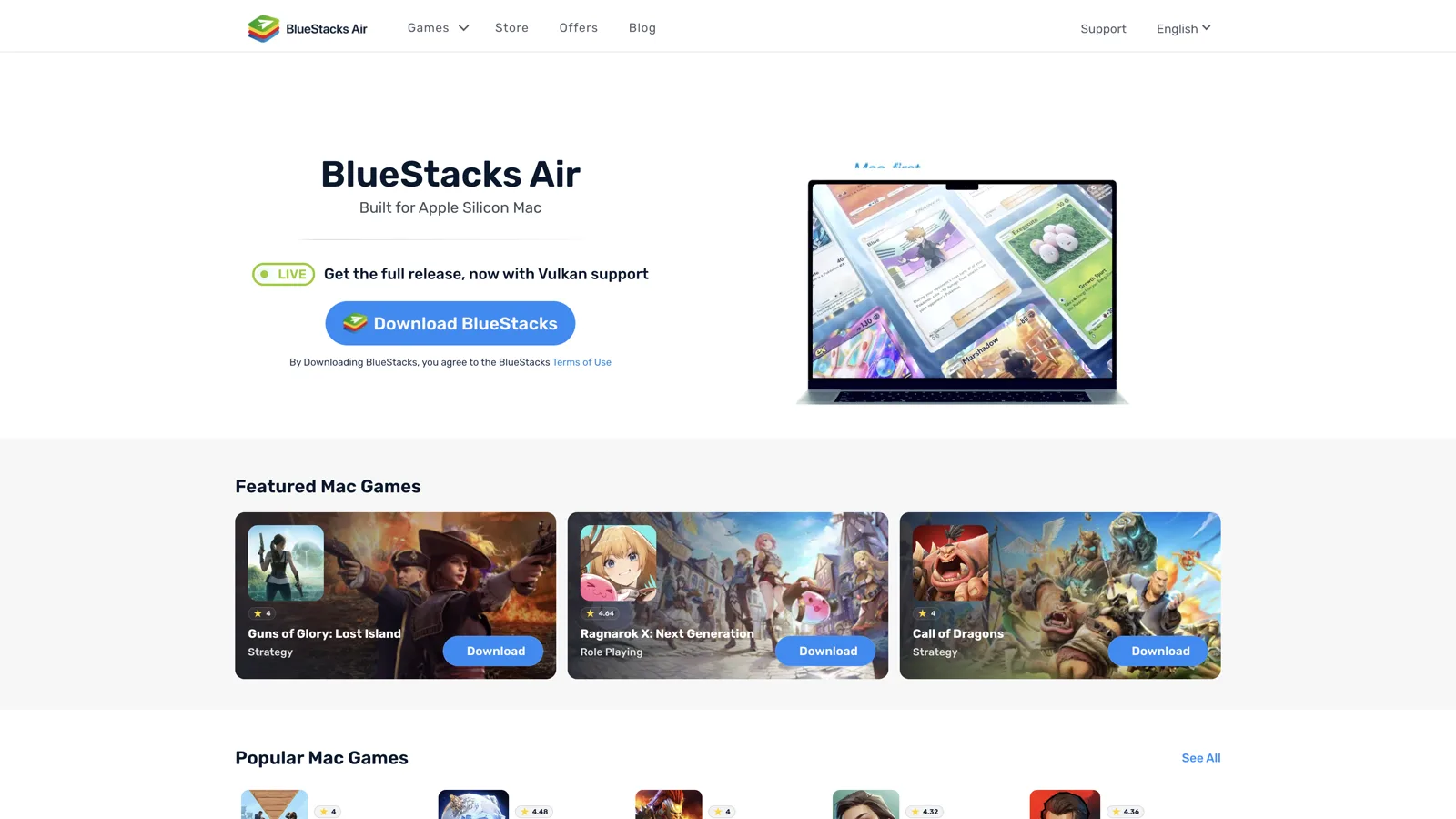
BlueStacks is the emulator we hand to most people. It is free, easy to set up, and runs almost any Android game or app. On Windows it defaults to an Android 11 engine, and you can spin up Android 13 (beta) instances from the Multi-Instance Manager for apps that want newer APIs, plus legacy Pie 64-bit and Android 7 options for older games. Version 5.22 landed on 27 July 2026, and the latest point release, 5.22.265, arrived on 11 September 2026.
Be honest with yourself about that base, though. Android 11 shipped in 2020, and BlueStacks is now two full Android versions behind MuMuPlayer. For the overwhelming majority of games that is irrelevant — but if you hit an "app not compatible" wall, switch to an Android 13 instance before you blame your PC.
The big 2026 news is Mac. The old line "BlueStacks does not work on M1 or M2 chips" is finally dead. BlueStacks Air is a free Mac app built natively for Apple Silicon (M1 through M4) and powered by Vulkan, so games run smooth on modern MacBooks and iMacs. BlueStacks also launched BlueStacks Prime in late December 2025 — a $7.99-a-month membership ($3.99 for the first month) that removes ads and adds monthly store credit and priority support — alongside a BlueStacks Store with cashback perks, and a mid-2026 update added BlueAI, an in-emulator AI assistant. The core emulator and Play Store access remain free; if you see Prime upsells in-app, that is a paid extra layer, not a requirement.
Key features
- Multi-instance to run several games or accounts at once.
- Keyboard mapping, macros, and high-FPS mode for smoother play.
- Eco Mode to lower CPU use when running many windows.
- BlueStacks Air for Mac, made for Apple Silicon (8GB RAM is the minimum, 16GB is better).
- Optional BlueStacks Prime subscription ($7.99/month, launched December 2025) removes ads and adds perks; the base emulator stays free.
- BlueAI, the built-in assistant, went worldwide in the 5.22 cycle and can be pointed at your own OpenAI or Anthropic API key.
Best for: almost everyone - casual players, gacha fans, and Mac users. Get it here.
2. Google Play Games on PC - Safest, made by Google
This is Google's own way to play Android games on Windows. There are no ads, no bloat, and no shady extras, which makes it the safest pick on this list. Your game progress also syncs between your phone and PC.
The big change: after almost four years in beta, Google Play Games on PC hit general availability on September 23, 2025. It now runs in over 130 countries with a catalog Google puts at more than 200,000 titles, because Google flipped from a small curated list to making Android games playable on PC by default unless a developer opts out. Through 2026 it has kept growing: at GDC 2026 Google added "buy once, play anywhere" purchases that unlock a game on both phone and PC, a dedicated Windows tab in the Play Store, and its first wave of native PC titles. The remaining catch: it is games only (no general Android apps), it is Windows only, and a few big competitive titles still push PC players toward their own official emulators instead.
Key features
- Official Google app, free and ad-free.
- Out of beta since September 2025, with 200,000+ playable titles in 130+ countries.
- Cross-save between phone and PC for supported games, plus "buy once, play anywhere" purchases added in 2026.
- Needs Windows 10 (version 2004) or 11, an SSD with 10GB free, and Intel UHD 630 graphics or better.
Best for: players who want a clean, trusted setup with zero risk. See the supported games.
3. LDPlayer - Best for competitive gaming (read the ban-risk note first)
If you take mobile shooters and MOBAs seriously, LDPlayer is the one to beat on raw feel. In our testing it had the lowest input lag of any emulator here, so taps and aim feel instant. It also supports Hyper-V for better speed on modern Windows.
There are two LDPlayers, and the difference matters. This trips people up constantly, because most guides name only one of them:
- LDPlayer 9 is the long-running, well-proven branch, and it is still offered alongside 14. It runs an Android 9 base — fine for competitive shooters, which target broad compatibility, but it will block newer games that require Android 10 or higher.
- LDPlayer 14 officially launched on 25 June 2026 after a global beta that opened on 28 April, and it is the first mainstream emulator on an Android 14 base. LDPlayer claims frame-rate gains of roughly 20–30% plus native Hyper-V integration. It started as a beta but now ships as a regular release: LDPlayer's version history shows builds every couple of weeks, most recently 14.0.29.0 on 23 September 2026. It is still the younger branch, with three months of fixes behind it versus years for LDPlayer 9.
Our take: install LDPlayer 14 if a game demands Android 10 or newer, or if you are setting up fresh. Stick with LDPlayer 9 if your existing setup, macros and ranked games already run well on it. Do not assume 14 is simply "the better version" because the number is bigger.
One thing to know: LDPlayer is Windows only. There is no Mac version, so Mac users should pick BlueStacks Air or MuMu Player instead. See the ban-risk section below before using it in ranked PUBG Mobile or COD Mobile matches.
Key features
- Very low input lag and high frame rates.
- Strong keyboard mapping and multi-instance tools (LDMultiPlayer).
- Hyper-V support for smoother performance, deepened in the 14 branch.
- Two branches: 9 (Android 9, long-running) and 14 (Android 14, launched June 2026).
Best for: serious gamers on Windows who want the fastest controls and don't mind emulator-only matchmaking in competitive titles. Get it here.
4. MuMuPlayer 6.0 - Newest Android base, and best high-FPS pick for Mac
MuMuPlayer is made by NetEase, one of the biggest game studios in the world, and in 2026 it holds a genuine technical lead. MuMuPlayer 6.0, announced on 9 July 2026, is the only PC emulator running Android 15, and it can run Android 15 and Android 12 instances side by side — useful when one game wants the newest APIs and an older one only behaves on Android 12. The 6.0 release also widened OpenGL support so it starts on machines with older graphics cards or stale drivers.
It runs natively on Apple Silicon Macs and on Windows, and it can push high frame rates using Vulkan, with a frame-boost mode that reaches up to 240 FPS on strong hardware. If a game refuses to install anywhere else because it demands a recent Android version, this is the emulator to try first.
One pricing catch to know before you download: the Windows version is completely free, but the Mac app (MuMuPlayer Pro) moves to a paid subscription once its 7-day free trial ends, renewed from the Mac menu bar or Personal Center. That makes it the only big gaming emulator here that charges Mac users — if you want a totally free Mac option, BlueStacks Air is the one. NetEase publishes Windows requirements of an i5-7500 or better with VT enabled, a GTX 950 or better, and 4GB of RAM.
Heads up: MuMu and a few other top emulators are made by Chinese companies. They are widely used and trusted, but if you care a lot about data privacy, BlueStacks or Google Play Games are calmer choices — BlueStacks specifically markets GDPR-compliant data handling as a selling point, which MuMu and NoxPlayer do not emphasize to the same degree.
Key features
- Android 15 — the newest base of any consumer emulator, with simultaneous Android 12 instances.
- Native Apple Silicon support, plus Windows.
- Vulkan rendering and a high-FPS frame-boost mode (up to 240 FPS).
- Smart keyboard mapping and multi-instance.
Best for: anyone who needs the newest Android base on Windows, plus Mac gamers who don't mind paying for MuMuPlayer Pro after the trial. Get it here.
5. GameLoop - Official emulator for PUBG and Call of Duty Mobile
GameLoop is made by Tencent, so it is the official PC emulator for Tencent games like PUBG Mobile, Call of Duty: Mobile, and Arena of Valor. Those games are tuned to run well here, and you get mouse-and-keyboard controls out of the box. Because it is the developer's own tool, GameLoop players are usually matched into the same emulator-flagged lobbies as other emulator users rather than risking a ban outright — see the section below for how this differs from using a non-official emulator.
It is built around gaming, so it is not the best choice for regular apps. It runs an older Android 7.1-based engine — the oldest base in this guide by a wide margin — which Tencent titles are tuned for but which stops a lot of non-Tencent games from installing at all. If your library is anything other than PUBG Mobile, COD Mobile and Arena of Valor, check the Play Store's "Requires Android" line before you commit. It is Windows only.
Best for: people who mainly play PUBG Mobile or COD Mobile on a Windows PC.
6. MSI App Player - BlueStacks power with fewer ads
MSI App Player is BlueStacks under the hood, but built with MSI. You get the same strong engine and high frame rates (up to 240 FPS), with fewer ads and less bloat. It is free for everyone on Windows, not just MSI owners, and it comes pre-installed on MSI gaming PCs and handhelds.
If you like BlueStacks but hate the ads, this is the easy fix. It is Windows only.
Best for: Windows gamers who want the BlueStacks experience with a cleaner, quieter screen.
7. MEmu Play - Flexible all-round gaming

MEmu is a light, gaming-focused emulator for Windows. It is easy to set up and packs handy extras like GPS spoofing for location games, smart keyboard mapping, and multi-instance for running many accounts. Current builds run an Android 12 base, though older Android 9 builds are still floating around on download portals — check the version you actually installed if an app refuses to run.
Best for: Windows players who want a flexible emulator with lots of game tools.
8. NoxPlayer - Best for power users and macros

NoxPlayer is built for tinkerers. Its standout tool is a macro recorder that records your taps and replays them, so you can automate boring, repeat tasks in games. It also lets you tweak deep settings and run many instances at once. It works on Windows and Mac, and like several other gaming-focused emulators it is still built on an Android 9 base by default, though newer builds also let you create an Android 12 (beta) instance if an app demands something more recent.
Know its history before you install. In February 2021 security firm ESET published "Operation NightScout": attackers had compromised NoxPlayer's update system and used it to push spyware to a handful of targeted users in Taiwan, Hong Kong and Sri Lanka between September 2020 and January 2021. BigNox says it then moved updates to HTTPS with hash and signature checks. No similar incident has been reported since, but it is the reason we rank Nox below BlueStacks, LDPlayer and MuMu for everyday use.
Best for: users who love customizing and automating their setup.
9. Android Studio Emulator - Best for app developers

This is Google's official tool for building Android apps, and it includes a powerful emulator. It is the only option here that reliably runs the newest Android versions — Google ships system images for Android 16 (API 36) and Android 17 (API 37), pulled straight from the SDK Manager — and it lets you test many screen sizes and devices. It runs on Windows, Mac (including Apple Silicon), and Linux, and it is free.
If you landed here searching for an "Android 16 emulator" or an "Android 17 emulator," this is your answer. No gaming emulator has shipped either one.
It is not made for gaming. If you are a player, skip it. If you write apps, it is a must-have. If you build specifically for Samsung devices, Samsung also maintains its own Knox Emulator environment inside its developer tools for testing security and enterprise (Knox) features that Android Studio's generic images do not cover.
Best for: developers testing apps on the latest Android. Download from Google.
10. Genymotion - Best for teams and QA testing
Genymotion is a pro tool for companies. You can spin up Android devices in the cloud or on your desktop, then run automated tests across a real device farm covering dozens of virtual device and Android-version combinations at once. It plugs into common CI/CD and test-automation tools (Appium, Jenkins, and similar), which is what makes it useful for QA teams running the same regression suite across many device profiles instead of testing one phone at a time.
It is not free for real use. There is a small free tier for personal use, but the entry-level Individual plan for freelancers runs $239.99 a year per computer as of our check on genymotion.com, so it is overkill for regular people. Two details the vendor pages bury: Android 16.0 is excluded from the free edition and needs a paid licence, and on Apple Silicon the available range is Android 11.0 to 16.0 — the older 5.0 to 10.0 images are x86-only. Genymotion has also retired x86/x86_64 images on its cloud tiers in favour of arm64.
Best for: developer teams and QA testers running automated test suites, not casual users.
11. Bliss OS - Best free, open-source desktop Android
Bliss OS is different. Instead of running in a window, it installs Android as its own operating system on your PC, or inside a virtual machine. It is free and open source.
The catch in 2026: the project has paused public builds. The newest official images (v16.9.7, Android 13) date from October 2024, and blissos.org now says public images are paused while the source stays open. It still installs and runs, but you will not get security patches through new images. Setup also takes more effort than a normal app, so this is for confident users who want a full Android desktop and accept that trade-off. It remains a better bet than PrimeOS or Phoenix OS, which have gone quiet entirely.
Best for: tinkerers who want a full Android desktop they control.
12. Waydroid - Best for Linux users

Linux users finally have a great option. Waydroid runs a full Android 13 system inside a lightweight container, so Android apps open in their own windows right on your Linux desktop. There is no heavy virtual machine, so it starts in seconds and uses little memory.
It is free, open source, and still actively updated in 2026 (Waydroid 1.6.3 shipped on 28 May 2026 with initial support for Android 16 images), and it is the modern replacement for the old, abandoned Anbox. The official images are LineageOS 20 (Android 13); if you want something newer, community builds based on LineageOS 23.2 (Android 16 QPR2) exist, but they are unofficial and you should treat them accordingly.
Best for: Linux users who want fast, native-feeling Android apps. Get it here.
Also Read: Best Android Launcher in 2026: 11 Top Picks Tested
Emulator Ban Risk: What Competitive Gamers Need to Know
This is the part most "best emulator" round-ups skip entirely, and it matters if you play ranked. Games like PUBG Mobile and Call of Duty: Mobile actively detect emulators, and third-party cheat tools are a major driver of bans on both titles — industry anti-cheat reporting puts cheating behind the large majority of PUBG Mobile ban actions. That does not mean every emulator user gets banned, but it does mean two real risks apply:
- Lobby segregation, not always a ban. PUBG Mobile and COD Mobile increasingly detect and route emulator players into emulator-only or mixed lobbies rather than banning outright. You will not lose your account for simply using an emulator to play casually.
- Official emulators are safer than third-party ones. GameLoop is Tencent's own emulator, built for exactly these games, so it is the lowest-risk choice for PUBG Mobile and COD Mobile. Using a non-official emulator like LDPlayer or BlueStacks for these specific titles carries a higher (though still not guaranteed) chance of being flagged, since the developer has less visibility into what the emulator is doing under the hood.
- Third-party cheat injection is the real ban driver. The actual account bans overwhelmingly trace back to cheat software (aimbots, wallhacks, macro scripts) layered on top of an emulator, not the emulator itself. An emulator used cleanly, with no injected cheat tools, is a very different risk profile from one running cheat software.
Our practical advice: if you play PUBG Mobile or COD Mobile competitively and ranking matters to you, use GameLoop. If you play casually and don't mind emulator-tagged lobbies, LDPlayer or BlueStacks are fine. Never install "aim assist" or macro-cheat add-ons on top of any emulator for a competitive shooter — that is what actually gets accounts banned.
Android Emulators to Avoid in 2026
This is the part most "best emulator" lists hide. These were popular once, but they are now dead, abandoned, or risky. Skip them:
- Windows Subsystem for Android (WSA) - Microsoft shut it down on March 5, 2025. The Amazon Appstore and any apps it ran no longer get support.
- KoPlayer - the website is down and there have been no updates in years.
- Andy (AndyOS) - abandoned long ago, with old security worries. Do not install it.
- ARChon - an old Chrome trick that broke years ago and no longer works on modern Chrome.
- Phoenix OS - downloads have vanished and the project looks discontinued.
- PrimeOS - still floating around online but rarely updated. If you want Android as a full desktop OS, Bliss OS is the better option, though its public builds are also paused (last images October 2024).
- Anbox - the old Linux Android tool is no longer actively developed. Use Waydroid instead.
If a site pushes one of these as "the best emulator," that page is out of date.
Android Emulator Comparison Table (2026)
Here is how the top picks stack up. Use it to narrow your choice before you download.
| Emulator | Best For | Platform | Android Version | Price |
|---|---|---|---|---|
| BlueStacks | Most people; Mac via Air | Windows, Mac (Apple Silicon) | 11 (13 beta available) | Free (+optional Prime) |
| Google Play Games | Safest, official; out of beta | Windows | N/A (Google-managed) | Free |
| LDPlayer 9 | Competitive gaming | Windows only | 9 | Free |
| LDPlayer 14 | Newer games needing Android 10+ | Windows only | 14 | Free |
| MuMuPlayer 6.0 | Newest Android base; high FPS on Mac | Windows, Mac (Apple Silicon) | 15 (+12) | Free on Windows; paid on Mac |
| GameLoop | PUBG & COD Mobile | Windows only | 7.1 | Free |
| MSI App Player | BlueStacks with fewer ads | Windows only | 11 | Free |
| MEmu Play | Flexible gaming tools | Windows | 12 | Free |
| NoxPlayer | Macros & power users | Windows, Mac | 9 (12 beta) | Free |
| Android Studio | App developers | Windows, Mac, Linux | 16 (API 36), 17 (API 37) | Free |
| Genymotion | Team QA testing | Cloud, Win, Mac, Linux | 5.0–16.0 selectable | Free tier / $239.99+ yr |
| Bliss OS | Full desktop Android | PC (boot or VM) | 13 (images paused since Oct 2024) | Free (open source) |
| Waydroid | Android on Linux | Linux | 13 | Free (open source) |
Notice the spread in that Android column: GameLoop is on Android 7.1 and LDPlayer 9 and NoxPlayer are on Android 9, while MuMuPlayer 6.0 is on Android 15 — an eight-version gap between the oldest and newest picks on the same list. That rarely hurts frame rate, because rendering path matters more than API level for speed. It absolutely does decide whether a game installs. If the Play Store listing says "Requires Android 10 and up," MuMuPlayer 6.0, LDPlayer 14, or a BlueStacks Android 13 instance are your options; GameLoop and LDPlayer 9 are not.
Are Android Emulators Safe?
Yes, the ones in this guide are safe to use, as long as you follow a few simple rules:
- Only download from the official site. Fake "emulator" downloads are a common way to spread malware. Skip random mirror sites.
- Know who makes it. Several top emulators (LDPlayer, MuMu, GameLoop, NoxPlayer) are made by Chinese companies. They are popular and widely trusted, but if data privacy matters most to you, stick with Google Play Games or BlueStacks, which markets GDPR-aligned data practices explicitly.
- Update-channel attacks have happened. In 2021 NoxPlayer's own updater was hijacked to deliver spyware to a small number of targeted users (see the NoxPlayer entry above). Keep emulators updated from inside the app or the official site, and uninstall ones you no longer use.
- Expect antivirus warnings. Emulators turn on PC virtualization, which can trigger false alarms. Downloading from the official site keeps you safe.
- Turn on virtualization. For smooth speed, enable Intel VT-x or AMD-V (SVM) in your PC's BIOS.
- Know the ban risk for competitive games. See the ban-risk section above before using a non-official emulator for ranked PUBG Mobile or COD Mobile play.
Online Android Emulators (No Download)
If you searched for a "mobile emulator" or "phone emulator" to check how an app or website looks on Android, you probably do not need to install anything. These browser-based services stream a real or virtual Android device to a browser tab. They are built for developers and testers, not for playing games, and each one gives you only a small amount of free time:
| Service | What you get free | Paid from | Best for |
|---|---|---|---|
| Appetize.io | Free plan: 30 minutes a month, 2 devices, no credit card | $89/month ($59/month billed yearly) | Quick demos of your own app in a browser |
| BrowserStack App Live | Free trial: 30 minutes, 1 minute per device | Paid plans | Checking an app on many real phone models |
| Firebase Test Lab | Spark plan: 10 virtual-device and 5 physical-device test runs a day | $1/hour virtual, $5/hour physical | Automated tests on Android builds |
| AWS Device Farm | First 1,000 device minutes free (one time) | $0.17 per device minute | Large automated test runs |
Want to play Android games in a browser instead? Cloud-gaming sites such as now.gg stream a small catalog of mobile games with no install, but you do not get the Play Store or your own apps. For anything beyond a quick try, a desktop emulator from the list above is the better choice. For professional app testing, Android Studio and Genymotion are still the standard.
Looking for an Emulator That Runs on Android?
"Android emulator" usually means running Android on a PC. That is what this guide covers. But many people searching "emulator for Android" want the opposite: an app that plays classic console games on an Android phone or handheld. Those are different apps, and we cover each console in its own tested guide:
- PlayStation 2: best PS2 emulator for Android (NetherSX2, ARMSX2, Play!)
- Nintendo DS and 3DS: best DS and 3DS emulators for Android (melonDS, Azahar)
- Game Boy Advance: best GBA games and emulators for Android (Pizza Boy, Lemuroid)
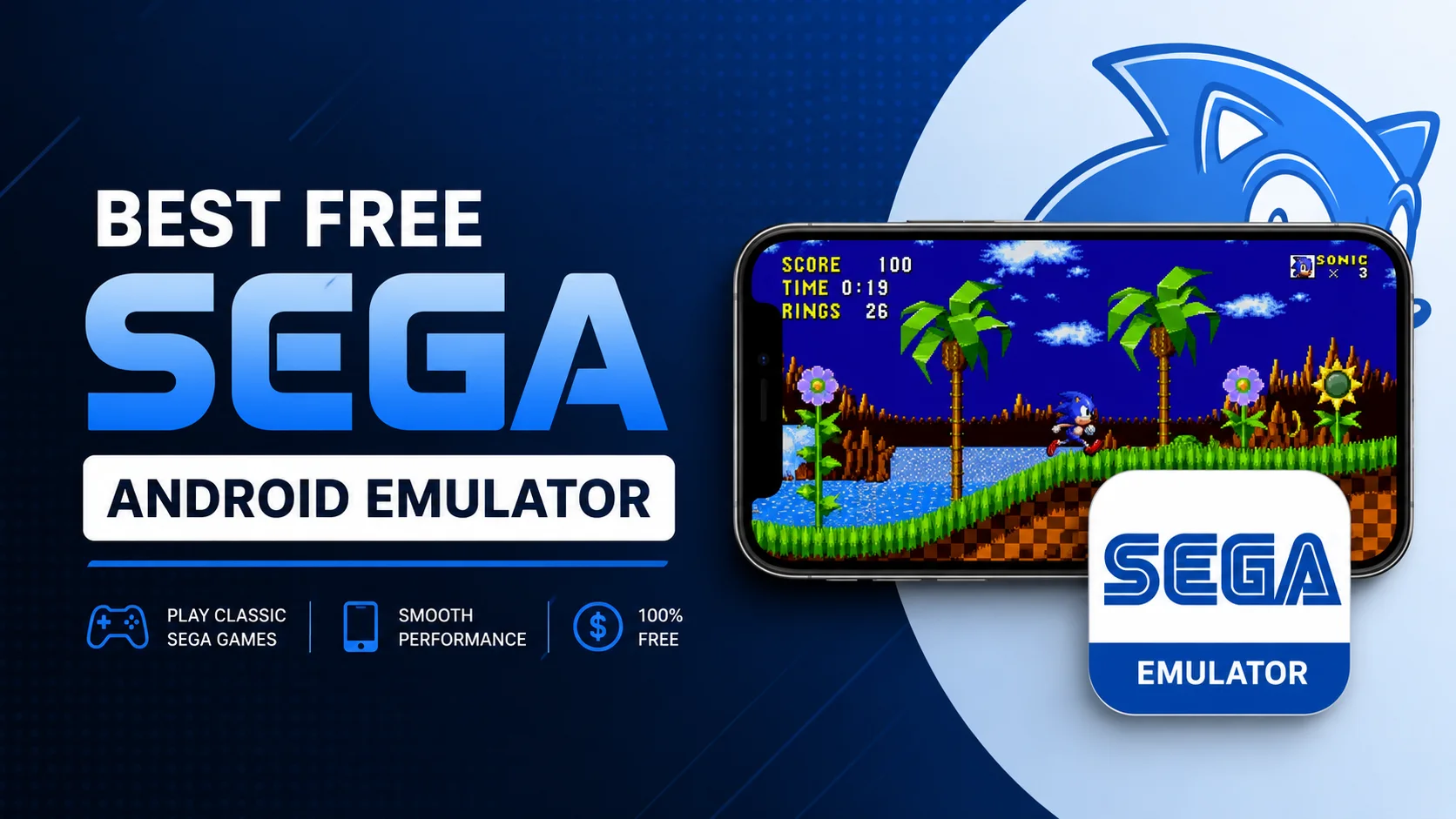
- Sega Genesis, Dreamcast and Saturn: best free Sega emulator for Android (Lemuroid, Flycast)
- GameCube and Wii: best GameCube and Wii games on Dolphin for Android
- PSP: best PPSSPP games
One rule applies to all of them: the emulators are legal, but they come with no games. You play dumps of discs and cartridges you own.
How to Pick the Right Emulator
Match the emulator to what you actually want to do:
- Just want it to work? Use BlueStacks.
- Want the safest, cleanest pick? Use Google Play Games on PC.
- Serious about gaming on Windows? Use LDPlayer 9 (casual) or GameLoop (lower ban risk for Tencent titles).
- Game says it needs Android 10 or higher? Use MuMuPlayer 6.0 (Android 15), LDPlayer 14 (Android 14), or a BlueStacks Android 13 instance.
- Need Android 16 or 17 to test an app? Use the Android Studio emulator. No gaming emulator offers either one.
- On a Mac? Use BlueStacks Air (free) or MuMuPlayer Pro (paid after a 7-day trial). Full breakdown in our Apple Silicon emulator guide, including the arm64 check that stops failed installs.
- Mainly play PUBG or COD Mobile competitively? Use GameLoop, the official Tencent emulator.
- Want BlueStacks but fewer ads? Use MSI App Player.
- On Linux? Use Waydroid.
- Building apps? Use Android Studio.
- Just want your actual phone's apps on your PC, no virtual Android? Use Microsoft's Phone Link instead of an emulator.
How to Install an Android Emulator
Setup is quick and takes about five minutes:
- Go to the emulator's official website and download the installer.
- Run the installer and follow the steps. Pick an install folder if asked.
- Open the emulator and sign in with your Google account to reach the Play Store.
- Search for your game or app, install it, and play.
- For gaming, open the controls or key-mapping menu to set up your keyboard or controller.
If games feel slow, turn on virtualization in your BIOS, give the emulator more RAM in its settings, and switch the graphics rendering mode to Vulkan or DirectX if it defaults to something slower.
System Requirements: What Each Emulator Officially Needs
Most emulators on this list will run on modest hardware, but the experience gets noticeably better above these baselines. On a laptop stuck at 8GB of RAM, skip the 12-way comparison and use our dedicated Android emulator guide for 8GB PCs (LDPlayer 9 plus the 2GB / 720p recipe).
| Spec | Minimum | Recommended |
|---|---|---|
| RAM | 4GB | 8GB+ (16GB for Mac/high-FPS modes) |
| Storage | 10GB free, HDD ok | SSD with 20GB+ free |
| CPU | Dual-core, VT-x/AMD-V capable | Quad-core or better |
| GPU | Intel UHD 630 / integrated | Dedicated GPU (GTX/RTX or Radeon) |
| OS | Windows 10 (2004+) or macOS 11 | Windows 11 or macOS 13+ on Apple Silicon |
That table is our general baseline. The vendors' own minimums vary a lot more than most lists admit, and a few are stricter than you might expect. Here is what each one publishes (checked 24 September 2026):
| Emulator | OS | Min RAM | Min storage | CPU / GPU floor | Virtualization |
|---|---|---|---|---|---|
| Google Play Games on PC | Windows 10 (v2004)+ | 8GB | 10GB on an SSD | 4 physical cores; Intel UHD 630 or comparable | Required |
| BlueStacks 5 | Windows 7+ (latest build needs Windows 10+) | 4GB (8GB recommended) | 5GB (SSD recommended) | Any Intel or AMD CPU | Recommended |
| BlueStacks Air | macOS 11+ | 8GB (16GB recommended) | 12GB | Apple Silicon M1–M4 | Not listed |
| LDPlayer 9 | Windows 7–11 | 2GB (16GB recommended) | 36GB | Intel or AMD x86; DirectX 11 / OpenGL 2.0 | Required |
| MuMuPlayer (Windows) | Windows 7+ | 4GB | 2GB + 1.5GB on system drive | Intel i5-7500 or better, 4+ cores | Required |
| GameLoop | Windows 8.1 / 10, 64-bit | 8GB | 1GB + game data | Intel i3-8300; GTX 1050 | Not listed |
| MEmu Play | Windows 7+ | 2GB (4GB for 64-bit) | 5GB | 2-core Intel or AMD | Required |
| NoxPlayer | Windows 7–11 | 8GB | 64GB | Intel i5-4460 / AMD FX-8320; GTX 460 | Not listed |
Two things stand out. Google Play Games is the strictest: it will not install on a hard drive or on a dual-core laptop. NoxPlayer asks for the most: 8GB of RAM and 64GB of storage even for a single instance. On an older or low-RAM PC, BlueStacks, MEmu and LDPlayer 9 have the lowest official floors.
Common Mistakes to Avoid
- Not enabling virtualization. This is the number one cause of laggy emulators. Go into your BIOS/UEFI and turn on Intel VT-x or AMD-V (SVM Mode) before you install anything.
- Running two emulators at once. BlueStacks and LDPlayer both try to grab the same virtualization resources. Close one before opening another, or you will get crashes.
- Downloading from ad-laden "download portals." Search results are full of fake mirror sites bundling adware with emulator installers. Always go to the vendor's own domain.
- Ignoring the graphics mode setting. Most emulators let you switch between OpenGL, DirectX, and Vulkan rendering. If a game stutters, try switching modes in settings before assuming your PC is too weak, since software rendering (SwiftShader) fallback is far slower than GPU-accelerated Vulkan.
- Skipping the RAM/CPU allocation slider. New installs often default to conservative settings. Bump the assigned RAM and CPU cores up in the emulator's performance settings once you confirm it runs stable.
- Stacking cheat add-ons on a competitive-game emulator. Using an emulator alone rarely triggers a ban; layering aimbot or macro-cheat tools on top of it is what actually gets PUBG Mobile and COD Mobile accounts banned.
How We Verified This Guide
We did not just copy spec sheets. We installed each emulator ourselves across a Windows PC, an Apple Silicon Mac, and a Linux laptop, and judged every pick on:
- Speed: frame rates, input lag, and how heavy it felt on the PC, including whether it defaulted to GPU-accelerated Vulkan rendering or a slower software fallback.
- Still alive: is it getting real updates? This matters more than ever after WSA shut down in March 2025.
- Ease of use: how fast you can install it and get a game running.
- Safety and value: who makes it, whether it is free, how clean the install is, and whether a paid tier now exists (as with BlueStacks Prime).
We cross-checked every version, price and Android-base claim against each vendor's own site and announcements, re-verified on 24 September 2026:
- MuMuPlayer 6.0 — NetEase's own 9 July 2026 announcement of Android 15 support, plus the requirements published on mumuplayer.com.
- LDPlayer — ldplayer.net's 25 June 2026 LDPlayer 14 launch post and its version-history page (latest build 14.0.29.0, 23 September 2026).
- BlueStacks — the 5.22 release notes on support.bluestacks.com (27 July 2026, with updates through 5.22.265 on 11 September), covering the Android 13 beta instance and the worldwide BlueAI rollout, plus Prime pricing on bluestacks.com.
- Google Play Games on PC — Google's 23 September 2025 general-availability announcement and the 11 March 2026 Android Developers Blog post on PC discovery, the PC badge and "buy once, play anywhere" pricing.
- Genymotion — the vendor's own Android-version support matrix, including the paid-licence requirement for Android 16.0 and the arm64-only cloud images.
- Android Studio — developer.android.com's Android 16 (API 36) and Android 17 (API 37) system-image documentation.
- Waydroid — the official LineageOS 20 image releases, and the unofficial LineageOS 23.2 community builds.
- Windows Subsystem for Android — Microsoft's deprecation notice, effective 5 March 2025.
We also cross-referenced published anti-cheat and ban-policy reporting for PUBG Mobile and Call of Duty: Mobile before writing the ban-risk section, rather than repeating the vague "emulators might get you banned" line other guides use without explaining why. Where a claim comes from a vendor rather than our own measurement — LDPlayer's 20–30% frame-rate figure, for instance — we say so instead of presenting it as a tested result.
Bottom line: start with BlueStacks if you want one that just works, Google Play Games if you want the safest pick, MuMuPlayer 6.0 if you need the newest Android base a game will accept, or LDPlayer if you live for mobile gaming and don't mind emulator lobbies — and use GameLoop instead if you play PUBG Mobile or COD Mobile competitively and want the lowest ban risk. All of those are free on Windows, so download one and see your games on the big screen today. Looking for what to play next? Check our guide to the best MMORPG games for Android.
Related reading
Frequently Asked Questions
Is there an Android 16 emulator?
Not for gaming. As of September 2026 the newest Android base in a mainstream gaming emulator is Android 15, in MuMuPlayer 6.0. Android 16 (API 36) and Android 17 (API 37) images are available in the Android Studio emulator, which is free and runs on Windows, Mac and Linux, and Genymotion Desktop offers Android 16.0 but only under a paid licence. If you want Android 16 to test an app, use Android Studio. If you want it to play a game, it does not exist yet.
Which Android emulator runs the newest Android version?
Among consumer emulators, MuMuPlayer 6.0 leads with Android 15, announced on 9 July 2026, and it can run Android 15 and Android 12 instances at the same time. LDPlayer 14 follows on Android 14. BlueStacks defaults to Android 11 with an Android 13 beta instance available. GameLoop is the oldest at Android 7.1. Developer tools go further: Android Studio ships Android 16 and 17 images.
Should I use LDPlayer 9 or LDPlayer 14?
For a fresh install in 2026, LDPlayer 14. It launched on 25 June 2026 as the first mainstream Android 14 emulator, has since shipped regular releases (14.0.29.0 on 23 September 2026), and LDPlayer claims frame-rate gains of 20 to 30 percent. It is the only LDPlayer that installs games requiring Android 10 or higher. Keep LDPlayer 9 if your current setup, macros and ranked games already run well on it, since it has years of fixes behind it.
Why won't a game install on my Android emulator?
Nine times out of ten the emulator's Android version is too old. Check the Requires Android line on the game's Play Store listing. If it says Android 10 and up, it will not install on GameLoop (Android 7.1), LDPlayer 9 or a default NoxPlayer instance (both Android 9). Switch to MuMuPlayer 6.0, LDPlayer 14, or create a BlueStacks Android 13 instance in the Multi-Instance Manager.
What is the best Android emulator in 2026?
For most people, BlueStacks is the best Android emulator in 2026. It is free, runs almost any game or app, and now offers BlueStacks Air for Apple Silicon Macs. If you want the safest, ad-free option, use Google Play Games on PC from Google. For serious gaming on Windows, LDPlayer 9 has the lowest input lag, and GameLoop is the official, lower-risk choice for PUBG Mobile and COD Mobile. If a game demands a recent Android version, MuMuPlayer 6.0 is the only consumer emulator running Android 15.
Is a phone emulator the same thing as an Android emulator?
Yes. In everyday use, the terms phone emulator, cell phone emulator, mobile emulator, and Android emulator all describe the same software: a program that runs a virtual Android phone in a window on your computer. Android emulator is simply the precise name, since the virtual phone runs Google's Android operating system. It is different from a console or retro-game emulator, which imitates gaming hardware like a PlayStation rather than a modern smartphone.
Can I get banned for using an Android emulator to play PUBG Mobile or COD Mobile?
Using an emulator alone rarely gets an account permanently banned, but PUBG Mobile and COD Mobile do detect emulators and often route those players into emulator-tagged or mixed lobbies instead of standard matchmaking. The real ban risk comes from stacking third-party cheat tools (aimbots, macros, wallhacks) on top of an emulator, which is the actual driver behind most reported bans. Using GameLoop, Tencent's own official emulator, carries the lowest risk for these specific games since it is built and sanctioned by the developer.
Is there a good Android emulator for Mac with M1, M2, M3, or M4 chips?
Yes. The old advice that emulators do not work on Apple Silicon is outdated. BlueStacks Air is built natively for M1 through M4 Macs and is completely free. NetEase's MuMuPlayer Pro also runs natively on Apple Silicon with high frame rates, but it becomes a paid subscription after a 7-day free trial. Both skip the ARM-to-x86 translation overhead that slows emulators on Intel PCs, since Apple Silicon is itself an ARM chip. LDPlayer and GameLoop are Windows only, so Mac users should choose BlueStacks Air or MuMuPlayer Pro. For app testing rather than gaming, the Android Studio emulator and Genymotion both run on Apple Silicon too.
Why do some Android emulators feel slower than others?
Most Android apps are built for ARM chips, while most Windows PCs run x86 chips, so the emulator has to translate ARM instructions to x86 on the fly, which can cost roughly 20-30% of performance. Emulators also differ in whether they render graphics through your GPU using Vulkan or DirectX, which is fast, or fall back to a CPU-based software renderer like SwiftShader, which is much slower. If a game stutters, switching the emulator's graphics mode to Vulkan or DirectX in settings often fixes it.
What is the best Android emulator for Linux?
Waydroid is the best choice for Linux in 2026. It runs a full Android 13 system in a lightweight container, so apps open in their own windows on your Linux desktop, start in seconds, and use little memory. It is free, open source, and actively maintained (version 1.6.3 shipped in May 2026 with initial Android 16 image support), and it has replaced the older, abandoned Anbox. Android Studio and Genymotion also run on Linux for developers.
What happened to Windows Subsystem for Android?
Microsoft discontinued Windows Subsystem for Android on March 5, 2025. The Amazon Appstore on Windows and any apps that relied on WSA are no longer supported. If you want to run Android apps on Windows now, use BlueStacks or Google Play Games on PC instead. If you just want your actual phone's apps mirrored to your PC rather than a separate virtual Android, Microsoft's Phone Link app is the modern alternative for that narrower use case.
Is Google Play Games on PC still in beta?
No. Google Play Games on PC left beta and reached general availability on September 23, 2025, after nearly four years of testing. It now runs in more than 130 countries with a catalog of over 200,000 playable titles, since Google made Android games playable on PC by default unless a developer opts out. In 2026, Google added "buy once, play anywhere" purchases that unlock a game on both phone and PC, a dedicated Windows tab in the Play Store, and its first native PC titles.
Do LDPlayer, MEmu, and NoxPlayer run the latest version of Android?
Not quite, and the gap is wider than most guides admit. As of September 2026, LDPlayer 9 and NoxPlayer both default to an Android 9 base, NoxPlayer offers an optional Android 12 beta instance, and current MEmu builds run Android 12. GameLoop is the oldest at Android 7.1. LDPlayer 14, launched 25 June 2026, moves to Android 14 and now ships regular releases. BlueStacks defaults to Android 11 with Android 13 beta instances available, and MuMuPlayer 6.0 leads the consumer field on Android 15. This rarely affects frame rate, but it does decide whether a game will install: check the Requires Android line on its Play Store listing first.
Are Android emulators free?
Most are. BlueStacks, Google Play Games, LDPlayer, GameLoop, MEmu, NoxPlayer, Android Studio, Waydroid and Bliss OS are all free (though Bliss OS has paused new public builds since October 2024), and MuMuPlayer 6.0 is free on Windows. The paid exceptions: MuMuPlayer Pro, the Mac version, requires a subscription after a 7-day free trial; Genymotion's entry-level Individual plan costs $239.99 a year, and its Android 16.0 images are excluded from the free edition entirely. BlueStacks also sells an optional BlueStacks Prime subscription ($7.99 a month) that removes ads and adds perks, but the core emulator and Play Store access remain free.
Do I need a powerful computer to run an Android emulator?
Not always, but more power helps. Aim for at least 8GB of RAM, an SSD, and a fairly modern CPU. The biggest speed boost comes from turning on virtualization (Intel VT-x or AMD-V) in your BIOS and making sure the emulator is using GPU-accelerated Vulkan or DirectX rendering rather than a software fallback. For Mac, BlueStacks Air recommends 8GB of RAM, with 16GB for the smoothest play.
Why is my Android emulator laggy or crashing?
The most common cause is virtualization being turned off in your BIOS or UEFI. Enable Intel VT-x or AMD-V (SVM Mode), then restart. Also avoid running two emulators at the same time, since they compete for the same virtualization resources, and try switching the emulator's graphics rendering mode (OpenGL, DirectX, or Vulkan) if a specific game stutters.
Is there an online Android emulator with no download?
Yes, for testing apps, not for gaming. Appetize.io has a free plan with 30 minutes a month on 2 devices, BrowserStack App Live gives a 30-minute free trial, Firebase Test Lab's free Spark plan allows 10 virtual-device test runs a day, and AWS Device Farm includes 1,000 free device minutes once. All of them stream a virtual or real Android device into your browser. To play Android games or use the Play Store, install a desktop emulator such as BlueStacks or Google Play Games on PC instead.
Is NoxPlayer safe to use in 2026?
It is usable, but it has the worst security record of the big emulators. In February 2021 ESET revealed that attackers had hijacked NoxPlayer's update system and used it to push spyware to a few targeted users in Asia. BigNox says it then secured its updates with HTTPS, hash and signature checks. If you use it, download only from bignox.com, keep it updated, and prefer BlueStacks, LDPlayer or MuMuPlayer if you do not need Nox's macro tools.
What is the best emulator to play old console games on an Android phone?
It depends on the console. For PS2 use NetherSX2, for DS use melonDS and for 3DS Azahar, for Game Boy Advance Pizza Boy, for Sega consoles Lemuroid and Flycast (Dreamcast), for GameCube and Wii Dolphin, and for PSP PPSSPP. These are different apps from the PC Android emulators in this guide. They run on your phone and play games you have dumped from discs or cartridges you own.
What are the minimum requirements for an Android emulator?
It varies by emulator. BlueStacks 5 officially needs 4GB of RAM and 5GB of storage, and LDPlayer 9 and MEmu list just 2GB of RAM. Google Play Games on PC is the strictest: Windows 10 (v2004 or later), 8GB of RAM, an SSD with 10GB free, a 4-core CPU and hardware virtualization turned on. For smooth gaming, plan on 8GB of RAM, an SSD and virtualization (Intel VT-x or AMD-V) enabled in your BIOS.