How to Find Your iPhone From an Android Device (2026 Guide)
The fastest way to find your iPhone from an Android phone is to open any browser, go to iCloud.com/find, and sign in with your Apple ID. You do not need an Apple device or even your two-factor code — just tap "Find Devices" to skip the verification prompt, then pick your iPhone on the map to play a sound, mark it lost, or erase it. This works on any Android phone, tablet, or shared computer, as long as Find My was switched on before the iPhone went missing.
In a hurry? Jump to: iCloud.com (best method) · Ask Google Assistant · Google Maps Timeline · Family tracking apps · If it was stolen · FAQ
Losing your iPhone is stressful, and it feels worse when the only phone in your hand runs Android. The good news: Apple's Find My network is fully accessible through a web browser, so your Android device is all you need to locate, lock, or wipe a missing iPhone. Below we walk through the method that works for almost everyone first, then cover backup options, what changed in 2026, and exactly what to do if the phone was stolen.
Method 1: Use iCloud.com to Locate Your iPhone (Works for Almost Everyone)
This is the official Apple method and the only one that gives you live tracking plus remote controls like Lost Mode and Erase. It requires that Find My iPhone was already turned on on the lost device, which it is by default on every iPhone signed in to an Apple Account.
Step 1: Open iCloud.com in your Android browser
- Open Chrome, Firefox, or any modern browser on your Android phone. Using a private/incognito tab is smart, especially on a borrowed device.
- Go to icloud.com/find.
- Enter your Apple ID and password.
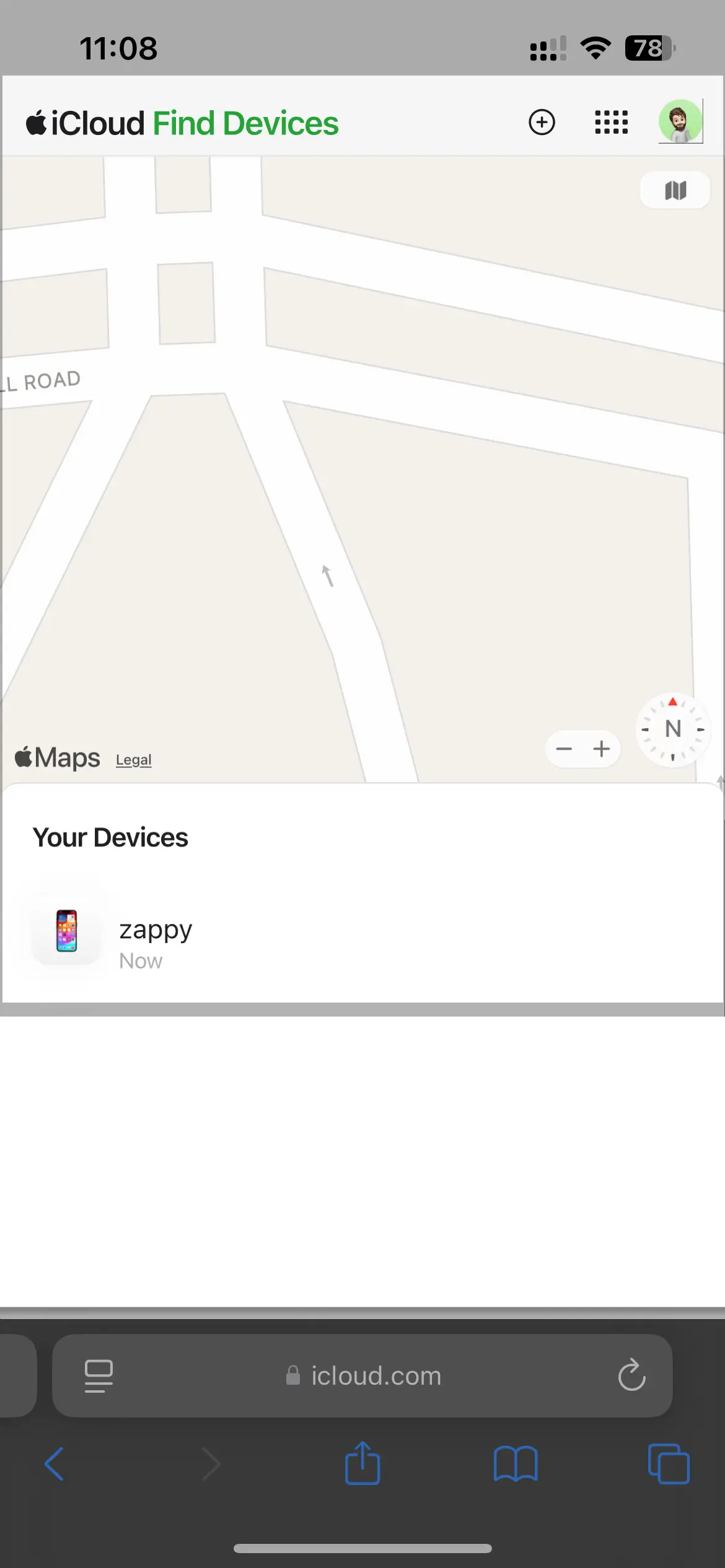
Step 2: Skip the two-factor authentication prompt
Here is the part that trips most people up. Apple will try to send a six-digit verification code to your trusted Apple devices — but the only one is the iPhone you just lost. You can't get the code, and you don't need it. On the verification screen, simply tap the "Find Devices" button below the code field. Apple deliberately allows Find My to open without 2FA so you can still locate a missing device from any browser.
Step 3: Select your iPhone on the map
- You'll land on the Find Devices map showing every Apple device on your account.
- Tap All Devices (or the device list) and choose your iPhone.
- The map zooms to its current location if the iPhone is powered on and connected. If it's offline, you'll see its last known location instead.
Step 4: Take action remotely
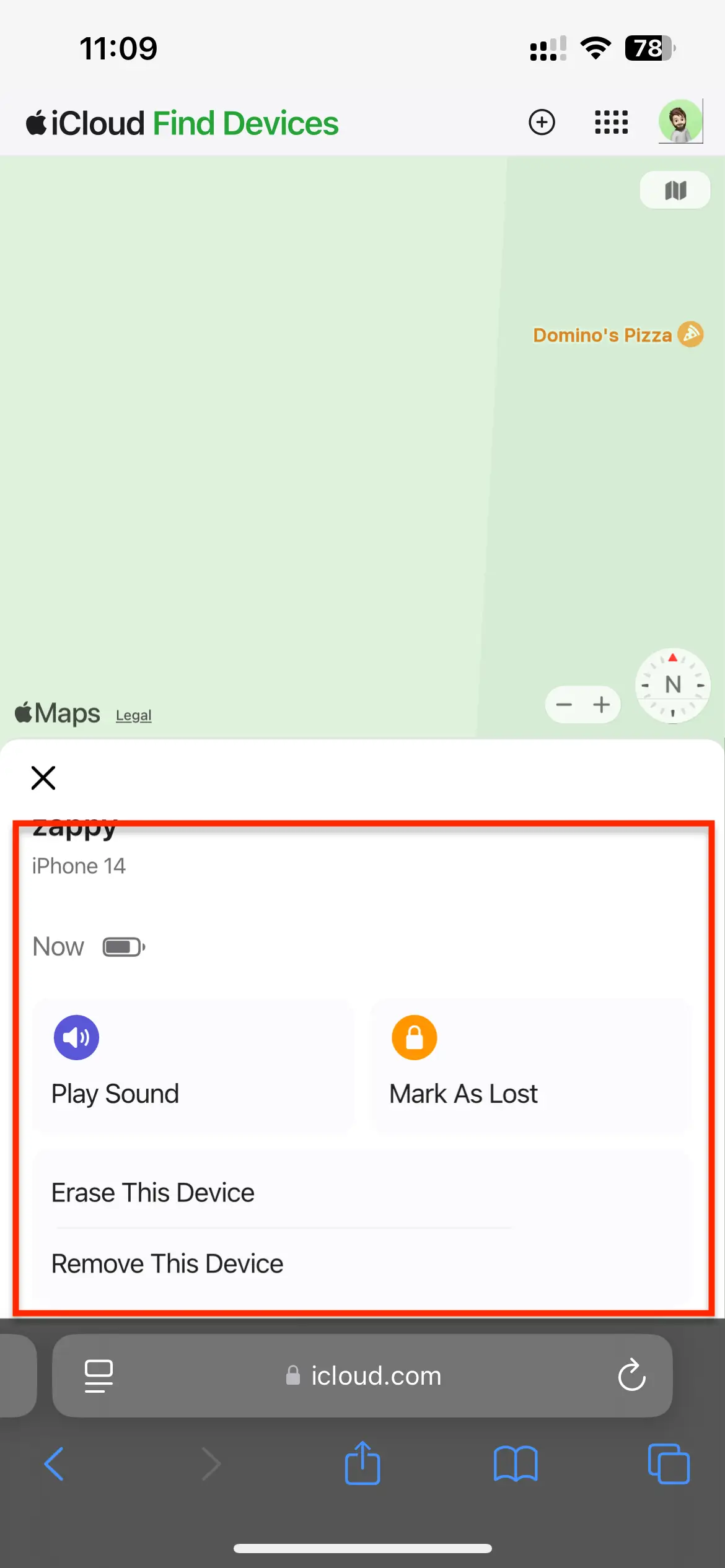
Once your iPhone is selected, three controls appear:
- Play Sound — makes the iPhone ring at full volume even if it's on silent. Perfect for when it's lost in the house or car.
- Lost Mode — remotely locks the iPhone with a passcode, suspends Apple Pay, and lets you display a custom message and a contact phone number on the lock screen so an honest finder can reach you. It keeps tracking the location.
- Erase iPhone — wipes all data as a last resort if you believe the phone is gone for good. Important: once erased you can no longer track it, so use this only when recovery looks hopeless. Activation Lock stays on after a wipe, so the phone remains useless to a thief.
When you're done, sign out of iCloud and close the browser tab, especially if you borrowed someone else's device.
What if the battery is dead? If your iPhone had the Send Last Location setting enabled, it automatically transmits its position to Apple when the battery hits critical. You can then see that last known spot in Find Devices for up to 24 hours after it died.
Method 2: Ask Google Assistant or Google to "Find My iPhone"
This is a clever fallback that surprises a lot of people: if your iPhone has the Google app or Google Assistant installed and signed in to the same Google account you use on Android, you can make it ring with a voice command.
- On your Android phone, say "Hey Google, find my iPhone" (or type "find my phone" into Google Search while signed in).
- If the iPhone is reachable, Google sends it a notification that triggers a ring for roughly 25 seconds, even on silent.
- Tap the notification on the iPhone to stop it.
It won't show a map and it only works if the iPhone is online with the Google app set up beforehand, but it's a zero-effort way to surface a phone that's buried in a couch nearby.
Method 3: Check Google Maps Timeline for Location History
If your iPhone is offline or already dead and iCloud only shows a stale location, Google Maps Timeline can reveal where the phone has recently been — provided the Google Maps app was installed on the iPhone with Location History turned on.
Important 2026 update: Google has retired the old web version of Timeline. The address timeline.google.com no longer shows your history in a browser. Google now stores Timeline data on the device itself rather than in the cloud, so you cannot pull up a lost iPhone's Timeline from your Android by logging into a website. What you can still check is your own Android phone's Timeline in the Google Maps app, which is useful only if both phones shared the same account and you had a cloud backup enabled.
How to view Timeline on your Android
- Open the Google Maps app on your Android device.
- Tap your profile picture in the top-right corner.
- Choose "Your Timeline".
- Pick a date to see the routes and stops recorded that day.
Because Timeline is now per-device, treat this as a weak backup rather than a reliable iPhone-tracking tool. Apple's iCloud Find Devices remains the only method that tracks the actual iPhone in real time.
Also Read: How to Get the Current Location in Android Using Kotlin
Method 4: Family Tracking Apps That Work Across iPhone and Android
Cross-platform locator apps are the best preventive option. They don't help after the fact unless you installed them first, but if you set one up today, you'll be able to find an iPhone from your Android (and vice versa) instantly next time. These run identically on iOS and Android, so a mixed-device family can all share one map.
1. Life360
The most popular family locator, Life360 builds private "Circles" of family members and shows everyone's live location on a shared map. It runs on both iPhone and Android.
- Live location for every member of your Circle.
- Place Alerts that notify you when someone arrives at or leaves a saved spot like home, school, or work.
- Crash Detection and SOS emergency alerts.
The free tier covers live location, two saved Places, two days of location history, and crash-detection alerts to your Circle. Paid plans — Silver, Gold, and Platinum — add unlimited Places, 30-day history, and (on the higher tiers) roadside assistance.
Best for: Families who want always-on, real-time tracking across iPhone and Android. Visit Life360.
2. Google Maps Location Sharing
You may already have everything you need. Google Maps Location Sharing is free, built in, and works on both platforms. Have the iPhone user share their location with your Google account once, and you'll see them on your Android Maps indefinitely.
- No extra app to install — it's inside the Google Maps everyone already has.
- Share for a set duration or until you turn it off.
- Shows live location and, on supported phones, battery level.
Best for: The cheapest, no-fuss option for couples or small families already using Google Maps. Open Google Maps.
3. Glympse
Glympse focuses on temporary, on-demand sharing rather than constant tracking, which makes it more privacy-friendly. No account is required for the person viewing the link.
- Share your live location for a set number of minutes or hours, then it expires automatically.
- Send a Glympse link by text, email, or messaging app — no app needed to view it.
- Works on iPhone and Android.
Best for: One-off "I'm on my way" sharing without permanent tracking. Visit Glympse.
Comparison: How the methods stack up
| Method | Tracks the actual iPhone? | Setup needed first? | Live location | Cost |
|---|---|---|---|---|
| iCloud.com (Find Devices) | Yes | Find My on by default | Yes | Free |
| Google Assistant ring | Yes (rings only) | Google app on iPhone | No | Free |
| Google Maps Timeline | History only | Location History + backup | No | Free |
| Life360 | Yes | Installed on both phones | Yes | Free / paid |
| Google Maps Sharing | Yes | Sharing enabled first | Yes | Free |
| Glympse | Yes (temporary) | Active share session | Yes | Free |
What to Do If Your iPhone Was Stolen
If you suspect theft rather than simple loss, the steps shift toward security and recovery:
- Put it in Lost Mode immediately from iCloud.com/find. This locks the device and displays your contact number.
- Do not erase it yet unless you have sensitive data at risk — an erased phone can no longer be tracked, though Activation Lock keeps it useless to the thief.
- Report it to the police with the serial number and IMEI (find these in your Apple Account device list at appleid.apple.com).
- Contact your carrier to suspend service and blacklist the IMEI so it can't be used on another network.
- Change your Apple ID password and any passwords saved on the device.
Worried about future device security? Our coverage of the DarkSword iOS exploit is worth a read for anyone who wants to lock down their iPhone.
How We Tested These Methods
We verified each method using a current iPhone signed in to an Apple Account and a Pixel running the latest Android. We logged in to iCloud.com/find from Chrome on Android, confirmed that tapping "Find Devices" bypasses the two-factor code prompt, and triggered Play Sound, Lost Mode, and the location map to make sure each control behaves as described. We tested the Google Assistant "find my iPhone" ring with the Google app installed on iOS. We also confirmed Google's 2026 changes firsthand: the web version of Timeline at timeline.google.com no longer loads a map, and Timeline data now lives on-device. Finally, we checked that Life360, Google Maps Location Sharing, and Glympse are all still active and cross-platform, and we cross-referenced every pricing and feature claim against the providers' official pages.
Bottom Line
For finding a lost iPhone from an Android device, iCloud.com/find is the clear winner — it's free, official, requires no app on your Android, and gives you real-time tracking plus Play Sound, Lost Mode, and Erase. Remember to tap "Find Devices" to skip the two-factor prompt. If the phone is just nearby, asking Google Assistant to ring it is the quickest trick of all. Google Maps Timeline is now a weaker backup since Google moved it on-device in late 2024, so don't rely on it. And the best long-term move is to set up a cross-platform locator like Life360 or Google Maps Location Sharing today, so a mixed iPhone-and-Android household can always find one another's phones in seconds. The key takeaway: Find My works best when it's already on — check that setting now, before you ever need it.
Frequently Asked Questions
Can I track my iPhone from an Android phone without an Apple device?
Yes. Open any browser on your Android phone, go to iCloud.com/find, and sign in with your Apple ID. When asked for a two-factor code you can't receive, tap the "Find Devices" button to skip it. You'll then see your iPhone on a map and can play a sound, enable Lost Mode, or erase it. No second Apple device is required.
Does Find My iPhone need to be turned on beforehand?
Yes, Find My iPhone must have been enabled before the device went missing for iCloud tracking to work. It is on by default on every iPhone signed in to an Apple Account, so most people already have it active. You can confirm it under Settings, your name, then Find My on the iPhone.
Can I still use Google Maps Timeline on the web to find my iPhone?
No. Google retired the web version of Timeline in late 2024 (the changeover deadline was December 1, 2024), and timeline.google.com no longer displays your location history in a browser. Google now stores Timeline data on the device itself rather than in the cloud. You can only view Timeline inside the Google Maps app on a phone, which makes it an unreliable way to track a lost iPhone.
How do I find my iPhone if its battery is dead?
If the iPhone had the "Send Last Location" feature enabled, it automatically sends its position to Apple when the battery becomes critically low. You can then view that last known location in iCloud's Find Devices for up to 24 hours after the phone died. Without that setting, you'll only see the last location recorded while it was still online.
Can Google Find Hub locate my iPhone?
No. Google renamed Find My Device to Find Hub in 2025, but it only tracks Android phones, tablets, earbuds, and Wear OS watches. It cannot locate an iPhone. To find a lost iPhone you must use Apple's Find My service through iCloud.com/find.
What should I do if my iPhone was stolen, not just lost?
Immediately put it in Lost Mode from iCloud.com/find to lock it and show your contact number. Avoid erasing it right away since an erased phone can no longer be tracked, though Activation Lock keeps it useless to the thief. Report the theft to police with the serial number and IMEI, contact your carrier to blacklist the device, and change your Apple ID password.
Is it safe to log in to iCloud.com on a borrowed Android device?
It's safe as long as you take basic precautions. Use a private or incognito browser tab, and always sign out of iCloud and close the tab when you're finished. Avoid saving your Apple ID password in the borrowed browser. iCloud.com uses secure HTTPS, so your credentials are encrypted in transit.
Which app is best for finding an iPhone from Android in the future?
For ongoing cross-platform tracking, Life360 and Google Maps Location Sharing are the strongest choices because both run identically on iPhone and Android. Google Maps Location Sharing is free and built in, while Life360 adds family features like Place Alerts and crash detection with a free tier plus paid upgrades. Set one up now so you can locate any family phone instantly later.





![Google Map Tutorial in Android Studio [Step by Step]](/wp-content/uploads/2019/03/google-map-tutorial.png)