How to Install Apple Maps on Windows (2026 Guide)
The fastest way to get Apple Maps on Windows is to open maps.apple.com in Microsoft Edge or Google Chrome and install it as a web app (PWA) so it lives in your Start menu like a normal program. There is no downloadable Apple Maps .exe for Windows, and you do not need an Apple device or an iOS emulator. Apple Maps left beta in April 2025 and now runs in any modern browser on Windows 10 and Windows 11.
In a hurry? Jump to: Quick web method · Install as a Windows app · Methods compared · What works (and what doesn't) · Troubleshooting · FAQ
Apple Maps used to be locked to iPhone, iPad, and Mac. That changed when Apple launched Apple Maps on the web in July 2024, and the service has since exited beta and added support for nearly every modern browser and device, including Windows PCs and Android phones. Below we walk through the official, no-nonsense way to run it on your desktop, how to pin it for one-click access, and why the old "iOS emulator" tricks you may have read about are a waste of time in 2026.
Can You Really Install Apple Maps on Windows?
Yes, with one important clarification: there is no native Apple Maps desktop application for Windows, and there never has been. Apple does not ship a Windows installer the way it does iTunes or the Apple Devices app. What you can do is run the full Apple Maps web app at maps.apple.com and "install" it as a Progressive Web App so it behaves almost exactly like a native program, with its own window, Start menu tile, and taskbar icon.
This is the same web app Apple offers on iPhone and Android browsers, so you get real Apple Maps data, Apple's cartography, and Look Around panoramas, no Apple ID and no Mac required.
System requirements
- Operating system: Windows 10 or Windows 11 (any recent build).
- Browser: Microsoft Edge, Google Chrome, or Mozilla Firefox, kept up to date. Edge and Chrome are best because they support one-click web-app installation.
- Connection: An active internet connection. The web app does not work offline.
Quick Method: Open Apple Maps in Your Browser
If you just want directions right now, you do not have to install anything:
- Open Microsoft Edge, Google Chrome, or Firefox on your Windows PC.
- Go to maps.apple.com in the address bar. (The old beta.maps.apple.com link now redirects here.)
- The map fills the window. Use the search box on the left to find a place, or click Directions to plan a route.
Zoom with your mouse scroll wheel or the + / − buttons in the lower-right corner, and click-drag to pan around. That is the entire web experience, no account, no download.

Install Apple Maps as a Windows App (Recommended)
Installing Apple Maps as a Progressive Web App gives it a dedicated window, a Start menu entry, and a taskbar icon, so it stops feeling like "a browser tab" and starts feeling like a real app. Here is how to do it in both major browsers.
Method A: Microsoft Edge
- Open Edge and go to maps.apple.com.
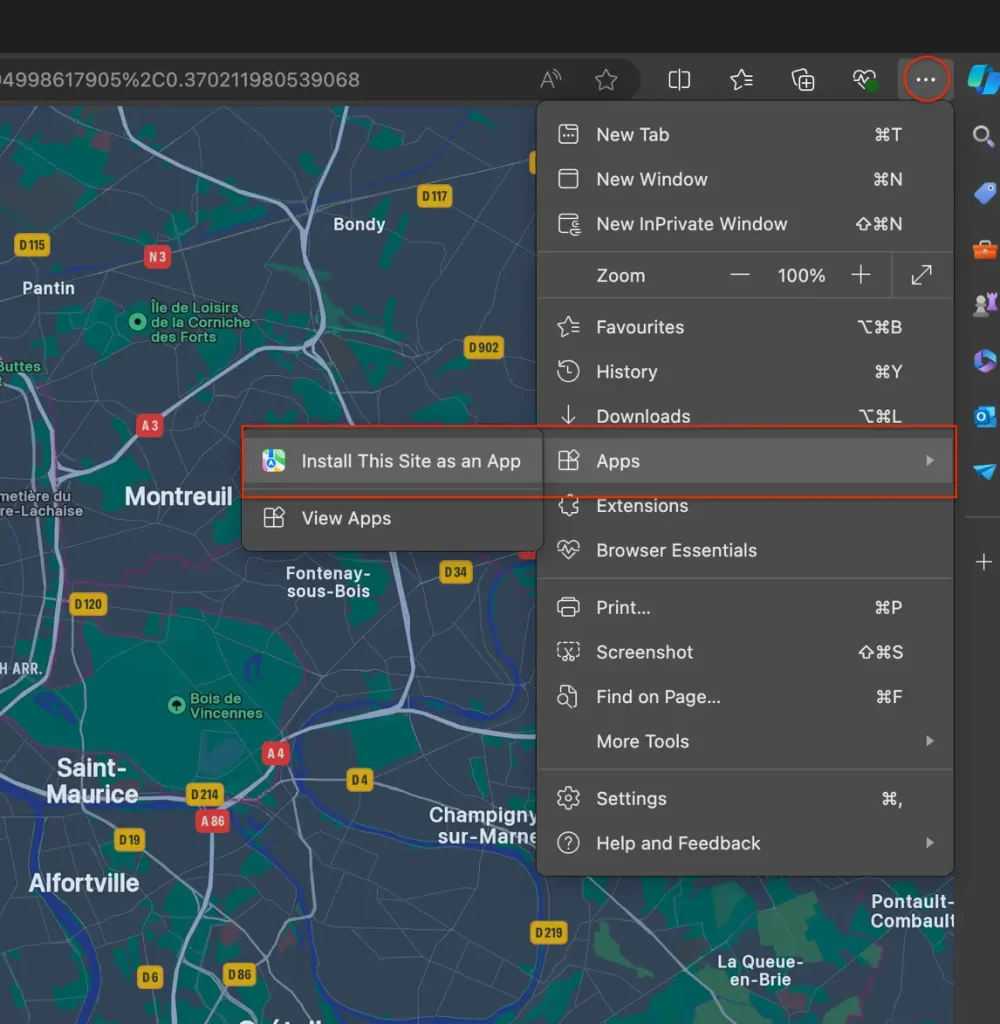
- Click the three-dot menu (…) in the top-right corner.
- Choose Apps > Install this site as an app.
- Give it a name (for example, "Apple Maps") and click Install.
- Edge opens the app in its own window and asks where to add shortcuts. Tick Start menu (and Taskbar/Desktop if you like), then click Allow for location if you want local results.
Method B: Google Chrome
- Open Chrome and go to maps.apple.com.
- Click the three-dot menu in the top-right, then choose Cast, save, and share > Install page as app (on some builds this appears as a small install icon in the address bar).
- Confirm by clicking Install.
- Chrome creates a desktop and Start menu shortcut automatically.
Once installed, Apple Maps launches like any other program. You can right-click its Start menu tile and choose Pin to Start, or right-click the taskbar icon and select Pin to taskbar for single-click access.
Also Read: Google Maps Just Got Crazy Smart With Gemini AI
Methods to Run Apple Maps on Windows, Compared
There are three commonly suggested ways to get Apple Maps on a PC. Only one of them is worth your time in 2026.
| Method | How it works | Best for | Verdict |
|---|---|---|---|
| Web app / PWA | Open maps.apple.com in Edge or Chrome and install it as an app | Everyone | Recommended. Free, official, full features |
| iOS emulator (e.g. iPadian) | Claims to run iOS apps on Windows | No one | Avoid. These are not real iOS emulators and cannot run Apple Maps |
| macOS virtual machine | Run macOS in VMware/VirtualBox, then open the Maps app | Advanced users only | Overkill. Slow, legally gray, and unnecessary now that the web app exists |
Why you should skip iOS emulators
Older guides recommend tools like iPadian, Smartface, or "Air iPhone" to run Apple Maps. The truth is that iPadian is not an iOS emulator at all, it is a custom Flash/Electron skin that mimics the iOS look and cannot install real App Store apps, including Apple Maps. No legitimate iOS emulator exists for consumer Windows use, because Apple does not license iOS for third-party hardware. Since the web app delivers the real thing for free, there is zero reason to gamble on these programs.
When a macOS virtual machine makes sense
If you specifically need the native macOS Maps app, for example to test saved guides tied to your Apple Account, you could run macOS in a virtual machine using VMware or VirtualBox. This is technically demanding, requires a macOS image, and falls outside Apple's licensing terms for non-Apple hardware. For 99% of people, the web app is the right answer.
What Works on Apple Maps for Windows (and What Doesn't)
The web version is genuinely capable. Here is what you get on your PC:
Features that work
- Search for places, businesses, addresses, and points of interest with hours, photos, ratings, and contact info.
- Directions for driving, walking, cycling, and public transit, with options to avoid tolls, highways, and busy roads.
- Guides — Apple's curated, editor-picked lists of restaurants, attractions, and things to do in a city.
- Look Around, Apple's high-resolution street-level view (its answer to Street View), available in supported cities.
- Satellite and standard map views, plus pan, zoom, and rotate controls.
Current limitations
- No Apple Account sign-in on the web yet, so your saved places, favorites, and custom guides from your iPhone do not sync.
- No interactive 3D city buildings (the Flyover-style globe view from the native app).
- No offline maps — you need a live connection.
Apple has said it will keep adding features and platform support over time, so expect this list of limitations to shrink. If a Google-built experience is more your speed, see how Google's app is evolving in our look at the Gemini AI features rolling out in Google Maps and the refreshed Google Maps Go redesign.
Troubleshooting Apple Maps on Windows
Apple Maps won't load or is very slow
Clear your browser cache and cookies (Settings > Privacy > Clear browsing data, select cookies and cached files), then reload maps.apple.com. A stale cache is the most common cause of a blank or sluggish map.
The "Install as app" option is missing
Make sure your browser is fully updated, an outdated Edge or Chrome build can hide the PWA install option. In Edge, the path is three-dot menu > Apps; in Chrome, look for the install icon at the right edge of the address bar. Firefox does not currently support installing maps.apple.com as a desktop app, so use Edge or Chrome for that step.
Location results are wrong
Grant location permission when the browser prompts, and check Windows Settings > Privacy & security > Location to confirm your browser is allowed to access location. Without it, Apple Maps falls back to an approximate IP-based location.
How to uninstall the web app
Open Windows Settings > Apps > Installed apps, find Apple Maps, and click Uninstall. You can also open the app, click its menu, and choose to uninstall it directly.
How We Tested
We installed the Apple Maps web app on both Windows 10 and Windows 11 machines, using the current releases of Microsoft Edge and Google Chrome, and confirmed the PWA install flow, Start menu pinning, and taskbar shortcuts in each. We searched for businesses, generated driving, walking, cycling, and transit routes, and opened Look Around in several cities to verify the panoramas load. We also checked Firefox to confirm the site runs but does not offer one-click install, and we cross-referenced Apple's official browser-compatibility documentation and newsroom announcements to verify which features have shipped and which are still missing as of June 2026.
Bottom Line
You do not need an iPhone, a Mac, or a shady emulator to use Apple Maps on Windows. Open maps.apple.com in Edge or Chrome, install it as an app, and pin it to your Start menu, that gives you Apple's real maps, directions, Guides, and Look Around in a clean desktop window in under a minute. Skip the iOS-emulator advice entirely; it does not work. The only real trade-offs today are the lack of Apple Account sign-in and 3D buildings on the web, and Apple is steadily closing those gaps. For most Windows users wanting Apple's mapping data on a big screen, the web app is the best and only method you need.
Frequently Asked Questions
Is there an Apple Maps app for Windows?
No. Apple does not make a downloadable Apple Maps program for Windows 10 or 11. Instead, you use the official Apple Maps web app at maps.apple.com, which you can install as a Progressive Web App so it behaves like a native program with its own window and Start menu icon.
How do I install Apple Maps on Windows 11?
Open Microsoft Edge or Google Chrome and go to maps.apple.com. In Edge, click the three-dot menu and choose Apps then Install this site as an app. In Chrome, use the menu's Install page as app option or the install icon in the address bar. The app then appears in your Start menu and can be pinned to the taskbar.
Is Apple Maps on the web free?
Yes. Apple Maps on the web is completely free and does not require an Apple ID, a subscription, or any Apple device. You only need a modern browser and an internet connection on your Windows PC.
Which browsers support Apple Maps on Windows?
Apple Maps on the web works in Microsoft Edge, Google Chrome, and Mozilla Firefox on Windows. Edge and Chrome are recommended because they let you install the map as a standalone app, while Firefox can open the site but cannot install it as a desktop app.
Can I use an iOS emulator to run Apple Maps on a PC?
You should not bother. Tools like iPadian are not genuine iOS emulators and cannot run real App Store apps such as Apple Maps. No legitimate iOS emulator exists for everyday Windows use, and the free web app gives you the real Apple Maps experience instead.
What features are missing from Apple Maps on the web?
The web version currently lacks Apple Account sign-in, so your saved places and custom guides from iPhone do not sync. It also omits interactive 3D city buildings and offline maps. Core features like search, driving, walking, cycling, and transit directions, Guides, and Look Around all work.
Does Apple Maps on the web have Street View?
Yes, in a sense. Apple's equivalent to Street View is called Look Around, and it is available in the web version for supported cities. It offers high-resolution, 360-degree street-level imagery that you can navigate right from your Windows browser.
Why does maps.apple.com show wrong or approximate locations?
If you have not granted location permission, Apple Maps estimates your position from your IP address, which can be off by miles. Allow location access when the browser prompts you, and confirm your browser is permitted under Windows Settings, Privacy and security, Location.