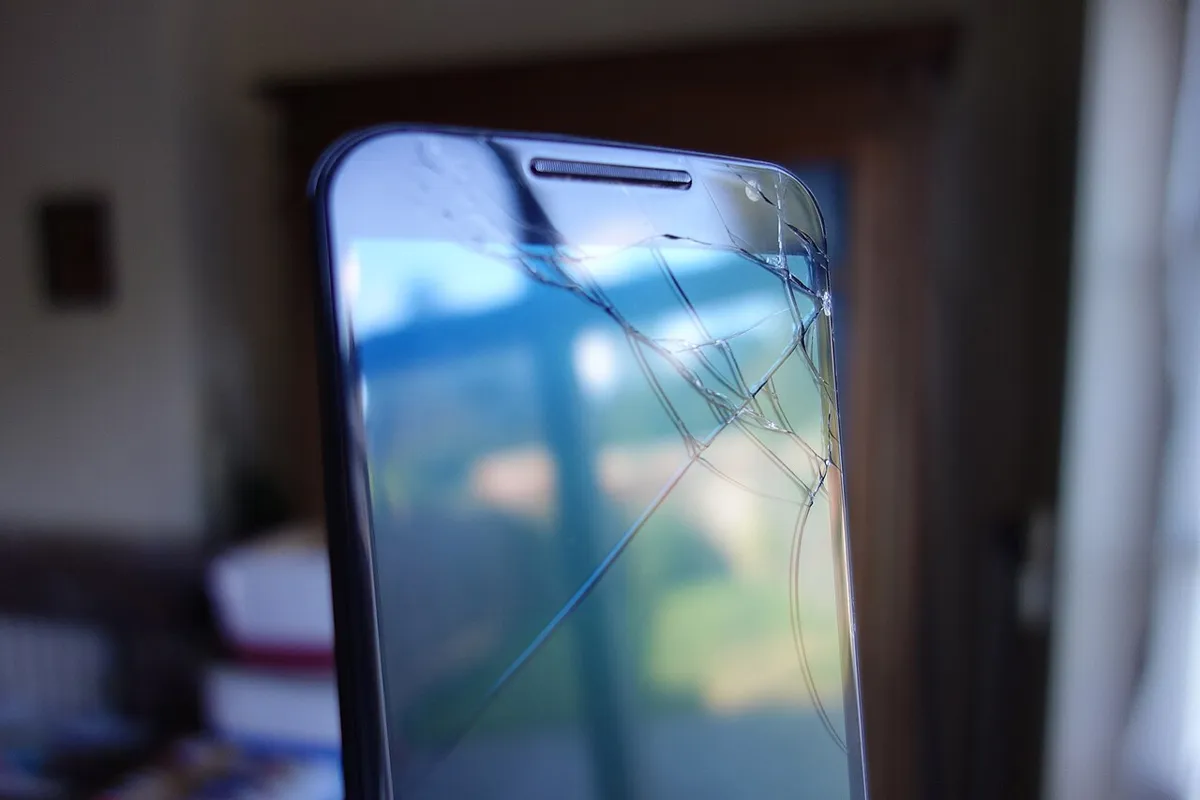
Android Camera Not Working? What Each Error Message Means
If your Android camera isn't working, first read the exact message on the screen, because each one points to a different cause. "Camera failed" on a Galaxy usually means a software glitch, "Security policy prevents use of camera" means something has blocked the camera, and a black preview with no error usually means the phone's Camera access switch is off. Restart the phone, check that switch and the app's camera permission, and close other apps that might be holding the camera. Only suspect hardware when every camera app fails, even in safe mode.
Also in this topic: Android Guides hub.
Jump to: what your error means · the Camera access switch · one camera, one app · fails in only one app · Pixel fixes · Galaxy fixes · work and school phones · blurry or won't focus · heat and storage · when to repair · FAQ
Quick answer: Most Android camera failures are software, not a broken lens. Android only lets one app use a camera at a time, and on Android 12 and later a single Quick Settings switch can cut the camera off for every app, so they just show a blank feed. Turn Camera access back on, close other camera apps, restart, then clear the Camera app's cache (or reset camera settings on a Galaxy). If the built-in camera still fails in safe mode, book a repair.
What Your Camera Error Message Means
The wording of the error is the fastest clue to what's wrong. Here is what the common messages and symptoms usually point to, based on Google's and Samsung's support pages and Android's developer documentation.
| What you see | What it usually means | Start here |
|---|---|---|
| Black or blank preview in every camera app, often with no error | The Camera access switch is off, or the developer "Sensors off" tile is on | Camera access |
| "Can't connect to camera" or the camera closes when you open another app | Another app is using the camera, or the camera is blocked or disabled | One camera, one app |
| Stock camera works, but Instagram, Snapchat, WhatsApp or Zoom shows black | That app's camera permission, or an app bug | One-app problems |
| "Warning: Camera failed" (Samsung) | A camera app or system software error, usually fixed by a restart, reset, or update | Galaxy fixes |
| "Security policy prevents use of camera" (Samsung) | Sensors off is on, or a management app or policy has disabled the camera | Sensors off and policy blocks |
| "Something went wrong," crashes, or shutter lag (Pixel) | A Camera app glitch, a conflicting app, or heat | Pixel fixes |
| Photos are blurry, won't focus, or show dark bands | Shooting too close, a lens protector, dirt, or indoor light flicker | Focus and blur |
| Every camera app fails, even in safe mode | Likely a hardware fault | Repair |
Check the Camera Access Switch First
Camera access is a privacy switch on Android 12 and later that turns the camera off for every app at once. Android's developer documentation on camera and microphone toggles says that when it's off, apps receive "a blank camera feed." Apps aren't told why, so a black viewfinder looks like a broken camera when it's really a switch.
- Swipe down twice from the top of the screen to open Quick Settings.
- Look for the Camera access tile. If it's off, tap it to turn camera access back on.
- If the tile isn't there, tap the edit (pencil) button at the bottom of Quick Settings and drag it in. On a Pixel, you can also go to Settings > Security & privacy > Privacy > Privacy controls > Camera access.
Google's Android help page on camera and mic controls describes the same tiles and the green dot that appears in the top-right corner whenever an app is using the camera.
The hidden "Sensors off" tile
If Camera access is on and the camera still won't open, check for a developer tile called Sensors off. According to the Android Open Source Project's Sensors off page, it blocks the camera, microphone, and motion sensors for apps, and any app trying to open the camera gets an error. The same page notes that some camera apps simply crash when this happens.
The tile only appears if someone enabled it under Developer options > Quick settings developer tiles, so it's easy to forget about. Open Quick Settings, find Sensors off, and make sure it's turned off. If a Galaxy shows "Security policy prevents use of camera," check this tile first, then the policy section below.
Close Other Apps That Are Using the Camera
Android lets only one app use a given camera at a time, so a second app can lock the first one out. Android's CameraManager reference says an app can fail to open the camera when the camera is disabled by device policy, disconnected, "being used by a higher-priority camera API client," or when the phone has hit its limit of open cameras. In general, the app on screen gets priority, and an app pushed into the background loses the camera.
That explains a few everyday cases:
- Split screen or picture-in-picture: Android's camera preview guide says that if several visible apps want the camera, "only one is able to access" it. Close the other window and try again.
- Video calls in the background: a Zoom, Meet, or WhatsApp call that's still running can hold the camera. End the call fully.
- An app that never let go: Huawei's camera support page says some apps don't release the camera after using it, which keeps it from starting. A restart clears that.
To see what's using the camera right now, swipe down and tap the green privacy dot. Tap once to see the app's name and again to manage its permissions.
Fix a Camera That Only Fails in One App
If the built-in camera works but one app shows a black screen, the problem is that app, not your camera. Google's Pixel camera help page makes the same split: test the built-in Camera app first, and if it works, troubleshoot the other app instead.
- Go to Settings > Apps, pick the app, and tap Permissions > Camera.
- Choose Allow only while using the app. If it's set to "Ask every time," the app may need you to accept a prompt you've been dismissing.
- Force stop the app, open it again, and test the camera inside it.
- Update the app from Google Play. If that doesn't help, clear its cache or reinstall it.
If the app hasn't been opened in months, Android may have paused it and removed its permissions. Our guide to Android apps that keep crashing explains how that setting works and how to turn it off.
Pixel Camera Not Working: Google's Steps
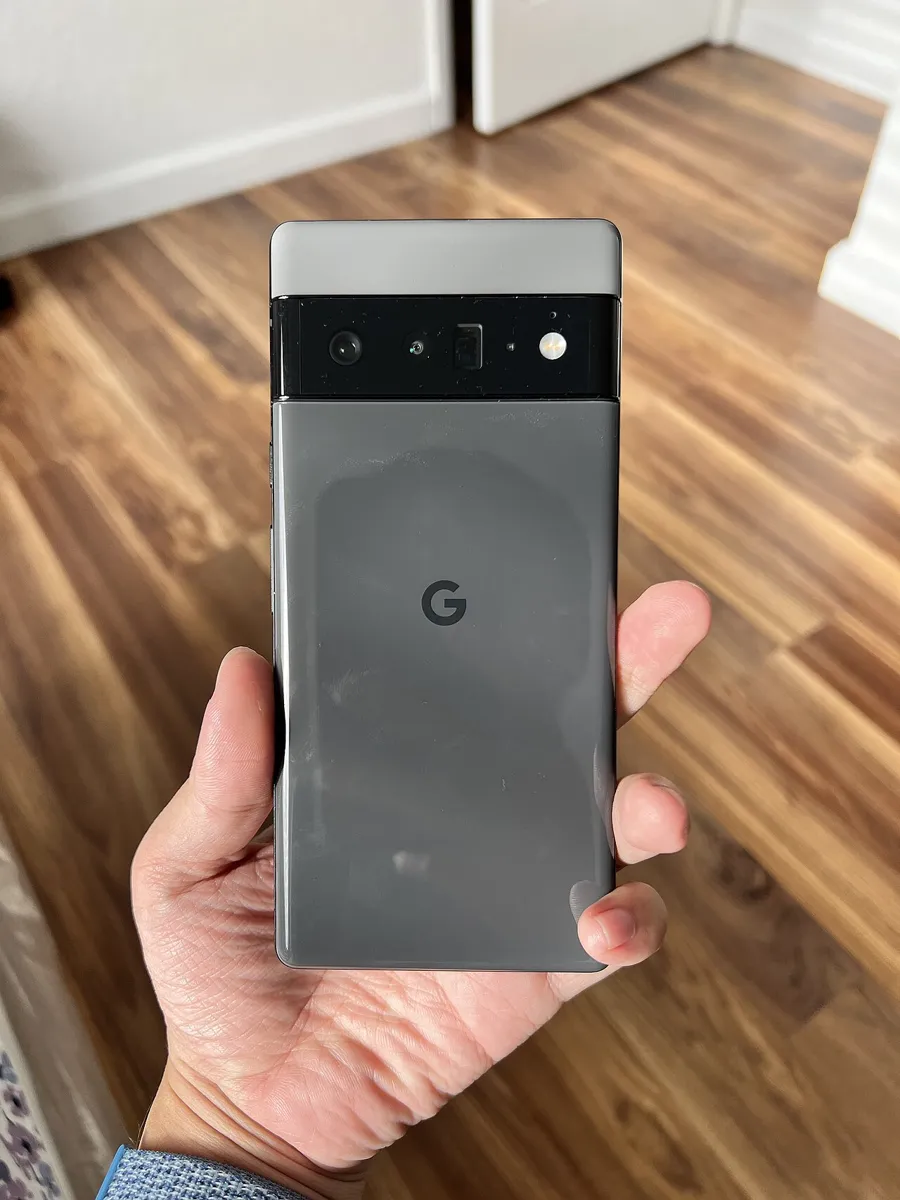
On a Google Pixel, work through these four steps in order and test the camera after each one. They come from Google's Fix your Camera app page, which covers crashes, "Something went wrong," shutter delay, a flickering preview, and a flash that won't fire.
- Restart. On a Pixel 6 or later, press and hold Power and Volume up, tap Power off, then hold Power to turn it back on. On a Pixel 5a or earlier, hold Power alone.
- Clear the Camera cache. Touch and hold the Camera icon, tap App info > Storage & cache > Clear cache.
- Update. In the Play Store, tap your profile icon, then Manage apps & devices, and install any update for Pixel Camera. Then check Settings > System > Software updates.
- Try safe mode. Turn the phone off, turn it on, and hold Volume down when the G logo appears. If the camera works in safe mode, a downloaded app is interfering. Uninstall your most recent apps one at a time.
Two Pixel details are worth knowing. To check the front camera on its own, touch and hold the Camera icon and tap Take a selfie. Google says that if the selfie camera works but the app can't switch cameras, you should start a repair. And if you hear a faint rattle when you shake the phone, that's normal: Google says the larger Pixel camera uses extra parts to focus quickly, and they can move slightly.
Samsung Galaxy: "Camera Failed" and Other Errors
Samsung's US camera troubleshooting page says a "Camera Failed" message, freezing, lag, or a preview that won't load is "most likely a software issue and not a physical problem with the camera." Try these in order:
- Restart. Open the Power menu and tap Restart. If the screen is frozen, Samsung says to hold the Side key and Volume down for more than 7 seconds.
- Reset camera settings. Open Camera, tap Settings, and tap Reset settings. On the Galaxy S25 series and other phones on One UI 7 or later, tap the Quick settings icon (four dots) first, then Settings.
- Update the Camera app and the phone. In Camera settings, tap About Camera to check for an app update, then go to Settings > Software update.
- Clear Camera data. Go to Settings > Apps > Camera > Storage > Clear data. Samsung's "camera will not open" page says this resets camera settings but doesn't delete your photos or videos.
- Test in safe mode. Touch and hold Power off in the Power menu until Safe mode appears. If the camera works there, uninstall recent apps one at a time.
When "Camera failed" came from a Google update
Sometimes the fix is a Google update, not a Samsung one. Samsung's "Warning Camera failed" support note says a Google security update broke the camera on the Galaxy A12, A13, A14, A04s, A21s, M12, M13, and Xcover 5, and that the fix was to install the latest Google Play system update (Settings > Security and privacy > Updates > Google Play system update). Most guides only tell you to check Software update, which is a different menu. If you have one of those phones, or the error started right after an update, check both.
Work or School Phone? Look for a Policy Block
If your phone is managed by an employer or school, the camera may be turned off on purpose. Android lets device management apps block every camera on the phone: Google's DevicePolicyManager reference says that once this policy is set, "no applications running as this user will be able to access any cameras on the device." On a Galaxy, Samsung's Knox developer documentation shows that a camera blocked this way displays "Security policy prevents use of Camera."
- If the phone has a work profile or was set up by your company, ask your IT team before changing anything. You can't override that policy yourself.
- On a personal phone, search Settings for Device admin apps and check for anything you don't recognize. Google has deprecated the camera-blocking policy for older-style device admin apps since Android 10, so on a current phone a work profile or management app is the more likely source.
Blurry, Won't Focus, or Flickering? It May Not Be Broken
A camera that opens but takes blurry photos is usually fine, and the most common cause is standing too close. Samsung's blurry photo guide lists minimum focus distances that most troubleshooting articles leave out:
| Galaxy lens | Minimum distance (Samsung) |
|---|---|
| Standard (main) lens | At least 12 inches |
| Ultra Wide lens | At least 4 inches |
| Telephoto lens | At least 20 inches |
| Hybrid Optical 10x Zoom (some models) | Best results from 32 inches |
| 5x telephoto, Galaxy S25 Ultra | 30 cm (about 12 inches) |
| 5x telephoto, Galaxy S26 Ultra | 80 cm (about 31 inches) |
So if your S26 Ultra won't focus on a menu at 5x, step back rather than book a repair. Samsung also explains that the phone switches to the telephoto lens at high zoom, so close objects can blur even if you never chose that lens.
Samsung's page covers a few other "it's not broken" cases:
- Lens protectors and cases can cause focus problems and light distortion. Take them off and test again. Google gives the same advice for Pixel phones.
- Dark lines or flicker indoors come from the frequency of the room's lighting. In Pro mode, set the shutter speed to 1/120s or slower.
- A foggy or hazy picture can be condensation inside the camera after a temperature change. Samsung says it clears on its own.
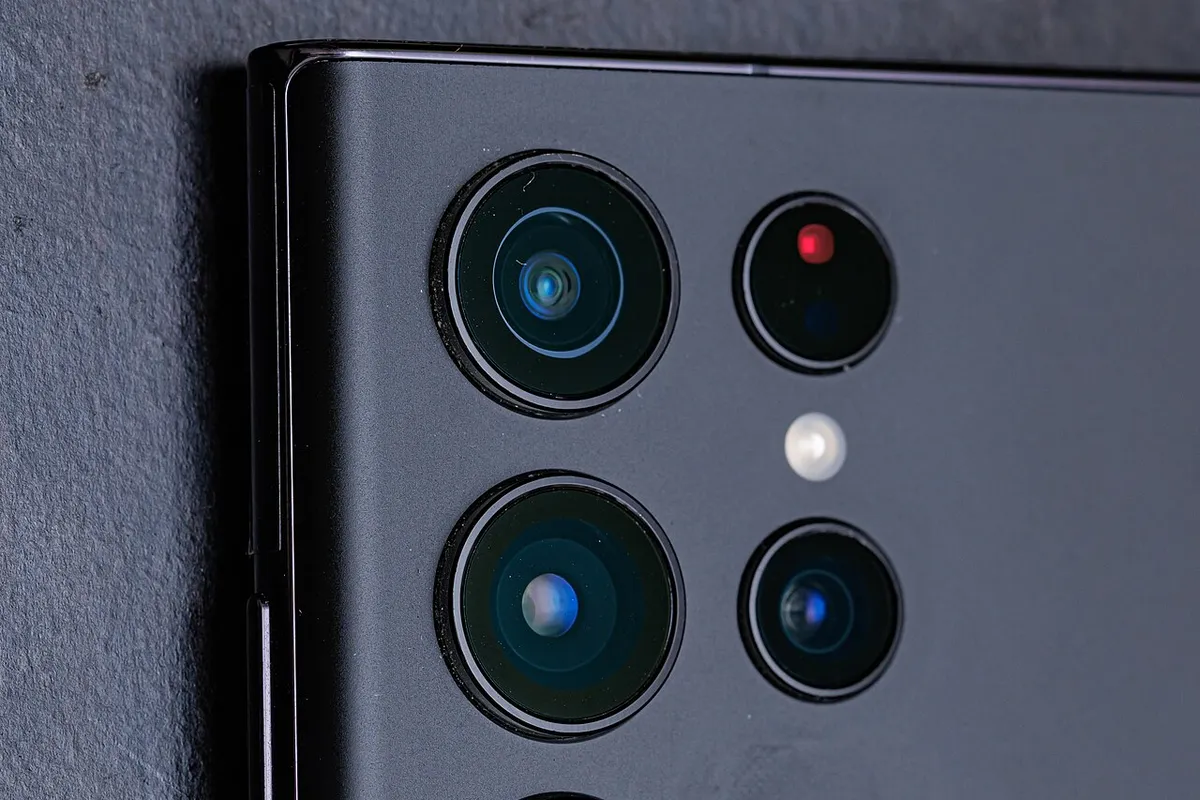
- Dirt on any lens matters, not just the main one. Samsung says the extra lenses help with the preview and autofocus, so wipe all of them with a soft, dry microfiber cloth.
For focus that hunts or misses, Samsung's focus troubleshooting page has model-specific steps.
Heat, Low Battery, and Full Storage
A hot phone can slow the camera down. Google's Pixel page says high temperature can slow the camera's response, and Android Authority notes that many phones limit the camera when the battery is very low or the phone is too hot. Let the phone cool down and charge it before you try more fixes. If heat keeps coming back, see our guide to an Android phone that's overheating.
A nearly full phone can also stop photos and videos from saving. If you're low on space, follow our steps to free up storage on Android before you blame the camera.
When It's Time for a Repair
It's probably hardware if every camera app fails, the problem continues in safe mode, and the camera is still black after a restart. Google says that if other apps also crash when they try to use the camera, "it's likely a hardware issue."
- Galaxy: open Samsung Members > Support, tap Get started under Phone diagnostics, and run the Camera test. Samsung says that if the camera still doesn't work after its steps, the camera module or internal circuitry may need inspection at a service center.
- Pixel: run the Take a selfie test above, then start a repair from Google's Pixel help page if one camera won't open.
- Before a factory reset: Samsung lists a factory reset as the last software step, and it erases everything on the phone. Back up your Android phone first, and if the camera still fails on a freshly reset phone, it's a hardware problem.
If a third-party camera app was the trigger, our list of the best camera apps for Android explains which ones are worth installing, and why the built-in camera is usually the safer choice.
How We Put This Guide Together
This guide is based on Google's Pixel and Android help pages, Samsung's US and regional support pages, Android's developer and open-source documentation, and Samsung's Knox documentation, all checked on October 26, 2026. We didn't run these steps on our own devices for this article. Menu names can differ by phone model and Android version, so if a setting isn't where we describe, search for its name in Settings.
Frequently Asked Questions
Why is my phone camera showing a black screen?
Usually because the Camera access switch is off. On Android 12 and later, that Quick Settings switch gives every app a blank camera feed instead of an error. Turn it back on, then check that no other app is using the camera and that the lens isn't covered by a case.
Does clearing Camera app data delete my photos?
No. Samsung says clearing the Camera app's data resets camera settings to their defaults but doesn't delete saved photos, videos, or other personal data, because those are stored in your gallery, not in the Camera app's data.
Why does my camera work in the Camera app but not in Instagram or Snapchat?
Because the problem is that app, not your camera. Check Settings > Apps > [app] > Permissions > Camera, make sure no other app is holding the camera, then update or reinstall the app.
Can a software update break the camera?
Yes, it has happened. Samsung says a Google security update caused "Warning: Camera failed" on several Galaxy A, M, and Xcover models, and the fix was installing the latest Google Play system update under Settings > Security and privacy > Updates.
How do I know if my phone camera is broken?
If every camera app fails, the problem continues in safe mode, and a restart doesn't help, it's probably hardware. On a Galaxy, run the Camera test in Samsung Members > Support > Phone diagnostics for a clear result.