Google Wallet Tap to Pay Not Working? Fixes by Symptom

If Google Wallet tap to pay isn't working, unlock your phone with your PIN, pattern, password, or fingerprint, then hold the back of the phone (the top edge on a Pixel 11) flat against the reader for a few seconds. If nothing happens at all, check that NFC is on and that Google Wallet is the default contactless payment app. If the terminal reacts but the payment fails, what it shows you tells you whether the problem is your phone, your card, or the register.
Also in this topic: Android Guides hub.
Jump to: what the terminal says · setup checks · unlock and verify · where to tap · security error · 2026 Pixel bugs · new phone · Wallet won't open · FAQ
Quick answer: Google Wallet needs four things before a tap can work: NFC turned on, Google Wallet set as the default payment app, a card that has finished setup, and a phone you unlocked with a supported screen lock. Google's help pages list those requirements. In practice, most failed taps come down to an unsupported unlock method (such as Smart Lock or a basic face unlock), the wrong spot on the phone, or a card the terminal won't take contactless.
What the Terminal Is Telling You
The fastest way to find the problem is to note exactly what happened at the register. Google's tap to pay troubleshooting page explains each of these, but the answers are tucked into collapsed sections. Here they are side by side.
| What happens | What it usually means | What to do |
|---|---|---|
| Nothing happens on the phone or the terminal | NFC is off, Wallet isn't the default payment app, or you're touching the wrong part of the phone | Setup checks, then where to tap |
| The phone asks you to unlock or verify | Your last unlock timed out or used a method Wallet doesn't accept | Unlock with your PIN, pattern, password, or fingerprint, then tap again (details) |
| The terminal shows "Try again" | The NFC connection dropped mid-payment: you moved the phone too fast, held it too far away, or the case is too thick | Rest the phone on the reader for a few extra seconds |
| The terminal asks you to swipe or insert your card | Usually a security fallback, or the terminal can't take that card network contactless (for example, it takes Visa and Mastercard taps but not Amex or Discover) | Unlock and tap again, or switch to a card on a different network |
| The terminal asks for a PIN | You verified with a method Wallet doesn't support | Enter your phone's screen lock PIN on the phone, not your bank card PIN on the keypad |
| Blue check mark on the phone, but the cashier says it failed | The phone did its part; the bank or the store's system declined it | Try another reader, ask if the store takes mobile payments, or call your bank |
| "Your phone doesn't meet security requirements" | Modified software, an unlocked bootloader, a beta build, or a Google-side bug | Security error |
One quick way to split a phone problem from a card problem: if a second card in Wallet also fails at two different readers, the issue is the phone or Wallet. If only one card fails everywhere, call that card's issuer.
Step 1: Check NFC, the Default Payment App, and Your Card
Google Wallet can't pay unless Android hands NFC payments to it. Google's troubleshooting page lists the setup in order: NFC, the default payment app, a card, a screen lock, a certified phone, and unlocking before you pay. Start with the first two, and update Google Wallet from the Play Store while you're at it.
On a Pixel or most other Android phones
- Open Settings > Connected devices > Connection preferences > NFC and turn on Use NFC.
- On the same screen, tap Contactless payments > Payment default and choose Google Wallet.
If you don't see an NFC setting at all, Google says your phone doesn't have NFC and can't make contactless payments. Search "NFC" in Settings if your phone's menus are laid out differently.
On a Samsung Galaxy phone
- Open Settings > Connections > NFC and contactless payments and turn the switch on.
- Tap Contactless payments and choose Google Wallet instead of Samsung Pay.
Those steps come from Samsung's US support page. Galaxy phones ship with Samsung Wallet, so if you've ever set it up, check that it isn't still the default. Only one app can be the default for a tap.
Read the message above your card
Google's tap to pay page lists the labels Wallet shows above a card that isn't ready:
- Card not set up: tap Finish setup and complete the bank's verification (a text code, an email, or a call).
- Turn on NFC to pay with Wallet or Contactless disabled: NFC is off, or the phone doesn't have it.
- Card suspended: there's a problem on the bank's side, so contact the bank.
No message means the card is ready. Wallet pays with your default card unless you open the app and pick a different one first. Our explainer on Google Wallet's new stacked card list shows how card picking works on the current home screen.
Step 2: Unlock With a Method Wallet Accepts
Google Wallet only accepts a PIN, pattern, password, or a Class 3 (strong) biometric. That's the rule on Google's verification help page, and it explains a lot of "it worked yesterday" failures. The same page says Wallet doesn't work with Class 1 or Class 2 biometrics, or with screen locks like Smart Unlock or Knock to Unlock. So if your phone stayed unlocked because it was near your watch or in your car, or you used a basic face unlock, Wallet can still ask you to verify again.
- Pixel 7 and Pixel 7 Pro: Google says Face Unlock isn't supported for tap to pay. Use your fingerprint or PIN.
- Pixel 8 and later: Face Unlock is rated Class 3, so it can approve payments, as Android Police reported at the Pixel 8 launch.
- Other phones: most face unlock systems aren't Class 3, so use your fingerprint or PIN.
Verification also expires. Google says that if you verified in the past few minutes, you may not need to again, but once that times out you must verify for the next payment. A Google Product Expert's community guide puts the window at three minutes. That guide also notes that Wallet in most countries asks for verification whatever the amount, so don't count on small purchases going through on a locked phone.
A safe habit is to lock and unlock your phone with your fingerprint or PIN right before you tap. Or open Google Wallet first and clear any verification prompt at the top of the card.
Transit is the one exception
If you tap a credit or debit card at a subway or bus gate, you can skip verification for transit only. In Google Wallet, tap your profile picture, then go to Wallet settings > Security > Verification settings > Transit payments and turn off Verification required. Google says some transit systems don't support this, and every other payment still needs a screen lock.
Step 3: Tap the Right Part of the Phone
The NFC antenna isn't in the same place on every phone, and on the newest models it has moved. Google's troubleshooting page says the antenna could be near the top or middle of your device, and that you should hold the phone closer to the reader for a few more seconds instead of waving it past. If it still fails, look for the contactless symbol on the terminal or ask the cashier.
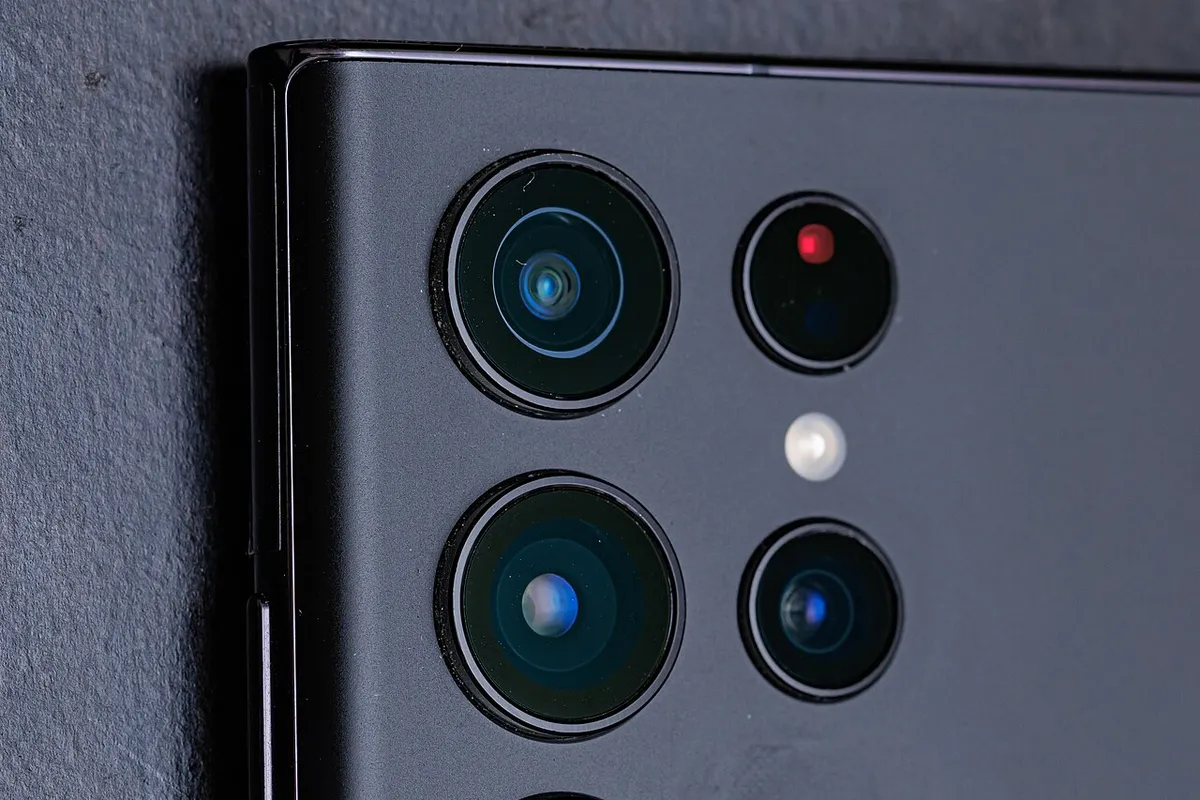
- Pixel 11 series: Google moved the NFC antenna to the top of the phone, 9to5Google reported on August 13, 2026. The same report notes that Pixels and most other Android phones have usually placed it toward the center of the back. So if you just moved from an older phone, you may be tapping the wrong spot. A Google Pixel community thread places the Pixel 11 Pro XL's sweet spot above the camera bar.
- Galaxy S26 series: the same 9to5Google report says Samsung added an extra NFC antenna at the top of the phone.
- Foldables: Google's Pixel help says to fold a Pixel Fold or other foldable before you tap to pay.
If you're not sure where your antenna is, slowly move the top and then the middle of the phone's back over the reader and hold each spot for a second or two.
Check your case
Thick cases, metal cases, and cases with card slots can block or interrupt the connection. A wallet case causes a second problem, too. Google's Pixel contactless page says a payment card sitting next to the phone's NFC sensor makes the phone keep trying to talk to that card. That can block payments and drain the battery quickly. Take the cards out, or pull the phone out of the case, and try again.
"Your Phone Doesn't Meet Security Requirements"
This error means Google Wallet won't pay in stores on this phone until it passes Google's device checks. First, check certification: open the Play Store, tap your profile icon, then Settings > About, and look at Play Protect certification. Google's troubleshooting page says Wallet may not work in stores on phones that:
- run developer versions of Android
- are rooted, run a custom ROM, or have modified factory software
- have an unlocked bootloader
- are untested and haven't been approved by Google
If you installed a modified OS, Google says you need to reinstall the phone's original software before tap to pay will work.
If your phone is stock, certified, and tap to pay worked until recently, Google says to contact the phone maker, since a software update can be the cause. It has also been a Google-side bug at least once this year (see the next section).
Known Tap to Pay Bugs on Pixel Phones in 2026
Two Pixel problems this year made tap to pay fail even when the setup was correct. If your symptoms match, a restart is the first thing to try.
- July 2026: false "security requirements" error. An Android 17 update left some Pixel phones, mostly Pixel 10 and some Pixel 9 models, showing "Phone doesn't meet security requirements" even though they passed Play Integrity checks. Android Authority says the bug removed payment cards and blocked adding new ones. Android Authority reported on July 29 that Google deployed a server-side fix. Its advice: restart and allow up to 24 hours. Affected users had found that clearing Google Play services data and even factory resets didn't help.
- Late September 2026: NFC payments that work only some of the time. Android Authority (September 28) and 9to5Google (September 30) covered reports from Pixel 8 through Pixel 11 owners whose phones stopped responding at terminals until they restarted. Neither report included a cause from Google, and the only fix users found was restarting. In a Google Pixel community thread, one Pixel owner said the problem stopped after Google Play services 26.40.32 arrived. That's one user's report, so treat it as a lead, not a confirmed fix.
To check your Play services version, open Settings > Apps > See all apps > Google Play services and scroll to the bottom. If tap to pay keeps failing at random, test a smartwatch with Google Wallet at the same reader. If the watch works and the phone doesn't, the problem is the phone. You can also send Google a report through Settings > About phone > Send feedback about this device.
Don't clear Google Play services data as a quick fix
Forum threads often suggest clearing data for Google Wallet, the Play Store, and Google Play services. Be careful with the last one. Google says clearing Google Play services storage may delete virtual payment cards and transit cards, and you may need to verify your cards with the bank again. We cover what each reset removes in our guide to fixing the Play Store when it won't download apps. Try a restart and the updates below first.
Cards Missing After a New Phone or a Reset
Tap to pay cards don't carry over to a new phone on their own. Plan to add each card again on the new phone, and your bank may ask you to verify it again. Google's system services release notes for Google Play services v26.36 (September 14, 2026) added a notification that reminds you to add your tap and pay cards again when you switch to a new device.
If adding the card fails with "Couldn't finish card setup for tap to pay," Google's add a card page says your bank declined the request. Check that the name, CVC, and billing address match the bank's records exactly, or use the Add to GPay button in your bank's app. Google also notes that a card working contactless doesn't guarantee your bank supports it in Google Wallet. Coming from an iPhone? Our guide to transferring data from an iPhone to Android covers what moves over and what you have to set up again.
No signal in the store
You don't need a data connection to tap, but you can't go offline forever. How-To Geek explains that Wallet stores a small batch of one-time payment tokens from your card issuer, usually about five to ten, and refills them when the phone is online. Some issuers don't support offline payments at all. If you've been offline for a while and taps stop working, reconnect to Wi-Fi or mobile data and give Wallet a minute.
When Google Wallet Won't Open or Keeps Crashing
Google Wallet needs Android 9 or later, according to Google's troubleshooting page. On the Play Store, Wallet was last updated October 22, 2026, and had a 4.3-star rating from about 2.26 million ratings when we checked on October 27. If the app crashes, won't open, or freezes, Google suggests this order, restarting after each step:
- Restart the phone, install any system update, and update Google Wallet in the Play Store.
- Update Google Play services: Settings > your profile picture > All services > Privacy & Security > System services > Google Play services > Update.
- Force stop Google Wallet from its App info screen.
- Resync with Google's servers: in Settings > System > Date & time, turn off automatic date, time, and time zone, set a wrong date, then turn the automatic settings back on.
If the Wallet home screen won't load, you might still be able to tap and pay with your default card. Google says you can also reach Wallet through Settings > Google > All services > Settings for Google apps > Google Wallet. For crashes that hit several apps at once, our guide to Android apps that keep crashing covers the system-level causes.
If your phone was lost and you're setting up a replacement, our guide to finding a lost Android phone covers locking or erasing the old one first.
How We Put This Guide Together
This guide is based on Google's Wallet, Pixel, and system services help pages, Samsung's US support pages, Google's Play Store listing for Google Wallet, reporting from 9to5Google, Android Authority, Android Police, and How-To Geek, and Google's Pixel and Wallet community threads, all checked on October 27, 2026. We didn't run these steps on our own devices for this article. Menu names differ by phone model and Android version, so if a setting isn't where we describe, search for its name in Settings.
Frequently Asked Questions
Why does the terminal ask me to insert my card after I tap my phone?
Google says it's usually a security fallback or a card network the terminal won't take contactless. Some readers accept Visa and Mastercard taps but not Amex or Discover, even if they take those cards by chip. Unlock your phone and tap again, or try a card on another network.
Should I enter my card PIN when Google Wallet asks for a PIN?
No. Google Wallet never asks for your bank card PIN. If you see a PIN prompt on the phone, enter your Android screen lock PIN on the phone, not your card PIN on the terminal keypad.
Can I use Google Wallet without unlocking my phone?
Not for store purchases. Wallet needs a PIN, pattern, password, or Class 3 biometric, and verification times out after a few minutes. The one exception is transit: you can turn off Verification required for transit payments in Wallet settings, where the transit system supports it.
Does Google Wallet work without internet?
Yes, for a while. Wallet stores a small number of one-time payment tokens from your card issuer and refills them when you're back online. Some issuers don't support offline payments, and you can't add a new card offline.
Do my Google Wallet cards transfer to a new phone?
Not for tap to pay. You need to add your cards again on the new phone and may have to verify them with your bank. Since Google Play services v26.36 in September 2026, Android shows a reminder notification to do this.