Android Touch Screen Not Working? Fixes for Pixel and Galaxy

If your Android touch screen isn't working, force restart the phone first (hold Power for about 30 seconds on a Pixel, or Side and Volume down for 7 seconds on a Samsung Galaxy), then take off the case and screen protector and wipe the screen dry. If taps still don't register, turn on Screen protector mode or Touch sensitivity, check that TalkBack or a magnification shortcut isn't on, and test in safe mode to rule out an app.
Also in this topic: Android Guides hub.
Jump to: match your symptom · force restart · case and screen protector · settings that break taps · touch tests · ghost touches · safe mode and updates · control a dead screen · hardware and repair · FAQ
Quick answer: Most unresponsive screens come back after a force restart and removing the screen protector. If only part of the screen fails or it taps by itself, run the touch test (Touch diagnostics on Pixel 9, Samsung Members on Galaxy). If the screen is dead but still shows a picture, plug in a USB mouse through a USB-C adapter so you can back up your data before a repair.
How we put this together: The steps and menu paths below come from Google's Android, Pixel, and Accessibility help pages, Samsung US support pages, Android's developer documentation, and the scrcpy project on GitHub, all linked in place and checked on October 24, 2026. We haven't tried every fix on every phone model, and menu names can differ by phone maker and software version.
What Kind of Touch Screen Problem Do You Have?
Start by naming the symptom, because a screen that ignores every tap needs a different fix than one that taps by itself. Use this table to jump to the right section.
| What you see | Most likely cause | Start here |
|---|---|---|
| Nothing responds, but the picture is normal | Frozen software | Force restart |
| Taps work only with the protector off, or edges miss taps | Screen protector or case | Protector and sensitivity |
| One tap only highlights things, or the phone talks | TalkBack is on | Settings that break taps |
| Quick taps get missed or feel slow | Magnification shortcut or touch timing settings | Settings that break taps |
| The same strip or corner never responds | Damaged digitizer (the touch layer) | Touch tests, then repair |
| The phone taps, types, or opens apps by itself | Charger, moisture, protector, or a cracked screen | Ghost touches |
| Touch works fine in safe mode | A downloaded app | Safe mode |
| Screen is black but the phone rings or vibrates | Display failure | Control a dead screen |
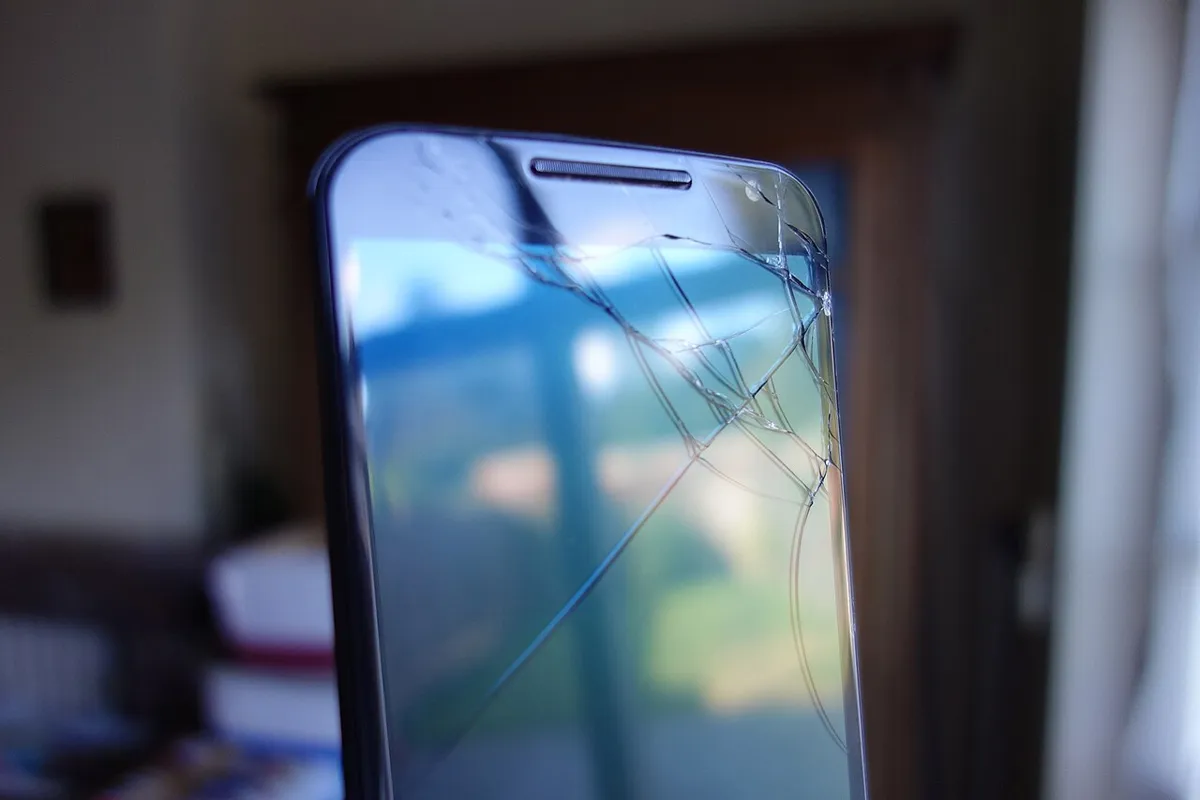
A touch screen on a phone has two layers: the display that shows the picture, and a digitizer on top that senses your finger. That's why a phone can show a perfect picture and still ignore every tap, and why a cracked screen sometimes works fine.
Force Restart Your Phone (the Right Buttons for Your Model)
A force restart fixes most screens that froze while the phone was on, and you don't need the touch screen to do it. The catch is that the buttons differ by brand: the "hold Power and Volume down" tip you'll see everywhere matches Samsung's instructions, not Google's.
| Phone | Force restart | Source |
|---|---|---|
| Google Pixel | Hold Power for about 30 seconds. Google's force-restart steps say up to 60 seconds; let go when the "G" logo appears. | Pixel frozen-phone help, Pixel power help |
| Samsung Galaxy | Hold Side and Volume down together for more than 7 seconds, until the phone restarts. Take off a thick case if it stops you pressing both. | Samsung US touchscreen guide |
| Most other Android phones | Hold Power for about 30 seconds, or until the phone restarts. | Android screen help |
On a Pixel 6 or later, don't hold Power and Volume down on a phone that's already switched off. Google's Fastboot mode page says that combination opens Fastboot mode, the screen used for manual factory resets. If you land there by mistake, hold Power until the phone restarts.
If your phone keeps rebooting on its own instead of freezing, our guide to an Android phone that keeps restarting covers that problem.
Remove the Case and Screen Protector, Then Raise Touch Sensitivity
Take off the case and screen protector next, and test the bare screen. Google and Samsung both list this as an early step, along with taking off gloves, peeling off any stickers over the screen or sensors, and cleaning the glass. Samsung adds that non-genuine protectors and cases can cause gesture problems "especially around the screen edges." Google's Pixel touch page warns that you may not be able to put a protector back on once it's off, so try the settings below first if you'd like to keep it.
Water counts too. Samsung says moisture on the screen can stop normal touch, so dry the glass and your fingers with a soft cloth before you test.
Turn on Screen protector mode (Pixel) or Touch sensitivity (Samsung)
- Pixel: Settings > Display & touch > Touch sensitivity > Screen protector mode. The same screen has Adaptive touch, which Google says improves how well the phone senses your touch. Google's Pixel display settings page lists both as Pixel-only settings. Some guides put Screen protector mode directly under Display; on current Pixels it's under Touch sensitivity.
- Samsung Galaxy: Settings > Display > turn on Touch sensitivity. Samsung recommends it whenever a screen protector or tempered glass is on.
If the screen works normally with the protector off and the setting can't make up for it, the protector is too thick or has lifted. Replace it rather than living with missed taps.
Settings That Make Taps Feel Broken
Several accessibility settings change what a tap does, and if one gets turned on by accident, the screen seems broken when it's working as designed. Check these before you assume hardware.
TalkBack is on
If one tap only draws a box around things and the phone reads them aloud, TalkBack is on. With TalkBack, Google's TalkBack help page says you tap once to select, tap twice to open, and drag with two fingers to scroll. Turn it off at Settings > Accessibility > TalkBack. If the volume-key shortcut is set up, holding both volume buttons for a few seconds also turns it on or off, which is the usual way it gets switched on by accident.
A magnification shortcut is catching your taps
Samsung says that when the Magnification shortcut is set to triple-tap, quick touches may be missed or feel slower, because the phone waits to see whether you're tapping three times. On a Galaxy, go to Settings > Accessibility > Vision enhancements > Magnification and turn the shortcut off or change it.
Touch timing settings were changed
A long "touch and hold delay" or tap duration makes the phone treat taps differently. On a Galaxy, Samsung points to Settings > Accessibility > Interaction and dexterity, where you can put touch and hold delay, tap duration, and ignore repeated touches back to their defaults. Google's touch & hold delay page gives Settings > Accessibility > Touch & hold delay with Short, Medium, or Long. If you keep getting long presses when you meant to tap, Google suggests a longer delay.
Gestures are eating your swipes
If swipes near the bottom or sides don't do what you expect, gesture navigation may be grabbing them. Samsung suggests switching to buttons at Settings > Display > Navigation bar > Buttons. On a Pixel, Google points to Settings > System > Navigation mode, where the settings icon next to Gesture navigation adjusts gesture sensitivity.
Run a Touch Test to Find Dead Spots
A touch test tells you whether the problem is a real dead zone in the hardware or something software can fix. Use your phone's built-in test first, then Google's drag test.
- Pixel 9, 9 Pro, and 9 Pro XL: Settings > Display & touch > Touch diagnostics. As of October 24, 2026, Google's Pixel touch page lists this step only for the Pixel 9 series, so newer Pixels may have it without being named. If you choose to share the results, Google says the phone can send your account info, IMEI, model, session ID, your Adaptive touch and Screen protector mode settings, and touchscreen hardware signals.
- Samsung Galaxy: open the Samsung Members app, tap Support, then Get started. You can stop the full scan and pick Touch screen on its own.
- Any Android phone (Google's drag test): touch the top-left corner and slowly drag to the bottom-right corner without lifting your finger, slowly enough to count to 10. If the notification shade lets go partway, repeat it. Google's Android screen page says that if it lets go in the same spot again, contact your phone maker.
See every touch with Pointer location
Android's Developer options include two tools that show touches on screen, which helps you catch ghost touches in the act. Android's developer options documentation says Show taps puts a circle under your finger, and Pointer location adds crosshairs and a bar of coordinates at the top. To turn them on:
- Tap Build number seven times until you see "You are now a developer!" It's at Settings > About phone > Build number on a Pixel, and Settings > About phone > Software information > Build number on a Galaxy.
- Open Developer options (on a Pixel, under Settings > System) and turn on Pointer location in the Input section.
- Put the phone down and watch. Lines or dots that appear without your finger are ghost touches, and they show you where on the screen they start.
Turn Developer options off when you're done. Google lists turning them off as one of its own screen fixes, since a changed developer setting can cause odd behavior.
Ghost Touches: When the Screen Taps by Itself
Ghost touches are taps the phone registers when nobody is touching it, and the usual causes are a charger, moisture, a lifted protector, or damage. Work through them in this order:
- Unplug the charger. Samsung says a damaged charger can make the touch screen malfunction and suggests not using the touch screen while the phone charges. If the ghost touches stop on battery, replace the charger or cable. Our guide to an Android phone that's not charging explains how to check a charger and cable.
- Dry the screen and your hands. Samsung lists moisture as a cause of abnormal touch.
- Remove the screen protector. A bubbled or lifted protector is worth ruling out before you blame the phone.
- Look for cracks and lifting. If the ghost touches always start at the same crack or corner in Pointer location, it's the digitizer, and no setting will fix it.
Test in Safe Mode and Update Your Software
Safe mode turns off every app you downloaded, so if touch works there, an app is to blame. Google says that if the touch problem happens only in one app, contact that app's developer instead.
- Open the power menu. On a Galaxy, Samsung says to hold the Side and Volume down buttons together, or swipe down with two fingers and tap the Power icon. On a Pixel 6 or later, press Power and Volume up together.
- Touch and hold Power off, then tap Safe mode.
- Test the screen. If it works, restart normally and uninstall recently installed apps one at a time, starting with the newest, until the problem goes away.
On a Pixel, Google notes that safe mode turns on airplane mode automatically, so switch it off if you need calls or Wi-Fi while testing. Then install updates: Settings > System > Software updates on a Pixel, and Settings > Software update > Check for updates on a Galaxy. Samsung also says to update your apps through the Play Store's Manage apps & device screen.
How to Control a Phone With a Dead Touch Screen (and Save Your Data)
If the screen shows a picture but won't take touches, a wired USB mouse is the simplest way back in. Do this before any repair or factory reset, because a reset erases everything that isn't backed up.
Plug in a USB mouse and keyboard
Samsung's guide to getting data off a Galaxy with an unresponsive screen says to connect a USB mouse through an OTG adapter (USB-C to USB-A) or a DeX station or similar dock. A pointer appears on screen, a right-click takes you to the Home screen, and a USB keyboard lets you type your PIN or password. From there you can run a backup with Smart Switch or Google's backup. Our guide on how to back up an Android phone walks through both.
If the screen shows nothing
You'll need an external display. Samsung says a USB-C to HDMI adapter and an HDMI cable can show the phone on a TV or monitor, though not every Samsung phone supports HDMI output, and a multi-port adapter lets you add a mouse and keyboard too. Google's Pixel projection page says Pixel 8 and later can mirror to a display over a DisplayPort or HDMI to USB-C cable. There's a catch most guides miss: you have to select the "Mirror display" dialog on the phone. With a dead touch screen, use a USB-C hub that has both a video port and a USB port so a mouse can click it.
Control it from a computer with scrcpy's OTG mode
scrcpy is a free, open-source app for Windows, macOS, and Linux that mirrors and controls an Android phone from a computer, and the current release is v5.0.1 (October 8, 2026). Its normal mode needs USB debugging, and Android's adb documentation says the phone shows a dialog asking you to accept the computer's RSA key the first time. You can't tap that dialog on a dead screen, so normal scrcpy only helps if you had already approved that computer.
The exception is scrcpy's OTG mode. Run scrcpy --otg with the phone connected by USB, and your computer's keyboard and mouse act like a physical keyboard and mouse plugged into the phone. The scrcpy documentation says OTG mode doesn't use adb at all, so USB debugging isn't needed. It doesn't mirror the screen, though, so you still need to see the phone's display, and it only works over USB. Windows users may hit driver issues covered in scrcpy's FAQ. For scrcpy's other modes, see our guide to remotely controlling an Android phone from a PC.
When It's Hardware: Repair Options in the US
It's a hardware problem if the screen is cracked, a dead zone shows up in the same place on every touch test, the touch fails in safe mode after a restart, or the problem started after a drop or water exposure. Settings won't fix a damaged digitizer.
- Factory reset as a last software step. Google and Samsung both list a factory data reset as a last resort for touch problems that aren't hardware. Back up first; a reset removes all data and apps. Samsung notes you'll need your Samsung account password and a network connection to finish it.
- Pixel: Google's Pixel repair page separates performance issues, which are covered by warranty, from accidental damage, which isn't, and asks you to list every kind of damage when you book.
- Samsung Galaxy: Samsung's Find Mobile Care page lists same-day walk-in service at more than 1,000 authorized service centers, mail-in and self-repair options, and a technician who comes to you, and says repairs carry a 90-day warranty or the rest of the device warranty. Samsung also suggests running Samsung Members diagnostics before you book.
Before you hand the phone over, back it up, using a mouse if you have to.
Android Touch Screen FAQ
Why did my touch screen suddenly stop working?
Usually it's a software freeze, so a force restart fixes it. Other common causes are a screen protector, water on the glass, an app, or an accessibility setting such as TalkBack. If the phone was dropped or got wet, the digitizer may be damaged.
How do I unlock my Android phone if the touch screen doesn't work?
Connect a USB keyboard and mouse through a USB-C OTG adapter or hub. Samsung says the keyboard lets you type your PIN or password and the mouse pointer lets you tap through the rest. scrcpy's OTG mode does the same from a computer without USB debugging.
Can a screen protector stop a touch screen from working?
Yes. A thick or lifted protector can make taps miss, especially near the edges. Turn on Screen protector mode on a Pixel or Touch sensitivity on a Galaxy, and replace the protector if touch only works properly without it.
Why does my phone screen touch by itself?
Ghost touches usually come from a damaged charger, moisture, a lifted screen protector, or a cracked screen. Unplug the charger and dry the screen first. If the phantom taps keep starting from the same spot, the digitizer needs repair.
Bottom Line
Force restart with your phone's correct buttons, take off the protector, and check TalkBack and magnification before you worry about repairs. Run your phone's touch test to tell software from a dead zone. If the screen is truly gone, get your data off with a USB mouse, an HDMI hub, or scrcpy's OTG mode first, then book the repair.
Frequently Asked Questions
Why did my touch screen suddenly stop working?
Usually it's a software freeze, so a force restart fixes it. Other common causes are a screen protector, water on the glass, an app, or an accessibility setting such as TalkBack. If the phone was dropped or got wet, the digitizer may be damaged.
How do I unlock my Android phone if the touch screen doesn't work?
Connect a USB keyboard and mouse through a USB-C OTG adapter or hub. Samsung says the keyboard lets you type your PIN or password and the mouse pointer lets you tap through the rest. scrcpy's OTG mode does the same from a computer without USB debugging.
Can a screen protector stop a touch screen from working?
Yes. A thick or lifted protector can make taps miss, especially near the edges. Turn on Screen protector mode on a Pixel or Touch sensitivity on a Galaxy, and replace the protector if touch only works properly without it.
Why does my phone screen touch by itself?
Ghost touches usually come from a damaged charger, moisture, a lifted screen protector, or a cracked screen. Unplug the charger and dry the screen first. If the phantom taps keep starting from the same spot, the digitizer needs repair.