Android Hotspot Not Working? Fixes for Pixel and Samsung

If your Android hotspot won't turn on, or devices connect but get no internet, start with the two things most guides skip: make sure your phone's own mobile data works and that your plan still has high-speed hotspot data left this month. Then turn off Data Saver, switch the hotspot band to 2.4 GHz for older devices, and reset mobile network settings before you think about a factory reset.
Also in this topic: Android Guides hub.
Jump to: match your symptom · plan and data checks · US carrier hotspot limits · Data Saver and VPN · devices can't find or join it · hotspot keeps turning off · connected, no internet · USB, Bluetooth and Macs · reset network settings · FAQ
How we put this together: The steps, menu paths, and plan figures below come from Google's Android and Pixel help pages, Google's Android developer documentation, Samsung's support pages, and the hotspot pages of T-Mobile, Verizon, and AT&T, all linked in place and checked on October 21, 2026. We haven't reproduced every failure on every phone and carrier, and menu names can differ a little by model and software version.
Android Hotspot Not Working? Match the Symptom First
A phone hotspot shares your mobile data with other devices over Wi-Fi, Bluetooth, or a USB cable. It can fail at three points: your phone's cellular connection, your carrier account, or the Wi-Fi link between your phone and the other device. The table points you to the right section.
| What you see | Most likely cause | Go to |
|---|---|---|
| Hotspot switch is grayed out or turns itself off right away | Data Saver is on, or your carrier or plan doesn't allow tethering | Data Saver, then plan checks |
| Laptop or tablet can't see the hotspot name | Band the device doesn't support, or a hidden network | Can't find or join |
| Device sees it but won't connect | Wrong password, a security type the device can't use, or 10 devices already connected | Can't find or join |
| Connected, but pages don't load | No mobile data on the phone, or you've used up your high-speed hotspot allowance | Connected, no internet |
| Worked fine, then got very slow mid-month | Your carrier's hotspot cap kicked in | US carrier limits |
| Hotspot shuts off on its own | Auto-off timer with no devices connected | Keeps turning off |
| USB or Bluetooth tethering won't work with a Mac | Not supported on current macOS | USB, Bluetooth and Macs |
Check Mobile Data and Your Plan Before Changing Settings
Your hotspot can only share a connection your phone already has. Turn off Wi-Fi on the phone and load a web page using mobile data. If that fails, you have a mobile data problem, not a hotspot problem, and Google's Pixel mobile connectivity page is the right place to start.
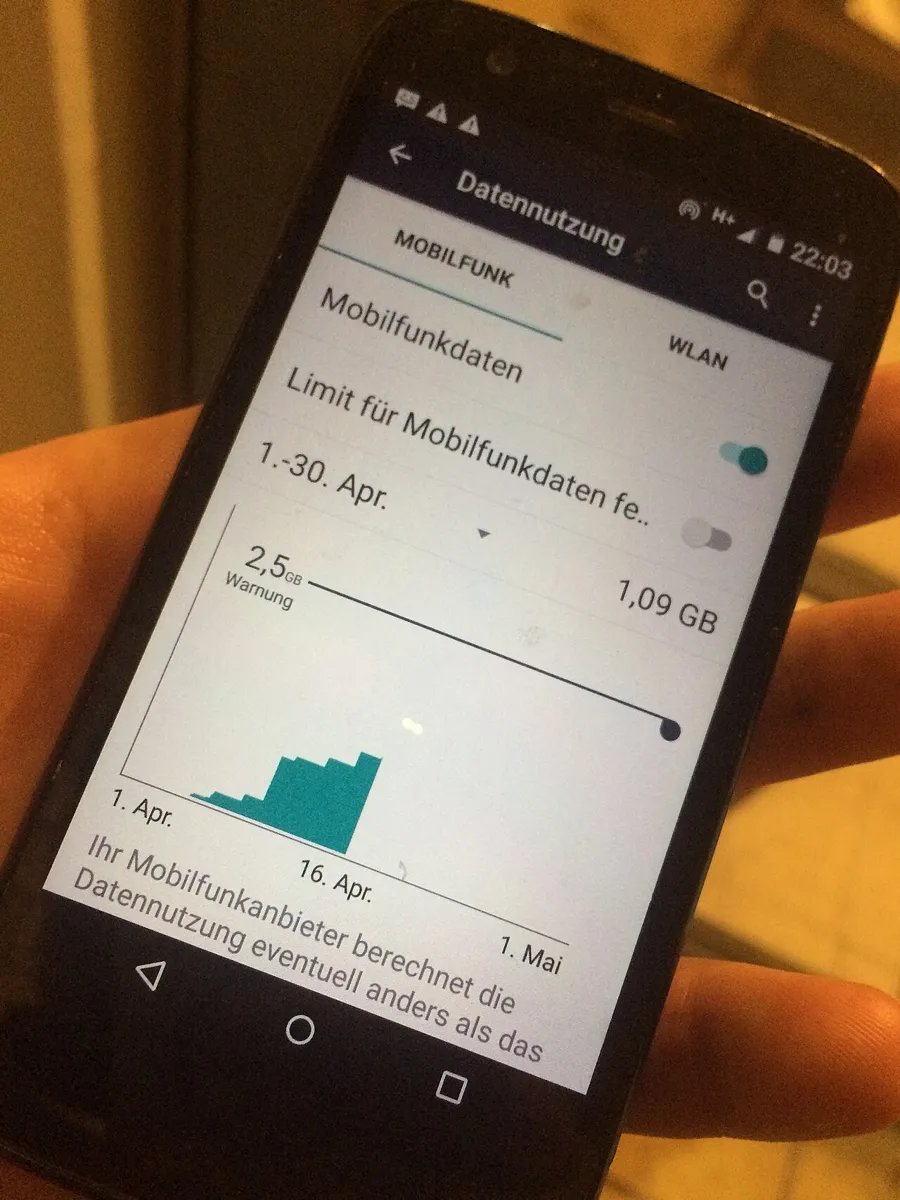
If data works on the phone, check your plan. Google's Android hotspot help page warns that some carriers limit or charge extra for tethering. Samsung's hotspot troubleshooting page goes further: most providers require a hotspot plan, even "unlimited" plans can have limits, and some carriers don't offer tethering at all. Open your carrier's app and look for a hotspot or tethering line in your plan details.
Why the Hotspot Can Switch Off the Moment You Turn It On
Android lets your carrier decide whether tethering is allowed. In Google's CarrierConfigManager developer reference, carriers can set a flag that says they don't support tethering, and another that requires an "entitlement check" before tethering starts. That's the phone asking the carrier whether your line is allowed to share data. When the answer is no, or the check can't reach the carrier, the hotspot won't stay on no matter which settings you change.
This is also why Samsung says tethering may fail if you've recently changed carriers: the phone can still be trying to contact your previous carrier. If you just switched, restart the phone, make sure the new SIM or eSIM is the one used for mobile data, and ask the new carrier to confirm hotspot is on your line.
US Carrier Hotspot Limits Explained (October 2026)
Most US "unlimited" plans include a set amount of high-speed hotspot data. Once you use it, the hotspot keeps working but slows down until your next bill cycle. That slowdown is the most common reason a hotspot that worked last week now feels broken. These are the figures the carriers publish for their current plans:
| Carrier and plan | High-speed hotspot data | After that |
|---|---|---|
| T-Mobile Experience Beyond | 250GB | Up to 600kbps, per T-Mobile's newsroom |
| T-Mobile Experience More | 60GB | Reduced speed for the rest of the bill cycle, per T-Mobile's plan page |
| Verizon Unlimited Ultimate (plan updated May 7, 2026) | Up to 200GB | Up to 6 Mbps, per Verizon's FAQ |
| Verizon Unlimited Plus | 30GB | Up to 3 Mbps on 5G Ultra Wideband, 600 Kbps on 5G or 4G LTE, per Verizon's hotspot page |
| AT&T Elite 2.0 | 250GB | Max 128Kbps unless you buy more, per AT&T's hotspot page |
| AT&T Premium 2.0 | 100GB | |
| AT&T Extra 2.0 | 50GB | |
| AT&T Value 2.0 | 3GB |
Your options when you hit the cap:
- T-Mobile sells 10GB Mobile Hotspot Data Passes on Experience and Go5G plans, and you can buy more than one in a month, according to its hotspot support page.
- Verizon offers a $20/month Unlimited Mobile Hotspot perk (200GB, then up to 4 Mbps on 5G Ultra Wideband and 600 Kbps on 5G or LTE) and a $10/month 100GB perk on eligible plans. Unlimited Ultimate lines can buy a 5GB Mobile Hotspot Data Boost instead.
- AT&T charges $15 for 10GB of extra hotspot data, either as a one-time 30-day add-on or as a monthly add-on.
Our take: if you're on AT&T and past your allowance, don't spend time on the troubleshooting below. At 128Kbps, a laptop will often connect fine and then time out on modern web pages, which looks exactly like a broken hotspot. Check your hotspot usage in the carrier app first. Plans change often, and older plans have different numbers, so treat the table as a guide to what to look for in your own account.
Turn Off Data Saver and Check for a VPN
Data Saver is the setting Google specifically names. Its Pixel hotspot page says that if you've turned on Data Saver, you need to turn it off to tether by Wi-Fi.
- Pixel: Settings > Network & internet > Data Saver, then turn off Use Data Saver.
- Samsung Galaxy: Settings > Connections > Data usage > Data saver, then turn it off.
Next, turn off any VPN on the phone. Samsung says a VPN may need to be disabled before you can tether or share a hotspot. If the hotspot works with the VPN off, check that app's settings for a tethering or "allow LAN" option, or leave it off while you share.
Many guides also tell you to turn off Battery Saver. Google's hotspot pages don't list Battery Saver as something that blocks tethering, but its mobile connectivity page says Battery Saver turns off 5G on Pixel phones. That can make a working hotspot noticeably slower, so turn it off if speed is the complaint.
Other Devices Can't Find or Join the Hotspot
If a laptop, tablet, or game console can't see the hotspot or won't connect, the fix is usually in the hotspot's own settings: the band, the security type, or a hidden network name.
Switch the hotspot band
Older laptops, e-readers, and smart devices often only work on 2.4 GHz. Samsung's hotspot setup page says 2.4 GHz works with more devices, while 5 GHz gives better performance.
- Samsung Galaxy: Settings > Connections > Mobile Hotspot and Tethering > Mobile Hotspot, then change Band.
- Pixel: Settings > Network & internet > Hotspot & tethering > Wi-Fi hotspot, then turn on Extend compatibility. AT&T's Pixel 9 support page describes it as making the hotspot work with more types of devices, especially older ones.
Change the security type
Samsung's fix for a device that can't connect is to set the hotspot's security to WPA2. Newer phones may default to WPA3, which some older laptops can't use. If you pick None, anyone nearby can join and use your data, so only do it briefly to test.
Turn off Hidden network
If the hotspot is on but other devices can't detect it, Samsung says to open the Advanced menu under Mobile Hotspot and turn off Hidden network.
Check the device limit
Google's help pages say you can share your connection with up to 10 devices over a Wi-Fi hotspot, and T-Mobile gives the same limit. If a household's laptops, tablets, and consoles are already connected, disconnect one before you assume something is broken.
Why Does My Hotspot Keep Turning Off?
Usually because of a timer that turns the hotspot off when nothing is connected. Google's Pixel Wi-Fi troubleshooting page says a Pixel hotspot turns itself off after 10 minutes with no devices connected.
- Pixel: Settings > Network & internet > Hotspot & tethering > Wi-Fi hotspot > Turn off hotspot automatically.
- Samsung Galaxy: Settings > Connections > Mobile Hotspot and Tethering > Mobile Hotspot > Advanced > Turn off when no device connected for, then pick a longer time.
Two related behaviors also look like failures. Some phones, including the Pixel 7a by Google's account, can't run a hotspot and Wi-Fi at the same time, so turning on the hotspot drops your own Wi-Fi. Samsung's page also says that activating a mobile hotspot disables Wi-Fi. And Google's Instant Tethering, which lets a Chromebook or tablet signed in to the same Google Account use your phone's data, disconnects after about 10 minutes without use.
Leaving the hotspot on with the timer off costs battery. Google recommends plugging in while tethering. If your phone also gets hot while sharing, our Android overheating guide explains why a hotspot in a warm room is one of the heavier loads, and our battery drain guide covers what else to turn off.
Hotspot Connected but No Internet
When a laptop joins your hotspot but nothing loads, the phone's mobile connection is almost always the weak link. Work through these in order:
- Test data on the phone itself with Wi-Fi off. If the phone can't load a page, fix that first.
- Check your hotspot usage in your carrier's app. A used-up allowance can drop you to 128Kbps or 600kbps, depending on the plan.
- Toggle Airplane mode on and off, then turn the hotspot off and on again. Google's Pixel page says to turn the hotspot off and on if it was already on.
- Forget the hotspot on the laptop and join it again, so it doesn't keep using an old password or security setting.
- Restart both devices.
If your own Wi-Fi at home has the same "connected, no internet" problem, that's a different fault. Our guide to Wi-Fi connected but no internet on Android covers it.
Should you edit your APN or add "dun"?
Some forum posts and AI answers suggest adding dun (the tethering APN type) to your carrier's APN. Treat that as a last resort, not a first step. Editing the APN won't add hotspot to a plan that doesn't include it, and on many carrier phones the APN fields are locked anyway. Use only the values your carrier publishes. T-Mobile lists one APN for phones, with no separate hotspot APN, as covered in our T-Mobile APN guide. For other carriers, see our AT&T APN settings and Cricket APN settings pages. Resetting mobile network settings (next section) restores your carrier's default APN, which is safer than typing one in.
USB and Bluetooth Tethering (and Why Macs Are Different)
USB and Bluetooth tethering are good fallbacks when Wi-Fi hotspot won't cooperate, but not on a Mac. Google's Pixel tethering page says Mac computers can't tether with Android over USB, and Macs running macOS Monterey or later can't tether over Bluetooth either. On a Mac, Wi-Fi hotspot is the option that works.
- USB tethering: Connect the phone with a USB cable, then go to Settings > Network & internet > Hotspot & tethering > USB tethering on a Pixel, or Settings > Connections > Mobile Hotspot and Tethering > USB tethering on a Samsung.
- Bluetooth tethering: Pair the phone and the computer first, set the computer to get its network connection over Bluetooth, then turn on Bluetooth tethering in the same menu.
USB tethering also charges the phone while you work, which helps with the battery drain that comes with sharing for hours.
Reset Network Settings Before Anything Drastic
If nothing above worked, reset the phone's network settings. This doesn't delete your photos or apps. Pixel and Samsung phones split it into two resets, and for a hotspot problem the mobile network reset is the one to try first because it puts your carrier settings back to default.
- Pixel: Settings > System > Reset options > Reset mobile network settings. If devices still can't join, also use Reset Bluetooth & Wi-Fi, which deletes saved Wi-Fi networks, per Google's connectivity help.
- Samsung Galaxy: Settings > General management > Reset > Reset mobile network settings, or Reset Wi-Fi and Bluetooth settings. Samsung's reset guide notes you may need to contact your provider after a mobile network reset.
On a Pixel 11 in the US, try Google's built-in checker first: Settings > Device health & support > Mobile data diagnostics runs a speed test and checks your connection settings. Google says it's only for US subscribers on Pixel 11 phones.
Next, install any pending system update and test in safe mode, which Samsung recommends to rule out a downloaded app such as a VPN, firewall, or data monitor. Samsung's troubleshooting page moves from safe mode straight to a factory reset. We'd skip that for a hotspot problem until your carrier has confirmed hotspot is active on your line, because a factory reset can't fix a plan or account restriction.
When to Call Your Carrier
Call or chat with your carrier if mobile data works on the phone but the hotspot still won't turn on after a network reset, if the switch turns off the moment you turn it on, or if you've just changed carriers or plans. Ask them three things: is hotspot included on this line, how much high-speed hotspot data is left this cycle, and is there any block on tethering for your account. Google's own advice is the same: not all carriers support hotspots, so check whether yours does and whether it's in your plan.
FAQ
Why is my Android hotspot not working all of a sudden?
The most common reasons are using up your plan's high-speed hotspot data, Data Saver being turned on, or a plan or carrier change. Check your hotspot usage in your carrier's app, turn off Data Saver, and make sure mobile data works on the phone itself.
Why does my hotspot say connected but no internet?
The other device has joined your phone's Wi-Fi, but the phone isn't getting usable mobile data. Test data on the phone with Wi-Fi off, then check whether you've hit your hotspot cap, since some plans drop to 128Kbps or 600kbps afterward.
How many devices can connect to an Android hotspot?
Up to 10 devices over a Wi-Fi hotspot, according to Google's Android help pages. T-Mobile lists the same limit. If you need more, disconnect devices you aren't using.
Does an unlimited plan include unlimited hotspot data?
Usually not at full speed. Most US unlimited plans include a set amount of high-speed hotspot data, such as 30GB on Verizon Unlimited Plus or 60GB on T-Mobile Experience More, then slow your hotspot for the rest of the bill cycle.
Can I use USB tethering with a Mac?
No. Google says Mac computers can't tether with Android over USB, and Macs on macOS Monterey or later can't tether over Bluetooth. Use the Wi-Fi hotspot instead.
Frequently Asked Questions
Why is my Android hotspot not working all of a sudden?
The most common reasons are using up your plan's high-speed hotspot data, Data Saver being turned on, or a plan or carrier change. Check your hotspot usage in your carrier's app, turn off Data Saver, and make sure mobile data works on the phone itself.
Why does my hotspot say connected but no internet?
The other device has joined your phone's Wi-Fi, but the phone isn't getting usable mobile data. Test data on the phone with Wi-Fi off, then check whether you've hit your hotspot cap, since some plans drop to 128Kbps or 600kbps afterward.
How many devices can connect to an Android hotspot?
Up to 10 devices over a Wi-Fi hotspot, according to Google's Android help pages. T-Mobile lists the same limit. If you need more, disconnect devices you aren't using.
Does an unlimited plan include unlimited hotspot data?
Usually not at full speed. Most US unlimited plans include a set amount of high-speed hotspot data, such as 30GB on Verizon Unlimited Plus or 60GB on T-Mobile Experience More, then slow your hotspot for the rest of the bill cycle.
Can I use USB tethering with a Mac?
No. Google says Mac computers can't tether with Android over USB, and Macs on macOS Monterey or later can't tether over Bluetooth. Use the Wi-Fi hotspot instead.