Mobile Data Not Working on Android: Phone and Carrier Fixes

If mobile data isn't working on your Android phone, turn Wi-Fi off, make sure Mobile data is on and airplane mode is off, and restart the phone. If that doesn't bring it back, the cause is usually a setting that quietly blocks data (a data limit, Data Saver, Private DNS, or a VPN), a SIM or APN problem, or something on your carrier account, and the fixes below go through them in that order.
Also in this topic: Android Guides hub.
Jump to: match your symptom · the first three checks · Pixel 11 diagnostics · data limit, Data Saver and app rules · SIM, eSIM and SIM protection · APN · Private DNS and VPN · slow 5G · reset mobile network settings · outages and your plan · FAQ
How we put this together: The menu paths and rules below come from Google's Pixel and Android help pages, Samsung US support, and the support pages of T-Mobile, Verizon, and AT&T, all linked in place and checked on October 22, 2026. We haven't reproduced every case on every phone and carrier, and menu names can differ a little by model and software version.
Why Is My Mobile Data Not Working? Match the Symptom
Mobile data is your phone's internet connection over your carrier's cellular network, separate from calls and texts. That's why data can fail while calls still work: T-Mobile's internet and data troubleshooting page is written for exactly that case. What you see on the screen points to the likely cause.
| What you see | Most likely cause | Go to |
|---|---|---|
| No signal bars or "No service" | Coverage, SIM, or an account problem | SIM and eSIM, outages |
| Bars and an LTE or 5G icon, but nothing loads | APN, Private DNS, VPN, or your plan | APN, Private DNS and VPN |
| Data stopped on its own and a "data limit" notification appeared | The phone's own data limit | Data limit |
| Data works, but some apps don't load or don't update in the background | Data Saver or a per-app restriction | Data Saver and app rules |
| Data stopped right after a new phone, SIM, or eSIM transfer | Inactive SIM, SIM protection, or wrong APN | SIM protection, APN |
| 5G icon shows, but data is very slow | Battery Saver, weak 5G, congestion, or used-up high-speed data | Slow 5G, your plan |
| Only Wi-Fi is broken, mobile data is fine | Your router or Wi-Fi settings | Wi-Fi connected but no internet |
Start With the Three Basic Checks
These checks fix a lot of cases, and carrier support pages start with them too. AT&T's mobile data help page lists the same basics: restart the phone, make sure mobile data is on, disconnect from Wi-Fi to test, and turn off airplane mode.
- Turn Wi-Fi off. With Wi-Fi on, the phone uses Wi-Fi and may hide the data icon, so you can't tell whether mobile data works. Google's Android connection help page says to look for a data indicator such as 4G, LTE, or 5G next to the signal bars once Wi-Fi is off.
- Check that Mobile data is on. On a Pixel, go to Settings > Network & internet > SIMs, make sure Mobile data is on, then tap your carrier and make sure Use SIM is on. On a Samsung Galaxy, go to Settings > Connections > Data usage and turn on Mobile data. If it's already on, turn it off and back on.
- Toggle airplane mode, then restart. Turning airplane mode on for a few seconds and off again makes the phone reconnect to the network. If that doesn't help, restart the phone.
If you have no data indicator at all, you may simply be out of coverage. Move outdoors or to another area and check again. Google and Samsung also say thick walls, metal structures, and some phone cases can block the signal, so try once with the case off.
On a Pixel 11 in the US, Run Mobile Data Diagnostics
Pixel 11 owners in the US have a built-in checker that most guides don't mention. Google's Pixel mobile connectivity page says Mobile data diagnostics can auto-detect and possibly fix data problems, check your settings, run a speed test, and give you a report. Find it under Settings > Device health & support > Mobile data diagnostics.
Google says the feature is only for US subscribers on Pixel 11 phones. If you choose to share the results, Google lists what gets sent, including your account info, IMEI, speed test results, and data connection history. On a Samsung Galaxy, the closest option is Phone diagnostics in the Samsung Members app (Support > Get started), which Samsung's SIM troubleshooting page says can check your SIM status.
Check the Data Limit, Data Saver, and App Rules
Three Android settings can stop data on purpose, and they're easy to forget once they're set. Check them before you change any network settings.
The phone's own data limit
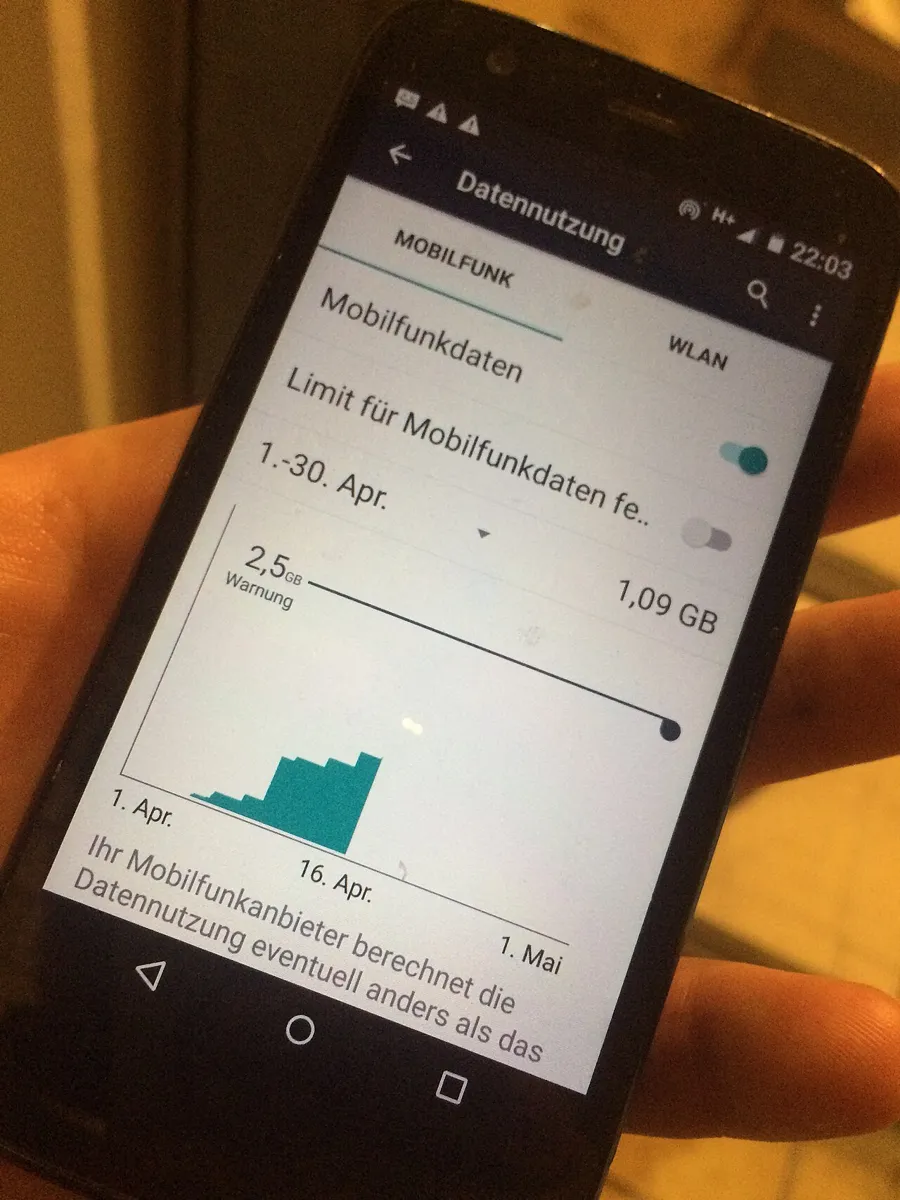
Android can turn mobile data off by itself when you reach a limit you set. Google's Pixel data usage page says that when you hit the limit, your data automatically turns off and you get a notification. To turn it back on, you have to switch off Set data limit; toggling Mobile data alone won't do it.
- Pixel: Settings > Network & internet > SIMs > Data warning & limit > turn off Set data limit.
- Samsung Galaxy: Settings > Connections > Data usage > Billing cycle and data warning > turn off Set data limit (some carriers call it Limit mobile data usage), per Samsung's data usage page.
Here's a detail that catches people out: the phone counts data on its own. Google says some carriers measure usage differently, and Samsung tells you to set Start billing cycle to match your bill. If that date is wrong, the phone's counter doesn't reset when your plan does, and the limit can kick in days early. T-Mobile's troubleshooting page also lists "turn off Data Usage Limit" as a fix.
Data Saver
Data Saver doesn't turn mobile data off. It stops most apps from using data in the background, so messages, feeds, and syncing apps can look broken until you open them. Android's own Data Saver article says it reduces data use rather than blocking all data. Turn it off in Settings > Network & internet > Data Saver on a Pixel, or Settings > Connections > Data usage > Data saver on a Galaxy. Data Saver also stops your hotspot from working, which our Android hotspot not working guide covers.
Per-app rules (Samsung)
If only one app fails on mobile data while everything else works, check its network rule. Samsung's data usage page lists Allowed networks for apps under Settings > Connections > Data usage, where you can set an app to Wi-Fi only, Mobile data or Wi-Fi, or Mobile data preferred. An app set to Wi-Fi only won't load anything on cellular. On the same screen, Mobile data usage shows each app's Allow background data usage switch.
Check Your SIM or eSIM, and SIM Protection
If you have no service, or data stopped right after you changed phones, the problem is usually the SIM, not a setting. On a Pixel, Google says a grayed-out carrier name with "No SIM" means you either have no SIM or it's inactive; check Settings > Network & internet > SIMs and turn on Use SIM. On a Galaxy, open Settings > Connections > SIM manager and make sure the switch next to your SIM or eSIM is on.
If you use two SIMs, for example a travel eSIM, make sure the right one is set for mobile data. On a Galaxy, Samsung says to tap Primary SIM in SIM manager to choose which SIM handles calls, texts, and data. For a physical SIM, power off, take the tray out, check the card for damage or dirt, and put it back with the gold contacts facing the way the tray shows. Samsung's SIM page says to try another active SIM if you have one.
Just switched phones? Check your carrier's SIM protection
All three major US carriers now offer a free lock that blocks SIM changes to stop SIM-swap fraud. It's a good feature, but if it's on when you move your number to a new phone or eSIM, the move fails. Samsung's SIM page also tells Galaxy owners to check for carrier SIM protection when a SIM won't activate on a new device.
| Carrier | Feature name | Where to turn it off | Fine print from the carrier |
|---|---|---|---|
| Verizon | SIM Protection (and Number Lock) | My Verizon app or website, Security | SIM changes stay blocked for 15 minutes after you turn it off, and store and phone reps can't turn it off for you (Verizon) |
| T-Mobile | SIM Protection | T-Life app: Manage > gear icon > Security > SIM Protection, or T-Mobile.com profile | You'll get an error if it's on when you change SIM or move an eSIM; on postpaid accounts only the Primary Account Holder can remove it (T-Mobile) |
| AT&T | Wireless Account Lock | AT&T app, person icon > Wireless account lock | Only users with primary or secondary account access can turn it on or off, and it must be done in the AT&T app on an active device (AT&T) |
Turn the lock back on once your new phone works. Verizon recommends doing that as soon as the SIM change is done.
Check the APN Only If Bars Show but Nothing Loads
An APN (Access Point Name) is the setting that tells your phone how to reach your carrier's data network. Phones sold by a carrier set it up automatically, so a wrong APN is mostly a problem with unlocked or imported phones and right after a carrier switch. Samsung's data usage page says to check that Access Point Names (Settings > Connections > Mobile networks) matches your carrier, and T-Mobile's page says to reset the APN to default on Android.
- Pixel: Settings > Network & internet > SIMs > your carrier > Access Point Names.
- Samsung Galaxy: Settings > Connections > Mobile networks > Access Point Names.
Tap the three-dot menu and choose Reset to default first. Only type in values your carrier publishes, because a wrong entry can break data and picture messages. We keep current values for T-Mobile APN settings, AT&T APN settings on Android, and Cricket Wireless APN settings.
Turn Off Private DNS and Any VPN
Private DNS is an Android setting that sends your web lookups to a DNS server you choose. If that server can't be reached, Android blocks the whole connection. Google's Android team explained in its Private DNS announcement that Android "marks the network as 'No internet access' if it can't reach the server." That applies to mobile data as well as Wi-Fi, so a typo in the hostname or a filtering service that's down can look exactly like broken data.
- Pixel: Settings > Network & internet > Private DNS, then choose Automatic.
- Samsung Galaxy: Settings > Connections > More connection settings > Private DNS, then choose Automatic.
Do the same with VPNs. T-Mobile's troubleshooting page says to turn off any VPN settings or apps, and to uninstall recently added apps such as third-party browsers, battery savers, and launchers if data broke after you installed them. If data works with the VPN off, update the VPN app or switch its server.
If Data Works but 5G Is Slow
A 5G icon doesn't mean you're getting 5G speeds. Google's Pixel page says the 5G icon shows when you're in an area where 5G is available, not that your phone is using it at that moment. Coverage, building walls, and crowds at concerts or games can all slow you down; Verizon's connection troubleshooter names network congestion at big events as a cause of slower speeds.
- Turn off Battery Saver. On a Pixel, Google says Battery Saver turns off 5G.
- Check the network type. On a Pixel, Settings > Network & internet > SIMs > your carrier > Preferred network type should be 5G. On a Galaxy, it's Settings > Connections > Mobile networks > Network mode. T-Mobile's page suggests an automatic or LTE-capable mode.
- Check Wi-Fi switching. If your phone clings to weak Wi-Fi, Verizon says to look at the Android setting called Switch to mobile data or Avoid bad Wi-Fi connections. On a Pixel, it's Adaptive connectivity > Auto-switch to mobile network.
Reset Mobile Network Settings (Your Wi-Fi Stays)
If nothing above worked, reset your mobile network settings. This doesn't delete apps, photos, or messages. Many guides and AI answers still say a network reset wipes your saved Wi-Fi passwords, but on current Pixel and Galaxy phones the mobile reset is a separate option from the Wi-Fi and Bluetooth reset.
- Pixel: Settings > System > Reset options > Reset mobile network settings. Google lists Reset Bluetooth & Wi-Fi as a different option and says only that one deletes saved Wi-Fi networks.
- Samsung Galaxy: Settings > General management > Reset > Reset mobile network settings. Samsung's signal troubleshooting page lists Reset Wi-Fi and Bluetooth settings separately.
Samsung notes that the mobile reset puts the phone back on your carrier's default settings, so you may need to re-enter a custom APN afterward. If you have two SIMs, the reset screen may ask which one to reset. After the reset, check for a system update with Wi-Fi on (Settings > System > Software updates on a Pixel, Settings > Software update on a Galaxy).
Rule Out an Outage or a Plan Problem
If data stopped for everyone around you, or it fails everywhere you go after all of the above, the problem is probably on the carrier side. Check your carrier's outage page first, from Wi-Fi or another phone:
- Verizon: Check network status
- T-Mobile: Network outages, plus the T-Life Troubleshooter, which T-Mobile tells customers to run first
- AT&T: Outage information
Next, check your plan in the carrier's app. A prepaid plan that has run out, a missed payment, or used-up high-speed data can all stop or slow data even when the phone is fine. T-Mobile's page tells customers to check they haven't used all of their high-speed data, and says lines that have used 50GB in a bill cycle can get lower priority during local congestion.
When you contact your carrier, ask them to confirm that data is active on your line, that there's no SIM protection or account lock blocking a recent change, and that your phone is provisioned correctly. Samsung notes that if you changed carriers but kept the same phone, the new carrier may need to reset the device for its network.
FAQ
Why does mobile data say connected but there's no internet?
The phone has a cellular connection, but something is blocking traffic. Check Private DNS (set it to Automatic), turn off any VPN, reset the APN to default, and make sure your plan still has data. If none of that helps, reset mobile network settings.
Why does my phone make calls but mobile data doesn't work?
Calls and data are separate services, so one can fail while the other works. The usual causes are Mobile data being off, a data limit on the phone, a wrong APN, or a data block on your account. T-Mobile's data troubleshooting page is written for exactly this case.
Does resetting network settings delete Wi-Fi passwords?
Not if you choose Reset mobile network settings on a current Pixel or Galaxy. Google and Samsung list Wi-Fi and Bluetooth as a separate reset, and only that one deletes saved networks. A custom APN may need to be re-entered after the mobile reset.
Does Data Saver turn off mobile data?
No. Data Saver limits background data for most apps, so some apps may not update until you open them. The setting that turns mobile data off is the data limit under Data warning & limit, or Billing cycle and data warning on Samsung.
Why does my phone show 5G but data is slow?
The 5G icon means 5G is available in your area, not that you're using it, according to Google. Turn off Battery Saver, which turns off 5G on Pixel phones, move away from crowds or thick walls, and check whether you've used up your plan's high-speed data.
Frequently Asked Questions
Why does mobile data say connected but there's no internet?
The phone has a cellular connection, but something is blocking traffic. Check Private DNS (set it to Automatic), turn off any VPN, reset the APN to default, and make sure your plan still has data. If none of that helps, reset mobile network settings.
Why does my phone make calls but mobile data doesn't work?
Calls and data are separate services, so one can fail while the other works. The usual causes are Mobile data being off, a data limit on the phone, a wrong APN, or a data block on your account. T-Mobile's data troubleshooting page is written for exactly this case.
Does resetting network settings delete Wi-Fi passwords?
Not if you choose Reset mobile network settings on a current Pixel or Galaxy. Google and Samsung list Wi-Fi and Bluetooth as a separate reset, and only that one deletes saved networks. A custom APN may need to be re-entered after the mobile reset.
Does Data Saver turn off mobile data?
No. Data Saver limits background data for most apps, so some apps may not update until you open them. The setting that turns mobile data off is the data limit under Data warning & limit, or Billing cycle and data warning on Samsung.
Why does my phone show 5G but data is slow?
The 5G icon means 5G is available in your area, not that you're using it, according to Google. Turn off Battery Saver, which turns off 5G on Pixel phones, move away from crowds or thick walls, and check whether you've used up your plan's high-speed data.