How to Back Up an Android Phone: Google, Samsung and PC

To back up an Android phone, open Settings, go to System > Backup on a Pixel (or Google > All services > Backup on most other phones), turn Backup on, and tap Back up now. That saves your apps and app data, texts, call history, contacts, and settings to your Google Account, while Google Photos handles your pictures. Samsung Galaxy owners can add Samsung Cloud, and anyone can copy files to a computer for a second copy.
Also in this topic: Android Guides hub.
Jump to: what gets backed up · Google backup steps · Samsung Galaxy · methods compared · PC or Mac · apps Google misses · rules that can cost you a backup · backup not working · FAQ
Quick answer: Turn on Google's backup (Settings > System > Backup on Pixel; Settings > Accounts and backup on Samsung), turn on backup in Google Photos, and check that both show a recent date. Back up WhatsApp separately inside WhatsApp. Before a reset or repair, Galaxy owners can also use Samsung's free Temporary Cloud Backup, which keeps everything for 30 days.
How we put this together: The steps, limits, and storage rules below come from Google's Android, Pixel, Google One, and Google Photos help pages, Android's developer documentation, Samsung US support pages, and WhatsApp's help center, all linked in place and checked on October 23, 2026. We haven't run a backup on every phone model, and menu names can differ a little by phone maker and software version.
What an Android Backup Saves, and What It Doesn't
Google's built-in backup saves your phone's settings and personal data, not a full copy of the phone. Google's Android backup help page lists apps and app data, call history, contacts, device settings, and SMS and MMS messages. It also backs up RCS chats if you use Google Messages, call settings and blocked numbers if you use the Phone by Google app, and photos and videos if you use Google Photos.
| Data | Covered by Google's backup? | What to do |
|---|---|---|
| Texts (SMS, MMS, RCS in Google Messages), call history, contacts, settings | Yes | Turn on Backup and check the date |
| Installed apps and app data | Yes, but up to 25 MB per app, and apps can opt out | Sign in to each app's own account; check games' cloud saves |
| Photos and videos | Only through Google Photos backup | Turn on backup in Google Photos |
| WhatsApp chats | No, WhatsApp runs its own backup | WhatsApp > Settings > Chats > Chat backup |
| Downloads, documents, music files | Not listed by Google | Copy to a computer, Google Drive, or another cloud app |
The app data limit catches people out. Android's Auto Backup developer documentation says each app can store up to 25 MB of backup data, that only the latest backup is kept, and that developers can switch backup off entirely. If an app goes over 25 MB, Android skips its cloud backup until the data shrinks. That's why some apps come back signed out or empty after a restore, and why games that matter to you should be linked to the game's own account or cloud save.
How to Back Up an Android Phone With Google (Pixel and Most Phones)
On a Pixel, the backup screen is at Settings > System > Backup. Google's Pixel help page uses that path, and 9to5Google reported in August 2025 that Google simplified the screen to two items: Photos & videos and Other device data. On most other Android phones, Google's general help page gives Settings > Google > All services > Backup.
- Set a PIN, pattern, or password screen lock if you don't have one. Google says to use one instead of swipe or Smart Lock, because some backup data is encrypted with it.
- Open Settings and go to System > Backup (Pixel) or Google > All services > Backup (other phones).
- Turn on Backup by Google One or Back up other device data, whichever your phone shows.
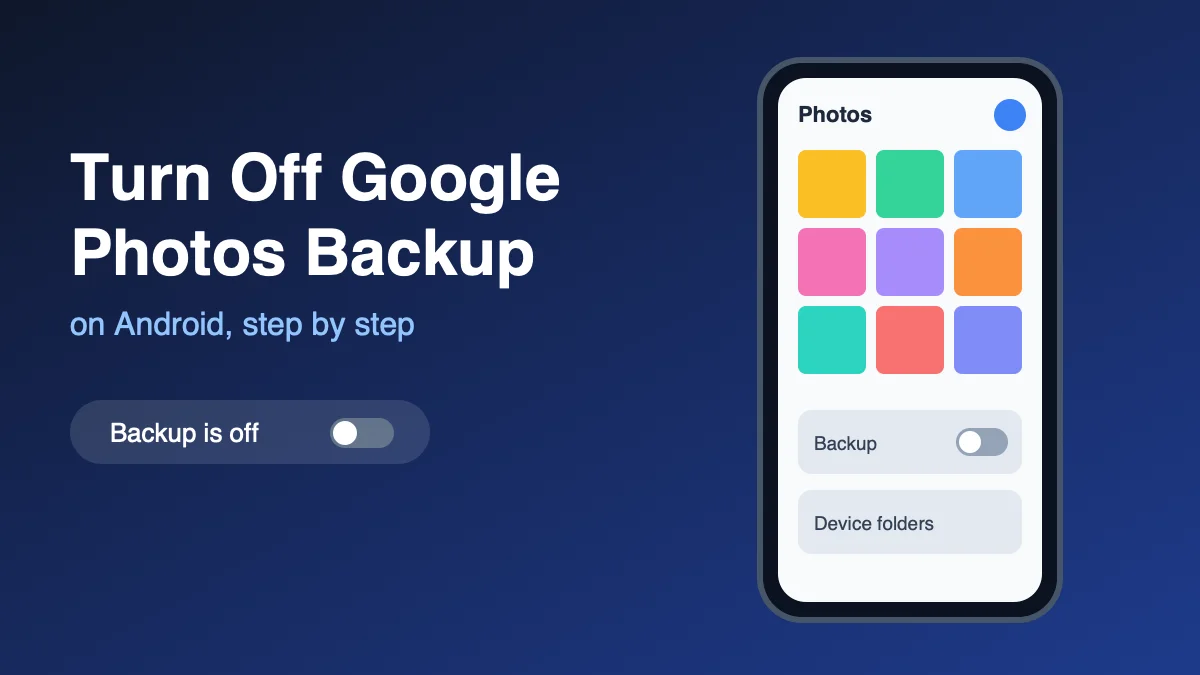
- Open Photos & videos to turn on Google Photos backup, if you want your pictures included.
- Tap Back up now. Google says a backup can take up to 24 hours.
- To back up to a different Google Account, tap Account storage on the same screen and pick or add the account.
After that, backups run on their own. Android's developer page says automatic backups happen when at least 24 hours have passed since the last one, the phone is idle, and it's on Wi-Fi (unless you allowed mobile data). In practice that's roughly every night.
How to check that your backup actually worked
Look for a recent date before you reset or trade in a phone. The backup screen in Settings shows the last backup time. From a computer, Google's Pixel page says to open Google Drive, click Storage, then Backups, which lists each device's backup and when it was last changed. For photos, Google's Google Photos help page says the status at the top of the app should read "Backup complete".
How to Back Up a Samsung Galaxy Phone
Galaxy phones can use Google's backup and Samsung's own, and it's worth using both. Samsung's US backup guide gives these paths:
- Google backup: Settings > Accounts and backup > Back up data (under Google Drive) > Back up now. Samsung says Google's automatic backup runs when the phone is on Wi-Fi, idle, and charging for at least two hours.
- Samsung Cloud: Settings > tap your Samsung account name at the top > Samsung Cloud > Back up data. Choose the items, then tap Back up now. With auto backup on, Samsung says it backs up once every 24 hours when the screen is off and the phone is on Wi-Fi and charging.
Samsung Cloud covers Samsung-specific items such as your home screen layout, alarms and world clocks, Samsung Keyboard options, and Always On Display settings, according to Samsung's Samsung Cloud page. The same page lists photos, videos, and third-party apps only under Temporary Cloud Backup (below), not the regular backup, and Samsung's support page notes a 1 GB limit per file.
Samsung Temporary Cloud Backup: free, unlimited, 30 days
Temporary Cloud Backup is a free Samsung Cloud feature that stores a full copy of your Galaxy's data, including apps, photos, videos, and files, for up to 30 days with no total storage limit. Samsung says it's meant for when you're buying a new phone, resetting, or sending one in for repair. Most backup guides skip it, but it's the easiest way to protect a whole Galaxy before a factory reset without paying for storage.
The fine print, from Samsung's announcement and Maintenance mode guide:
- It needs a Samsung account, Wi-Fi, and One UI 6 or later. Availability can vary by carrier and model.
- Single files over 100 GB can't be backed up, and data on an SD card or USB drive isn't included.
- Samsung deletes the backup 30 days after you make it and warns you on the phone 7 days before.
- Samsung lists two places to start it: Settings > General management > Reset > Temporary Cloud Backup, or inside Maintenance mode under Device care. Menu names can differ on newer One UI versions, so searching Settings for "Temporary" is the quickest route.
Android Backup Methods Compared
Use Google's backup as your everyday safety net and add one other copy. This table puts the official limits side by side.
| Method | Phones | Cost and limit | Best for |
|---|---|---|---|
| Google backup | Android phones with a Google Account (not work profiles) | Uses your Google storage: 15 GB free, then Google One from $1.99/month for 100 GB | Texts, settings, app list, contacts, every night |
| Google Photos backup | Any Android phone | Same Google storage; photos up to 200 MB, videos up to 10 GB | Photos and videos |
| Samsung Cloud backup | Galaxy phones | Samsung Cloud storage; 1 GB per-file limit; no photos | Samsung app data, home screen, alarms |
| Samsung Temporary Cloud Backup | Galaxy on One UI 6+ | Free, no total limit, kept 30 days; 100 GB per-file limit | A full copy before a reset, repair, or upgrade |
| Smart Switch on a computer | Galaxy phones | Free; uses your computer's drive | A full offline Galaxy backup you keep |
| Copying files over USB | Any Android phone | Free | Photos, videos, downloads, documents |
Prices and limits come from Google One's plans page, the Google Photos help page, and the Samsung pages linked above. If you want a paid service that backs up your phone and your computers together, our roundup of cloud storage and backup apps compares the options.
How to Back Up an Android Phone to a PC or Mac
A computer backup gives you a copy that doesn't depend on any cloud account, and it's the best way to keep full-size photos, videos, and downloaded files.
Windows PC
- Unlock the phone and connect it to the PC with a USB cable.
- Tap the USB notification on the phone and choose File transfer (Samsung calls it Transferring files or MTP).
- Open File Explorer on the PC and select the phone.
- Copy the folders you care about to the PC, especially DCIM (camera photos and videos), Pictures, Download, Documents, and Music.
Mac
Google's old Android File Transfer app for Mac is gone. Its download address, android.com/filetransfer, now redirects to Google's Quick Share for Windows page (checked October 23, 2026). Galaxy owners can use Smart Switch for Mac instead, and other Android owners can use a third-party MTP app such as OpenMTP or MacDroid. Quick Share is fine for sending a few files between devices (see our Quick Share guide), but it isn't a backup tool.
Smart Switch for Galaxy phones
Smart Switch makes a full Galaxy backup on a computer, with categories such as call logs and contacts, messages, and apps. Samsung says it works with Windows 10 or later and macOS 10.9 or later, but not Chromebooks. Install Smart Switch on the computer, connect the phone with a USB cable, tap Allow on the phone, click Backup, choose what to include, and click Backup again. Make sure the computer has enough free space first.
Back Up the Apps Google's Backup Misses
A few kinds of data need their own backup step, and WhatsApp is the most common one.
- WhatsApp: open WhatsApp > Settings > Chats > Chat backup, choose a Google Account, and set how often it backs up. WhatsApp's help center says backups are tied to your phone number and Google Account, each new backup overwrites the last, and backups that haven't been updated in 5 months might be deleted by Google. On Android, WhatsApp backups count toward your Google storage, per Google One's storage page. To save space, Google suggests turning off Include videos in WhatsApp's backup settings.
- Photos in other folders: in Google Photos, go to Photos settings > Backup > Back up device folders and turn on folders such as Screenshots or WhatsApp Images. Google Photos backs up to only one Google Account at a time. If you'd rather keep some folders off the cloud, our guide to Google Photos backup settings shows how.
- Games and apps with their own sign-in: because of the 25 MB app limit and the developer opt-out, link games and important apps to their own account before you reset.
Six Backup Rules That Can Cost You Your Data
Google's backup has limits that aren't on its main backup screen, and the 57-day rule is the one most likely to surprise you. Google One's device backup help page says your backup data, except what's in Google Photos, is erased if you don't use the device for 57 days.
- A phone left in a drawer loses its backup after 57 days. If you plan to restore from an old phone, do it within that window, or turn the old phone on and let it back up first.
- Turning backup off deletes it. Google says your backups are deleted when you turn off Backup by Google One. Photos already in Google Photos stay.
- You can't restore to an older Android version. Google says a backup from a higher Android version can't go onto a phone running a lower one. Update the new phone during setup before restoring.
- Work profiles and company phones are left out. Google says backup isn't available on a personal phone set up with a work profile, a work-only phone, or a company-owned device.
- Not everything is encrypted with your screen lock. Google says some data is end-to-end encrypted with your PIN, pattern, or password, but Google Photos content and MMS media from your carrier aren't.
- A full Google account stops backups, and in time can wipe them. Google's storage policy says that if you stay over your storage limit for 2 years or longer, all your content may be removed, including your Android device backup.
One point where Google's own pages disagree: Google's consumer help says everything in Android backup counts toward your storage, including app data. The developer documentation says app data saved by Auto Backup doesn't count toward your Drive quota. Either way, texts, call logs, and settings do count, so leave some free space.
If Your Android Backup Won't Run
Most stalled backups come down to storage, Wi-Fi, or timing. Work down this list:
- Check your Google storage. Your 15 GB is shared with Gmail, Drive, and Photos. If it's full, backups stop. Our guide to freeing up storage on Android covers the phone side; for the cloud side, delete large files or old WhatsApp backups in Google One's storage manager.
- Connect to Wi-Fi and plug the phone in. Automatic backups wait for Wi-Fi, idle time, and (on Samsung) charging. To use mobile data, turn on "Use mobile or metered Wi-Fi data" on the backup screen.
- Tap Back up now instead of waiting for the nightly run, then give it up to 24 hours.
- Set a screen lock. Google recommends a PIN, pattern, or password for backup.
- Photos stuck on "Waiting" or "Paused"? Google Photos' help page says battery optimization can block backup. Set the Photos app's battery use to Unrestricted.
If you've already lost photos without a backup, our guide on how to recover deleted photos on Android lists where else they might be.
FAQ
Does Android back up automatically?
Yes, once you turn Backup on. Android backs up roughly once a day when the phone is idle and on Wi-Fi, according to Android's developer documentation, and Samsung says Google's backup also waits until the phone has been charging for at least two hours.
Is Android backup free?
Yes, up to your Google storage. Every Google Account includes 15 GB shared across Gmail, Drive, and Photos, and Google One plans start at $1.99 a month for 100 GB. Samsung's Temporary Cloud Backup is free with no total limit, but only for 30 days.
How long does Google keep an Android backup?
As long as you keep using the phone. Google says the backup, except photos and videos in Google Photos, is erased if you don't use the device for 57 days, or right away if you turn backup off.
Does Google backup save my photos?
Only if Google Photos backup is on. Google's device backup covers apps, texts, call history, contacts, and settings, while photos and videos are saved through the Google Photos app, which accepts photos up to 200 MB and videos up to 10 GB.
Can I back up my Android phone without Google?
Yes. Copy your files to a computer over USB, use Samsung Cloud or Smart Switch on a Galaxy, or use a backup app with its own account. You'll lose the automatic restore of texts and settings during setup, so many people use a computer copy alongside Google's backup.
Frequently Asked Questions
Does Android back up automatically?
Yes, once you turn Backup on. Android backs up roughly once a day when the phone is idle and on Wi-Fi, according to Android's developer documentation, and Samsung says Google's backup also waits until the phone has been charging for at least two hours.
Is Android backup free?
Yes, up to your Google storage. Every Google Account includes 15 GB shared across Gmail, Drive, and Photos, and Google One plans start at $1.99 a month for 100 GB. Samsung's Temporary Cloud Backup is free with no total limit, but only for 30 days.
How long does Google keep an Android backup?
As long as you keep using the phone. Google says the backup, except photos and videos in Google Photos, is erased if you don't use the device for 57 days, or right away if you turn backup off.
Does Google backup save my photos?
Only if Google Photos backup is on. Google's device backup covers apps, texts, call history, contacts, and settings, while photos and videos are saved through the Google Photos app, which accepts photos up to 200 MB and videos up to 10 GB.
Can I back up my Android phone without Google?
Yes. Copy your files to a computer over USB, use Samsung Cloud or Smart Switch on a Galaxy, or use a backup app with its own account. You'll lose the automatic restore of texts and settings during setup, so many people use a computer copy alongside Google's backup.