How to Transfer Data From iPhone to Android in 2026

To transfer data from an iPhone to Android, turn on the new Android phone, choose to copy data from an iPhone or iPad, and scan the QR code it shows with your iPhone's Camera app. On a Pixel 8 or newer running Android 17, or a Galaxy Z Flip 8 or Z Fold 8, that QR code starts Google's upgraded transfer, which can also move passwords, passkeys, Wi-Fi networks, call history, and your eSIM. Older phones use the classic method with a cable or the Android Switch app, and Samsung phones can use Smart Switch.
Also in this topic: Android Guides hub.
Jump to: which method you'll get · before you start · upgraded transfer · classic transfer · Samsung Smart Switch · what transfers · iCloud photos · turn off iMessage · after the move · problems · FAQ
How we put this together: The steps, device lists, and data tables below come from Google's Android help and android.com switching pages, Apple's support pages, and Samsung US support, all linked in place and checked on October 23, 2026. We haven't run every transfer on every phone, and screen names can differ a little by model and software version.
Which Transfer Method Will Your Android Phone Use?
Your new phone picks the method for you, and you can tell which one you have the moment you choose iPhone during setup. Google's iPhone-to-Android help page says that if your phone supports the upgraded process, a QR code appears right after you choose to copy data from an iPhone or iPad. If it asks for a cable or the Android Switch app instead, you're on the classic method.
| Your new phone | Method | What you need on the iPhone |
|---|---|---|
| Pixel 8 or newer on Android 17 | Upgraded Android Switch (wireless or cable) | Camera app; iOS 26.3 or later adds a Transfer to Android option in Settings |
| Galaxy Z Flip 8, Z Fold 8 (and Fold 8 Ultra) | Upgraded Android Switch, or Smart Switch | Camera app |
| Other Galaxy phones on One UI 9 | Smart Switch with a QR code | Camera app, no app needed |
| Galaxy phones on One UI 8.5 or older | Smart Switch (cable, wireless, or iCloud) | Smart Switch Mobile app for wireless |
| Pixel 6 and 7, and most other Android phones | Classic method (cable or Android Switch app) | Lightning or USB-C cable, or the Android Switch app on iOS 15 or later |
The upgraded method is an Android 17 feature built with Apple. Google announced it on July 22, 2026, and Android Authority reported the same day that the Pixel 6 and Pixel 7 don't get it even though they run Android 17. Apple's side shipped earlier: its Transfer to Android support page says iOS 26.3 added the option and that you need "a compatible version of Android 17" on the new phone. Older February reports that the feature was "not live yet" were accurate then, but on supported phones it's live now.
Before You Start: Five Things to Do on the iPhone
A little prep avoids most failed transfers. Google's checklist says to charge both phones, connect the iPhone to Wi-Fi, make sure you know the iPhone's passcode, and check that the new phone has enough storage for everything you're bringing. Apple adds that Bluetooth should be on for both phones.
- Update the iPhone. Apple says to update both devices to the latest software. Transfer to Android in Settings needs iOS 26.3 or later.
- Start your iCloud Photos transfer now if you use iCloud Photos. Photos that live only in iCloud don't come across in the phone-to-phone transfer, and Apple's copy to Google Photos can take days. See the iCloud photos section.
- Check that the new phone has room. Google says you won't be able to move everything if the new phone runs out of space. If storage is tight, our guide to freeing up storage on Android helps after setup.
- Optionally turn off Auto-Lock (Settings > Display & Brightness > Auto-Lock) so the iPhone doesn't sleep mid-transfer. Google lists this as optional.
- Set aside time. Google says most transfers take under 30 minutes, but a lot of data can take a few hours, and both phones have to stay connected the whole time.
Don't turn off iMessage until the transfer is finished if you want your iMessage history to come across. Google's help page says you must turn off iMessage, and we cover when and how below.
How to Use the Upgraded Transfer (Pixel 8 and Newer, Galaxy Z Flip 8 and Z Fold 8)
The upgraded transfer is wireless by default and doesn't need an app on the iPhone. These steps follow Google's help page and Apple's Transfer to Android page.
- Turn on the new Android phone and tap through the first setup screens.
- When asked to copy data from another device, choose iPhone or iPad. A QR code appears.
- On the iPhone, open the Camera app and scan the QR code. On iOS 26.3 or later, you can also start from Settings > General > Transfer or Reset iPhone > Transfer to Android, place the phones side by side, and tap Continue.
- If the camera can't read the code, tap Other Options on the iPhone and type the session ID and pairing code shown on the Android phone, as Apple's page describes.
- Choose what to bring over, such as photos, messages, contacts, calendars, and call history, and tap Continue. Google says to keep app data selected so your Google Account and other app data transfer too.
- When the data is done, tap Continue to move your eSIM, then double-click the iPhone's side button to confirm.
- Keep both phones close and connected until setup finishes. Google says this applies even while you're being asked about the eSIM.
The eSIM step: which US carriers support it
Apple lists AT&T, FirstNet, T-Mobile, and Verizon as the supported US carriers for moving an eSIM this way. Once the number moves, Apple says it stops working on the iPhone. If your carrier isn't on that list, or the eSIM step fails, finish setup and get a new eSIM from your carrier. If you just turned on a carrier SIM lock to protect against SIM swaps, turn it off first; our guide to mobile data not working on Android lists where Verizon, T-Mobile, and AT&T keep that setting.
Skipped it during setup? You can do it later on most supported phones
Google says that on Android 17 you can copy data after setup from Settings > Accounts and backup, but only on updated Pixel 9 phones and newer, the Galaxy Z Flip 8 and Z Fold 8, and some other devices. That leaves out the Pixel 8: Android Authority notes it can use the upgraded transfer only during initial setup. If you own a Pixel 8, do the transfer when you first set the phone up.
How to Use the Classic Transfer (Cable or Android Switch App)
If your phone doesn't show a QR code, it uses the classic method. A cable moves much more than the wireless app, so use one if you can.
With a cable (moves more data)
- During setup, connect to Wi-Fi, sign in to your Google Account, and insert your SIM or set up your eSIM when asked.
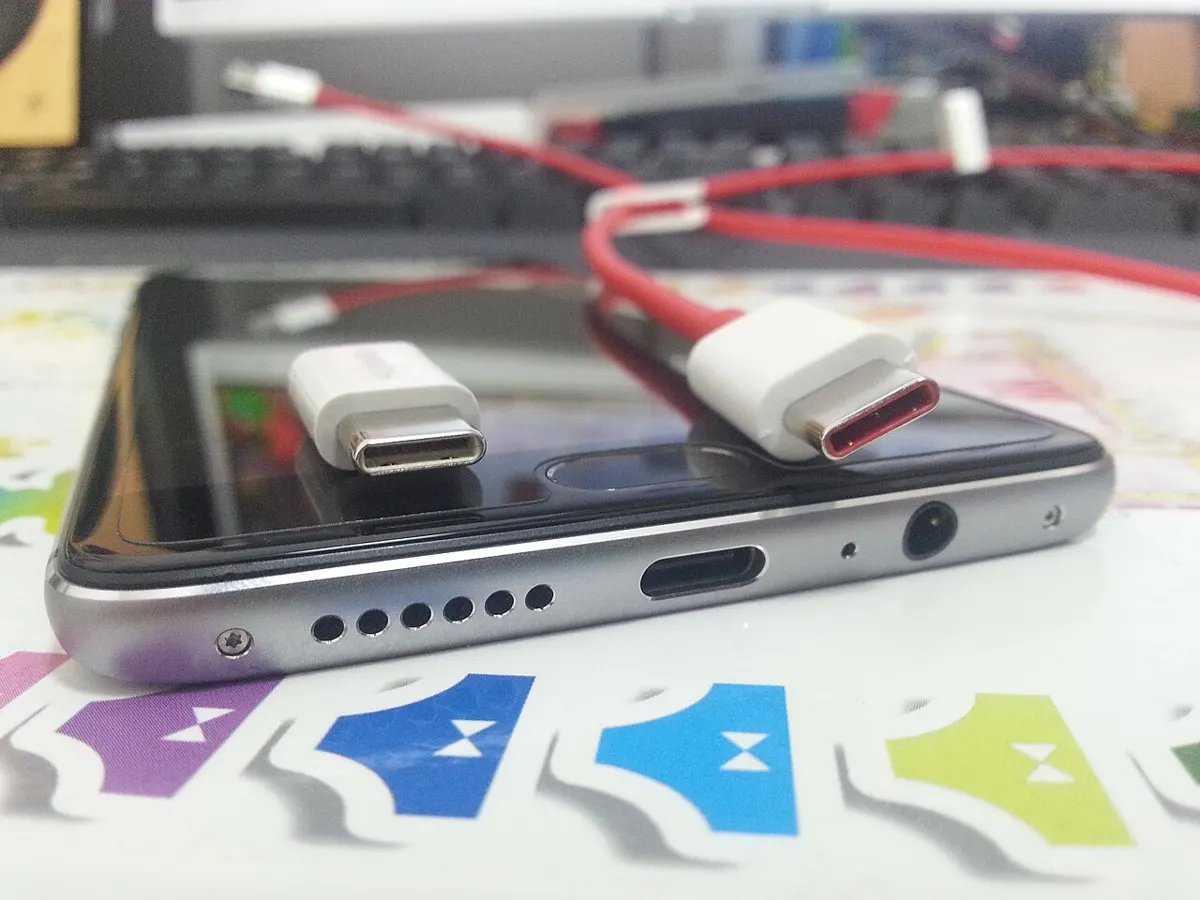
- When prompted, plug the iPhone's charging cable into the iPhone and the other end into the Android phone. Google notes that an older Lightning-to-USB-A cable may need a USB-A to USB-C adapter. iPhone 15 and newer use USB-C, so a USB-C to USB-C cable works.
- Tap Trust on the iPhone if asked, and enter the passcode. Stay with the phone, because Google says you may need to enter it more than once.
- Pick the data types on the Android phone and tap Copy. If you use WhatsApp, scan the WhatsApp QR code that appears on the Android phone with your iPhone.
Wirelessly with the Android Switch app
The Android Switch app on the iPhone needs iOS 15 or later, according to Google. Scan the QR code on the Android phone, download Android Switch from the App Store, open it, and follow the steps. Keep the phones near each other. Be aware that this route moves only contacts, calendars, and photos and videos; messages, apps, notes, and WhatsApp need the cable.
How to Transfer From iPhone to Samsung Galaxy With Smart Switch
Samsung phones use the Smart Switch app, which is preinstalled. Samsung's iPhone-to-Samsung support page says the cable method moves the most types of data, and it now offers a no-app wireless option on One UI 9.
- Wireless on One UI 9 or newer: Open Smart Switch, tap Receive on this phone, choose iPhone or iPad, and scan the QR code with the iPhone's Camera app. Samsung's list for this route includes messages (SMS, MMS, and iMessages), call logs, notes, home screen layout, installed apps, passwords and passkeys, and saved Wi-Fi networks.
- Cable: In Smart Switch, tap Receive on this phone > iPhone/iPad > Cable, connect the phones, tap Trust on the iPhone, and choose your data. Samsung's current page says this method is for iOS 26.6 or later with One UI 9 or later, so update the iPhone first.
- iCloud: Tap Get data from iCloud and sign in to your Apple Account. Samsung lists contacts, photos and videos, calendar, reminders, files, and notes for this route.
- One UI 8.5 or older, wirelessly: Install Smart Switch Mobile on the iPhone first. Samsung says this route moves only contacts, photos and videos, calendar, and reminders.
Two Samsung-specific details are worth knowing. Samsung says WhatsApp chats need a cable even after a wireless transfer. And its cable list includes Safari bookmarks and reading lists, plus your phone's block list, while Google's help page lists Safari bookmarks as something that won't transfer with Android Switch. If your bookmarks matter and you're moving to a Galaxy, the Smart Switch cable route is the one that lists them.
What Transfers From iPhone to Android, and What Doesn't
The upgraded method moves the most, the classic cable method moves most everyday data, and the classic wireless app moves only the basics. This table is condensed from the data table on Google's help page.
| Data | Classic: Android Switch app | Classic: cable | Upgraded |
|---|---|---|---|
| Contacts, calendars, photos and videos | Yes | Yes | Yes (plus calendar attachments and photo albums) |
| Messages | No | Yes | Yes, including encrypted messages and messages stored in iCloud |
| Free apps, music, downloaded files, notes, voice memos, alarms | No | Yes | Yes |
| Home screen layout, wallpaper, accessibility settings | No | Yes | Yes |
| WhatsApp history | No | Yes | Yes, after setup |
| Call history, all files and folders, Wi-Fi networks | No | No | Yes |
| Passwords and passkeys | No | No | Yes |
| eSIM | No | No | Yes, on select carriers |
| Third-party app data | No | No | Yes, if the app's developer supports it |
Google says four things won't transfer with any of these methods: photos and videos stored only in iCloud, paid apps and in-app purchases, Safari bookmarks, and Health data. Android Police, citing Apple, adds paired Bluetooth devices and protected notes and images to the list for Apple's Transfer to Android tool. Free apps are matched to their Google Play versions; for paid apps and subscriptions, Google says to contact the developer.
Passwords deserve a note. On android.com's switching FAQ, Google says the upgraded method automatically moves passwords saved in Apple Passwords into Google Password Manager, while the classic method walks you through a few manual steps. If you use a third-party password manager, just sign in to its Android app.
How to Move Your iCloud Photos to Google Photos
If your iPhone uses iCloud Photos with "Optimize iPhone Storage", many of your photos may be stored only in iCloud, and Google says those won't come across in the phone-to-phone transfer. Instead, ask Apple to send a copy to Google Photos. Samsung recommends doing this before you transfer, to save time and space on the new phone.
- Sign in at privacy.apple.com with your Apple Account.
- Under Transfer a copy of your data, choose Request to transfer a copy of your data.
- Sign in to your Google Account when asked, and follow the prompts.
Apple's iCloud Photos transfer page says most transfers take three to seven days and some take up to 30. Before you start, it says, your Apple Account must use two-factor authentication, Advanced Data Protection must be turned off (you can't export photos while it's on), and your Google Account needs enough free storage. The copy doesn't delete anything from iCloud.
Some things don't make the trip. Apple and Google Photos' help page say shared albums, smart albums, and Live Photos (Google specifies the video part) aren't transferred, only the latest edit of each photo is copied, videos arrive without their albums, and album and video names start with "Copy of". Photos you add to iCloud later won't sync to Google Photos automatically. To keep new photos backing up on Android, check our guide to Google Photos backup settings.
Turn Off iMessage So You Don't Miss Texts
Once the transfer is done, turn off iMessage, or texts from iPhone users can keep going to your old iPhone instead of your new phone. Apple's deregister iMessage page gives the steps:
- If you moved your SIM card to the Android phone, put it back in the iPhone and make sure it's on cellular data.
- Go to Settings > Apps > Messages and turn off iMessage.
- Go to Settings > Apps > FaceTime and turn off FaceTime.
Already wiped or sold the iPhone? Use Apple's online deregistration form: enter your number, then the six-digit code Apple texts you. Apple says you should get texts right away, but some Apple devices can take a few hours to notice that you've left iMessage. If texts from iPhones still don't arrive, our guide to Android not receiving texts from iPhone covers RCS, group chats, and carrier checks.
After the Move: What to Check on Your New Android
- Texts: Open Google Messages and make sure RCS chats are on, so you can keep texting iPhone users with high-quality photos and typing indicators. Google's Messages switching guide covers moving from iMessage.
- WhatsApp: With the upgraded method, Google says WhatsApp history is moved separately after setup; look for the notification and follow it.
- Subscriptions: Google's FAQ says your existing subscriptions keep working, but billing stays where it is today, with the App Store or the app's developer. Cancel or move any you no longer need from the iPhone before you reset it.
- Sharing with iPhone friends: Many newer Pixel and Galaxy phones can now send files to iPhones through AirDrop. Our Quick Share guide lists which phones support it.
- Keep the iPhone for a few days. This is our advice, not Google's: don't erase the iPhone until you've confirmed your messages, photos, two-factor apps, and iCloud photo copy have all arrived.
If the Transfer Fails or Stalls
- No QR code appears: Your phone doesn't support the upgraded method. Use a cable or the Android Switch app. On a Galaxy, use Smart Switch.
- The iPhone won't scan the code: Tap Other Options and enter the session ID and pairing code, as Apple describes.
- The connection drops: Keep the phones next to each other, plug both into power if you're using the wireless method, and turn off Auto-Lock on the iPhone. Google says both phones must stay connected for the whole transfer.
- Work or school iPhone: Google warns that if an organization manages the iPhone, you may not be able to transfer all data.
- Samsung wireless transfer won't finish: Samsung says to try again with the cable method.
- You don't have the old iPhone anymore: Google says you can restore a Google One backup during setup if you made one. For photos, use Apple's privacy.apple.com transfer.
FAQ
Can I transfer data from iPhone to Android after setup?
Yes, on many phones. On Android 17, go to Settings > Accounts and backup > Android Switch on a Pixel 9 or newer, or Settings > Accounts and backup > Smart Switch on a Samsung Galaxy. Google says the Pixel 8 can use the upgraded transfer only during initial setup.
Do iMessages transfer to Android?
Yes, your message history can move with a cable on the classic method or with the upgraded method, which Google says also moves encrypted messages and messages stored in iCloud. Samsung's Smart Switch moves iMessages too, but not iMessage effects. New messages arrive as RCS or SMS once you turn off iMessage.
Will my apps transfer from iPhone to Android?
Free apps that are also on Google Play are reinstalled automatically with the cable or upgraded method. Paid apps and in-app purchases don't carry over, and app data moves only with the upgraded method when the developer supports it.
Can I transfer my eSIM from iPhone to Android?
Yes, with the upgraded method on supported carriers. Apple lists AT&T, FirstNet, T-Mobile, and Verizon in the US. You confirm the move by double-clicking the iPhone's side button, and the number then stops working on the iPhone.
How long does it take to transfer from iPhone to Android?
Google says most transfers take less than 30 minutes, but a lot of data can take a few hours. Apple's separate iCloud Photos copy to Google Photos usually takes three to seven days, and up to 30.
Frequently Asked Questions
Can I transfer data from iPhone to Android after setup?
Yes, on many phones. On Android 17, go to Settings > Accounts and backup > Android Switch on a Pixel 9 or newer, or Settings > Accounts and backup > Smart Switch on a Samsung Galaxy. Google says the Pixel 8 can use the upgraded transfer only during initial setup.
Do iMessages transfer to Android?
Yes, your message history can move with a cable on the classic method or with the upgraded method, which Google says also moves encrypted messages and messages stored in iCloud. Samsung's Smart Switch moves iMessages too, but not iMessage effects. New messages arrive as RCS or SMS once you turn off iMessage.
Will my apps transfer from iPhone to Android?
Free apps that are also on Google Play are reinstalled automatically with the cable or upgraded method. Paid apps and in-app purchases don't carry over, and app data moves only with the upgraded method when the developer supports it.
Can I transfer my eSIM from iPhone to Android?
Yes, with the upgraded method on supported carriers. Apple lists AT&T, FirstNet, T-Mobile, and Verizon in the US. You confirm the move by double-clicking the iPhone's side button, and the number then stops working on the iPhone.
How long does it take to transfer from iPhone to Android?
Google says most transfers take less than 30 minutes, but a lot of data can take a few hours. Apple's separate iCloud Photos copy to Google Photos usually takes three to seven days, and up to 30.