How to Transfer an eSIM to a New Android Phone, by Carrier

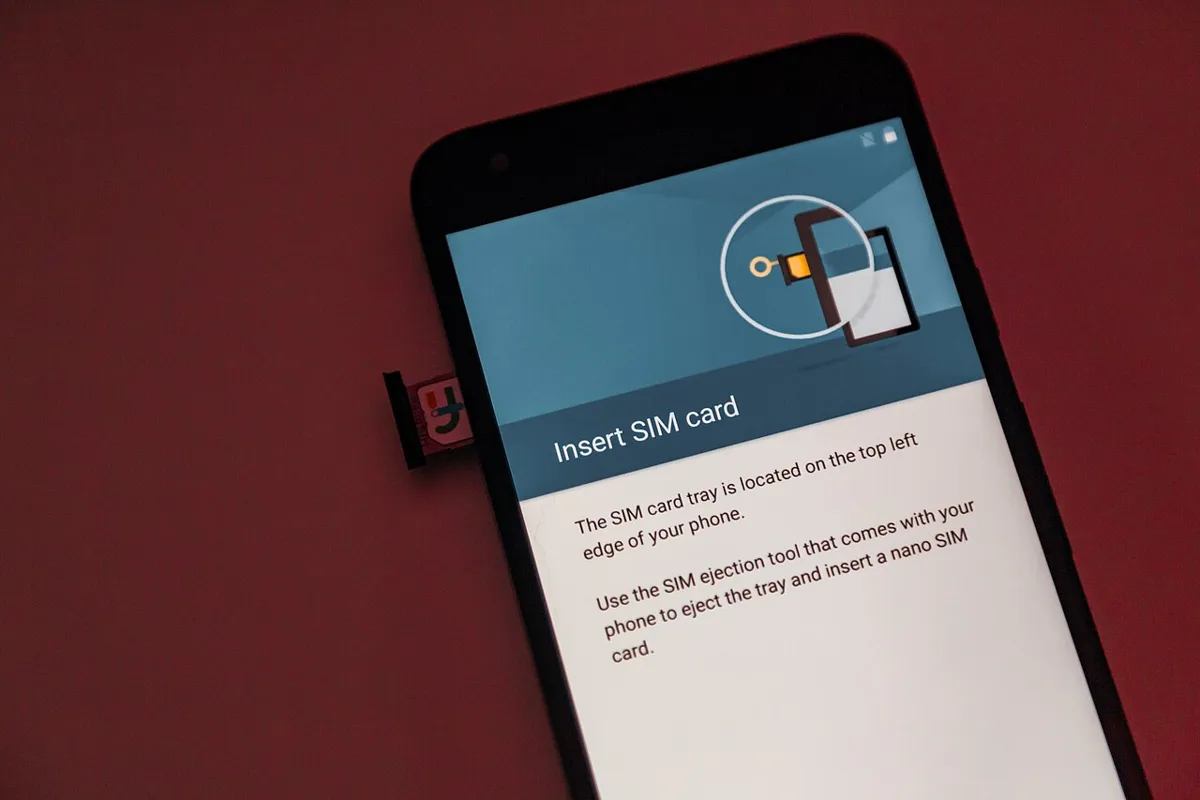
To move an eSIM to a new Android phone, start on the new phone: during setup, choose to copy from your old Android phone and tap the option to transfer your SIM, or later go to Settings and pick "Transfer SIM from another device." Keep the old phone unlocked and nearby, confirm on it, and the number moves over in a few minutes. If that option never shows up, your carrier's app (My Verizon, AT&T, T-Life, or Google Fi) can move the line instead.
Also in this topic: Android Guides hub.
Jump to: before you start · carrier table · Pixel · Samsung Galaxy · carrier apps · option missing or failing · after the move · FAQ
Quick answer: An eSIM is a digital SIM built into the phone that your carrier activates over the internet instead of mailing you a card. Android can copy it from one phone to another over a direct Bluetooth and Wi-Fi link, but only when your carrier supports that, both phones meet Google's requirements, and no account lock is blocking SIM changes. Otherwise, the carrier issues a fresh eSIM to the new phone.
Before You Start: What Both Phones Need
Most failed transfers come down to one missing requirement, so check these first. Google's Pixel help page on SIM transfer says both the old and new phone need:
- Android 12 or later
- The current version of Google Play services
- A screen lock (PIN, pattern, or password). The old phone asks for it to confirm the transfer.
Carrier and Samsung support pages add a few more:
- Wi-Fi and Bluetooth on, both phones close together. Xfinity Mobile and Samsung both list this.
- Up-to-date software on both phones. Install pending system updates before you start.
- An unlocked new phone. Samsung's eSIM transfer page says the new device must be unlocked, and T-Mobile says the same for phones not bought from T-Mobile.
- Your carrier's anti-SIM-swap lock turned off. Verizon SIM Protection, T-Mobile SIM Protection, AT&T Wireless Account Lock, and Xfinity Number Lock all block this kind of change. See the carrier table.
One more thing to know if you're buying a new Pixel: Google says the US Pixel 10, Pixel 10 Pro, and Pixel 10 Pro XL don't use physical SIMs at all. If your old phone has a SIM card, the transfer turns it into an eSIM on the new phone.
Moving your apps, photos, and messages at the same time? Make a backup first with our guide on how to back up an Android phone. The SIM transfer only moves your phone line, not your data.
How Each Major US Carrier Handles an Android eSIM Move
The phone-to-phone transfer only works if your carrier has hooked into it. Samsung's US SIM support page lists AT&T, Boost Mobile, Cricket, FirstNet, Mint Mobile, Spectrum Mobile, T-Mobile, U.S. Cellular, Verizon, and Xfinity Mobile as US carriers that "may allow eSIM Instant Transfer." Here's what each big carrier's own help pages say about the lock to turn off and the backup route:
| Carrier | Lock to turn off first | Backup route if direct transfer fails | Worth knowing |
|---|---|---|---|
| Verizon | SIM Protection (Number Lock only matters if you're leaving Verizon) | My Verizon app on the new phone: Mobile > your line > Change or replace device on this line | Free in the app. SIM changes stay blocked for 15 minutes after you turn SIM Protection off (Verizon) |
| AT&T | Wireless Account Lock | AT&T's Bring your own device page: Switch the device used on my line | Needs a one-time PIN. Prepaid lines have to call 800.901.9878 from another phone (AT&T) |
| T-Mobile | SIM Protection | T-Life app: Account > your line > SIM transfer or activation | You'll get an error if SIM Protection is still on. The app asks for the new phone's IMEI and EID (T-Mobile) |
| Xfinity Mobile | Number Lock | Xfinity app or Xfinity support | Quick transfer works on select Samsung, Pixel, and Motorola phones. Moving a physical SIM to an eSIM on the same Android phone isn't supported (Xfinity) |
| Google Fi | None listed | Not needed: you activate the new phone in the Google Fi app | Can take 5 to 20 minutes to connect after setup (Google Fi) |
A common mix-up: Verizon says Number Lock doesn't stop SIM card or device changes. It only blocks moving your number to another carrier. The setting that blocks a new phone is SIM Protection, so turning off Number Lock alone won't fix a failed Verizon transfer. We cover where each lock lives, and who on the account can turn it off, in our mobile data troubleshooting guide.
How to Transfer an eSIM to a Google Pixel
On a Pixel, the easiest time to move your eSIM is during first-time setup, because it happens alongside the data copy. You can also do it later from Settings.
During setup
- Turn on the new Pixel and keep the old phone next to it, unlocked.
- When asked where to copy from, choose Pixel or Android device. Scan the QR code on the new Pixel with the old phone, as Google's data transfer guide describes.
- When the SIM step appears, choose the SIM you want to move and tap Transfer, then Activate.
- Wait for activation and follow any carrier prompts.
After setup
- Open Settings > Network & internet > SIMs.
- Tap Add SIM > Transfer SIM from another device. (AT&T's Pixel 10 tutorial shows a Transfer a SIM from another device option right on the SIMs screen.)
- Choose Pixel or Android device, then scan the QR code with your old phone.
- Confirm with the old phone's screen lock, tap Transfer, and tap Done when it finishes (AT&T's Pixel 10 steps).
Google is clear about what happens if this fails: "Your existing device or eSIM can still work even if your eSIM transfer isn't successful." So a failed attempt doesn't knock out your service. Try once more, then use your carrier's app or call them.
How to Transfer an eSIM to a Samsung Galaxy
Samsung uses a six-digit code instead of a QR code when both phones are Android. Samsung's US steps are:
- On the new Galaxy, open Settings > Connections > SIM manager.
- Tap Add eSIM, then Transfer SIM from another phone (some carrier tutorials show it as "Transfer SIM from Galaxy/Android phone").
- On the old phone, tap Transfer in the pop-up and enter the code shown on the new phone.
- On the new phone, pick the number you want to move and tap Transfer. Then tap Transfer on the old phone too.
- Tap Done on the old phone. The eSIM downloads and activates on the new Galaxy.
Samsung Smart Switch copies your apps, photos, and settings, while Samsung documents the SIM move as its own step, either in the setup wizard or in SIM manager. If you finished setup without seeing the SIM option, use the SIM manager steps above. Coming from an iPhone instead? Samsung supports that for AT&T, FirstNet, T-Mobile, and Verizon in the US, and our guide on transferring data from iPhone to Android walks through that version.
If There's No Transfer Option, Use Your Carrier's App
When the phone-to-phone option isn't offered, the carrier can still move your number to the new phone's eSIM. This is the normal route for many prepaid and smaller carriers, and it's a fine fallback for the big three.
Verizon: My Verizon app
Connect the new phone to Wi-Fi, install the latest My Verizon app on it, and sign in. The app guides you through the move, or you can go to the Mobile tab, pick the line, and choose Change or replace device on this line. Verizon's eSIM FAQ says there's no fee, no IMEI or QR code is needed, and only the Account Owner or an Account Manager can do it. If there's just one line on the account, you'll need the old phone to approve it.
AT&T: Switch the device on your line
Turn off Wireless Account Lock in the AT&T app (person icon > Wireless account lock), connect both phones to Wi-Fi, then go to AT&T's Bring your own device page and choose Switch the device used on my line. You'll confirm with a one-time PIN.
T-Mobile: T-Life app
Turn off SIM Protection, then open T-Life while you're on T-Mobile's network. Go to Account, pick the line, and choose SIM transfer or activation > Get Started. Enter the new phone's IMEI, choose to activate an eSIM, enter its EID, and tap Activate. Answer the confirmation text if one arrives, then connect the new phone to Wi-Fi and scan the QR code T-Mobile gives you. On most Android phones, the IMEI and EID are listed under Settings > About phone.
Google Fi: activate in the Fi app
Google Fi works differently. You don't copy the eSIM from the old phone at all. Install the Google Fi app on the new phone, sign in with the Google Account you use for Fi, and follow the steps. Your number carries over, and the old phone stays on your account as an inactive device.
Why "Transfer SIM" Is Missing or the Transfer Fails
If the option never appears, the phone has usually decided you aren't eligible before it even asks. Android's own carrier integration documentation spells out when the setup wizard shows the eSIM step: the two phones must be paired, the carrier must confirm the SIM is eligible, the carrier must not have already pushed an eSIM to the new phone, and the old phone's screen lock must be verified. Samsung's eSIM transfer troubleshooting page lists the same kinds of blockers.
| What you see | Likely cause | What to do |
|---|---|---|
| No SIM transfer step during setup | A physical SIM is in the new phone, or an eSIM is already active on it | Remove the SIM card, finish setup, then use the Settings route |
| No SIM transfer step during setup | Your carrier doesn't support direct transfer | Use your carrier's app or call for a new eSIM |
| Option missing after setup | Setup wizard already finished (Samsung) | Use SIM manager > Add eSIM instead |
| Your number is grayed out on the list | The line is inactive or not eligible for transfer | Check the line is active, then contact your carrier |
| Error right after you confirm | SIM Protection or an account lock is on | Turn it off, wait (15 minutes on Verizon), and try again |
| "Not eligible" or "locked" message | The new phone is carrier-locked | Ask the carrier that sold it to unlock it |
| Old phone never shows a pop-up | No screen lock, Bluetooth off, or outdated Play services | Set a PIN, turn on Bluetooth and Wi-Fi, update, and retry |
Android version can matter too. Google's Pixel help lists Android 12 as the minimum, but the newer carrier-integrated transfer described in Android's documentation works with old phones on Android 10 or later and new phones on Android 14 or later. If your new phone is a recent model, that won't be a problem, but a very old source phone may not offer the transfer at all. In that case, use the carrier route.
Still stuck? T-Mobile's Android eSIM troubleshooting list is short and applies to any carrier: confirm the phone is unlocked, make sure Wi-Fi actually has internet, update the software, restart, and then look up the exact error message.
After the Transfer: Old Phone, Locks, and Data
Once the new phone shows your carrier's name and signal, make one call, send a text, and load a web page with Wi-Fi off. That confirms calls, texts, and data all moved. Then wrap up:
- The old phone loses service. Verizon says the line is deactivated on the old phone after the move. Google Fi keeps it on your account as an inactive device.
- Give it a few minutes. Google Fi says a new phone can take 5 to 20 minutes to connect. Android's documentation says the new phone keeps an eSIM notification until the carrier finishes the job, so don't factory reset it during that time.
- Don't wipe the old phone until the new one works. Because a failed transfer leaves your old eSIM working, the old phone is your fallback. Erase it only after you've tested calls, texts, and data on the new phone.
- Turn your SIM lock back on. SIM Protection and account locks protect you from SIM-swap fraud, so switch them back on once the move is done.
- Data or picture messages not working? Phones usually set up carrier settings automatically, but if data fails after the move, work through our mobile data fixes. AT&T also notes you may need to set the APN and MMS settings yourself after a SIM change; our AT&T APN settings and T-Mobile APN settings guides list the values.
How We Put This Guide Together
This guide is based on Google's Pixel and Google Fi help pages, Android's open source documentation on eSIM transfer, Samsung's US, UK, and Gulf support pages, and Verizon, AT&T, T-Mobile, and Xfinity Mobile support articles, all checked on October 28, 2026. We didn't run these transfers on our own devices for this article. Menu names differ by phone model, Android version, and carrier, so if a button isn't exactly where we describe it, search for "SIM" in Settings.
Frequently Asked Questions
Can I transfer an eSIM without my old phone?
Usually yes, but not with the phone-to-phone method, which needs the old phone nearby to confirm. Use your carrier's app or support instead. Verizon notes one catch: if there's only one line on your account, you need the old phone to approve the move in My Verizon; with more lines, another phone on the account can approve it.
Does it cost anything to move my eSIM to a new phone?
Not with Verizon's app: Verizon says there's no charge to move your line using My Verizon. The phone-to-phone transfer on Pixel and Galaxy phones is a built-in feature. Check your own carrier's terms if you go through a store or support call.
Will my phone number change when I transfer my eSIM?
No. The transfer moves your existing line, including your number, to the new phone. The old phone loses service once the move is complete; Verizon says the line is deactivated on the old phone.
How long does an eSIM transfer take?
Usually a few minutes once both phones are ready. Google Fi says a new phone can take 5 to 20 minutes to connect after in-app setup, and Verizon can block SIM changes for 15 minutes after you turn off SIM Protection, so add that time if you just changed the setting.
Does Samsung Smart Switch move my eSIM?
Smart Switch moves your apps, photos, and settings. Samsung documents the eSIM move as a separate step in the setup wizard or in Settings > Connections > SIM manager > Add eSIM > Transfer SIM from another phone.