How to Turn Off TalkBack on Android (and Keep It Off)

To turn off TalkBack on Android, press and hold both volume keys for about 3 seconds until the phone says TalkBack is off. If that does nothing, go to Settings > Accessibility > TalkBack and turn off Use TalkBack, but remember that while TalkBack is on, you tap an item once to select it and then double-tap anywhere to activate it, and you scroll with two fingers.
Also in this topic: Android Guides hub.
Jump to: TalkBack gestures · volume key shortcut · turn it off in Settings · Samsung Galaxy · locked or black screen · voice and keyboard · keeps turning on · Google TV · FAQ
Quick answer: TalkBack is Google's screen reader for Android. It reads out whatever you touch and changes how taps work, so it's built for people who are blind or have low vision. If it got switched on by accident, the fastest fix is the volume key shortcut. The Settings route always works, as long as you use TalkBack's own gestures to get there. Afterward, turn off every shortcut that can start it again, or it will be back the next time your phone is squeezed in a pocket.
First, How to Tap and Scroll While TalkBack Is On
Once TalkBack is on, a normal tap only selects things, which is why the phone suddenly seems broken. You'll know it's on if a box appears around whatever you touch and the phone reads it aloud. Google's Turn on TalkBack help page lists the basics you need to get out:
- Open or press something: touch it once so TalkBack reads it, then double-tap anywhere on the screen with one finger.
- Scroll: place two fingers on the screen and drag up or down.
- Home, Back, and Recents: if your phone uses gesture navigation, do those swipes with two fingers instead of one.
- Move to the next item: swipe right with one finger.
That's all you need for every method below. Before each double-tap, check that the box is around the item you want, because the double-tap activates whatever is selected, not the spot your finger lands on.
Method 1: Hold Both Volume Keys (Fastest)
On most Android phones, pressing and holding volume up and volume down together for about 3 seconds turns TalkBack off. Listen for the phone to confirm it. Google's Turn off TalkBack page says to hold both keys "for a few seconds," and Samsung's TalkBack support page says "at least 3 seconds."
A few things can get in the way:
- The shortcut isn't set up. It only works if the volume key shortcut is assigned to TalkBack. If TalkBack was turned on in Settings or by voice, the shortcut may not be on. Use Method 2.
- A pop-up appears instead. The first time you use the shortcut, the phone may ask you to confirm. Samsung says to tap Use in that pop-up (with TalkBack on, touch it once, then double-tap), then hold the keys again.
- A menu opens. If more than one accessibility feature is assigned to the volume keys, Android shows a menu so you can pick one. Select TalkBack.
- Nothing happens on the lock screen. Android has a separate switch called "Volume keys shortcut from lock screen." In Android's open source Settings code, its description reads "Allow feature shortcut to turn on from the lock screen." If the shortcut does nothing while the phone is locked, unlock it first (see below) and try again.
If you see a small floating accessibility button on the screen, that can also be a TalkBack shortcut. Google says to touch it once and then double-tap it.
Method 2: Turn Off TalkBack in Settings (Pixel and Most Phones)
The Settings switch works on every Android phone, even when no shortcut is set up. These steps follow Google's own instructions, with the TalkBack gestures built in:
- Open Settings. Swipe down from the top of the screen with two fingers, then do it again to expand Quick Settings. Touch the Settings gear once, then double-tap. You can also swipe up with two fingers from the bottom to open the app drawer, find Settings, and double-tap it.
- Open Accessibility. Scroll with two fingers until you hear "Accessibility," touch it once, then double-tap.
- Open TalkBack. Scroll with two fingers if needed, touch TalkBack once, then double-tap.
- Turn off the switch. Touch the Use TalkBack switch once, then double-tap.
- Confirm. Touch Turn off (some versions say Stop) in the pop-up once, then double-tap. Taps go back to normal right away.
On a Pixel, the path is Settings > Accessibility > TalkBack > Use TalkBack. Other brands may arrange or name the menus a little differently. If you can't find it, double-tap the search bar at the top of Settings and type "TalkBack."
How to Turn Off TalkBack on a Samsung Galaxy
Galaxy phones work the same way, but Samsung has its own menu names and a second button shortcut most guides don't mention. According to Samsung's US support page, Galaxy phones on One UI 3.1 and later call the feature TalkBack, and older ones call it Voice Assistant.
- Swipe down from the top with two fingers, touch the Settings icon, and double-tap it.
- Scroll with two fingers to Accessibility, touch it, and double-tap.
- Touch TalkBack and double-tap. On older phones with Voice Assistant, open Screen reader instead.
- Touch the switch at the top of the screen and double-tap, then touch Turn off and double-tap.
The second shortcut to check: besides holding Volume up and Volume down for three seconds, Galaxy phones can start accessibility features when you press the Side and Volume up keys together. Samsung's advanced accessibility page covers both. If TalkBack is assigned to Side and Volume up, the volume-only shortcut won't be the cause, so check both (steps in the prevention section).
If the Phone Is Locked or the Screen Is Black
You can unlock a phone with TalkBack on. You just have to use TalkBack's gestures on the lock screen. Google's turn-off page gives these steps:
- Wake the screen: press the Power button.
- Bring up the PIN or pattern screen: swipe up from the bottom with two fingers.
- Enter a PIN: with one finger, tap each number of your PIN, then tap OK or Enter.
- Draw a pattern: with one finger, tap each dot of your pattern one after another without stopping.
The phone is talking but the screen stays black. TalkBack can hide the screen display. To bring it back, open the TalkBack menu by swiping down and then right in one motion (Google also lists up-then-right), or by tapping with three fingers on Android 10 and later, as Google's TalkBack 17.0 notes describe. Then touch Show screen and double-tap.
Once you're unlocked, go back to Method 1 or Method 2.
Turn Off TalkBack by Voice or With a Keyboard
If the buttons and screen are both giving you trouble, these two routes skip them entirely.
Say "Hey Google, turn off TalkBack"
Google's TalkBack help still describes this as a Google Assistant command: say "Hey Google, turn off TalkBack" and listen for the confirmation. On many phones, though, Gemini is replacing Assistant. That rollout started on September 4, 2026 (see our Google Assistant phase-out explainer). Google's Gemini assistant page says Gemini can control phone settings, even while the phone is locked, and Google's Android XR help documents "Turn off TalkBack" as a Gemini command on headsets. Google's phone help page hasn't been updated for Gemini yet, so if Gemini doesn't switch TalkBack off, use the volume keys or Settings.
Use a USB or Bluetooth keyboard
This is the fallback for a phone with broken volume buttons. Google documents two keyboard shortcuts:
- Ctrl + Alt + Z does the same thing as holding both volume keys, if the volume key shortcut is on (accessibility shortcuts help).
- Action + Alt + T turns TalkBack on or off directly on devices running the latest version of Android 16. The Action key is the Windows key on a Windows keyboard and Command on a Mac keyboard.
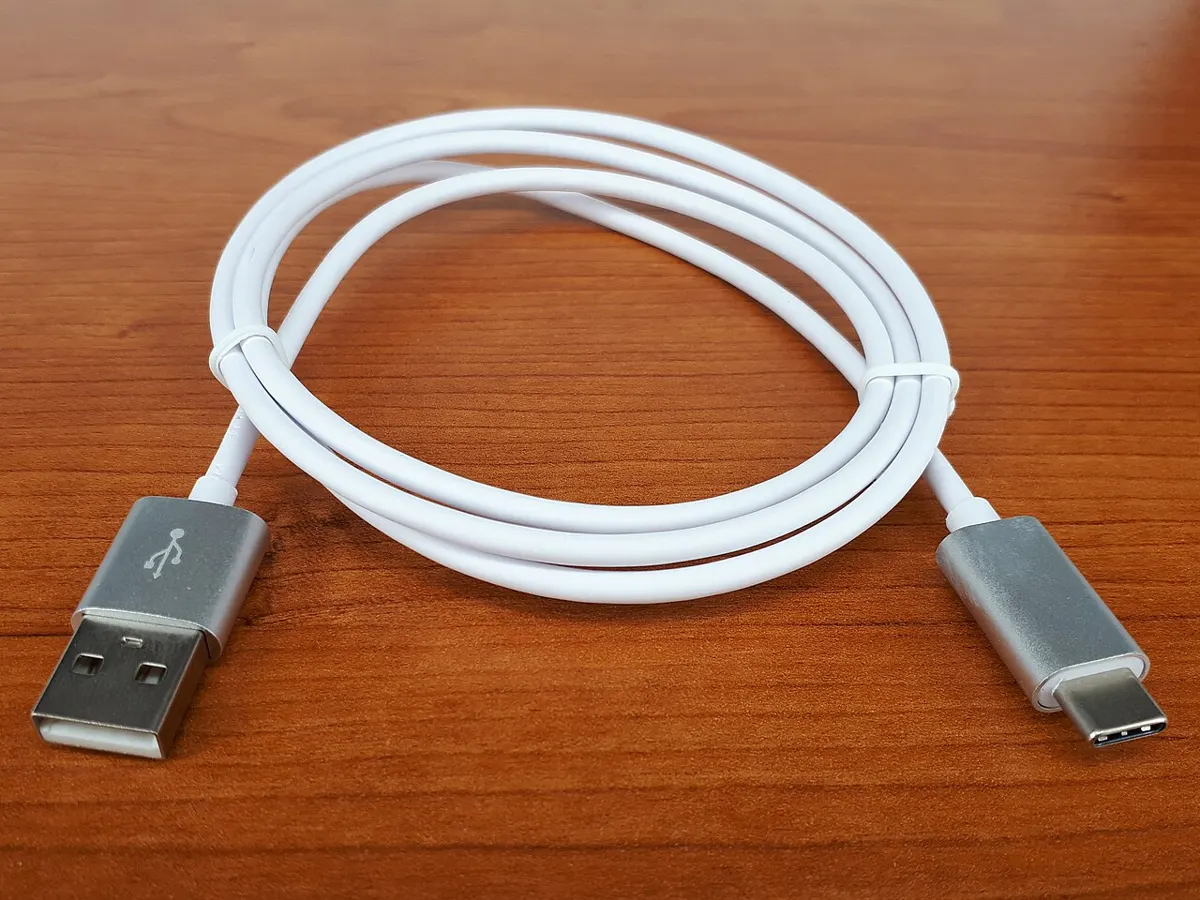
Many phones accept a wired keyboard through a USB-C OTG adapter. Our touch screen troubleshooting guide explains that setup, since it's also how you control a phone with a dead screen.
Why TalkBack Keeps Turning On (and How to Stop It)
If TalkBack keeps coming back, a shortcut is almost always the cause, not a bug. Google ends its own instructions with this step: turn off the accessibility shortcut after you turn off TalkBack. There are several shortcuts, and any of them can bring TalkBack back:
| Shortcut | How it triggers by accident | Where to turn it off |
|---|---|---|
| Hold both volume keys | A tight case, a pocket, or a firm grip holds both ends of the volume key | Settings > Accessibility > TalkBack > TalkBack shortcut |
| Volume keys on the lock screen | The same thing happens while the phone is locked in a bag | The "Volume keys shortcut from lock screen" switch (search Settings for "shortcut from lock screen") |
| Two-finger swipe up from the bottom | On gesture navigation, a two-finger swipe can be the accessibility shortcut (three fingers while TalkBack is on) | Settings > Accessibility > TalkBack > TalkBack shortcut |
| Quick Settings tile or floating button | A stray tap on the TalkBack tile or the floating accessibility button | Remove the tile from Quick Settings; on Android 14, drag the floating button to Remove |
| Side and Volume up (Samsung) | Pressing the side key and volume up together | Settings > Accessibility > Advanced settings or Accessibility shortcuts > Side and Volume up buttons |
| Voice command | "Turn on TalkBack" through the assistant | Not a shortcut setting; just be aware it works both ways |
The shortcut types come from Google's Use accessibility shortcuts page, which lists the accessibility button, holding the volume keys, the two-finger (or three-finger) swipe, and a Quick Settings shortcut as options for each feature. On a Pixel or other phone close to stock Android, open Settings > Accessibility > TalkBack > TalkBack shortcut and switch it off, or uncheck every shortcut type and tap Save.
On a Galaxy, Samsung's support pages put the button shortcuts under Accessibility > Advanced settings on some One UI versions and directly under Accessibility > Accessibility shortcuts on others. Open Volume up and down buttons and Side and Volume up buttons, and deselect TalkBack in each.
One more case: TalkBack can also turn on during phone setup. Google says holding both volume buttons on the setup screens turns it on, which is easy to do by accident when you're unboxing a phone or handing one to someone else.
How to Turn Off TalkBack on a Google TV
Google TV devices, including Google TV models from brands like Sony, TCL, and Hisense, use TalkBack too, and the remote has its own shortcut. Older Android TV menus may differ. According to Google's Google TV accessibility page:
- Shortcut: press and hold the Back and Down buttons on the remote at the same time for 3 seconds. This only works if the accessibility shortcut is turned on, and by default that shortcut controls TalkBack.
- Settings: from the home screen, go to Settings > Accessibility. Under Services, select TalkBack and turn it off.
- Stop it coming back: in Settings > Accessibility, turn off Enable accessibility shortcut.
Want to Keep TalkBack? Make It Easier Instead
If you or someone you're helping actually relies on TalkBack, a couple of newer options make it less frustrating than switching it off:
- Single-tap to activate. Google's TalkBack 16.1 notes describe an option under TalkBack settings > Advanced settings > Reduce delay that lets you tap once instead of double-tapping.
- Select to Speak. If you only want things read aloud now and then, Select to Speak reads the items you choose without changing how taps work. It comes in the same Android Accessibility Suite app as TalkBack, under Settings > Accessibility.
- Stay up to date. As of October 29, 2026, Google Play lists Android Accessibility Suite as updated October 23, 2026, with TalkBack 17.1 in its release notes, more than 10 billion downloads, and a 4.1-star rating from about 4.45 million ratings. Samsung's accessibility page says Galaxy owners can update TalkBack through the Galaxy Store.
Google also runs a Disability Support team that Google's help pages point to if none of these steps work.
How We Put This Guide Together
This guide is based on Google's Android Accessibility, Google TV, Android XR, and Gemini help pages, Samsung's US support articles, the Google Play listing for Android Accessibility Suite, and the Android Open Source Project's Settings source code, all checked on October 29, 2026. We didn't test each method on every phone for this article. Menu names change between Android versions, One UI versions, and manufacturers, so if a menu isn't exactly where we describe it, search Settings for "TalkBack" or "shortcut."
Frequently Asked Questions
Why is my phone talking and not responding to taps?
TalkBack is probably on. It reads out whatever you touch, and a single tap only selects an item. Double-tap anywhere to activate the selected item, scroll with two fingers, or hold both volume keys for about 3 seconds to turn TalkBack off.
Can I turn off TalkBack without opening Settings?
Yes. Hold both volume keys for about 3 seconds if the TalkBack shortcut is on, or say "Hey Google, turn off TalkBack." With a keyboard attached, Ctrl + Alt + Z triggers the volume key shortcut, and Action + Alt + T toggles TalkBack on the latest version of Android 16.
Why does holding the volume keys not turn off TalkBack?
The volume key shortcut only works if it's assigned to TalkBack. It may also show a confirmation pop-up the first time, open a menu if several features share it, or not work on the lock screen, which has its own "Volume keys shortcut from lock screen" switch. Use Settings > Accessibility > TalkBack instead.
What's the difference between TalkBack and Select to Speak?
TalkBack is a full screen reader that changes how every tap and swipe works. Select to Speak only reads the items you choose and leaves normal taps alone. Both come in Google's Android Accessibility Suite and are found under Settings > Accessibility.
How do I stop TalkBack from turning on by itself?
Turn off its shortcuts. Go to Settings > Accessibility > TalkBack > TalkBack shortcut and switch it off. On a Samsung Galaxy, also remove TalkBack from the Volume up and down buttons and the Side and Volume up buttons shortcuts in the accessibility shortcut settings.