Android GPS Not Working or Inaccurate? How to Fix It

If GPS isn't working on your Android phone, first make sure Location is on, Improve Location Accuracy is turned on, and the app you're using has precise location permission. Then turn off Battery Saver, step outside with a clear view of the sky, and restart the phone. If a GPS test app still can't get a fix outdoors on a charged phone, the problem is likely the hardware, not your settings.
Also in this topic: Android Guides hub.
Jump to: GPS or the app? · match your symptom · Location Accuracy · precise location · battery settings · calibrate Maps · in the car · restart, update, safe mode · clearing A-GPS data · hardware check · FAQ
Quick answer: Most "GPS not working" problems on Android are settings, not broken hardware. The usual causes are an app limited to approximate location (accurate only to about 3 square kilometers), Location Accuracy turned off, a battery saver that pauses GPS when the screen is off, or something in the car blocking the signal. A free GPS test app tells you in two minutes which one you're dealing with.
Is It Your GPS or Just the App?
Check the GPS chip directly before you change any settings. Google's own Maps help team recommends this: install a GPS status app, not a second navigation app, because another navigation app "might use non-GPS location signals" like Wi-Fi and cell towers and hide the real problem.
Google also explains a common mix-up. If Maps shows your blue dot when you're not navigating, that doesn't mean the phone has a GPS signal. Your phone can estimate location from Wi-Fi and cell towers, but Google Maps needs a real GPS/GNSS fix for turn-by-turn navigation. That's why you can see your location fine and still get "GPS Signal Lost" once you start driving.
The two-minute test
- Install a GPS test app (see the table below).
- Charge the phone, take off any thick or metal case, and go outside, away from tall buildings.
- Open the app and wait a minute or two for satellites to show up.
- Look at the accuracy (or "error") number.
Waze's support page gives a clear pass or fail line. Under 35 m (115 ft), your GPS is working. If it reads 0 m or stays over 35 m outdoors, Waze says the GPS isn't working properly and you should contact the phone maker. For comparison, the US government's GPS.gov says GPS-enabled smartphones are typically accurate to within about 4.9 m (16 ft) under open sky, and less accurate near buildings, bridges, and trees.
| GPS test app | Developer | Last Play update | Play rating | Notes |
|---|---|---|---|---|
| GPSTest | Sean Barbeau (open source) | Aug 30, 2026 | 4.7 (about 3,600 ratings) | Shows every satellite system, which satellites are used in the fix, and dual-frequency signals on supported phones. |
| GPS Test | Chartcross Limited | Jul 29, 2026 | 3.8 (about 71,000 ratings) | Simple satellite and accuracy screens. |
| GPS Status & Toolbox | MobiWIA | Oct 27, 2024 | 4.2 (about 154,000 ratings) | Popular in older guides for "resetting A-GPS," but it hasn't had a Play update in about two years. |
Play Store dates and ratings checked October 25, 2026. GPSTest's latest GitHub release is v3.10.6 (August 29, 2026).
Read the result like this. If the test app gets a tight fix but Maps, Waze, or a fitness app doesn't, fix that app's permissions and battery settings (below). If nothing gets a fix outdoors, skip ahead to the hardware check.
Match Your Symptom to the Fix
| What you see | Most likely cause | Fix |
|---|---|---|
| Maps location button shows a question mark, or there's no blue dot | Location is off | Turn on Location in Quick Settings |
| Wide blue circle, "location accuracy is low" | Weak GPS or Wi-Fi signal, mobile data or Wi-Fi off, or Location Accuracy off | Turn on Location Accuracy, turn off airplane mode |
| Location jumps around the map | Battery saver | Turn off Battery Saver / Power saving |
| Blue dot is in the right area but the beam points the wrong way | Compass needs calibrating | Calibrate in Google Maps |
| One app thinks you're blocks or miles away | App only has approximate location | Turn on Use precise location |
| "GPS Signal Lost" while driving | Permissions, battery saver, window tint, or mount placement | Car checklist |
| Running or cycling route has gaps when the screen is off | Background location or battery restrictions | Allow all the time + remove battery limits |
| No GPS fix outdoors in any app | Possible hardware fault | Run diagnostics and get it checked |
The first four rows are based on Google's Maps location accuracy help page, which pairs each on-screen message with a fix.
Turn On Location and Location Accuracy
Location Accuracy is the Android setting that lets your phone combine GPS with Wi-Fi, cell towers, and motion sensors to find you faster and more accurately. Google renamed it from "Google Location Services," and it matters most indoors and between tall buildings, where GPS alone struggles. According to Google's Android help, when it's off the phone uses only GPS and its sensors, which can hurt accuracy in Google Maps and in Find Hub.
On a Google Pixel
- Open Settings > Location and make sure Use location is on.
- Tap Location services > Location Accuracy and turn on Improve Location Accuracy.
- Back in Location services, turn on Wi-Fi scanning and Bluetooth scanning.
These paths are from Pixel Phone Help. On Android 11 and older phones, Google lists the switch under Location > Advanced > Location Accuracy (Android Help).
On a Samsung Galaxy
- Open Settings > Location and turn on the switch at the top.
- Tap Location services and turn on Wi-Fi scanning and Bluetooth scanning.
- Tap Location Accuracy and turn on Improve Location Accuracy.
That's the order on Samsung's US GPS troubleshooting page. Menu names can vary a little by model and One UI version.
A correction for older guides: many GPS articles still tell you to set the location mode to "High accuracy." Google's current help pages don't mention that mode. For Android 12 and later, they describe a single Improve Location Accuracy switch, so that's the one to look for.
Turning Location off doesn't stop emergency location. Google says that when you call or text 911, emergency location services or your carrier can still send your phone's location to responders (Pixel location help).
Give the App Precise Location
An app with only approximate location can't navigate you, even if your GPS is perfect. Since Android 12, each app's location permission has a separate Use precise location switch, and the gap between the two settings is big:
| Permission | How accurate, per Android's developer docs | What it's good for |
|---|---|---|
| Approximate | Within about 3 square kilometers (about 1.2 square miles) | Weather, local news, rough store search |
| Precise | Usually within about 50 m (160 ft), sometimes a few meters | Navigation, ride-hailing, fitness tracking, delivery apps |
The figures are from Android's location permissions documentation (updated October 23, 2026). To fix it:
- Touch and hold the app icon, then tap App info.
- Tap Permissions > Location.
- Choose Allow only while using the app for most navigation apps, or Allow all the time if it needs to track you with the screen off (run trackers, family location sharing).
- Turn on Use precise location.
You can also see every app's setting at once under Settings > Location > App location permissions (Google's steps).
Apps with a location button. Some apps now ask for precise location one session at a time through a location button, and Android's docs say Google Play requires this button for apps targeting Android 17 that only need location in short sessions. Google's help page adds a catch: after you allow or deny the precise-location prompt a few times, it stops asking and the app remembers your choice. If you tapped "Don't allow" a few times and the app now acts as if you're in the wrong place, change it under App info > Permissions > Location.
Samsung adds one more detail: with "Allow only while using the app," location can be less accurate when the screen is off. If a run or bike ride has straight-line gaps, that's usually why.
Stop Battery Settings From Pausing GPS
Battery savers are one of the most common reasons GPS drops out mid-trip. Google's Maps help says some phones turn off GPS when the battery is low, and some only do it when the battery is low and the screen is off or Maps is in the background. Google's location troubleshooting table also lists "location jumps around on the map" as a Battery Saver symptom.
- Pixel and most Android phones: turn off Battery Saver from Quick Settings or Settings > Battery while you navigate.
- Samsung Galaxy: go to Settings > Device care > Battery > Power saving and turn it off. Then check Battery > Background usage limits > Sleeping apps. Samsung says GPS features may not work correctly for any app on that list, so remove your navigation or fitness app from it.
Android's developer docs explain why behavior differs between phones. Since Android 12, Battery Saver can run in different location modes. In one of them, apps keep getting location only while they're on screen or running a foreground service, the kind that shows a persistent notification. An app that isn't doing either can lose location updates once it's in the background.
For more on what drains the battery while navigating, see our Android battery drain guide. Long navigation sessions on a sunny dashboard also heat the phone up fast, which our overheating guide covers.
Calibrate the Compass and Blue Dot in Google Maps
If your dot is in the right place but the beam points the wrong way, calibrate the compass. Google's steps:
- Open Google Maps.
- Move the phone in a figure 8 until the beam narrows and points the right way. Google says you'll only need to do this a few times.
If the dot itself is in the wrong spot, use Live View calibration. While you're outside, tap the blue dot, then Calibrate, and point the camera at buildings and signs across the street rather than trees or people. Google notes that Maps may or may not open the camera calibrator depending on Street View coverage where you are (Google Maps Help).
When the blue circle is wide, tap the "low accuracy" message itself. Maps shows what it thinks is wrong and offers a fix.
GPS Not Working in the Car
If GPS works on a walk but drops in the car, the car is usually the problem. Google and Samsung both list car-specific causes most fix guides skip:
- Metallic window tint. Google says some anti-glare car window films have a metal base that blocks GPS signals from reaching your phone (Maps Help). Samsung warns about metallic vehicle tinting too.
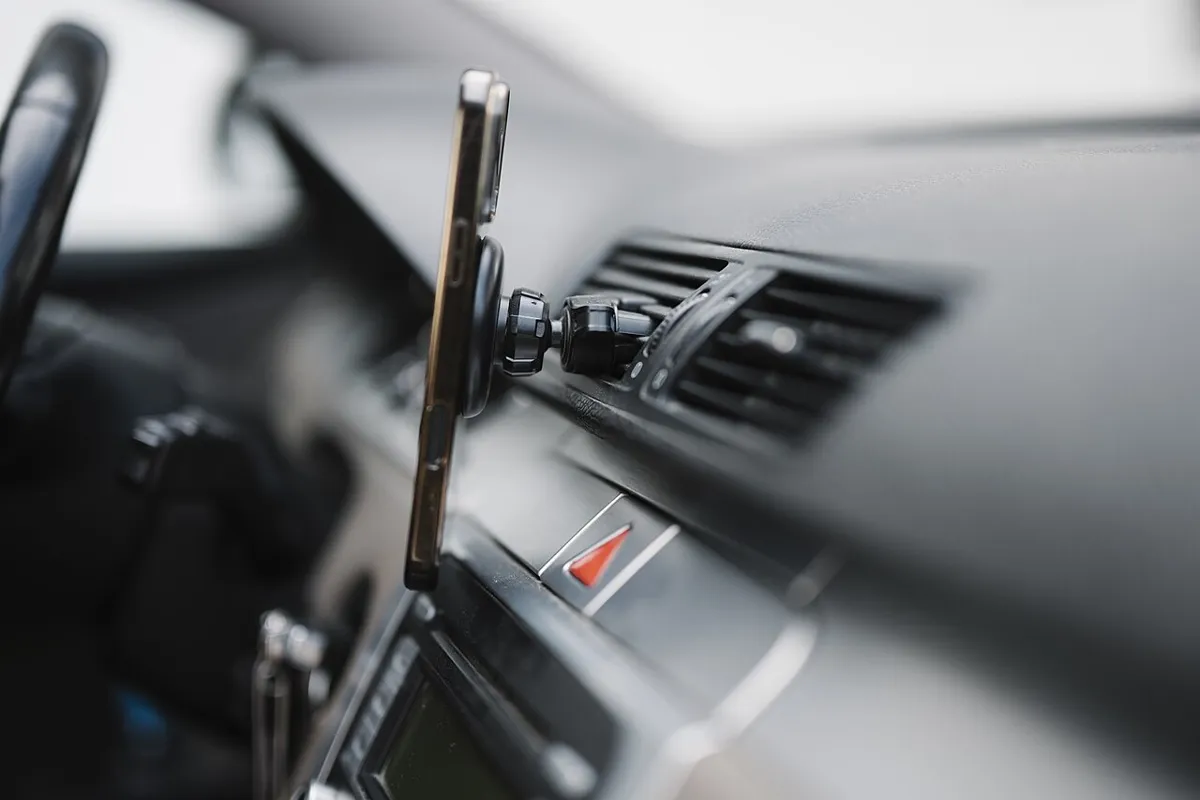
- Where the phone sits. Samsung recommends a phone holder with a direct view of the windshield or windows, not the cup holder, and away from other electronics.
- Toll tags, dash cams, and wireless chargers. Samsung lists all three, plus the car's own display, as possible sources of GPS interference.
- The USB cable to your car's screen. Samsung says a cable with a low data transfer rate, combined with noise from the car's LCD display, can interfere with the GPS signal. If GPS drops only when you plug into the car, try a better cable.
- Non-certified cases and accessories. Samsung suggests removing third-party cases or covers to see if accuracy improves (Samsung US).
Android Auto uses your phone's GPS. Waze's help page says to unplug from Android Auto and open Waze on the phone first: if the GPS error shows there too, it's a phone problem; if it only shows on the car screen, contact Waze. If Android Auto itself won't connect, see our Android Auto not working guide.
Restart, Update, and Try Safe Mode
A restart is still worth doing. Waze calls a hard reboot "the most common way to solve" its "No GPS" error. After that:
- Update the app and the phone. Update Google Maps (or your navigation app) in the Play Store, then check for a system update. On a Galaxy, it's Settings > Software update.
- Turn airplane mode off and mobile data or Wi-Fi on. Google's Maps table lists airplane mode as the cause of an "out of date" location. Verizon's GPS troubleshooter also says most GPS apps need a stable internet connection.
- Try safe mode. Safe mode turns off third-party apps, so you can see if one of them is interfering. On a Pixel 6 or newer, press and hold Power and Volume Up, then touch and hold Power off or Restart and tap OK.
Safe mode catch: Google says safe mode turns on airplane mode automatically on Pixel phones (Pixel Phone Help). Turn airplane mode off before you test, or GPS will look broken in safe mode even when it isn't. If GPS works in safe mode, remove recently installed apps one at a time, restarting after each one.
Should You Clear A-GPS Data?
Only as a last resort. A lot of guides and AI answers suggest "resetting A-GPS" with a GPS app. A-GPS (assisted GPS) data is the time and satellite-orbit information your phone downloads so it doesn't have to search the whole sky from scratch.
GPSTest's FAQ warns that after you clear aiding data, you may need to inject time and PSDS (Qualcomm calls it XTRA) data again before GPS works. It also warns that the next fix can take a long time. Some phones don't allow clearing aiding data at all. If you try it, do it outdoors with mobile data on, and expect the first fix to be slow.
A related tip from MapMyFitness's Android help: a phone can take longer to find GPS when it's on the edge of your home Wi-Fi and hasn't switched to cellular yet, like in the driveway. If tracking starts badly at home, start it a few steps down the street.
How to Tell If It's a Hardware Problem
If your phone can't get a GPS fix outside with a clear sky when it's fully charged, Google says it may need to be repaired (Maps Help). Before booking a repair:
- Samsung Galaxy: open Samsung Members > Diagnostics > Phone diagnostics and run the Location accuracy test. On Android 12 and later, the same tests are under Settings > Device care > Diagnostics (Samsung US). If it fails, tap View related FAQ or send an error report with system logs from the Members app.
- Google Pixel and other phones: use GPSTest's results as your evidence. Screenshot the satellite list and accuracy number outdoors before you contact the phone maker or your carrier.
If the phone also restarts or freezes, see Android phone keeps restarting, since some of those causes overlap.
Bottom Line
Run a GPS test app outside first. If it gets a fix under 35 m, your GPS is fine: turn on Improve Location Accuracy, give the app precise location, and turn off Battery Saver or remove the app from Samsung's Sleeping apps. If it only fails in the car, look at tint, mount placement, and the USB cable. If nothing gets a fix outdoors on a charged phone, run Samsung's Location accuracy test or contact the phone maker for a repair.
How we put this together: we compared Google's Android, Pixel, Maps, and Waze help pages, Samsung's US support pages, Android's developer documentation, GPS.gov, and the GPSTest project's documentation, and checked Play Store listings on October 25, 2026. Menu names can vary by phone model and software version.
Frequently Asked Questions
Does GPS work without mobile data or Wi-Fi?
Yes. The GPS receiver works without data, but it finds you more slowly, and maps won't load unless you saved them. In Google Maps, download an offline map before you lose signal. Google says offline maps can guide you if your whole route is inside the area, but you won't get traffic or alternate routes.
Why does my phone show me in the wrong city?
Usually the app only has approximate location, or the phone is using a Wi-Fi or IP-based guess instead of GPS. Turn on Use precise location for that app and turn on Improve Location Accuracy. Approximate location can be off by roughly 3 square kilometers.
Why does Google Maps say "GPS Signal Lost" when it shows my location?
Because the blue dot can come from Wi-Fi and cell towers, while navigation needs an actual GPS fix. Google says Maps only shows this message after your phone has had a chance to get a GPS signal. Check permissions, Battery Saver, and anything in the car that might block the signal.
Is my GPS accurate enough?
Outdoors, a test app showing under 35 m (115 ft) passes Waze's check. GPS.gov puts typical smartphone accuracy at about 4.9 m (16 ft) under open sky. Expect worse results near tall buildings, bridges, and trees, and indoors.
Does turning off Location stop 911 from finding me?
No. Google says emergency location services or your carrier can still send your location to responders when you call or text an emergency number, even with Location off.