Android Phone Not Showing Up on PC or Mac? How to Fix It

If your Android phone isn't showing up on your computer, unlock it, tap the USB notification, and switch it from charging to File transfer. That one setting fixes most cases, and it matters more than it used to: Samsung says Galaxy phones on One UI 8 now default to "Charging phone only" every time you plug in. If the phone still doesn't appear, try a different cable (many only carry power), plug straight into the computer, and then check the driver on Windows or the transfer app on a Mac.
Also in this topic: Android Guides hub.
Jump to: what you see · USB mode · cable and port · Windows fixes · empty folders · Mac · no cable needed · hardware · FAQ
Quick answer: A computer can only see your phone's files when the phone is unlocked and set to File transfer (also called MTP). Charging-only mode, a power-only cable, or a missing Windows driver all look the same from the computer's side: the phone charges but never shows up. Fix the USB mode first, then the cable, then the computer. Macs need a separate app, because Google's Android File Transfer for Mac is gone.
What You See and What It Usually Means
The exact symptom narrows down the cause quickly. This table pulls together the causes listed on Google's, Samsung's, Microsoft's, and Fairphone's support pages.
| What you see | Most likely cause | Start here |
|---|---|---|
| Phone charges, but nothing appears on the computer | USB mode is set to charging only, or the cable can't carry data | USB mode, then cable |
| No USB notification on the phone at all | Power-only cable, bad port, or the notification is hidden under silent notifications | Cable and port |
| Phone name appears in File Explorer, but it's empty | Phone is locked, or you didn't tap Allow on the phone | Empty folders |
| Yellow warning icon or "MTP" error in Device Manager | Broken or missing MTP driver | Windows fixes |
| Works on one PC but not another | That PC's driver, a Windows N edition, or its USB port | Windows fixes |
| Nothing happens on a Mac | macOS has no built-in Android file transfer | Mac |
Step 1: Switch the Phone to File Transfer Mode
Your phone has to be told to share its storage, and it usually starts in charging mode. Google's Android help page lists the same steps for Pixel and most other Android phones:
- Unlock the phone, then connect it to the computer with a USB cable.
- Swipe down from the top of the screen and tap the Charging this device via USB notification.
- Under Use USB for, choose File transfer.
- A window with the phone's storage should open on the computer. If it doesn't, open File Explorer and look under This PC.
On a Pixel, you can also reach the same menu from Settings > Connected devices > USB while the phone is plugged in. If you can't find the notification, Fairphone's support page points out that it can be tucked into the Silent notifications section of the shade.
Samsung Galaxy phones on One UI 8
Samsung changed the default. Its US support page says that starting with One UI 8.0, Galaxy phones and tablets connect as Charging phone only, which can stop both file transfer and Android Auto from working. To change it, pull down the Quick panel, tap the USB for charging phone notification, tap it again for more options, and choose Transferring files / Android Auto. When the phone then asks whether to allow access to phone data, tap Allow. A lot of older troubleshooting guides were written before this change, so if your Galaxy "suddenly" stopped showing up after an update, this is the first thing to check.
Make File transfer the default
If you move files often and don't want to pick the mode every time, Android has a developer setting for it. Google's developer documentation calls it Select USB Configuration (some phones label it Default USB configuration), and it lets you choose charging only, file transfer (MTP), photo transfer (PTP) and other modes. To reach it, turn on Developer options by tapping Build number seven times (on a Pixel it's in Settings > About phone; on a Galaxy it's in Settings > About phone > Software information), then look for the USB setting in Developer options. You don't need USB debugging to copy files. That switch is for developer tools like adb.
Step 2: Rule Out the Cable and the Port
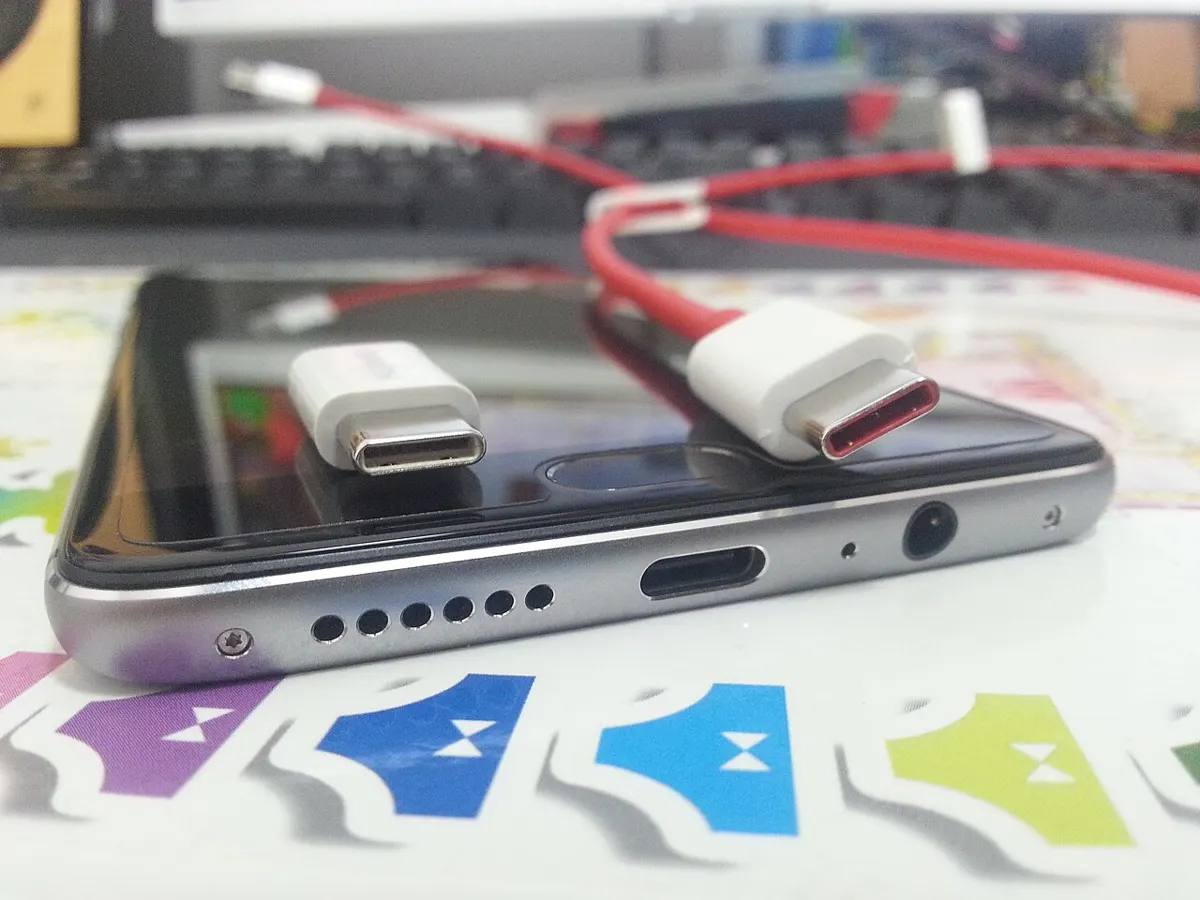
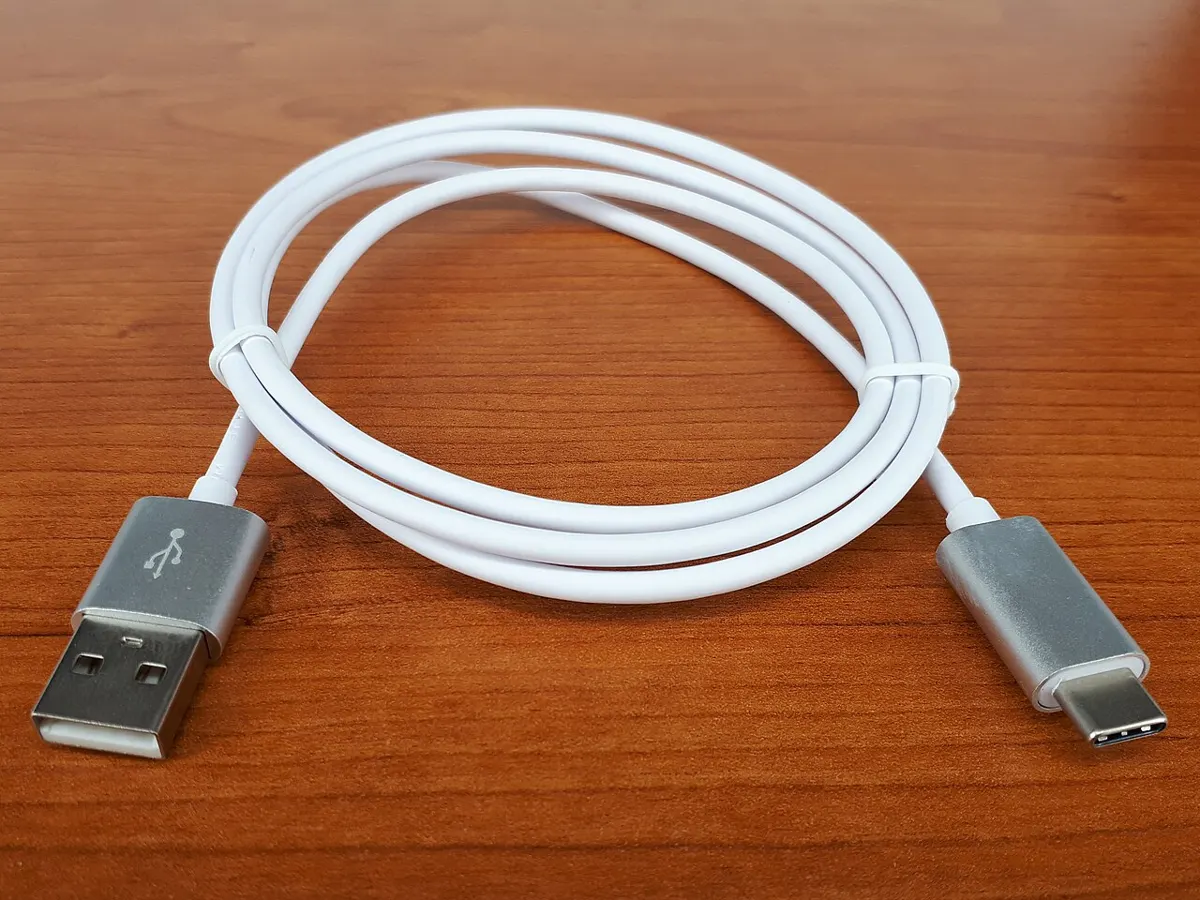
A cable that charges your phone perfectly can still be unable to transfer files. Google, Samsung, and ASUS all list "try a different USB cable" near the top of their troubleshooting steps, because some cables only carry power. If the phone charges but never shows the USB options at all, suspect the cable first.
- Use a cable you know carries data, ideally the one that came with the phone or one you've used to move files before.
- Plug directly into the computer. ASUS's support page says not to use a USB hub or extension cable. On a desktop, the ports on the back connect straight to the motherboard.
- Swap one thing at a time. Google suggests connecting your phone to a different computer to test the phone's port, and connecting a different device to your computer to test the computer's port.
- Restart both devices and reconnect with the phone unlocked.
If the phone also charges slowly or only at one angle, lint in the port is a common culprit. Our guide to an Android phone that's not charging shows how to clean a USB-C port safely.
Step 3: Fix the Problem on a Windows PC
If the phone is in File transfer mode with a good cable and Windows still doesn't show it, the problem is usually the MTP driver, the software Windows uses to talk to phones. Here's what to try, in order.
Reinstall the MTP driver in Device Manager
- Connect the phone, unlocked and in File transfer mode.
- Right-click the Start button and open Device Manager.
- Look under Portable Devices or Other devices for your phone, especially one with a yellow warning icon.
- Right-click it, choose Uninstall device, unplug the phone, restart the PC, and plug it back in so Windows reinstalls the driver.
- If that doesn't work, right-click the phone again and choose Update driver > Browse my computer for drivers > Let me pick from a list of available drivers on my computer, then select MTP USB Device.
These steps come from Microsoft's community support answers for phones that don't appear over USB. Google's own help page adds one more check: make sure Windows is set to detect new hardware automatically.
Check whether you have a Windows N edition
This one catches people out because nothing tells you about it. Windows 10 and 11 "N" editions leave out Windows Media Player and related technologies, and Microsoft's Media Feature Pack page lists the Windows Portable Devices infrastructure, which handles devices that use the Media Transfer Protocol, among the missing pieces. Without it, a phone can't connect as an MTP device. Type winver in the Start menu to check your edition. If it ends in N, install the Media Feature Pack:
- Windows 11 N: Settings > Apps > Optional features, select View features next to Add an optional feature, then pick Media Feature Pack.
- Windows 10 N: Settings > Apps > Apps and Features > Optional features > Add a feature, then pick Media Feature Pack.
Microsoft notes that Windows won't prompt you, but you have to restart to finish the install. Samsung's Smart Switch requirements page also tells Windows users to install the Media Feature Pack if it's missing.
Samsung phones: reinstall Samsung's driver
If you have Smart Switch on the PC, Samsung's troubleshooting page says to unplug the phone, restart it, open Smart Switch on the computer, click the three-dot More options menu, choose Reinstall device driver, and confirm. Then reconnect and tap Allow when the phone asks about the MTP connection. Samsung also publishes a standalone Samsung Android USB Driver for Windows if you'd rather not install Smart Switch.
The Phone Shows Up, but the Folders Are Empty
If you see your phone's name but no folders inside it, the phone is almost always locked or still waiting for permission. Samsung's support pages say the computer can't display the phone's folders until you tap Allow on the "Allow access to phone data" prompt, and a screen lock blocks access too. Unlock the phone, look for the prompt, and tap Allow, then refresh File Explorer.
If files you know are on the phone (like new photos) still don't show up, Fairphone's support page suggests resetting the External storage system app: go to Settings > Apps > See all apps, tap the three-dot menu and choose Show system, search for External storage, then tap Storage & cache > Clear storage and restart the phone. That's Fairphone's advice for its own phones, and menu names vary on other brands, so treat it as a later step rather than a first one.
How to Transfer Files From Android to a Mac
A Mac doesn't show Android phones in Finder, so you need a transfer app, and Google's own app is no longer an option. The old Android File Transfer download page, android.com/filetransfer, now redirects to Google's Quick Share app page instead (we checked the redirect on October 27, 2026). Google's current help page for moving files by USB only gives steps for Windows and Chromebook.
The most common replacement is OpenMTP, a free, open-source app. Its official site says it needs macOS 10.14 Mojave or later, has separate builds for Apple silicon and Intel Macs, and can copy files larger than 4GB, which the old Google app couldn't. The latest release on GitHub was v3.3.0, published August 22, 2026, when we checked. Download it only from that site, GitHub, or Homebrew.
If your Mac still won't connect, OpenMTP's own troubleshooting advice is worth following, because it explains a lot of failed connections:
- Quit apps that grab USB devices, such as Preview, Google Drive, Dropbox, OneDrive, Android File Transfer, Garmin Express, iMovie, or Lightroom. Any of them can keep other apps from reaching the phone.
- Uninstall Android File Transfer if it opens every time you plug the phone in.
- Samsung owners: OpenMTP says Samsung Smart Switch blocks other apps from reaching the phone, so uninstall Smart Switch for Mac if OpenMTP shows a blank window.
MacDroid is a paid alternative. Its Mac App Store listing says the free version copies files from Android to Mac only, and copying the other way needs MacDroid PRO.
Skip the Cable: Wireless Options
If the cable route keeps failing, Windows 11 can now show your Android phone in File Explorer without a cable. According to Microsoft's support page, you need a Windows 11 PC, a phone running Android 11 or later, and Link to Windows version 1.24072.258.0 or later on the phone. To turn it on:
- On the PC, open Settings > Bluetooth & devices, scroll to Mobile devices, and select Manage devices.
- If your phone isn't listed, click Add device and scan the QR code with the phone.
- Turn on Show mobile device in File Explorer.
Microsoft lists two catches. Only one phone can appear in File Explorer at a time, and the files are online-only, so deleting one in File Explorer permanently deletes it from your phone. Copy anything you want to keep to the PC first.
For sending a batch of photos or a big video, Quick Share for Windows also works without a cable. Google's Quick Share help page covers setup, and our guide to using Quick Share on Android walks through sending files. On a Chromebook, a USB connection usually just works: Google says the Files app opens once you choose File transfer on the phone.
When It's a Hardware Problem
If your phone won't show up on two different computers with two known-good data cables, the phone's USB port is the likely problem. That's worth checking even if the phone still charges normally. Before you book a repair, copy your files off another way, such as cloud backup, Quick Share, or Windows 11's wireless File Explorer access. Our guide on how to back up an Android phone covers the options, including what Google's backup leaves out.
If you need to control the phone from the PC rather than just copy files, that's a different tool. Our guide to controlling an Android phone from a PC covers scrcpy, which uses USB debugging instead of File transfer mode.
How We Put This Guide Together
This guide is based on Google's Android help pages, Samsung's US and regional support pages, Microsoft's Windows support documentation, Fairphone's and ASUS's support pages, Android's developer documentation, and OpenMTP's official site and GitHub releases, all checked on October 27, 2026. We didn't run these steps on our own devices for this article. Menu names differ by phone model and Android version, so if a setting isn't where we describe, search for its name in Settings.
Frequently Asked Questions
Why does my phone charge but not show up on my computer?
Usually because the phone is in charging-only mode or the cable can only carry power. Unlock the phone, tap the USB notification, and choose File transfer. If no USB notification appears at all, try a cable you know can transfer data.
Do I need USB debugging to transfer files?
No. File transfer only needs the phone unlocked and set to File transfer (MTP) mode. USB debugging is for developer tools such as adb and scrcpy, and you can leave it off for copying photos and files.
Is Android File Transfer still available for Mac?
Not from Google. Its old download page, android.com/filetransfer, now redirects to Google's Quick Share app page, and Google's USB help covers only Windows and Chromebook. OpenMTP is a free, open-source replacement that runs on Apple silicon and Intel Macs.
Why did my Samsung phone stop showing up on my PC after an update?
Samsung says that starting with One UI 8.0, Galaxy devices connect as Charging phone only by default. Tap the USB notification, choose Transferring files / Android Auto, and tap Allow when asked about access to phone data.
Can I see my Android files on a PC without a cable?
Yes, on Windows 11. Pair the phone under Settings > Bluetooth & devices > Mobile devices, then turn on Show mobile device in File Explorer. Microsoft requires Android 11 or later, and deleting a file there deletes it from the phone.