Android Microphone Not Working? Fixes for Calls and Apps

If your Android microphone isn't working, first record a short clip in the phone's built-in recorder app. If the recording has sound, the hardware is fine and the problem is a setting or an app: check the Microphone access switch in Quick Settings, the app's microphone permission, and whether Bluetooth earbuds are grabbing the audio. If the recording is silent or muffled, clean the mic holes, take off the case, and run your phone's mic diagnostic before you book a repair.

Also in this topic: Android Guides hub.
Jump to: the 2-minute test · match your symptom · Microphone access switch · app permissions · when two apps want the mic · others can't hear you on calls · cleaning and hardware checks · when it's time for a repair · FAQ
Quick answer: A phone microphone that "stops working" is usually blocked by software, not broken. Android 12 and later have a single switch that cuts the mic off for every app, and apps don't get an error when it's off. They just record silence. Turn Microphone access back on, allow the app's microphone permission, disconnect Bluetooth, and restart. Only treat it as a hardware fault if the phone's own recorder app also records nothing.
Start With a 2-Minute Recording Test
Recording yourself in the phone's own app tells you right away whether you're dealing with hardware or software. Google's Pixel help page for "others can't hear me" gives a neat version of this test, because Pixel phones use different microphones for different jobs:
- Bottom microphone: record a few seconds in the Recorder app and play it back. If you hear yourself, the bottom mic works.
- Top microphone: record a short video with sound in the Camera app. If the video has audio, the top mic works.
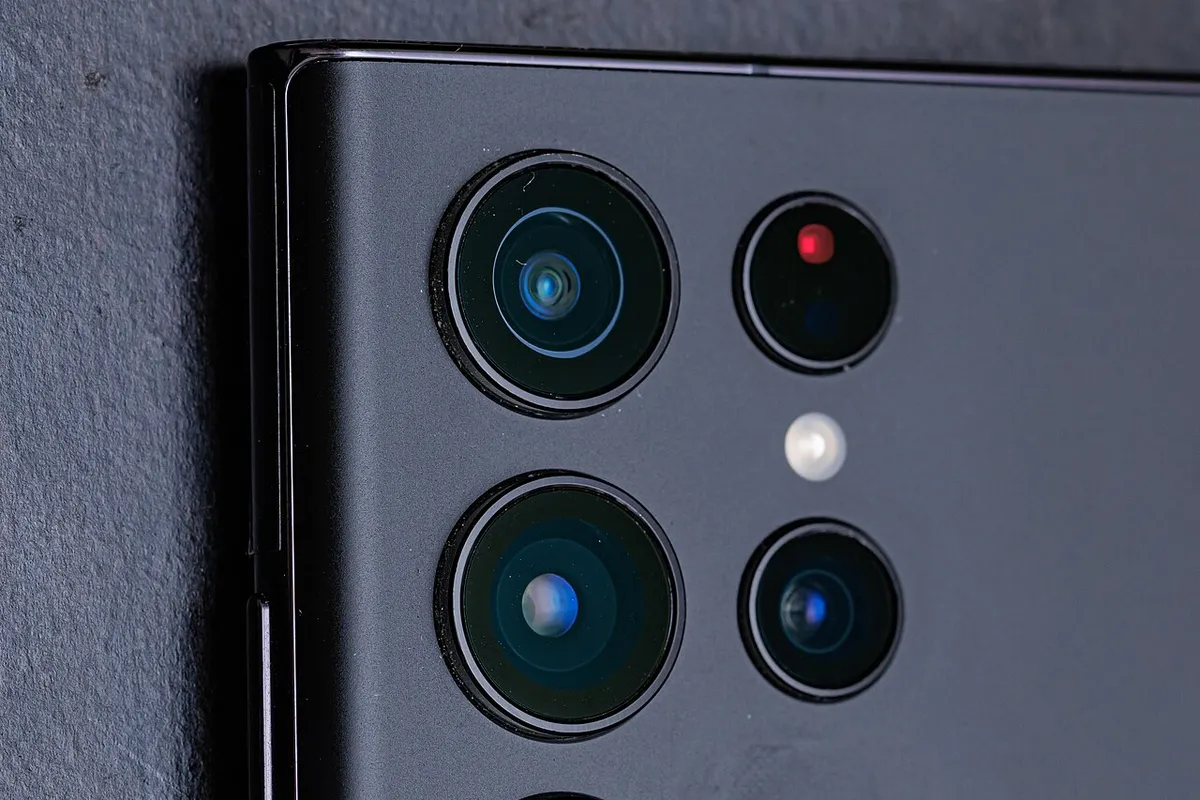
Google's Pixel speakers and microphones page says Pixel phones have three identical microphones and don't use them all at once, which is why one app can sound fine while another sounds muffled. It also says a small pinhole in the rear camera bar is normal and may be one of the microphones, so don't cover it with a sticker or a badly cut case.
On a Samsung Galaxy, Samsung's US microphone troubleshooting page uses the same idea: remove accessories, turn off Bluetooth, restart, then record a clip in Voice Recorder or the Camera app. Samsung says that if the recording sounds fine, the microphone works and an accessory or a recently downloaded app is the likely cause.
Match Your Symptom to the Fix
Use the result of that test to skip straight to the right section.
| What happens | Most likely cause | Go to |
|---|---|---|
| Every app records silence, with no error message | The Microphone access switch is off (or the developer "Sensors off" tile is on) | Microphone access |
| Recorder works, but one app (WhatsApp, Instagram, Zoom) doesn't | That app's microphone permission | App permissions |
| Voice goes silent when you start a second app or a call | Android gave the mic to a higher-priority app | Mic sharing rules |
| Callers can't hear you, but recordings are fine | Mute, Bluetooth routing, or a call setting | Calls |
| Recordings are quiet, muffled, or crackly | Blocked mic hole, case, screen protector, or water | Hardware checks |
| The recorder app records nothing at all, even in safe mode | A failed microphone | Repair |
Check the Microphone Access Switch First
Microphone access is a privacy switch in Android 12 and later that blocks the microphone for every app on the phone with one tap. It sits in Quick Settings, so it's easy to turn off by accident while you're pulling down the shade.
The catch is how apps behave when it's off. Android's developer documentation says that when you turn off microphone access, apps receive "silent audio." They don't crash or show an error, they just hear nothing. Android does remind you that the switch is off when you open an app that needs the mic, but if you dismissed that prompt, it can look exactly like a dead microphone.
- Quick Settings: swipe down twice from the top of the screen and look for the Mic access or Microphone tile. Google's Android help page says to tap it to turn access back on. If it isn't there, tap Edit and drag the tile in.
- Pixel and most Android phones: Settings > Security & privacy > Privacy > Privacy controls > Microphone access, per Google's app permissions help page.
- Samsung Galaxy: Settings > Security and privacy, then look under the privacy controls for Microphone access. The exact label differs a little between One UI versions, so searching Settings for "Microphone access" is the fastest route.
One safety detail from Google's developer page: if you call emergency services such as 911, Android turns microphone access back on automatically, so this switch can't silence an emergency call.
The hidden "Sensors off" tile
If you've ever turned on Developer options, check for one more switch. The Android Open Source Project documentation describes a Sensors off Quick Settings tile (added under Settings > System > Developer options > Quick settings developer tiles) that cuts off the camera, the microphone, and the motion sensors. With it on, apps that use the mic get only silence, with no error. The same page says phone calls still have mic access, so the giveaway is a phone that works on normal calls but records silence everywhere else. Turn the tile off, or turn off Developer options entirely.
Fix the Microphone Permission for One App
If the built-in recorder works but one app doesn't, that app almost always lacks permission. Go to Settings > Apps > [the app] > Permissions > Microphone and choose Allow only while using the app. To see every app at once, Google lists the path as Settings > Security & privacy > Privacy > Permission manager > Microphone. Samsung's privacy settings page lists the same Permission manager under Security and privacy.
Why "Ask every time" can cut you off mid-recording
"Ask every time" (shown as "Only this time" in the app's prompt) is a one-time permission. Android's permission documentation says the app keeps access while it's on screen and for a short time after you leave it, unless it was already running a foreground service, the kind that shows a persistent notification. So a voice memo, Discord call, or dictation app can lose the mic the moment you switch apps or turn off the screen. If you use an app that way, set it to "Allow only while using the app" instead.
Apps you haven't opened in months
Android can automatically remove permissions from apps you haven't used for a while. If an app you rarely open suddenly can't hear you, check its microphone permission again, and turn off Pause app activity if unused on its App info page if you want the permission to stick. We cover this setting in more detail in our guide to Android apps that keep crashing.
When Two Apps Want the Microphone, One Gets Silence
Since Android 10, only one ordinary app can hear the microphone at a time, and Android decides which one by rules, not by who asked first. Many guides say two apps sharing the mic is "unlikely" to cause problems, but Android's audio input sharing documentation spells out exactly when one app gets cut off:
- A phone call always gets the microphone. Other apps can't record while you're on a regular call unless they're accessibility services or privileged preinstalled apps.
- Voice and video calling apps and camera recording win. Audio captured for voice communication or video recording counts as "privacy-sensitive" and beats other apps, even one that's on screen.
- Otherwise, the app on screen wins. When two ordinary apps want the mic, the one with a visible screen gets audio and the other gets silence.
- Background apps get silence. Since Android 9, an app with no visible screen and no foreground service receives silence, even if it's the only app using the mic.
In practice: if a screen recorder, voice changer, call recorder, or "always listening" app is running, it can steal the mic from the app you're trying to use, or lose it to that app. Swipe down and tap the green privacy dot at the top right of the screen. Google and Samsung both say this shows which app is using the camera or mic right now. Close or force stop anything you don't expect to see there.
If People Can't Hear You on Calls
If the recording test works but callers say you're silent or faint, work through these call-specific checks:
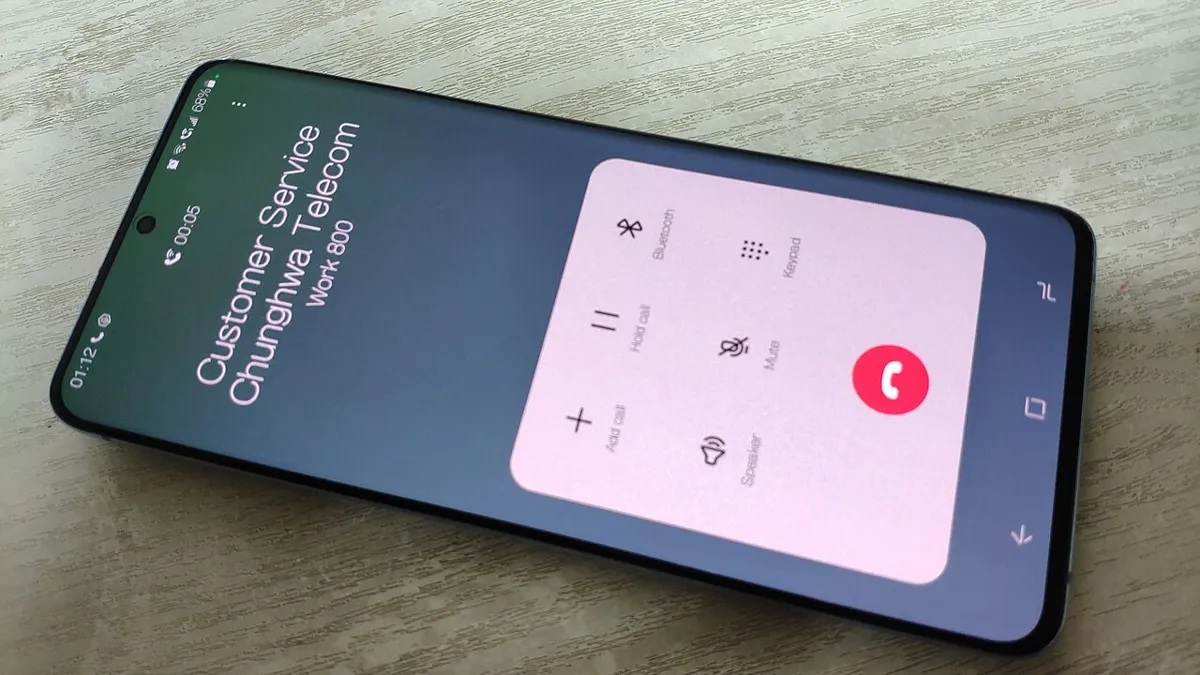
- Check mute. Google's first step for Pixel is to look at the in-call Microphone button and tap it if it's highlighted.
- Turn off Bluetooth. A connected car, watch, or pair of earbuds can take over the call audio, so your voice goes to a mic you're not near. If that turns out to be the problem, our guide to Bluetooth connection problems on Android covers the call audio toggle for each device.
- Close your apps and restart. Google says to close all apps, then restart. On a Pixel 6 or later, press and hold Power and Volume up, then tap Restart.
- Check the app for internet calls. For Meet, WhatsApp, or Zoom, Google adds three steps: update the app, confirm its microphone permission, and remove and reinstall it if it still fails.
Use the noise filter that fits the situation
If callers can hear you but say there's too much background noise, both big brands have a built-in fix. On a Pixel 7 or later, Google's help page lists Clear Calling under Settings > Sound & vibration > Clear Calling, though it depends on call bandwidth and may not work on every call.
On a Galaxy, Samsung's Mic mode page says you can swipe down with two fingers during a call and tap Mic mode, then pick Standard, Voice focus, or Full spectrum. Voice focus filters out more background sound. Full spectrum does the opposite and sends everything the mic picks up, so if callers suddenly hear every car going past, check that it hasn't been left on Full spectrum. Samsung says that if Mic mode doesn't appear during a call, your phone doesn't support it. In internet calling apps, some models, including the S21 and S22 series, only offer it on speakerphone.
If calls themselves are failing rather than sounding silent, see our guides to Wi-Fi calling not working on Android and calls going straight to voicemail.
Cleaning and Hardware Checks
If the built-in recorder sounds quiet, muffled, or crackly, something is probably covering the mic. On most phones, the main microphone is a tiny pinhole on the bottom edge, often next to the USB-C port.

- Remove the case and screen protector. Both Google and Samsung list this. A case that has shifted slightly can sit right over a mic hole.
- Unplug everything. Samsung says to remove anything in the headphone jack or USB-C port, including adapters, and even charms. A plugged-in adapter can make the phone switch to an external mic.
- Clean gently. Google says to clean the mics and the USB-C port with a soft, lint-free cloth. Samsung warns against compressed air, which can damage the parts. Don't push a pin or SIM tool deep into the hole, because the mesh behind it is easy to puncture.
- Dry it out after water. Samsung says a mic that got wet can make your voice quieter on calls. Pat the bottom of the phone dry and let it air-dry before your next call.
Run the built-in diagnostic
Galaxy phones have a dedicated mic test. Open the Samsung Members app, tap Diagnostics, then Phone diagnostics, and run the Mic test. Samsung's diagnostics page also lists this under Settings > Device care > Diagnostics on Galaxy phones running Android 12 or later. On a Pixel, the Recorder and Camera test from the top of this guide is the quickest check of each microphone.
Rule out apps with safe mode
Safe mode starts the phone with every downloaded app turned off. Press and hold Power, then touch and hold Power off and tap Safe mode. Samsung says some downloaded apps can cause audio problems, and if the mic works in safe mode, one of them is the culprit. Remove recently installed apps one at a time, starting with recorders, voice changers, and call recorders, then restart normally to check.
When It's Time for a Repair
Book a repair when the phone's own recorder app records nothing, or only static, after you've turned on Microphone access, removed the case, cleaned the port, and tested in safe mode. At that point no setting will fix it. On a Galaxy, a failed Mic test in Samsung Members is good evidence to bring to a service center. On a Pixel, tell Google support which test failed (Recorder for the bottom mic, Camera video for the top mic), because that shows which part is faulty. Back up your phone first, since repairs can involve a reset.
Bottom Line
Most "dead" Android microphones are switched off, not broken. Record a test clip in the built-in recorder, then check the Microphone access switch, the app's permission, and Bluetooth. Remember that Android quietly hands the mic to calls, calling apps, and whatever is on screen, and gives everything else silence without warning. Clean the mic holes and take off the case if recordings are muffled, and only book a repair when the phone's own recorder can't hear you even in safe mode.
How we put this together: this guide is based on Google's Android and Pixel help pages, Android's developer and open-source documentation on microphone access and audio sharing, and Samsung's US support pages, all checked on October 26, 2026. Menu names can vary slightly by phone model, carrier, and software version.
Frequently Asked Questions
Why does my mic work on calls but not in apps?
Usually because the app doesn't have microphone permission, or another app is holding the mic. Check Settings > Apps > [app] > Permissions > Microphone. If every app records silence but calls work, also check whether the Developer options "Sensors off" tile is turned on, since Android's documentation says it silences apps but not phone calls.
Why is there a green dot at the top of my screen?
The green dot means an app or service is using your camera or microphone right now. Swipe down and tap it to see which app it is, and tap again to change that app's permissions.
Can a screen protector block the microphone?
It can if it covers a mic hole, and a misaligned case is even more common. Both Google and Samsung tell you to remove cases and screen protectors as an early troubleshooting step, then test again.
How do I know if my phone's microphone is broken?
Record a short clip in the phone's built-in recorder app with the case off, Bluetooth off, and Microphone access on. If it still records silence in safe mode, the microphone is likely faulty. On a Galaxy, the Mic test in Samsung Members gives you a clear pass or fail.