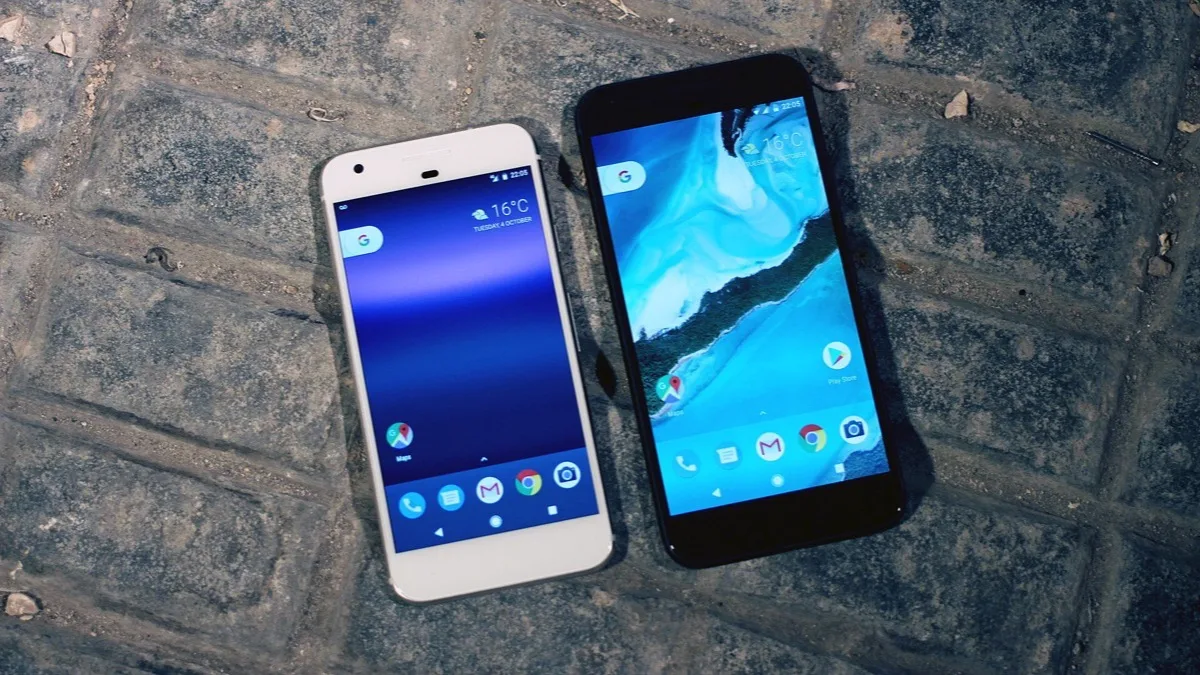
Android Screen Flickering: Find the Cause, Then Fix It

Quick answer: Restart the phone and install any system update first, because that's the first fix Google lists for a flickering Pixel screen. Then take a screenshot while the screen is flickering. If the screenshot looks normal, the problem is probably the display hardware or a brightness setting. If the flicker shows up in the screenshot too, an app or a setting is the likely cause. Turn off Adaptive brightness, change the refresh rate setting, and test in safe mode before you book a repair.
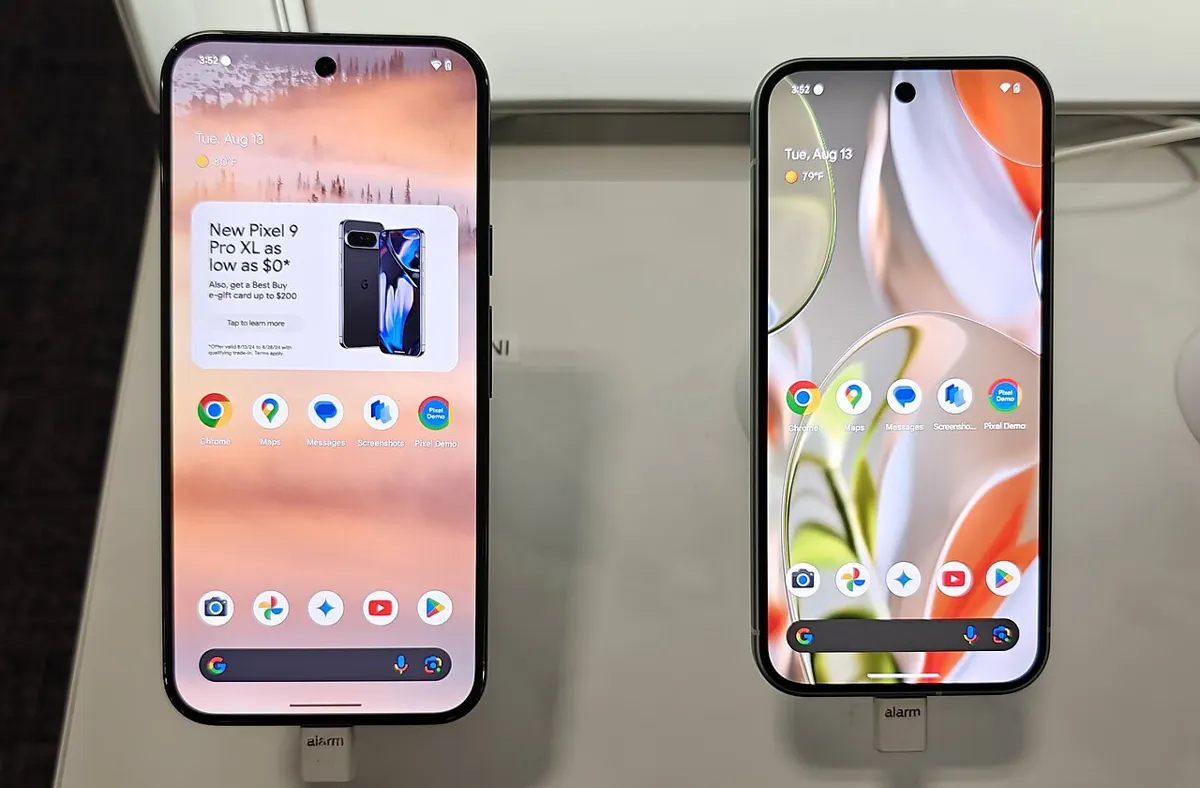
Google and Samsung both treat flickering as either a software problem you can fix at home or a hardware fault that needs a repair. The trick is working out which one you have before you spend money. This guide gives the exact menu paths for Google Pixel and Samsung Galaxy phones, the official exceptions most guides leave out (like flicker that only happens while charging), and the free Pixel display repair programs that cover flicker on some models.
Jump to: match your symptom · screenshot test · restart and update · display settings · flicker while charging · flicker in the camera · developer options · safe mode · hardware and free repairs · FAQ
What Kind of Flicker Do You Have?
When and where the flicker shows up tells you most of what you need to know. Find the row that matches your phone, then jump to that fix.
| What you see | Most likely cause | Start here |
|---|---|---|
| Flicker mostly at low brightness or in a dim room | Brightness settings | Adaptive brightness |
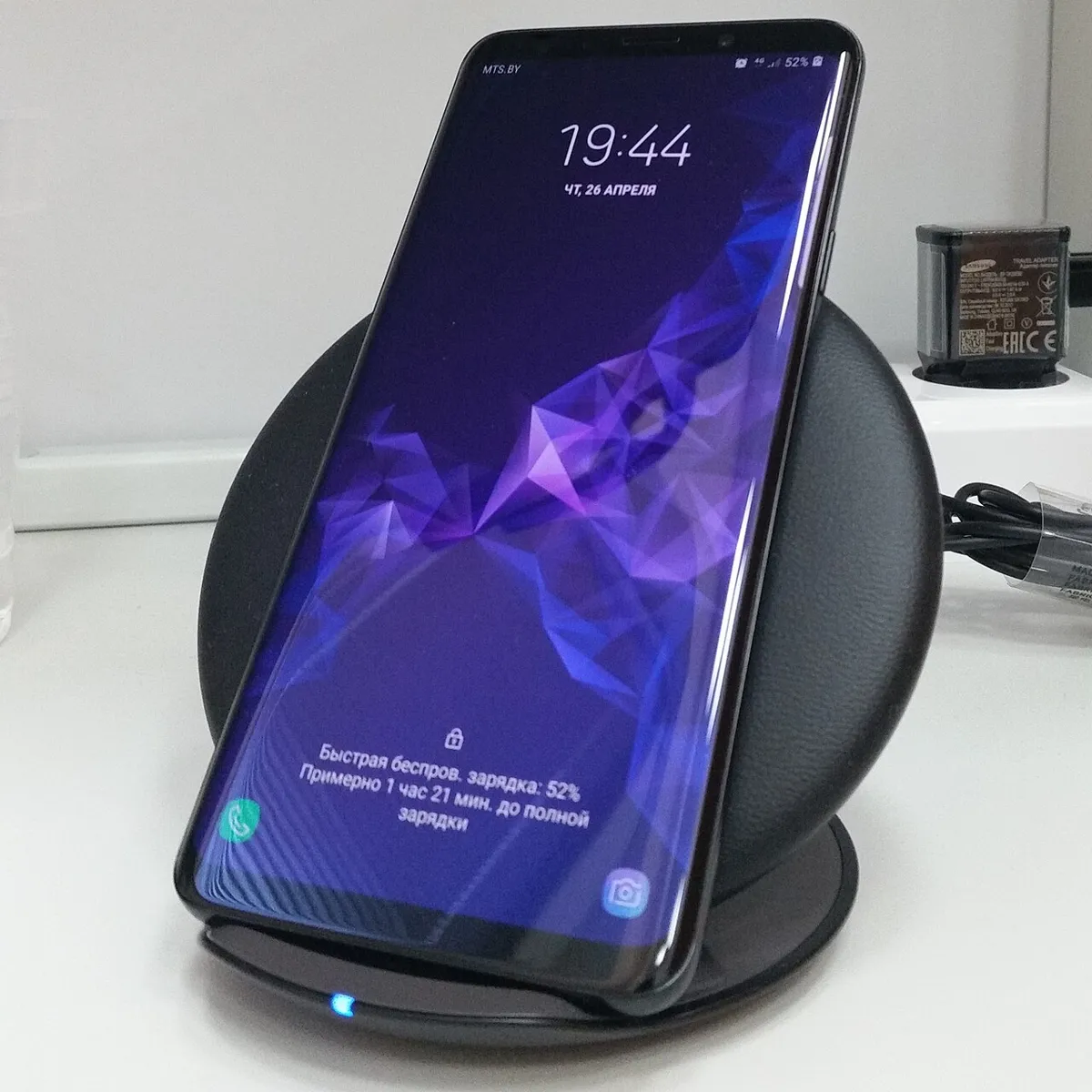
| Flicker only while the phone is plugged in | Charger, cable, or the charging connection | Flicker while charging |
| Dark bars rolling through the camera viewfinder or your videos, indoors | The room's LED or fluorescent lighting, not the phone | Camera flicker |
| Flicker in one app, one video, or one photo app | An app bug or a resolution mismatch | Updates, then safe mode |
| The whole screen flashes as you scroll or tap | A developer option, or a refresh rate glitch | Developer options |
| Flicker everywhere, including the boot logo, or with a green tint or a vertical line | Display hardware | Hardware and repairs |
The Screenshot Test: Software or Hardware?
A screenshot or screen recording captures the image Android draws, not the light the panel actually puts out. So if you take a screenshot (Power and Volume down on most Android phones) or a short screen recording during a flicker and the result looks steady, the flicker is happening in the display itself or in how it handles brightness. If the flicker, flashing, or glitch is visible in the screenshot or recording, the software drew it, and an app, a setting, or a system bug is to blame.
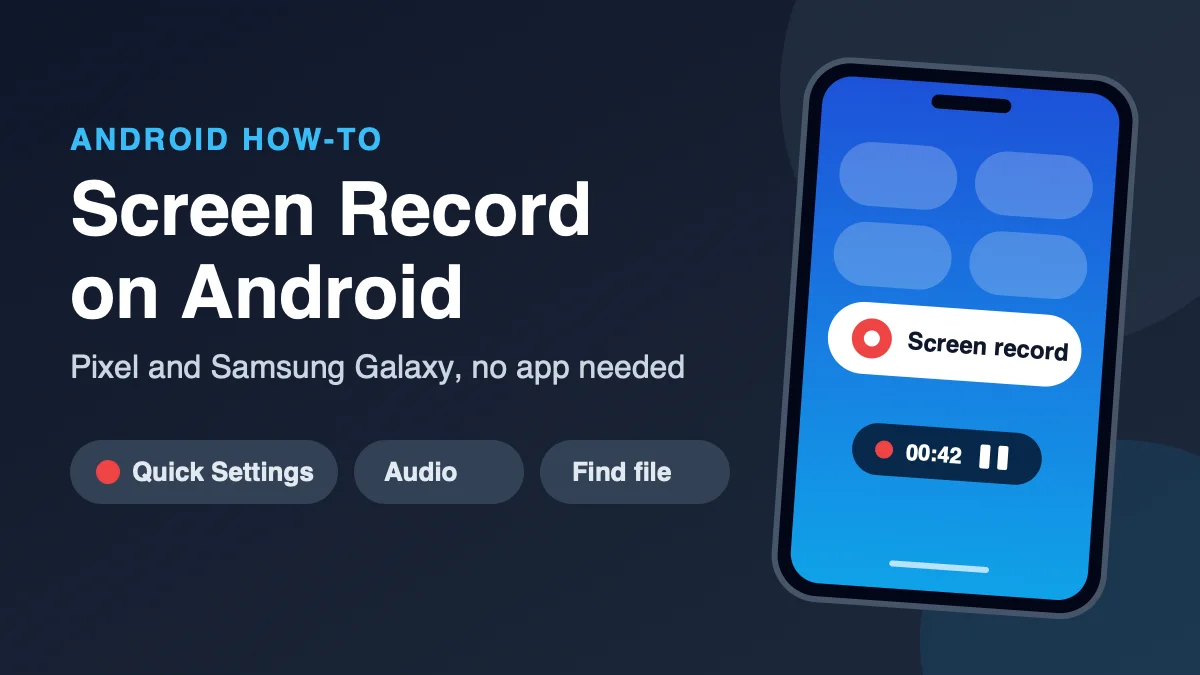
One caveat: screenshots also skip some system-wide color changes. Android's developer documentation notes that screenshots taken with a simulated color space turned on "appear normal," so a color tint that doesn't show up in a screenshot isn't automatically a hardware fault. Check the developer options and accessibility color settings before you blame the panel. Our guide to screen recording on Android covers the built-in recorders on Pixel and Galaxy phones.
Restart and Update First
A restart and a software update fix more flickering than any setting change. On Google's Pixel screen appearance page, the only home fix listed for a screen that "flickers, shows a green tint, or horizontal or vertical lines" is installing a system update. Everything after that is a repair.
- Restart the phone. Google's Pixel help says to hold the Power button for about 30 seconds if the phone is frozen. On a Galaxy, press and hold Volume down and the Side button until the Power off menu appears, then tap Restart.
- Update Android. On a Pixel, go to Settings > System > Software update (Google's Pixel update page uses that label; the flicker page calls it System update). On a Galaxy, go to Settings > Software update and tap Check for updates.
- Update your apps. In the Play Store, tap your profile picture, then Manage apps & device, and tap Update all. Samsung lists this as its own step because outdated apps "may cause compatibility issues or abnormal display behavior."
Samsung even has a model-specific page for this. Its Galaxy S26 and S26+ flickering page says flicker can show up when playing high-definition videos, using the Google Photos app, or editing photos at QHD+ resolution on the S26+. If your flicker only happens in situations like those, updates and the resolution setting below are the most likely fixes.
Change the Display Settings That Cause Flicker
Three settings cause most software flicker: automatic brightness, the refresh rate, and screen resolution. Change one at a time and use the phone for a while before you change the next, so you know which one fixed it.
Turn off Adaptive brightness
Adaptive brightness changes the screen's brightness based on the light around you, and constant small adjustments can look like a flicker. Samsung's flickering guide recommends turning it off as one of the first display changes.
- Pixel: Settings > Display & touch > Adaptive brightness, then turn it off (path from Google's Pixel battery page).
- Galaxy: Settings > Display, then turn off Adaptive brightness.
Note that Samsung's main US flickering page has a typo: its "Turn off Adaptive Brightness" section says "Turn on Adaptive brightness" in step 2. Samsung's other flickering pages say to turn the switch off, which is what you want.
If the flicker is worst when the screen is dim, Samsung's UK flickering page suggests sliding the brightness bar to the right to raise the brightness.
Change the refresh rate
The refresh rate is how many times per second the screen redraws the picture. High-refresh screens switch between rates on the fly, and a glitch in that switching can look like a flicker.
- Pixel: Settings > Display & touch > Smooth Display. Turn it off to test. Google's Pixel display page lists the ranges: Pixel 8 runs at 60 to 120 Hz and Pixel 8 Pro at 1 to 120 Hz. Google also says Smooth Display is disabled whenever Battery Saver is on, so if the flicker stops in Battery Saver, the refresh rate is a strong suspect.
- Galaxy: Settings > Display > Motion smoothness, then pick the other option. Samsung describes Adaptive as "dynamic refresh rate adjustments" and Standard as the battery-life option. Some models don't have this setting.
Lower or change the screen resolution (Galaxy)
Samsung says that if your phone supports a higher resolution than the app you're using, the mismatch "can cause flickering or glitches." Go to Settings > Display > Screen resolution and pick a different option. This is the setting to try first on a Galaxy S26+ that flickers while editing photos at QHD+.
Try with Dark mode off
Samsung's older Galaxy flickering page also lists turning off Dark mode or Night mode as a test. Flicker that only shows on dark backgrounds sometimes disappears with a lighter theme.
Screen Flickers Only While Charging
If the flicker starts when you plug in and stops when you unplug, look at the charger first. Samsung lists "inconsistent power delivery" as a cause of flickering and says a damaged charger or cable "can cause screen flickering due to unstable power delivery."
- Unplug the cable and plug it back in firmly at both ends.
- Try a different charger and cable that you know work, ideally ones made for your phone.
- On a Galaxy, set Motion smoothness to Adaptive while you test. This is the opposite of the usual advice: Samsung's TSG10004671 page says to use Standard for general flicker, but if the screen flickers or glitches while charging, to make sure the connection is secure and set Motion smoothness to Adaptive.
If you see flicker only with one charger, replace that charger. If it happens with every charger, the phone's charging port or power circuitry needs a look. Our guide to an Android phone that's not charging covers cleaning the port safely.
Flicker or Dark Bands Only in the Camera
Rolling dark bars in the viewfinder or in a video recorded indoors usually aren't a phone problem at all. Samsung explains that LED and fluorescent bulbs flicker too fast for your eyes to notice, but a camera using a faster shutter speed catches the flicker as a black bar moving across the image. Samsung says it's "not an indication of an issue with the phone."
- Add more light to the scene, or turn off the light that's causing it.
- On a Galaxy, turn off Super steady video, which uses a very fast shutter speed.
- In Pro video mode, Samsung says the effect usually starts at shutter speeds faster than 1/125, so set a slower shutter speed until the bars go away.
If the phone's own screen flickers outside the camera app too, the camera isn't the cause. For other camera problems, see our Android camera troubleshooting guide.
Check Developer Options
If you've ever turned on Developer options, check them before anything else. Some debugging settings make the screen flash on purpose. Android's developer options documentation says these settings can "flash window surfaces when they update," and the "Show GPU view updates" option highlights anything drawn with the GPU. Either one can make normal scrolling look like a broken screen.
The quickest fix is to turn Developer options off completely. That's the advanced step on Google's Pixel screen troubleshooting page: go to Settings > System > Developer options and switch it off. On a Galaxy, Developer options appears at the bottom of the main Settings menu once it's on.
You'll often see "Disable HW overlays" recommended as a flicker fix. Treat it as a test, not a fix. Android's documentation says the hardware overlay lets apps draw with less processing power, and without it apps "have to constantly check for collision and clipping," which "uses a lot of processing power." If turning it on stops the flicker, you've found a software bug worth reporting, but leaving it on costs battery life.
Find a Problem App in Safe Mode
Safe mode starts the phone without any apps you downloaded. If the flicker stops in safe mode, an app is causing it. Apps that draw over other apps, like screen dimmers, blue light filters, and some launchers, are good suspects, but uninstall whatever you added just before the flicker started.
- Pixel 6 and later: Press and hold Power and Volume up for a few seconds. Touch and hold Power off or Restart, then tap OK. Google's Pixel safe mode page notes that safe mode turns on Airplane mode automatically, so turn it off if you need Wi-Fi or calls while you test.
- Galaxy: Press and hold Volume down and the Side button until the Power off menu appears. Touch and hold Power off until Safe mode appears, then tap Safe mode.
If the flicker stops, restart normally and uninstall recent apps one at a time until it's gone. Samsung's page is clear about the other result: "If the flickering persists even in Safe Mode, it is likely a hardware issue rather than a software issue." Our guide to getting out of safe mode helps if the phone won't leave it.
When It's Hardware: Free Pixel Repairs and Samsung Service
Flicker that survives updates, safe mode, and the settings above, or that shows up on the boot logo, is almost always the display or its connection. Samsung lists "loose or damaged internal cables" next to cracked screens as hardware causes. Check whether your phone is covered before you pay for a screen.
Pixel 8: free display replacement for flicker
Google runs an Extended Repair Program for Pixel 8 because "a limited number of Pixel 8 devices may experience display related vertical line and flickering issues." A Pixel 8 qualifies if it shows a vertical line running from the bottom of the display to the top, or a display flicker, and Google or an authorized repair partner confirms its IMEI or serial number qualifies. Coverage lasts 3 years from the original retail purchase date and provides one free display replacement. A cracked screen or liquid damage may disqualify the phone.
Pixel 9 Pro and 9 Pro XL: free display replacement for vertical lines
Google's Pixel 9 Pro and 9 Pro XL program started December 8, 2025, and also lasts 3 years from purchase. A vertical line that runs from bottom to top qualifies on both models, and Google's page adds that "display flicker on Pixel 9 Pro devices also qualifies." The display replacement is free, and the repair is warrantied for 90 days or the rest of the original warranty, whichever is longer. Start at store.google.com/repair for a walk-in center or mail-in repair.
Other Pixel models may still be covered by Google's standard warranty. Before any repair, Google says to back up your phone (Settings > System > Backup > Backup now) and then turn on Repair mode, which is in the same System menu.
Samsung Galaxy
Samsung doesn't list a flicker-specific repair program on its US flickering pages. It says to visit a Samsung walk-in service center or schedule a repair online if the flicker continues in safe mode. For pink lines or tiny dots, Samsung's dead pixels page says "having a couple dead pixels is not unusual," but lines that stay after updates and safe mode need service.
Don't count on a built-in test to prove it. The Phone diagnostics list in Samsung Members has Touch screen and Sensors tests but no display or flicker test, according to Samsung's diagnostics page. Google's Pixel diagnostics page, which covers Settings > Device health & support, doesn't list one either. A short video of the flicker taken with another phone (a screenshot won't capture panel flicker) is the best evidence to show a repair technician. On a Galaxy, you can also report it to Samsung: touch and hold the Samsung Members icon, tap Error reports, pick a category, attach a photo of the screen, and select Send system log data.
Should you factory reset?
Only if the flicker showed up in screenshots or went away in safe mode, and you couldn't find the cause. A reset can't fix a panel that flickers on the boot logo. If you do reset, back up your phone first and follow our guide to factory resetting without getting locked out.
Pixel vs Galaxy: Where Each Flicker Setting Lives
| Setting | Google Pixel | Samsung Galaxy |
|---|---|---|
| System update | Settings > System > Software update | Settings > Software update > Check for updates |
| Automatic brightness | Settings > Display & touch > Adaptive brightness | Settings > Display > Adaptive brightness |
| Refresh rate | Settings > Display & touch > Smooth Display | Settings > Display > Motion smoothness |
| Safe mode | Power + Volume up, touch and hold Power off or Restart (Pixel 6+) | Volume down + Side, touch and hold Power off |
| Free display program | Pixel 8; Pixel 9 Pro and 9 Pro XL (3 years from purchase) | None listed on Samsung's US flicker pages |
Bottom Line
Update the phone, then use a screenshot to split software flicker from hardware flicker. For software flicker, turn off Adaptive brightness, change Smooth Display or Motion smoothness, switch off Developer options, and use safe mode to find a bad app. Flicker only while charging points at the charger, and dark bands only in the camera point at the room's lighting. If the flicker survives all of that, it's the display, and Pixel 8, 9 Pro, and 9 Pro XL owners should check Google's repair programs before paying for a new screen.
How we put this together: Aditya Singh checked each step against Google's Pixel help pages, Samsung's US and UK support pages, and Android's developer documentation on November 3, 2026. Menu paths and quotes come from those pages; we didn't test phones for this guide.
Frequently Asked Questions
Why is my Android phone screen flickering?
Common causes are outdated software, Adaptive brightness, the refresh rate setting, a faulty charger or cable, an app, or damage to the display or its internal cables. Take a screenshot during the flicker: if the screenshot looks normal, suspect the display hardware or brightness; if it shows the flicker, suspect software.
Can a flickering phone screen be fixed?
Often, yes. Restart and update the phone, turn off Adaptive brightness, change Smooth Display (Pixel) or Motion smoothness (Galaxy), turn off Developer options, and test in safe mode. Samsung says flicker that continues in safe mode is likely a hardware issue that needs a repair.
Why does my screen flicker only when charging?
Samsung says a damaged charger or cable can cause flicker through unstable power delivery. Reseat the cable, try a different compatible charger and cable, and on a Galaxy set Motion smoothness to Adaptive while you test.
Is my Pixel covered for a free screen repair?
Google's Extended Repair Program covers qualifying Pixel 8 phones with a bottom-to-top vertical line or display flicker, and a separate program covers Pixel 9 Pro and 9 Pro XL vertical lines, with display flicker on Pixel 9 Pro also qualifying. Both last 3 years from the original purchase date, and cracks or liquid damage may disqualify a phone.
Will a factory reset fix screen flickering?
Only if software causes it. If the flicker shows up in screenshots or stops in safe mode, a reset can help after you back up. If the screen flickers on the boot logo or in safe mode, the display needs repair and a reset won't fix it.