How to Factory Reset Android Without Getting Locked Out

To factory reset an Android phone, open Settings and go to System > Reset options > Erase all data (factory reset) on a Pixel or Motorola, or General management > Reset > Factory data reset on a Samsung Galaxy. Before you tap the final button, make sure you know the Google account and password on the phone, because Android may ask for them when it starts back up. If you can't open Settings, you can reset from recovery mode with the power and volume buttons, but that route always turns on the Google account lock.
Also in this topic: Android Guides hub.
Jump to: what gets erased · before you reset · Samsung Galaxy · Google Pixel · Motorola and other phones · reset a lost phone · the Google account lock · before you sell or trade in · when a reset goes wrong · FAQ
Quick answer: Reset from the Settings app whenever the phone still works. It's the gentlest route: you confirm with your screen lock first, and Samsung says a reset from Settings doesn't trigger Google Device Protection. Use recovery mode only when Settings is out of reach, and don't do either within 24 hours of changing your Google password (Samsung says 72).
What a Factory Reset Erases (and What It Keeps)
A factory reset wipes everything you added to the phone and returns it to the state it was in when it left the factory. Google's Android help page on factory resets says it "erases all your data from your phone": your apps and their data are uninstalled, and only what's stored in your Google account can be restored afterward. Google also calls a factory reset a "format" or a "hard reset," so those terms mean the same thing.
A few things survive, and they're the ones people most often get wrong:
- Your Android version stays the same. Google's Pixel factory reset page says normal factory resets "keep the same software version that is on your phone." A reset won't roll back an update you dislike.
- Your Google account isn't deleted. It's only removed from the phone. Your Gmail, Drive files, and backed-up photos stay in the account.
- Your eSIM can stay. On a Pixel, the reset screen has an Erase eSIMs checkbox. Leave it unchecked and your eSIM stays on the phone. Check it and you'll need to download your eSIM again (it doesn't cancel your plan).
- The anti-theft lock stays on. If the phone was reset any way other than through Settings, it still remembers the last Google account and asks for it during setup. More on that in the Google account lock section.
If you're resetting to fix a problem, Google recommends trying other fixes first. A reset is the last step for a phone that keeps restarting or apps that keep crashing, not the first one, and a plain cache problem never needs one; clearing the cache is enough.
What to Do Before You Factory Reset
Spend five minutes on this list before you erase anything. Every item comes from Google's or Samsung's own reset instructions, and skipping the first two is how phones end up locked.
- Find the Google account on the phone. Open Settings > Accounts (on a Pixel, Passwords & accounts) and note the email address.
- Confirm you know its password. Google suggests signing in to that account on another device or a computer to prove it works.
- Don't reset right after changing that password. Google says to wait 24 hours. Samsung's support page goes further and says you can't use an account to finish setup if its password was changed in the last 72 hours.
- Know your screen lock. Your PIN, pattern, or password is asked for before a reset from Settings, and it can stand in for the Google account during setup on newer Android versions.
- Back up. Photos, contacts, and messages need to be in your Google account (or copied to a computer) before you start. Our guide to backing up an Android phone walks through Google One backup and Samsung's options, including Samsung's free Temporary Cloud Backup.
- Charge to at least 70% and stay online. Google says a reset can take up to an hour, and you need Wi-Fi or mobile data afterward to sign back in.
- Samsung owners: know your Samsung account password too. Samsung's US factory reset guide says you'll need it to finish the reset, plus a network connection to sign out of the account. If you encrypted a microSD card, decrypt it first (search Settings for Decrypt SD card), or the phone won't be able to read the card afterward.
On Android 15 and newer, Google says you may also see a reminder to back up transit cards that have money on them, if your wallet app supports it. Don't dismiss it if you ride transit with your phone.
How to Factory Reset a Samsung Galaxy Phone
On a working Galaxy, reset from Settings. Samsung's steps for current One UI versions are:
- Open Settings and tap General management.
- Tap Reset, then Factory data reset, and read the list of what will be removed.
- Scroll down and tap Reset.
- Enter your PIN, pattern, or password if asked.
- Tap Delete all, then enter your Samsung account password.
The phone restarts to the first setup screen. Samsung's Google Device Protection page says a reset done this way doesn't trigger the Google account check, which makes it the right route whenever the phone still turns on and unlocks.
Reset a Galaxy from recovery mode
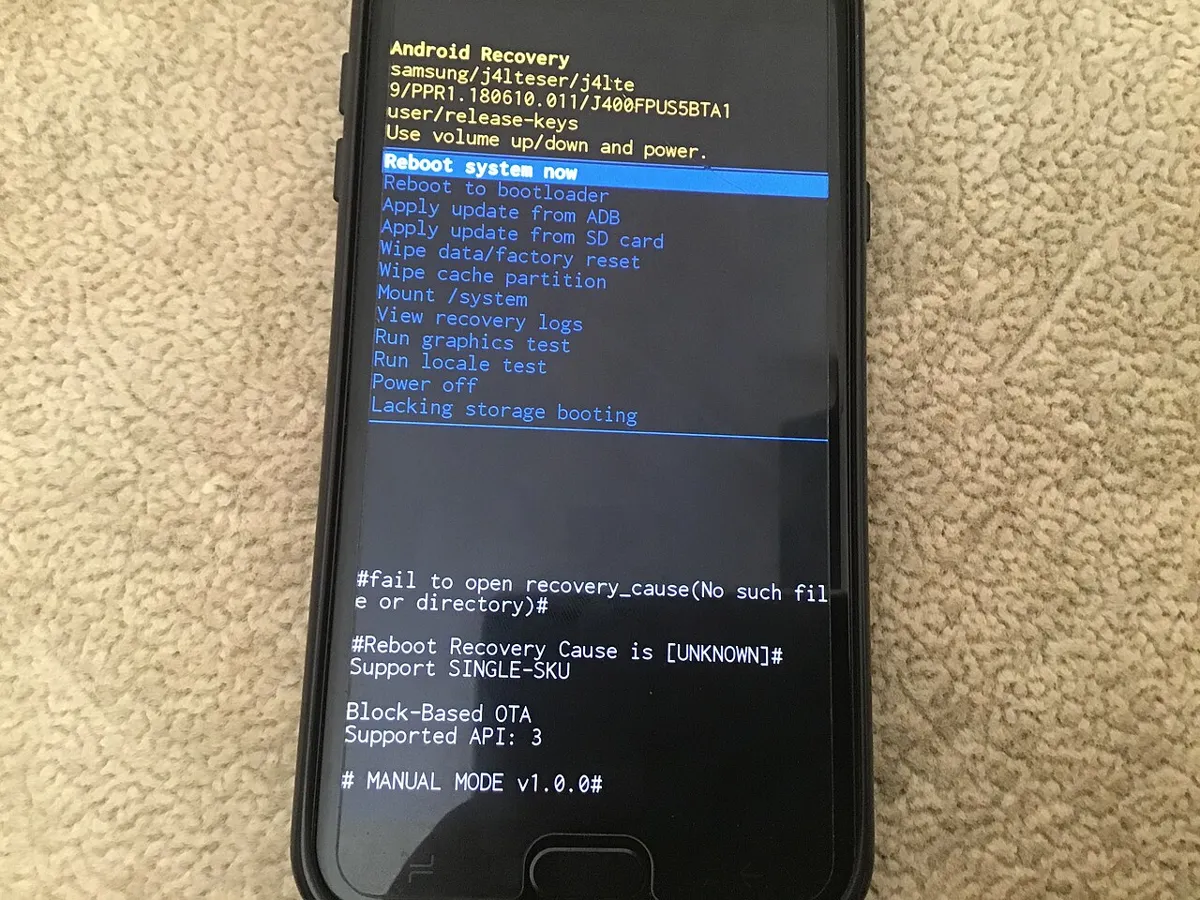
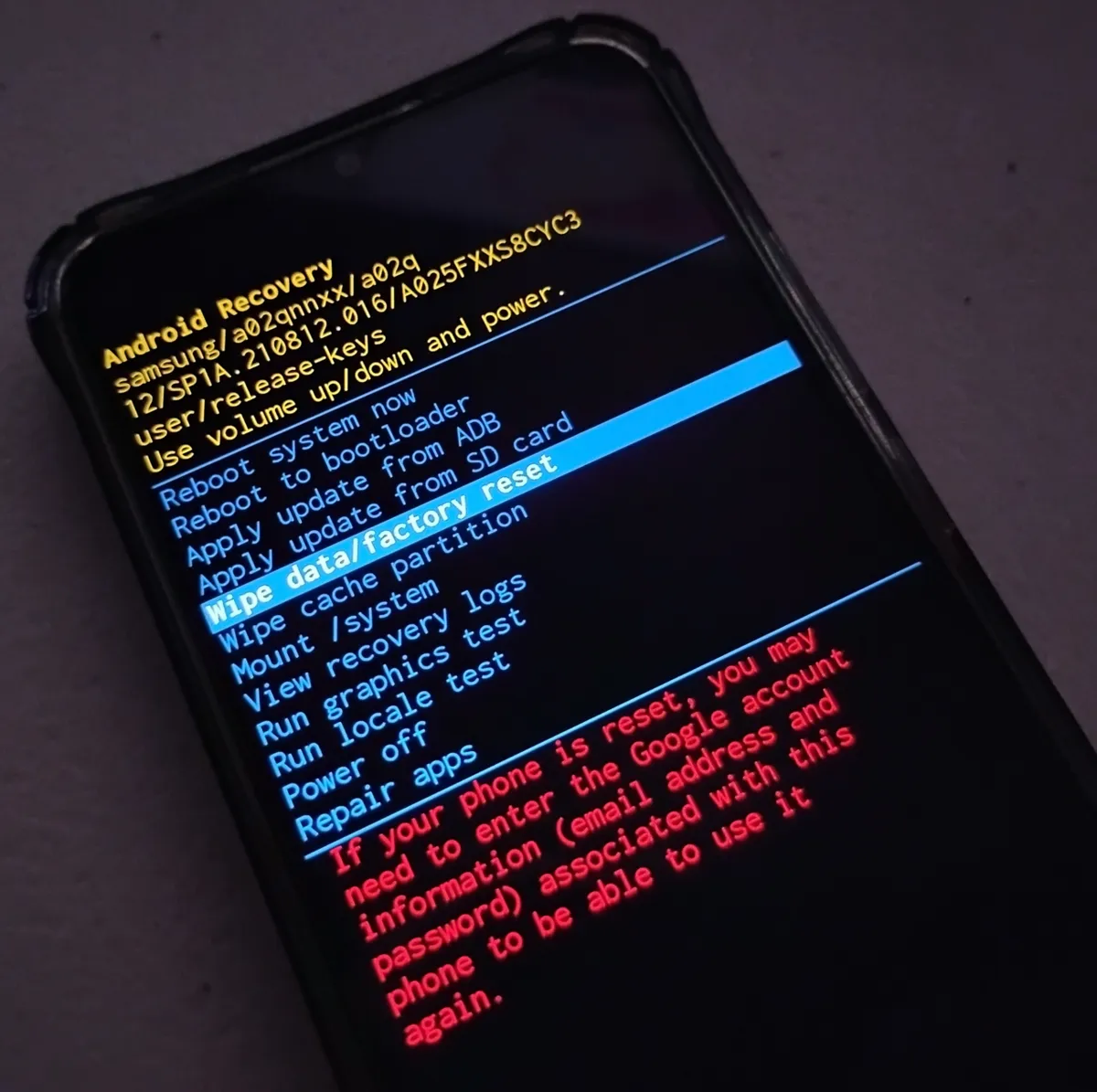
If the phone won't get past the lock screen or keeps crashing before you can reach Settings, use recovery mode. Verizon's Galaxy S25 instructions and T-Mobile's recovery mode guide both list the same steps:
- Turn the phone off.
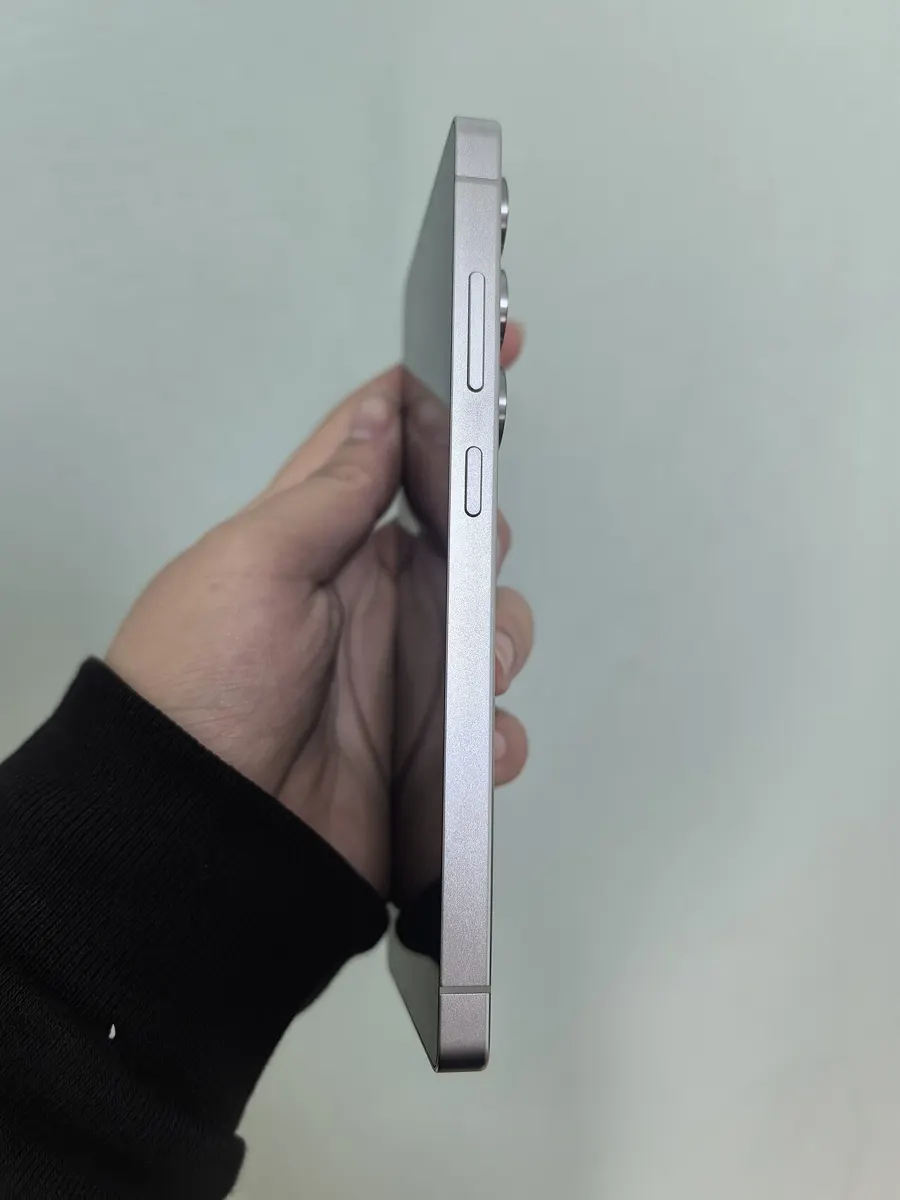
- Press and hold Volume up and the Side button together until the Android Recovery screen appears, then let go.
- Press Volume down to highlight Wipe data/factory reset and press the Side button to select it.
- Highlight Factory data reset and press Side.
- When it finishes, select Reboot system now.
Your recovery menu may look much shorter than the one in the photo above. With One UI 8.5 and the February 2026 security updates, Samsung removed most recovery options. 9to5Google reported, citing GalaxyClub, that only Reboot system now, Wipe data/factory reset, and Power off remain. That's handy here, because the factory reset option is easier to find, but it also means there's no "Wipe cache partition" to try first, even though many guides still tell you to.
If holding Volume up and Side just restarts the phone normally, connect it to a computer with a USB-C cable and try again while it's plugged in. A Samsung moderator gave that advice in the Samsung Community for a Galaxy S21 Ultra, and other owners there report that it varies by model.
How to Factory Reset a Google Pixel
On a Pixel, open Settings > System > Reset options > Erase all data (factory reset), tap Erase all data, and confirm with your PIN. Before the final tap, look for the Erase eSIMs checkbox and decide whether you want to keep your eSIM. The same Reset options screen also has smaller resets, such as Reset mobile network settings and Reset Bluetooth & Wi-Fi, which don't touch your data and are worth trying first for a connection problem.
Reset a Pixel with its buttons
If the screen is locked or Settings won't open, Google's Fastboot reset guide is the official route:
- Turn the phone off.
- On a Pixel 6 or newer, press and hold Volume down and Power for up to 30 seconds until the Fastboot mode screen appears. On older Pixels, use Volume up and Power. If you hold too long, the phone restarts; just try again.
- Press the volume buttons until Recovery Mode shows, then press Power.
- When you see "No command," hold Power, tap Volume up once, and let go of both.
- Select Wipe data/factory reset, then Factory data reset. Wait for "Data wipe complete."
- Select Reboot system now.
Google adds one warning at the top of that page: for trade-ins, use the reset in the Settings app, not the buttons.
The Pixel option most guides miss
Pixel 4a and later phones can also be reset from a computer with Google's Update and Software Repair tool. You need a desktop browser and a USB cable. Google lists two advantages on its reset page: the tool may be able to fix a software problem by updating the phone without erasing it, and if you do reset, it installs the most recent Android version instead of keeping the old one. If you're resetting a Pixel to fix a bug, try this before a full wipe.
How to Factory Reset Motorola and Other Android Phones
Most other Android phones use the same Settings path as a Pixel. Motorola's US reset guide lists Settings > System > (Advanced) > Reset options > Erase all data (factory reset) for Android 9 through 16. If your phone's menus are different, open Settings and search for "reset" or "factory"; the search box finds the option on almost every Android skin.
Motorola's recovery menu has one choice other brands don't. After Wipe data/factory reset, you can pick Userdata only, which keeps the content that shipped with the phone, such as its startup image, wallpaper, and ringtones, or Userdata + personalized content, which deletes everything. To enter Motorola's recovery, turn the phone off, hold Volume down and Power until it turns on, press Volume down until you see Recovery mode, and press Power. Motorola says to charge the battery to at least 30% first.
How to Factory Reset a Lost or Stolen Phone Remotely
You can erase a lost phone from Google's Find Hub on another phone or in a browser. Google's Find Hub help page says the lost phone has to have power, be connected to Wi-Fi or mobile data, be signed in to a Google account, and have Find Hub turned on. Sign in at Find Hub, select the device, and choose the erase option.
Two things to know before you do it. First, erasing stops you from locating the phone, so try ringing it or marking it as lost first; our guide to finding a lost Android phone covers those steps. Second, if you get the phone back, Google says you'll need your Google account password to use it again.
Why Your Phone Asks for a Google Account After a Reset
The Google account screen you see after some resets is Factory Reset Protection, which Google now calls device protection. It turns on automatically when you add a Google account and set a screen lock, and it stops anyone who resets a stolen phone from setting it up. Google's device protection page says you can pass it with any Google account that was previously synced to the phone (not a guest account), and if you can't, "you won't be able to use the device at all."
Whether you'll see the lock depends on how the reset happened:
| How you reset | What you're asked for | Source |
|---|---|---|
| Settings app | Your screen lock before the reset. Samsung says this route doesn't trigger Google Device Protection afterward. | Google, Samsung US |
| Recovery mode (buttons) | Your previous PIN, pattern, or password, or the Google account that was on the phone, during setup | |
| Find Hub remote erase | A Google username and password tied to the device | |
| Any reset on a Galaxy with a Samsung account | Your Samsung account password to complete the reset from Settings | Samsung US |
Waiting periods trip up a lot of people, and the official numbers don't match:
| Source | Wait after a Google password change |
|---|---|
| Google Android and Pixel help | 24 hours before you reset |
| Samsung US (Google Device Protection page) | Google "may require a 24-hour cool-down period" before a new password unlocks the phone |
| Samsung Malaysia | 72 hours before the account can complete setup |
| Samsung New Zealand | 24 to 72 hours, and a wrong password entry restarts the wait |
Our advice: if you changed your Google password recently, wait the full 72 hours before resetting a Galaxy, and at least 24 hours on any other phone. Waiting costs you a few days. Getting it wrong can leave you with a phone you can't set up.
Android 15 made the lock much harder to get around
Older tricks for skipping the setup screen don't work on newer phones. Android Authority reported that in Android 15, turning on OEM unlocking no longer disables Factory Reset Protection, skipping the setup wizard no longer turns it off, and a phone that hasn't verified its owner can't add a new Google account, set a new screen lock, or install apps. That's good news if your phone is stolen, and the reason "FRP bypass" videos for older phones won't help you on a current one. If you're locked out of your own phone and can't recover the account, Samsung tells owners to take the phone and proof of purchase to an authorized service center.
Before You Sell, Trade In, or Give Away Your Phone
Reset from Settings, never from recovery mode, when the phone is leaving your hands. Google's Pixel page says so directly for trade-ins, and Samsung's support pages say the Google lock stays off only when you reset through Settings. A phone reset from recovery will ask the next owner for your account, and the trade-in or sale can fall through.
- Remove the Google account first if you want to be certain. Samsung's FRP explainer says the lock is disabled if the Google account is removed from the phone before the reset. It also says to remove it before sending a phone in for service that might need a reset.
- Decide on the eSIM. If you're moving your number to a new phone, transfer the eSIM before you wipe the old one. Our guide to moving an eSIM to a new Android phone covers each carrier's steps.
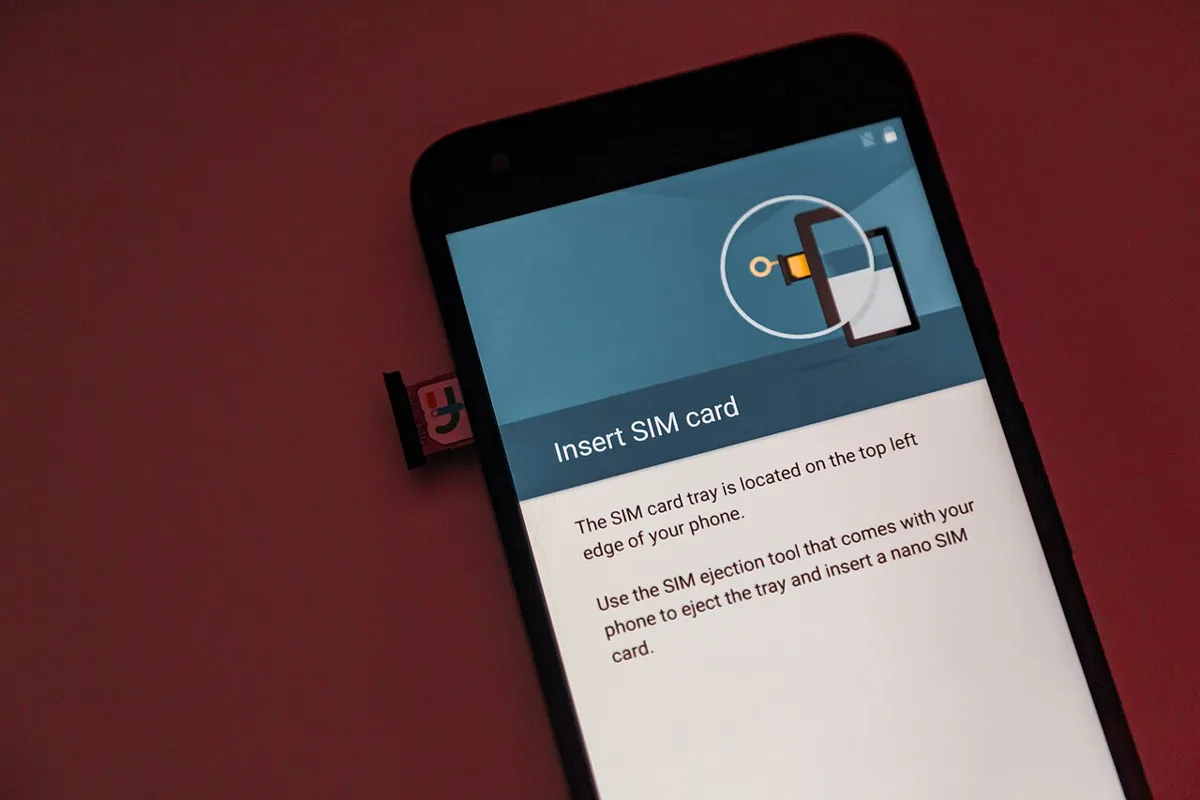
- Take out the SIM card and microSD card. A factory reset erases the phone's storage. Keep anything on removable cards with you.
When a Factory Reset Goes Wrong
The phone asks for a Google account you don't recognize. Any account that was ever synced to the phone works, not only the main one. Samsung suggests checking Google's device list for each of your accounts to see which one the phone was registered to.
The reset seems stuck. Google says a reset can take up to an hour, so give it time before you intervene. Motorola says that if the phone doesn't finish rebooting after a recovery reset, press and hold Power until the screen goes dark, then release it to start normally.
Recovery mode shows "No command" with a fallen robot. That's normal, not an error. Hold Power and tap Volume up once to show the menu.
The phone landed in safe mode afterward instead. A held Volume down button at startup can trigger it. See how to turn off safe mode on Android.
The problem came back after you restored your apps. Google's help pages note that restoring the same app that caused a problem can bring it right back. Motorola suggests setting the phone up as new and reinstalling apps one at a time, using the phone for a while between each.
How we put this together: We checked every menu path, button combination, and waiting period in this guide against Google's Android and Pixel help pages, Samsung's US, Malaysian, and New Zealand support pages, Motorola's US support site, and Verizon's and T-Mobile's device guides on October 31, 2026. Menu names can vary by model, carrier, and software version, so if a step doesn't match your phone, search for "reset" in Settings.
Frequently Asked Questions
Does a factory reset remove Android updates?
No. Google's Pixel help says a normal factory reset keeps the same software version that's on your phone, so you stay on the update you have. On a Pixel 4a or later, Google's Update and Software Repair tool can reset the phone and install the latest Android version instead.
Can I factory reset an Android phone without the password?
Yes, from recovery mode using the power and volume buttons. But after the reset, the phone asks for the previous screen lock or the Google account that was on it, and without one of those you can't finish setup. If you've forgotten the Google password, recover it first and wait at least 24 hours before resetting.
How long does a factory reset take?
Usually a few minutes, but Google says it can take up to an hour. Charge the phone to at least 70% before you start, and keep it connected to Wi-Fi or mobile data so you can sign back in to your Google account afterward.
Does a factory reset delete my eSIM?
Only if you choose that. On a Pixel, the reset screen has an Erase eSIMs checkbox. Leave it unchecked to keep your eSIM. If you erase it, you'll need to download it again, but your carrier plan isn't canceled.
Does a factory reset delete my Google account?
No. It removes the account from the phone, but your Gmail, Drive files, contacts, and backed-up photos stay in your Google account and can be restored when you sign back in during setup.