How to Turn Off Safe Mode on Android (Pixel and Galaxy)

To turn off safe mode on Android, restart the phone. On a Samsung Galaxy, press and hold the Side and Volume down buttons, then tap Restart, or swipe down and tap the Safe mode is on notification and choose Turn off. On a Pixel 6 or newer, press and hold Power and Volume up, then tap Restart. If the phone boots straight back into safe mode, a button is almost always stuck, usually Volume down.
Also in this topic: Android Guides hub.
Jump to: what safe mode is · Samsung Galaxy · Google Pixel · button chart · stuck in safe mode · Recovery and Download mode · after you exit · FAQ
Quick answer: A normal restart ends safe mode on every Android phone. Safe mode only sticks around when something tells the phone to start in it again, and the most common culprit is a Volume down button that's pressed in by a case, debris, or damage. You don't need to factory reset your phone to get out of safe mode.
What Safe Mode Is (and Why Your Phone Is in It)
Safe mode is a troubleshooting state that starts Android with only the apps that came with the phone. Every app you downloaded is turned off until you restart. Samsung's safe mode help page says third-party apps don't run in it, and you'll see the words "Safe mode" in the bottom-left corner of the screen. Google's Android help page recommends it for finding an app that causes crashes, freezes, or slowdowns.
Most people land in safe mode by accident. On many phones, holding Volume down while the phone starts up turns it on, and on a Pixel or Galaxy you can also reach it by touching and holding Power off or Restart in the power menu. A long press in the wrong place is enough. Android's own source code shows how simple the trigger is: at startup, the system checks whether Volume down, Menu, the S key, or a D-pad center button is being held on any connected input device, and if one is, it boots into safe mode.
How to Turn Off Safe Mode on a Samsung Galaxy
Samsung gives you three ways out. Any of them works, so use whichever is easiest.
Use the notification
- Swipe down from the top of the screen to open the notification panel.
- Tap Safe mode is on.
- Tap Turn off. The phone restarts normally.
Restart from the power menu
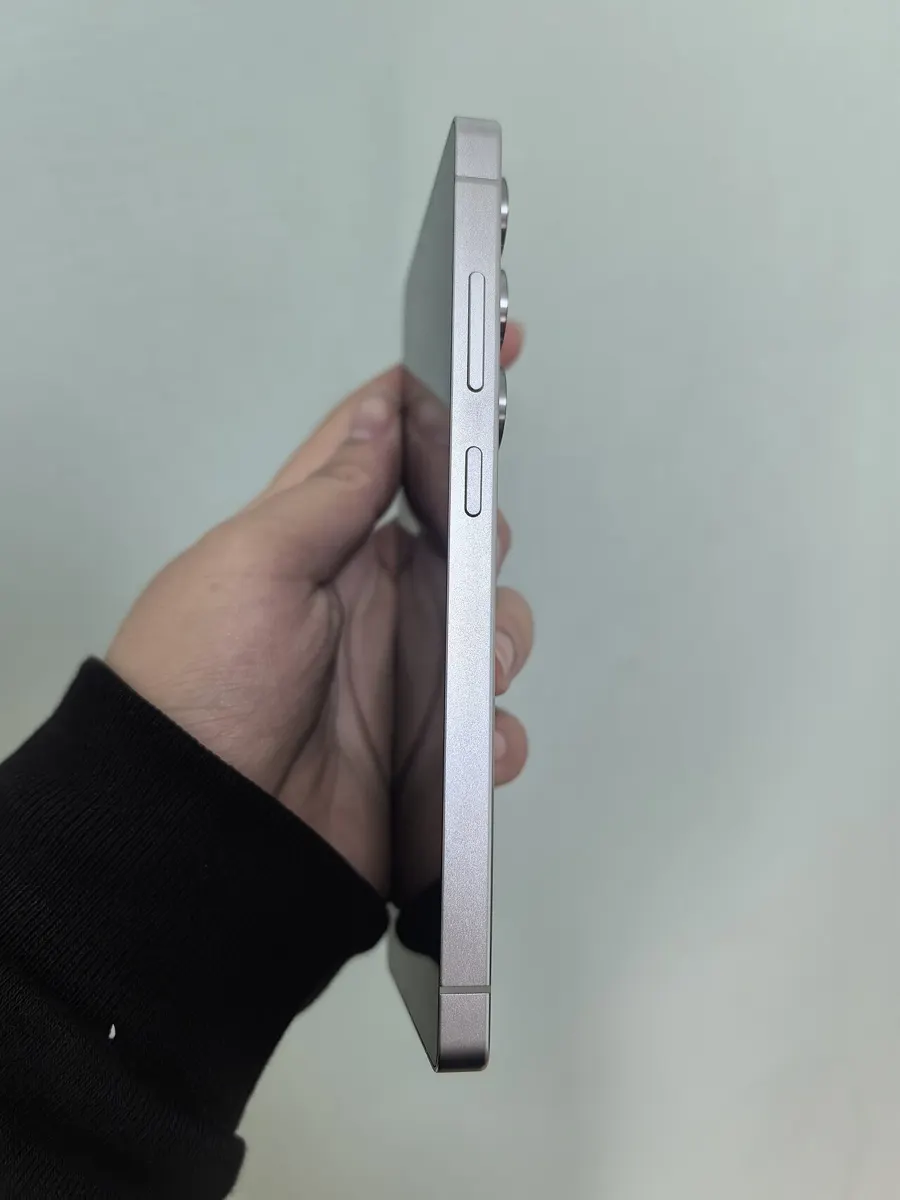
- Press and hold the Side button and the Volume down button together until the power menu appears. A quick press takes a screenshot instead, so keep holding.
- Tap Restart, then tap Restart again to confirm.
Holding the Side button alone usually won't work, because on recent Galaxy phones a long press opens Bixby or your digital assistant by default. Samsung's side button guide lists Side plus Volume down as the power menu shortcut. You can also swipe down with two fingers and tap the Power icon in Quick settings.
Force a restart
If the screen is frozen, press and hold Volume down and Side together for about 7 seconds until the phone shuts off and restarts. Samsung Australia's safe mode exit guide gives 7 seconds, and its safe mode overview says at least 5. Let go as soon as the screen goes black. If you keep holding Volume down while the Samsung logo appears, you can put the phone right back into safe mode.
How to Turn Off Safe Mode on a Google Pixel
Google's Pixel safe mode help page gives different steps depending on the model:
- Pixel 6 and newer, including Pixel Fold: Press and hold Power and Volume up for a few seconds, then tap Restart on the screen.
- Pixel 5a and older: Press and hold Power for about 30 seconds, until the phone restarts.
Many guides tell Pixel owners to tap a safe mode notification, but Google's own Pixel instructions use the restart steps above, so start there. Be careful with Power plus Volume down on a Pixel. On Samsung phones that combination forces a restart, but if a Pixel 6 or newer is already off, it opens the Fastboot menu instead. If that happens, press the volume buttons to cycle through the menu options and press Power to select one. Steer clear of Recovery Mode, which is the route Google uses for a button-based factory reset.
One Pixel-specific catch: Google says airplane mode turns on automatically in safe mode. If your Wi-Fi, calls, or GPS still don't work after you restart, swipe down and check whether the airplane icon is still on before you troubleshoot anything else.
Safe Mode Buttons at a Glance
| Phone | Turn off safe mode | Turn on safe mode |
|---|---|---|
| Samsung Galaxy (Side button models) | Tap the "Safe mode is on" notification, or hold Side + Volume down and tap Restart | Hold Side + Volume down, then touch and hold Power off and tap Safe mode |
| Samsung Galaxy, frozen screen | Hold Volume down + Side for about 7 seconds | Hold Volume down when the Samsung logo appears during startup |
| Pixel 6 and newer | Hold Power + Volume up, tap Restart | Hold Power + Volume up, then touch and hold Power off or Restart and tap OK |
| Pixel 5a and older | Hold Power for about 30 seconds | Hold Power, then touch and hold Power off and tap OK |
| Other Android phones | Restart the phone from its power menu | Steps vary by manufacturer, so check the maker's support site |
Phone Keeps Booting Into Safe Mode? Fix It in This Order
If your phone restarts straight back into safe mode, something is telling it to do that on every boot. A restart that Android itself triggers into safe mode is a one-time flag that the system clears once it's used, so a loop almost always points to a held button or a connected accessory. Work through these steps in order.
1. Take off the case and check the buttons
A tight or warped case can hold Volume down in just enough to trigger safe mode. Remove the case and any button covers, then press each volume key a few times. It should click and spring back. Samsung's button troubleshooting page also suggests checking for dust or debris around the buttons. Then restart.
2. Unplug everything
Because Android checks every connected input device at startup, a USB keyboard, game controller, or dock that reports a held key can push the phone into safe mode. Disconnect any cable or USB accessory and restart again.
3. Test the buttons on a Galaxy
Samsung phones have a built-in button test. Open the Samsung Members app, tap Support, then Phone diagnostics, tap Get started, and run the Buttons test. If Volume down fails or registers as pressed when you aren't touching it, the button needs a repair.
4. Reset settings, not your data
If the buttons pass, Samsung's next step is Settings > General management > Reset > Reset all settings. Samsung says this puts settings back to their defaults without deleting your personal data. A factory reset is not a fix for a stuck button, so don't erase your phone just to leave safe mode. If you think a full reset is coming anyway, back up your Android phone first.
5. Get the button repaired
Samsung Australia says plainly that if the phone keeps booting into safe mode no matter how many times you restart it, the Volume down button may be faulty. That's a hardware repair, and safe mode will keep coming back until the button is fixed.
Recovery, Download, and Fastboot Aren't Safe Mode
If you don't see your normal home screen at all, you may be in a different mode. Here's how to tell them apart, based on Samsung's and Google's help pages:
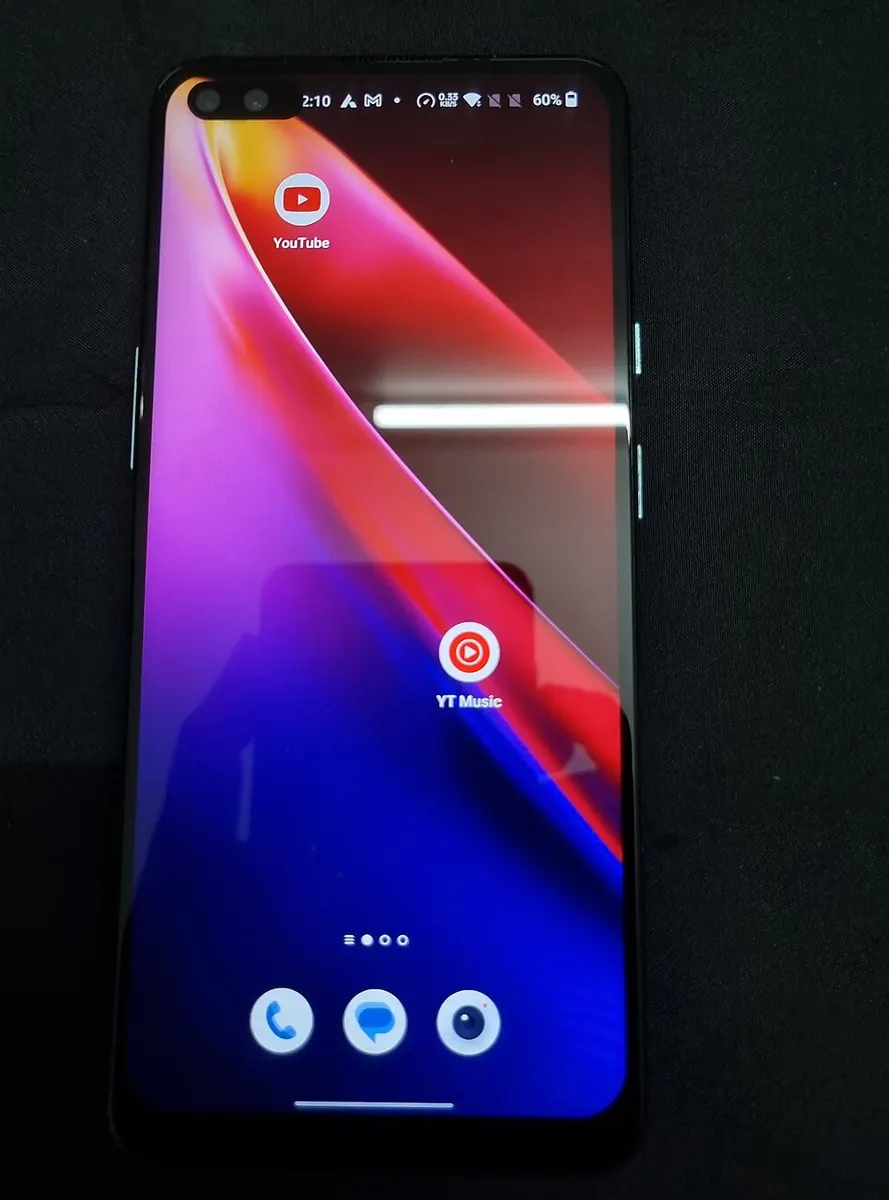
- Safe mode: Your usual home screen, missing your downloaded apps, with "Safe mode" in the bottom-left corner.
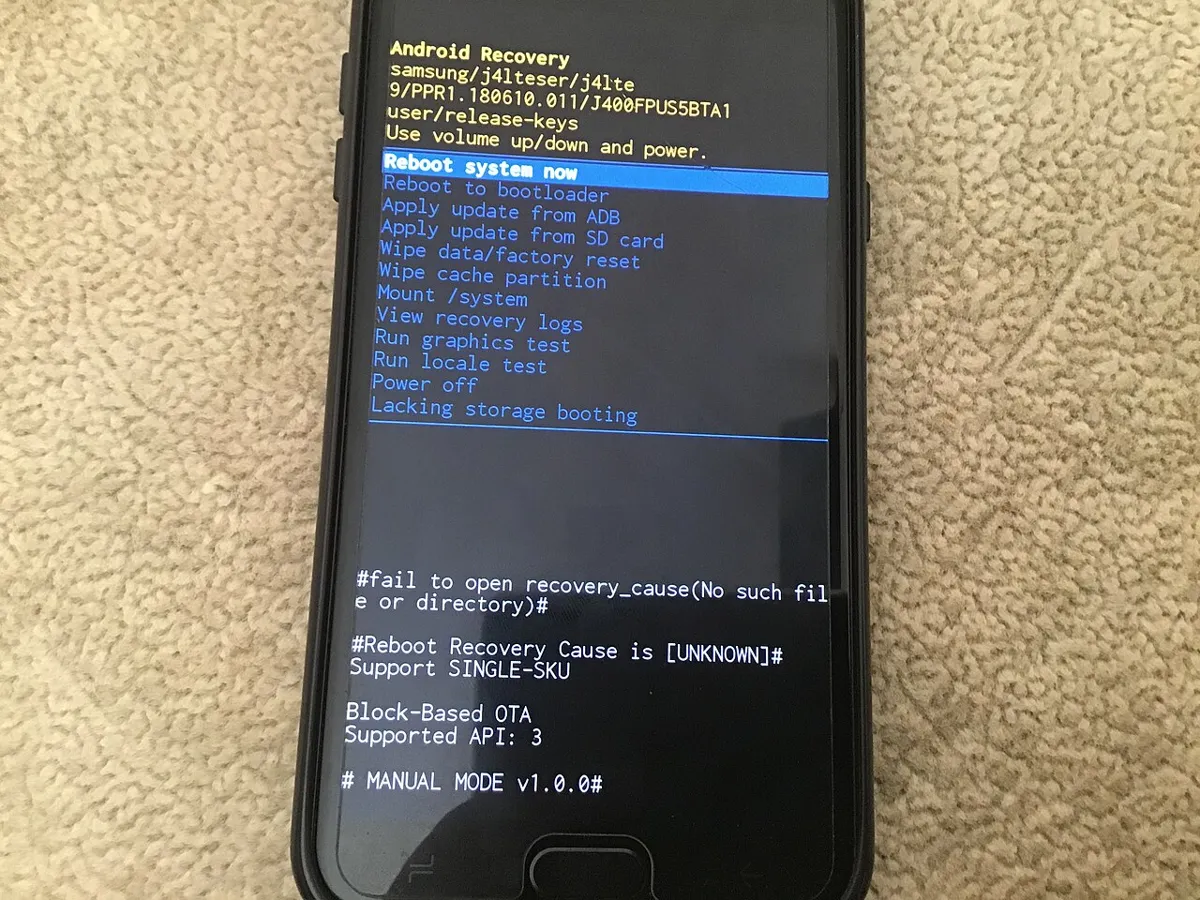
- Recovery mode: A text menu on a black screen titled Android Recovery. Use the volume keys to highlight Reboot system now and press Power. Don't pick Wipe data/factory reset, which erases the phone.
- Download mode (Samsung): A screen that says Downloading or Odin Mode. Samsung says to hold Volume down and Power together for 7 seconds to leave it.
- Fastboot mode (Pixel): A Fastboot mode screen with a menu you move through using the volume buttons. Google's Fastboot help page shows that holding Volume down and Power on a switched-off Pixel 6 or newer opens it. Avoid Recovery Mode from there unless you mean to reset the phone.
What to Expect After You Exit Safe Mode
Your downloaded apps come back as soon as the phone restarts normally, and nothing is uninstalled. Two things can look different, though:
- Missing widgets: Google warns that safe mode can remove some home screen widgets. You'll have to add them back yourself, so if you're entering safe mode on purpose, take a screenshot of your home screen first.
- Reset customizations on Galaxy phones: Samsung says some customization options, such as wallpapers and themes, may go back to their defaults when you leave safe mode.
If you went into safe mode on purpose to find a bad app, the result tells you something. Google says that if the problem goes away in safe mode, an app you downloaded is probably the cause. Remove recently installed apps one at a time and restart after each. Our guide to fixing apps that keep crashing on Android covers a gentler order, starting with clearing the app's cache. If the problem is still there in safe mode, it's more likely the phone itself; see what to do when an Android phone keeps restarting or your touch screen stops responding.
Can't find safe mode on a work phone? That's expected on some managed devices. Android lets a company's device administrator block safe boot with a restriction called DISALLOW_SAFE_BOOT, and when it's on, the phone won't start in safe mode. Ask your IT team if you need it.
How we put this together: We checked every button combination and menu path in this guide against Samsung's US, Australian, and Malaysian support pages, Google's Android and Pixel help pages, and the Android Open Source Project code that decides when a phone boots into safe mode, on October 30, 2026. Button names and steps can vary by model and software version.
Frequently Asked Questions
Why does my phone keep going into safe mode?
Android starts in safe mode when Volume down (or a similar key on a connected keyboard or controller) is held during startup. If it happens on every restart, a case may be pressing the Volume down button, debris may be jamming it, or the button may be faulty. Remove the case, unplug accessories, and restart. On a Galaxy, run the Buttons test in Samsung Members.
Will turning off safe mode delete my apps or data?
No. Your downloaded apps come back as soon as the phone restarts normally, and your data stays put. Google notes that safe mode can remove some home screen widgets, and Samsung says some wallpapers and themes may reset to defaults, so you may need to set those up again.
How do I turn off safe mode without the power button?
On a Samsung Galaxy, swipe down from the top of the screen, tap Safe mode is on, and tap Turn off. You can also open Quick settings and tap the Power icon, then Restart. Both work without pressing any physical button.
Do I need to factory reset my phone to get out of safe mode?
No. A restart ends safe mode, and a factory reset won't fix a Volume down button that's stuck, which is the usual reason a phone keeps returning to it. On a Galaxy, try Reset all settings first, which Samsung says doesn't delete personal data, and get the button repaired if diagnostics flag it.
Why is there no safe mode option on my work phone?
Your company may have blocked it. Android gives device administrators a restriction called DISALLOW_SAFE_BOOT, and when it's on, the phone won't start in safe mode. Ask your IT team if you need to use it.