How to Record a Phone Call on Android, Plus US Consent Rules

Quick answer: On most current Android phones, you record a call with the built-in Phone app. On a Samsung Galaxy with One UI 7 or later, tap Record on the call screen. On a Pixel 6, 7, 8, or A-series Pixel, tap Call Assist > Call Recording. On a Pixel 9 or later (non-A), use Call Notes instead. Everyone on the call hears an announcement that it's being recorded, and in some US states you need everyone's consent anyway.
For years, recording a phone call on Android in the US meant a sketchy third-party app that often caught only your own voice. That has changed. Samsung added call recording to US Galaxy phones with One UI 7, and Google rolled Call Recording out to older Pixels in November 2025. The catch is that the button lives in different places, it's called different things, and on the newest Pixels it isn't called Call Recording at all. Some popular guides still say Pixels can't record calls. This guide covers where the button is on each phone, where the files go, why it might be missing, and what US law says before you press it.
Jump to: which phones can record · Pixel · Pixel 9 and later · Samsung Galaxy · other Android phones · Google Voice · where recordings are saved · Record button missing · third-party apps · US consent laws · FAQ
Which Android Phones Can Record Calls?
Call recording on Android is a feature of the phone's own dialer app that saves both sides of a regular phone call as an audio file on the phone. In the US, you get it from Google's Phone app or Samsung's Phone app, and both play an announcement to the other person. Here's how the options compare, based on Google's and Samsung's help pages as of November 9, 2026.
| Option | Phones | Where to start it | Transcript and summary | Others notified? |
|---|---|---|---|---|
| Phone by Google: Call Recording | Pixel 6 and later on Android 14+ that don't support Call Notes; non-Pixel phones on Android 9+ | Pixel: Call Assist > Call Recording. Others: Record button on the call screen | No | Yes, at start and stop |
| Phone by Google: Call Notes | Pixel 9 and later, except A-series models (US, in English) | Call Assist > Call Notes | Yes, on-device (summaries in English only) | Yes |
| Samsung Phone app | Galaxy phones on Android 15 with One UI 7 or later | Record icon on the call screen (or More first) | Yes, with Transcript assist (not on Galaxy A56, A36, A26, or A17) | Yes, but people added to a group call later are not |
| Google Voice (personal account) | Any phone with the Voice app and a Voice number | Press 4 on the keypad during an incoming call | No | Yes |
How to Record a Call on a Pixel 6, 7, or 8
Open the Phone app during a call and tap Call Assist > Call Recording; tap Call Assist > Stop to end it. Google's Phone app call recording help page says Pixels need to be a Pixel 6 or later on Android 14 or later, with the latest version of the Phone app, in a country where the feature is offered.
Google's September 29, 2025 Pixel calling update adds the important limit: Call Recording is for Pixel 6 and newer devices "that can't support richer Call Notes functionality." In practice, that means the Pixel 6, 7, and 8 series, plus A-series Pixels, which Google's Call Notes page excludes. The Verge reported the wide rollout on November 14, 2025.
- Update the Phone by Google app in the Play Store.
- Open the Phone app, tap More options (three dots) > Settings > Call recording. The first time, the app downloads the audio clips it uses to announce the recording.
- Make or answer a call.
- Tap Call Assist, then Call Recording. Both of you hear that the call is being recorded.
- To stop, tap Call Assist > Stop, or hang up.
Record certain numbers automatically
In Settings > Call recording, Google's page lists two "Always record" choices: Numbers not in your contacts and Selected numbers. You can also open a contact, tap Edit contact, and choose Always record calls. Google notes that automatic recording and automatic deletion "aren't available in all markets," so if you don't see these switches, your region doesn't offer them yet.
How to Record a Call on a Pixel 9 or Later: Use Call Notes
If you have a Pixel 9, 10, or 11 (not an A model) and can't find Call Recording, that's expected: these phones use Call Notes, which records the call and also makes a transcript and summary with Gemini Nano on the phone. In January 2026, a Pixel 10 Pro owner in Kansas posted in Google's Pixel community forum that Call Recording was missing and was pointed to Call Notes.
Google's Call Notes help page lists Pixel 9 and later in the US, Canada, the UK, Ireland, and Australia (in English) and Japan (in Japanese), and Pixel 10 phones in India. It also says the feature needs a SIM card from the country you're using it in, and that call summaries are available only in English.
- Open the Phone app, tap More > Settings > Call Notes, and turn on Call Notes. You may need to download extra components.
- During a call, tap Call Assist > Call Notes. The other person is notified.
- After the call, open the call in your call log to see the summary, the full transcript, and the recording.
To make it automatic, go to Settings > Call Notes and use Automatically take Call Notes for calls with these numbers, or the matching option for non-contacts. Google says the call contents stay on your device and aren't shared with Google.
How to Record a Call on a Samsung Galaxy
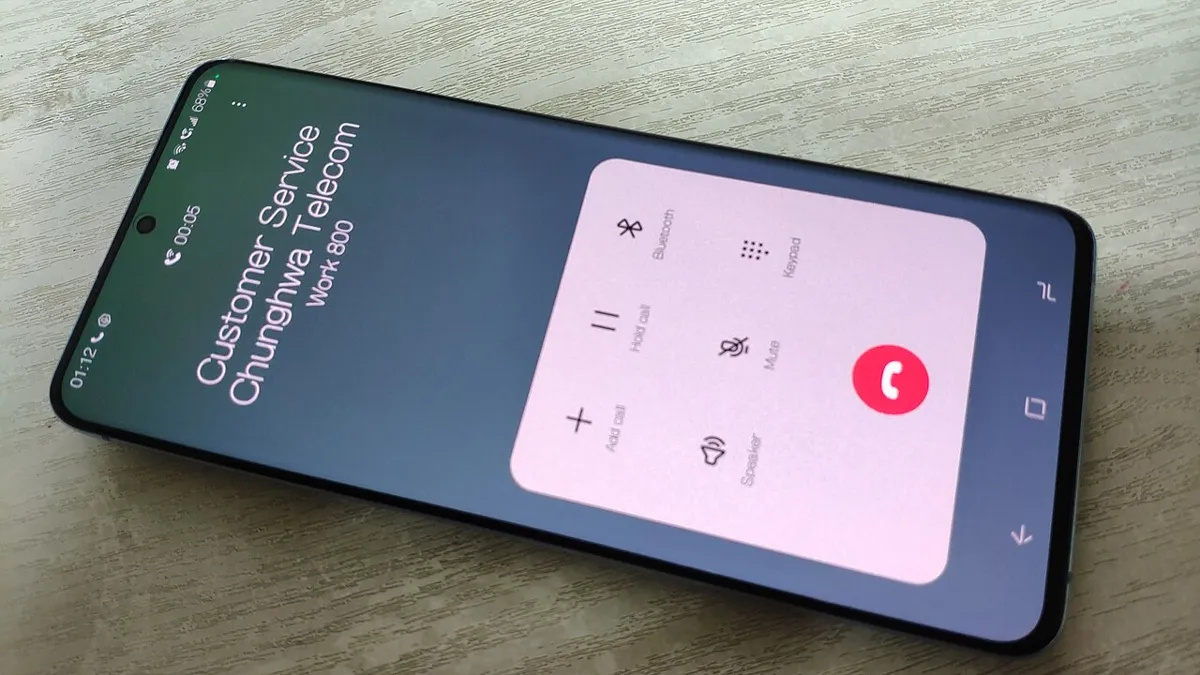
On a Galaxy running Android 15 with One UI 7 or later, start a call in the Samsung Phone app and tap the Record icon on the call screen. On some models you tap More first. Tap the icon again to stop, or hang up. That's from Samsung US's call recording guide, which describes manual recording only.
Two details on Samsung's page are easy to miss:
- Group calls: people on the call hear an audio notice when you start and stop recording, but "participants added to a group call will not be notified." If you add someone mid-recording, tell them yourself.
- Transcripts: Transcript assist (under Phone > More options > Settings > Record calls > Transcript assist) can transcribe and summarize recorded calls. It needs a Samsung account and an internet connection and isn't available on the Galaxy A56 5G, A36 5G, A26 5G, or A17 5G. US English and US Spanish are among the supported languages.
Turn on Show notification after recording on the same Record calls screen if you want a reminder that a recording was saved.
Other Android Phones (Motorola, OnePlus, and More)
If your phone uses Google's Phone app as its dialer, Google's help page says non-Pixel phones need Android 9 or later and the latest Phone app. During a call, tap Record on the call screen and Stop recording to finish. Google also says "only certain devices and carriers support recording calls," so a missing button on a non-Pixel phone may simply mean your phone maker or carrier hasn't turned it on. If your phone has its own dialer, check its settings for a "Record calls" or "Call recording" option.
Record Incoming Calls With Google Voice
If you have a Google Voice number, you can record incoming calls to it on any phone. Google's Voice recording help page says personal accounts first need Menu > Settings > Incoming call recording turned on in the Voice app.
- Answer a call to your Google Voice number. Everyone must already be on the call.
- Press 4 on the keypad. All participants hear that recording has started.
- Press 4 again to stop, or hang up.
- Find the recording in the Voice app's Calls tab.
The page describes this keypad method only for calls you answer, not calls you place. Unlike the Pixel and Galaxy recorders, which keep files on the phone, Voice recordings are listed in your Google Voice account, and Google says you can download them to a computer.
Where Are Call Recordings Saved on Android?
Call recordings stay on the phone and show up next to the call in your call history.
- Pixel (Call Recording): open the Phone app, tap Home, tap the caller, then History, and pick the recording. The most recent one plays right from the Home screen. Tap Share to send it to email or a messaging app.
- Pixel (Call Notes): tap the call in your call log to see the summary, transcript, and recording.
- Samsung: look for a small microphone icon in the Recents tab, or go to Phone > More options > Settings > Record calls > Recorded calls. The same files appear in the Samsung Voice Recorder app.
Save the important ones somewhere else. Google says Pixel recordings "aren't saved or backed up off-device," and that deleting a call log also deletes its recording. If a recording matters, share it to cloud storage or email it to yourself. Clearing your call history, or a factory reset, can otherwise wipe it. Our guide on how to back up your Android phone covers the rest of your data.
To save space, a Pixel can auto-delete recordings from Settings > Call recording > Delete recordings. The Verge lists the choices as 7, 14, or 30 days, or never. Samsung's equivalent is Record calls > Delete old recordings.
Call Recording Button Missing? Check These
- You have a Pixel 9 or later. Look for Call Notes under Call Assist, not Call Recording.
- Your software is too old. Pixels need Android 14 or later, Galaxy phones need Android 15 with One UI 7 or later, and other phones using Google's Phone app need Android 9 or later. Update the Phone app too.
- You're using a different dialer. Samsung's recorder is in Samsung's Phone app, and Google's is in Phone by Google. Set the one you want as your default phone app.
- The call isn't connected yet, is on hold, or is a conference call. Google says you can't start a recording until the call is answered, while it's on hold, or when you create a conference call.
- Your SIM or region doesn't qualify. Call Notes needs a SIM from a supported country, and Google says call recording isn't offered in every country or region.
- Your carrier or phone maker hasn't enabled it. Google's page says only certain devices and carriers support recording.
Why Play Store Call Recorder Apps Only Record Your Side
Third-party apps can't get the call audio stream on current Android. Android's developer documentation for MediaRecorder.AudioSource says recording the VOICE_CALL source (both sides of a call) needs a permission that "is reserved for use by system components and is not available to third-party applications."
Apps used to work around that with Android's accessibility tools. Google Play's sensitive permissions policy now says the Accessibility API "cannot be requested for" remote call audio recording. What's left is apps that record through the microphone, which is why Samsung warns that with downloaded apps "the other party's voice may not be recorded" (Samsung support note). Our Android microphone troubleshooting guide explains why a phone call always takes priority over other apps that want the mic.
Our view: if your phone has a built-in recorder, skip third-party call recorder apps. They can't do what the built-in tool does, and they still ask for sensitive permissions.
Is It Legal to Record Phone Calls in the US?
Usually, if you're on the call and you follow your state's consent rule. Federal law (18 U.S.C. 2511(2)(d)) allows recording when one party to the call consents, and that party can be you. Some states are stricter.
The Digital Media Law Project's guide to recording phone calls says 38 states and Washington, DC follow a one-party rule. It names California, Connecticut, Florida, Illinois, Maryland, Massachusetts, Montana, New Hampshire, Pennsylvania, and Washington as states that require every party's consent. It adds three caveats: Illinois' statute was held unconstitutional in 2014, Massachusetts bans "secret" recordings rather than requiring explicit consent, and Hawaii requires all-party consent only when a recording device is installed in a private place. Its state-by-state section has the details.
Calls across state lines are the gray area. The DMLP says it's hard to know in advance which state's law applies, so the safe move is to get everyone's consent. Google, Samsung, and Google Voice all announce the recording, and the DMLP notes that in some all-party states it may be enough if everyone knows and keeps talking. A quick "I'm recording this call so I don't miss anything, OK?" is still the safest habit. This is general information, not legal advice, so check your own state's law if a recording could end up in a dispute.
Bottom Line
To record a call on Android, use your phone's own dialer. On a Galaxy with One UI 7 or later, tap Record. On a Pixel 6 to 8 or an A-series Pixel, tap Call Assist > Call Recording. On a Pixel 9 or later, use Call Notes. Share any recording you need to keep, because Pixel recordings aren't backed up and disappear with the call log. And because the phone announces the recording, tell the other person up front, especially if either of you is in an all-party consent state.
Related: if calls aren't reaching you at all, see why Android calls go straight to voicemail, and for unwanted callers, our guide on how to stop spam calls on Android.
How we put this together: Aditya Singh checked each step against Google's Phone app, Call Notes, and Google Voice help pages, Google's September 2025 Pixel calling announcement, Samsung's US and Hong Kong support pages, Android's developer documentation, Google Play's developer policy, the text of 18 U.S.C. 2511, and the Digital Media Law Project's recording guide on November 9, 2026. We didn't test devices for this guide, menu names can vary by phone model and software version, and nothing here is legal advice.
Frequently Asked Questions
Can you record a call on Android without the other person knowing?
Not with the built-in tools. Google's Phone app, Samsung's Phone app, and Google Voice all play an announcement when recording starts, and Google says both parties also hear when it stops. Secretly recording someone can be illegal in states that require every party's consent, so tell the other person first.
Does the other person hear that the call is being recorded?
Yes. Pixel Call Recording and Call Notes notify everyone on the call, and Samsung's Phone app plays an audio notice at the start and end of a recording. Samsung says people added to a group call after recording starts are not notified, so tell them yourself.
Can I record a call on a Pixel 9, 10, or 11?
Yes, with Call Notes instead of Call Recording. Google says Call Recording is for Pixel 6 and newer phones that can't run Call Notes. On a Pixel 9 or later (except A-series models), turn on Call Notes in Phone > Settings, then tap Call Assist > Call Notes during a call to get a recording, transcript, and summary.
Is it legal to record a call if I'm in a one-party consent state and the other person isn't?
It's unclear, so get everyone's consent. The Digital Media Law Project says it's hard to know in advance which state's law applies to a call across state lines, and recommends getting the consent of all parties. Federal law only requires one party's consent, but stricter state laws can still apply.
How do I delete call recordings automatically?
On a Pixel, open the Phone app and go to Settings > Call recording > Delete recordings, then choose how long to keep them. On a Samsung Galaxy, go to Phone > Settings > Record calls > Delete old recordings. Google notes that automatic deletion isn't available in every market.