How to Screenshot on Android: Every Way on Pixel and Galaxy

Quick answer: To take a screenshot on almost any Android phone, press the Power (or Side) button and the Volume down button at the same time, then let go. A preview appears in a corner of the screen, and the image is saved to your Screenshots folder. If the buttons don't cooperate, open the app switcher and tap Screenshot, or turn on Android's Accessibility Menu for an on-screen screenshot button.
The button combo is the part everyone knows. What most guides skip is everything around it: the button-free ways that work when a key is broken, why some apps show a black screen or a "security policy" error, where Android actually puts the file, and whether the app you just screenshotted can tell. Some popular guides also still tell you to ask Google Assistant, which has been replaced by Gemini on most phones. This guide covers all of it for Google Pixel and Samsung Galaxy phones, with notes for other brands.
Jump to: every method at a glance · Pixel · Samsung Galaxy · without buttons · scrolling screenshots · voice and Gemini · where screenshots are saved · "security policy" errors · do apps know? · troubleshooting · FAQ
Every Way to Take a Screenshot on Android
A screenshot is a still image of exactly what's on your screen at that moment, saved as a picture file on your phone. Android gives you several ways to take one, and which ones you have depends on your phone's brand and Android version.
| Method | Google Pixel | Samsung Galaxy |
|---|---|---|
| Button combo | Power + Volume down | Side + Volume down |
| App switcher | Yes, Screenshot button under the app | Not listed by Samsung |
| Hand or gesture | Quick Tap: double-tap the back of the phone (Pixel 4a (5G) and later) | Palm swipe across the screen |
| On-screen button | Accessibility Menu | Tasks Edge panel shortcut |
| Voice | Gemini | Bixby ("Hey Bixby, take a screenshot") or Gemini |
| Pen | No | S Pen Screen write on S Pen models |
| Scrolling (long) screenshot | Capture more (Android 12+) | Scroll capture |
How to Take a Screenshot on a Google Pixel
Press the Power and Volume down buttons together. Google's Pixel screenshot help page says you'll see a preview of the screenshot at the bottom left of the screen, and you can tap it to view, edit, or share the image.
Timing matters more than force. If you press Power a fraction of a second early, the screen turns off; press Volume down first and the volume slider appears. Press both at the same moment and release. Google's general Android screenshot help adds a fallback if the combo doesn't work on your phone: press and hold the Power button for a few seconds, then tap Screenshot.
Double-tap the back with Quick Tap
Pixel 4a (5G) and later Pixels can take a screenshot when you double-tap the back of the phone. Google's Pixel gestures page puts the switch at Settings > System > Gestures > Quick tap. Turn on Use Quick tap and choose Take screenshot. It's handy when you only have one hand free.
The Pixel Screenshots app
Newer Pixels add a separate Pixel Screenshots app that uses AI to title, summarize, and search your screenshots, and you can set reminders on them. As of November 5, 2026, Google's Pixel Screenshots help page lists it only for the Pixel 9, 10, and 11 series (not the A-series), in English, German, and Japanese, in a list of countries that includes the US. Two details are worth knowing before you rely on it. Deleting a screenshot from your photo folders also deletes it from the app, and the app's own data only moves to a new phone through a device-to-device transfer.
How to Take a Screenshot on a Samsung Galaxy
Press the Side button and Volume down together, then release them after a brief moment. Samsung's US screenshot guide says the screen flashes to confirm the capture. With the screenshot toolbar turned on, a row of icons then appears at the bottom so you can take a scrolling capture, draw or crop, add tags, or share right away.
Samsung also lists these other ways:
- Palm swipe: turn it on at Settings > Advanced features > Palm swipe to capture, then swipe the edge of your hand across the screen from one side to the other.
- Bixby: say "Hey Bixby, take a screenshot."
- S Pen: on models with an S Pen, open Air command and tap Screen write to capture the screen and write on it.
- Edge panel: add the Tasks panel and pick Take screenshot as one of its shortcuts.
Galaxy screenshot settings worth changing
Go to Settings > Advanced features > Screenshots and screen recordings (called Screenshots and screen recorder on some older versions). A Samsung moderator's screenshot settings guide lists what you'll find there:
- Show toolbar after capturing: the toolbar with scroll capture, edit, and share.
- Delete after sharing: removes a screenshot automatically after you share it from the toolbar. It only shows up when the toolbar is on. Good for screenshots you only take to send to someone, and a likely culprit if a screenshot you shared is gone.
- Hide status and navigation bars: leaves the clock, battery icon, and navigation bar out of the image.
- Save original screenshots: keeps the original so you can undo edits.
- Format: JPG or PNG. PNG keeps text sharp; JPG makes smaller files.
- Save location: where screenshots are stored.
How to Screenshot Without the Power Button
If a button is broken or stiff, you still have options that don't need either key.
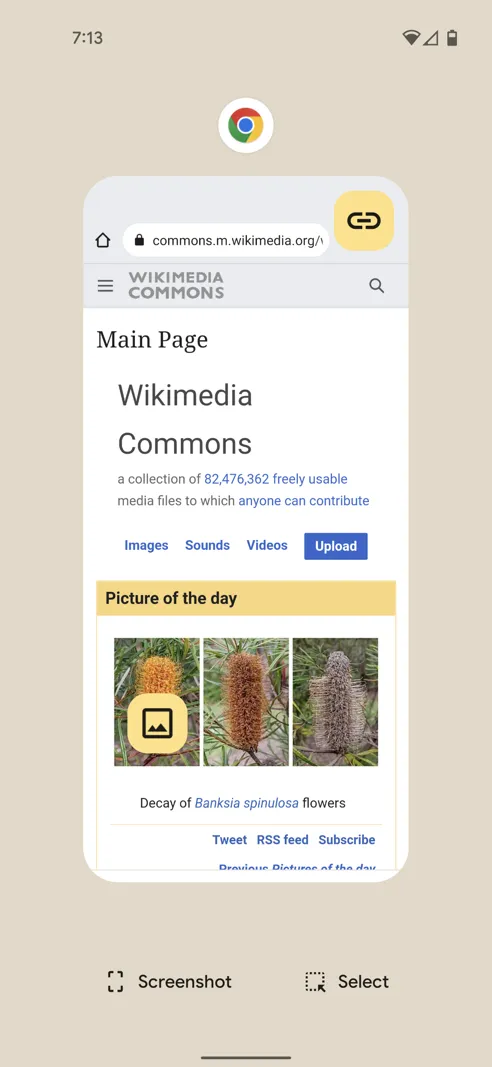
- App switcher (Pixel): Google's Pixel help page gives the steps for each navigation style. With gesture navigation, swipe up from the bottom, hold, then let go; swipe to the app you want and tap Screenshot. With 3-button navigation, tap Overview (the square), pick the app, and tap Screenshot.
- Accessibility Menu (most Android phones): Google's Accessibility Menu help page describes a large on-screen menu with a Screenshots button. Turn it on at Settings > Accessibility > Accessibility Menu, switch on the shortcut, and open it with the floating accessibility button or a two-finger swipe up (three fingers if TalkBack is on). If TalkBack got turned on by accident along the way, here's how to turn off TalkBack.
- Quick Tap, Palm swipe, or voice: covered in the Pixel and Galaxy sections above.
If the screen itself isn't responding, fix that first with our guide to an Android touch screen that isn't working.
How to Take a Scrolling Screenshot
A scrolling (or long) screenshot captures a whole page, chat, or receipt as one tall image instead of several pieces.
- Take a normal screenshot with any method.
- On a Pixel, tap Capture more in the preview. Google says it works on Android 12 and up, on most screens that scroll, and you use the crop guidelines to choose how much to keep. On a Galaxy, tap the Scroll capture icon (two down arrows) in the toolbar; keep tapping it to add more of the page.
- Save the result. On a Galaxy, stop tapping when you've captured enough.
If Capture more or Scroll capture doesn't appear, the screen you're on isn't one Android can scroll on its own. That's common in games, maps, and apps that draw their own content. Take several normal screenshots, or use a screen recording to capture the whole thing.
Take a Screenshot With Your Voice (Gemini, Not Assistant)
Many screenshot guides still say to ask Google Assistant. Google began removing Assistant from Android phones on September 4, 2026, with Gemini taking its place. Gemini can do the job: Google's Gemini device help page lists "take a photo or screenshot" among the things it can do on your phone when the Google app is set as your default digital assistant app.
Google's Pixel help page still gives the phrase "Hey Google, take a screenshot," and it's the simplest way to do it. You can also open Gemini however you normally do and ask it to take a screenshot. On a Galaxy you can also use Bixby: "Hey Bixby, take a screenshot."
Where Are Screenshots Saved on Android?
- Pixel: in Google Photos, go to Collections > On this device > Screenshots, according to Google's Pixel help.
- Samsung Galaxy: open Gallery > Albums > Screenshots, or My Files > Images.
- As files: Android's own screenshot code in the Android Open Source Project saves screenshots to the Pictures/Screenshots folder as PNG files named like
Screenshot_20261105-093015.png(the date, then the time). Phone makers can change this, which is why Samsung lets you choose the format and location.
Screenshots pile up fast. If they're eating your space, our guide on how to free up storage on Android shows what's safe to delete. If you deleted one by mistake, check the Trash in Google Photos or Gallery first.
"Can't Take Screenshot Due to Security Policy": Why It Happens
This message, or a screenshot that comes out black, means something is blocking capture on purpose. Your phone isn't broken. There are two usual causes.
- The app blocks it. Android lets developers mark any window as secure with FLAG_SECURE, which stops it from showing up in screenshots and recordings. Apps that handle money, passwords, or paid video often use it.
- Your work or school controls the phone. An IT admin who manages the device or your work profile can turn off screen capture with a device policy. Samsung's guide also notes that screenshots may not be available in Secure Folder.
You can't override either block from Settings, and you shouldn't install apps that claim to. Instead, use the app's own share, download, or export option (for example, a receipt or statement PDF), open the same page on the website, or ask your IT team if a work app blocks something you need.
Do Apps Know When You Screenshot?
Some do, and Android now builds this in. Since Android 14, apps can use Android's screenshot detection API to get a signal when you screenshot one of their screens. Google's developer documentation says three things about it:
- You'll see a system message telling you the app detected the screenshot, so it isn't hidden.
- The app learns only that a screenshot happened. It doesn't get the image.
- It catches the hardware-button screenshot, not captures made with developer tools such as ADB.
Android 15 added a similar screen recording detection callback that tells an app when it's visible in a recording.
Some social apps tell the other person, too. Snapchat's help center says a screenshot icon appears when someone screenshots your Snap or Chat. Instagram's help center says you'll be notified if someone takes a screenshot in vanish mode. If it matters whether the other person finds out, check that app's help center before you take the screenshot.
Screenshot Not Working? Try These Fixes
- Press both buttons at exactly the same time. Most failed button screenshots come from timing. Press the two buttons together and release them together.
- Look for the security message. A black image or a "security policy" message means the app or your admin blocks capture (see above).
- Restart the phone. A restart clears temporary glitches that can stop the preview or toolbar from appearing.
- Use a button-free method. The app switcher, Accessibility Menu, Quick Tap, Palm swipe, or Gemini all work without the button combo.
- Check the Samsung toolbar settings. If a screenshot vanished after you shared it, Delete after sharing is probably on.
- Free up space. If your storage is completely full, new files, screenshots included, may fail to save.
Bottom Line
Press Power (or Side) and Volume down together to take a screenshot on Android, then tap Capture more or Scroll capture if you need the whole page. If a button doesn't work, use the app switcher on a Pixel, Palm swipe on a Galaxy, or the Accessibility Menu on either. For voice, ask Gemini instead of Assistant. A black screenshot or "security policy" message means the app or your employer is blocking capture on purpose, so use the app's own export option instead.
How we put this together: Aditya Singh checked each step against Google's Pixel, Android, Accessibility, and Gemini help pages, Samsung's US support page and community settings guide, Android's developer documentation, the screenshot code in the Android Open Source Project, and Snapchat's and Instagram's help centers on November 5, 2026. We didn't test devices for this guide, and menu names can vary by phone model and software version.
Frequently Asked Questions
How do I take a screenshot on Android without the power button?
On a Pixel, open the app switcher (swipe up and hold, or tap Overview) and tap Screenshot. On most Android phones you can also turn on the Accessibility Menu under Settings > Accessibility for an on-screen Screenshots button. Galaxy phones also offer Palm swipe to capture, and Pixel 4a (5G) and later can use Quick Tap on the back of the phone.
Why does my phone say it can't take a screenshot due to security policy?
The app you're in or your work or school administrator is blocking screen capture on purpose. Android lets apps mark screens as secure, and device admins can turn screen capture off. Use the app's own share or export option, the website version, or ask your IT team.
Where do screenshots go on Android?
On a Pixel, open Google Photos and go to Collections > On this device > Screenshots. On a Galaxy, open Gallery > Albums > Screenshots or My Files > Images. Stock Android saves them as PNG files in the Pictures/Screenshots folder.
Can apps tell when you take a screenshot on Android?
Some can. Since Android 14, apps can use a screenshot detection API, and Android shows you a message when an app detects your screenshot. The app learns that a screenshot happened but doesn't get the image. Snapchat notifies people when you screenshot their Snap or Chat, and Instagram does in vanish mode.
Can I still say Hey Google, take a screenshot?
Yes, but Gemini handles it now on most phones, since Google began replacing Google Assistant with Gemini on September 4, 2026. Google's Gemini help says it can take a screenshot when the Google app is your default digital assistant app. On a Galaxy you can also say Hey Bixby, take a screenshot.