15 Best Google Pixel 8a Tips and Tricks for 2026

The fastest way to get more from a Google Pixel 8a in 2026 is to turn on the three things Google leaves off by default: 120Hz Smooth Display, Call Recording (now built into the Phone app), and Quick Share with AirDrop so you can finally send files to iPhone users. After that, the AI tools, gesture shortcuts, and webcam mode below squeeze real value out of a phone that Google still supports with full updates through 2031.
The Pixel 8a packs a 6.1-inch 120Hz OLED Actua display, the Tensor G3 chip, and seven years of OS, security, and Feature Drop updates. That long support window means features that launched on pricier Pixels keep arriving here for free. We use a Pixel 8a as a daily driver and refreshed every step below against the latest Android 16 build and the 2026 Pixel Feature Drops.
In a hurry? Jump to: 120Hz display · AI features · Call Recording · Quick Share + AirDrop · Quick settings table · FAQ
1. Turn on the full 120Hz Smooth Display
The 120Hz OLED panel was the headline upgrade for the A-series, but the Pixel 8a ships with Smooth Display switched off to save battery. Turning it on makes scrolling, animations, and games visibly crisper.
- Open Settings > Display.
- Tap Smooth Display and toggle it on.
The phone then ramps between 60Hz and 120Hz automatically based on what is on screen, so you get the smoothness without a constant battery hit. If you are chasing every last hour of runtime, leave it off; otherwise, most people should switch it on and forget about it.
2. Customize the home screen and lock screen
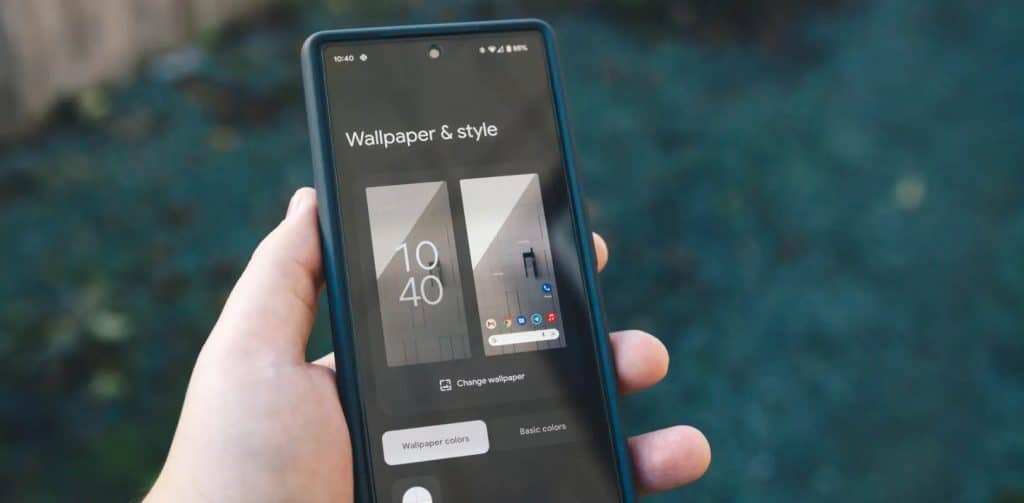
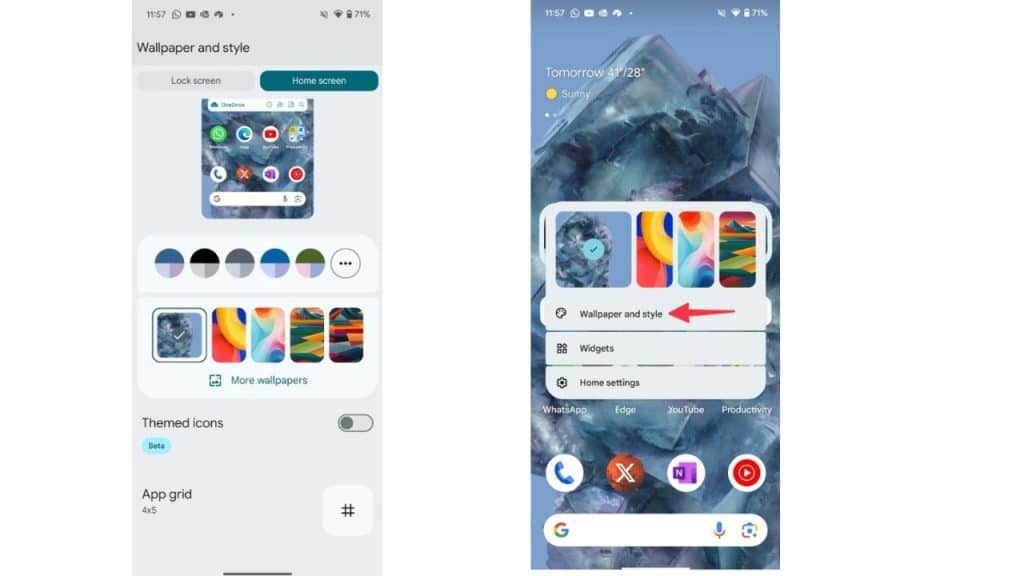
Long-press an empty spot on the home screen and tap Wallpaper & style. From here you can pick a wallpaper, let Material You theme the whole interface around its dominant color, and enable themed icons so supported app icons match your palette.
- Use Wallpaper & style > AI wallpaper to generate a unique background from a text prompt.
- On Android 16, tap Lock screen to swap the clock style, recolor it, and change the two lock-screen shortcuts (for example, swap the QR scanner for the flashlight).
Want widgets too? Our walkthrough on how to add a widget to your Android home screen covers the long-press-and-resize flow that works the same way on the Pixel 8a.
3. Master the Pixel 8a AI tools
AI is the Pixel 8a's biggest selling point, and the Tensor G3 runs a strong set of it on-device. These are the ones worth learning first.
Audio Magic Eraser

Audio Magic Eraser strips distracting background noise out of your videos. Open Google Photos, pick a video, tap Edit > Audio, then use Audio Magic Eraser. The AI separates wind, crowd noise, and speech into layers you can dial up or down by hand.
Magic Editor and Magic Eraser
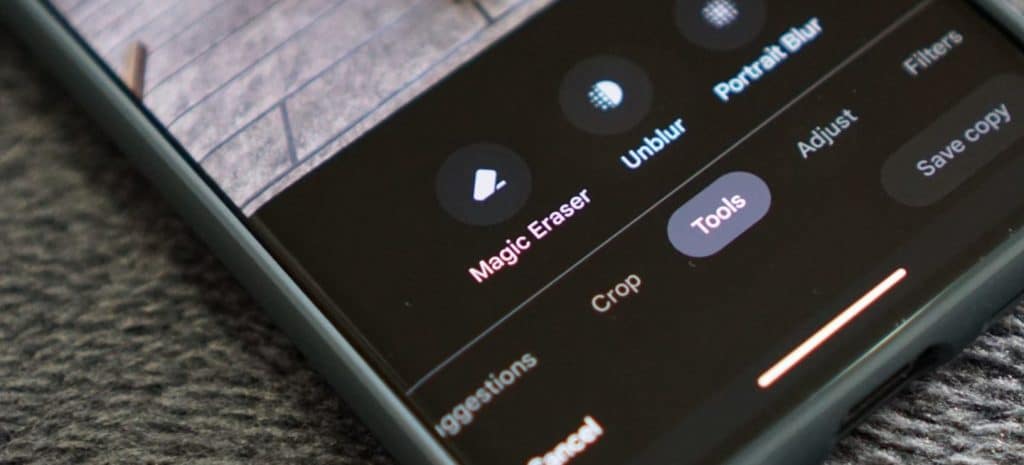
Magic Eraser removes photobombers and clutter; Magic Editor goes further, letting you reposition or resize subjects and regenerate the background. In Google Photos, open a photo, tap Edit, then choose Magic Eraser (under Tools) or tap and hold the Edit button to enter Magic Editor.
Circle to Search

Long-press the home button or navigation pill, then circle, scribble, or tap anything on screen to search it without leaving the app. It is great for identifying a product in a video or translating on-screen text, and recent updates layer an AI Overview on top of the results.
AI wallpapers

Long-press the home screen, tap Wallpaper & style > AI wallpaper, choose a theme, then fill in the highlighted prompt words to generate a one-of-a-kind background. It is a quick way to make your phone feel personal in seconds.
4. Record calls right from the Phone app
This is the biggest new addition for older Pixels. Google built Call Recording into the Pixel Phone app and rolled it out to the Pixel 6 and newer, which includes the Pixel 8a. It is region-restricted, so availability depends on your country and local laws.
- Open the Phone app, tap your profile or the three-dot menu, then Settings > Call Assist and turn on Call Recording (a short one-time setup downloads the feature).
- During a call, open the Call Assist menu and tap the record button. The phone plays a mandatory disclosure tone and shows a red recording indicator.
- You can also set it to automatically record calls from people who are not in your contacts.
5. Send files to iPhones with Quick Share + AirDrop
In 2026, Quick Share on the Pixel 8a gained the ability to talk to AirDrop, so you can finally beam photos and files to nearby iPhone and Mac users. The iPhone owner first sets their AirDrop visibility to Everyone for 10 Minutes; then on the 8a, pull down Quick Settings, make sure Quick Share is on, share a file as usual, and pick the Apple device that appears. Notably the 8a made the supported list while the pricier Pixel 8 and 8 Pro did not.
6. Reach the top of the screen one-handed
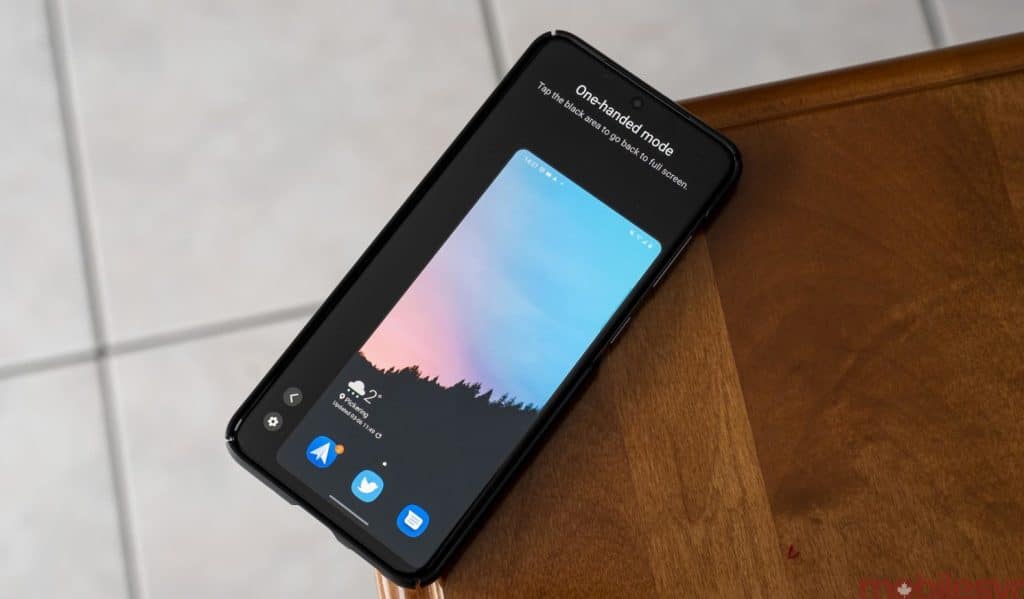
Even on a compact 6.1-inch phone, one-handed mode helps you tap notifications and the address bar without shuffling your grip. Go to Settings, search One-handed mode, and toggle it on. With gesture navigation enabled, swipe down on the bottom edge to pull the screen toward your thumb.
7. Flip to launch the selfie camera
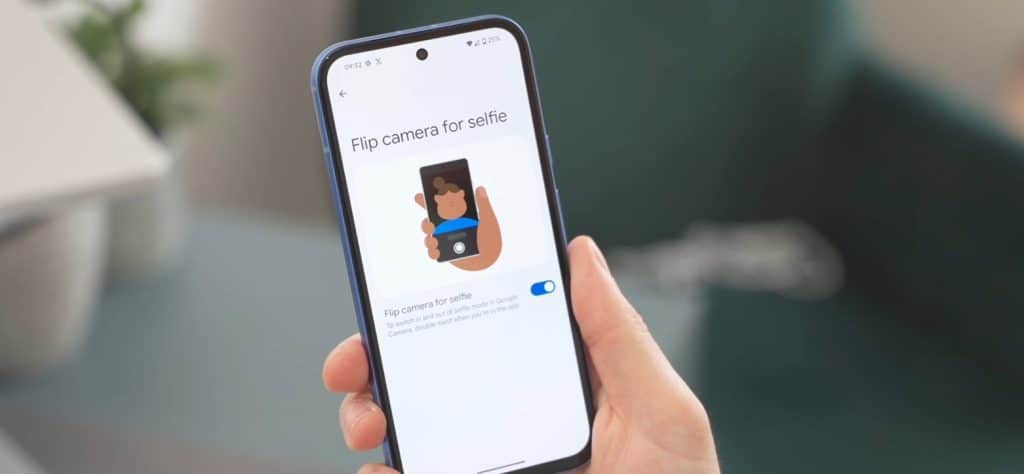
A double-twist of the wrist switches between the rear and front cameras instantly. Enable it under Settings > System > Gestures > Flip camera. It is the fastest way to jump into a selfie without hunting for the on-screen toggle.
8. Turn on RCS for better texting

RCS brings read receipts, typing indicators, high-resolution media, and end-to-end encryption to Google Messages, and it now works in conversations with iPhone users too. Open Messages, tap your profile picture, go to Messages settings > RCS chats, and toggle it on. Our full guide on how to enable or disable RCS in Google Messages walks through every option if it does not activate right away.
9. Cut call noise with Clear Calling

Clear Calling uses AI to reduce background noise on the other person's end during a regular phone call, so voices come through cleaner. Enable it under Settings > Sound & vibration > Clear Calling. It works over Wi-Fi or a solid mobile data connection and does not apply to Wi-Fi calling.
10. Use the Pixel 8a as a webcam
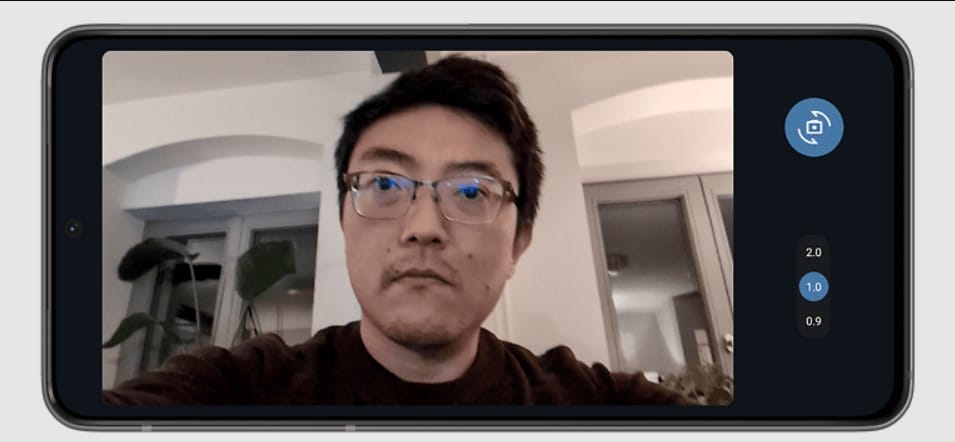
If your laptop's camera is weak, the Pixel 8a can stand in. Connect it to your PC or Mac with a USB-C cable, tap the USB notification, and choose Webcam. The phone shows a viewfinder with framing and exposure controls, and most video apps will pick it up as a standard camera.
11. Trigger actions with Quick Tap on the back
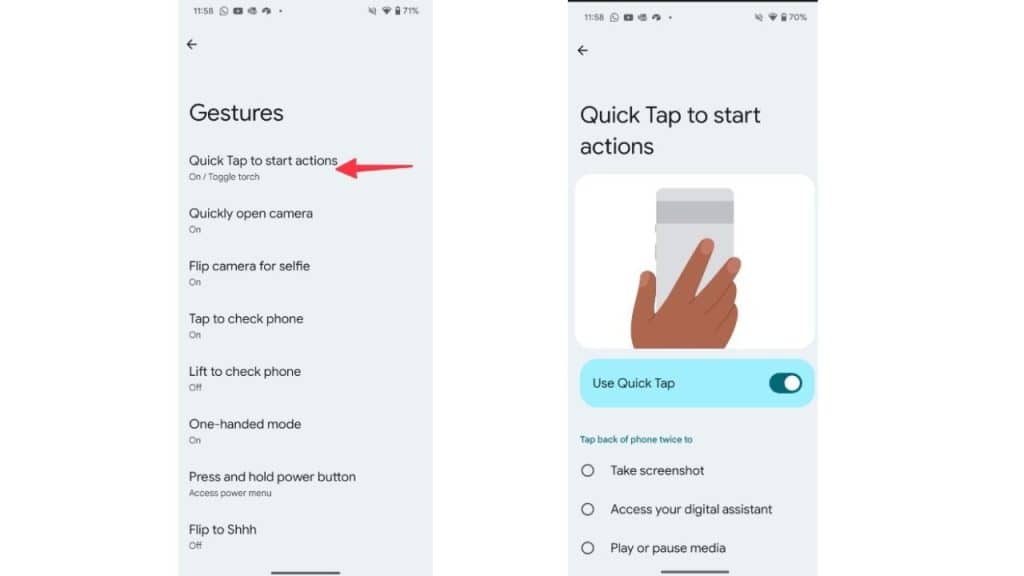
Double-tapping the back of the phone can fire off a shortcut. Head to Settings > System > Gestures > Quick Tap and map it to a screenshot, the Google Assistant or Gemini, play/pause media, opening notifications, or launching a specific app.
12. Translate on the fly with Live Translate

Live Translate handles real-time translation in chats, camera text, and even live conversations, much of it on-device. Turn it on under Settings > System > Live Translate and download the language packs you travel with. It is genuinely useful for menus, signs, and quick back-and-forth abroad.
13. Don't miss the newer Android 16 tricks
Seven years of Feature Drops means the Pixel 8a keeps gaining tools. A few worth turning on right now:
- Adjustable flashlight strength: in Quick Settings, long-press the flashlight tile to dim or brighten the torch.
- Cleaner home screen: Android 16 lets you remove the At a Glance widget from the top of your first home page if you prefer a blank canvas.
- Notification Cooldown: gradually lowers notification volume when alerts pile up, so a busy group chat stops blasting you.
- Private Space: tuck sensitive apps into a separate, lockable area that stays hidden from your app list.
14. Stretch battery life with Adaptive tools
The Pixel 8a's roughly 4,492mAh battery comfortably lasts a day, and a few settings push it further. Enable Adaptive Battery and Adaptive Charging under Settings > Battery so the phone learns your routine and avoids sitting at 100% overnight. Add Battery Saver as a Quick Settings tile for one-tap power saving on long days, and keep an eye on the per-app usage breakdown to spot anything draining in the background.
15. Lock down theft protection and updates
Android's Theft Detection Lock can auto-lock the phone if someone snatches it from your hand and runs, while Offline Device Lock secures it if it is taken off the network. Find both under Settings > Security & privacy > Device unlock > Theft protection. Just as important: keep the phone current. Check Settings > System > Software updates regularly, since the Pixel 8a is slated for security and feature updates through 2031.
Pixel 8a settings cheat sheet
| Feature | Where to find it | Best for |
|---|---|---|
| Smooth Display (120Hz) | Settings > Display > Smooth Display | Smoother scrolling and gaming |
| Call Recording | Phone app > Settings > Call Assist | Keeping records of calls |
| Quick Share + AirDrop | Quick Settings > Quick Share | Sending files to iPhone users |
| Audio Magic Eraser | Google Photos > Edit > Audio | Cleaning noisy video clips |
| Circle to Search | Long-press home button / nav pill | Searching anything on screen |
| Clear Calling | Settings > Sound & vibration | Clearer voice calls |
| Webcam mode | USB notification > Webcam | Better video calls on a PC |
| Quick Tap | Settings > System > Gestures | Fast back-tap shortcuts |
| Theft Protection | Settings > Security & privacy | Keeping data safe if stolen |
How we picked these tips
We use a Google Pixel 8a as a test device and worked through every setting and gesture mentioned here on the latest Android 16 build. We prioritized features that are off by default but high-impact (Smooth Display, Call Recording), tools unique to Pixel's AI stack (Magic Editor, Circle to Search, Live Translate), and the genuinely new additions from the 2026 Feature Drops such as Quick Share with AirDrop. Where a feature is region-locked or depends on a Google account or data connection, we said so rather than presenting it as universal. We cross-checked menu paths and availability against Google's official Pixel support pages and the 2026 Pixel Feature Drop announcements, and left out any "trick" we could not reproduce on the device itself.
Related reading
- Google Pixel 8a vs OnePlus 12R
- How to enable or disable RCS in Google Messages
- Best Google Android features to try
Bottom line
The Pixel 8a is still one of the smartest value buys in Android, and most of its best tricks are a toggle away. Switch on Smooth Display for a slicker feel, set up Call Recording and Quick Share with AirDrop for the practical wins, and lean on the AI tools (Magic Editor, Circle to Search, Live Translate) that make Pixels special. With updates promised through 2031, it is worth checking the Feature Drop notes every few months because the phone you bought keeps getting better for free.
Frequently Asked Questions
How do I turn on 120Hz on the Pixel 8a?
Go to Settings > Display and toggle on Smooth Display. The Pixel 8a ships with this off to save battery, so you have to enable it manually. Once on, the screen automatically shifts between 60Hz and 120Hz depending on what you are doing, giving you smoother scrolling and gaming without a constant battery drain.
Can the Google Pixel 8a record phone calls?
Yes. Google added Call Recording directly into the Pixel Phone app and rolled it out to the Pixel 6 and newer, which includes the Pixel 8a. Open the Phone app, go to Settings > Call Assist, and enable Call Recording. The feature is region-restricted and plays a mandatory disclosure tone, so availability depends on your country and local laws.
Does the Pixel 8a support Quick Share with AirDrop?
Yes. Google rolled AirDrop interoperability into Quick Share for the Pixel 8a in 2026, alongside the Pixel 9 and 10 families (the Pixel 8 and 8 Pro were left out). Have the iPhone owner set AirDrop visibility to Everyone for 10 Minutes, make sure Quick Share is enabled in Quick Settings, then share a file and select the Apple device that appears in the list.
How long will the Pixel 8a get software updates?
Google guarantees seven years of OS, security, and Feature Drop updates for the Pixel 8a, extending through 2031. That means it continues to receive new Android versions and quarterly Feature Drops, so features that debut on newer Pixels often reach the 8a over time.
What AI features does the Pixel 8a have?
The Tensor G3 chip powers Audio Magic Eraser, Magic Editor and Magic Eraser in Google Photos, Circle to Search, Live Translate, Best Take, and AI wallpaper generation. Many of these run on-device, and some advanced cloud features require a Google account or subscription. Newer flagship-only AI tools are not all available on the 8a.
How do I use the Pixel 8a as a webcam?
Connect the Pixel 8a to your computer with a USB-C cable, tap the USB notification, and choose Webcam. The phone displays a viewfinder with framing and exposure controls, and video apps will detect it as a standard camera. It is a quick fix when your laptop's built-in camera is low quality or not working.
How do I enable RCS messaging on the Pixel 8a?
Open Google Messages, tap your profile picture, then go to Messages settings > RCS chats and toggle it on. RCS adds read receipts, typing indicators, high-resolution media, and end-to-end encryption, and it now works in conversations with iPhone users too. It can take a minute to register with your number.
Is the Pixel 8a still worth buying in 2026?
For most people, yes. It pairs a 120Hz OLED display, Tensor G3 performance, and a strong camera with software support through 2031, so it stays current for years. If you want the very newest AI features that are exclusive to the Pixel 10 series, a current flagship makes more sense, but for value the 8a remains a top pick.