Best Android Emulator for Low End PC 8GB RAM (2026 Settings Guide)

The best Android emulator for a low end PC with 8GB RAM in 2026 is LDPlayer 9. It idles around 750–850MB of RAM in light use, boots faster than BlueStacks on slow disks, and still plays Free Fire and similar titles if you keep the window small. MEmu is the backup. BlueStacks still works, but only after you cut its RAM slider, resolution, and ads. Do not run two emulators at once. Windows 11 already ate half your memory.
This is not another generic "12 best emulators" list. We already have that full 2026 emulator roundup. This page is only for the 8GB machine: the RAM math, the BIOS toggle, and the settings that stop the disk thrashing.
In a hurry? Jump to: RAM math · the picks · 8GB settings recipe · virtualization · Hyper-V / VBS · RAM tiers · what will actually run · video · FAQ
The 8GB RAM math nobody puts in the first paragraph
Task Manager lies until you look at the committed total.
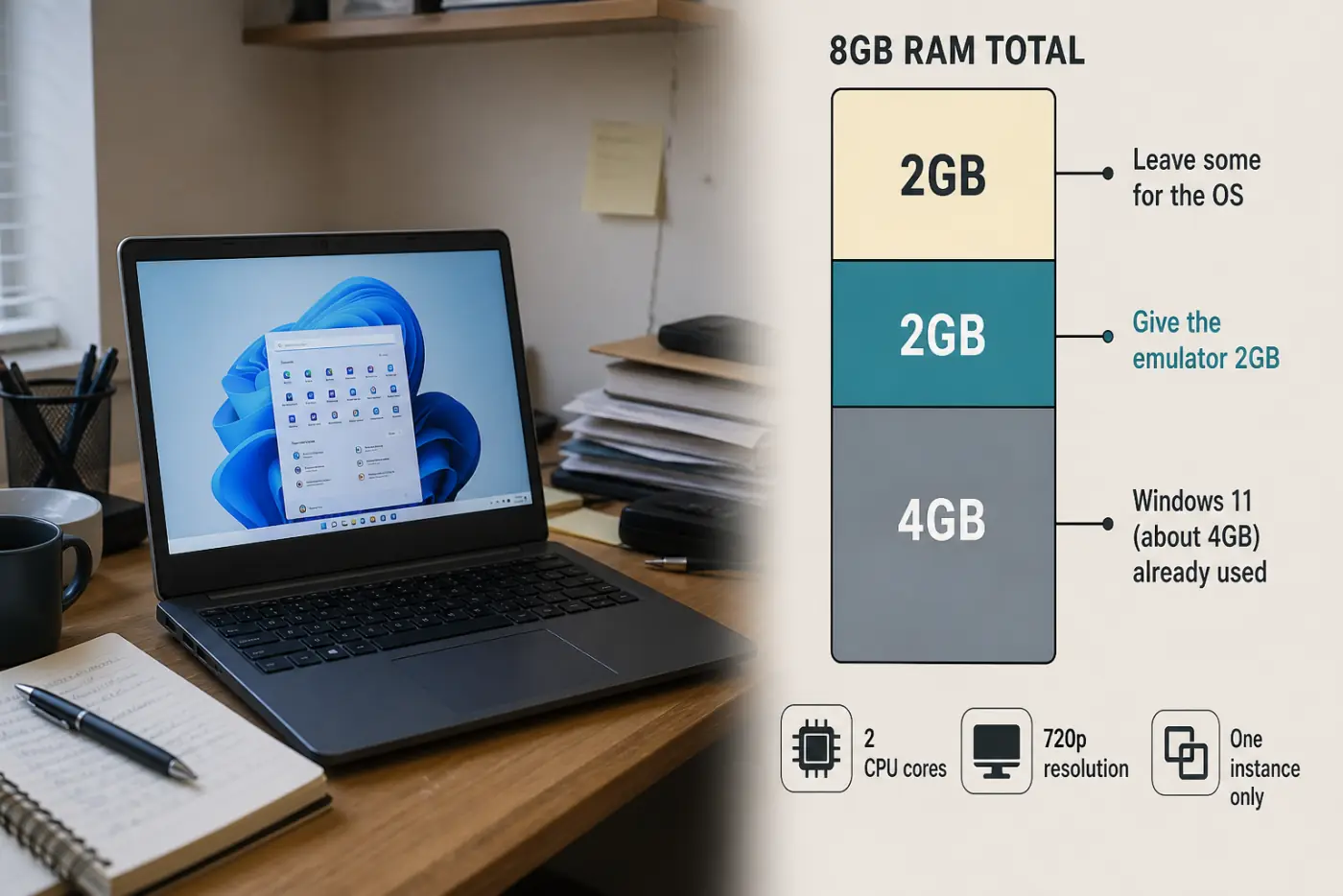
- Windows 11 idle: often 3.5–4.5GB already gone (desktop, antivirus, widgets).
- Left for everything else: about 3.5–4.5GB.
- Give the emulator: 2GB, maybe 3GB if you closed the browser. Never 4GB+ on an 8GB box. Windows will page to disk and feel like a freeze.
- CPU cores: 2. Four cores on a dual-core laptop is a joke setting.
- Resolution: 1280×720. 1080p is a tax you cannot pay.
That is why LDPlayer wins here. Independent low-end tests in 2026 still show it holding a smaller idle footprint than BlueStacks (BlueStacks often ~1.1–1.3GB idle; LDPlayer closer to ~800MB). Your numbers will move with the game, but the gap is the story.
Picks for 8GB Windows PCs
1. LDPlayer 9 — best Android emulator for 8GB RAM
Gaming-first. Android 9 base (old, but most games still install). Hyper-V support. Lowest input lag in our wider emulator testing. Windows only.
8GB setup: 2 cores, 2048MB RAM, 720p, 30 or 60 FPS cap, close the multi-instance manager. Do not open a second copy.
Honest limits: no Mac. Competitive PUBG / COD Mobile still belongs on GameLoop if ranked bans worry you (see the ban notes on our main emulator guide). Apps that demand a new Android API may refuse to install.
LDPlayer official site.
2. MEmu Play — best Plan B
Still lighter than a default BlueStacks install for many people. GPS tools and keymaps are decent. Android 9 in current gaming builds.
8GB setup: same 2GB / 2 cores / 720p recipe. If LDPlayer's installer fights your antivirus, try MEmu next, not a third emulator on top.
3. BlueStacks 5 — only with the diet settings
Best app compatibility on our big list. Heavier engine. Ads. Fine on 8GB if you are honest with the sliders.
- Performance tab: High FPS off. Eco Mode on if you background it.
- Engine: try Performance mode, 2 cores, 2GB RAM.
- Graphics: DirectX or Vulkan, not memory-hungry 1600p.
- Kill the store / recommendation popups you do not need.
If it still crawls, uninstall BlueStacks and stay on LDPlayer. Two engines fighting over VT-x is how 8GB PCs die.
BlueStacks official site.
4. GameLoop — only for Tencent games
Official path for PUBG Mobile and COD Mobile on PC. Older Android 7.1 engine. Not your daily driver for random Play apps. On 8GB, install this or LDPlayer, not both.
If Task Manager says you do not really have 8GB
Low-end guides mix 2GB, 4GB, and 8GB machines. This page is for 8GB. Use the other rows only if you opened Task Manager and winced.
| Usable RAM | What to run | Skip |
|---|---|---|
| 8GB (this page) | LDPlayer 9, 2GB / 2 cores / 720p. MEmu as backup. | Multi-instance, 1080p, two engines |
| ~4GB usable | NoxPlayer 7 in a light profile, or LDPlayer with 1–2GB if it boots. 720p, 30 FPS. | BlueStacks default, MuMu high-FPS |
| No VT / VT greyed out | Nox no-VT mode, or GameLoop if you only play Tencent titles. Expect pain. | Anything that demands Hyper-V + a second engine |
| 8GB clean + VT works, want a second opinion | MuMu Player 12 as a runner-up. Still heavier than LDPlayer. One instance. | Nebula 240 FPS modes |
Nox and MuMu are not co-winners for a healthy 8GB box. They are the answers when the 8GB machine is lying, or when LDPlayer's installer fights you.
Skip on 8GB
- MuMu 12 high-FPS / 240 FPS modes — built for machines with headroom. Plain MuMu 12 as a single 8GB instance is fine as Plan D, not Plan A.
- SmartGaGa / Android-x86 — 2GB or dual-boot jobs, not an 8GB Windows recipe.
- Android Studio emulator — for developers; RAM hungry.
- Multi-instance farms — you need 16GB+.
- Dead names: WSA (Microsoft killed it March 2025), KoPlayer, Andy. Listed in the emulators to avoid section.
The 8GB settings recipe (do this once)
- Close Chrome. One emulator + one browser is how you hit 98% memory. Use Edge with one tab or none.
- SSD if you can. HDD + emulator = stutter even with spare RAM. Keep real headroom free on that drive: LDPlayer's own system requirements page asks for around 36GB once games are installed, not the 10GB most guides quote. A nearly full SSD also throttles, which is the stutter people blame on RAM.
- Assign 2GB RAM, 2 CPUs inside the emulator. Ignore YouTube videos that say 4GB on 8GB laptops.
- 720p, 60 FPS cap (30 FPS on Intel UHD if it thermal-throttles).
- Drop the DPI to about 160–240 in the emulator's display settings. It is the setting nobody mentions: fewer pixels to composite means less GPU and less RAM for the same resolution, and games render in phone layout instead of tablet layout.
- Graphics: if a game is black-screen, switch DirectX ↔ OpenGL ↔ Vulkan. Do not raise resolution to "fix" it.
- Game quality: Low or Smooth in the mobile game's own settings. The emulator slider cannot save Ultra on UHD 620.
- One instance. Multi-instance is how 8GB starts using the page file until the mouse freezes.
Turn on virtualization or nothing else matters
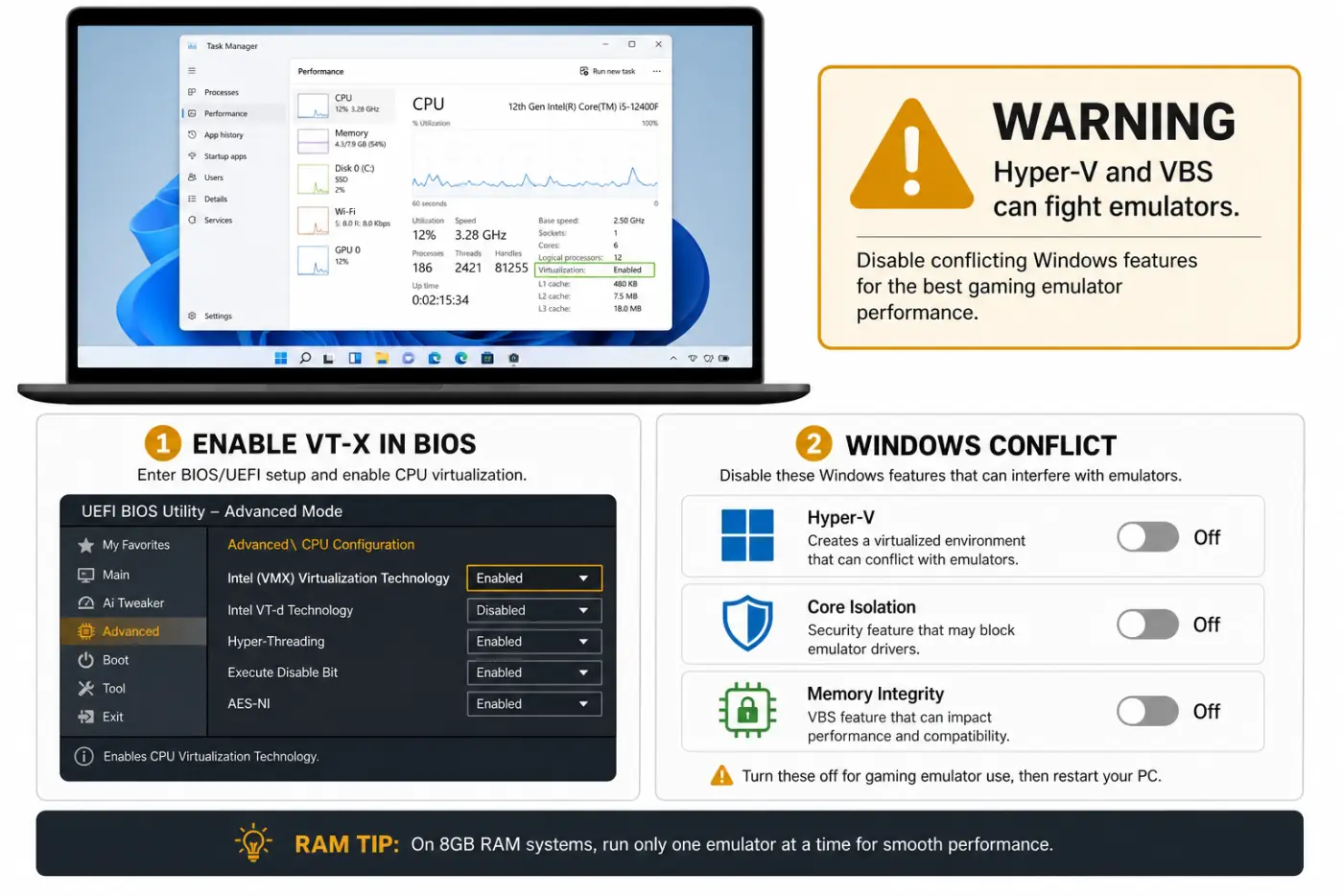
This is the #1 lag cause. Intel VT-x or AMD-V (SVM) lives in BIOS/UEFI, not in the emulator menu.
- Restart. Mash Del, F2, or F10 (vendor dependent).
- Find Virtualization, VT-x, SVM, or AMD-V. Set Enabled.
- Save and boot. In Task Manager → Performance → CPU, "Virtualization" should say Enabled.
On Windows, Hyper-V / Core isolation can fight some emulators. If LDPlayer asks you to toggle Hyper-V, follow that vendor's current help page. Do not stack BlueStacks and LDPlayer while you experiment.
The Windows 11 trap: VT is on, the emulator still stutters
This is the section the 8GB encyclopedia pages get right and generic lists skip. Task Manager can say Virtualization: Enabled and you still lose.
Memory Integrity / Core isolation (VBS) and leftover Hyper-V steal the hypervisor. LDPlayer 9, BlueStacks 5, and MuMu 12 can run in Hyper-V-aware modes, but on 8GB that extra layer is a tax. If the emulator is a slideshow with VT already on:
- Windows Security → Device security → Core isolation → turn Memory integrity off. Reboot. This is a security trade. Do it on a gaming laptop, not on a work PC with BitLocker policy.
- OptionalFeatures.exe. Uncheck Hyper-V, Virtual Machine Platform, Windows Hypervisor Platform, and Windows Sandbox if you do not need WSL2 or Docker. Reboot.
- If you do need WSL2, keep Hyper-V and use the emulator's Hyper-V compatible engine. Do not also install a second emulator.
- Avast users: turn off hardware-assisted virtualization in Avast. It hogs VT.
Do not paste random bcdedit commands from a 2019 forum. Follow the emulator vendor's current Hyper-V page, then reboot once.
Watch: LDPlayer's official VT walkthrough
This is from LDPlayer's own channel, the same steps as their enable VT guide.
What will actually run on 8GB
| Game type | 8GB verdict |
|---|---|
| Idle / gacha / 2D | Yes. This is the sweet spot. |
| Free Fire, MLBB, light 3D | Yes at 720p, Low, one instance. |
| Genshin / heavy open world | Playable-ish on a decent CPU + iGPU. Ugly. 30 FPS is a win. |
| Emulator + Discord overlay + Chrome | No. Close the extras. |
| Three accounts at once | No. Buy RAM or stop. |
Want games that are kind to weak hardware on the phone itself? See best Android games for low-end phones.
Mac and Linux with 8GB
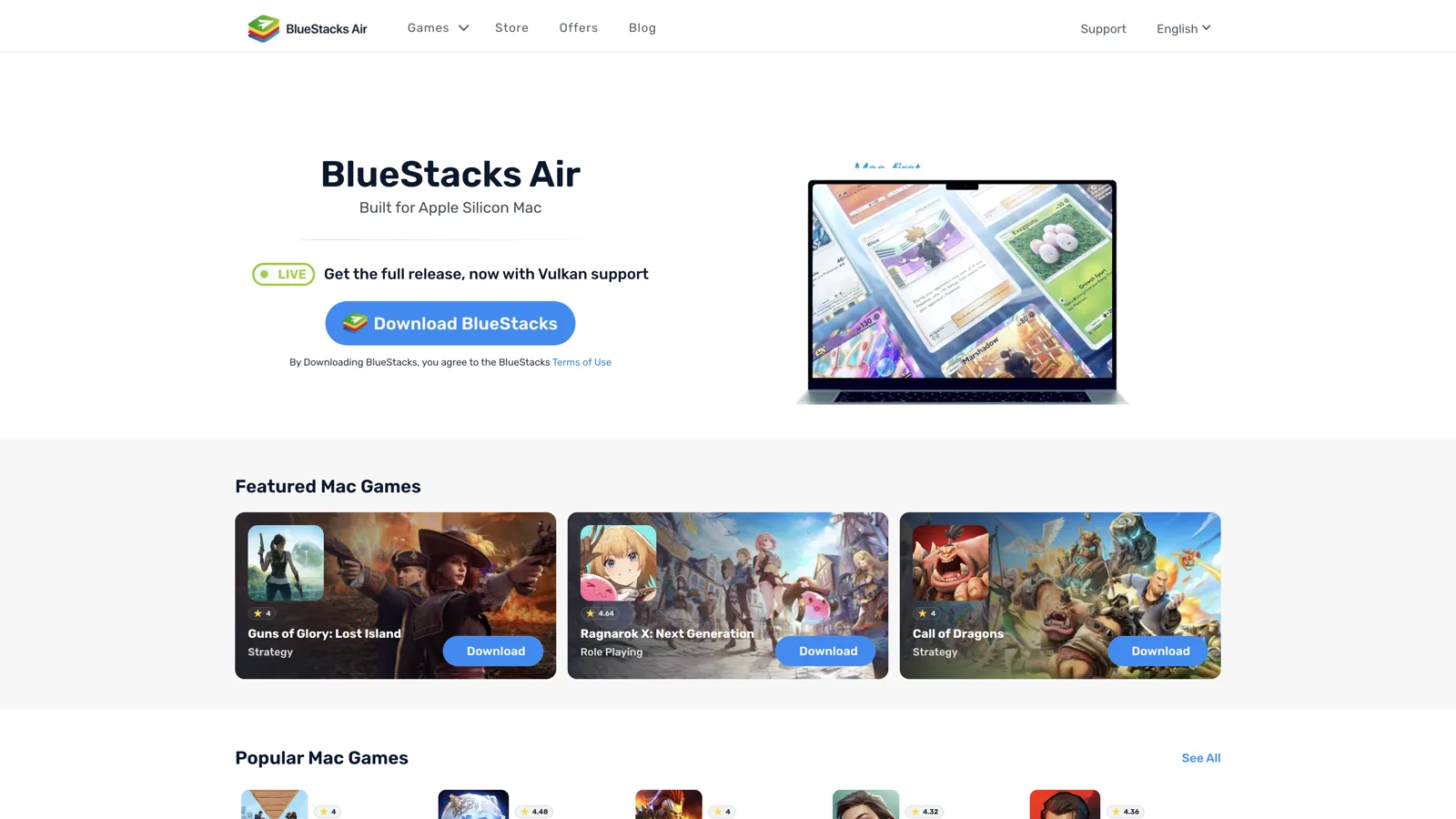
- Apple Silicon Mac, 8GB: BlueStacks Air lists 8GB as a minimum and 16GB as happier. Keep one instance. MuMuPlayer Pro on Mac is paid after trial. LDPlayer is Windows only.
- Intel Mac, 8GB: painful. Translation tax on top of RAM tax. Lower expectations.
- Linux, 8GB: Waydroid is lighter than a Windows VM-style emulator because it is a container. Still close Firefox. Our main guide covers Waydroid in the Linux slot.
Mistakes that murder 8GB PCs
- Downloading "LDPlayer" from a Google ad that is not ldplayer.net.
- Leaving 16 Chrome tabs open "just for guides."
- Setting 4 cores / 4GB RAM because a 32GB YouTuber did.
- Running GameLoop and BlueStacks together.
- Recording with OBS at 1080p while the emulator fights for the iGPU.
How we picked
We treated 8GB as a hard budget, not a marketing minimum:
- Prefer a small idle RAM footprint (LDPlayer's published and third-party low-end figures vs BlueStacks).
- One instance, 720p, 2GB assigned — the config a real i3 laptop can hold.
- Still-updated in 2026 (LDPlayer 9.x line). No WSA, no Andy.
- Link out to official download domains only.
For Mac-native, Linux, ban risk, and Android version charts, use the full emulator article. This page stays greedy about memory.
Bottom line
On a low end PC with 8GB RAM, install LDPlayer 9, give it 2GB and 2 cores, stay at 720p, enable virtualization, fix Hyper-V/VBS if VT is already on and it still stutters, and close the browser. That is the whole trick. Nox is the 4GB footnote. MuMu is Plan D. BlueStacks is Plan C after a diet. Multi-instance is a fantasy until you buy 16GB.
Do this next: enable VT-x/AMD-V, download LDPlayer from the official site, set 2GB RAM, and play one light game for 20 minutes. If Task Manager hits 95% and stays there, drop to 30 FPS and 2GB if you had bumped it.
Related reading
Frequently Asked Questions
What is the best Android emulator for a low end PC with 8GB RAM?
LDPlayer 9 is the best fit in 2026 because it uses less idle RAM than a default BlueStacks install and still handles popular mobile games at 720p. Assign about 2GB of RAM and 2 CPU cores, turn on BIOS virtualization, and run only one instance. MEmu is the backup. Diet BlueStacks if you need better app compatibility.
Can BlueStacks run on 8GB RAM?
Yes, if you cap it at 2GB assigned RAM, 2 cores, 720p, and close Chrome. BlueStacks' idle use is higher than LDPlayer's, so it is Plan C, not Plan A, on 8GB Windows 11. Do not enable high FPS or multi-instance on that machine.
How much RAM should I give an Android emulator on an 8GB PC?
2GB, maybe 3GB if you closed every browser tab. Windows 11 already uses around 4GB. Assigning 4GB to the emulator forces paging to disk and feels slower, not faster. Two CPU cores is the matching setting.
Why is my Android emulator laggy on 8GB RAM?
Virtualization is off in BIOS, Windows 11 Memory Integrity is on, the emulator is set to 1080p or 4 cores, Chrome is open, two emulators are running, or the game is on Ultra. Fix VT-x first. If Task Manager already says Virtualization Enabled, turn off Memory Integrity or use the emulator's Hyper-V engine. Then drop to 720p and 2GB.
Is 8GB RAM enough for Genshin Impact on an emulator?
Barely, and only at low settings, 720p, and 30 FPS on a decent CPU. Close everything else. Idle gacha and lighter 3D games are the honest 8GB workload. If Genshin is the whole point, 16GB RAM is the real upgrade.
Should I use GameLoop on an 8GB PC?
Use GameLoop only for Tencent titles like PUBG Mobile or COD Mobile, and uninstall other emulators first so they do not fight over virtualization. For general Play Store apps and other games, LDPlayer 9 is the better 8GB default.
Why is my Android emulator laggy on 8GB even with virtualization enabled?
Windows 11 Memory Integrity (VBS) or Hyper-V is sitting on the hypervisor. Turn Memory Integrity off on a personal gaming PC, or switch the emulator to its Hyper-V compatible engine if you need WSL2. Also drop to 720p, 2GB RAM, and one instance. An HDD makes it worse even with free RAM.
Should I use NoxPlayer or MuMu on an 8GB PC?
Use LDPlayer 9 first. NoxPlayer 7 is the footnote if Task Manager shows closer to 4GB usable or VT will not enable. MuMu Player 12 is a runner-up on a clean 8GB box with VT working, but it is heavier. Do not install all three.