How to Scan a QR Code on Android (Even From Your Screen)

To scan a QR code on Android, open your Camera app, point it at the code, and tap the link that pops up. You don't need to take a photo or install an app. You can also swipe down from the top of the screen and tap the Scan QR code button in Quick Settings. For a code that's already on your phone's screen, use Circle to Search or open the screenshot with Google Lens.
Quick answer: Pixel phones scan QR codes in the Camera app when Camera scan suggestions is on. Samsung Galaxy phones do it when Scan QR codes is on in Camera settings. If nothing pops up, check that switch first. Then check that the whole code is in the frame and that you're not holding the phone too close.
A QR code ("quick response" code) is a square barcode that stores a short piece of text, usually a web address, a Wi-Fi login, or a payment link. Japan's DENSO WAVE released it in 1994, and it was built to be read quickly. Your phone decodes it in a second, then shows you what's inside before anything opens.
Jump to: Camera app · Quick Settings and lock screen · code on your screen · Wi-Fi codes · which method to use · do you need an app? · check before you open · not scanning
How we put this together: On November 13, 2026 we checked the steps below against Google's Pixel QR code help page, Samsung's US and UK support pages, Google's Android article on QR codes, the FBI's QR code warning, and the Android Open Source Project (AOSP) code behind the Quick Settings scanner. We didn't run new tests on phones for this article, so menu names follow those official pages and can differ a little by phone brand and software version.
How to Scan a QR Code With Your Android Camera
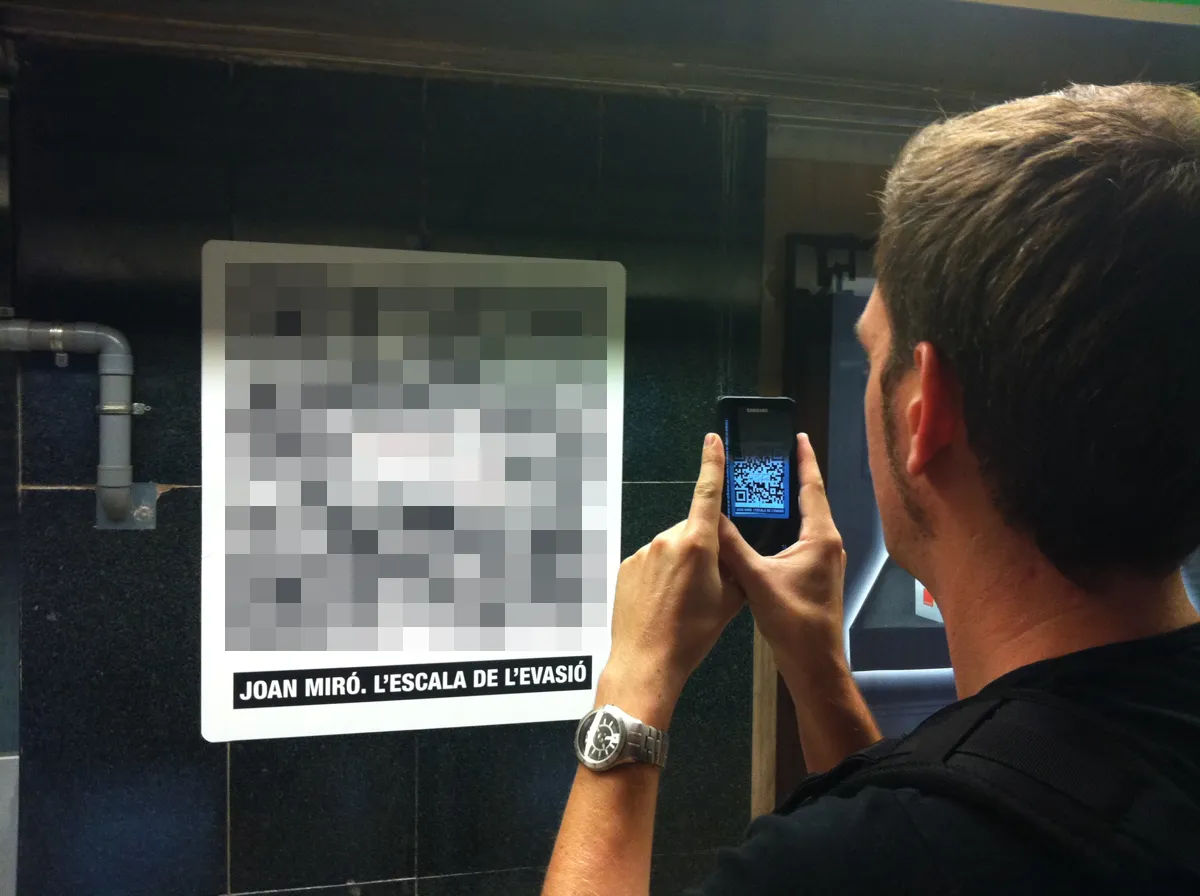
The Camera app is the quickest way to scan a printed code, like one on a menu, poster, or parking sign. Open the camera in normal photo mode, aim it at the code, and wait a moment. A link or bubble appears on the screen. Tap it to open what's inside. You don't press the shutter button.
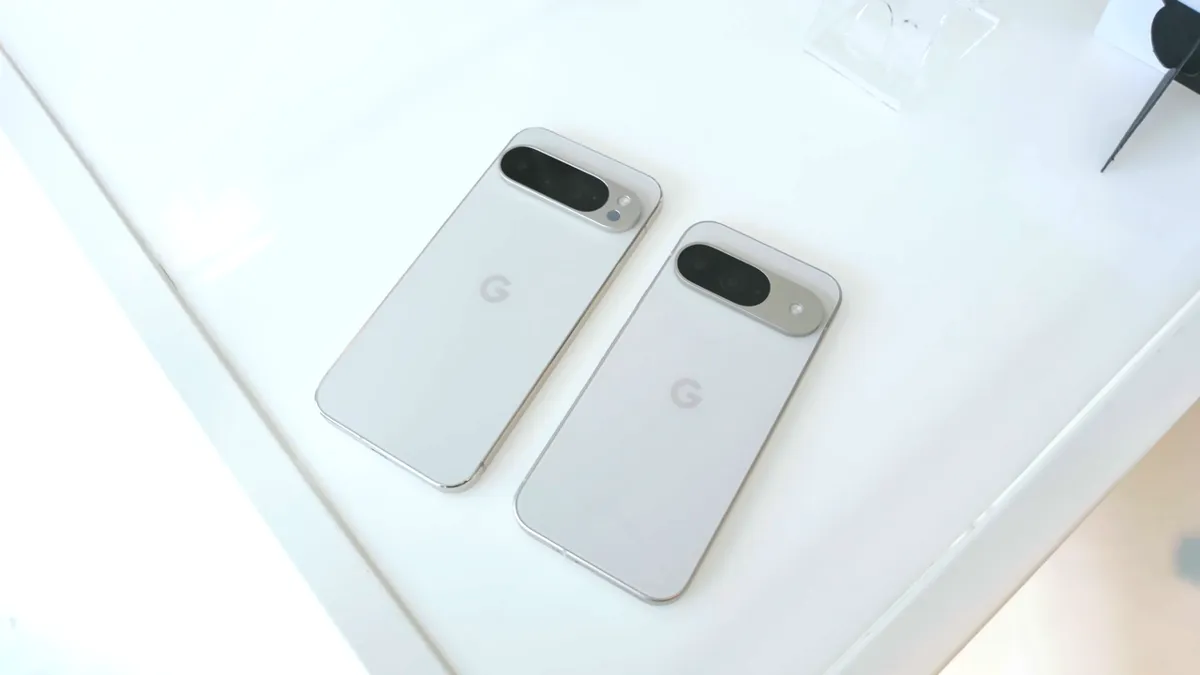
On a Google Pixel
- Open the Camera app.
- The first time, check that scanning is on. Tap Settings > More settings and make sure Camera scan suggestions is turned on.
- Point the camera at the QR code so the whole square is on the screen.
- Wait for the link or bubble to appear, then tap it.
Those steps and the setting name come from Google's Pixel help page, which says you don't need to take a picture.
On a Samsung Galaxy
- Open the Camera app and make sure PHOTO is selected at the bottom.
- Point the viewfinder at the code.
- Tap the pop-up that appears.
If no pop-up shows up, Samsung's US support page says to tap the Settings icon in the Camera app and turn on Scan QR codes.
On Motorola, OnePlus, and other phones
Try the Camera app first. Google's Android guide to Lens says some phones build Google Lens right into the camera, so look for a Lens icon or mode. If your camera doesn't react to codes, open the Google app and tap the Lens icon in the search bar, or use the Quick Settings button below. Can't find the setting? Search your phone's Settings for "QR."
Use the Scan QR Code Button in Quick Settings
Pixel and Galaxy phones, and many other Android phones, have a QR scanner button in Quick Settings. It opens a scanner without starting the full camera app:
- Swipe down from the top of the screen. On a Galaxy, swipe down with two fingers to open the full panel.
- Tap Scan QR code (Android's own code calls the tile "QR code scanner").
- Point the scanner at the code.
If the button isn't there, swipe left to see more tiles, or tap the pencil (edit) icon and drag it in. That's from Google's Pixel help. On a Galaxy, Samsung says the scanner window also has a flashlight button and a shortcut to Gallery, which helps in a dark restaurant.
Here's a detail most guides miss. In Android's source code, the tile doesn't open a scanner of its own. It opens whatever scanner app the phone maker set up. The AOSP tile code shows that if that scanner can't be opened, the tile turns gray and says Updating. A comment in the same code says this should only happen while Google Play services is updating. The code also only offers the tile on devices that have a camera, and it can open over the lock screen.
That explains why the scanner looks different on different phones. PhoneArena reported that Google redesigned the scanner through a Google Play services update (version 25.26.35). The redesign showed up on Pixel and Nothing phones but not on Samsung, which uses its own camera-based scanner. In Google's version, the result screen shows the web address with Open, Copy text, and Share buttons, so you can read the link before you open it.
Add a QR scanner to a Pixel lock screen
Pixel phones let you put the scanner in one of the two lock screen corners. Google's lock screen help page lists QR code scanner as a shortcut option:
- Touch and hold an empty spot on the home screen and tap Wallpaper & style.
- Swipe to Lock screen, swipe up, and tap Shortcuts.
- Tap Left shortcut or Right shortcut, choose QR code scanner, and tap Apply.
On the lock screen, touch and hold the shortcut to open it. Pixel lock screen shortcuts respond to a long press, not a quick tap.
How to Scan a QR Code on Your Screen or in a Screenshot
Your camera can't see its own screen, so codes in an email, text, PDF, or photo need a different tool. Which one you use depends on your phone.
Circle to Search (no screenshot needed)
On phones that have Circle to Search, Google's Android article gives these steps:
- With the QR code on screen, press and hold the home button. If you use gesture navigation, touch and hold the navigation handle at the bottom.
- Circle the QR code with your finger.
- Tap the result that appears.
Android Authority reports that Circle to Search often spots the code before you circle anything. It also offers a button to set up an eSIM when the code is an eSIM activation code. If your carrier emailed you an eSIM QR code, our guide to transferring an eSIM to a new Android phone covers the rest of the setup.
One limit: Google's Lens and Circle to Search guide says Circle to Search works in any app that allows screen captures. Some apps block screenshots, and Circle to Search can't read a code inside those. To check whether Circle to Search is on, search your Settings for "Circle to Search."
Google Lens in Google Photos (any Android phone)
Take a screenshot of the code first. If you're not sure how on your phone, see our guide to taking a screenshot on Android. Then follow Google's Google Photos help steps:
- Open Google Photos and select the screenshot.
- At the top, tap More > Google Lens.
- Tap the link or action Lens shows for the code.
A privacy note from the same page: Lens activity can be saved to your Google Account if Web & App Activity is on. Saving the images themselves is a separate setting called Visual Search History, which Google says is off by default.
Samsung Gallery with Bixby Vision
On a Galaxy, Samsung's UK support page says you can read a code from a saved photo in the Gallery app:
- Open Gallery and select the image with the QR code.
- Tap the Bixby Vision button.
- Tap Open in browser, or tap Copy to copy the address.
Samsung notes that Bixby Vision isn't available on every device. If yours doesn't have it, use Google Lens in Google Photos instead. The same page also shows how to add a QR scanner button to the Samsung Internet menu (Settings > Layout and menu > Customize menu).
How to Scan a Wi-Fi QR Code on Android
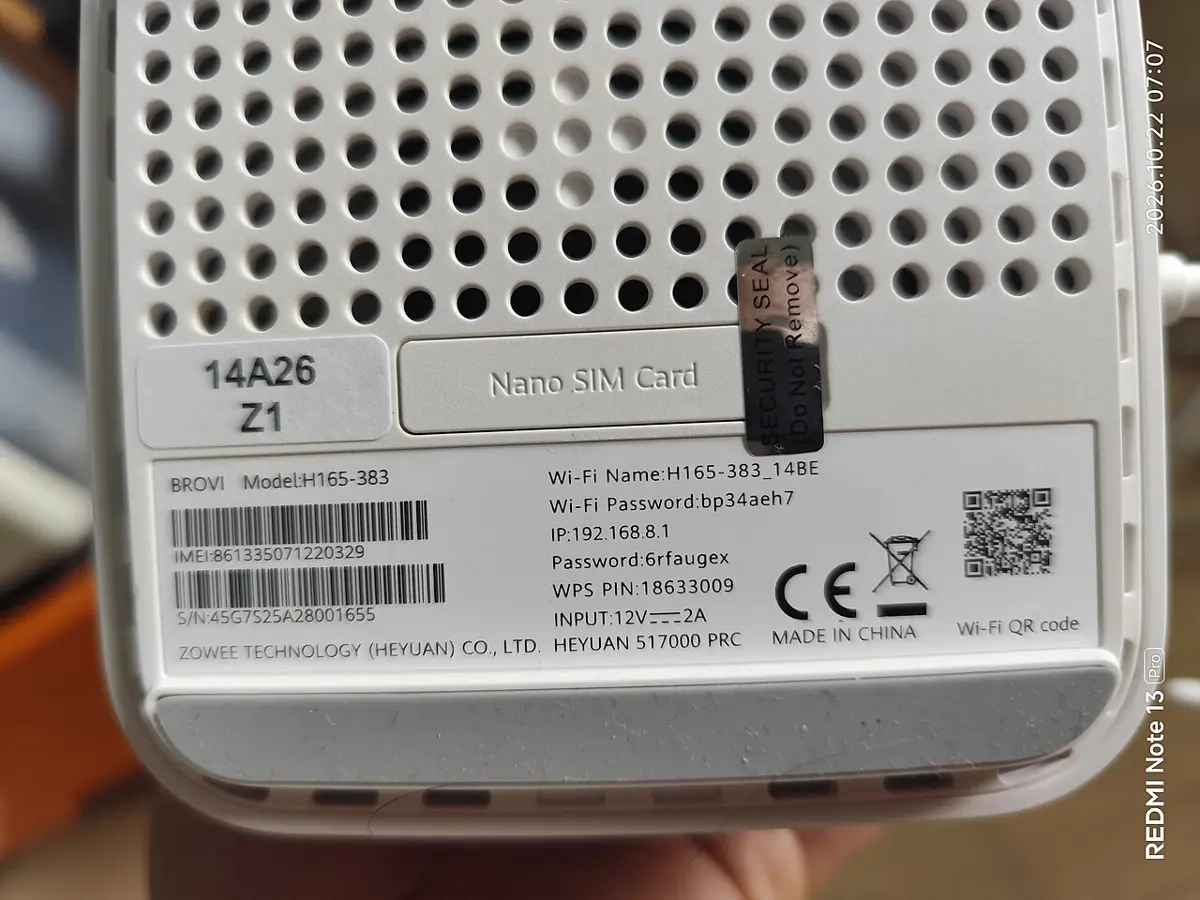
Point your camera at the code, and the phone offers to join the network. Samsung says the pop-up connects you when tapped. On a Pixel or another phone with Google's standard settings, you can also scan from inside Wi-Fi settings:
- Open Settings > Network & internet > Internet.
- Scroll down and tap Add network.
- Tap the scan icon next to the network name field. Android labels the screen "Join Wi‑Fi by scanning a QR code."
That scan button is in Android's Settings source code. The scanner in Wi-Fi settings only reads Wi-Fi codes. If you point it at a menu or website code, Android shows "QR code isn't a valid format." Use the camera for those.
Wi-Fi codes hold the network password as plain text, so anyone who scans a photo of yours can read it. Our guide to seeing a Wi-Fi password on Android shows how to read the password inside a code and why you shouldn't post one online.
Which Way to Scan a QR Code? Quick Comparison
We built this table from the Google and Samsung pages linked above, checked November 13, 2026.
| Method | Best for | Works on | Good to know |
|---|---|---|---|
| Camera app | Printed codes: menus, posters, signs | Pixel, Galaxy, and most phones | Needs Camera scan suggestions (Pixel) or Scan QR codes (Galaxy) turned on |
| Quick Settings button | Fast scans without opening the camera | Most Android phones | Gray "Updating" label means the phone's scanner app can't be opened right now |
| Pixel lock screen shortcut | Scanning without unlocking first | Pixel | Touch and hold, don't tap |
| Circle to Search | Codes on your own screen | Phones that support Circle to Search | Doesn't work in apps that block screenshots |
| Google Lens in Google Photos | Screenshots and saved photos | Any phone with Google Photos | Lens activity may be saved to your Google Account |
| Samsung Gallery (Bixby Vision) | Saved photos on a Galaxy | Galaxy phones with Bixby Vision | Not on every Samsung device |
| Wi-Fi settings scanner | Joining a network | Pixel and phones with Google's standard settings | Reads Wi-Fi codes only |
Do You Need a QR Code Scanner App on Android?
No. Every method above is built into Android or comes from Google or Samsung, and we'd skip third-party scanner apps unless an app you trust needs one. The FBI goes further. Its public service announcement on QR codes says: "Do not download a QR code scanner app. This increases your risk of downloading malware onto your device. Most phones have a built-in scanner through the camera app."
There's a real case behind that advice. In February 2021, Malwarebytes reported that a Barcode Scanner app on Google Play with more than 10 million installs turned into adware after an update. It opened ads in the phone's browser on its own, even for people who'd had it installed for years. Google removed it from the store, but Malwarebytes noted that removing an app from Play doesn't remove it from phones that already have it. If you're seeing pop-up ads and you once installed a scanner app, our guide to stopping pop-up ads on Android shows how to find the app behind them.
Apps that need to scan codes, like a ticket or payment app, don't even need their own camera access to do it. Google's code scanner for developers lets an app hand the job to Google Play services without asking for camera permission. Google says all image processing happens on the device, it doesn't store the results or images, and the app only gets the scan result.
How to Check a QR Code Before You Open It
A QR code is just a hidden link, so treat it like a link in a text from a stranger. Scammers stick fake codes over real ones on parking meters and send codes in emails and texts. The FTC warned about this in December 2023, and the FBI's tips say:
- Read the address before you tap Open. Look for misspellings or a swapped letter in the site name.
- Check physical codes for a sticker placed over the original.
- Don't install apps from a QR code. Get them from the Play Store instead.
- Be careful with payments. The FBI suggests typing in a known, trusted web address to pay rather than paying through a site a code opened.
- Verify surprise codes. If a code seems to come from a company or friend, contact them through a number or address you already know.
Some codes are private too. A Wi-Fi code holds your network password. A code that sets up an authenticator app holds the secret key behind your sign-in codes. Google's Key URI format puts that key in a "secret" field inside the code. Don't share screenshots of either kind.
QR Code Not Scanning on Android? Work Through These
Start with the scan setting, then rule out distance, framing, and the camera itself. Most failures are one of these:
- The scan setting is off. Turn on Camera scan suggestions (Pixel: Camera > Settings > More settings) or Scan QR codes (Galaxy: Camera > Settings).
- You're too close. A phone camera can't focus on something right against the lens. Samsung's blurry photo guide says the standard lens works best with the subject at least 12 inches away. For a small code, step back and zoom in a little.
- Part of the code is cut off. Keep all three corner squares and the blank border around the code in the frame. DENSO WAVE's QR code spec page says a code needs a clear margin four modules (the small squares) wide on every side. A code printed right to the edge of a label, or cropped tight in a screenshot, can fail.
- Light, shake, or a dirty lens. Google's tips are to hold steady, scan in good light without glare, wipe the lens, and move closer while keeping the whole square on screen. Samsung adds that a camera protector or lens cover can cause focus problems, so take it off and try again.
- The camera shows a black screen. Check the Camera access switch in Quick Settings. When it's off, every app gets a blank camera feed. Our camera not working guide covers that switch and other camera errors.
- The Quick Settings button is gray and says "Updating." The phone's scanner app can't be opened right now, which AOSP links to Google Play services updating. Wait a few minutes, check the Play Store for updates, or use the Camera app in the meantime.
- The code scans, but the page won't load. If the phone shows a web address, the scan worked. The problem is the link or your connection. Try another website, and ask the business whether the code is still current.
- It's a work or school phone. An IT admin can turn off every camera on a managed phone. Android's device policy documentation says that after this, no app can use the camera. Ask your admin, because no setting on the phone will undo it.
Quick test: scan a code you know works, like the Wi-Fi share code on a friend's phone. If that scans and the other doesn't, the problem is the code itself, not your phone.
Frequently Asked Questions
Do I need to download a QR code scanner app on Android?
No. Pixel, Samsung Galaxy, and most other Android phones read QR codes in the Camera app or with the Scan QR code button in Quick Settings. The FBI advises against downloading QR scanner apps because they raise the risk of installing malware.
How do I scan a QR code from a screenshot or photo on Android?
Open the image in Google Photos, tap More, then Google Lens, and tap the link Lens finds. On a Samsung Galaxy you can also open the image in Gallery and tap the Bixby Vision button. On phones with Circle to Search, you can circle a code on screen without taking a screenshot.
Is it safe to scan any QR code?
Not always. A QR code can lead to a fake website or ask you to install an app or pay. Read the web address before you tap Open, check printed codes for a sticker over the original, don't install apps from a code, and pay by typing a website address you already trust.
Why does my phone's camera not detect QR codes?
The scan setting is usually off. On a Pixel, turn on Camera scan suggestions in Camera settings. On a Galaxy, turn on Scan QR codes in Camera settings. If it's on, step back so the camera can focus and keep the whole code, including its white border, in the frame.