How to See a Wi-Fi Password on Android (Pixel and Galaxy)

To see a saved Wi-Fi password on Android 10 or newer, open Settings > Network & internet > Internet, tap the network, tap Share, and confirm it's you. A Pixel or other phone with Google's stock settings shows the password as text under a QR code. Samsung Galaxy phones show a QR code instead, which you can save and scan to read the password.
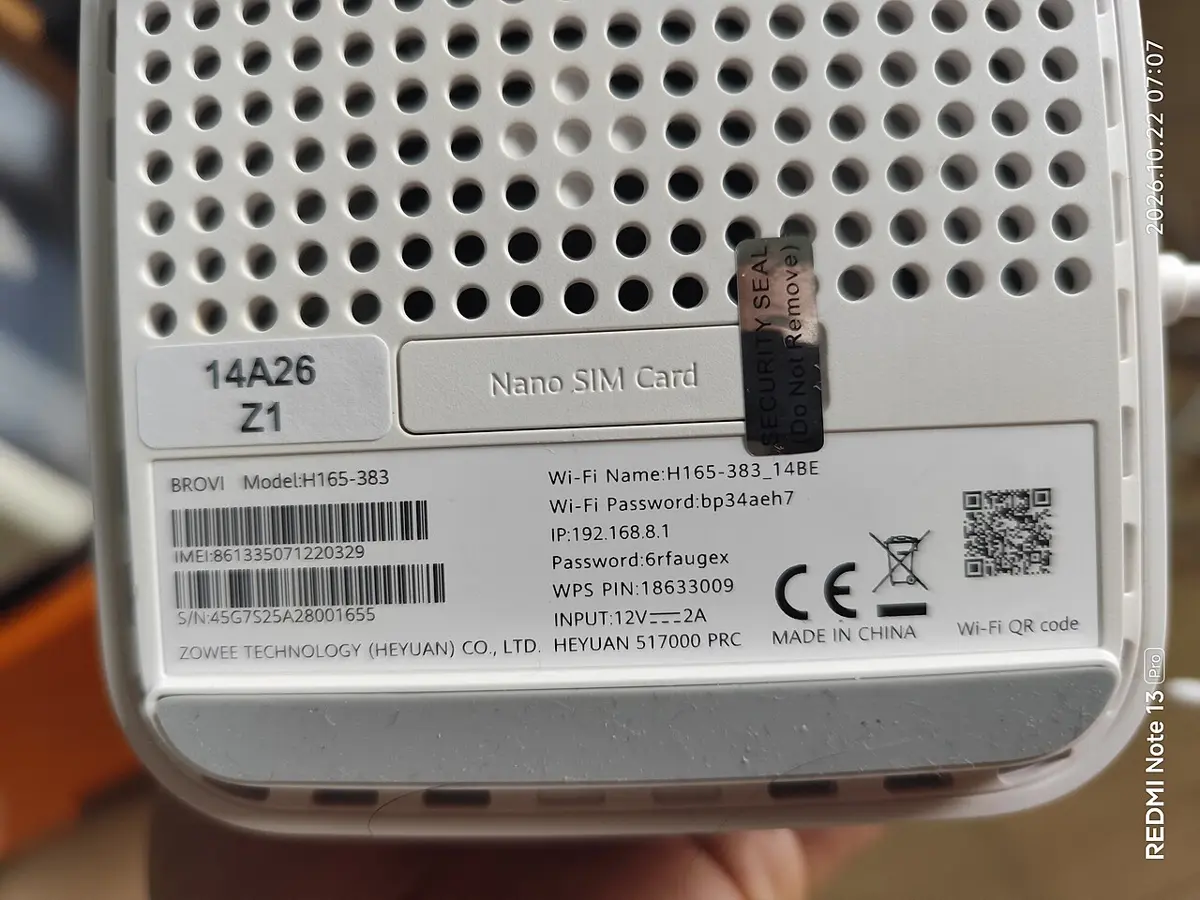
Quick answer: Your phone can only show a password it has saved, so this works for networks you've joined before. If the phone never saved it, the password is on your router's label or in your internet provider's app.
How this was put together: on Nov 9, 2026 we read Google's Android Help pages on Wi-Fi and hotspots, Samsung's support pages on Wi-Fi QR codes, Xfinity's support articles, and the Android Open Source Project (AOSP) code behind the Share screen. We didn't test this on a phone for this article, so the steps follow the official pages, and we flag where they disagree.
Which method works on your phone?
The method depends on who made your phone's settings app and which Android version it runs. Use this table to jump to the right section.
| Your situation | What you'll see | Where to go |
|---|---|---|
| Pixel or phone with Google's stock settings, Android 10+ | QR code with the password as text under it | Pixel steps |
| Samsung Galaxy | QR code, with Save as image and Quick Share options | Galaxy steps |
| Any phone that shows only a QR code | The password is inside the code | Read the QR code |
| No Share or QR code button | Network not saved, a work network, or blocked by an admin | Why it's missing |
| Android 9 or older, or the phone never joined the network | No built-in way to view it | Router label or provider app |
How to see a Wi-Fi password on a Pixel
On a Pixel, the Share screen shows both a QR code and the password in plain text. Google's Connect to Wi-Fi networks help page gives the path, and the same steps work on Motorola and other phones that use Google's settings layout.
- Open the Settings app.
- Tap Network & internet > Internet.
- Tap the Wi-Fi network you want (or the gear icon next to it).
- Tap Share.
- When the phone asks you to verify it's you, use your fingerprint, face, PIN, pattern, or password.
- Read the password under the QR code. Android's own label for it is "Wi-Fi password:".
The verification step comes from the screen lock. In the AOSP code for this screen (WifiDppUtils.java), Android shows the "Verify it's you" prompt only when the phone has a secure lock screen. Without one, it skips straight to the password. That's a good reason to set a PIN if anyone else ever picks up your phone.
The network doesn't have to be in range. AOSP's share check (in StandardWifiEntry.java) asks whether the network is saved, not whether you're connected. On a Pixel, older networks are listed under Saved networks at the bottom of the Internet screen. Open one there and tap Share.
How to see a Wi-Fi password on a Samsung Galaxy
Galaxy phones share Wi-Fi as a QR code. Samsung's support pages describe the code, not a text password, so the reliable way to read the password is to save the code and scan it. The steps below come from Samsung Canada's Wi-Fi support page.
- Open Settings and tap Connections.
- Tap Wi-Fi.
- Tap the gear icon next to the network you're connected to.
- Tap QR code at the bottom of the screen.
- Tap Save as image, then open the image and scan it with Google Lens or another QR reader (see the next section).
Two details are easy to miss. Samsung Singapore's page says your Galaxy must already be connected to the network you want to share, so stand near the router first. And a Samsung Customer Support reply in the Samsung Members community (July 2024) tells owners to tap Save as image to see the password, which matches the scan-the-image approach above.
If you only need to get a guest online, skip the password. Have them point their phone's camera at your QR code. Samsung says the other phone shows a pop-up that connects it when tapped.
How to read the password inside a Wi-Fi QR code
A Wi-Fi QR code from an Android phone holds the password as plain text. Android's Settings app (WifiQrCode.java) uses the format from the ZXing barcode library, which looks like this:
WIFI:T:WPA;S:HomeNetwork;P:yourpassword;;T is the security type, S is the network name, and P is the password. Any QR reader that shows the code's raw text will show the password after "P:". The ZXing Barcode Contents page documents the same fields, plus H for hidden networks.
This also corrects a claim you may have seen. Samsung's Gulf support page says the QR code "contains encrypted network details" and shares access "without exposing your Wi-Fi password." The code format Android uses isn't encrypted. Anyone who scans a photo or screenshot of your QR code can read the password, so treat the image like the password itself and don't post it publicly.
Why there's no Share or QR code button
A missing Share button usually means the phone isn't allowed to share that network, not that something is broken. AOSP's code lists the cases:
- The network isn't saved. The share check needs a saved network. On a Galaxy, Samsung says you must also be connected to it.
- It's a work or school network. Networks that sign you in with a username and password (802.1X, also called WPA-Enterprise) aren't in the list of security types the QR code generator supports, and Passpoint networks are excluded outright. There's no single Wi-Fi password to show.
- Your employer set up the network. Since Android 13, a device admin can block sharing of networks it configured using the DISALLOW_SHARING_ADMIN_CONFIGURED_WIFI restriction. On a managed phone, ask your IT team.
- The phone runs Android 9 or older. The share screen arrived with Android 10's Wi-Fi Easy Connect support, according to the AOSP Wi-Fi Easy Connect page. Older phones have no built-in viewer, and the workarounds need root access, which we don't recommend just to recover a password. Use the router methods below.
Find the password without your phone
If no phone has the network saved, get the password from the router or your internet provider. These are the usual places, in order of effort.
Check the router label
Most routers ship with a sticker listing the default network name and password, like the one in the photo above. The label is only correct if nobody has changed the password since setup. Xfinity's support page notes that most of its gateways require changing the default during installation, so on those the sticker is often out of date.
Use your internet provider's app
Many US providers show the current Wi-Fi password in their app. In the Xfinity app, Xfinity says to tap the WiFi tab, then WiFi details, to see your network name and password. Only Primary, Manager, and Member Xfinity IDs can open that tab. Xfinity also says an X1 TV Box can show the Wi-Fi name and password on screen if you ask the Voice Remote "What's my WiFi name?"
Log in to the router's admin page
Your router's settings page usually shows the password in its wireless section. For an Xfinity XB2 or XB3 gateway, Xfinity's Admin Tool article says to go to http://10.0.0.1, open Gateway > Connection > Wi-Fi, and check Show Network Password. Newer Xfinity gateways (XB6 and up) are managed only in the app. For other routers, the admin address and login are usually on the same label as the default password.
If the internet itself isn't working once you're connected, our guide to Wi-Fi connected but no internet on Android walks through the router and phone checks.
How to see your phone's hotspot password
Your hotspot password lives in the hotspot settings, not the Wi-Fi list. Google's hotspot help page says to swipe down, then touch and hold the Hotspot tile to open its settings. On phones with Google's stock settings, that screen has a field Android labels Hotspot password, and tapping it shows the current password. Android's share screen can also make a QR code for a hotspot, labeled "Hotspot password:". If devices still can't join, see our Android hotspot troubleshooting guide.
Want to send a photo of the password, or the QR code itself, to someone nearby? Quick Share on Android sends it without a cloud upload.
Frequently Asked Questions
Can I see a Wi-Fi password on Android without root?
Yes, on Android 10 and newer. Open Settings, tap the saved network, and tap Share or QR code, then confirm with your screen lock. Root is only needed on Android 9 and older, and even then the router label or your provider's app is the safer route.
Can I see the password for a network I'm not connected to?
On a Pixel, usually yes: Android's share check needs the network to be saved, not connected, and older networks are listed under Saved networks. Samsung's support pages say a Galaxy must be connected to the network to share it.
Is it safe to share a Wi-Fi QR code?
Only with people you'd give the password to. The QR code stores the password as plain text (the P: field), so anyone who scans it or a screenshot of it can read the password. Don't post the code online.
Why does my phone ask for my fingerprint or PIN before showing the password?
Android asks you to verify it's you before it shows the share screen, as long as your phone has a secure screen lock. That stops someone who picks up your unlocked phone from reading saved passwords without your PIN or biometrics.
How do I find my Wi-Fi password if no device has it saved?
Check the label on the router, your internet provider's app, or the router's admin page. For Xfinity, the Xfinity app shows the network name and password under WiFi > WiFi details.