Android Fingerprint Not Working? Fixes and What Errors Mean

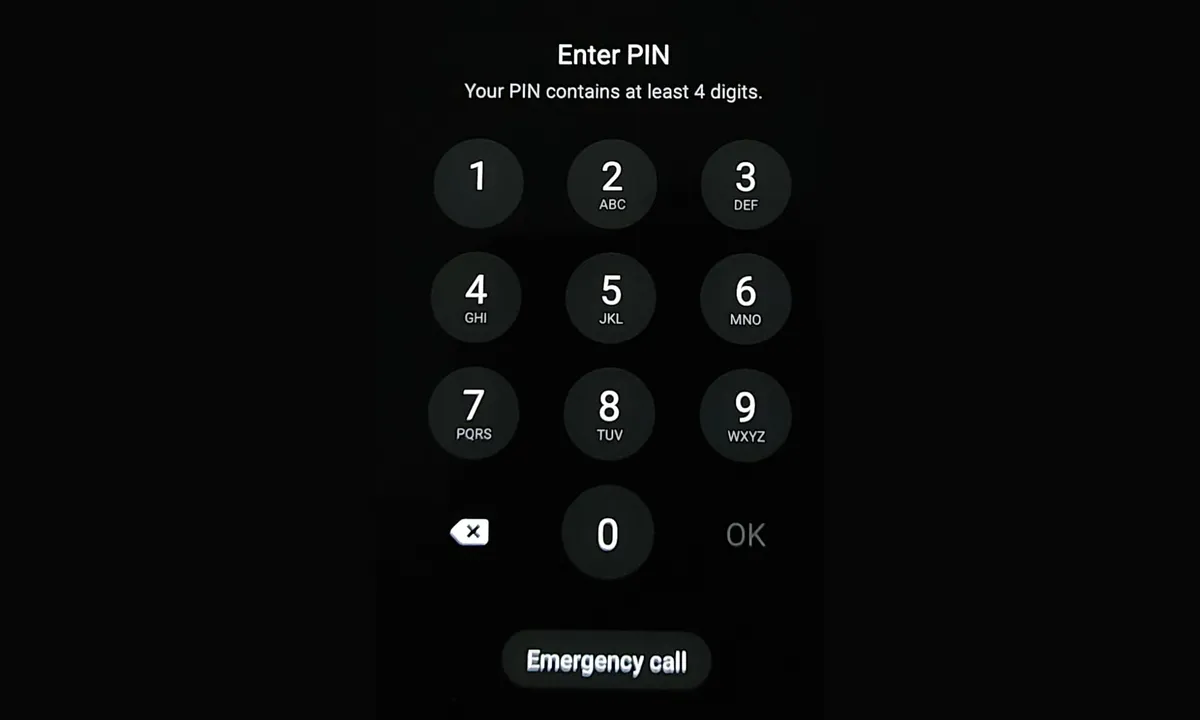
If your Android fingerprint isn't working, read the message on the lock screen first. If it says your PIN is required after a restart, or that added security is required, the sensor isn't broken: Android has switched fingerprint unlock off on purpose, and entering your PIN, pattern, or password once turns it back on. If the sensor simply won't read your finger, clean the sensor and your fingertip, press and hold firmly, check the screen protector, restart the phone, and then delete and re-add your fingerprint.
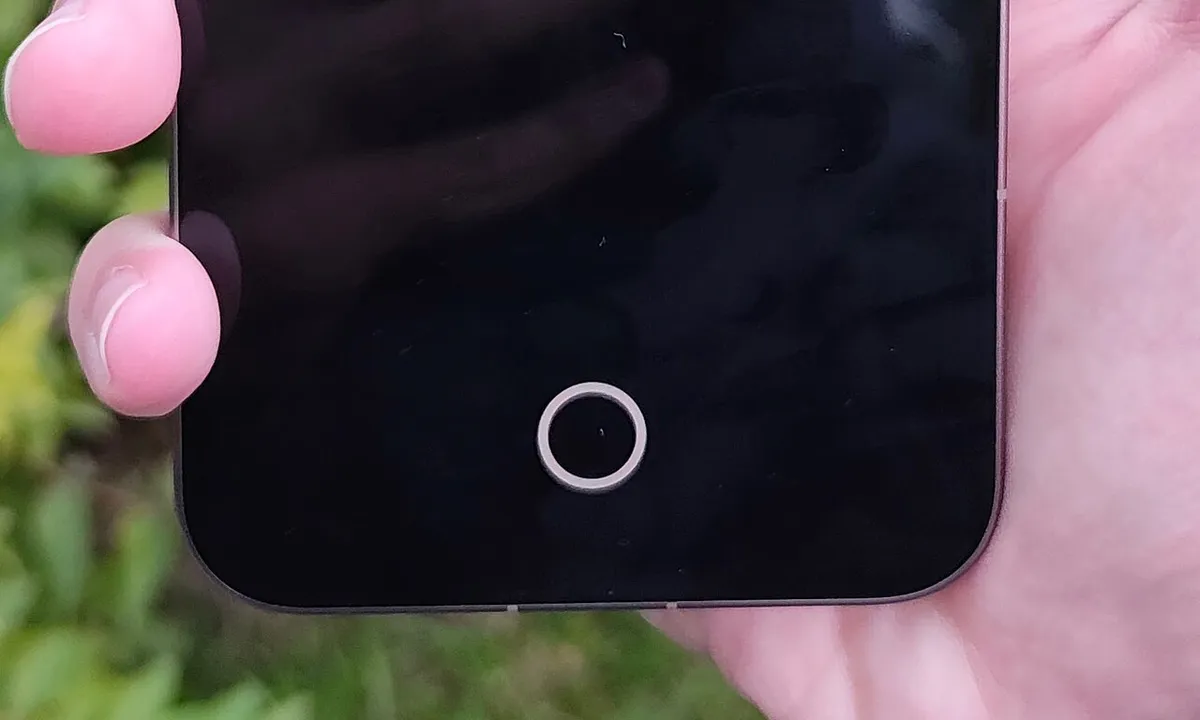
Quick answer: A message like "PIN is required after device restarts" or "Added security required" is normal, so enter your PIN and the fingerprint works again. "Too many attempts" means a short lockout, which also ends with your PIN. If the phone just won't recognize you, take off a thick or bubbled screen protector, unplug any wireless charger, restart, and re-register the finger. "Can't use fingerprint sensor. Visit a repair provider" after a screen repair means the sensor needs calibrating, not a factory reset.
A fingerprint sensor is the part of your phone that reads the ridges of your fingertip and compares them with the prints you registered. On most current phones it's under the screen. On many budget Galaxy phones and foldables, it's in the side button. Your fingerprint data stays on the phone, and Google's Pixel fingerprint help says it isn't shared with Google or with your apps.
Jump to: what the message means · when fingerprint is off on purpose · how many tries you get · fixes that work · Identity Check · sensor missing or broken · works on lock screen, not in apps
How we put this together: On November 14, 2026, we checked Google's Pixel and Android help pages, Samsung's US, UK, and Gulf support pages, Motorola's US support page, the Android Compatibility Definition Document (CDD), and the lock screen and fingerprint text in the Android Open Source Project (AOSP) code. We didn't break or repair any phones for this article. Menu names follow those official pages and can differ by phone model and software version.
What Your Fingerprint Error Message Means
The quickest way to fix a fingerprint problem is to match the exact words on your screen. The messages below are the standard Android wording from AOSP, which Pixel phones generally follow. Samsung, Motorola, and other brands often reword them, but the causes are the same.
| Message on your screen | What it means | What to do |
|---|---|---|
| "PIN is required after device restarts" (or pattern/password) | The phone restarted. Fingerprints never work until you unlock once with your screen lock. | Enter your PIN once. |
| "Added security required. PIN not used for a while." or "For additional security, use PIN instead" | You haven't used your PIN, pattern, or password for too long. | Enter it once. See the time limits. |
| "Device updated. Enter PIN to continue." | A system update just installed. | Enter your PIN once. |
| "PIN is required after lockdown" | Someone used Lockdown in the power menu. | Enter your PIN once. |
| "Device locked by admin" | A work or school admin locked the phone or limits how you unlock it. | Use your PIN, or ask your IT team. |
| "Can't unlock with fingerprint. Too many attempts." or "Too many attempts. Use screen lock instead." | Too many clear reads didn't match a saved print. | Wait or use your PIN. See how many tries you get. |
| "Fingerprint not recognized" | The sensor read your finger well, but it didn't match. | Use the finger you registered, or re-register it. |
| "Press firmly on the sensor" | Only part of your finger was read, or you lifted it too fast. | Cover the whole sensor and hold still until it unlocks. |
| "Clean fingerprint sensor and try again" | Dirt or smudges are blocking the sensor. | Wipe the sensor and your fingertip. |
| "Sensor temporarily disabled" | Android turned the sensor off because of a security problem. | Install the latest system update. |
| "Fingerprint hardware not available" | Android can't reach the sensor. | Power the phone fully off and on, update, then run diagnostics (see below). |
| "Can't use fingerprint sensor. Visit a repair provider." | The sensor needs calibrating, which is common after a screen replacement. | Calibrate it or take it back to the repair shop (see below). |
| "Finger 1 can no longer be recognized. Set up Fingerprint Unlock again." | Android found a saved print that the sensor can no longer use. | Delete it and add the finger again. |
The meanings come from the developer notes next to each message in AOSP's lock screen text and fingerprint error text. For example, the note beside "Visit a repair provider" says it's shown "when fingerprint needs calibration," and the one beside "Sensor temporarily disabled" says fingerprint "is not available due to a security vulnerability."
When Android Turns Fingerprint Unlock Off on Purpose
Your phone will sometimes refuse your fingerprint even when the sensor is fine. Android is built to ask for your PIN, pattern, or password at set times. Google's help is frank about why: a fingerprint can be less secure than a strong PIN, and a copy of your print could be used to unlock the phone. Google's Pixel help lists these moments: after your fingerprint isn't recognized a few times, after a restart, after you switch to a different user, and when more than 72 hours have passed since you last used your backup method.
Samsung gives a shorter limit. Its US guide to using the fingerprint sensor on a Galaxy says you'll need your PIN, password, or pattern after a restart or "if your device has not been used for more than 24 hours."
| Phone or sensor type | When it asks for your PIN instead | Source |
|---|---|---|
| Google Pixel | After a restart, a user switch, a few failed fingerprint tries, or 72 hours without using your PIN | Google Pixel help |
| Samsung Galaxy | After a restart, or when the phone hasn't been used for more than 24 hours | Samsung US help |
| Any phone with a top-rated (Class 3) sensor | At least every 72 hours | Android CDD |
| Any phone with a lower-rated (Class 1 or 2) sensor | At least every 24 hours, after 4 hours idle, or after 3 failed tries | Android CDD |
Those class rules are in section 7.3.10 of Google's Android 16 compatibility requirements, which every phone with Google apps has to meet. Android's biometric security page sets out the same 72-hour and 24-hour limits.
A few other things switch fingerprint unlock off until you enter your PIN:
- Lockdown. Google's lock screen help says Lockdown in the power menu turns off fingerprint and face unlocking, Extend Unlock, and lock screen notifications.
- A work or school policy. The CDD requires phones to honor an admin setting called KEYGUARD_DISABLE_FINGERPRINT, which turns off fingerprint unlock on its own. If the fingerprint option is grayed out on a work phone, that's the likely reason, and only IT can change it.
- A pending system update. Android may show "Enter PIN to install update later" before an overnight update, and "Device updated. Enter PIN to continue." after it.
How Many Failed Fingerprint Attempts Before It Locks?
On phones that follow Android's reference code, five failed fingerprint tries trigger a 30-second lockout, and 20 failed tries switch fingerprint off until you enter your PIN, pattern, or password. Those numbers are in AOSP's fingerprint lockout code: MAX_FAILED_ATTEMPTS_LOCKOUT_TIMED = 5, a 30-second timeout, and MAX_FAILED_ATTEMPTS_LOCKOUT_PERMANENT = 20.
Phone makers can change the details, but the CDD sets the outer limit. It requires phones to ask for your PIN, pattern, or password after no more than 20 failed fingerprint tries, and strongly recommends a lockout of at least 30 seconds after five.
Here's the part most guides miss: a smudged or partial read doesn't count. The CDD defines a failed try as a scan with adequate capture quality that doesn't match a saved print. A "Press firmly" or "Clean sensor" message doesn't use up a try. A clean read of the wrong finger does. If you hit "Too many attempts" quickly, you're probably using a finger you never registered, or your saved print no longer matches. Re-registering usually fixes that.
Fixes When the Sensor Won't Read Your Finger
Work through these in order. The first few take seconds, and they're the fixes Google, Samsung, and Motorola all list first.
1. Clean the sensor, dry your finger, and press longer
Wipe the sensor area and your fingertip with a soft, dry cloth. Google's Pixel fingerprint troubleshooting page says to press and hold firmly until the phone unlocks, keep the display clean, and moisturize if your fingers are very dry. Samsung's fingerprint troubleshooting guide adds that lifting your finger too quickly or covering only part of the sensor causes failed reads. Motorola's support page lists wet, oily, dirty, and injured fingers as common causes. If a finger is cut or bandaged, register a different finger until it heals.
For a side-button sensor, like the one on the Pixel Fold or many Galaxy A and Z phones, clean the button itself. Google suggests alcohol wipes for the Pixel Fold's power button, and re-registering if you use a case so the scan captures the pad, edges, and tip of your finger.
2. Check the screen protector, then register again
A thick, textured, scratched, or bubbled screen protector is the most common reason an under-display sensor stops reading. Peel off any protector that's lifting or bubbled and try your bare finger on the bare screen.
- Pixel: Google says to use a "Made for Google" certified protector. Its screen protector page lists certified models for each Pixel and says to put the protector on before you set up Fingerprint Unlock. It also says to scan the QR code on the packaging so the phone can tune the sensor for that protector. If you lost the box, the page links each protector's QR code. Google says the sensor recalibrates after a new protector goes on, so performance should improve over the first few hours or days, though it may never quite match a bare screen.
- Samsung Galaxy: Samsung says protectors that aren't certified by Samsung can reduce accuracy depending on their pattern, thickness, or material. Turn on Settings > Display > Touch sensitivity, then use Improve accuracy on a saved fingerprint, which has you scan the same finger 10 times. Samsung also notes that some Galaxy phones ship with a factory-fitted plastic protector made to work with the sensor, and adding another one on top can cause problems.
Whatever you change, re-register your fingerprint afterward (see step 6). If taps also miss near the edges, our guide to touch screen problems caused by a screen protector covers the touch side.
3. Unplug the wireless charger and exit One-handed mode
Samsung says electromagnetic waves from wireless charging can reduce fingerprint recognition, so lift the phone off the pad and try again. On a Galaxy, One-handed mode and Smart View (screen casting) change the screen layout, so the sensor area may not appear correctly. Exit both, then retry.
4. Check the screen-off and always-on settings
If the fingerprint only works after you wake the screen, it may be a setting, not a fault.
- Pixel 9 and Pixel 10 series: Google's fingerprint setup page lists Settings > Security & privacy > Device unlock > Fingerprint Unlock > Screen-off Fingerprint Unlock for those models. On other Pixels, turn on Settings > Display & touch > Lock screen > Always show time & info so the sensor icon shows while the phone sleeps.
- Samsung Galaxy: Look for Fingerprint always on in your fingerprint settings. Samsung's Gulf support page lists Off, Cover screen, Main screen, and Cover and main screens as the choices, with Main screen as the default. So on a Galaxy Z Fold or Flip, the folded state may not read your finger until you change it.
One more Galaxy quirk: Samsung's UK fingerprint guide for the Galaxy S22 says there's a 0.3-second delay when the screen turns on or off while the touch module starts. If you press the instant the screen wakes, the first try can fail. Try once more.
5. Restart, power off fully, and update
Restart the phone and install any system and app updates. Samsung lists both, and on a Galaxy you can force a restart by holding the Side key and Volume down for more than 7 seconds. If the fingerprint option vanished from Settings after an update, turn the phone completely off rather than just restarting, wait a minute, and power it back on. If the option is still missing, repeat the full power-off once more, then check for a follow-up system update.
6. Delete and re-add your fingerprint
Re-registering is the fix that solves most "Fingerprint not recognized" problems, especially after a new protector or a long time with the same saved print.
- Pixel: Open Settings > Security & privacy > Device unlock > Fingerprint (some versions say Fingerprint & Face Unlock). Enter your PIN, tap Delete next to each fingerprint, then tap Add fingerprint. Start with the center of your finger, then follow the prompts to capture the edges and tip.
- Samsung Galaxy: Open Settings > Security and privacy > Lock screen > Fingerprints (older versions use Biometrics and security or Screen lock and biometrics). Remove the old print, then tap Add fingerprint. Samsung says phones with Android 16 and One UI 8 use a new swipe-style registration, so gently swipe your finger across the sensor in different directions instead of just tapping.
- Register the finger you actually use, and hold the phone the way you normally do. Add a second finger as a backup. Pixels and Galaxies allow up to four prints, and the Pixel Fold allows five.
Before you delete your fingerprints: Make sure you know your passwords for banking and payment apps. Android's developer documentation for app security keys says that by default, keys an app protects with biometrics only are "irreversibly invalidated when a new biometric is enrolled, or when all existing biometrics are deleted." In practice, many apps will make you sign in with your password and turn fingerprint login on again.
7. Test in safe mode for a problem app
If the sensor works in safe mode but not normally, an app you installed is getting in the way. Motorola names the usual suspects: lock screen apps, app lockers that use the fingerprint sensor, RAM boosters, and RAM cleaners. Uninstall recent ones until the fingerprint works again. Our guide to safe mode on Android explains how to get in and back out.
When Identity Check Needs a Fingerprint That Won't Scan
A broken fingerprint sensor can lock you out of some settings if Identity Check is on. Google's theft protection help says that when you're away from your trusted places, actions that need you to "Verify it's you" accept only your fingerprint or face. A PIN, pattern, or password won't work for them.
That list includes changing your screen lock, changing your fingerprints or Face Unlock, running a factory reset, turning off Find Hub, opening Developer options, and seeing saved passwords in Google Password Manager. So a bad sensor can stop you from re-registering your fingerprint, which is the very thing that would fix it. You have two ways out:
- Go to a trusted place, like home, where your PIN works for these actions again.
- Turn off Identity Check with your Google account. Go to Settings > Google > All services > Theft protection > Identity Check, turn it off, and tap Try another way to confirm with your Google account password instead of biometrics. Google says this needs an internet connection, and you'll also need your second factor if you use 2-Step Verification.
Once your fingerprint works again, turn Identity Check back on. It's what stops a thief who learned your PIN from erasing your phone, as our guide to finding a lost Android phone explains.
Sensor Missing, "Hardware Not Available," or Broken After a Screen Repair
If the fingerprint option is gone from Settings, the phone says the hardware isn't available, or the sensor stopped right after a screen replacement, cleaning and re-registering won't help. Check the hardware next.
- Pixel diagnostics: Google's Pixel repair page says to open the Phone app, dial *#*#7287#*#* while you're online, and follow the prompts to run the Pixel repair diagnostics app.
- Pixel after a new screen: The under-display sensor has to be calibrated after a display replacement. Google's repair page points to Google Pixel Update and Software Repair, a browser tool that connects to the phone over USB to adjust the sensor. If a shop replaced your screen and the sensor shows "Visit a repair provider," ask them to run the calibration. iFixit's Pixel calibration guide walks through it for Pixel 6 and newer, and says the sensor won't work properly if you skip the final manual restart.
- Samsung Galaxy: Open the Samsung Members app, tap Diagnostics > Phone diagnostics, and pick Fingerprint recognition. Samsung says to stop using the phone and visit a service center if the screen took a hard hit.
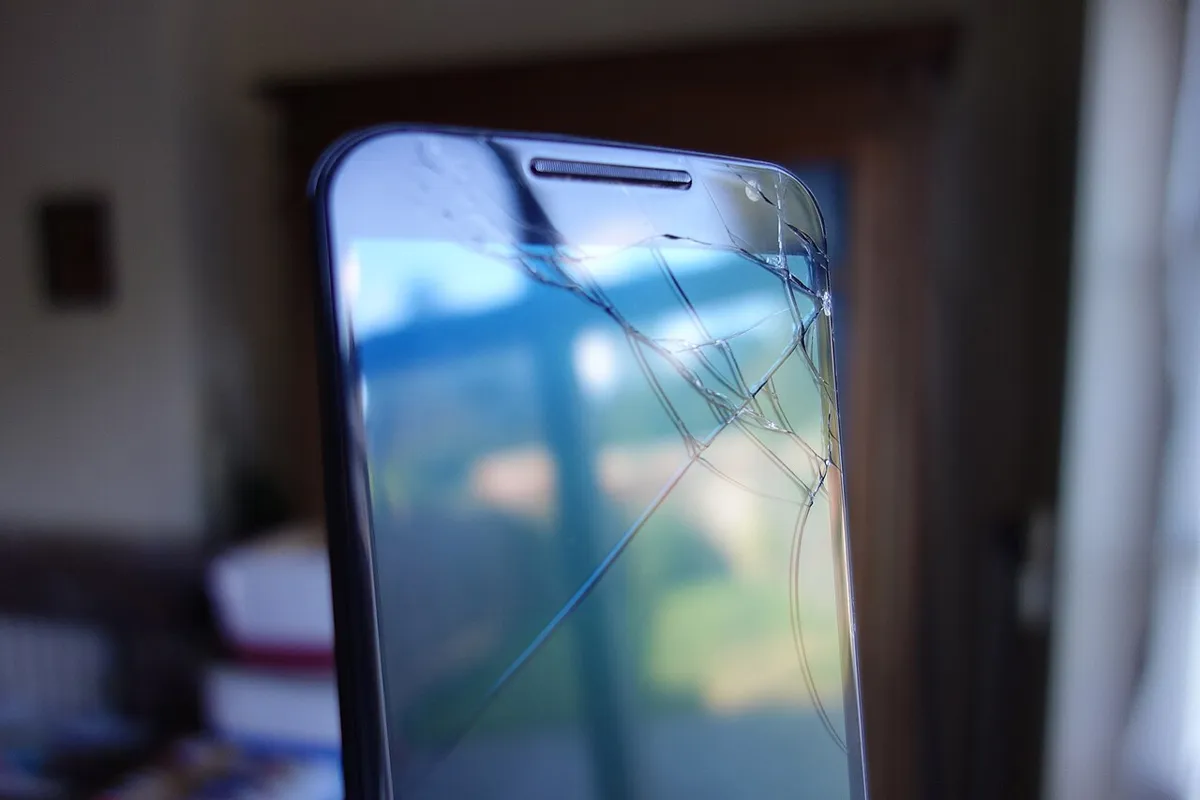
- Water or drops: A crack over an under-display sensor, a bent side button, or liquid damage can kill the sensor. That's a repair job.
Don't jump to a factory reset. It erases everything, and it won't fix a damaged or uncalibrated sensor. Samsung's troubleshooting guide even recommends setting up another screen lock "instead of performing a factory reset" when the sensor misbehaves. Motorola lists a reset only as its last step. If you do decide to try one after the steps above, back up first and follow our factory reset guide.
Fingerprint Works on the Lock Screen but Not in Apps
When the lock screen accepts your finger but a banking app, password manager, or Google Wallet won't, the cause is usually in the app, not the sensor.
- You re-registered recently. As the warning above explains, adding a new fingerprint or removing all of them can cancel an app's fingerprint login. Sign in with your password and turn the app's fingerprint option back on.
- The sensor isn't rated high enough. Android's biometric security page says lower-rated (Class 2) biometrics can't unlock app keys stored in Android's secure key system. Only Class 3 sensors can. That's why some apps take your fingerprint but not your face on phones whose face unlock is rated lower.
- Google Wallet asks again. Wallet accepts only a PIN, pattern, password, or a Class 3 biometric. Our guide to Google Wallet tap to pay problems covers why it may ask you to verify again at the register.
Once the fingerprint works reliably, keep a second finger registered and remember your backup PIN. If you've already forgotten it, see what to do when you forget your Android PIN or pattern. Android will still ask for that PIN after every restart and every few days, and that's the system working as designed, not a broken sensor.
Frequently Asked Questions
Can I use fingerprint unlock without a PIN, pattern, or password?
No. Android makes you set a backup PIN, pattern, or password before you can add a fingerprint, and it asks for that backup after every restart and at regular intervals. Google's Pixel help also says that switching your screen lock to None or Swipe deletes your saved fingerprints.
How many fingerprints can I add on Android?
Up to four on Pixel phones and Samsung Galaxy phones, and up to five on the Pixel Fold. Adding a second finger is a good backup in case one gets cut, wet, or worn.
Will a factory reset fix my fingerprint sensor?
Rarely. A reset erases your data and won't repair a damaged or uncalibrated sensor. Samsung recommends setting up another screen lock instead of resetting when the sensor misbehaves, and Motorola lists a reset only as its last step after cleaning, updates, and safe mode.
Is fingerprint unlock safe to use?
It's convenient, but Google says a fingerprint can be less secure than a strong PIN, pattern, or password, because a copy of your print could be used. Your fingerprint data stays on the phone and isn't shared with Google or with apps, according to Google's Pixel help.