Forgot Your Android PIN or Pattern? How to Get Back In

If you forgot your Android PIN, pattern, or password, there's no Google or Samsung reset link that unlocks the phone and keeps your data. On any current phone, the official way back in is to erase it with Find Hub, Samsung Find, or the phone's buttons, then sign in with your Google account. Before you erase anything, check whether your fingerprint or face still unlocks the phone, whether a Galaxy offers your previous PIN, and whether it's a work phone. And stop guessing, because newer phones only allow a few wrong tries.
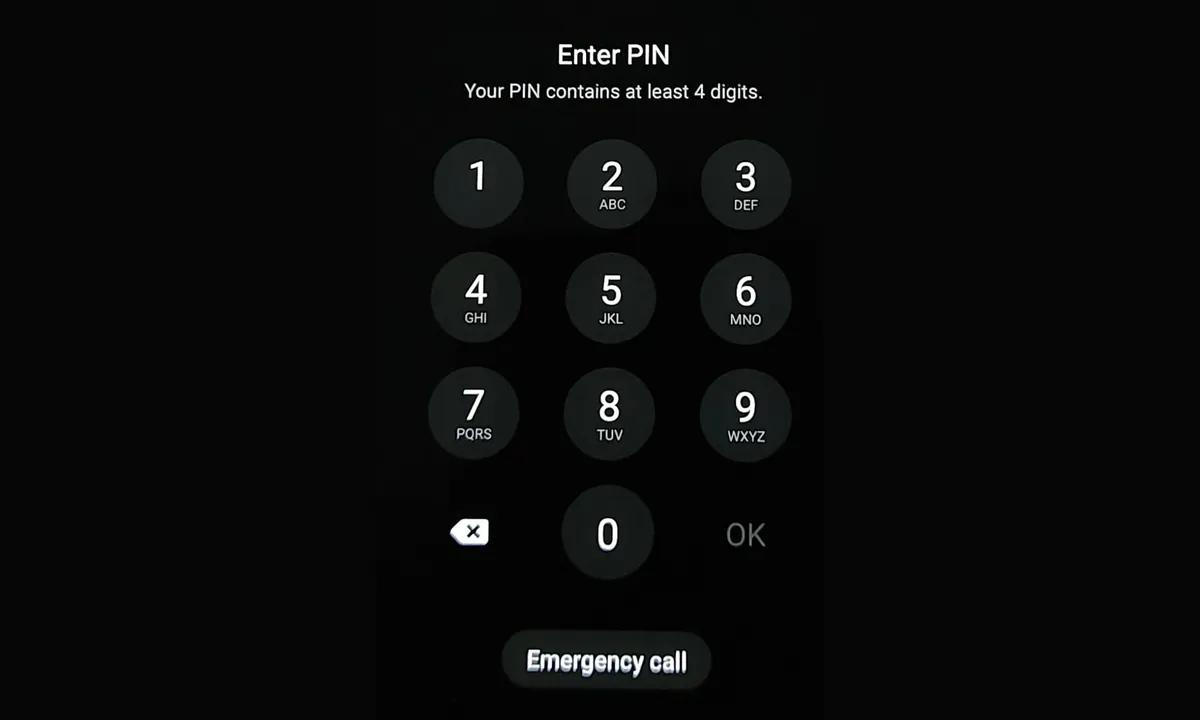
Quick answer: If fingerprint or face unlock still works, don't restart the phone. Copy your photos and files off it right away, because Android will ask for the PIN again within 72 hours at most. On a Samsung Galaxy, tap Forgot PIN after five wrong tries. If you changed your lock in the last 72 hours, you can enter the old one. If none of that works, erase the phone and restore what you can from your Google account.
Your screen lock does more than keep people out. Every phone that launched with Android 10 or later uses file-based encryption, and the key that unlocks your apps, photos, and messages is tied to your PIN, pattern, or password. That's why no one at Google, Samsung, or a phone store can reset your PIN without the old one. They'd have to erase the phone, and your data goes with it.
Jump to: try these first · how many guesses you get · why there's no bypass · what you'll lose · erase a locked phone · after the reset · other lock screen problems
How we put this together: On November 14, 2026, we checked Google's Can't unlock your Android device and Pixel help pages, Samsung's US, UK, and other regional support pages, Samsung's One UI 9 lock screen policy, and the Android Open Source Project (AOSP) documents on encryption and wrong-guess limits. We didn't lock up any phones for this article, so menus and limits follow those official pages and can differ by phone model and software version.
Before You Erase Anything: Ways You Might Still Get In
Most people who forget a PIN can't get back in without erasing the phone. Check these four situations first, because each one can save your data, and erasing can't be undone.
Your fingerprint or face still unlocks the phone
This is the best case, but it won't last. Android's biometric security rules let the strongest fingerprint and face sensors work for up to 72 hours before the phone asks for your PIN, pattern, or password again. Weaker sensors fall back after up to 24 hours, after 4 hours of not being used, or after three failed tries. Samsung's One UI 9 FAQ gives Galaxy owners the same 72-hour rule. A restart also asks for the PIN, so keep the phone charged and don't turn it off.
You can't use your fingerprint to set a new PIN. Google's screen lock help says you have to enter your current PIN, pattern, or password before you can pick a different lock. So use the time to get your data off the phone:
- Open Google Photos and let your photos and videos finish backing up.
- Copy files to a computer with a USB cable, or use Samsung Smart Switch on a PC or Mac. Our guide to backing up an Android phone to a computer has the steps.
- Run each app's own backup for chats and other app data you care about, like WhatsApp's chat backup.
- If you use an authenticator app for two-step codes, move those accounts to another device or save their backup codes.
Why not just tap Back up now in Google's settings? Google encrypts part of that backup with your screen lock, and you'll need the lock to restore it later. More on that below.
The phone stays unlocked at home or near your watch
If you set up Extend Unlock (called Smart Lock on older phones), the phone may open without your PIN at a trusted place or near a trusted Bluetooth device, like your watch or car. Google's Extend Unlock help says it only keeps the phone unlocked for up to 4 hours at a time, and you have to unlock with your PIN once first. Samsung's screen lock page describes the same 4-hour limit. If yours is still open this way, back it up now, as above.
Samsung Galaxy: use your previous PIN
Galaxy phones with One UI 6.1 or later keep your old PIN, pattern, or password for 72 hours after you change it. If you just changed your lock and forgot the new one, Samsung's UK support page gives these steps:
- Enter the wrong PIN five times. A Forgot PIN link appears (it says Forgot pattern or Forgot password if that's your lock type).
- Tap it and enter your previous PIN, then tap OK.
- Choose a screen lock type, then enter and confirm a new PIN, pattern, or password.
There are limits. You get three tries at the old PIN, the option works once per lock type, and it won't appear if you deleted the old PIN in Secure lock settings. Samsung's own pages also don't agree on which phones have it. The UK page says One UI 6.1 or later, but Samsung's India page now lists One UI 6.1 to One UI 8.5. If you're on One UI 9 and don't see the link, that may be why.
It's a work or school phone
Ask your IT team before you erase it. AOSP's encryption documentation says a phone's encrypted storage can only be opened with your PIN, pattern, or password, or with a "passcode reset token." Those tokens are only allowed on work profiles and fully managed phones. If your employer set one up, IT may be able to reset your lock without wiping your data. On a personal phone, no such token exists.
How Many Wrong Guesses Do You Get on Android?
Fewer than you think on newer phones, and the waits grow fast. Since Android 16 QPR2, Google's default policy stops accepting guesses after 20 wrong tries. On Galaxy phones that shipped with One UI 9, Samsung goes further: the 13th wrong try locks the phone for good, and only a factory reset gets it working again.
Older Android versions were lenient. AOSP's rate-limiting page says a phone meeting Android 16's minimum rules could allow up to 1,800 guesses in five years. Google tightened that because people pick predictable PINs. The same page cites a study that guessed 16.2% of real-world PINs and 35.5% of patterns within 100 tries. Here's how the two current policies compare:
| Wrong guesses | Wait: Google's default (Android 16 QPR2 and later) | Wait: Samsung One UI 9 |
|---|---|---|
| 1 to 4 | None | None |
| 5 | 1 minute | 1 minute |
| 6 | 5 minutes | 5 minutes |
| 7 | 15 minutes | 15 minutes |
| 8 | 30 minutes | 30 minutes |
| 9 | 90 minutes | 90 minutes |
| 10 | 4 hours | 4 hours |
| 11 | 12 hours | 12 hours |
| 12 | 36 hours | 24 hours |
| 13 | 4 days | Phone locks for good; factory reset required |
| 14 to 19 | 13 days, rising to 9 years | Not applicable |
| 20 or more | No more guesses allowed | Not applicable |
Sources: AOSP's rate-limiting page (Google notes the schedule can change, and phone makers can use their own) and Samsung's US One UI 9 lock screen page, both checked November 14, 2026.
A few details matter if you're still trying to remember:
- Repeating the same wrong PIN doesn't count twice. Samsung says One UI 9 skips identical wrong entries made back to back. On Google's side, AOSP says repeat guesses aren't counted on phones with the right secure hardware setup, which not every phone has.
- The One UI 9 rule doesn't apply to every Galaxy yet. Samsung's UK FAQ says it's on from the start for phones that shipped with One UI 9. A phone updated to One UI 9 keeps its old settings until you factory reset it.
- Galaxy phones without the new rule have Auto factory reset. It's an optional setting that erases the phone after 20 wrong tries, according to Samsung's screen lock page. If you turned it on, count your attempts.
- Android 17 shows a help link. After a lockout, the lock screen shows a short link, g.co/android/unlock. It opens Google's Can't unlock page, so you can read it on another device.
Our advice: try the PINs you've really used before, like an older PIN or your last phone's PIN, then stop around five tries. After that, every guess costs more time, and on a new Galaxy it brings you closer to a forced reset.
Why There's No Way to Bypass a Forgotten PIN
Google and Samsung can't see your PIN, and neither can a phone store. AOSP says your PIN is turned into a key and checked by secure hardware that enforces the guess limits above. Its Gatekeeper documentation adds that setting a new lock without the old one makes the keys tied to the old lock useless. That's also why some advice you'll find online no longer works:
- "Tap Forgot pattern and sign in with Google." Google says that option was only on Android 4.4 and older.
- "Set a new password from Find My Device." Android 7.0 blocked this. Google's Android 7.0 changes say device admin apps "can no longer" clear or change an existing password. They can only set one when the phone has no lock at all.
- "Use Samsung's Remote unlock." Samsung shut it down. Its Levant support page says Unlock in SmartThings Find and the Remote unlock phone setting ended on December 4, 2023, "for security reasons." Samsung's Ireland page says, "It is no longer possible to remotely unlock your phone using SmartThings Find." Some top-ranking guides, and even Samsung's UK version of that page (updated September 28, 2026), still tell you to use it.
- Paid "unlock tools" for your computer. We'd skip them. Android is designed so your files can't be decrypted without the PIN, so on a current, updated phone the realistic result is still an erased phone. You'd be paying for a reset you can do for free.
What You'll Lose When You Erase the Phone (and What Comes Back)
Anything synced to your Google account comes back when you sign in again: contacts, Gmail, calendar, Drive files, and Google Photos backups. What doesn't come back is anything that only lived on the phone, plus, often, Google's device backup.
That second part catches people. Google's Can't unlock page says that after you erase, you can restore your Google backup "if you know the PIN or pattern of the device at the time of backup." Google's Google One backup help explains why: some backup data is encrypted with your phone's screen lock. A separate Google page, Protect your data with your Android screen lock, says Google never stores or sees your PIN. So if you've forgotten it, Google can't open that part of the backup for you. Plan on possibly losing what only lives in the device backup, such as app data, text messages, and call history, unless you saved it somewhere else.
Three things still help:
- Google Photos isn't locked with your PIN. Our Android backup guide covers which data is and isn't tied to your screen lock.
- An older backup may work. Google's setup help lets you pick which backup to restore. If you still remember the PIN of a phone you used before, its backup is an option.
- Check before you erase, and don't wait months. On a computer, go to Google One and open Backup to see what each device's backup includes. Google says backups (except photos and videos) are erased if a device isn't used for 57 days.
Also, erasing from Find Hub doesn't always wipe a microSD card. Google's Find Hub help says the erase "may not delete SD cards," so pop the card out first if you can.
How to Erase a Locked Android Phone
Use Find Hub if the phone is on and online, because you don't need to touch it. Use the buttons if it's offline. Either way, the phone will ask for your Google account afterward, so make sure you know that password before you start.
With Google Find Hub (any Android phone)
Google says the phone must have power, be connected to Wi-Fi or mobile data, be signed in to a Google account, have Find Hub turned on, and be visible on Google Play. Then:
- On a computer or another phone, go to google.com/android/find and sign in with the Google account on the locked phone.
- Select the phone from your list of devices.
- Choose Factory reset device, then follow the prompts to confirm your account and erase it.
After a reset, the phone drops out of Find Hub. Our guide to finding a lost Android phone walks through the Find Hub screens in more detail.
With Samsung Find (Galaxy phones)
Samsung's US unlock troubleshooting page gives this route for phones signed in to a Samsung account:
- Go to the SmartThings Find website and sign in with the Samsung account used on the phone.
- Pick the phone from the list on the left. It has to be powered on.
- Select Erase data, verify your account if asked, and select Erase.
When the phone restarts, sign in to the same Samsung account to restore anything you backed up with Samsung Cloud.
With the phone's buttons (works offline)
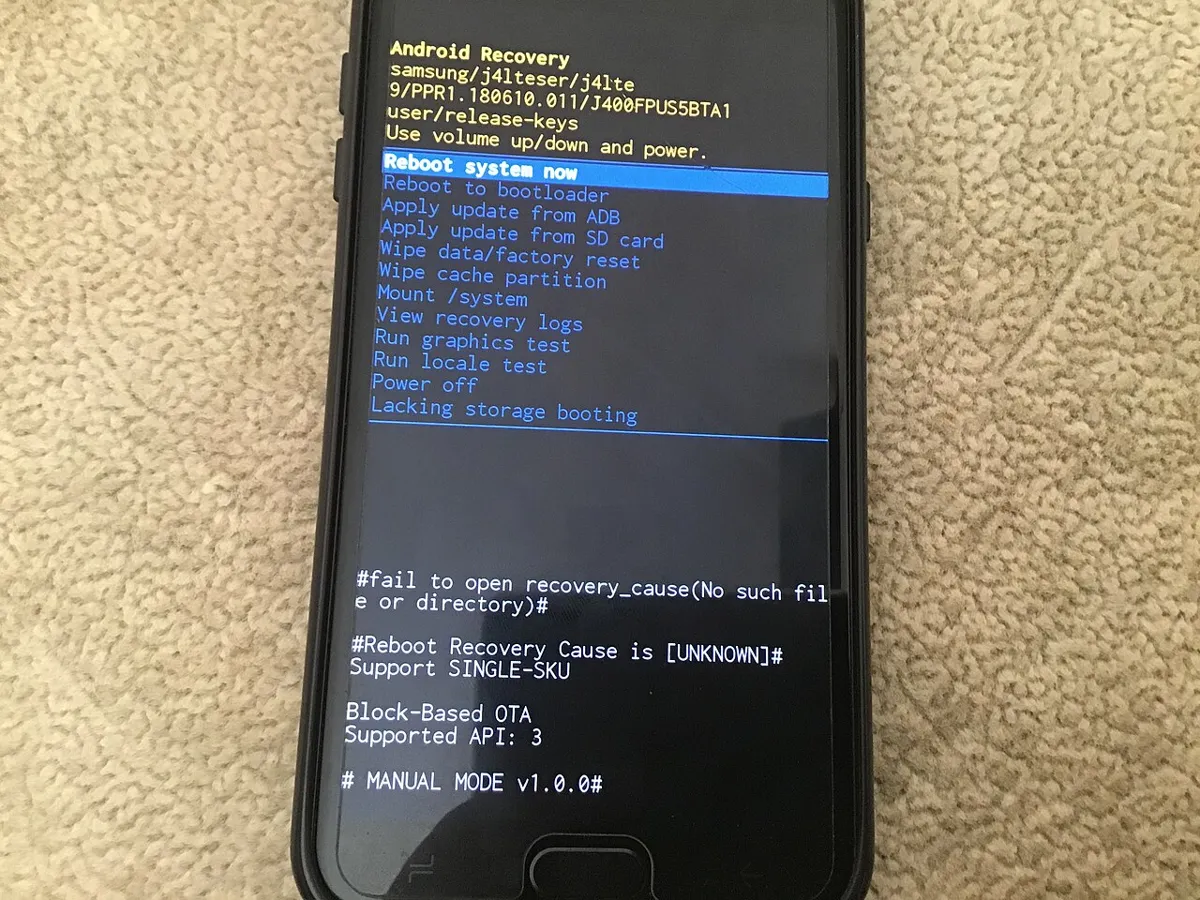
On a Pixel, Google's Can't unlock your Pixel page gives these steps:
- Turn off the phone.
- Press and hold Power and Volume down together until the Fastboot (bootloader) screen appears.
- Use the volume buttons to scroll to Recovery Mode, and press Power to select it.
- At the "No command" screen, hold Power, press Volume up once, and let go of both.
- Scroll to Wipe data/factory reset and press Power to confirm.
Galaxy phones use Volume up and the Side button instead, and some models need to be plugged into a computer first. Our factory reset guide covers Galaxy, Motorola, and other brands, including the shorter recovery menu on newer Samsung software.
After the Reset: Getting Past the Google Account Check
When the phone starts up again, it will ask for the Google account that was on it. This is Factory Reset Protection, and it's what stops a thief from using your phone. Enter the same email and password, and setup continues normally.
- Forgot the Google password too? Recover it from another device using Google's account recovery steps. Samsung's unlock troubleshooting page warns that Google "may require a 24-hour cool-down period" before a new password works on the phone.
- Not sure which account was on it? Samsung suggests signing in to Google's device list to see which account has the phone listed.
- Still stuck? Samsung says to send the phone, with proof of purchase, to an authorized Samsung Service Center. Samsung's Levant page says service centers can reset a phone after checking your ID.
Our guide to why your phone asks for a Google account after a reset explains the lock in more detail, including why "FRP bypass" tricks don't work on Android 15 and later.
Not a Forgotten PIN? Other Lock Screen Problems
Sometimes the PIN is right and the phone still won't open. These cases have their own fixes, and none of them needs a reset:
- Galaxy says it's locked for security reasons. Samsung says this can happen when a phone can't connect to a network after a restart. Restart it and connect to Wi-Fi or mobile data right away. If it stays offline for 30 minutes, it stays locked.
- The keyboard doesn't appear for your password. Some third-party keyboards don't show on the lock screen. Samsung's fix is to restart in Safe Mode, which switches you back to Samsung Keyboard. Our guide to Safe Mode on a Galaxy shows how to get back out.
- The screen doesn't respond to your taps. That's a touch problem, not a lock problem. Our touch screen guide shows how to use a USB mouse to unlock it and save your data.
- A child's phone is locked by downtime. Family Link limits aren't the screen lock. Google's Family Link help says a parent can unlock them with the parent account password or a parent access code from the Family Link app. That page covers downtime and app limits; it doesn't offer a way to reset the phone's screen lock.
- You forgot the Samsung Kids PIN. Samsung says that after five wrong tries, you can send a blank email from your registered address to kidshome.pin@samsung.com and get a temporary password back.
Once you're back in, set a PIN you'll remember and turn on Google Photos backup. On a Galaxy with the 72-hour previous-PIN option, leave it on. It's the only fallback Samsung's current pages offer that doesn't erase the phone.
Frequently Asked Questions
Can I unlock my Android phone without losing data if I forgot the PIN?
Only in a few cases. If fingerprint or face unlock still works, or the phone is kept unlocked by Extend Unlock, copy your data off right away. A Samsung Galaxy with One UI 6.1 or later may accept your previous PIN for 72 hours after you change it, and a work phone's IT admin may be able to reset the lock. Otherwise, you have to erase the phone.
Can a phone store or Samsung reset a forgotten PIN?
Not without erasing the phone. Samsung says it can't view, retrieve, or recover your lock screen PIN, pattern, or password. Samsung service centers can factory reset a phone after checking your ID, which removes the lock along with your data.
Will I lose my photos if I factory reset a locked phone?
Not the ones already backed up to Google Photos, since those come back when you sign in to your Google account. Photos that were only stored on the phone are erased. Google Photos backups aren't encrypted with your screen lock, unlike parts of Google's device backup.
How many wrong PIN attempts does Android allow?
On phones using Google's default policy for Android 16 QPR2 and later, the wait grows after the fifth wrong guess and no more guesses are allowed after 20. Galaxy phones that shipped with One UI 9 lock for good on the 13th wrong attempt and need a factory reset.