No Sound on Android: Speaker, Call, and App Audio Fixes

If your Android phone has no sound, the speaker is usually fine and something is muting or rerouting the audio. Press a volume button, open the full volume panel, and raise Media volume, then turn off Do Not Disturb, disconnect Bluetooth, and play something from two or three different apps. On a Samsung Galaxy, also check Settings > Accessibility > Hearing enhancements > Mute all sounds, a switch that silences everything, including calls. If sound is still missing or crackly after that, clean the speaker grille, restart, and run a speaker diagnostic before you book a repair.
Also in this topic: Android Guides hub.
Jump to: match your symptom · the five volume sliders · hidden mute settings · sound going somewhere else · muffled or crackly speaker · no sound on calls · run a speaker test · restart, safe mode, and repair · FAQ
Quick answer: Android doesn't have one volume. It has separate levels for media, calls, ringtones, notifications, and alarms, and pressing the volume buttons usually changes only one of them. On top of that, Do Not Disturb and other Modes, Samsung's Mute all sounds switch, an audio balance slider pushed all the way to one side, and Samsung's Separate app sound feature can each make a working speaker look dead. Check those before you assume the hardware failed.
Is It the Speaker or a Setting? Match Your Symptom
The fastest way to narrow it down is to notice exactly which sounds are missing. Google's Pixel sound troubleshooting page suggests playing 2 or 3 different songs or videos from different apps, for example a video you recorded and a song in a music app. If only some files sound wrong, those files may be damaged. If everything sounds wrong, the problem is the phone.
| What you notice | Most likely cause | Where to look |
|---|---|---|
| Nothing at all, and pressing volume shows an accessibility message (Galaxy) | Mute all sounds is on | Hidden mute settings |
| Videos and music are silent, but the ringtone works | Media volume at zero, or audio sent to Bluetooth | Volume sliders, output |
| Calls and notifications are silent, but media plays | Do Not Disturb, a Mode, or Mute/Vibrate | Hidden mute settings |
| One app is silent, the rest are fine | Samsung Separate app sound, or the app itself | Output |
| Sound is quiet, crackly, or distorted | Blocked grille or vent, water, or pressure change | Muffled speaker |
| You can't hear callers unless you use speakerphone | Earpiece covered or call volume low | Calls |
| Music stops when the screen turns off | Battery limits on the music app | Output |
One thing that isn't a fault: on a Pixel, the two speakers aren't equal. Google's Pixel speakers and microphones page says Pixel phones have 2 speakers, both play music, and the bottom one is louder. The top speaker is the receiver for calls. When you hold the phone to your ear, only the top speaker is on, and it sounds quieter because it's smaller.
Check All Five Volume Sliders
Press a volume button, then tap the menu or settings icon on the volume bar to see every slider. Google's Pixel volume page lists five:
- Media volume: music, videos, games, and other media.
- Call volume: the other person's voice during a call.
- Ring volume: incoming calls.
- Notification volume: message and app alerts.
- Alarm volume: alarms.
On the same volume bar, look at the icon above the slider. If it shows Vibrate or Mute, tap it and choose Ring so calls and notifications make noise again.
On a Samsung Galaxy, go to Settings > Sounds and vibration > Volume. Samsung's no-sound troubleshooting page notes that button and touch sounds follow System volume, notification sounds follow Notification volume, and you can turn individual system sounds on or off under Settings > Sounds and vibration > System sound. So if keyboard clicks are silent but everything else works, that's a setting, not the speaker.
Turn Off the Hidden Mute Settings
Several Android settings mute sound without showing an obvious icon. These are the ones that catch people out most.
Samsung Galaxy: Mute all sounds
If a Galaxy plays nothing at all and an accessibility message pops up when you press volume, Mute all sounds is almost certainly on. Samsung says this setting mutes media, notifications, system sounds, and even the other person's voice on calls, and that you can't change the volume while it's on. To turn it off, open Settings > Accessibility > Hearing enhancements and switch off Mute all sounds.
Do Not Disturb and other Modes
Do Not Disturb silences calls and notifications, but it isn't the only Mode that can. Wireless emergency alerts are handled separately, and our guide to turning off emergency alerts on Android explains which ones you can silence. On recent Android versions, Google's Modes and Do Not Disturb help page describes Bedtime and Driving modes that can turn on automatically on a schedule, while charging, or while driving. Each mode has notification filters, and the "Alarms & other interruptions" filter can block alarms, media, touch sounds, reminders, and calendar events.
To check, swipe down to Quick Settings and turn off Do Not Disturb or any active mode. Then go to Settings > Modes and look at what each mode blocks and when it turns on. On a Galaxy, Samsung's path is Settings > Notifications > Do not disturb. If notifications appear but stay silent even with no mode on, our guide to Android notifications not working covers Silent categories and Notification cooldown.
Pixel 5a and older: the Power + Volume up shortcut
On a Pixel 5a or earlier, pressing Power + Volume up together can switch the phone to Mute or Vibrate, which is easy to trigger by accident in a pocket. Change it under Settings > Sound & vibration > Shortcut to prevent ringing. Google's help pages limit this shortcut to Pixel 5a and earlier, so don't go looking for it on a newer phone. On a Pixel 6 or later, holding the same two buttons brings up the power menu instead, per Google's power button page.
Audio balance pushed to one side
If sound comes from only one side, or one earbud is silent, check the audio balance slider. Android's accessibility overview puts mono audio and balance under Audio adjustment in Accessibility settings. On a Galaxy, Samsung's Hearing enhancements page lists Mono audio and Left/right sound balance under Settings > Accessibility > Hearing enhancements. Samsung notes the balance setting covers the phone's speakers and connected audio devices but doesn't affect phone calls. Move the slider back to the center.
Make Sure Sound Isn't Going Somewhere Else
A phone that thinks it's still connected to earbuds, a car, or a speaker will send audio there instead of to its own speaker. Turn Bluetooth off from Quick Settings and test again. Samsung's speaker troubleshooting page also says to remove anything plugged into the headphone jack, as well as third-party cases, films, skins, and adhesives.
- Pick the output yourself: On a Pixel, swipe down to the media player in Quick Settings and tap the device name at the top right of the panel to change where sound plays, as described on Google's listening help page.
- Samsung Separate app sound: This feature sends one chosen app's audio to a different device, such as a Bluetooth speaker, while everything else stays on the phone. If one app is silent and the rest work, open Settings > Sounds and vibration > Separate app sound and turn it off or change the app. Samsung's advanced audio settings page explains how it works.
- USB-C headphones and adapters: Google says USB-C audio accessories, including adapters, need to support digital audio to work with a Pixel. Unplug them and try the speaker, or try another pair.
- Music stops when the screen goes off: Samsung's audio stops playing page says a music app set to Restricted battery use can't keep playing in the background. Go to Settings > Apps, pick the app, tap Battery, and choose Unrestricted or Optimized.
If the trouble is only with a Bluetooth device, such as low volume or sound cutting out in the car, our guide to fixing Bluetooth on Android covers Absolute Volume, media audio switches, and pairing problems.
Fix a Muffled, Quiet, or Crackly Speaker
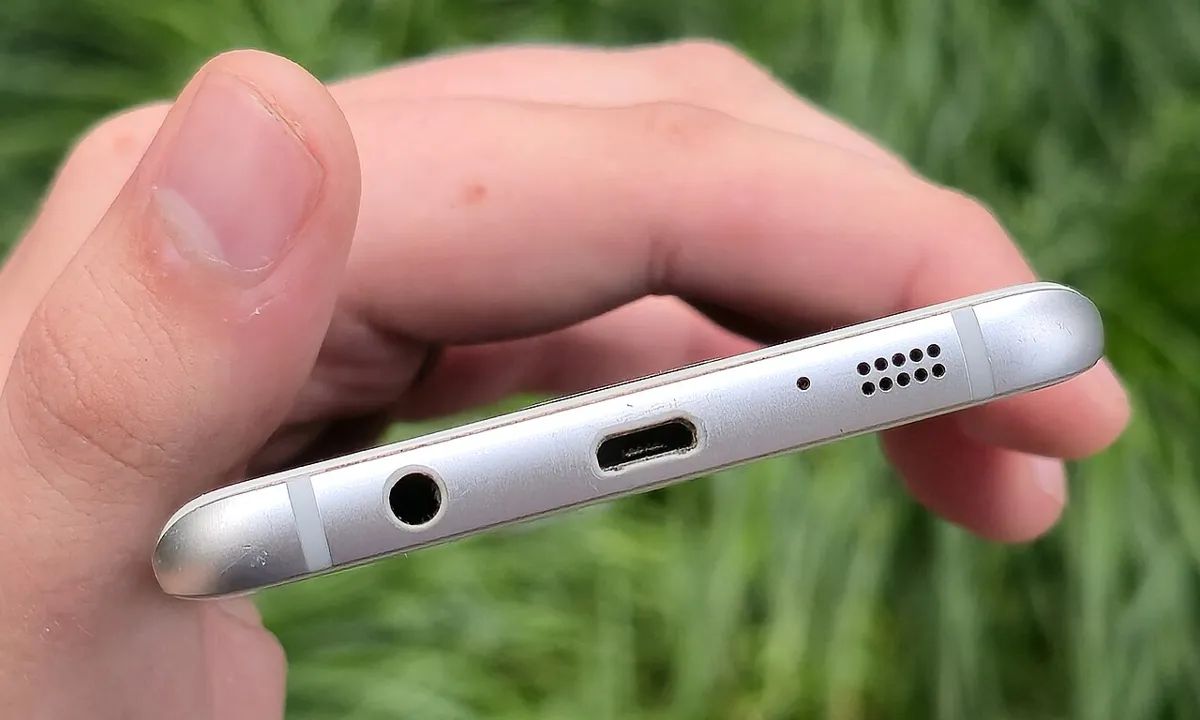
Quiet or distorted sound usually means something is physically in the way. Take off the case and any screen protector, then gently clean the speaker openings and USB-C port with a soft, lint-free cloth, as Google advises. On most phones the main speaker is a row of holes on the bottom edge, like the grille in the photo above.
If the phone got wet: Samsung says to dry it right away and pat the earpiece, microphone, bottom speaker, and USB port with a clean, soft cloth. Samsung also says to avoid cans of compressed air, which can cause damage. If the phone was in salt water, Samsung says to rinse it with fresh water and dry it, because salt left behind can block the speaker and microphone as it dries.
If it sounds crackly after a flight, a drive through the mountains, or a big temperature change: Samsung has a specific fix for this. It says water-resistant Galaxy phones can sound quiet, crackly, or distorted after a large change in air pressure. It usually settles on its own, but you can speed it up by sliding the SIM tray out about halfway with the SIM tool and closing it again right away. Samsung's call sound page adds that Galaxy phones have small air vent holes, for example near the top edge and camera on the Galaxy S26 Ultra, and a case or film that covers them can cause crackling or low sound, especially in summer and winter.
Some sound distortion is normal at high volume. Google notes that some music sounds distorted when played loudly, so lower the volume a step before deciding the speaker is damaged.
No Sound on Calls Only
If music plays fine but you can't hear people on calls, focus on the earpiece and the call itself. Samsung's low or no call sound page lists these checks:
- Look at the screen protector. A third-party protector that doesn't match your exact model can cover the top earpiece.
- Raise call volume during a call. Samsung notes that in-call volume can only be changed while you're on a call, so press Volume up mid-call.
- Check Mute all sounds, since it also mutes the other person's voice.
- Turn Wi-Fi Calling off and try again, because a weak Wi-Fi connection can hurt call quality.
Google's Pixel page adds a few call-specific tests: move somewhere with a stronger signal, turn Wi-Fi on or off and call again, toggle speakerphone on and off during the call, and wait until you've stopped moving if you're on a train or in a car. If calls drop or never connect, see Wi-Fi calling not working on Android. If the problem is that people can't hear you, our Android microphone guide is the better fit.
Run a Built-In Speaker Test
Galaxy phones have a proper speaker test built in. Samsung's diagnostics page lists two ways in:
- Samsung Members app: open the app, tap Diagnostics on the Discover tab (or go through the Support tab), tap Phone diagnostics, then tap Speaker. There's also a separate Wired headphones test.
- Device care (Android 12 or later): Settings > Device care > Diagnostics > Phone diagnostics.
If a test fails, the app may suggest fixes or link to a related FAQ. On a Pixel 6 or later, Google's device health page says to type "diagnostics" in the Settings search bar to see which checks your model has, or look under Settings > Device health & support. Google's list names battery, charging, touch, Bluetooth, calls, mobile data, and Wi-Fi diagnostics, but not a speaker test, so on a Pixel the most reliable test is playing the same clip from two or three apps.
Restart, Use Safe Mode, Then Repair
If every setting checks out, restart the phone. Samsung says a temporary system error can affect sound output.
- Pixel 6 and later: hold Power + Volume up for a few seconds, then tap Restart. On a Pixel 5a or earlier, hold Power for about 30 seconds.
- Samsung Galaxy: swipe down, tap the Power icon, then Restart. If the screen is frozen, hold Side + Volume down for more than 7 seconds.
Next, install any pending system and app updates, then try safe mode, which turns off downloaded apps. Samsung says some apps can cause audio problems, and if the sound works in safe mode, a recently installed app is the likely culprit. Uninstall recent apps one at a time and test after each. If you get stuck in safe mode afterward, here's how to turn off safe mode.
A factory reset is the last software step on both Google's and Samsung's pages. It erases the phone, so back up first and read our guide to factory resetting Android without getting locked out.
When it's the hardware: If the speaker test fails, or sound is still missing in safe mode and after a reset, the speaker or its connection likely needs repair. Google's Pixel warranty page lists speaker issues as something warranty may cover when there's no physical or liquid damage, and you can check coverage and start a repair at Google Store repair by entering your IMEI. Galaxy owners can contact Samsung Support online or through the Samsung Members app, or visit a Samsung service center.
How we put this together: We compared Google's Pixel and Android help pages and Samsung's US support pages on sound, volume, Modes, accessibility audio settings, diagnostics, and repair on November 1, 2026, and noted the settings most guides skip. We didn't test these steps on our own phones, so the menu names above are the ones Google and Samsung publish. Menus vary by model and software version, so if a setting has moved, search for its name in the Settings app.
Frequently Asked Questions
Why is there no sound on my phone when the volume is all the way up?
Usually because a different volume or a mute setting is in charge. Android has separate media, call, ring, notification, and alarm volumes, and Do Not Disturb, other Modes, or Samsung's Mute all sounds can silence the phone even at full volume. Audio can also be going to a Bluetooth device you forgot was connected.
Why can I only hear calls on speakerphone?
The top earpiece is probably blocked or the call volume is low. Samsung says a third-party screen protector that doesn't fit your exact model can cover the earpiece, and call volume can only be raised during a call. If the earpiece is clear and still silent, it likely needs repair.
How do I get water out of my phone speaker?
Dry the phone right away and pat the speaker, earpiece, microphone, and USB port with a clean, soft cloth. Samsung advises against using compressed air, and says to rinse a phone that was in salt water with fresh water first so salt doesn't block the speaker as it dries.
Why does one Pixel speaker sound quieter than the other?
That's normal. Google says Pixel phones have two speakers and the bottom one is louder. The top speaker is mainly the receiver for calls, and when you hold the phone to your ear only the top speaker plays.
Will a factory reset fix no sound on Android?
Only if software is the cause. Try safe mode first: if sound works there, a downloaded app is to blame and uninstalling it is enough. If a Samsung Members speaker test fails or sound is still missing after a reset, the speaker needs repair.