Android Phone Overheating? 12 Fixes That Actually Work in 2026

If your Android phone is heating up right now, do this first: unplug it, close every open app, take the case off, turn on Airplane Mode for five minutes, and set it on a hard, shaded surface. That cools most phones within minutes. Then keep reading, because a phone that gets hot regularly always has a cause — usually background apps, bad charging habits, a weak network signal, or gaming with a case on — and each one has a specific fix below.
Also in this topic: Android Guides hub.
One rule before anything else: never put a hot phone in the fridge, on ice, or against an AC vent. The sudden temperature drop causes condensation inside the body, and that moisture can permanently damage the circuit board. Shade and airflow, not cold shock.
In a hurry? Jump to: cool it down right now · how hot is too hot · what is actually causing the heat · find the rogue app · when to worry
Quick Fixes: Cool Your Phone Down Right Now
Work through these in order. Together they take about five minutes and solve the majority of "my phone is hot" moments on the spot:
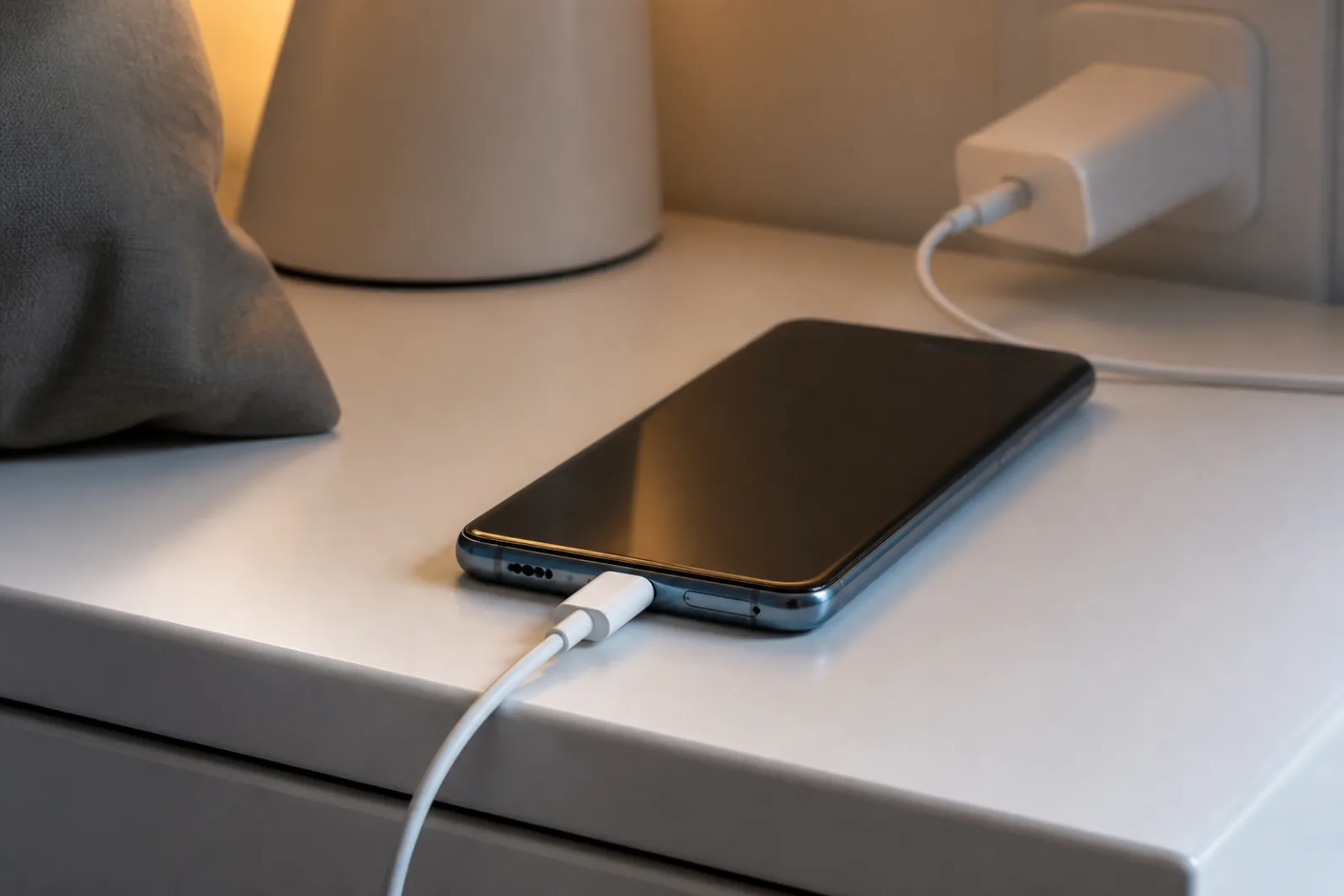
- Unplug it from any charger, wired or wireless. Charging is a heat source on its own.
- Close all open apps, especially games, camera, and navigation.
- Take the case off. Rubber, silicone, and leather cases insulate the very frame the phone uses to shed heat.
- Turn on Airplane Mode for 5 to 10 minutes. This shuts down the cellular modem, which runs hot when the signal is weak.
- Lower screen brightness or lock the screen entirely.
- Move it to shade and lay it flat on a hard surface like a desk, not a bed or sofa cushion.
If the phone cools down and stays cool afterward, it was a one-off — a hot car, a long game, a heavy download. If it heats up again during normal use, something specific is causing it, and the sections below tell you how to find it.
How Hot Is Too Hot for an Android Phone?
A warm phone is normal. Knowing where warm ends and "problem" begins saves you a lot of unnecessary worry:
- 30°C to 35°C (86–95°F) — normal while browsing, texting, or streaming.
- 38°C to 43°C (100–110°F) — expected during gaming, 4K video recording, or fast charging.
- Above 45°C (113°F) — the phone is under real thermal stress and will start protecting itself.
- Hot while idle — never normal. This always has a fixable cause.
The useful signal is not whether the phone gets warm — it is whether it stays hot long after you stop using it.
Your phone now warns you: Adaptive Thermal on modern Android
Recent Android versions handle heat far more openly than older ones did. Google's Adaptive Thermal system on Pixel phones checks battery temperature every few minutes and sends a "phone needs to cool down" notification before things get serious, along with a care screen showing what the phone is doing about it — slowing performance, dimming the screen, even disabling 5G temporarily. If the internal temperature keeps climbing toward roughly 55°C, the phone warns you about 30 seconds before shutting itself down to prevent damage. Samsung, OnePlus, and other brands ship similar thermal warnings in their Android 16-era software.
Two takeaways from that. First, if you see one of these warnings, take it seriously and run the quick fixes above. Second, an emergency shutdown from heat is the phone protecting itself, not dying — but if it happens more than rarely, treat it as a symptom worth diagnosing.
Why a hot phone suddenly feels slow: thermal throttling
Once internal temperature crosses roughly 40°C, the processor deliberately reduces its own clock speed — by 20 to 30% under moderate heat, and by well over half under severe heat. That is why a game that ran smoothly ten minutes ago suddenly stutters or drops to 15fps. The lag and the heat are the same problem: fix the overheating and the performance comes back. Sustained throttling on even flagship chips can cut performance by more than 50% after a few minutes of continuous load, which is why a hot flagship can feel slower than a cool budget phone.
What Is Actually Making Your Android Phone Hot
Match your situation to the cause. Almost every overheating complaint lands in one of these six buckets.
1. Charging habits — especially wireless charging
Charging always generates some heat, but a few common habits turn normal warmth into a real problem. The biggest one most guides skip: wireless charging runs hotter than wired. A cable delivers roughly 90 to 95% of the energy into your battery; a wireless pad manages 80 to 85% at best, and less if the phone sits slightly off-center. The missing energy becomes heat, radiated straight into the back of the phone where the battery lives. A phone that runs warm on a wireless pad is not defective — it is physics. Switch to a cable in warm rooms or whenever the phone already feels warm.
The other charging mistakes that stack heat:
- Cheap third-party chargers and worn cables — unstable current generates extra heat right at the port.
- Charging on a bed, pillow, or sofa — soft surfaces trap heat under the phone. Use a desk or table.
- Gaming or streaming while plugged in — the battery pushes power in while the processor burns through it. Heat from both stacks with nowhere to go.
- Fast charging in a hot room or direct sunlight — charge before the drive, not on the sunny dashboard.
2. Gaming and heavy app combinations
Games push the CPU and GPU toward 100% at the same time, which is fine in bursts. The trouble starts when you stack heavy loads: gaming while charging, recording 4K video while plugged in, or running a mobile hotspot in a hot room. If you game regularly, lower graphics to Medium, cap the frame rate at 60fps instead of 90 or 120, charge fully before the session, and take a ten-minute break every 45 minutes. Many phones also have a game-mode thermal or performance setting — the "balanced" profile exists exactly for this.
GPS navigation deserves a special mention because it is one of the most reliable ways to overheat a phone and almost nobody suspects it. Google Maps runs the GPS receiver, the cellular modem, full screen brightness, and a rendering engine all at once — then people mount the phone on a sunny dashboard with a cheap car charger plugged in, stacking four heat sources. Mount it in shade, drop brightness to about 50%, and switch to audio-only navigation if it gets hot on a long drive.
Related: if your games are lagging as well as running hot, these lag and high ping fixes for mobile gaming on Android cut thermal load and ping at the same time.
3. Sun and hot environments
Your phone has no fan. It sheds heat through its frame into the surrounding air, and when that air is already hot, the heat just builds. A parked car's interior can pass 70°C in summer — hot enough to damage a battery on its own. Direct sunlight for more than a few minutes, a tight jeans pocket during outdoor exercise, or a dark table in the sun all do the same thing at smaller scale. Keep the phone shaded outdoors, and if it overheats in the sun, Airplane Mode plus shade before you use it again.
4. Rogue background apps and malware
This is the number one cause of a phone that runs hot during normal use. It is rarely one app — it is ten of them quietly refreshing feeds, polling location, and syncing in the background, keeping the processor busy even with the screen off. Go to Settings > Apps > [app] > Battery and set social, news, and shopping apps to Restricted, then check Settings > Battery > Battery Usage for anything consuming battery while you were not using it.
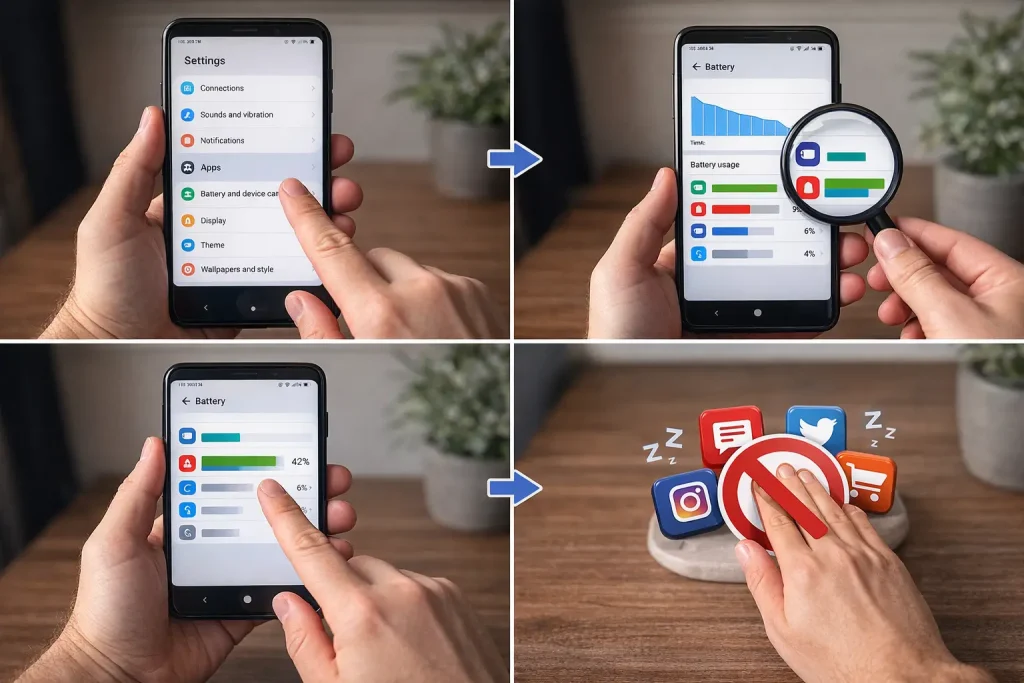
Malware is the nastier version of the same problem. Cryptojacking apps mine cryptocurrency on your CPU around the clock; the only visible symptoms are constant warmth, fast battery drain, and sluggishness. In that same battery usage screen, look for any app using 15% or more battery that you do not recognize, delete anything you did not knowingly install, and run a free scan with Malwarebytes or Bitdefender Mobile Security if you are unsure.
Related: restricting background apps also speeds the phone up overall — this guide to Android settings that speed up your phone in 2026 covers every setting worth changing.
5. Weak signal and unstable 5G
When your phone cannot hold a stable connection, the modem continuously boosts power to hunt for a stronger tower — and that power becomes heat even while the screen is off. This is a hugely overlooked cause in areas where 5G coverage is still patchy. Use Wi-Fi at home, flip on Airplane Mode for a few minutes in dead zones, and if 5G is unstable where you live, go to Settings > Network > Preferred Network Type and switch to 4G/LTE only. Plenty of people watch their phone cool down within minutes of making that one change.
6. Buggy updates and on-device AI features
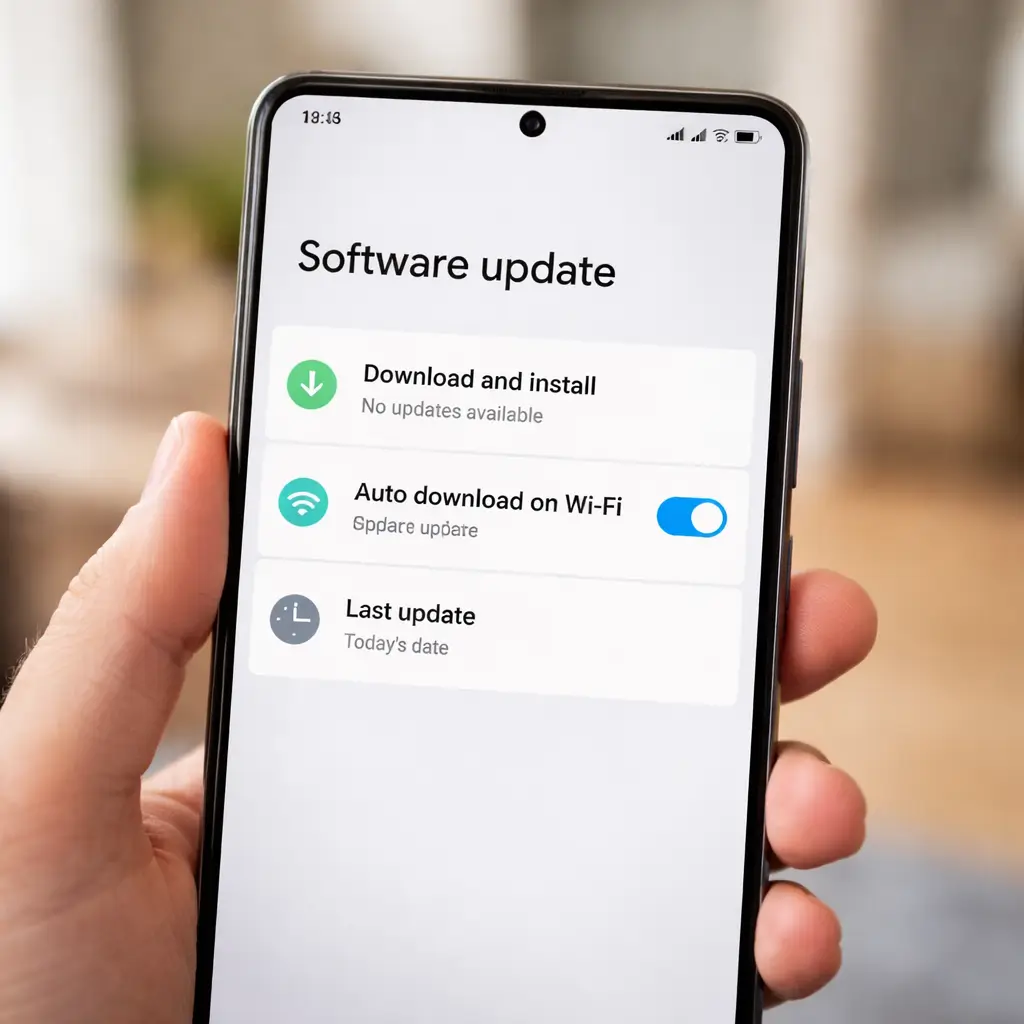
A bad update can leave a background process stuck at full CPU load permanently — the phone just stays warm all day and the battery drains fast, with no change in how you use it. If the heat started right after an update, restart the phone first (a reboot alone fixes a surprising share of post-update heating), then search your phone model plus the update version for reported bugs before installing anything further.
A 2026-specific wrinkle: on-device AI features — Gemini integration, AI photo editing, AI keyboard suggestions — run heavy neural models locally. If you enabled one recently and the heating started shortly after, try disabling it in Settings > Advanced Features or your phone's AI settings menu and see if the phone cools over the next day.
Still Hot? Find the Culprit App with Safe Mode
When the basics fail, stop guessing and isolate the problem. Safe Mode starts Android with only the core system running — every third-party app temporarily disabled — and it takes two minutes:
- Hold the power button until the power menu appears.
- Press and hold Power Off on screen.
- Tap OK when asked to reboot into Safe Mode.
- Use the phone normally for 15 to 30 minutes with "Safe Mode" showing at the bottom of the screen.
If it stays cool in Safe Mode, a downloaded app is the cause. Restart normally, then uninstall recently installed or updated apps one at a time until the heat stops. If it still gets hot in Safe Mode, the problem is in the system itself — a buggy update, corrupted cache, or hardware.
For the corrupted-cache case, there is one more software fix before a factory reset: wipe the cache partition. It deletes only temporary system files — your apps, photos, and settings are untouched. Power the phone off, hold Volume Up + Power (Samsung phones may need Volume Up + side button combinations; check your model's recovery combo), select Wipe Cache Partition with the volume keys, confirm with power, then Reboot System Now. First boot takes a couple of minutes longer while the cache rebuilds. When lingering heat is caused by bloated or corrupted cache data, this fixes it permanently and makes the factory reset unnecessary.
Related: overheating and random reboots often travel together — if yours is doing both, see why your Android phone keeps restarting and how to stop it.
How to Keep Your Phone from Overheating Again
- Restart every 2 to 3 days, and always after a major update. It clears stuck processes before they become heat.
- Charge on hard surfaces with the original charger, and prefer wired over wireless in warm weather.
- Take the case off during long gaming or charging sessions — you do not need to go caseless permanently, just when heat is building.
- Keep background app restrictions tight — re-check battery usage after installing new apps.
- Keep Android and your apps updated, since thermal fixes ship in patches — but hold off briefly if a specific update is confirmed buggy for your model.
- Never leave the phone in a parked car or direct sun.

When Overheating Means a Hardware Problem
If you have tried everything above and the phone still gets hot during basic tasks like texting, the cause is likely physical — almost always an aging battery. As batteries wear, their internal resistance rises, so ordinary charging and discharging generates more heat than before, which damages the battery further, which generates more heat. The cycle only worsens.
Take it seriously if you see any of these:
- Hot while completely idle, even after Safe Mode testing and a cache wipe
- Random shutdowns at 40 to 50% battery
- Full-to-empty battery drain in under 3 hours of normal use
- Any bulging of the back panel near the battery — stop charging the phone and get it looked at immediately
From here you have two sensible options: a battery replacement at an authorized service center if the rest of the phone is still good (avoid cheap third-party batteries, which can make heating worse), or an upgrade if the phone is past four years old with multiple issues. Current flagships manage heat dramatically better than hardware from three or four years ago, with vapor chambers and smarter thermal software as standard.
Related: thinking about upgrading? Here is our full comparison of the Galaxy S26 Ultra vs Pixel 10 Pro XL, both with far better thermal management than older phones.
Bottom line: a hot Android phone is almost never broken. Unplug it, close everything, drop the case, and give it shade — then fix the underlying cause: restrict background apps, clean up your charging habits, switch to 4G if 5G is unstable near you, and use Safe Mode plus a cache-partition wipe before you ever consider a factory reset. Save the service center for the real hardware signs: heat while idle, sudden shutdowns, three-hour battery life, or a bulging back panel.
Related reading
Frequently Asked Questions
How do I cool down my Android phone fast?
Unplug it from any charger, close all open apps, remove the case, turn on Airplane Mode for five to ten minutes, lower the brightness, and lay it flat on a hard surface in the shade. Most phones cool within minutes. Never put a hot phone in the fridge, on ice, or directly in front of an AC vent — the sudden temperature drop causes condensation inside the phone that can permanently damage the circuit board.
Why is my Android phone hot when I am not using it?
A phone that heats up while idle almost always has one of three causes: a background app stuck in a loop, a buggy update running processes non-stop, or malware secretly using your CPU. Check Settings > Battery > Battery Usage for apps draining battery while you were not using them, then boot into Safe Mode. If the phone stays cool in Safe Mode, a third-party app is the culprit; if it still heats up, suspect a recent system update or corrupted cache.
Why does my Android phone overheat while charging?
Charging always generates some heat, but it gets worse with a cheap charger or worn cable, a soft surface like a bed that traps heat under the phone, or heavy app use while plugged in. Wireless charging runs hotter than wired because induction is only 80 to 85% efficient — the lost energy becomes heat in the back of the phone. Use the original charger on a hard flat surface, and switch from wireless to wired in warm conditions.
Does 5G make Android phones overheat?
Unstable 5G coverage can. When the phone cannot hold a steady connection, the modem continuously boosts power to search for towers, and that power becomes heat even with the screen off. If 5G is patchy in your area, switch to 4G/LTE only under Settings > Network > Preferred Network Type — many phones cool down within minutes of the change.
Why does my phone get slow when it gets hot?
That is thermal throttling. Once the internal temperature passes roughly 40°C, the processor deliberately lowers its clock speed — by 20 to 30% under moderate heat, and by more than half under severe heat — to avoid permanent damage. The sudden lag or frame drops and the heat are the same problem, so fixing the overheating restores the performance.
What is the Adaptive Thermal warning on my phone?
Modern Android phones, led by Google's Adaptive Thermal system on Pixel, monitor battery temperature and warn you with a "phone needs to cool down" notification before heat becomes dangerous. The phone may slow performance, dim the screen, or temporarily disable 5G to cool itself, and if the temperature keeps rising toward around 55°C it will warn you shortly before shutting down to protect itself. Treat the warning as a prompt to unplug, close apps, remove the case, and move the phone to shade.
Will wiping the cache partition delete my data?
No. Wiping the cache partition removes only temporary system files — apps, photos, contacts, messages, and settings all stay intact. It is done from the recovery menu (power off, then hold Volume Up + Power on most phones) and is one of the most effective fixes for persistent overheating caused by bloated or corrupted cache data. It sits one step before a factory reset and often makes the reset unnecessary.
When does an overheating phone need a battery replacement?
When it gets hot during basic tasks even after Safe Mode testing and a cache wipe, drains from full to empty in under three hours of normal use, shuts down randomly at 40 to 50% battery, or shows any bulging in the back panel near the battery. A bulging battery means stop charging and get it serviced immediately. Use an authorized service center — counterfeit replacement batteries can make overheating significantly worse.