How to Connect a Switch Pro Controller or Joy-Con to Android

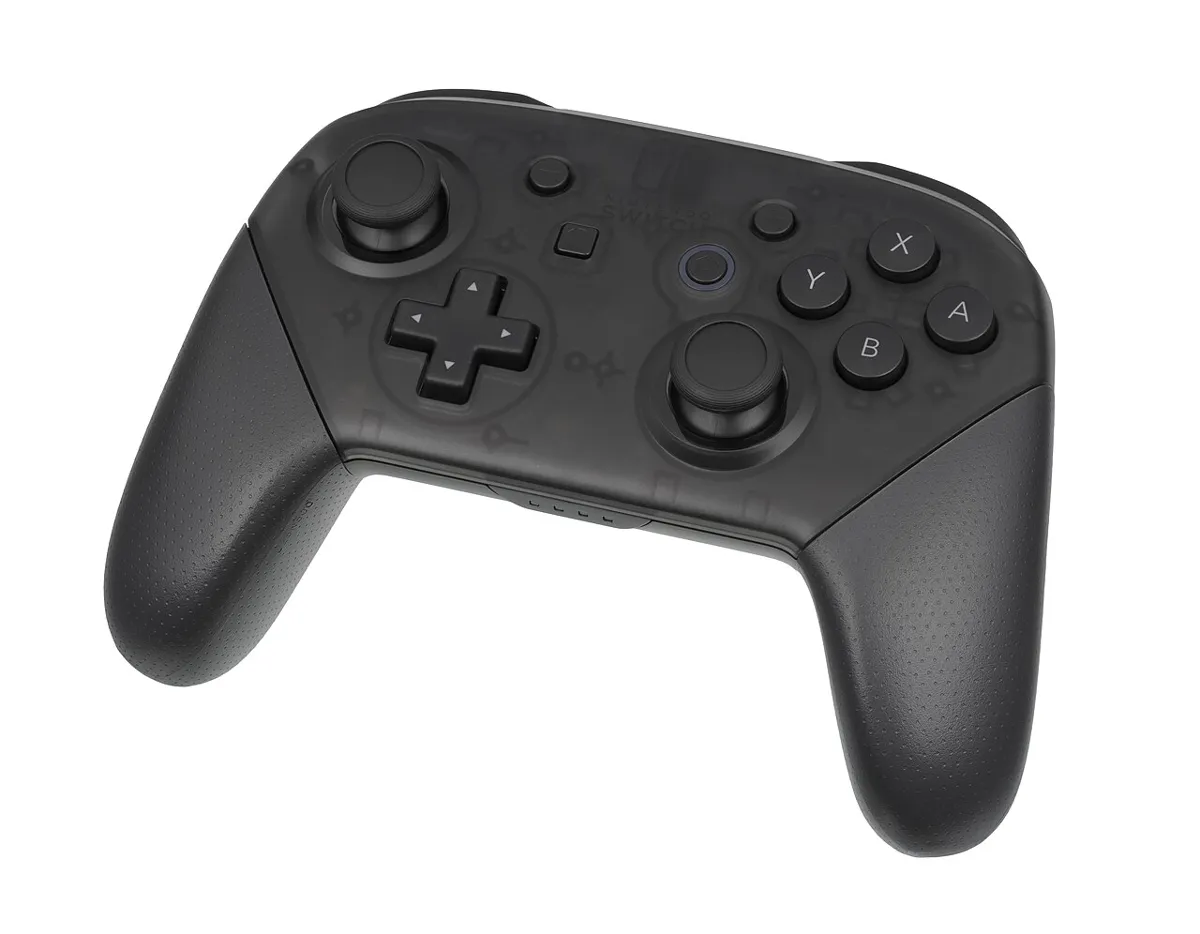
To connect a Switch controller to Android, hold the small round SYNC button until the player lights start running back and forth, then open Settings > Connected devices > Pair new device on your phone and tap Pro Controller, Joy-Con (L) or Joy-Con (R). That works for the original Switch controllers. Switch 2 controllers won't show up in that list at all.
Key takeaways
- The original Switch Pro Controller and Joy-Con pair from Android's own Bluetooth settings. No app needed.
- The Switch 2 Pro Controller and Joy-Con 2 use their own Bluetooth LE protocol, so Android's Bluetooth menu can't pair them.
- On Android, the button labeled B works as "A" and the one labeled A works as "B". Android maps buttons by position, Xbox-style.
- Each Joy-Con connects as its own controller. Android doesn't join a left and right Joy-Con into one pad, so use the Pro Controller for two-stick games.
- To go back to the Switch, pair it there again: plug the Pro Controller into the dock with its USB cable, or slide the Joy-Con back onto the console.
This is a researched guide, built from Nintendo's and Google's support pages and Android's own source code rather than hands-on testing (details at the end). It's part of our controller games hub. Using a different pad? See how to connect an Xbox controller to Android or our PS5 controller guide.
Which Switch controllers work with Android?
The original Pro Controller and Joy-Con do; the Switch 2 versions don't. At a glance:
| Controller | Pairs in Android's Bluetooth settings? | What to know |
|---|---|---|
| Nintendo Switch Pro Controller (original) | Yes | The best Nintendo pad for a phone. Android ships a built-in button map for it. |
| Joy-Con (L) and Joy-Con (R), original | Yes, one at a time | Each one is a separate controller with one stick. |
| Joy-Con in the charging grip | Still two controllers | The grip doesn't merge them. Even on the Switch, Nintendo counts a gripped pair as two controllers. |
| Nintendo Switch 2 Pro Controller | No | Only an unofficial app can talk to it (see below). |
| Joy-Con 2 | No | Same as the Switch 2 Pro Controller. |
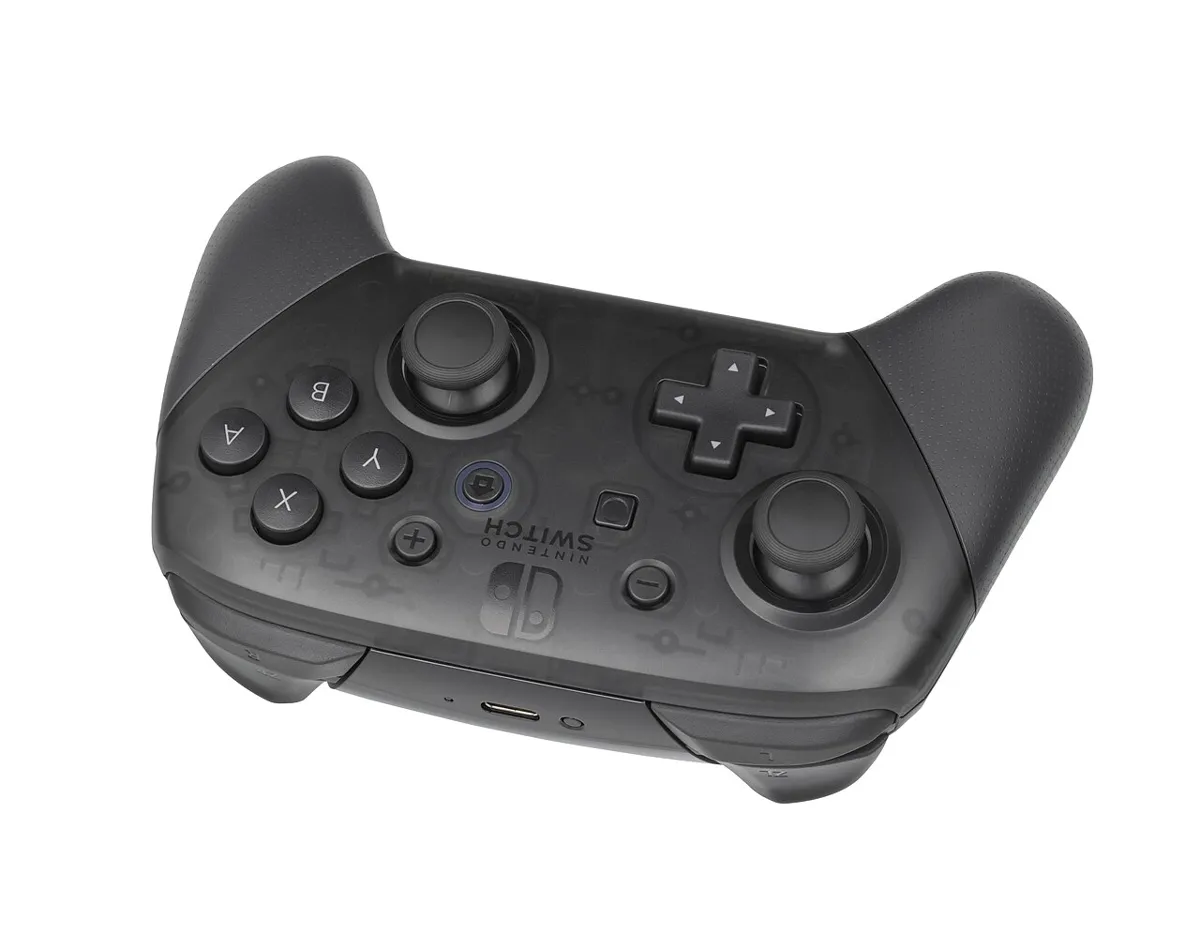
Not sure which Pro Controller you have? Per Nintendo's diagram, the Switch 2 version has two extra buttons on the back grips (GL and GR) and a C button on the face. If yours has neither, it's the original and it will pair.
Your phone needs to be reasonably current. Android's source code has carried a button map for the Pro Controller since 2019, and the Linux kernel Google gives to phones that launched with Android 12 or later has Nintendo's controller driver built in. On a phone from the last few years, expect it to work. On older phones it depends on what the phone maker included.
How do I pair a Switch Pro Controller with my phone?
It takes under a minute. These are the stock Android steps on a Pixel; the Galaxy path follows.
- Turn off your Switch, or take the controller out of its range. A Switch that's on can grab the controller back while you pair.
- Press and hold the SYNC button for a few seconds. It's the small round button on the top edge, right next to the USB-C port. Let go when the player lights start running back and forth.
- On the phone, open Settings > Connected devices > Pair new device.
- Tap Pro Controller and confirm with Pair if your phone asks.
When it's done, the Pro Controller shows as connected in your Bluetooth list. Press a button in a game menu to check that it responds.
On a Samsung Galaxy: turn on Bluetooth, open Settings > Connections > Bluetooth, and tap Scan if the controller isn't listed yet. Then tap Pro Controller.
Prefer a cable? The Nintendo driver in Android's kernel supports the Pro Controller over USB as well as Bluetooth, so a USB-C to USB-C cable usually works on newer phones. Use a cable that carries data, not a charge-only one.
How do I pair Joy-Con with Android?
Pair each Joy-Con on its own, the same way.
- Slide the Joy-Con off the console or out of the grip.
- Hold the SYNC button on the rail, the flat side that slides onto the Switch, between the SL and SR buttons. Let go when the lights on the rail start moving.
- On the phone, open Settings > Connected devices > Pair new device and tap Joy-Con (L) or Joy-Con (R).
- Repeat with the other Joy-Con if you want both.
Your phone now sees two small controllers, not one. On the Switch, the console's own software combines a left and right Joy-Con into one pad. Android's built-in driver doesn't, and most Android games listen to one controller per player. So a single Joy-Con is fine for a 2D platformer, a retro game or a party game with a friend. For anything with two sticks, use the Pro Controller.
Joy-Con are also less predictable than the Pro Controller. Android's source code has a button map file for the Pro Controller but none for Joy-Con, so how the buttons line up can vary from game to game.
Why are the A and B buttons swapped?
Android maps controller buttons by position, not by the letter printed on them. On an Xbox pad, A is the bottom button. On a Nintendo pad, the bottom button says B. Android's built-in map for the Pro Controller makes the bottom button act as Android's "A", and its own comment says so: the button "labeled as B" should "really produce keycode A". X and Y are swapped the same way.
In practice, when a game shows an "A" prompt, press the bottom button. That suits most Android games, which are designed around the Xbox layout. If you'd rather have the letters match:
- Android 17: Google's developer guidance says that from Android 17 you can remap buttons, sticks and triggers in system settings. For a Bluetooth controller, Google's help page puts it under Settings > Connected devices > tap the controller > Game Controller settings. Swap A with B, then X with Y.
- Older Android versions: use the game's own control settings, or the input settings in your emulator.
Two other buttons behave differently on a phone. The Home button is mapped to Android's own Home key, so pressing it mid-game drops you on your home screen. The Capture button shows up as a generic "mode" button that most games ignore.
Can I use a Switch 2 Pro Controller or Joy-Con 2 on Android?
Not through Android's settings. The Switch 2 controllers use their own Bluetooth LE protocol instead of the standard gamepad (HID) profile, so they never appear as a controller in Pair new device. The developer of Joycon2Android, an open-source app, explains exactly that and works around it by connecting to the controllers itself and showing your phone a virtual gamepad.
It's a real option, but know what you're signing up for. The app isn't on Google Play; you install the APK from GitHub. It needs Shizuku, which you start through Developer options and Wireless debugging. You have to press SYNC every time you connect. The project says it isn't affiliated with Nintendo and that the protocol was reverse-engineered by the community. We haven't tried it. If you want a Nintendo pad for your phone with no setup, the original Pro Controller is the one to get.
How do I switch it back to my Switch?
Pair it with the console again; it takes a few seconds. Nintendo says a Pro Controller pairs with one console at a time, so expect to re-pair after using it on your phone.
- Pro Controller, the quick way: with the Switch in its dock, plug the controller into the dock with its USB cable. That pairs it.
- Pro Controller, wirelessly: on the Switch, go to Controllers > Change Grip and Order and hold SYNC for at least one second, per Nintendo's pairing steps.
- Joy-Con on a Switch or Switch OLED: slide them back onto the console. Attaching them pairs them.
- Original Joy-Con on a Switch 2: they can't attach to that console, so use Change Grip and Order and press SYNC.
Heading back to the phone later? If the controller doesn't reconnect on its own, forget it in your phone's Bluetooth settings and pair it again. Nintendo also says pressing any button reconnects a wireless controller to its console, so if your Switch is on nearby, it can win that race. Turn the Switch off while you play on the phone.
Which games can I play with it?
Any Android game with proper controller support, with one warning: official support lists rarely name Nintendo pads. Microsoft's tested-controller list for Xbox Cloud Gaming includes no Nintendo controller as of November 25, 2026, and Epic says it can't test every device for Fortnite. Both may still work. Neither company promises it.
Our list of mobile games with controller support says how well a pad works in each game. Emulators are where a Nintendo pad feels most at home, since the face buttons sit where Nintendo games expect them. If that's your plan, our GameCube and Wii games for Dolphin guide is a good next stop.
Switch controller still won't connect? Check these
| What you see | Fix |
|---|---|
| Controller never shows up in the list | It isn't in pairing mode. Hold SYNC until the lights run back and forth, then pair right away. Charge it first if the lights barely come on. |
| It keeps jumping back to the Switch | Turn the Switch off while you pair and play. |
| Listed, but won't connect or keeps dropping | Forget it on the phone (Settings > Connected devices, tap the gear next to it, Forget), turn Bluetooth off and on, then pair again. Disconnect Bluetooth gear you aren't using. |
| Connected, but nothing happens in the game | The game may not support controllers, or it needs a controller toggle in its own settings. Test the D-pad in a game menu. |
| Wrong buttons | Expected on Android. See the A/B section above. |
| A Switch 2 controller never appears | Expected. Android's Bluetooth settings can't pair it. |
If no Bluetooth device will pair with your phone, the controller isn't the problem. Our Bluetooth not connecting guide walks through the phone side.
How we made this guide
We built this guide on November 25, 2026 from Nintendo Support's pairing and controller pages, Google's Android help and developer pages, Android's open-source code (the Pro Controller button map, the kernel settings Google ships to phones, and the Nintendo controller driver), Microsoft's cloud gaming controller list, Epic's device help page, and the Joycon2Android project's documentation. We have not paired a Switch controller with our own phone for this guide yet, so treat the steps as the documented ones, not a hands-on report. We'll add our own screenshots when we have them.
Frequently Asked Questions
Do I need an app to use a Switch Pro Controller on Android?
No. The original Pro Controller pairs from Settings, Connected devices, Pair new device, and games with controller support pick it up on their own. You only need an app for the Switch 2 Pro Controller or Joy-Con 2, which Android's Bluetooth settings can't pair.
Can I use two Joy-Con as one controller on Android?
Not with Android's built-in support. Each Joy-Con pairs and shows up as its own controller, and the combining that happens on the Switch is done by the console's software. For single-player games that need two sticks, use a Pro Controller instead.
Will pairing with my phone remove the controller from my Switch?
Plan on re-pairing. Nintendo says a Pro Controller pairs with one console at a time. Plugging it into the Switch dock with its USB cable pairs it again in seconds, and attaching Joy-Con to a Switch or Switch OLED does the same. Nothing you saved in a game is stored on the controller.
Do the Switch Online NES, SNES and N64 controllers work on Android?
Maybe. The Nintendo controller driver in Android's kernel names the Switch Online NES, SNES, Sega Genesis and N64 controllers, so they're worth trying. We haven't confirmed pairing on a phone, so check the button layout in a game menu before you rely on one.