How to Connect an Xbox Controller to Android, Plus Fixes

To connect an Xbox controller to Android, turn the controller on, hold the small Pair button on its top edge for 3 seconds until the Xbox logo flashes fast, then open Settings > Connected devices > Pair new device on your phone and tap Xbox Wireless Controller. Any Bluetooth Xbox pad works this way, including every Xbox Series X|S controller and later Xbox One models.
Key takeaways
- Only Bluetooth Xbox controllers pair with a phone. If the plastic around the Xbox button is part of the controller's face, yours has Bluetooth.
- Buttons doing the wrong thing, or the Xbox button sending you to the home screen, usually means old controller firmware. You can't update it from Android; you need an Xbox console or a Windows PC.
- Double-press Pair to jump back to your Xbox. Hold Pair to come back to the phone. The controller remembers one phone and one console.
- A headset plugged into the controller won't work on a phone. Plug it into the phone instead.
- On Android 17 you can swap any two buttons, or the two sticks, in the phone's own Settings.
This is a researched guide. It follows Microsoft's and Google's own support pages, not hands-on testing (details at the end). For the PlayStation version, see how to connect a PS5 controller to Android.
Does my Xbox controller work with Android?
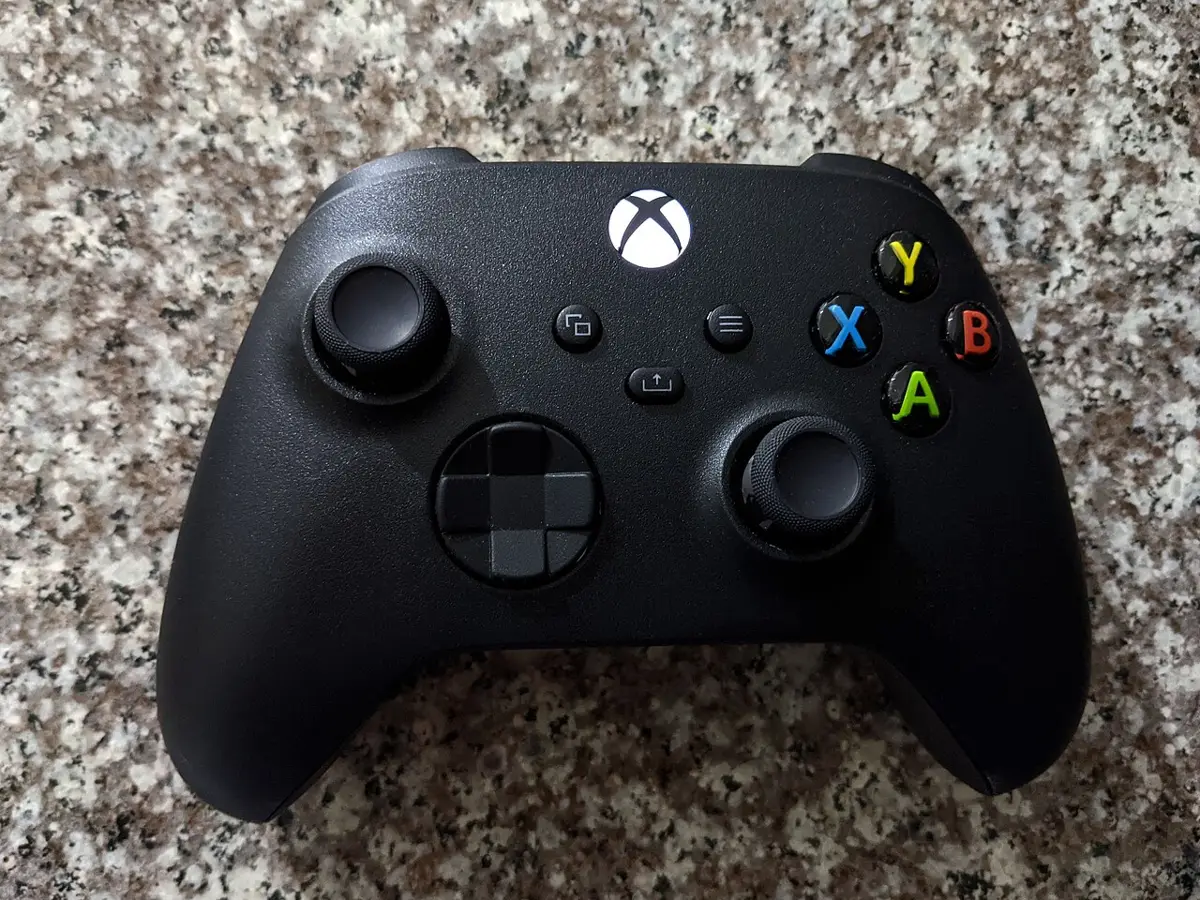
Yes, if it has Bluetooth. Microsoft's test is simple: on a Bluetooth controller, the plastic around the Xbox button is part of the front faceplate. On older pads without Bluetooth, that plastic belongs to the top piece with the bumpers. Every controller that came with an Xbox Series X|S has Bluetooth.
| Controller | Pairs with Android over Bluetooth? | Notes |
|---|---|---|
| Xbox Wireless Controller (Series X|S, has a Share button) | Yes | USB-C port; can switch between phone and console |
| Xbox One controller with Bluetooth (one-piece face) | Yes | Micro-USB port; update the firmware first for faster switching |
| Xbox Elite Wireless Controller Series 2 | Yes | Button remapping in Microsoft's app is not available on Android |
| Xbox Adaptive Controller | Yes | Same pairing steps |
| Original Xbox One controller (seam around the Xbox button) | No | No Bluetooth radio; a USB cable is the only way to try it |
| Xbox 360 controller | No (not on Microsoft's Bluetooth list) | Android has a built-in button map for the wired USB version |
Your phone is almost certainly new enough. Microsoft's platform table lists Android 5.1.1 or later for Bluetooth. Cloud gaming is the exception: it needs Android 12 (more on that below).
How do I pair an Xbox controller with my phone?
It takes three steps and no app. These are the stock Android steps used on Pixel phones; Galaxy differences follow.
- Press the Xbox button to turn the controller on.
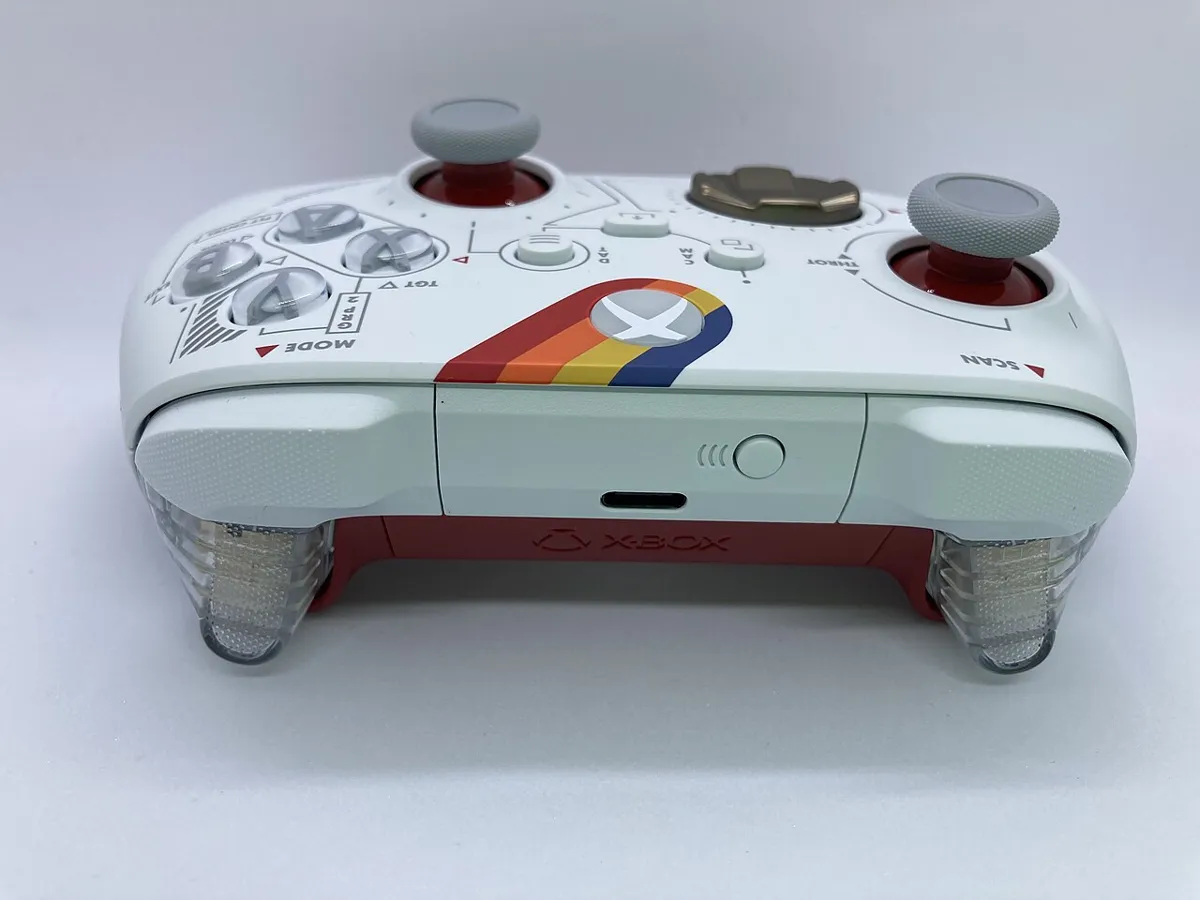
- Press and hold the Pair button for 3 seconds, then let go. It's the small round button on the top edge, next to the charging port. The Xbox logo starts flashing fast; that fast flash means it's looking for a new device.
- On the phone, open Settings > Connected devices > Pair new device and tap Xbox Wireless Controller (or Xbox Elite Wireless Controller).
When it connects, the Xbox logo stops flashing and stays lit, and the controller shows up in your list of connected devices.
On a Samsung Galaxy: swipe down to Quick settings and turn on Bluetooth, then open Settings > Connections > Bluetooth. If the controller isn't listed, tap Scan. Samsung's US controller guide calls the Pair button the "Bind" button; it's the same one.
Asked for a PIN? Don't guess codes. Microsoft says a PIN prompt or a wrong-PIN error is fixed by updating the controller (see the firmware section below).
How do I switch it back to my Xbox, then back to the phone?
Double-press the Pair button to go back to the Xbox, and press and hold it to return to the phone. Pairing with a phone doesn't erase the console pairing. The controller jumps to its most recent Xbox connection when you double-press. When you hold Pair, it reconnects to the last Bluetooth device you used and also looks for new ones.
The catch is that it remembers only one of each. When Microsoft brought this feature to older pads in its September 2021 firmware update, it said the controller keeps one Bluetooth host and one Xbox Wireless host. So if you pair it with a tablet, your phone drops off and you'll pair the phone again next time. Xbox One Bluetooth controllers, the Elite Series 2 and the Adaptive Controller need that update before the double-press works.
One quirk: pressing the Xbox button also turns on the console it's paired with. If your Xbox switches on when you pick up the controller for a phone session, that's expected. Hold Pair to send the controller to the phone.
Why are the buttons wrong, or why does the Xbox button go home?
Old firmware is the usual cause, and Android can't update it. Microsoft's Bluetooth help page says that if one button does another's job (its example is the right bumper acting as the Menu button), the controller likely needs an update. It gives the same fix when the Xbox button throws you back to the Android home screen, then says to re-pair.
You can update the controller in two ways:
- On an Xbox: press the Xbox button, then go to Profile & system > Settings > Devices & connections > Controllers & headsets, pick the controller, select "…", and choose the firmware version if it says Update. Most controllers update wirelessly; Microsoft says the original model needs a USB cable.
- On a Windows 10 or 11 PC: install the Xbox Accessories app from the Microsoft Store and connect the controller with a USB cable (or Microsoft's wireless adapter).
Microsoft's update page says the Xbox Accessories app is Windows-only and that updates over Bluetooth aren't supported. If you own neither an Xbox nor a Windows PC, borrow one for five minutes. There's no phone-only route.
Remap buttons on Android 17
Android 17 added controller remapping to the system itself. Google's developer guidance says that from Android 17 you can remap buttons, sticks and triggers in system settings. Google's help page gives the paths:
- Bluetooth controller: Settings > Connected devices > tap the controller > Game Controller settings.
- Wired controller: Settings > System > Game controllers.
You can swap any two buttons or swap the left and right sticks. Fix the firmware first, though. Remapping around a firmware bug only hides it. On older Android versions, use the game's own control settings.
Can I plug it in with a USB cable instead?
Often, yes, but Microsoft doesn't promise it. Its platform table marks USB as "Not supported" on Android, and its cloud gaming page warns that wired controllers might not work depending on your phone's maker. Yet the same company's mobile troubleshooting list suggests connecting via USB when Bluetooth keeps dropping. The reason it usually works: Android itself ships button maps for wired Xbox 360, Xbox One and Xbox Series controllers in its open-source code.
- Series X|S, Elite Series 2 and Adaptive controllers have USB-C, so one USB-C to USB-C cable does it.
- Xbox One controllers use micro-USB, so you need a micro-USB to USB-C cable.
- Use a cable that carries data. A charge-only cable powers the pad, and the phone never sees a controller.
Wired is worth trying for shooters, since it skips the Bluetooth hop. Our mobile gaming lag guide covers the other causes of late inputs, like a 60 Hz screen or a busy 2.4 GHz band.
What doesn't work on a phone?
A Bluetooth Xbox controller on Android is a gamepad and nothing more. Per Microsoft's support pages, as of November 23, 2026:
- No audio through the controller. Headsets, chatpads and the Xbox Stereo Headset Adapter don't work over Bluetooth. Plug your headset into the phone, or use Bluetooth earbuds.
- No firmware updates from the phone (see above).
- No Elite Series 2 remapping in the Xbox Accessories app, because that app doesn't exist for Android.
- No rumble in Xbox Cloud Gaming. Microsoft supports controller vibration in cloud games on an Xbox console only.
- One controller is best. Microsoft recommends one Bluetooth controller per device; more may connect, but performance varies.
To turn the controller off while it's on the phone, hold the Xbox button for 5 to 10 seconds.
Which games can I play with it?
Any Android game with controller support, plus Xbox Cloud Gaming. Support varies a lot by game. Call of Duty: Mobile officially lists Xbox One and Series X|S controllers, for example, while PUBG Mobile has no official gamepad support. Our list of 78 mobile games with controller support says how well the pad works in each one.
For Xbox Cloud Gaming, Microsoft's Android setup page sends you to xbox.com/play in a supported browser such as Chrome or Edge. It needs Android 12 or later, Bluetooth 4.0 or later, and at least 7 Mbps, ideally on 5 GHz Wi-Fi. Cloud gaming supports one account and one controller at a time. Monthly cloud hours come with most Game Pass plans, you can buy hours separately, and select games stream free with ads (with session limits).
Xbox controller still won't connect? Check these
| What you see | Fix |
|---|---|
| Controller never appears in the list | Make sure the logo is flashing fast (pairing mode), not slowly. Hold Pair again for 3 seconds. Check it's a Bluetooth model (table above). |
| It connects to the Xbox instead | Hold Pair (don't just press the Xbox button), or turn the console off while you pair. |
| Listed but won't connect | Forget it on the phone (Settings > Connected devices, tap the gear next to it, Forget), restart the controller and the phone, then pair again. |
| Disconnects mid-game | Fresh batteries or a charge, disconnect other Bluetooth gear you aren't using, move closer, or try a USB cable. |
| Wrong buttons or a PIN prompt | Update the firmware on an Xbox or a Windows PC, then re-pair. |
| Works in menus but not in a game | The game may not support controllers, or it needs a toggle in its own settings. Check our controller games list. |
If nothing on your phone pairs, the problem is Bluetooth on the phone, not the controller. Our Bluetooth not connecting guide walks through it.
How we made this guide
We built this guide on November 23, 2026 from Microsoft's Xbox Support pages (platform table, Bluetooth setup and troubleshooting, firmware updates, cloud gaming on Android), Microsoft's 2021 controller firmware announcement, Google's Android help and developer pages, Samsung's US controller guide, and the Android source code's controller button maps. We have not paired a controller on our own phone for this guide yet, so treat the steps as the official ones rather than a hands-on report. We'll add our own screenshots when we have them.
Frequently Asked Questions
Do I need an app to use an Xbox controller on Android?
No. Android pairs the controller as a Bluetooth gamepad from Settings, and games with controller support pick it up on their own. Microsoft's Xbox Accessories app, which updates firmware and remaps the Elite Series 2, runs only on Windows 10 and 11.
How do I unpair an Xbox controller from my Android phone?
Swipe down from the top of the screen, touch and hold Bluetooth, tap the Settings gear next to Xbox Wireless Controller (tap See all if it's not listed), then tap Forget. This only removes it from the phone. The controller stays paired with your Xbox.
Does an Xbox controller work with an Android tablet?
Yes. A tablet pairs the same way as a phone, through Settings, Connected devices, Pair new device. Microsoft's cloud gaming requirements are also the same for Android tablets: Android 12 or later and Bluetooth 4.0 or later.
Why does the Xbox logo flash but the controller never shows up?
A slow flash is not pairing mode. Press and hold the Pair button for about 3 seconds until the logo flashes fast; Microsoft says the fast flash means the controller is searching for a device. Only then will your phone see it. If it still never appears, check that your model has Bluetooth.