Samsung One UI 9 Update Stuck on 'Access Denied' Error: Safe Mode and Airplane Mode Get Galaxy Phones Past It

Some Samsung Galaxy phones that install the stable One UI 9 update are getting stuck on an XML "Access Denied" screen during the setup steps that run after the update, according to user reports that surfaced on Monday, October 12. Owners of the Galaxy S26, Galaxy S25 and Galaxy S24 series and some foldables say restarting does not clear it, but a workaround using Safe mode and Airplane mode is getting phones back to the home screen.
- What breaks: an XML "Access Denied" screen appears after One UI 9 installs, before the home screen loads
- Phones reported: Galaxy S26, S25 and S24 series, foldables, and the Galaxy A57
- Is the phone bricked? No. The update itself finishes; the error appears in the post-update setup
- Workaround: boot into Safe mode, turn on Airplane mode, then restart normally
- Official fix: none yet, and Samsung had not commented as of October 12
What does the One UI 9 "Access Denied" error look like?
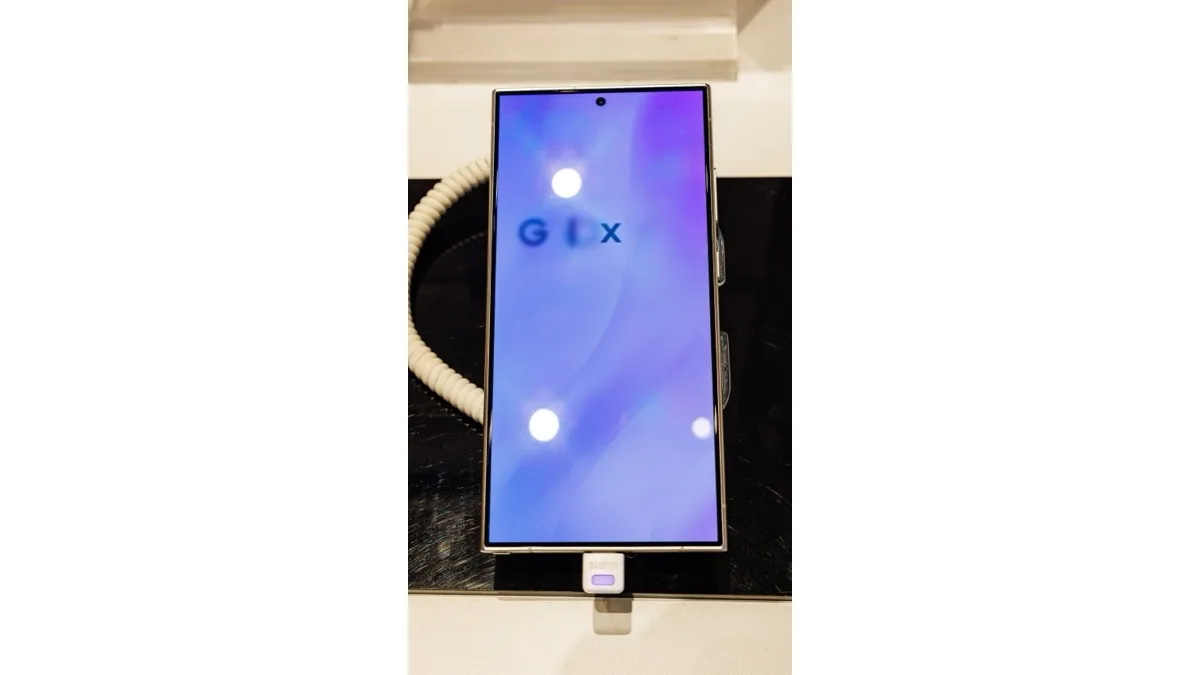
The One UI 9 "Access Denied" error shows up at the point where a Galaxy phone would normally display its welcome tour of what is new. Instead, the phone shows a page of XML with an "Access Denied" message and goes no further. Owners say rebooting several times lands them back on the same screen, so they cannot get to anything on the phone.
The timing matters. The firmware has already installed when the screen appears, so the phone is not truly bricked. The problem sits in the online step that follows the install, which is why cutting the phone off from the internet gets it past the screen.
Which Galaxy phones have the One UI 9 update error?
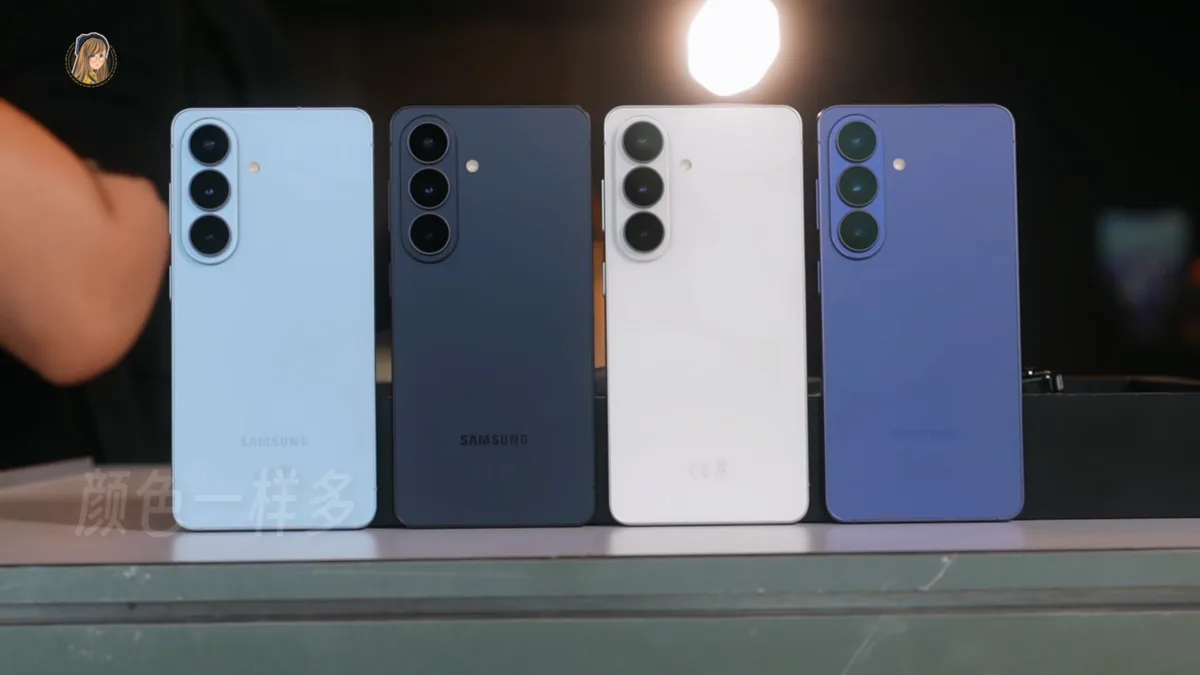
Reports so far name the Galaxy S26 series, Galaxy S25 series, Galaxy S24 series and at least one foldable model. Separate reports describe the same XML screen on the Galaxy A57, whose One UI 9 build has been reaching Europe after South Korea. No public report lists the full set of affected models, and none breaks the problem down by country or carrier.
For US owners, the timing is bad. One UI 9 only reached the Galaxy S24 in the US on T-Mobile and AT&T on Monday, after the Galaxy S26 got it first on T-Mobile, so many American phones are installing it right now.
How to get past the One UI 9 "Access Denied" screen
The workaround below comes from affected owners who shared it online. The button presses and Safe mode behaviour in each step match Samsung's own US support instructions.
- Force restart the phone. Press and hold Volume down and the Side button (Power on older models) together for about 10 seconds. If the power menu appears, keep holding until the Samsung logo shows.
- Boot into Safe mode. As soon as the Samsung logo appears, press and hold Volume down. If it worked, "Safe mode" appears in the bottom left corner of the screen. If it doesn't, power off and try again.
- Go fully offline. In Safe mode, turn on Airplane mode and make sure Wi-Fi and mobile data are both off.
- Restart normally. Restarting takes the phone out of Safe mode. Owners say it then boots to the home screen with no factory reset.
Leave Airplane mode on until the phone reaches the home screen. Samsung warns that leaving Safe mode can reset some customizations, such as wallpapers and themes, to their defaults. Do not factory reset the phone to clear this error. That wipes your data, and the offline workaround has been enough for the owners who reported it.
What caused the One UI 9 update error?
Samsung has not explained it. A tipster has suggested that a server-side change Samsung made to stop firmware leaks is the trigger, which would fit the fact that the error appears during the online setup step. That is unconfirmed. Some Galaxy A57 owners report their phones working normally again, which also hints at a server-side cause, but Samsung has not confirmed a fix.
Until Samsung says otherwise, the safe approach for anyone with a pending One UI 9 update is to note these steps before installing. If your Galaxy phone keeps rebooting after this point, our guide to fixing an Android phone that keeps restarting covers the next checks.
Frequently Asked Questions
Why is my Samsung phone showing 'Access Denied' after the One UI 9 update?
Some Galaxy phones stop on an XML 'Access Denied' screen during the setup steps that run after One UI 9 installs. Samsung has not explained the cause as of October 12, 2026. One unconfirmed theory is that a server-side change Samsung made to stop firmware leaks is to blame.
Is my Galaxy phone bricked by the One UI 9 'Access Denied' error?
No. The One UI 9 firmware has already installed when the 'Access Denied' screen appears, and the error comes from the setup step that follows. Owners report getting back to the home screen by booting into Safe mode, turning on Airplane mode and restarting, without a factory reset.
How do I boot a Samsung Galaxy into Safe mode when it's stuck?
Force restart by holding Volume down and the Side button for about 10 seconds. When the Samsung logo appears, press and hold Volume down, and 'Safe mode' should show in the bottom left corner. Restarting the phone normally takes it out of Safe mode.
Which Galaxy phones are affected by the One UI 9 update error?
Reports from October 12, 2026 name the Galaxy S26, Galaxy S25 and Galaxy S24 series, at least one foldable, and the Galaxy A57. No public report lists every affected model or breaks the problem down by country or carrier.
Should I factory reset my Galaxy phone to fix the One UI 9 'Access Denied' screen?
No. A factory reset erases your data, and owners report that booting into Safe mode, switching on Airplane mode and restarting is enough to get past the One UI 9 'Access Denied' screen. Try that first, and contact Samsung support if it does not work.