Best Android Emulators for Windows 11 in 2026: 7 Picks Compared

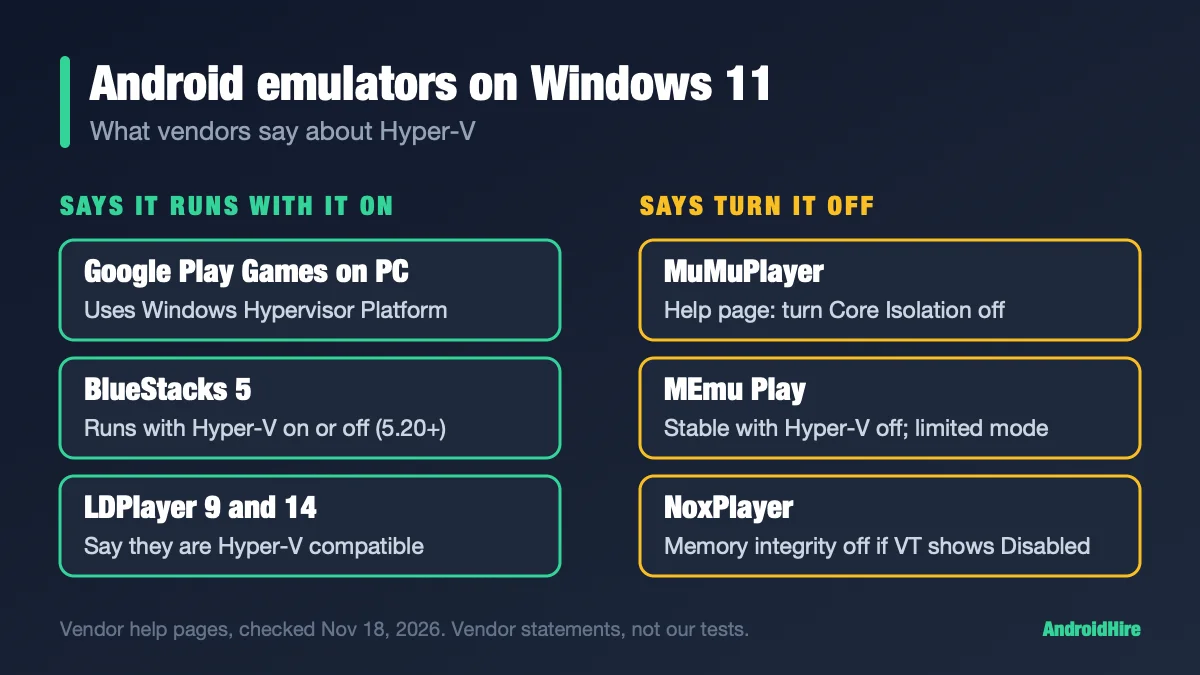
Windows 11 can no longer add Android apps on its own. Microsoft ended Windows Subsystem for Android (WSA) on March 5, 2025. To play Android games or run apps now, pick an emulator by one thing: whether your PC’s own virtualization (Hyper-V, Memory integrity) is on. Google Play Games on PC and BlueStacks 5 say they work with it on. MuMuPlayer and MEmu work best with it off.
Spec-based comparison. We did not install or benchmark the software. Every figure comes from a source linked in this guide, read on November 18, 2026. We plan to recheck it by December 16, 2026.
Quick picks for Windows 11
- Games only, least fuss: Google Play Games on PC. It is Google’s own app and needs 8GB of RAM.
- Games and apps, with Hyper-V on: BlueStacks 5. BlueStacks says build 5.20 and newer runs with Hyper-V on or off.
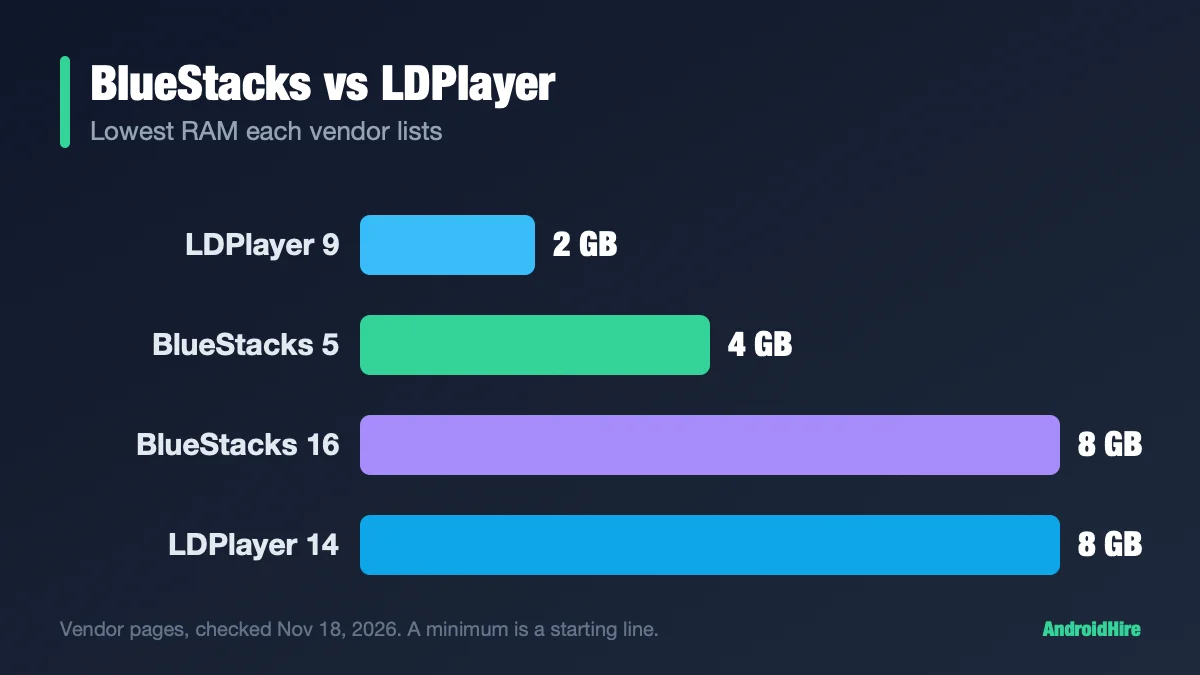
- A game that needs a newer Android: MuMuPlayer (Android 15) or BlueStacks 16 (Android 16, Beta, 8GB of RAM).
- A weaker PC: LDPlayer 9. It lists a 2GB minimum and says it works with Hyper-V.
- You build apps: the Android Studio emulator.
- Not sure about Hyper-V? Run the quick check: press Windows + R, type
msinfo32, and look for “A hypervisor has been detected.”
Jump to: can Windows 11 still run Android apps · what is an emulator · pick by setup · Hyper-V table · quick check · the picks · free, ads and apps · Arm laptops · Windows 10 · what to skip · FAQ
Key facts, checked November 18, 2026
- WSA ended. Microsoft says it was no longer in the Store from March 5, 2025 (Microsoft).
- Virtualization conflict. Microsoft says third-party virtualization apps “can’t run alongside Hyper-V, Memory Integrity, or Credential Guard” (Microsoft).
- Google Play Games on PC needs Windows 10 (v2004), 8GB of RAM and virtualization on (Google).
- MuMuPlayer has Android 15 (MuMu). Its help page says to turn off Core Isolation and Hyper-V (help page).
- MEmu Play says it is fully compatible with Windows 11 but stable only with Hyper-V off (MEmu).
- Arm laptops: Android Studio does not support Arm Windows (Google).
Can Windows 11 still run Android apps?
Not on its own. Windows Subsystem for Android (WSA) was an optional Microsoft Store download that ran Android apps on Windows 11. Microsoft’s pages say WSA and the Amazon Appstore stopped being available in the Store from March 5, 2025 (Microsoft Learn). Microsoft archived its WSA code on GitHub on May 20, 2025.
Do my old WSA apps still open? Amazon’s notice says customers “may continue using Amazon Appstore apps that they previously installed.” It also says those apps will no longer be supported after March 5, 2025 (Amazon). Microsoft’s pages do not name a replacement.
What about unofficial WSA builds? A community project called WSABuilds is still on GitHub, with a hotfix dated September 4, 2026. It runs on the same frozen Android 13 base.
Its README says builds with Google apps have crashed on Windows 11 since June 2025. Microsoft’s WSA page also says Windows drivers and normal Windows apps can inspect Android app memory. We would not use it for accounts you care about.
One non-emulator option: Microsoft’s Phone Link can show apps from your real Android phone on your PC, depending on your phone. It is not an emulator.
What is an Android emulator?
An Android emulator is a program that runs Android inside a window on your PC. It lets you use phone apps and games with a mouse and keyboard. It has its own storage and settings, and it does not touch your real phone.
Most emulators ask your PC for hardware virtualization (Intel VT-x or AMD-V). Windows 11 can already be using that feature for its own security tools. That is why one setting decides whether an emulator starts.
Which emulator should you pick for your setup?
| Your Windows 11 setup or goal | Pick | Why |
|---|---|---|
| Games only, with the least fuss | Google Play Games on PC | Made by Google. Free. A curated game catalog. |
| Hyper-V or Memory integrity must stay on | BlueStacks 5 or LDPlayer | Both say they run with Hyper-V on. See the table. |
| You can turn Hyper-V and Memory integrity off | MuMuPlayer or MEmu Play | Both vendors say that is the stable setup. |
| A game needs a newer Android | MuMuPlayer or BlueStacks 16 | Android 15 (MuMu) or Android 16 (BlueStacks 16, Beta, 8GB). |
| You want no ads | A paid tier | BlueStacks Prime or MuMu’s membership. See prices. |
| You build apps | Android Studio emulator | Free and official. Needs 16GB of RAM. |
| A Snapdragon (Arm) laptop | MuMuPlayer, in Beta | Among the emulators here, only MuMu lists an Arm Windows build. |
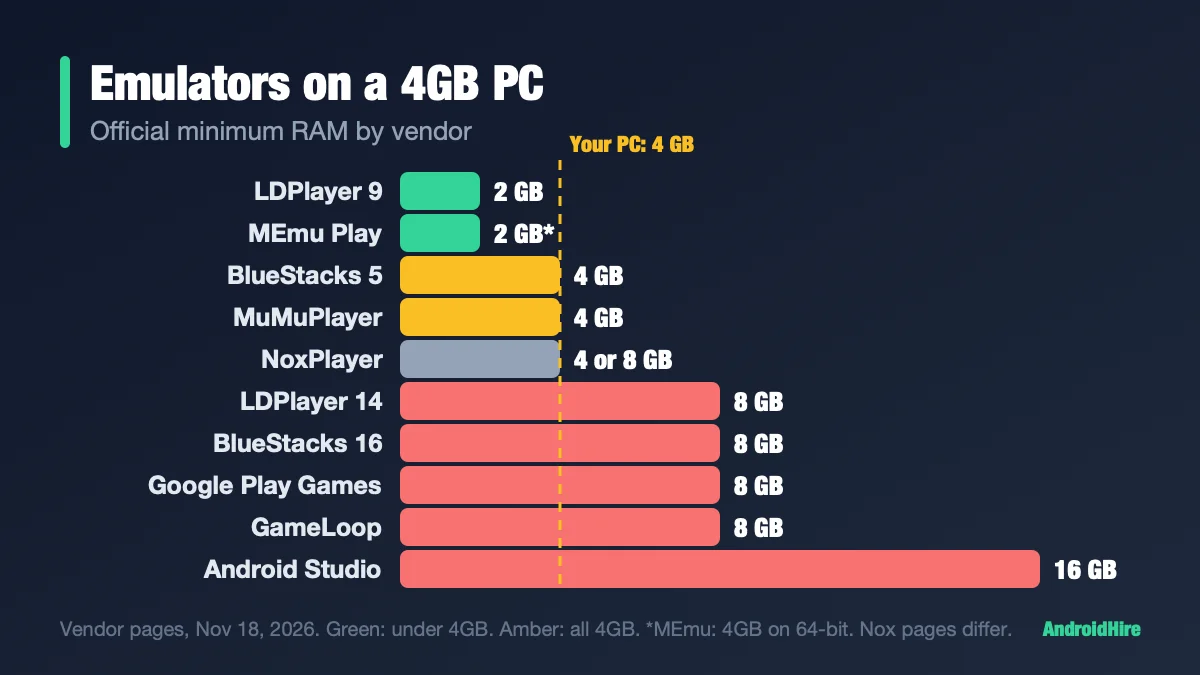
| A PC with 4GB or 8GB of RAM | LDPlayer 9 | Lowest official minimum. See our 4GB guide and 8GB guide. |
| A PUBG or Call of Duty player | GameLoop | See BlueStacks vs GameLoop. |
Which emulators work with Hyper-V on?
This is what each vendor says. It is not our test. “Not stated” means we found no statement on the pages we could read.
| Emulator | Runs with Hyper-V on? | Says turn Memory integrity off? | Android |
|---|---|---|---|
| Google Play Games on PC | Uses Windows Hypervisor Platform. Windows may ask you to turn it on. | Not stated | Set by Google |
| BlueStacks 5 | Yes, from build 5.20, per BlueStacks | Not stated | Nougat, Pie, Android 13 (Beta) |
| LDPlayer 9 and 14 | Yes. LDPlayer 9 has said so since 2022. LDPlayer 14 has a Hyper-V-compatible release dated March 5, 2026. Turning it off is faster for many windows. | Not stated | 9 and 14 (Beta) |
| MuMuPlayer | MuMu says turn it off | Yes (help page, July 2025) | 12 and 15 |
| MEmu Play | Stable only with it off. A limited Hyper-V mode exists. | Yes, for stable mode | 5.1, 7.1, 9 and 12 |
| NoxPlayer | Announced a Hyper-V-compatible version in March 2022. We did not confirm which build. | Yes, if VT shows Disabled in Windows 11 | 9 and 12 (Beta) |
| Android Studio | Google recommends Windows Hypervisor Platform | Not stated | Up to 17 |
Sources: Google, BlueStacks, LDPlayer 9, LDPlayer 14, MuMu, MEmu, Nox VBS FAQ, Nox Hyper-V post, Android Studio.
The quick check: can your Windows 11 PC run an emulator?
This is the part that decides whether an emulator starts. The steps come from Microsoft and Google pages.
- Turn on virtualization in the BIOS. Microsoft’s path: Settings, System, Recovery, Advanced startup, Restart now, Troubleshoot, Advanced options, UEFI Settings. Look for Intel Virtualization Technology (VT-x), or AMD-V or SVM Mode, and set it to Enabled. Google’s help page lists those names (Microsoft, Google).
- See if Windows already holds the hypervisor. Press Windows + R, type
msinfo32and press Enter. In the details pane, find the line “A hypervisor has been detected.” If you see it, Hyper-V, Memory integrity or a similar feature is already using virtualization (Microsoft). - Check Memory integrity. Open Windows Security, then Device security, then Core isolation details. Microsoft says it is on by default on many new Windows 11 PCs (Microsoft).
- Check your edition. Windows 11 Home has no Hyper-V role. But Memory integrity, Virtual Machine Platform and Windows Hypervisor Platform use the same Windows hypervisor, so a Home PC can still show the msinfo32 line. Do not skip step 2.
- Quick view. Task Manager (Ctrl+Shift+Esc), Performance, CPU shows Virtualization: Enabled. Many guides use it, but we found it on no Microsoft page.
Windows 11 needs at least 4GB of RAM, 64GB of storage and TPM 2.0 (Microsoft). Most emulators want more RAM than that.
The picks, with the facts
Google Play Games on PC: the official, low-fuss option
Google’s app moved out of beta on September 23, 2025 (Google). It runs games from Google’s catalog. Google’s consumer pages do not describe a way to install your own APK files. Google lists over 200,000 titles, but that figure covers mobile and PC together.
- Needs: Windows 10 (v2004) or newer, 8GB of RAM, an SSD with 10GB free, 4 physical cores, Intel UHD 630 graphics or a comparable GPU, an admin account and hardware virtualization on (Google Play Help).
- Heads-up: the installer may ask you to turn on Windows Hypervisor Platform. Google warns that other emulators may stop working while it is on.
- Game labels: Optimized, Playable, Untested and Unsupported. Playable means Google tested it for stability, at least 30 FPS and mouse or keyboard support.
- Recent changes (Google release notes): Game Trials (October 2026), buy-once play on phone, tablet and PC for select games, and Play Pass games on PC (March 2026).
BlueStacks 5 and BlueStacks 16
BlueStacks 5 is built for games, and its download page says it is optimized for Windows 11. Its product page lists a 4GB RAM minimum. BlueStacks says build 5.20 and newer runs with Hyper-V on or off. For a deeper look, see BlueStacks vs LDPlayer.
BlueStacks 16 (called BlueStacks Desktop) runs Android 16. Its product page labels it Beta and asks for 8GB of RAM or more.
MuMuPlayer: Android 15, with limits
MuMuPlayer is NetEase’s emulator. Android 15 instances arrived in V6.1.3 (June 18, 2026), next to the older Android 12 ones. Version V6.8.0 came out September 23, 2026 (release notes).
- Limits of Android 15: MuMu says 32-bit ARM apps and Magisk are not supported there.
- “First” claim: MuMu says it is the only emulator on Android 15. Genymotion says Android up to 15 is free in its personal edition, so we say only that MuMu was first among gaming emulators, by its own account.
- Needs: a CPU like an i5-7500 with 4 or more cores, 4GB of RAM, and virtualization on (MuMu requirements). MuMu’s pages disagree on whether Windows 7 or Windows 8 is the floor.
MEmu Play: actively updated, Android 12 at most
MEmu released 9.5.9 on November 18, 2026 (MEmu), and about 22 releases in the last 24 months. It offers Android 5.1, 7.1, 9 and 12 instances. It lists 2GB of RAM (4GB on 64-bit systems).
MEmu says Windows 11 works, with Hyper-V off for stability. Its own post says AppEsteem once flagged older builds as “Deceptor” for setup offers, and now lists the record as Resolved from 9.5.1.0. That is MEmu’s account. Decline optional offers in any installer.
LDPlayer: low minimum, Hyper-V friendly
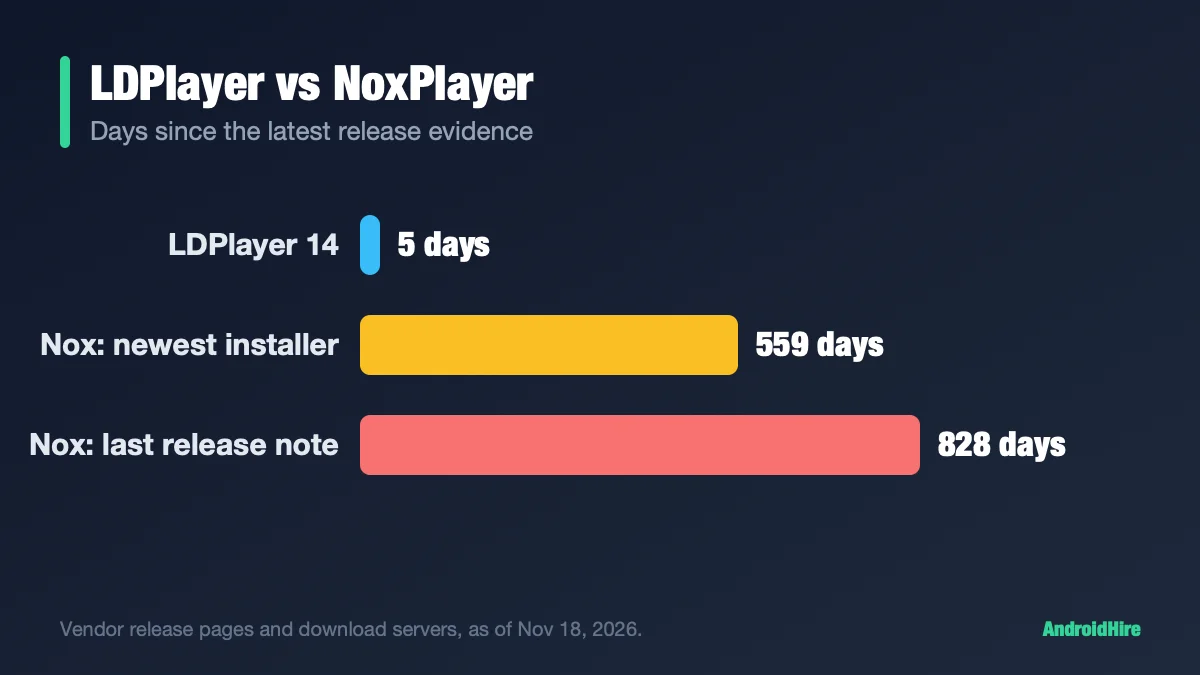
LDPlayer 9 lists a 2GB minimum and runs Android 9. LDPlayer 14 runs Android 14 and is still labelled Beta. LDPlayer 9’s own page says it is compatible with Hyper-V, and LDPlayer 14 has a Hyper-V-compatible release dated March 5, 2026. See LDPlayer vs NoxPlayer.
Other names you will see: NoxPlayer and GameLoop
- NoxPlayer: its homepage shows version 7.0.6.1 dated August 12, 2024, with an Android 12 Beta build. Nox says to turn off Memory integrity and VBS if VT shows Disabled in Windows 11. See LDPlayer vs NoxPlayer.
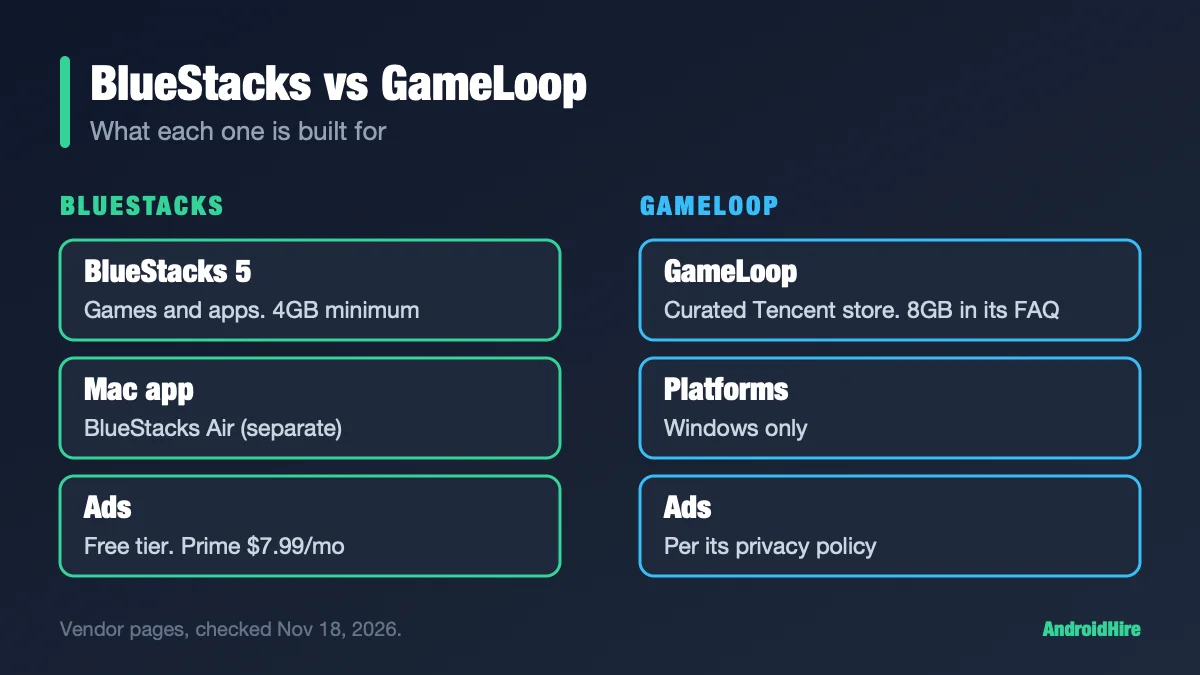
- GameLoop: its pages list no Windows 11 support and no Arm build. It focuses on PUBG Mobile, Call of Duty: Mobile and Free Fire. See BlueStacks vs GameLoop.
Android Studio and Genymotion: for developers
- Android Studio emulator: needs 64-bit Windows 10 or newer, 16GB of RAM with Studio, and virtualization. Google recommends Windows Hypervisor Platform. Its older AEHD driver ends on December 31, 2026, so switch before then (Google).
- Genymotion Desktop: lists Windows 11 as its only Windows version, with 16GB of RAM and a GPU with OpenGL 3.3. The free personal edition has Android 5.0 to 15. Android 16 needs a paid license. It says VirtualBox does not work well with Hyper-V on (Genymotion docs).
Free, ad-free and “for apps”: what the vendors say
| Emulator | Price | Ads |
|---|---|---|
| Google Play Games on PC | Free | We found no ad statement. Games may cost money. |
| BlueStacks 5 | Free. Prime is $7.99 a month, $3.99 the first month. | Prime removes in-session ads (BlueStacks, June 23, 2026) |
| MuMuPlayer | Free. Ad-free membership $10 per 30 days on promotion, $12 standard. | Ads on the free tier |
| MEmu Play | Free | “May contain advertisements” |
| Android Studio, Genymotion personal | Free | None found |
Sources: BlueStacks Prime, MuMu membership, MEmu.
For apps, not just games: Google Play Games on PC plays catalog games only. MuMuPlayer says it installs APK, APKS and XAPK files. For apps from your own phone, Phone Link is a non-emulator option.
Windows 11 on Arm (Snapdragon laptops)
Arm PCs run x86 and x64 apps through emulation. Microsoft says that emulation covers user-mode code only and does not support drivers (Microsoft). Emulators that need drivers cannot lean on it. What the vendors say:
- Android Studio: “Windows machines with ARM-based CPUs aren’t currently supported.”
- Genymotion: its docs say an Arm64 Windows version is “not available at this time.”
- MuMuPlayer: its download page lists a Windows ARM build and labels it Beta.
- BlueStacks: its pages name Intel or AMD processors. Google does not document Arm support for Play Games on PC.
Still on Windows 10?
Microsoft ended regular Windows 10 support on October 14, 2025. Windows 10 22H2 Home and Pro users can enroll in Extended Security Updates until October 12, 2027. That means security fixes only. You can enroll by syncing PC settings at no cost, with 1,000 Microsoft Rewards points, or for a one-time $30 (Microsoft). Emulators still run on it, though Genymotion lists Windows 11 only.
What to skip on Windows 11 in 2026
| Name | Why |
|---|---|
| Windows Subsystem for Android | Ended March 5, 2025. Unofficial builds are frozen on Android 13. |
| AndY, KoPlayer, Droid4X | AndY’s site has no address record and KoPlayer’s domain does not resolve. We could not reach Droid4X. Several 2026 lists still recommend them. |
| Xamarin Android Emulator | Microsoft ended Xamarin support on May 1, 2024. |
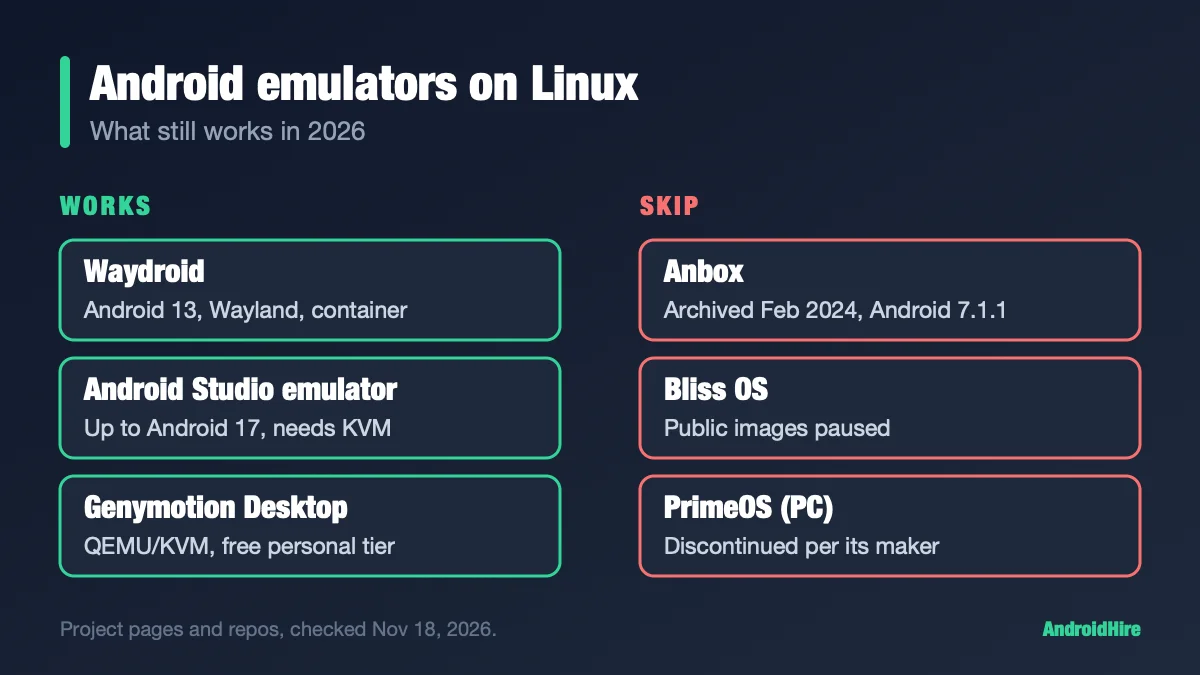
| Bliss OS | Public images are paused (blissos.org). It is an operating system, not a Windows app. |
Two other things we saw in 2026 lists: one says Google Play Games on PC streams games and needs no manual virtualization setup. Google’s help pages say it runs locally and needs hardware virtualization on. Another list still suggests WSA.
How we checked this guide
This is an editorial guide, not a lab test. We read Microsoft Learn and Support, Amazon’s Appstore notice, Google Play Help and developer pages, Genymotion’s docs and each emulator’s release notes and help pages.
- Not tested: speed, battery use, game compatibility, and the check steps on real PCs.
- Not confirmed: whether MuMuPlayer 6.x runs well with Hyper-V on (its latest dated advice is July 2025), the size of the PC-only Play Games catalog, and whether Play Games runs on Arm Windows.
- Task Manager: the Virtualization line is in many guides, but we found no Microsoft page for it.
- BlueStacks’ support site blocks automated page loads, so we cite only its download, product and blog pages here.
Sources we read (November 18, 2026)
- Microsoft: WSA (archived)
- Amazon: Appstore on Windows 11
- Microsoft: virtualization apps and Hyper-V
- Microsoft: enable virtualization
- Microsoft: Memory integrity
- Microsoft: Windows 11 requirements
- Microsoft: Windows on Arm emulation
- Microsoft: Windows 10 ESU
- Google Play Games on PC requirements
- Google Play Games release notes
- Google: Play Games out of beta
- Android Studio emulator acceleration
- Android Studio install requirements
- Genymotion Desktop docs
- BlueStacks download page
- BlueStacks 16 product page
- BlueStacks Prime blog
- LDPlayer 9 and Hyper-V
- LDPlayer 14 Hyper-V release
- MuMuPlayer release notes
- MuMuPlayer Hyper-V help
- MuMuPlayer requirements
- MEmu 9.5.9 release
- MEmu on Windows 11
- Nox: Windows 11 VBS FAQ
- Nox: Hyper-V post (March 2022)
- WSABuilds on GitHub
Our recommendation, from the specs
Run the quick check first. If Windows already holds virtualization and you want to keep it, use Google Play Games on PC for games, or BlueStacks 5 or LDPlayer. If you can turn Hyper-V and Memory integrity off, MuMuPlayer and MEmu are fine. Developers should use Android Studio.
Do this next: run msinfo32 and look for “A hypervisor has been detected.” If you see it, start with Google Play Games on PC or BlueStacks 5. If you do not, try MuMuPlayer or MEmu Play.
More emulator guides
Frequently Asked Questions
Can Android apps run on Windows 11?
Not on their own anymore. Microsoft ended Windows Subsystem for Android and the Amazon Appstore from March 5, 2025. Google Play Games on PC is Google's official app for games, and third-party emulators such as BlueStacks, MuMuPlayer and MEmu run games and apps. Microsoft's Phone Link can show apps from your own phone on your PC.
What is the best Android emulator for Windows 11?
It depends on whether Windows' virtualization is on. Google Play Games on PC is the official, low-fuss pick for games. BlueStacks 5 runs with Hyper-V on or off from build 5.20, per BlueStacks. MuMuPlayer and MEmu Play work best with Hyper-V off. Android Studio is for developers.
Which emulator should I try first for Android games on Windows 11?
Try Google Play Games on PC first if your game is in its catalog. It is Google's own app and needs 8GB of RAM. If your game is not there, try BlueStacks 5, or MuMuPlayer if the game needs a newer Android.
Which Android emulator works with Hyper-V on Windows 11?
BlueStacks says build 5.20 and newer runs with Hyper-V on or off. LDPlayer says LDPlayer 9 is compatible with Hyper-V and has a Hyper-V-compatible LDPlayer 14 release dated March 5, 2026. Google Play Games on PC uses Windows Hypervisor Platform. MuMuPlayer and MEmu say to turn it off for stability.
Do I need to turn off Memory integrity for an emulator?
Only if the emulator will not start. Microsoft says third-party virtualization apps cannot run alongside Hyper-V, Memory integrity or Credential Guard, by design. MuMuPlayer, MEmu and NoxPlayer say to turn it off in some cases. Turning it off lowers a Windows security protection, so turn it back on when you stop using the emulator.
How do I check whether virtualization is on in Windows 11?
Press Windows + R, type msinfo32 and look in the details pane for 'A hypervisor has been detected.' To turn virtualization on in the BIOS, use Settings, System, Recovery, Advanced startup, Restart now, Troubleshoot, Advanced options, UEFI Settings, then enable Intel VT-x, AMD-V or SVM Mode.
Does Google Play Games on PC work on Windows 11?
Yes. Google lists Windows 10 (v2004) or newer as the minimum, so Windows 11 qualifies. You also need 8GB of RAM, an SSD with 10GB free, 4 physical cores, an Intel UHD 630 or comparable GPU, an admin account and hardware virtualization turned on.
Is MuMuPlayer the only emulator with Android 15?
MuMu says so, but Genymotion Desktop's docs say Android 5.0 to 15.0 is free in its personal edition. MuMu was first to put Android 15 in a gaming emulator, by its own account, with limits: no 32-bit ARM apps and no Magisk. BlueStacks 16 (Beta) runs Android 16.
Do Android emulators work on Windows 11 on Arm?
Support is thin. Android Studio does not support Arm Windows, and Genymotion says an Arm64 Windows version is not available yet. MuMuPlayer lists a Windows ARM build and labels it Beta. BlueStacks lists Intel and AMD processors, and Google does not document Arm support for Play Games on PC.