How to Turn On Developer Options on Android (and Off Again)

To turn on Developer options on Android, open Settings > About phone, tap Build number seven times, and enter your PIN, pattern, or password when asked. On a Samsung Galaxy, Build number is one step deeper, under About phone > Software information. When you see "You are now a developer!", the new menu appears under Settings > System on a Pixel or at the very bottom of Settings on a Galaxy.
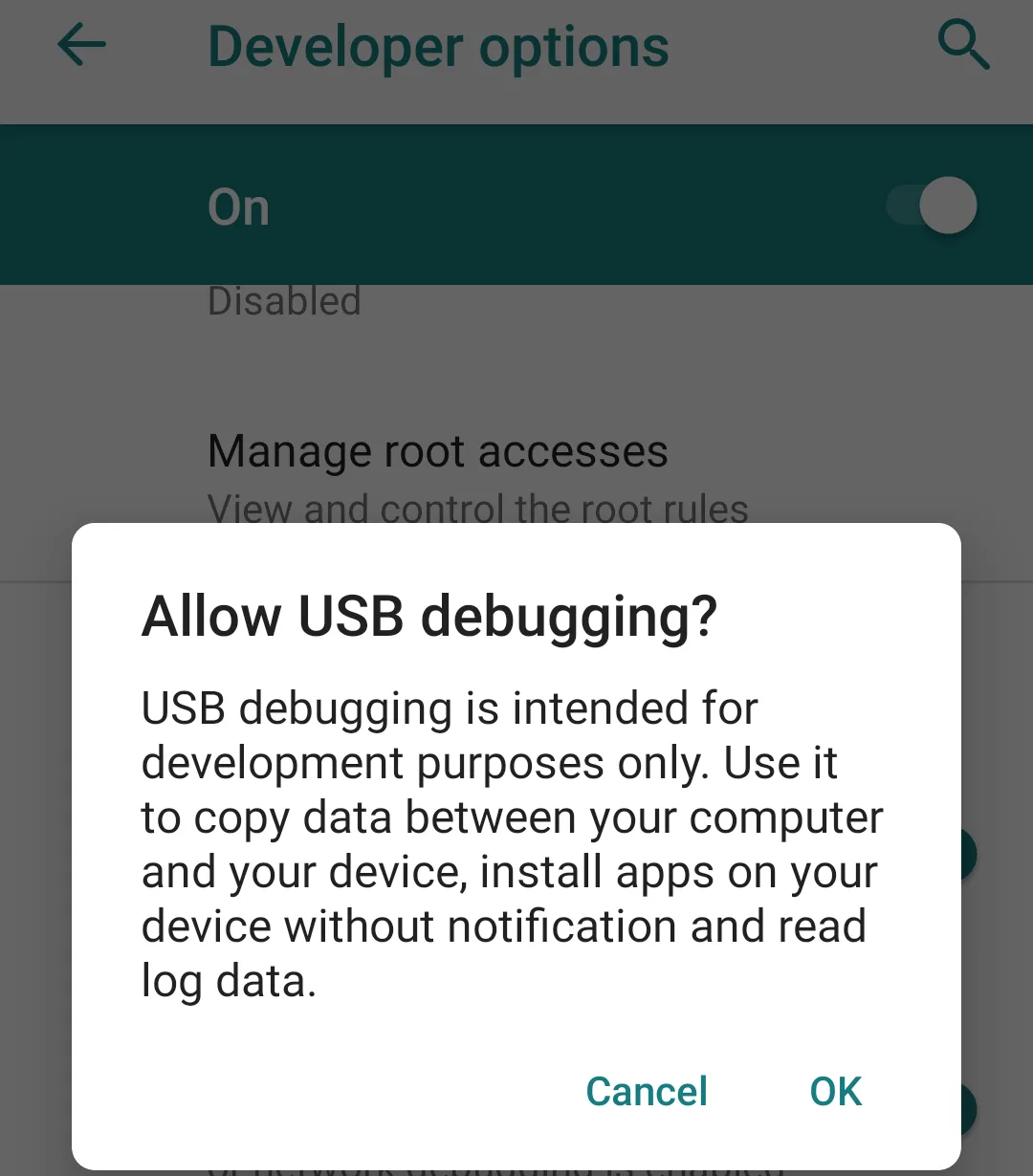
Quick answer: Developer options is a hidden Settings menu for app testing and debugging. Turning it on changes nothing by itself; it only shows the menu. To hide it again, open Developer options and switch off Use developer options at the top.
How this was put together: on Nov 10, 2026 we read Google's Android Developers page on on-device developer options (last updated Oct 28, 2026), Samsung's, Motorola's, and Google's support pages, Google's theft protection help, and the Android Open Source Project (AOSP) code behind the Build number counter and the Developer options switch. We didn't test this on a phone for this article, so steps follow the official pages, and we say where the code explains something the help pages leave out.
Where to find Build number on your phone
Build number is always inside the About section of Settings, but each brand files it a little differently. Find your phone in this table, tap the row it names seven times, then look for Developer options in the place listed in the last column.
| Phone | Tap this seven times | Developer options then appears in | Source |
|---|---|---|---|
| Google Pixel | Settings > About phone > Build number | Settings > System > Developer options | Android Developers, Pixel Help |
| Samsung Galaxy | Settings > About phone > Software information > Build number | The very bottom of the main Settings menu | Samsung US |
| Motorola | Settings > About phone (or Settings > System > About phone) > Build number | Settings > System | Motorola US |
| OnePlus (OxygenOS 16) | Settings > About device > Version > Version No. | Settings > System & update | Digital Trends |
| Google Pixel Watch | Settings > System > About > Versions > Build number | Settings > Developer options | Android Developers |
Can't find it? Open Settings, tap the search bar, and type "build number". Google's own page notes that on some devices the Developer options screen "might be located or named differently."
How to turn on Developer options, step by step
The steps are the same on every Android phone running Android 4.2 or newer; only the menu names change. On Android 4.1 and older, Google says the menu was visible by default.
- Open the Settings app.
- Go to About phone. On a Galaxy, also tap Software information.
- Tap Build number seven times in a row. After the third tap, Android starts counting down: "You are now 4 steps away from being a developer."
- On the seventh tap, enter your PIN, pattern, or password (or use your fingerprint or face).
- Look for "You are now a developer!" Then go back to the main Settings screen.
- Open Developer options (under System on a Pixel or Motorola, at the bottom of Settings on a Galaxy) and check that Use developer options is on at the top.
The countdown timing comes from Android's own code. In AOSP's BuildNumberPreferenceController.java, the counter starts at 7 (TAPS_TO_BE_A_DEVELOPER) and the "steps away" message only shows once fewer than five taps remain. That's why the first two taps seem to do nothing. If you see "No need, you are already a developer," the menu is already on and you can go straight to it.
Why tapping Build number does nothing
If the countdown never appears, Android is quietly refusing the taps. The same AOSP file lists the reasons, and none of them show up in the usual "tap seven times" guides.
| What's going on | What you'll notice | Fix |
|---|---|---|
| You're in a guest profile or a secondary user | Taps do nothing, with no message | Switch to the phone's main (admin) user. AOSP only lets admin users (or store demo units) turn the menu on. |
| Phone setup isn't finished | Taps do nothing | Finish the setup wizard first. Android won't enable the menu until the device is "provisioned." |
| Work or school phone | A message that the action is blocked by your admin | Your organization has turned on Android's DISALLOW_DEBUGGING_FEATURES restriction. Only your IT team can lift it. |
| Identity Check is on and you're away from home | The PIN screen is replaced by a fingerprint or face prompt | Use your fingerprint or face, or try again at a trusted place (see below). |
| You're tapping the wrong row | Taps open a page or do nothing | Tap Build number itself, not Android version or Model. On a OnePlus running OxygenOS 16, tap Version No. |
Identity Check can require your fingerprint
On phones with Identity Check turned on, you may not be able to use your PIN to reach Developer options. Google's theft protection help page lists "Access Developer options" among the actions that need biometric authentication when you're outside your trusted places, and says a PIN, pattern, or password won't work for them there. Google launched Identity Check on Pixel phones with Android 15 and on Galaxy phones eligible for One UI 7. To check it, go to Settings > Google > All services > Theft protection > Identity Check.
How to turn on USB debugging and wireless debugging
USB debugging is the setting most people actually want from this menu. It lets a computer talk to your phone through Android Debug Bridge (adb), which tools like Android Studio, scrcpy, and many flashing utilities need. Google's page lists it under Settings > System > Advanced > Developer options > USB debugging for Android 9 and newer; on current Pixels there's no Advanced step, so it's just Settings > System > Developer options.
- Open Developer options and turn on USB debugging.
- Read the "Allow USB debugging?" warning and tap OK.
- Connect the phone to your computer with a cable that carries data, not just power.
- Unlock the phone. A second "Allow USB debugging?" prompt shows the computer's RSA key fingerprint. Tick Always allow from this computer only if it's your own computer, then tap OK.
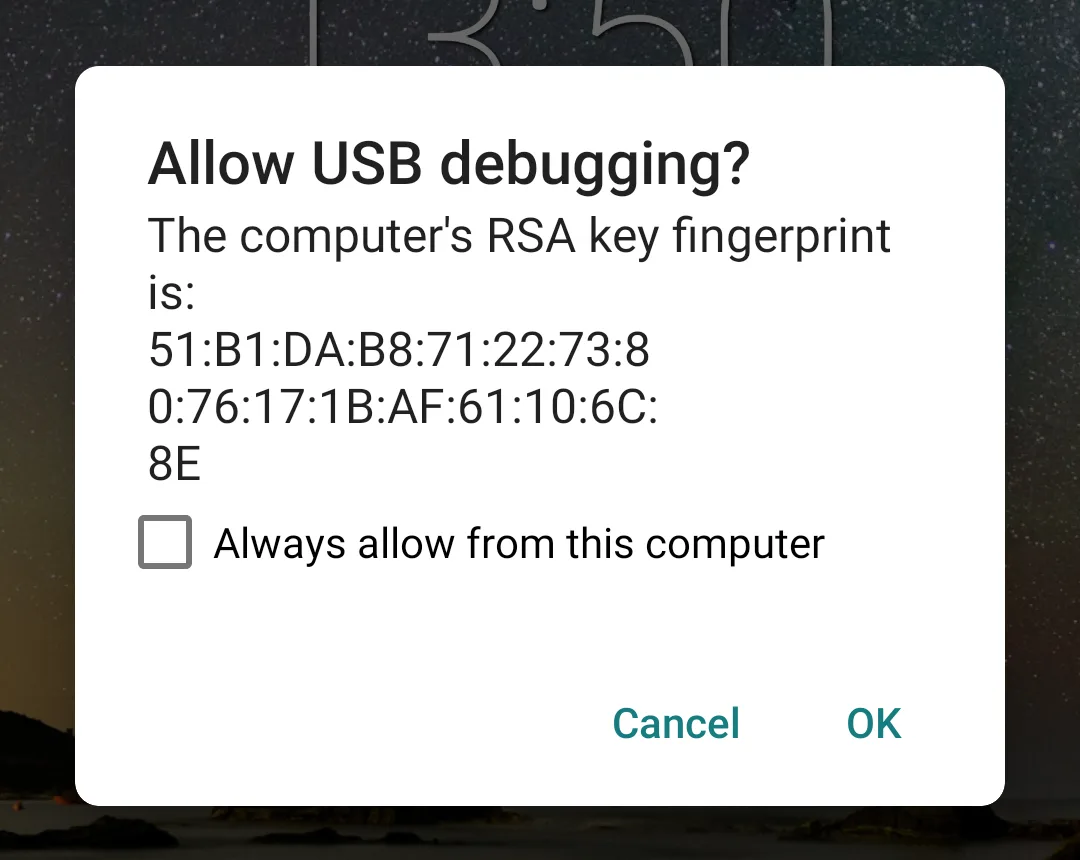
Take that first warning seriously. Android's wording is that USB debugging lets a computer "copy data between your computer and your device, install apps on your device without notification, and read log data." If you've ever approved a computer you no longer trust, use Revoke USB debugging authorizations in the same menu.
Wireless debugging does the same job over Wi-Fi. Google's adb documentation says phones need Android 11 or newer, and the phone and computer must be on the same Wi-Fi network. On Android 16 and newer, the switch is at Settings > System > Developer options > Wireless debugging.
On a Galaxy, check Auto Blocker
If your computer can't reach a Galaxy phone over adb, look at Samsung's Auto Blocker. Samsung's Auto Blocker page says one of its protections "blocks commands by USB cable," and the Samsung Knox documentation says Auto Blocker is on by default on One UI 6.0 (Android 14) and later. You'll find it at Settings > Security and privacy > Auto Blocker. If you turn it off for a debugging session, turn it back on afterward, since it also guards against hacking tools disguised as public chargers.
Just need to copy photos or files? You don't need USB debugging for that. Our guide to an Android phone not showing up on a PC covers the File transfer mode and the cable checks.
Developer settings worth knowing (and two to leave alone)
Most of the menu is for app developers, but a handful of settings are useful to everyday users. These are the ones people usually turn the menu on for, with what Android or Google says each one does.
| Setting | What it does | Good for |
|---|---|---|
| Window animation scale, Transition animation scale, Animator duration scale | Change how fast system animations play. Choices run from Animation off through 0.5x, 1x (default), up to 10x. | Making the phone feel snappier at 0.5x. See our guide to speeding up an Android phone. |
| Stay awake | "Screen will never sleep while charging." | Dashboards, navigation on a car charger, or long downloads |
| Default USB configuration | Picks what happens when you plug into a computer: charging only, file transfer (MTP), photo transfer (PTP), and more | Skipping the USB notification every time you connect. Motorola's default USB setting page walks through it. |
| Show taps | Draws a circle under your finger on screen | Tutorials made with the Android screen recorder |
| Bluetooth Audio Codec | Lets you pick SBC, AAC, aptX, aptX HD, or LDAC if your headphones support it | Choosing a codec when your headphones support more than one |
| Select mock location app | Lets an installed GPS app fake your location | Testing location-based apps |
| Quick settings developer tiles | Adds developer shortcuts to the Quick Settings panel | Toggling a debug setting without digging through menus |
| OEM unlocking | Allows the bootloader to be unlocked so you can flash other software | Custom ROMs only. AOSP shows "Unavailable on carrier-locked devices" on phones still locked to a carrier. |
Two settings cause more trouble than they solve for most people: Don't keep activities and Background process limit. Android describes the first as "Destroy every activity as soon as the user leaves it," and the second caps how many processes can run in the background. Google's page mentions battery life for the first, but our take is to leave both off on a phone you use every day. Apps will reload and lose your place each time you switch back to them, which feels like a broken phone. Battery Saver is the better tool for saving power.
OEM unlocking also isn't a test of whether your phone is carrier-unlocked, even though it sometimes gets described that way. Our carrier unlock guide explains how to check that properly.
Is it safe to turn on Developer options?
Yes. Showing the menu is safe, and nothing changes until you change a setting inside it. The risks come from individual settings. Android's own warning for these settings says they "can cause your device and the applications on it to break or misbehave," and Samsung says using developer options "is not supported by Samsung and may have an effect on your phone's performance."
Two practical side effects are worth knowing about:
- Some apps can tell. Android lets any app read whether the menu is on, through the DEVELOPMENT_SETTINGS_ENABLED setting. If a banking, payment, or work app refuses to open after you've enabled the menu, turning Developer options off is the first thing to try.
- USB debugging widens what a computer can do. Leave it off unless you're actively using it, especially if you charge from public USB ports.
How to turn off Developer options
To turn off Developer options, open the menu and switch off Use developer options at the top. On a Pixel that's Settings > System > Developer options. On a Galaxy, Samsung says the same switch also hides the menu from the bottom of Settings. To bring it back later, tap Build number seven times again.
What turning it off resets
On stock Android, switching off the menu does more than hide it. In AOSP's DevelopmentSettingsDashboardFragment.java, the switch tells each setting in the menu that developer options was disabled, and the individual settings reset themselves. For example:
- The animation scales go back to their defaults (WindowAnimationScalePreferenceController).
- USB debugging turns off.
- Stay awake turns off (StayAwakePreferenceController).
So if you set animations to 0.5x and then hide the menu, expect normal-speed animations again. If you want faster-feeling transitions without the menu, Google's accessibility help offers Settings > Accessibility > Color and motion > Remove animations on phones with Google's settings layout.
Two exceptions come from the same file. If you changed Bluetooth hardware offload, NFC logging, or the ANGLE graphics driver setting, Android asks you to restart to finish turning the menu off. And if the phone is in Android's page-agnostic mode for 16 KB page-size testing (which needs an unlocked bootloader), Android won't let you turn the menu off at all. Its own notification says that getting back to normal "production mode" means switching back to 4 KB mode and locking the bootloader, which factory resets the phone. Samsung and other brands build their Settings apps on this same code but can change it, so check any setting you care about after you switch the menu off.
Turned the menu off because the screen started flashing or flickering? Some debug drawing options do that on purpose, and our Android screen flickering guide covers the other causes.
Frequently Asked Questions
Does turning on Developer options change anything on my phone?
No. Turning it on only shows the hidden menu. Nothing changes until you change a setting inside it, such as USB debugging or the animation scales.
Why does Android ask for my PIN to turn on Developer options?
Android asks you to confirm your screen lock on the seventh tap so that someone who picks up your unlocked phone can't turn on debugging tools. With Identity Check on and away from a trusted place, it asks for your fingerprint or face instead.
What is the build number on Android?
The build number is the label for the exact software version your phone is running. It sits in Settings > About phone (Software information on a Galaxy), and tapping it seven times is also how you unlock Developer options.
Will a factory reset remove Developer options?
Yes. A factory reset returns every setting to its default, so the menu is hidden again and any developer settings you changed are cleared. Tap Build number seven times to bring it back.
Does Developer options drain the battery?
Not by itself. Some settings inside it can use more power, such as Stay awake, which keeps the screen on while charging. Turn off what you aren't using, or switch the whole menu off.