How to Connect an 8BitDo Controller to Android, by Model

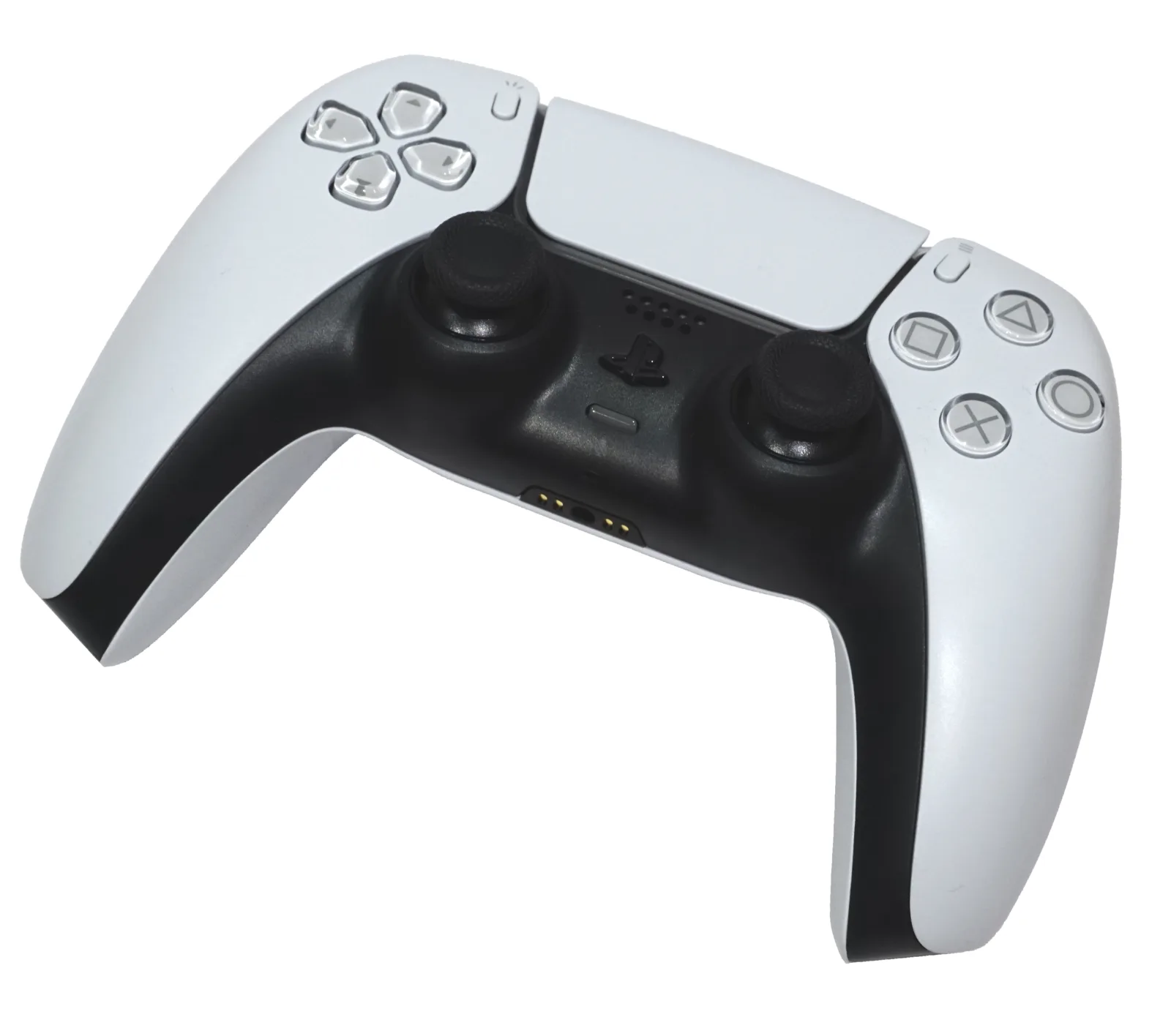
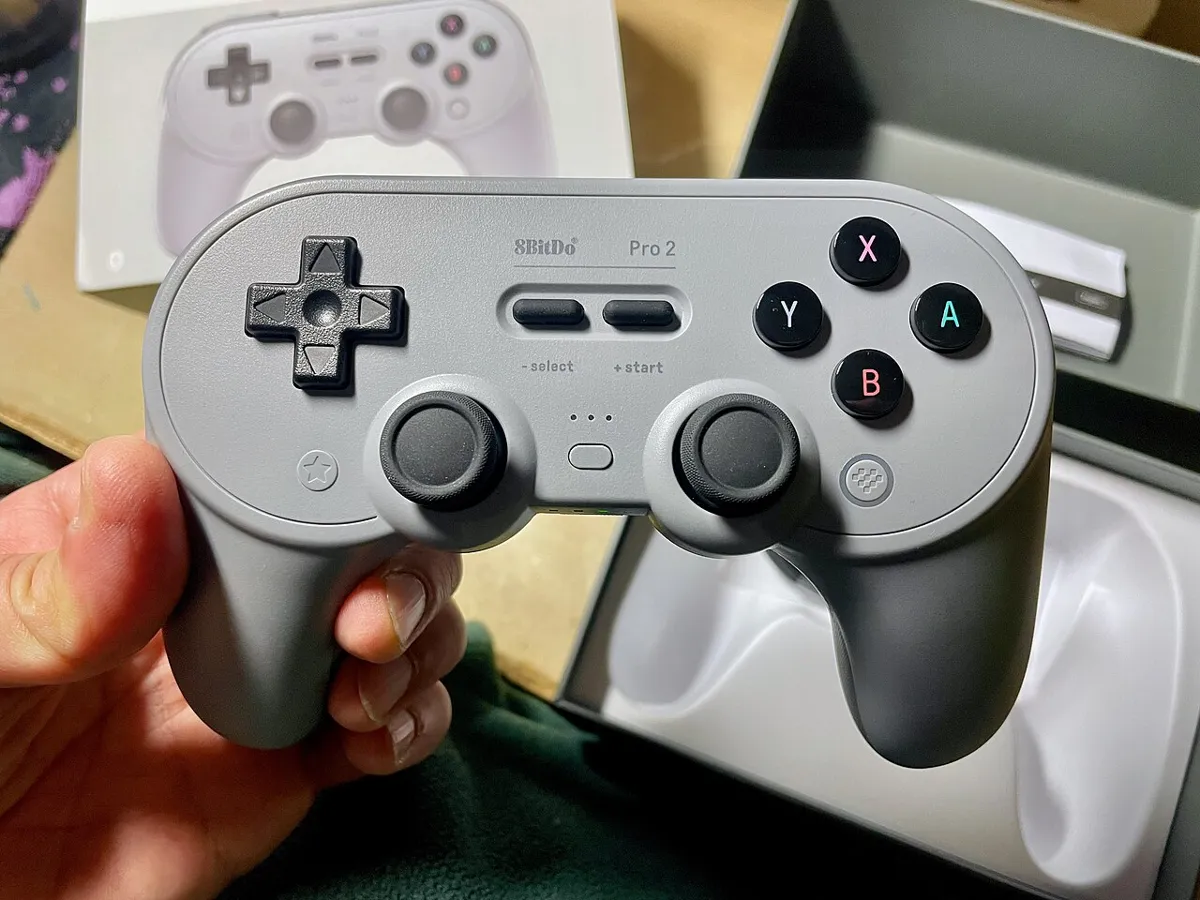
To connect an 8BitDo controller to Android, set its Android mode before pairing: slide the mode switch to D (Pro 2, Pro 3, Lite 2, Micro) or BT (Ultimate 2C Wireless, Ultimate 2 Wireless), or hold B + Start to turn on an SN30 Pro. Then hold Pair until the light flashes fast and tap the 8BitDo name in Settings > Connected devices > Pair new device.
Key takeaways
- The mode decides everything. An 8BitDo pad in Switch or Windows mode either won't show up on your phone or will act strangely.
- Three popular models can't pair with Android at all: the Ultimate 2 Bluetooth, the Ultimate Bluetooth and the Ultimate 2C Bluetooth. In 8BitDo's naming, "Bluetooth" means the Switch version.
- The newest pads (Ultimate 2 Wireless, Pro 3, Ultimate 3C+, Ultimate Mobile Gaming Controller) need Android 13 or later. Older models work from Android 9.
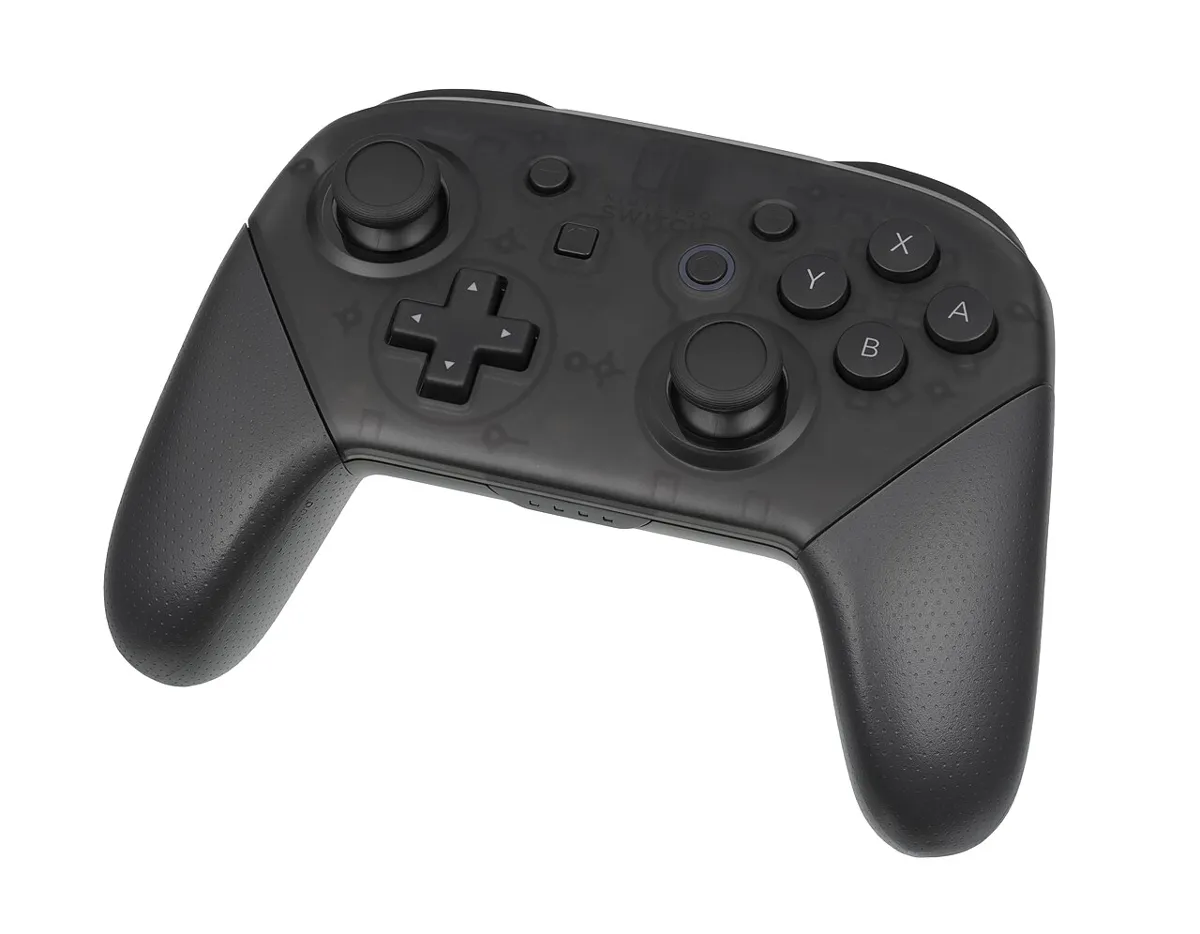
- On pads with Nintendo-style letters (Pro 2, SN30 Pro, Lite 2), A and B come out swapped on Android. Press the bottom button when a game says "A".
- You pair once. After that, turning the controller on in the same mode reconnects it.
This is a researched guide, built from 8BitDo's own manuals and product pages, Google's Android help and Android's source code rather than hands-on testing (details at the end). It's part of our controller games hub. Using a console pad instead? See how to connect an Xbox controller to Android or how to pair a Switch Pro Controller.
Which 8BitDo controllers work with Android?
Most of them do, but each model has its own power-on step and pairing name. Find yours below. Every step comes from 8BitDo's manual for that model, checked November 28, 2026.
| Controller | Android mode | Then hold Pair | Tap this name | Needs |
|---|---|---|---|---|
| Ultimate 2C Wireless | Mode switch to BT, press Home | 3 seconds | 8BitDo Ultimate 2C Wireless | Android 9+ |
| Ultimate 2 Wireless | Mode switch to BT, press Home | 3 seconds | 8BitDo Ultimate 2 Wireless | Android 13+ |
| Pro 3 | Mode switch to D, press Start | 3 seconds | 8BitDo Pro 3 | Android 13+ |
| Pro 2 | Mode switch to D, press Start | 3 seconds | 8BitDo Pro2 | Android 9+ |
| Lite 2 | Mode switch to D, press Home | 3 seconds | 8BitDo Lite 2 | Android 9+ |
| Lite SE | Mode switch to D, press Home | 3 seconds | 8BitDo Lite SE | Android 9+ |
| Micro | Mode switch to D, press Home | 1 second | 8BitDo Micro gamepad | Android 9+ |
| SN30 Pro and SN30 Pro+ | Hold B + Start to turn on | 3 seconds | 8BitDo SN30 Pro (or SN30 Pro +) | Android 9+ |
| Zero 2 | Hold B + Start to turn on | Select, 3 seconds | 8BitDo Zero 2 gamepad | Not stated |
| M30 Bluetooth | Hold B + Start to turn on | 2 seconds | 8BitDo M30 gamepad | Not stated |
| Ultimate Mobile Gaming Controller (clip-on) | No mode, press Home | 3 seconds | 8BitDo Ultimate MG | Android 13+ |
| SN30 Pro for Android (Xbox edition) | No mode, press the Xbox button | 3 seconds | 8BitDo SN30 Pro for Android | Android 9+ |
| Ultimate 3-mode Controller for Xbox | Mode switch to Mobile/Bluetooth, press the Xbox button | 3 seconds | 8BitDo Ultimate 3mode Xbox | Android 9+ |
The Ultimate 3C+ Wireless also lists Android 13 or later over Bluetooth on its product page.
The 8BitDo controllers that won't pair with a phone
The Switch editions of the Ultimate line don't support Android. This catches a lot of buyers, because the word "Bluetooth" in the name sounds universal. Per 8BitDo's own spec tables:
- Ultimate 2 Bluetooth: Switch, Switch 2 and Windows only. Its Bluetooth talks to a Switch; Windows uses the 2.4G dongle or a cable (8BitDo spec page).
- Ultimate Bluetooth (the original with the charging dock): Switch, Windows and Steam Deck. 8BitDo lists its Bluetooth as "for Switch only".
- Ultimate 2C Bluetooth: Switch and Switch 2 only.
If you own one of these and want to play on your phone, there's no mode to switch to. The phone-friendly versions are the ones called "Wireless": the Ultimate 2 Wireless and the Ultimate 2C Wireless both pair with Android over Bluetooth.
How do I pair an 8BitDo controller with my phone?
It takes about a minute. These are the stock Android steps on a Pixel; the Galaxy path follows.
- Turn the controller off. On most models, holding Start or Home for 3 seconds does it.
- Set the Android mode from the table above: slide the switch to D or BT, or get ready to hold B + Start on a model without a switch.
- Turn it on with Start or Home (holding B on the SN30 Pro, Zero 2 and M30).
- Hold Pair until the lights start flashing quickly or running side to side. On the Zero 2, the pairing button is Select.
- On the phone, open Settings > Connected devices > Pair new device and tap the controller's name.
When the light stays solid, you're connected. Press the D-pad in a game menu to check that it responds.
On a Samsung Galaxy: open Settings > Connections > Bluetooth, turn Bluetooth on, tap Scan if the controller isn't listed yet, then tap its name.
The mode step comes before the power button for a reason. If you slide the switch while the controller is already on, nothing visible happens, and the pad keeps running in whatever mode it started in.
Which mode should I use: D, X, S or A?
Use D on Android. It's the mode 8BitDo's manuals give for Android on every model with a four-position switch, and it presents the pad as a standard (D-input) gamepad. The other letters are for other devices:
- S is Switch mode. The pad pretends to be a Switch Pro Controller.
- X is Windows X-input mode. 8BitDo documents it for PCs, not phones.
- A is Apple mode, for iPhone, iPad, Mac and Apple TV.
The Ultimate Wireless controllers label things differently. Their switch picks a connection, not a system: BT is Bluetooth for Android, and 2.4G is for the USB dongle on a Windows PC.
On older pads without a switch, the button you hold while pressing Start does the same job. On the SN30 Pro, B + Start is Android. Y + Start is Switch and X + Start is Windows.
Your phone treats each mode as a different device. If you paired once in the wrong mode, forget that entry in Bluetooth settings, then pair again in D.
Why are A and B swapped on my 8BitDo?
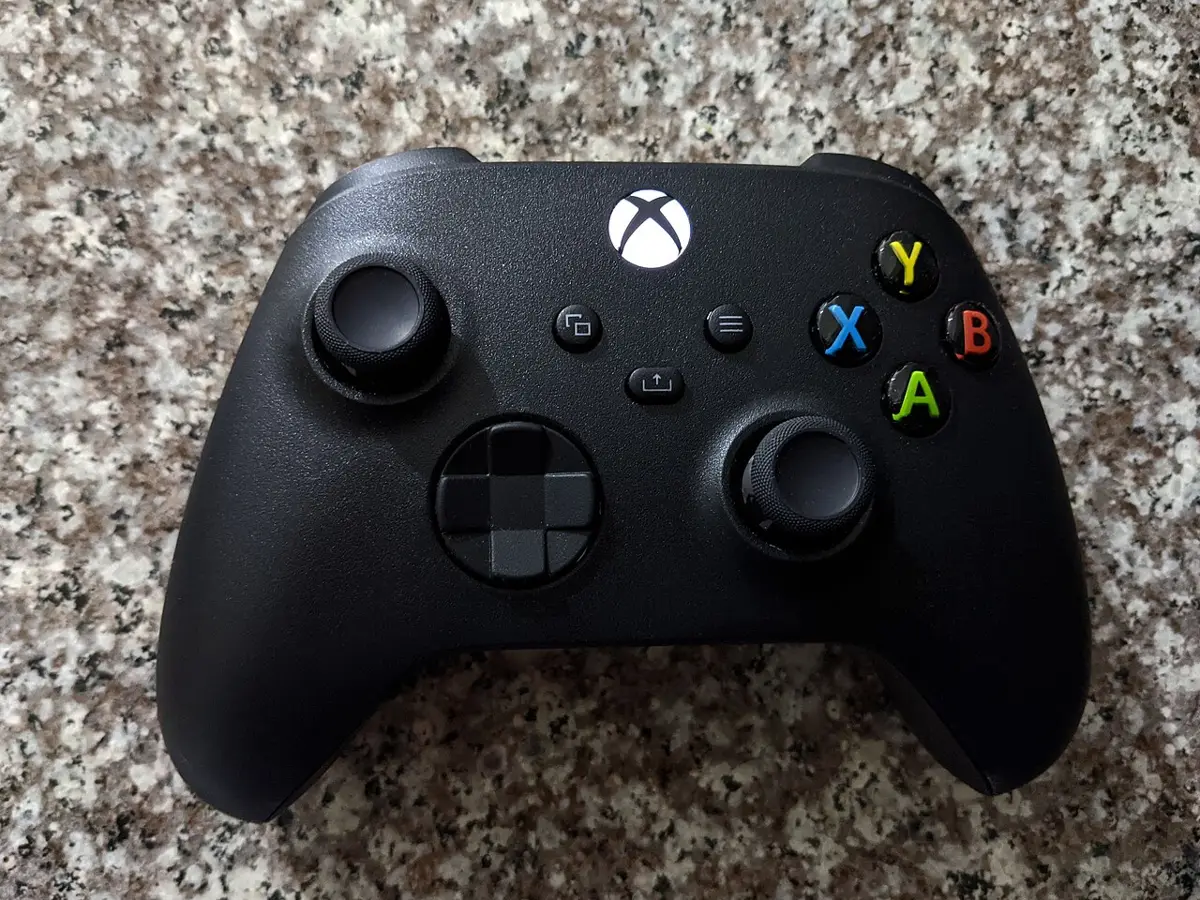
Android maps controller buttons by position, not by the letter printed on them. Many 8BitDo pads use Nintendo's layout, with B on the bottom and A on the right. Android expects the Xbox layout, where A is the bottom button. Android's own source code says this outright: its button map for the SN30 Pro in Android (D-input) mode notes that the button "labeled as B" should "really produce keycode A" (Android source). X and Y swap the same way.
So when a game shows an "A" prompt, press the bottom button, whatever its letter says. That's the right call in most Android games and emulators. If you'd rather have the letters match:
- Android 17: you can swap any two buttons in the phone's own settings. For a Bluetooth controller, Google's help page puts it under Settings > Connected devices > tap the controller > Game Controller settings. Swap A with B, then X with Y.
- Ultimate Mobile Gaming Controller: its manual has a fast swap. Hold A + B and press the Star button. The swap resets when you turn the controller off.
- Older Android versions: use the game's control settings or your emulator's input settings.
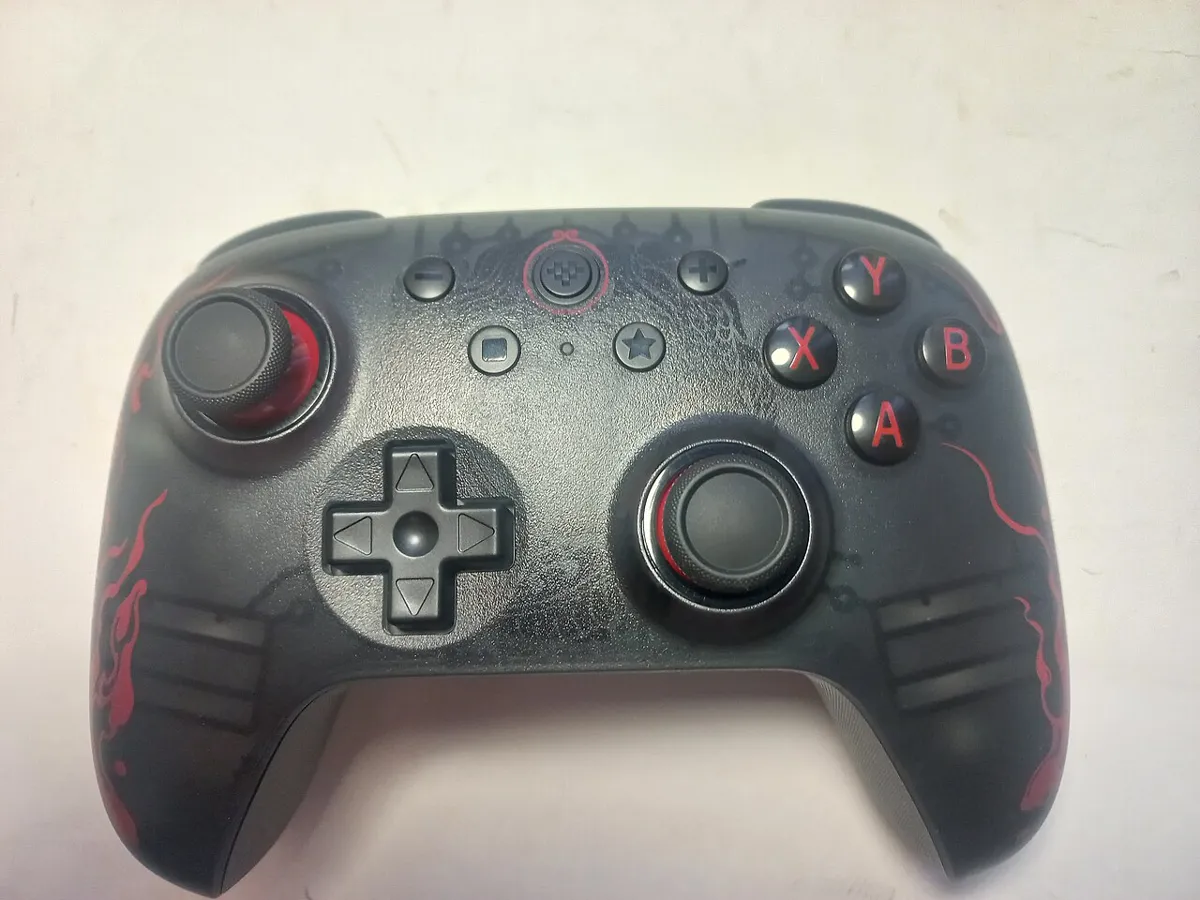
The Ultimate 2C Wireless and Ultimate 2 Wireless don't have this problem. 8BitDo lists both with an Xbox layout, so the letters already match what Android games show.
Can I use a USB cable or the 2.4G dongle instead?
A cable works on several models; the newer dongles don't. For any wired setup, your phone has to support USB OTG (acting as a USB host), and the cable has to carry data, not just charge.
- Pro 2 and Pro 3: slide the switch to D, then plug the controller into the phone.
- Ultimate 2C Wired: hold B while you plug it in. The status light stays solid once Android recognizes it.
- Ultimate C 2.4G (the older dongle model): plug the receiver into the phone, then hold B + Home to turn the controller on.
- Ultimate 2C Wireless and Ultimate 2 Wireless: 8BitDo lists their 2.4G dongle and wired mode for Windows only. On a phone, use Bluetooth.
Wired is worth trying if a fast shooter feels a beat late over Bluetooth, since it skips the wireless hop.
Do I need the 8BitDo Ultimate Software app?
No. Pairing happens entirely in Android's Bluetooth settings. The app is only for remapping buttons, stick and trigger tuning, and profiles, and the two Android versions on Google Play support different controllers:
- 8BitDo Ultimate Software lists the Pro 2, the Micro, the Ultimate Bluetooth, the Ultimate 3-mode Controller for Xbox and two wired Xbox pads. Its last update was October 9, 2025.
- 8BitDo Ultimate Software V2 lists only the Ultimate Mobile Gaming Controller (two editions), as of November 28, 2026.
So if you own a Pro 3, an Ultimate 2 Wireless or an Ultimate 2C Wireless, don't expect the phone app to find it. 8BitDo's Pro 3 page says to connect it to Ultimate Software on a Windows PC or Mac, by cable or the 2.4G dongle. On the Micro, the app's button mapping works in Keyboard mode only.
Which games can I play with it?
Any Android game with controller support, plus emulators and cloud gaming apps. Support varies by game, from full menus-and-gameplay to "only during matches". Our list of mobile games with controller support rates each one, and the Offline Android Games Directory lets you filter controller games by offline play, ads and size.
8BitDo's small SNES-style pads (SN30 Pro, Lite 2, Micro) are best at 2D and retro games. A Pro 3 or Ultimate 2 Wireless suits two-stick shooters and racing games better.
8BitDo still won't connect? Check these
| What you see | Try this |
|---|---|
| Controller never appears in the list | Check the model can pair with Android at all (see above). Then turn it off, set D or BT, turn it on and hold Pair until the lights flash fast. |
| It paired, but games ignore it | It's probably in the wrong mode (S, X or A). Forget it on the phone, switch to D, pair again. |
| Shows up as a keyboard | On the Micro, the switch is on K (Keyboard mode). Slide it to D. |
| Won't pair on an older phone | Pro 3, Ultimate 2 Wireless, Ultimate 3C+ and the Ultimate Mobile Gaming Controller need Android 13 or later. |
| A and B feel backwards | Expected on Nintendo-layout pads. See the A/B section above. |
| Keeps dropping | Charge it, forget it on the phone, turn Bluetooth off and on, and pair again. Disconnect Bluetooth gear you aren't using. |
| Motion controls don't work | Expected on the Pro 2 and Lite 2. 8BitDo lists their motion control as "for Switch only". |
If 8BitDo's support site has a newer firmware for your model, update it from a PC; 8BitDo's product pages point to support.8bitdo.com for updates. And if no Bluetooth device will pair with your phone, the controller isn't the problem. Our Bluetooth not connecting guide walks through the phone side.
How we made this guide
We built this guide on November 28, 2026 from 8BitDo's manuals for each model (manual.8bitdo.com and the PDF manuals on download.8bitdo.com), 8BitDo's product spec pages, the two 8BitDo apps' US Google Play listings, Google's Android help page on game controller settings, and the 8BitDo button map in Android's open-source code. We have not paired an 8BitDo with our own phone for this guide yet, so treat the steps as the documented ones, not a hands-on report. We'll add our own screenshots when we have them.
Frequently Asked Questions
Can my 8BitDo stay paired with both my Switch and my phone?
On models with a mode switch, the switch position picks the device: S for a Switch, D (or BT on the Ultimate Wireless pads) for Android. 8BitDo's manuals say you only need to hold Pair the first time, so after that, turn the controller on in the mode for the device you want to use.
Does gyro or motion control work on Android?
Don't count on it. 8BitDo lists motion control on the Pro 2 and Lite 2 as for Switch only, and on the Ultimate 2 Wireless it lists motion control under 2.4G mode, which is the Windows dongle connection rather than the Bluetooth link a phone uses.
Can I connect two 8BitDo controllers to one Android phone?
Yes, Android can pair more than one Bluetooth controller, and each pad pairs the same way. Whether a game gives each one its own player depends on the game, so check its local multiplayer or controller settings.
How do I update my 8BitDo's firmware?
Use a computer. 8BitDo's product pages point to support.8bitdo.com for firmware updates, and the Pro 3 page says to connect the controller to Ultimate Software on Windows or macOS by cable or the 2.4G dongle. The Android apps don't update most current models.